
If you’re a developer and you just got your new PC, setting up Windows is a nightmare that takes almost an hour, and even if you skip the updates in OOBE, you will still be bombarded with a number of upsells, all of which you must deny, and when you finally reach the desktop, you’ll still have to deal with a lot of bloatware and defaults, most of which you don’t ever need in your line of work.
And the next hour would be spent on a number of things like turning on Developer Mode, file extensions and hidden files, turning off Start recommendations, disabling Widgets, cleaning up Search, and then installing PowerShell 7, Git, VS Code, WSL, and a dozen other tools one by one.
Well, Microsoft has now automated this whole ritual. Windows Developer Config is Microsoft’s open-source project for turning a fresh Windows 11 install into a ready-to-code machine with a single command.
We previously covered Project Zenith, Microsoft’s developer-focused Windows setup coming to specially configured hardware needing 64GB of RAM. Windows Developer Config is the version anyone can run on an ordinary PC, no special hardware required.
I installed a fresh copy of Windows and tested Windows Developer Config. Here is what it changes in the OS, and what it does not tell you until you have already committed to it.
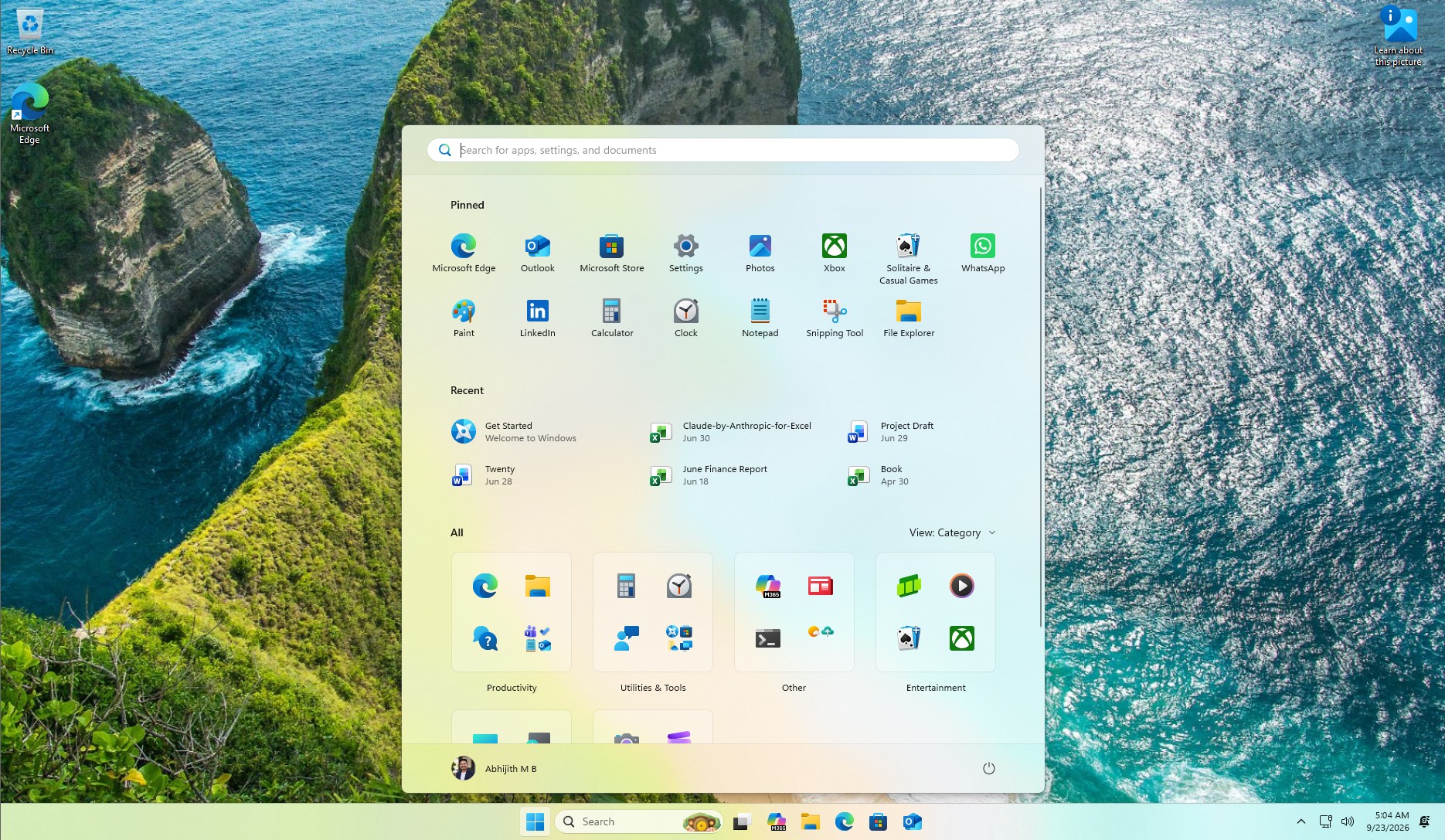
Windows Developer Config rebuilds a fresh Windows 11 install in one command
Microsoft calls this an “opinionated” developer workstation setup. It is idempotent, meaning every change is checked against the current state before running anything, so re-running it on a machine that already has these settings just confirms them instead of repeating work. The current build runs 50 individual steps across 11 phases, each structured as a check, an apply, and a second check.
The launch command is a single PowerShell one-liner. You don’t have to clone the repository, but make sure you have at least 15GB of free space.
How to install Windows Developer Config
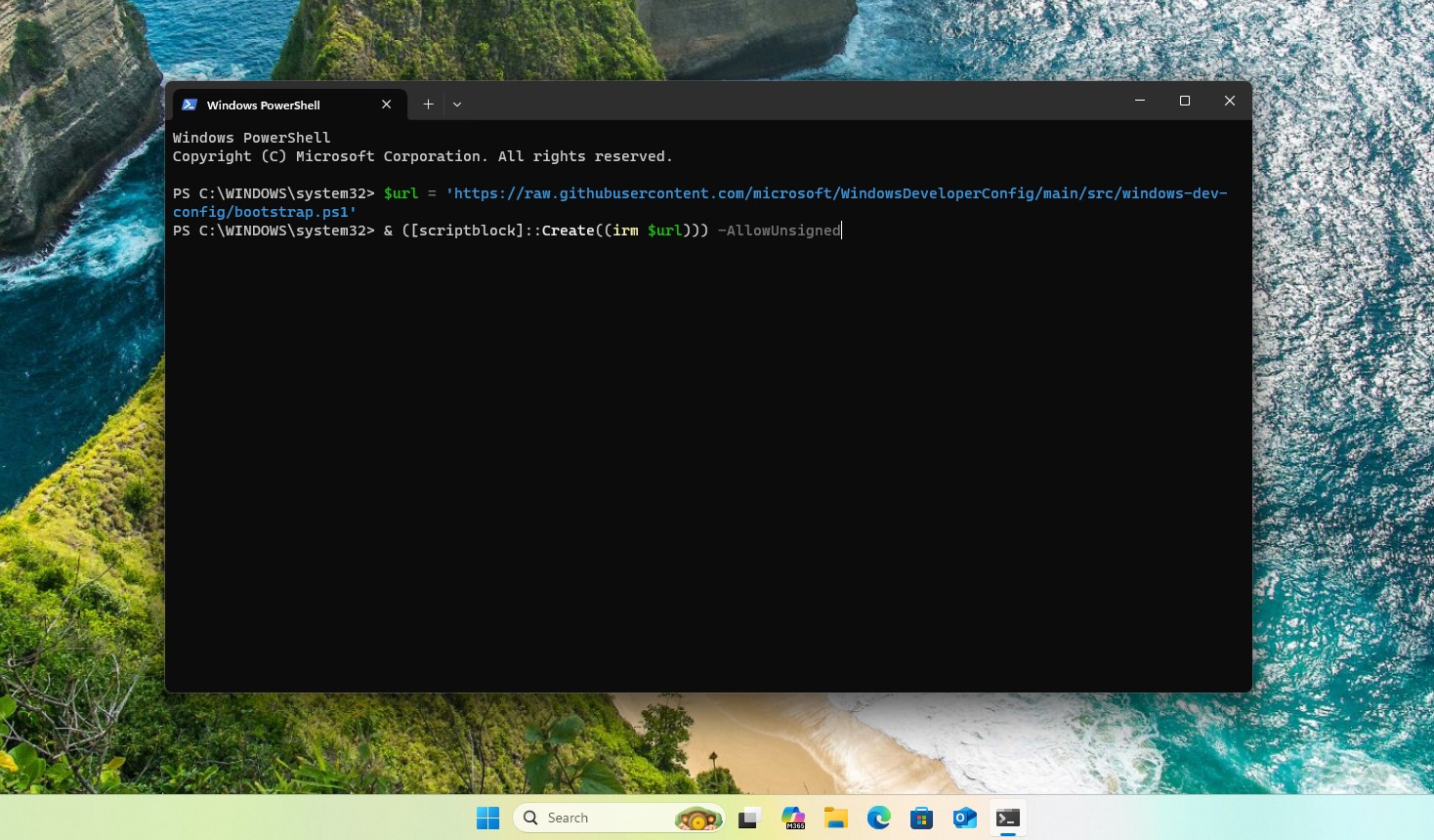
To activate Windows Developer Config, open any PowerShell window. Microsoft says it doesn’t have to be elevated, but my PC showed an error, and it worked only when I ran PowerShell as administrator. Then paste the following command:
$url = ‘https://raw.githubusercontent.com/microsoft/WindowsDeveloperConfig/main/src/windows-dev-config/bootstrap.ps1’
& ([scriptblock]::Create((irm $url)))
The command will then download the bootstrap script, request UAC elevation if needed, verify the Microsoft Corporation signature on every script it runs, copy everything into an administrator-protected folder under %ProgramData%CalmOS, and start working (yes, I too find it funny that it’s called Calm OS).
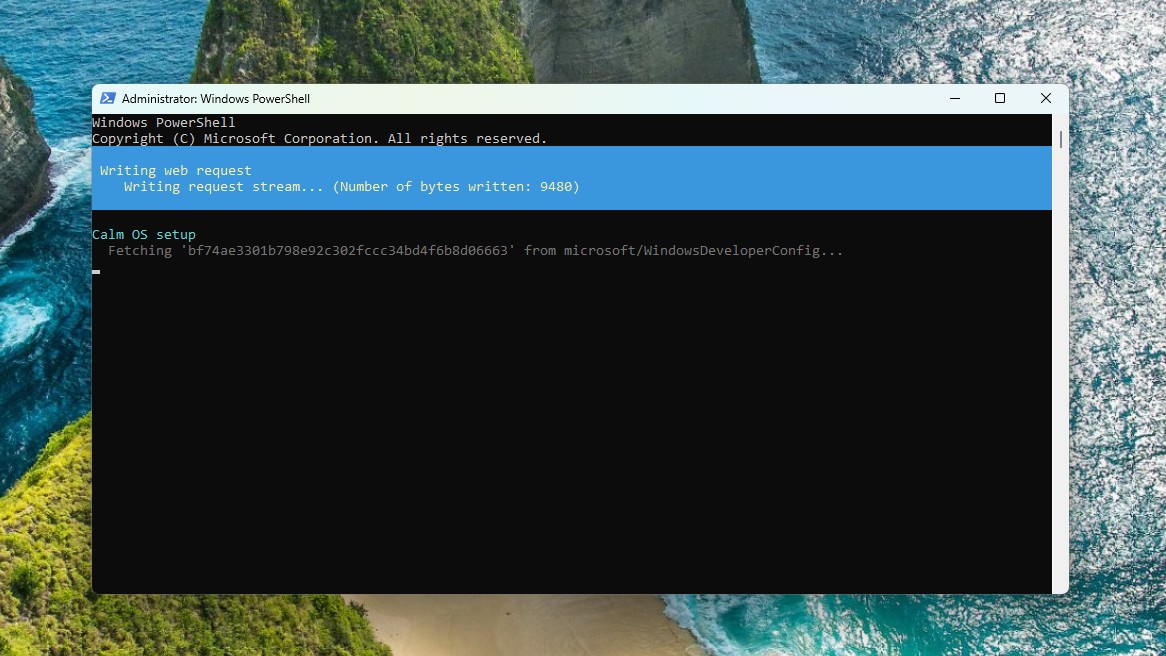
Microsoft estimates 30 minutes on a clean machine with a decent connection, most of it downloading VS Code, the .NET SDK, PowerToys, and Ubuntu. My PC took the same amount of time.
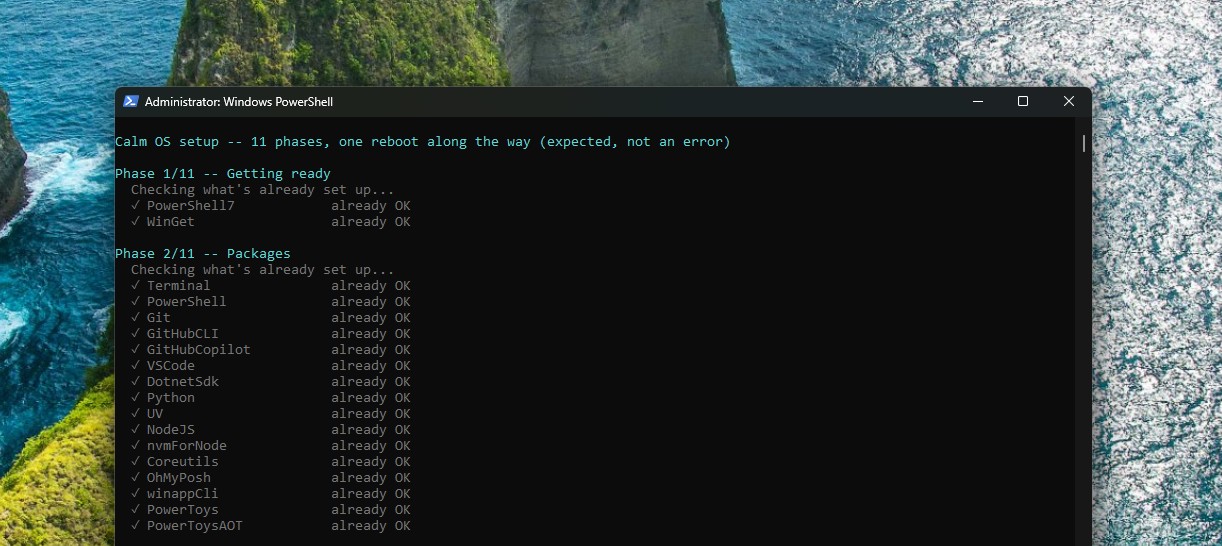
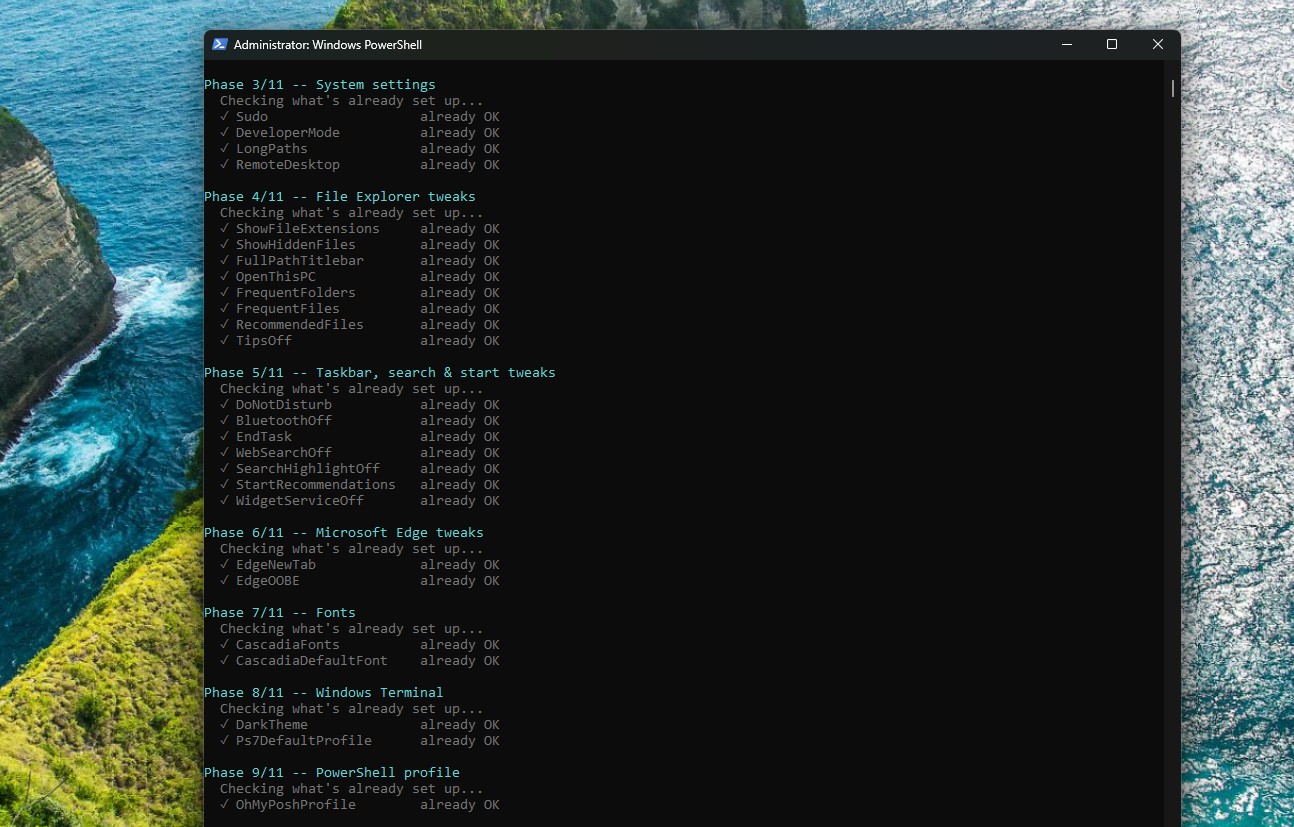
Ten of the eleven phases run first: packages, system settings, Explorer, taskbar and search, Edge policy, fonts, Terminal, PowerShell profile, and GitHub Copilot.
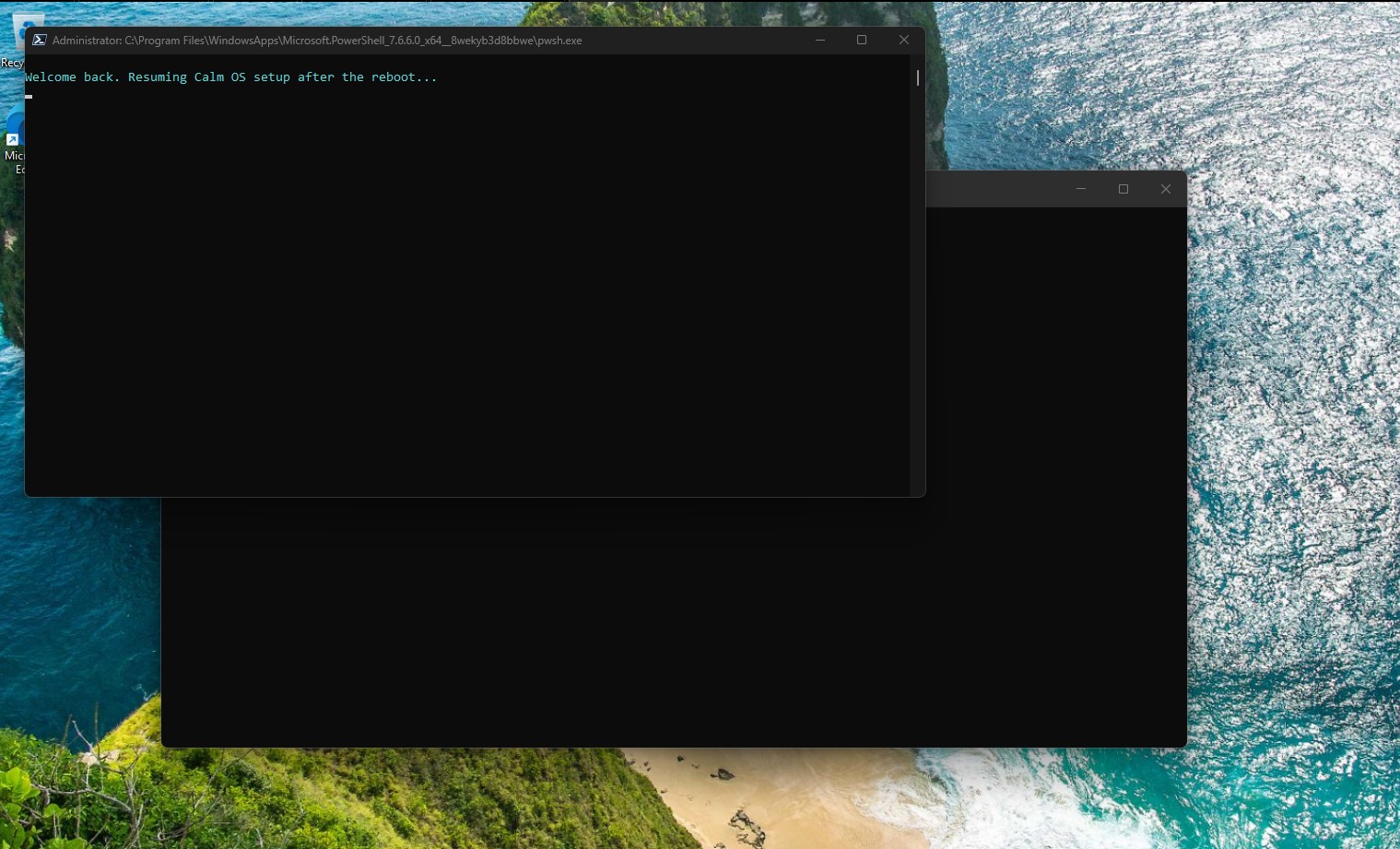
WSL and Ubuntu install last, since enabling WSL needs a Windows optional feature that requires a restart. A 10-second warning precedes the reboot, a scheduled task named WindowsDevConfigResume resumes the run about 30 seconds after you sign back in, and a second UAC prompt finishes the job. Unlike some Windows updates, you’ll only see your PC restart once.
Every system setting Windows Developer Config changes
Before you get disappointed, I want to stress that this is not a Windows de-bloating tool that is popular online, nor is this a Windows AI removal tool, and we would recommend avoiding those as they are not officially supported by Microsoft.
The changes by Windows Developer Config are the small defaults every developer wishes Windows had. Things like Developer Mode, Windows Sudo in inline mode, Win32 long-path support, and Remote Desktop all get enabled system-wide.
Microsoft groups all 24 registry changes into six categories across Phases 3 through 9, plus the package installs in Phase 2. Everything below follows that same order.
Phase 2/11: Packages
All 15 packages install through winget from the winget source, silently, with agreements pre-accepted. A package only counts as done once winget reports it both installed and current, which is why a re-run also catches available updates.
- Windows Terminal – the modern terminal host, set as default later in Phase 8
- PowerShell 7 – installed if missing; the whole setup relaunches itself on this once installed
- Git – the version control client
- GitHub CLI – the gh command-line tool
- GitHub Copilot CLI – command-line Copilot access, later linked to a Terminal profile
- Visual Studio Code – the code editor
- .NET SDK 10 – the current .NET SDK
- Python 3.14 – the current Python release
- uv – the fast Python package and project manager
- js LTS – installed alongside nvm for Windows in the same pass (see the note below)
- nvm for Windows – a separate Node version manager, installed at the same time as Node.js LTS itself
- Coreutils for Windows – GNU-style command line utilities
- Oh My Posh – the prompt theming engine, wired into PowerShell in Phase 9
- Windows App CLI – the Windows App Development CLI
- PowerToys – Microsoft’s power-user utility suite
Phase 3/11: System settings
- Windows Sudo is enabled in inline mode.
- Developer Mode is switched on system-wide.
- Win32 long-path support is enabled, removing the old 260-character path limit.
- Remote Desktop connections are allowed. The Windows Firewall rule for RDP is not opened automatically, so this does not expose the machine to the network.
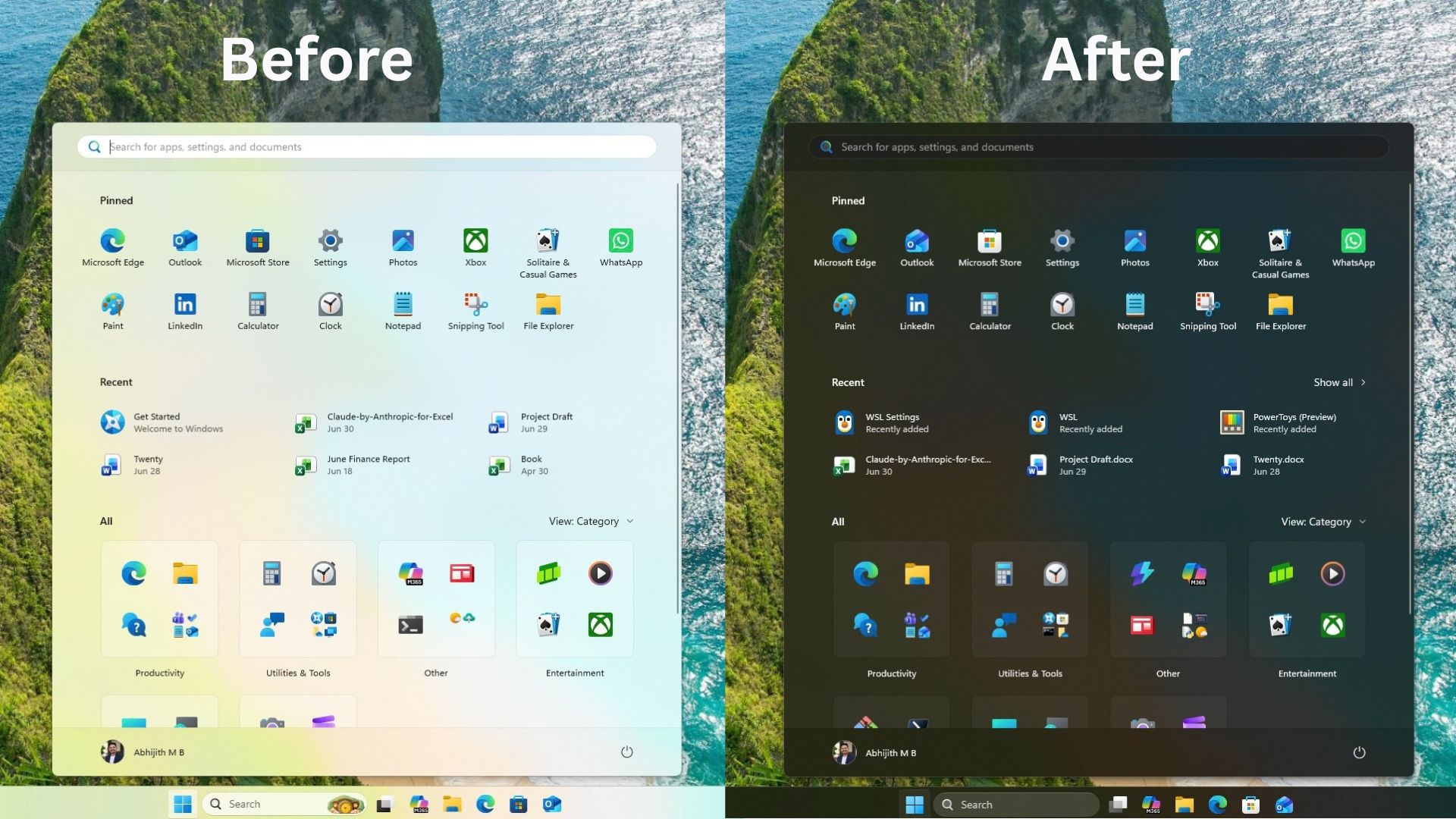
File Explorer shows file extensions and hidden files, displays the full path in the title bar, opens to This PC instead of Quick Access, and drops frequent folders, recent files, cloud recommendations, and sync-provider tips from the sidebar.
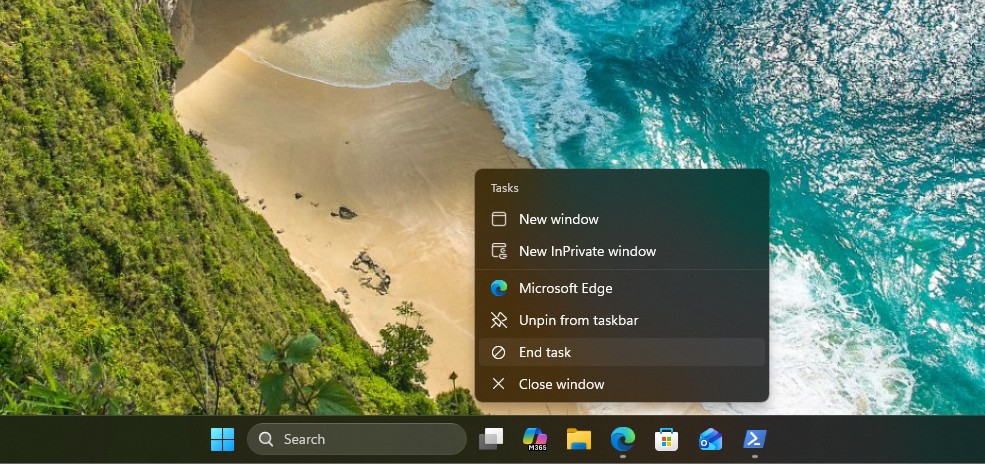
On the taskbar and Start side, End Task gets added to the right-click menu, web results and search highlights disappear, Start recommendations turn off, Widgets gets disabled through the OS policy value (the per-user toggle no longer works on 24H2 and later), and PowerToys stops sending always-on-top toasts.
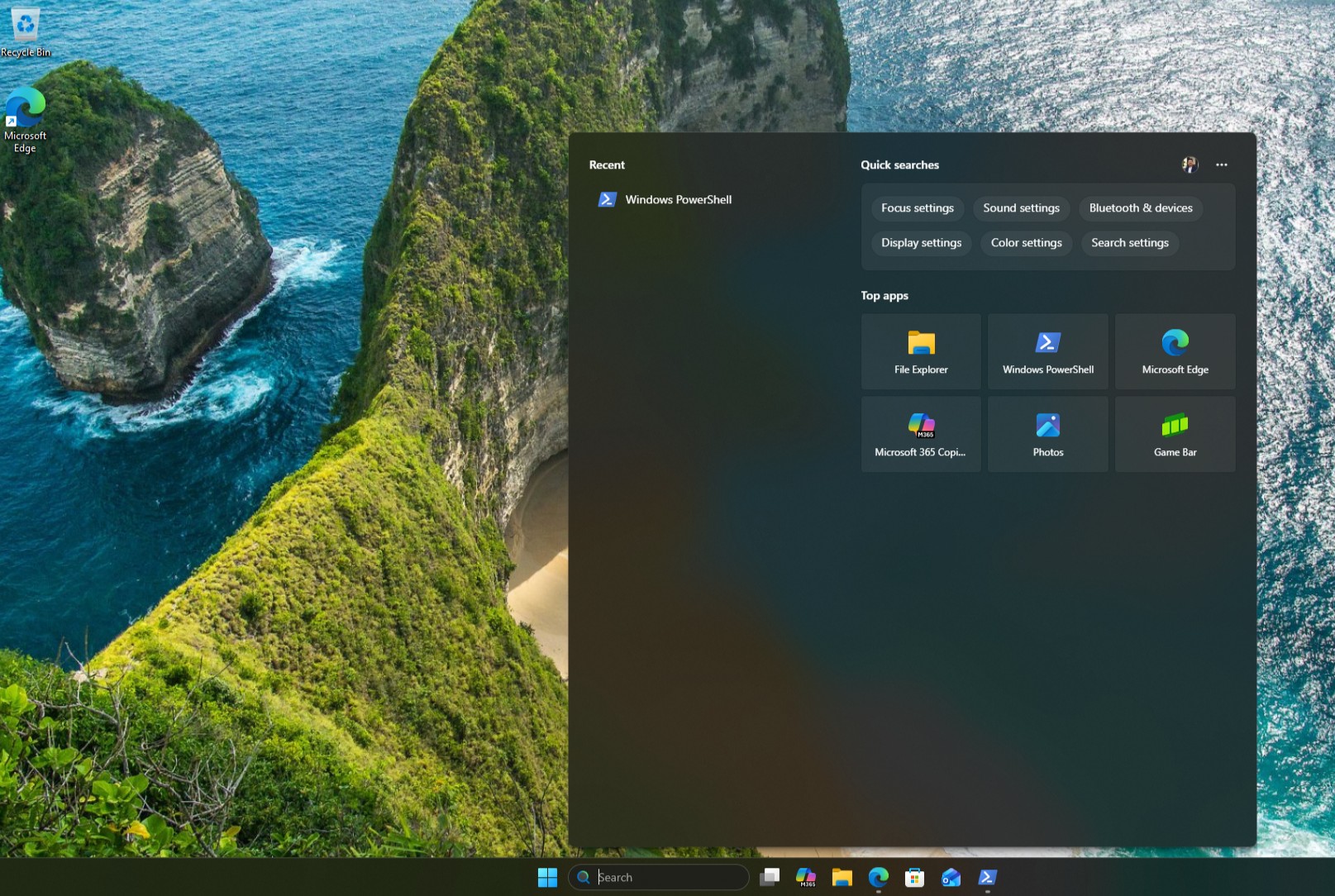
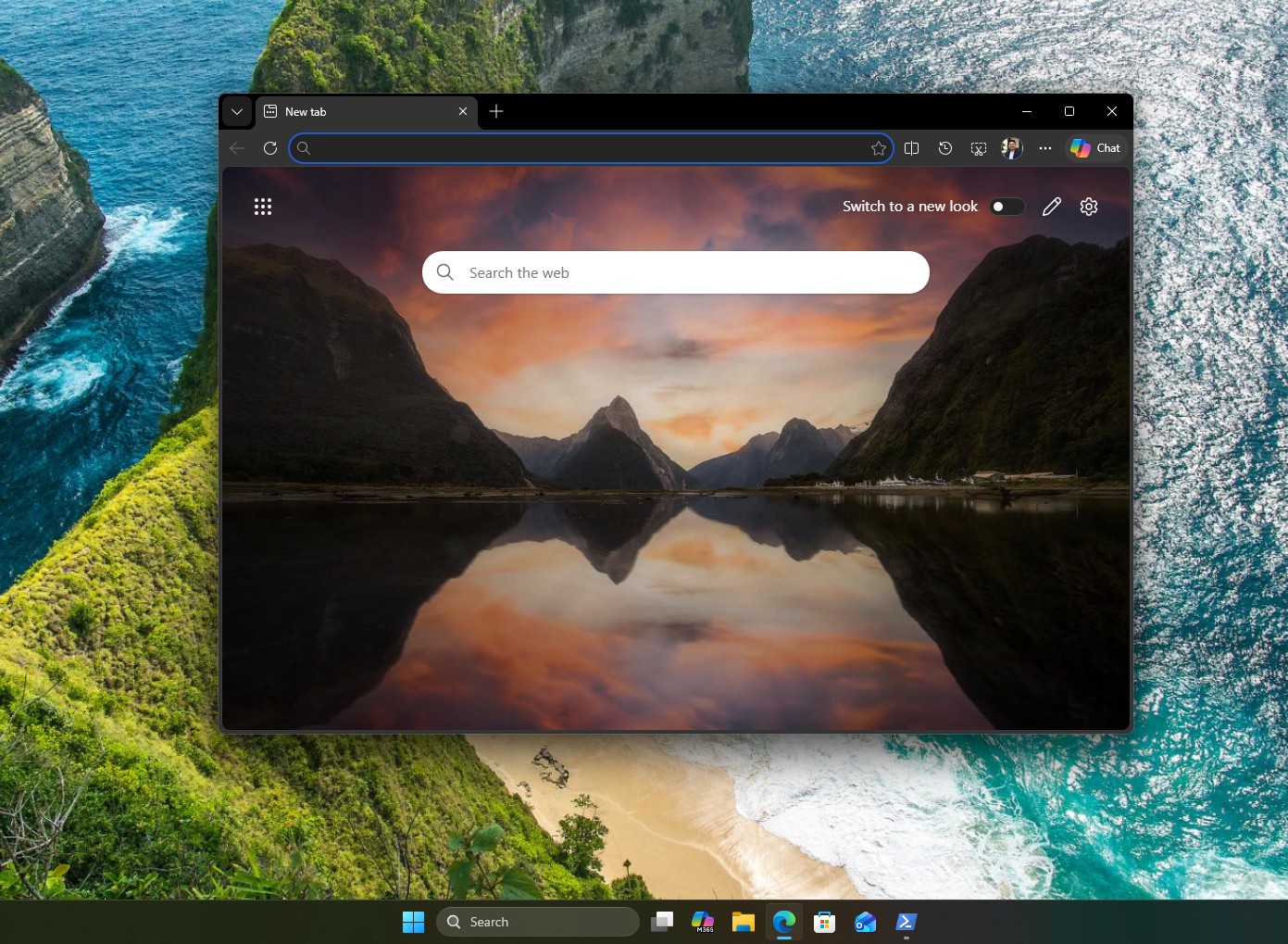
Do Not Disturb goes on globally. Edge gets a blank new tab page, and its first-run experience is suppressed. These steps aren’t removing any Windows component. They suppress defaults that exist to sell or show you something.
Dark mode switches on for both apps and the system, Windows Terminal gets PowerShell 7 as its default profile and Cascadia Mono Nerd Font as its default face, and Oh My Posh initializes straight from your PowerShell profile. Microsoft pins a specific Cascadia Code release, 2407.24, verified against a known SHA-256 hash before installing it system-wide, instead of pulling whatever the newest release is.
It installs almost everything a developer needs
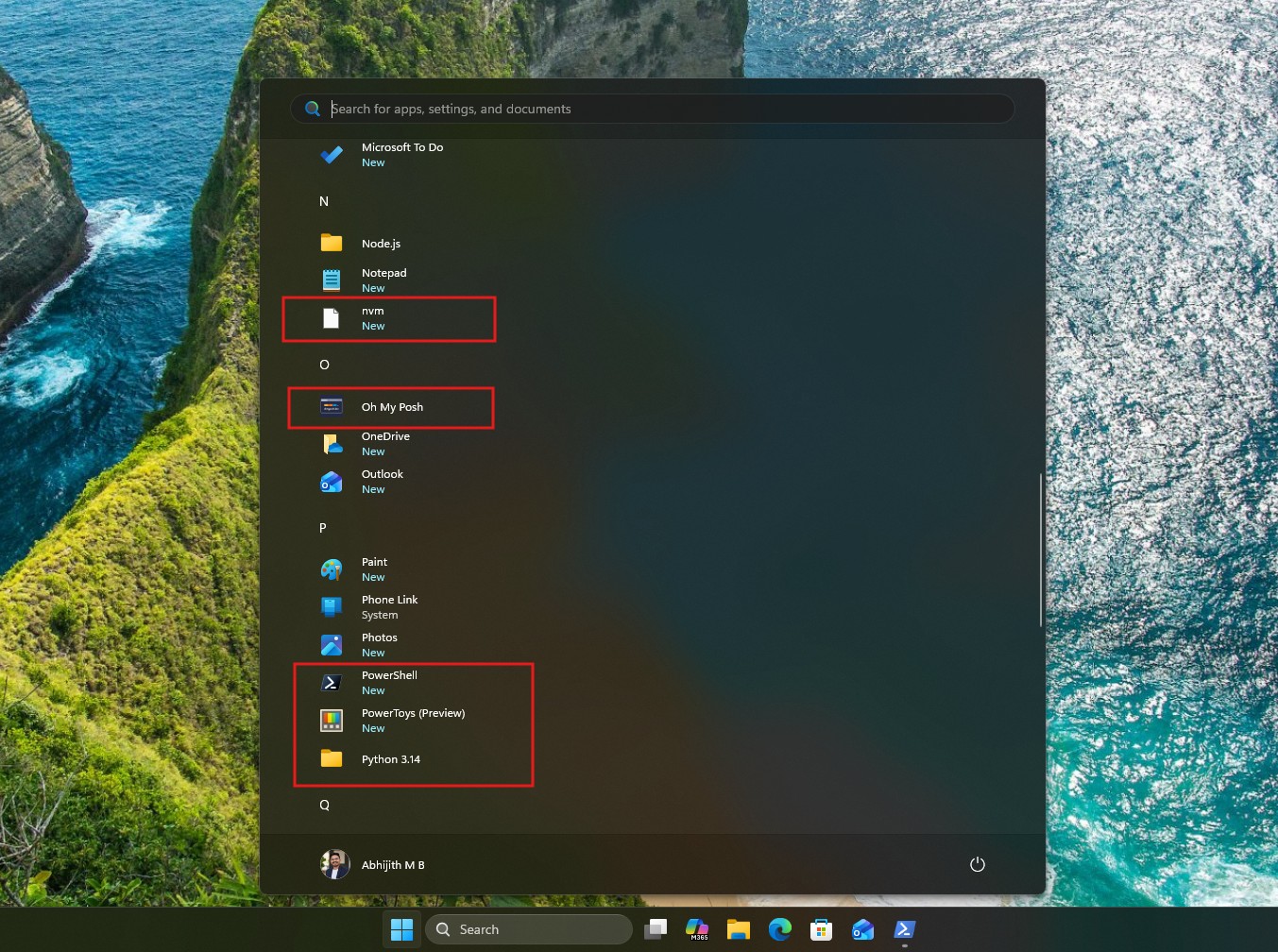
The package list is not small: Windows Terminal, PowerShell 7, Git, GitHub CLI, GitHub Copilot CLI, VS Code, .NET SDK 10, Python 3.14 with uv, Node.js LTS, nvm for Windows, Coreutils for Windows, Windows App CLI, Oh My Posh, and PowerToys, all through winget. A package only counts as done once winget reports it installed and current, so a re-run also catches available updates.
Note that the base configuration installs both Node.js LTS and nvm for Windows in the same pass. Those are two different ways of managing Node, and Microsoft recommends you uninstall the direct Node.js install if you want nvm to own your PATH.
GitHub issue #55, filed June 3, 2026, documents this conflict between the main configuration installing nvm4w and the TypeScript workload installing Node.js LTS. So, decide which manager you want before both show up on the same machine.
The configuration also reaches into two developer-specific extras. It can add WinUI templates for dotnet new, and register Microsoft’s Windows Development Skills and WinUI plugin with GitHub Copilot CLI, which is part the native code push that lets Copilot scaffold a native WinUI app in about 30 minutes without Visual Studio.
Then it hands you Linux, a shell overhaul, and eleven language toolchains
Windows Dev Config installs the WSL platform and Ubuntu as its final phase, but Microsoft mentions that the base configuration does not touch anything inside Ubuntu, which is a job that belongs to a separate tool in the same repository called WSL Comfort.
Windows Dev Config gets you the workstation, the tools, and a working WSL plus Ubuntu. What WSL Comfort does is make that Ubuntu environment feel like a proper developer shell instead of a bare distro. I’m definitely understating the addition of Linux components here. Microsoft is well aware of how developers reject Windows to go for Linux or macOS.
WSL Comfort runs interactively by default and lets you pick pieces: zsh or bash, an optional Starship prompt, modern CLI tools including fzf, ripgrep, fd, bat, eza, zoxide, and jq, optional clipboard shims, optional Homebrew, sensible Git defaults, and a themed Terminal profile with the same Cascadia Code Nerd Font.
It also runs unattended with -NonInteractive and a smaller –minimal mode, which is part of the good direction in WSL Containers that can replace Docker Desktop, and now has faster file access and networking.
Interestingly, Canonical has said that Ubuntu usage through WSL now grows faster than native Ubuntu desktop installs, which makes this repository a contributor.
For anyone who wants just one language, the repository also ships eleven standalone workloads, each a configuration.winget file with a matching install script that refreshes PATH afterward.
- TypeScript installs Node.js LTS plus global typescript.
- PHP installs 8.5.
- .NET installs SDK 10.
- Go installs the current rolling release.
- Java installs the Microsoft Build of OpenJDK 25 LTS.
- Rust installs stable via rustup.
- Python installs 3.14 with uv.
- SQL installs a lightweight SQL Server setup with sqlcmd and the VS Code extension.
- PowerShell installs 7 with VS Code tooling.
- WinForms installs .NET plus the Windows Forms workload.
- WinUI 3 installs .NET, Visual Studio Community, and the Windows App SDK together.
Note that WinForms and WinUI 3 both pull down several gigabytes of Visual Studio components.
Although it looks like Redmond is forcing some predetermined defaults, it is not trying to get every developer onto the same setup. The company is building a shelf of reproducible starting points.
A PowerToys Command Palette extension is also coming, reading the same flow list so every workload becomes a launchable entry instead of a file path to remember, though it lives under src/future/cmdpal today and is not shipped yet.
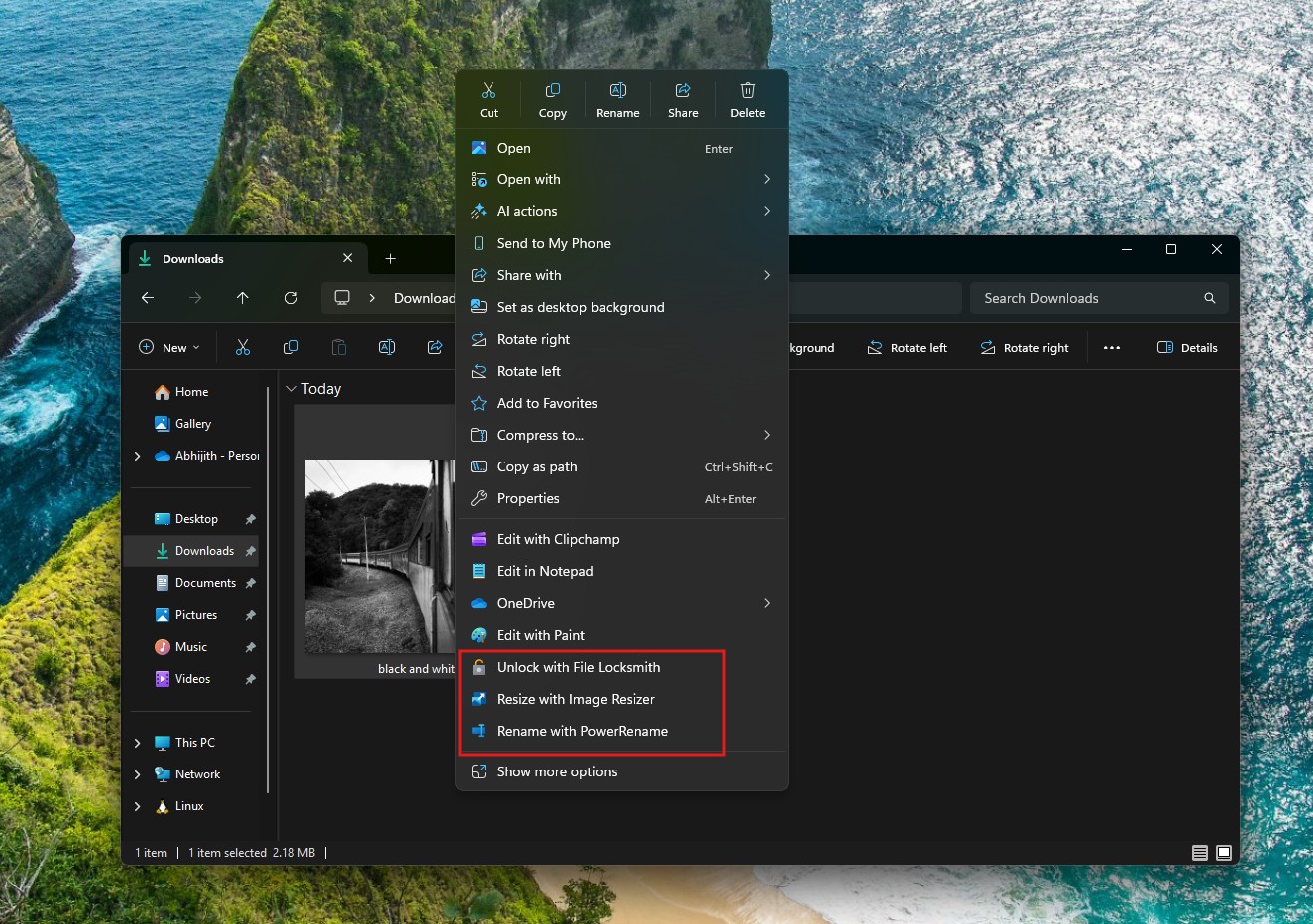
Since Windows Developer Config is, in fact, for software development, some configurations may not be ideal for daily use. It enables Remote Desktop system-wide, though the firewall rule stays closed. It writes two Edge settings as policy, so Edge shows “managed by your organization.”
Global Do Not Disturb silences every app’s notifications, at all times. Windows Terminal’s settings.json gets round-tripped through JSON, so any comments you had are gone, though Microsoft writes a .bak copy first.
As for the command, there is no automatic uninstall, no runtime screen to pick pieces, and no dry-run mode.
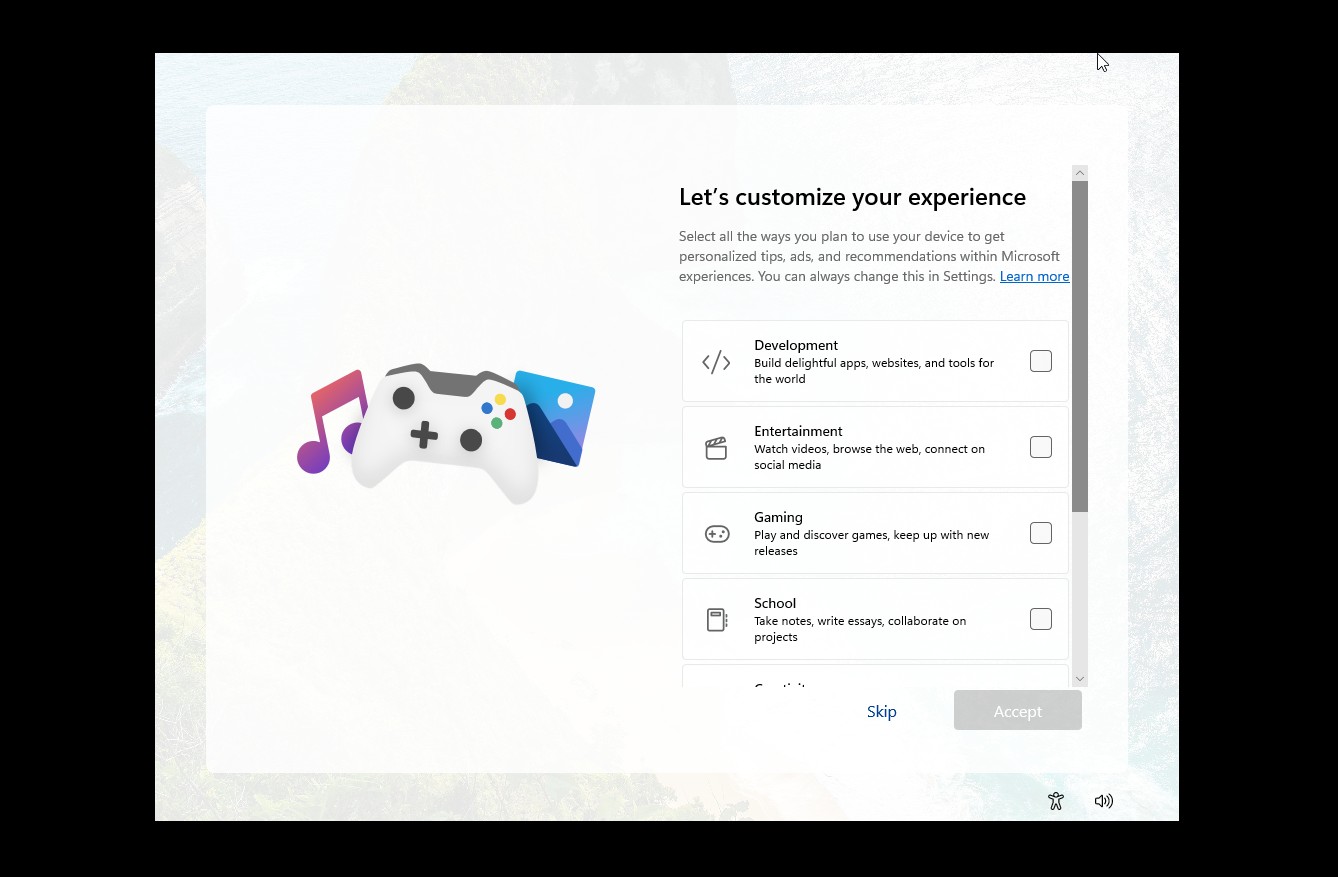
About the debloating part, it does remove MSN, Widgets, and a few other upsells as well. But the interesting part is that while installing Windows, it shows a page to customize Windows where you can choose Development, Entertainment, Gaming, and more. I do hope that, in the future, choosing Development alone would bring the same changes that Windows Developer Config brought.
Windows Developer Config is not another script that deletes a couple of preinstalled apps and flips a few registry keys. This is Microsoft finally writing down, in public, what developers have been doing to Windows by hand for years.
The post I tested Microsoft’s secret tool that debloats Windows 11 and makes you a power user appeared first on Windows Latest