
If, like me, you often lose your mouse pointer on a large monitor or in a multi-monitor setup, Windows can show an animated circle around the cursor when you double-press Ctrl. Microsoft calls it Mouse Indicator, and if you have been using Windows for years, you’ll know that it has been in the OS without any change for three decades, until now!
Microsoft is now giving it a proper visual update in Windows 11 Insider Preview Build 26340.9502, released September 18, 2026, to the Experimental Channel. We spotted the modernized Mouse Indicator before Microsoft announced it, while it was still a prototype.

Now that it has arrived in an official Insider build, I spent time using it and compared it with PowerToys’ far more configurable Find My Mouse.
Windows 11’s Mouse Indicator finally gets the animation it deserved
Microsoft’s release notes for Build 26340.9502 say: “We’re introducing a sleeker new animation for the Mouse indicator. You can enable this animation under Accessibility settings. We’ve also added the option to keep the indicator activated until you press the Esc key.”
You will find it at Settings > Accessibility > Mouse pointer and touch > Mouse indicator, the same toggle that has been there for years.
Apart from the toggle, the old version gave you nothing to customize.
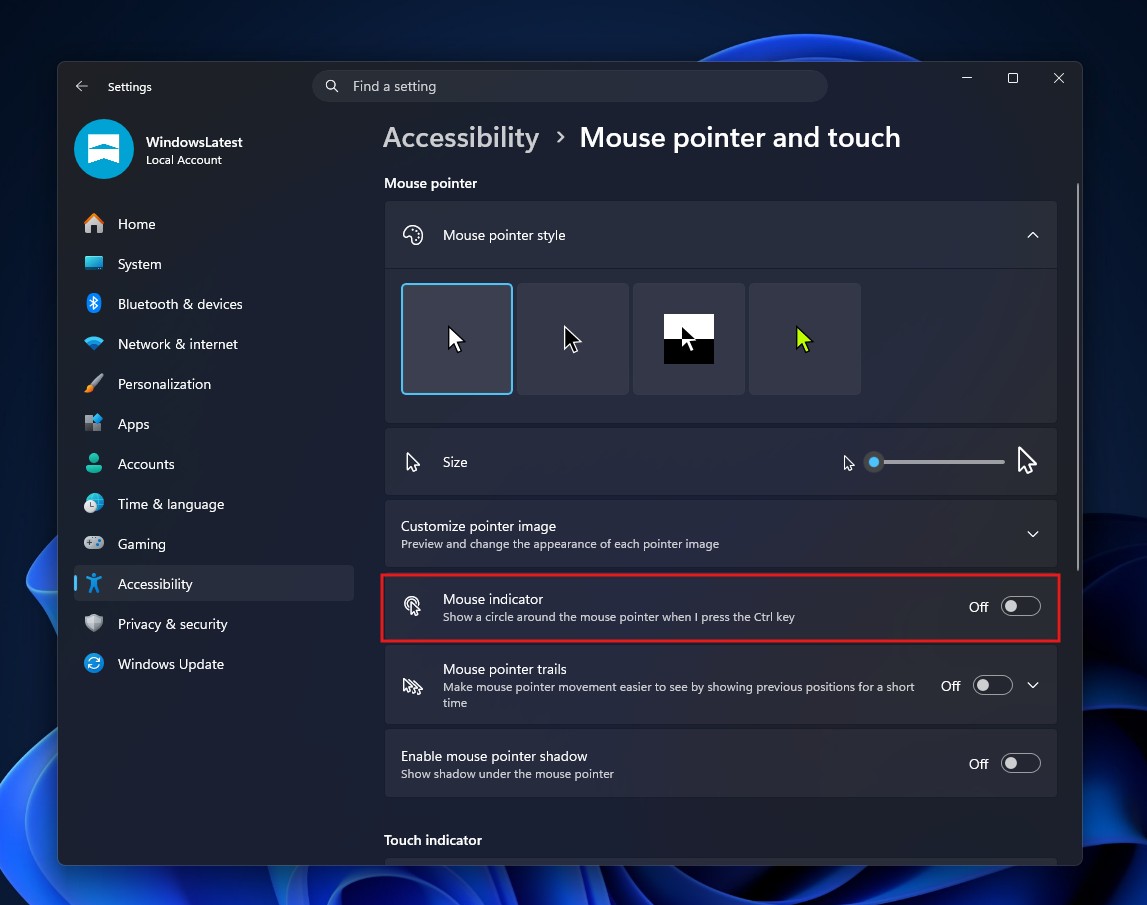
In the older version, if you turn Mouse Indicator on and double-press Ctrl, a circle that looks like an 8-bit game shows up around the pointer for a second.
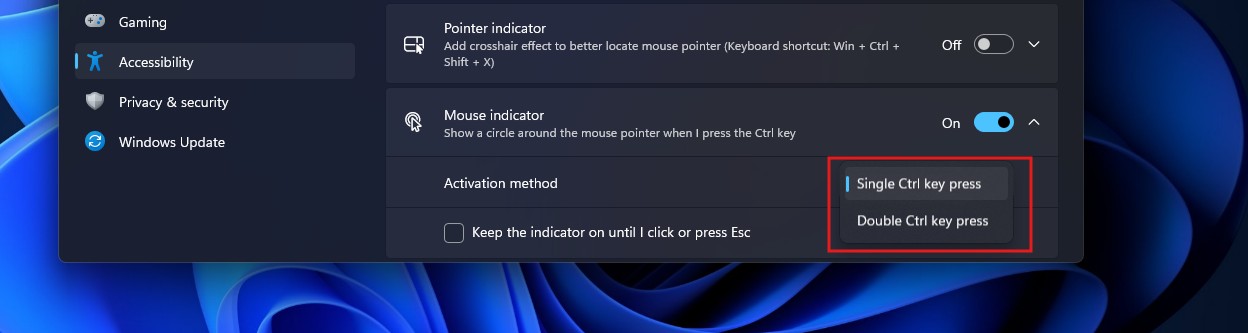
Of course, it’s high time that Microsoft modernized all elements in Windows 11, including this one. The new Experimental build adds two controls. The activation method now lets you choose between a single Ctrl press (the default, as of now) or a double Ctrl press.
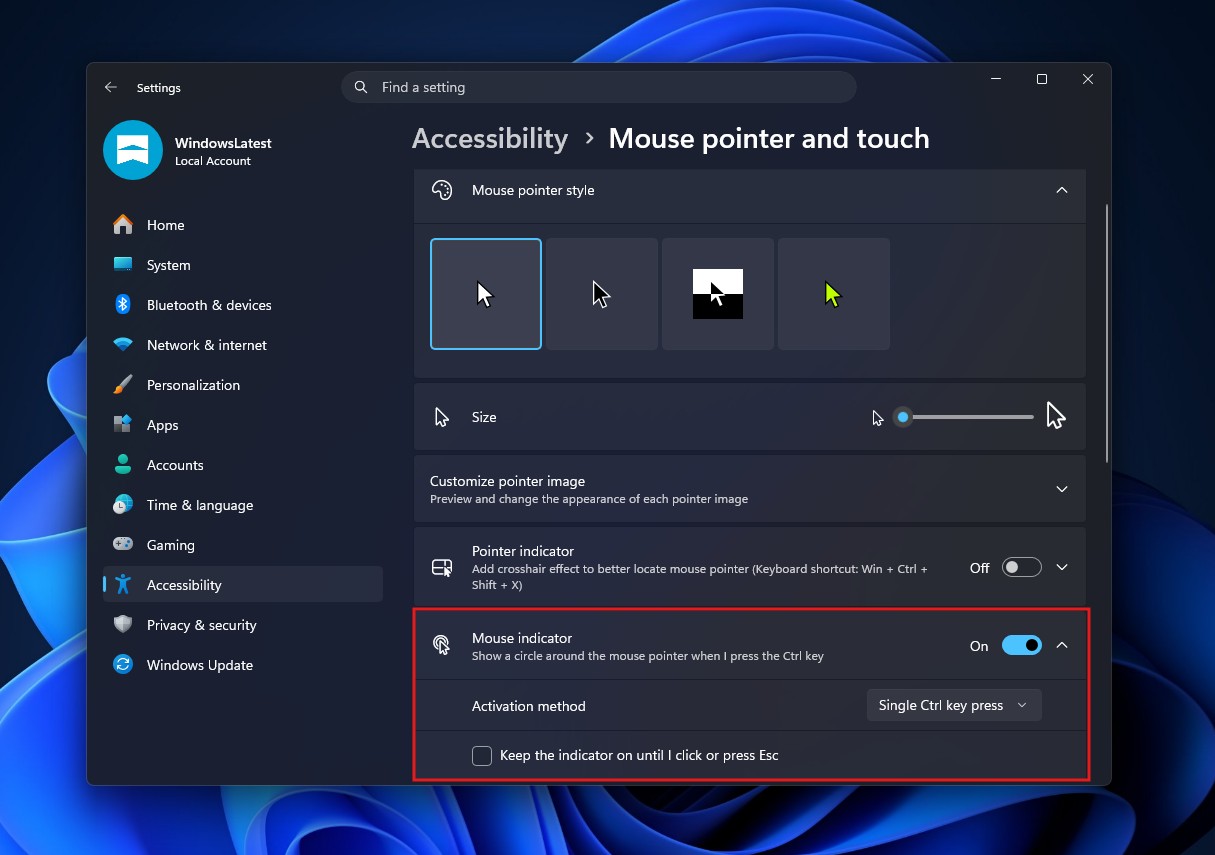
A new checkbox labeled “Keep the indicator on until I click or press Esc” turns the indicator persistent instead of a flash that disappears. Since double-press Ctrl was the muscle memory for millions of Windows users, I am hoping that Microsoft makes it the default setting. However, I’m happy to see the customization.
Our earlier testing build required Win+Ctrl+Shift+M to trigger the persistent Mouse Indicator. That shortcut is gone from this Insider build and replaced by a checkbox next to the regular Ctrl activation, which is a better way to do it.
I tested the new animation, and it is noticeably smoother
In my testing, the new animation looks considerably smoother than the old Mouse Indicator, and it appeared to run beyond what a standard 30fps screen recording could capture.
Windows 11’s built-in screen recorder captures at 30fps, so the smoother motion did not show up properly in my first recording. Frames in between the recording may have been cut, making the animation look choppier on video than it looked on screen. I switched to a third-party recorder, Recordly, which records at 60 fps.
Mouse Indicator still does the same basic job either way, helping you find the cursor. That is its one job, but I’m happy to see Microsoft modernizing another part of Windows 11.
PowerToys Find My Mouse is still much more powerful
It’s good that Microsoft keeps bringing PowerToys-style utilities into Windows, as the universe intended! But PowerToys’ Find My Mouse is in a completely different league when it comes to customization.

Microsoft’s PowerToys documentation for mouse utilities shows everything you can adjust. The activation method alone gives you Left Ctrl twice, Right Ctrl twice, mouse shake, or a custom shortcut, with an option to require holding the Windows key too.
Now for the insane bits: you can change background color, spotlight color, a spotlight radius that defaults to 100px, spotlight initial zoom, and animation duration that defaults to 500ms. You can even exclude specific apps by name and block activation completely while Game Mode is on. The shake detection comes with its own sensitivity and interval settings if you prefer waving the mouse over pressing a key. Like I said, insane!
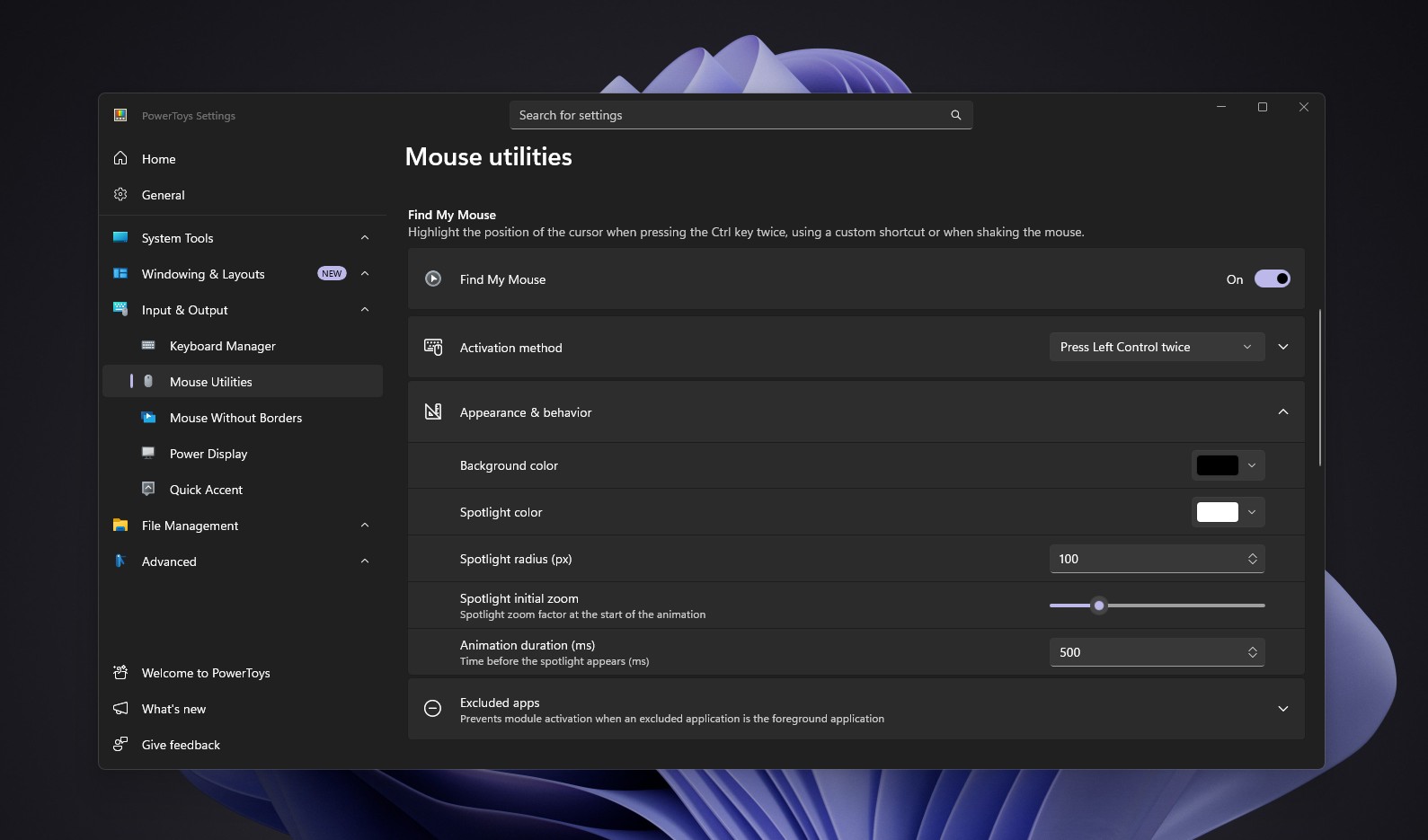
PowerToys wins on customization, no contest. The native Windows version is for anyone who just wants to see their cursor without installing another utility.
Personally, I prefer the animation style in the new Windows 11 Mouse Indicator.
How to enable the new Mouse Indicator in Windows 11
As of now, the new Mouse Indicator is available only in the Windows 11 Insider build for the Experimental channel, specifically Build 26340.9502. So, it won’t be available on your regular Windows 11 PC for at least a few weeks.
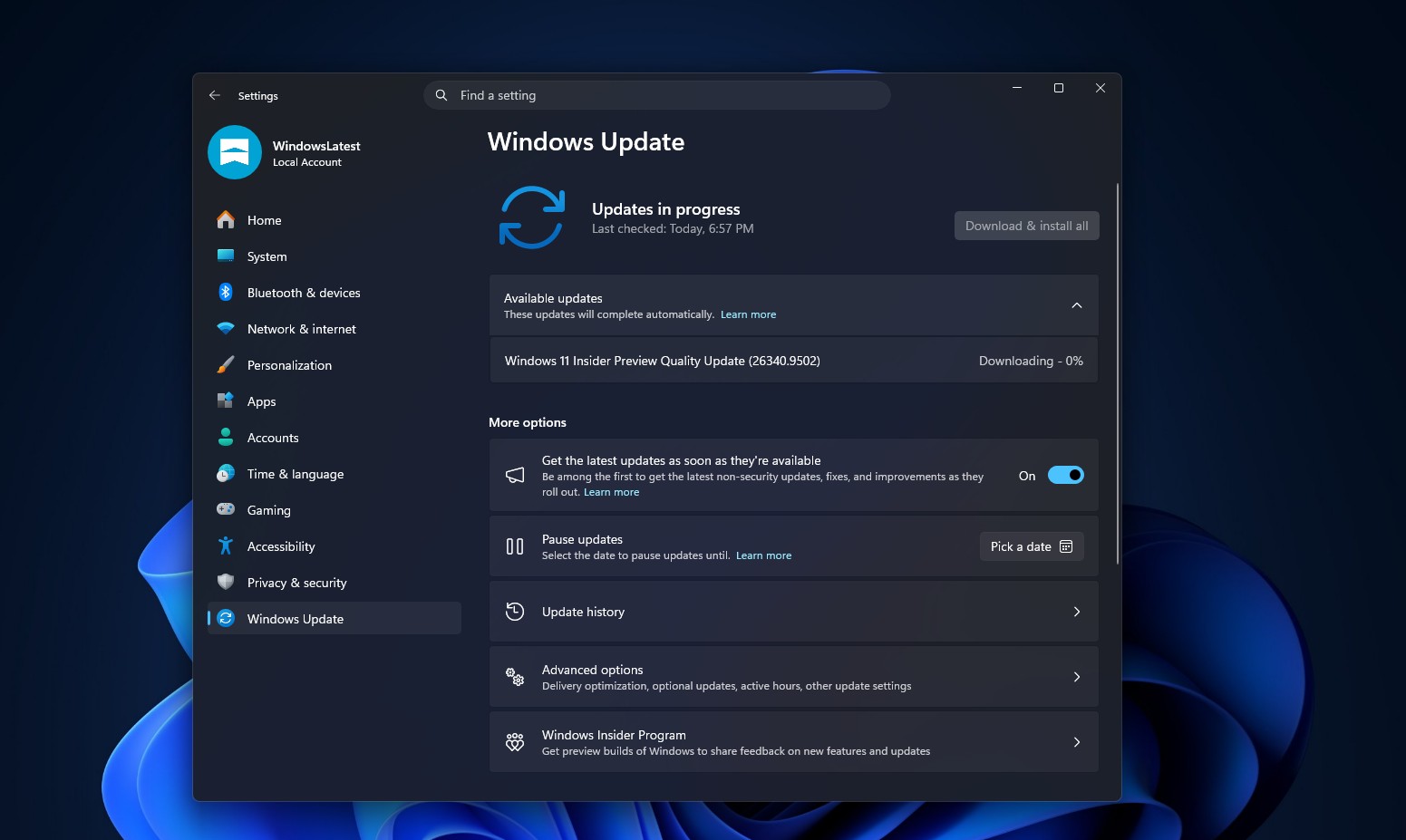
When it arrives, or if you are an Insider with this build, go to Settings > Accessibility > Mouse pointer and touch > Mouse indicator and switch it on. Open Activation method and pick Single Ctrl key press or Double Ctrl key press. Turn on “Keep the indicator on until I click or press Esc” if you want the persistent version.
If you still don’t see this setting after updating to the latest Experimental Insider Build, you may have to use ViVeTool to activate it.
Microsoft is finally modernizing Windows features we forgot were ancient
Mouse Indicator is a small example of a bigger and much-welcome trend in Windows 11. Unlike what social media dictates, Microsoft is not just chasing unwanted AI features. It is also working through old corners of Windows that didn’t get the same visual treatment as the rest of the OS, including File Explorer’s Properties dialog getting rebuilt in WinUI 3, the modernized Print Management app, AutoPlay getting the same WinUI 3 redesign, and the modern Run dialog that replaced its Windows 95-era predecessor.
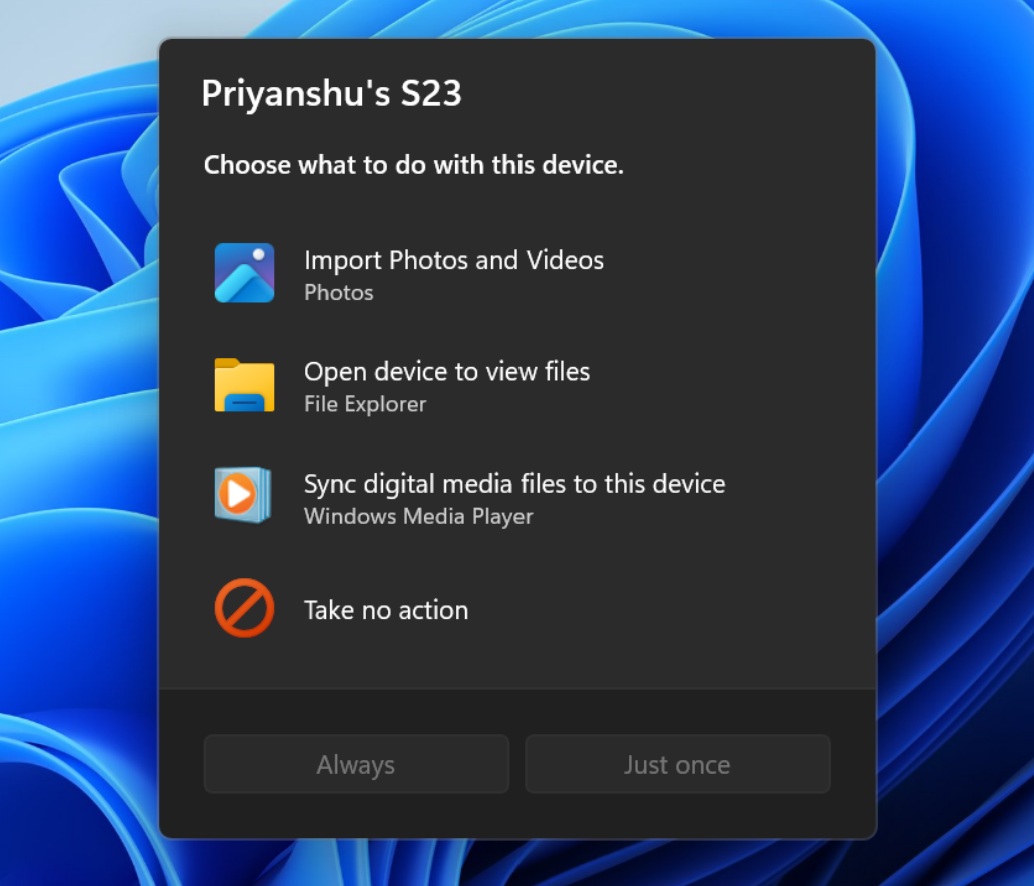
Microsoft said in July that they had “strengthened the fundamentals of WinUI 3 and extended it into more of the Windows shell,” and we’ve been tracking the legacy UI overhaul to WinUI 3.
We’ve criticized Windows 11 for looking like several operating systems stitched together. But seeing a tiny tool like modern Mouse Indicator getting a modern design gives me hope for the rest of the OS.
The post Windows 11 is getting a better way to find your mouse cursor, and we tried it appeared first on Windows Latest