
Microsoft’s legendary programmer Mark Russinovich, who is currently the CTO of Microsoft Azure, says he used AI to bring ZoomIt, a Windows tool he has maintained for more than 20 years, to macOS in a single weekend.
Windows has many legacy tools that still get the job done, and one of my personal favorites is ZoomIt, a lightweight screen zooming, recording, and annotation tool. While you’ve got modern apps like Snipping Tool to record your screen, ZoomIt had its own audience, and those were mostly technicians using it to prepare presentations.
Russinovich originally created it because he needed a better way to explain Windows to a room full of people. That was over two decades ago, when he was teaching Windows Internals classes. And ZoomIt played a major role in that because it allowed instructors to magnify and draw on specific areas of Windows to train users.
Over the years, ZoomIt picked up features such as screen recording, webcam overlays, and video editing.
Until recently (and for obvious reasons), ZoomIt had not been available outside Windows, but now you can try it on macOS, thanks to AI.
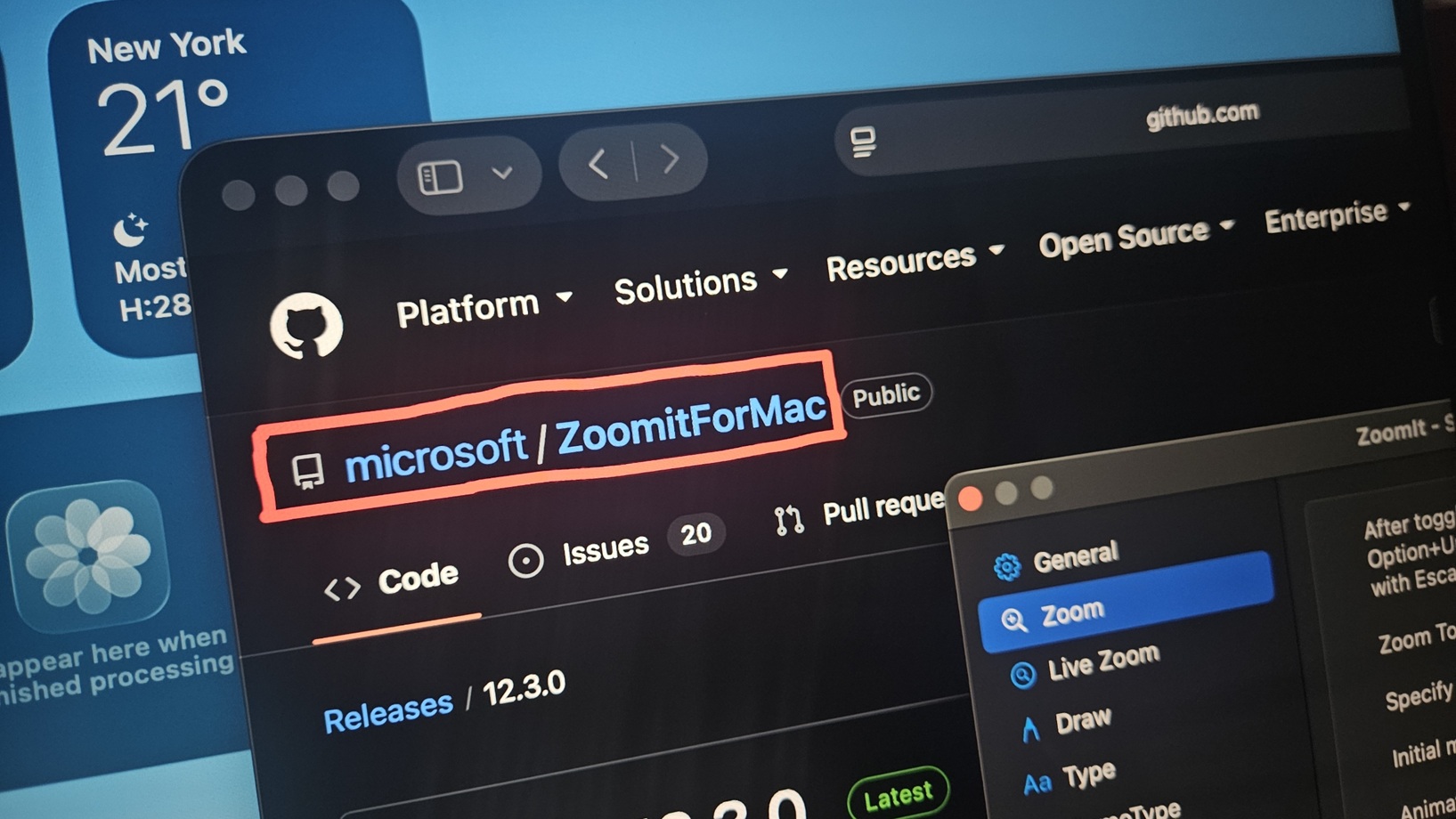
It never really made sense to put in months of effort to bring something like ZoomIt to macOS, but Mark Russinovich found an easier and more efficient way to do it, and that is AI.
With AI, Mark Russinovich created a largely working macOS version of ZoomIt in just two days, compared to the several weekends or months he expected even with AI’s help.
“Not to say that it didn’t have a few bugs, but it was 90-plus percent of the way there. I was flabbergasted,” Russinovich said.
Microsoft employees wanted ZoomIt on Mac, but Russinovich didn’t think he’d have time
In the early 2000s, when Russinovich was teaching Windows Internals classes at Microsoft’s campus, ZoomIt started with a fairly simple problem: how do you teach people in a large room when Windows has specific areas on a screen that need attention?
For example, imagine teaching a room full of people and asking them to look at the top left corner of the screen for a toolbar, then look at a cluttered menu around it, and make a change. This can be a hell of a ride when you’re trying to teach everyone and point to different specific spots.
Before building ZoomIt, he and his co-author David Solomon tried a tool shipped with Toshiba laptops:
“We’d come across a tool that was built into that was shipped with Toshiba laptops that David used for this and I started using it and I found it incredibly clunky. It had an awkward key stroke combination to launch it. It was limited in the kinds of drawings that it could do and generally just a little painful to use.”
Russinovich built ZoomIt, which allowed him (and instructors) to draw lines, arrows, and boxes around the things he was explaining.
The break timer came from another request from Solomon:
“Dave and I immediately started using it in our classes and found it incredibly useful. And then Dave came and said, “Hey, let’s add uh support for break timer because when we go on breaks, it’d be nice to have a countdown. I’ve been using this separate app, but it doesn’t have what I want in it.” So, I added the countdown feature.”
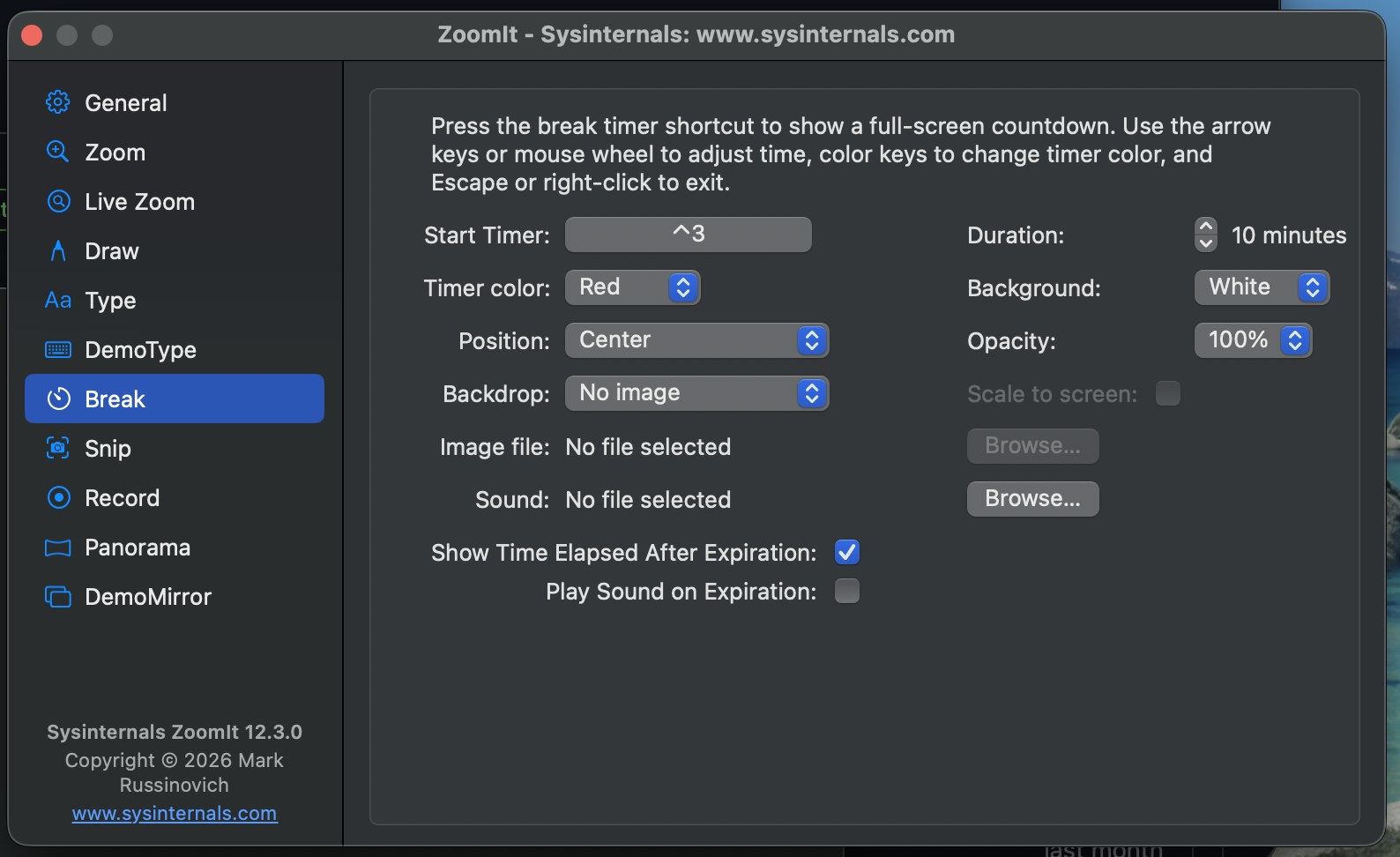
Decades later, ZoomIt is still a great tool for instructors, and macOS users have been looking for a similar tool for years now. And that includes those who work at Microsoft.
According to Russinovich, employees who demonstrated Git, GitHub, Copilot, and Visual Studio Code on macOS laptops had asked for ZoomIt’s combination of zooming and drawing tools.
“I thought this was an interesting ask that I’d never have time to get around to,” he said.
But ZoomIt is not like Snipping Tool, ShareX, or the macOS-built screenshot tool that just captures the screen and lets you draw. ZoomIt literally works in real time, on top of the apps, and even records the screen. To build something like this for macOS, Russinovich would need to learn how macOS actually works, including how it deals with audio, video and screen capture.
“Prior to AI, I would have never even considered doing this,” Russinovich explained, describing the learning process as “very tedious.”
Eventually, he decided to do something about ZoomIt on macOS, and he got himself a Mac. Then, he spent about an hour setting it up in Microsoft’s corporate environment the following Saturday, and started using AI to build the foundation for ZoomIt.
“I expected this exercise to be something that I’d work on over a few weekends in the summer, maybe over a couple months, and then have a version of ZoomIt for Mac, maybe to be missing some features or that wouldn’t be supported in the way that I needed on Mac. But I thought I’d give it a try with AI to help me so that I wouldn’t have to do all the work.”
AI recreated ZoomIt’s original features in about half an hour
Russinovich built ZoomIt for Windows, so he had everything he needed to feed an AI model a reference. And when AI has a reference, it has a major advantage. This allowed the undisclosed AI model to start building the foundation for ZoomIt’s macOS version.
“I started incrementally building up the Mac version so that I could control what was happening and make sure that it worked the way that I wanted,” he said. “And it finished that in about a half an hour over the course of roughly a dozen prompts,” Russinovich said. “This was much faster and easier than I thought.”
He continued to work on ZoomIt’s macOS version throughout the weekend, and added features one by one. Beyond the bugs he found, Russinovich made a choice to leave out a feature called “DemoType,” which allowed instructors to enter prepared text during demonstrations/teaching, as he thought nobody really used it. But later, he found people even cared about DemoType in ZoomIt, so he prompted AI to add it to the macOS version.
He also had a little dig at Scott Hanselman, who originally requested the feature:
“This is a feature Scott Hanselman asked me to do to implement a few years ago. I implemented it for him, and then he doesn’t use it.”
There were several bugs to deal with, as macOS has different requirements for its interface, system permissions, and other things, such as screenshots and keystrokes. It’s different from Windows, so those features had to be adapted for macOS.
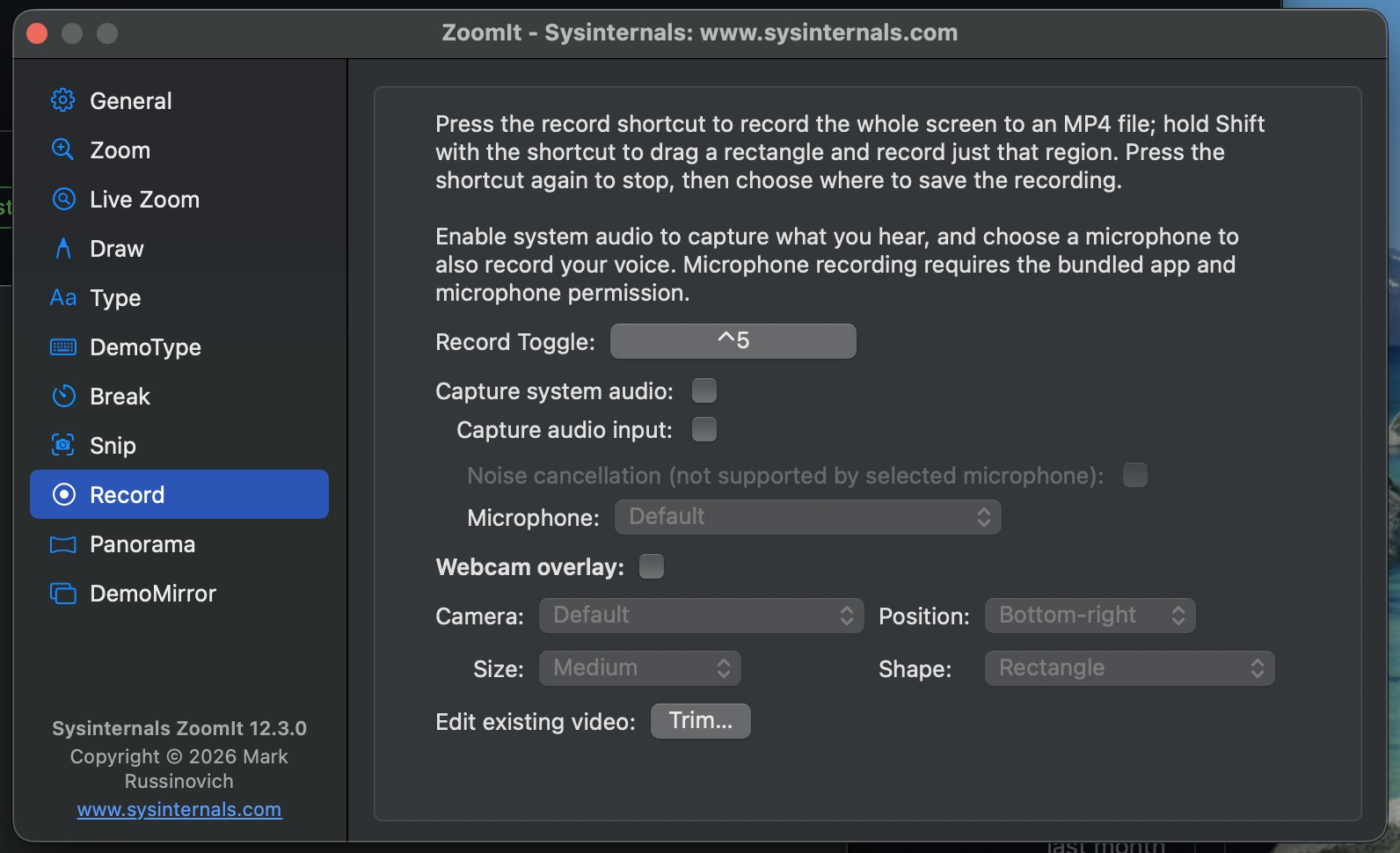
By the end of the weekend, Russinovich was able to create a “basic high-fidelity clone” of ZoomIt, with features like break timers, panorama screenshots, video recording, and video editing.
Windows code made it easier for AI to clone it for macOS
You can’t just open Claude Code, ask it to create ZoomIt for macOS, and expect it to work just like the original tool. Russinovich was able to cook it because he had already given AI access to the Windows code, which it used to understand the app’s structure and features.
That only solved half the problem, as AI still needed to work out how to reproduce Windows-like behavior on macOS. More importantly, Russinovich himself would have had to learn how those macOS systems worked.
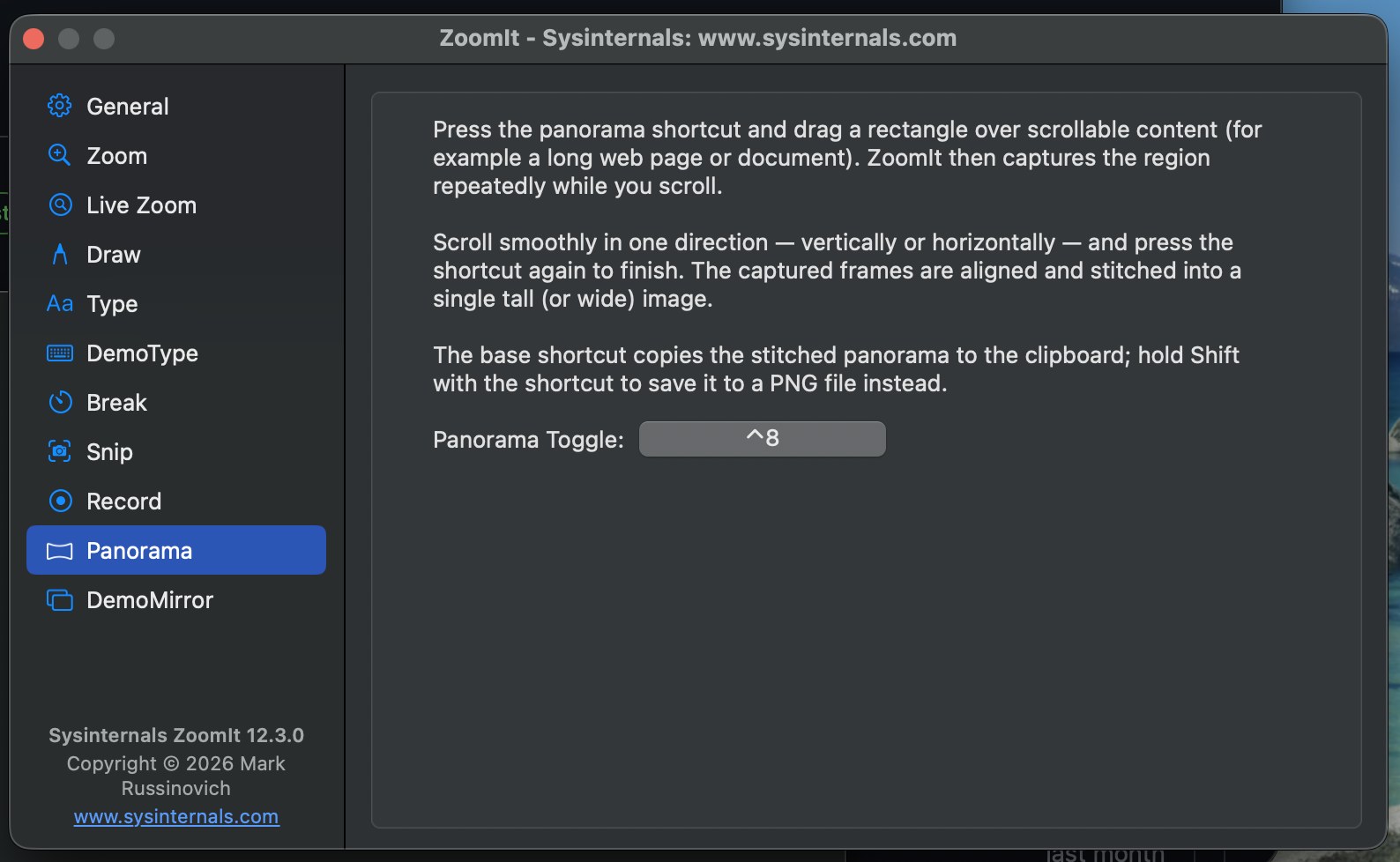
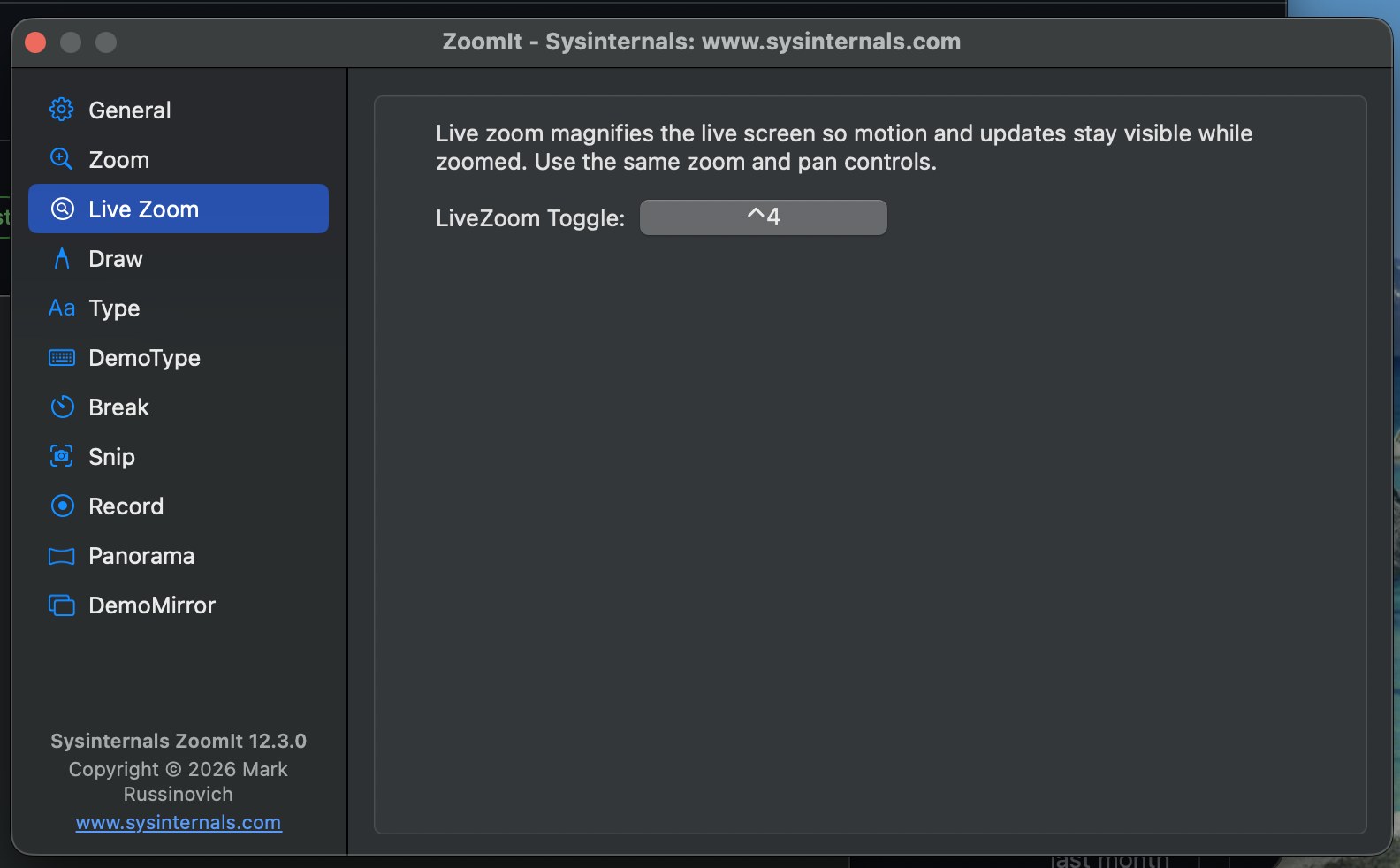
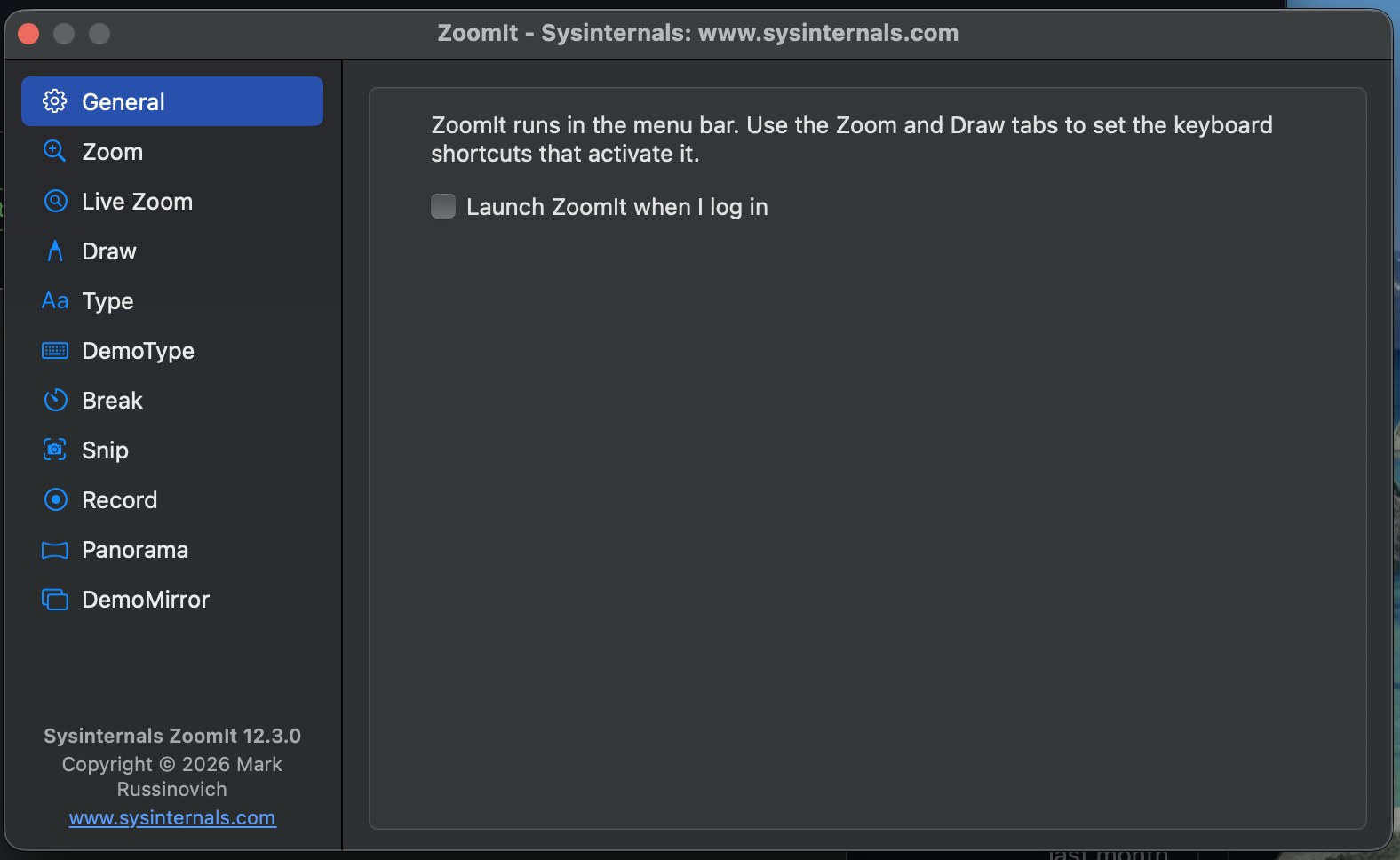
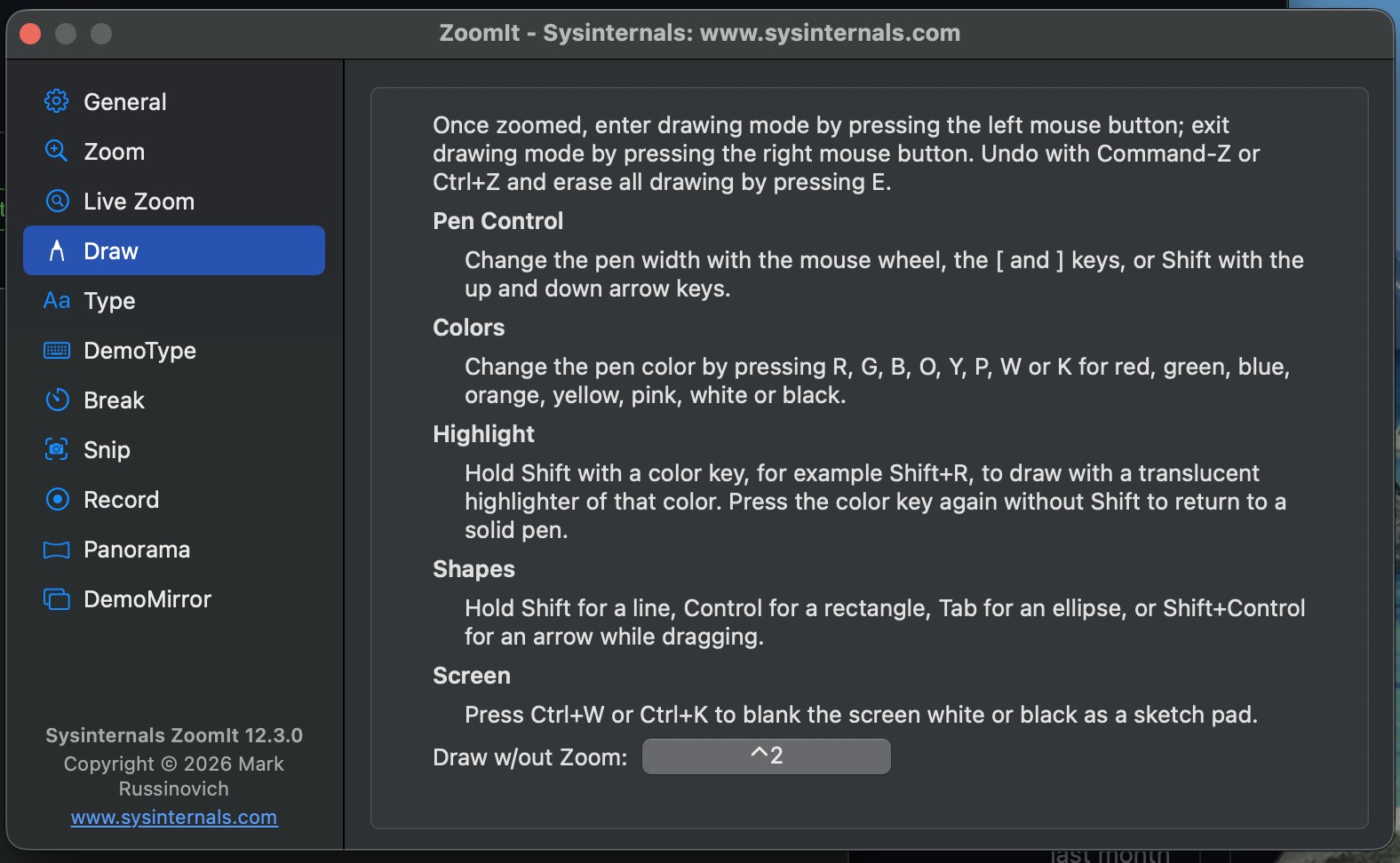
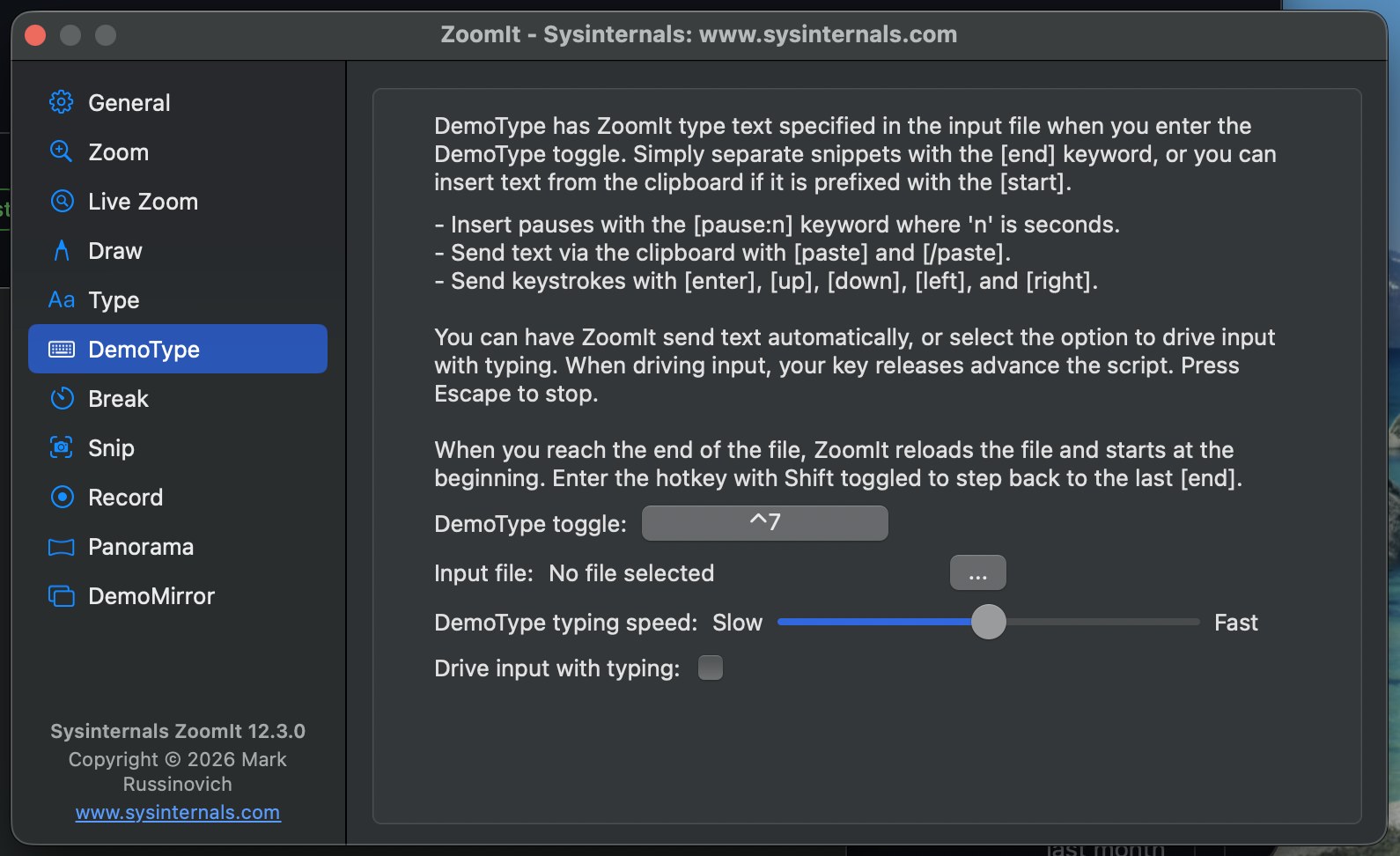
Although he built ZoomIt, and AI had the reference code, knowing that ZoomIt records your screen and microphone doesn’t automatically make it obvious how to wire it up on macOS.
“I didn’t have to learn any of it, and it did the whole thing,” Russinovich said of the platform-specific systems he had expected to study.
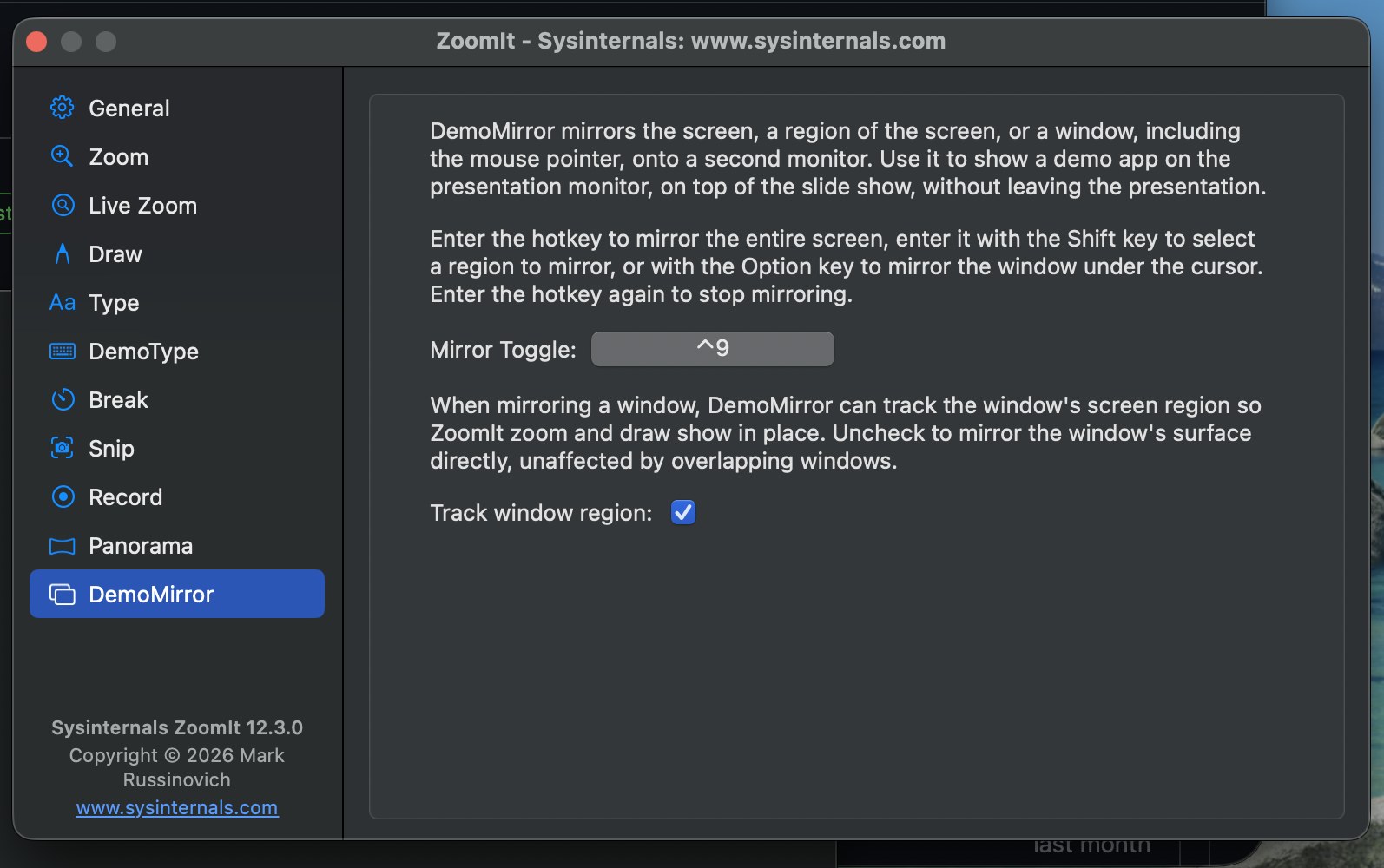
He also demonstrated Demo Mirror, which lets him show his screen, or part of it, on a second display without exiting PowerPoint:
“I connected to an external monitor and was able to show the whole thing working and done. And that’s basically it for getting Demo Mirror working. So again, I wish I’d created this thing a long, long time ago, but now it’s here. And now whenever I’m doing a presentation from my laptop, I’m able to use Demo Mirror for the whole screen like I’m doing here or part of the screen without ever exiting PowerPoint.”
How to download and use ZoomIt for macOS
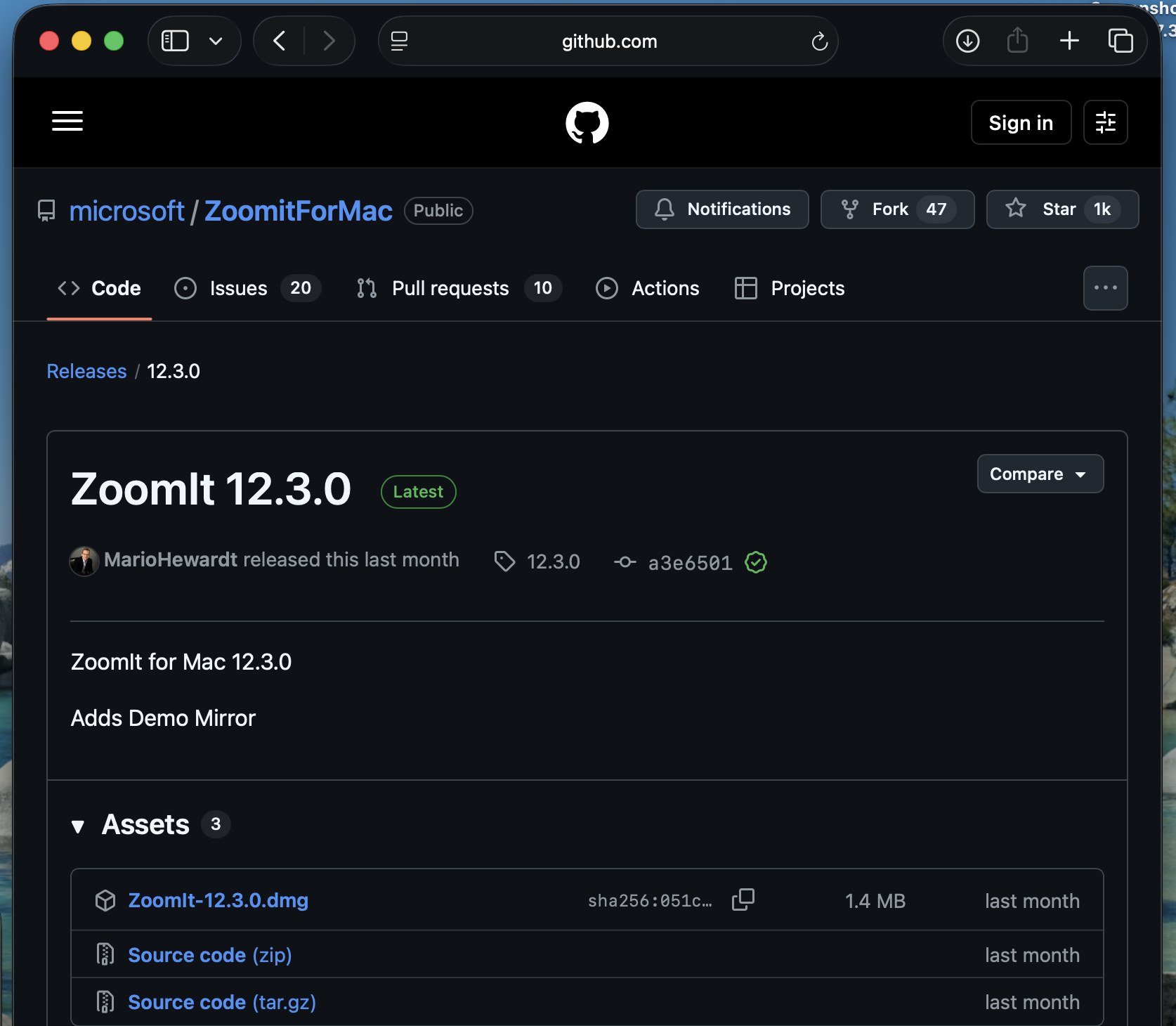
ZoomIt for Mac is free and open source, and you’ll need macOS 14 Sonoma or newer. If you have Homebrew installed, open Terminal and run:
brew install --cask microsoft/sysinternalstap/zoomitOr you can download it directly from Microsoft’s GitHub. Right now, Microsoft released the last update for ZoomIt (macOS) a month ago, and the file size is just 1.4mb.
Once installed, open ZoomIt and look for its icon in the menu bar. Now, you need to grant Screen Recording permission when asked. You don’t have to give permissions for Microphone and Camera access, as they’re needed only if you use those recording options.
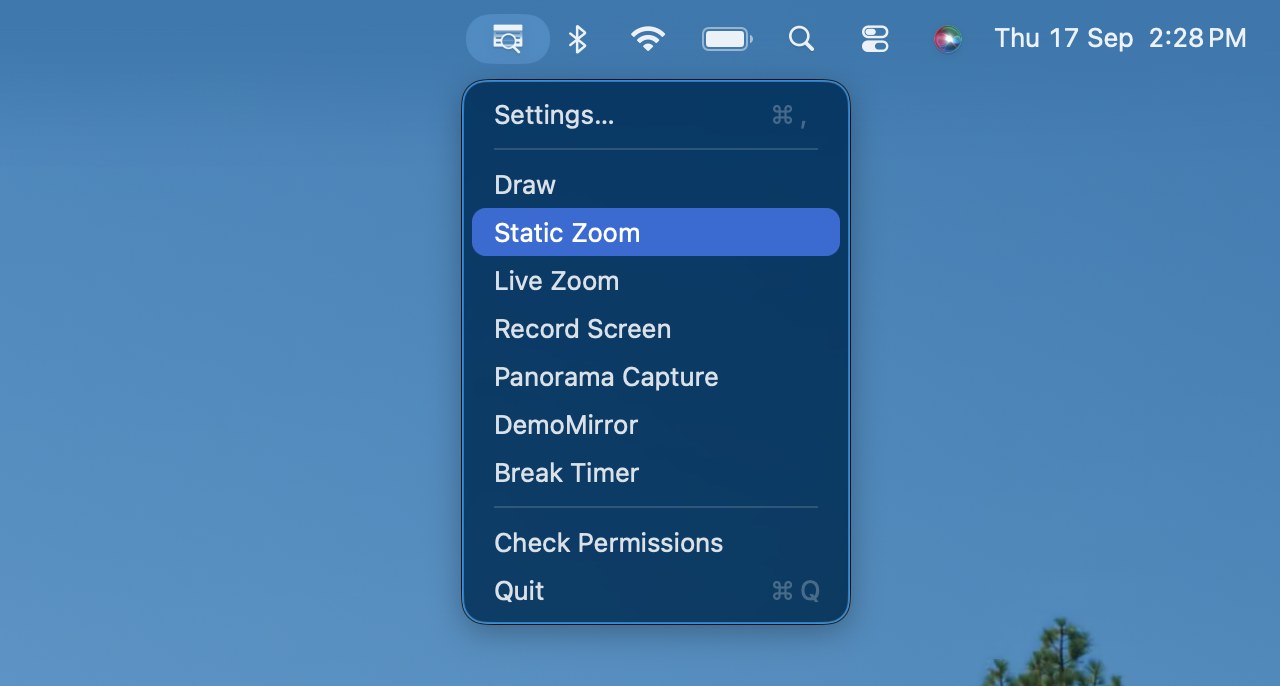
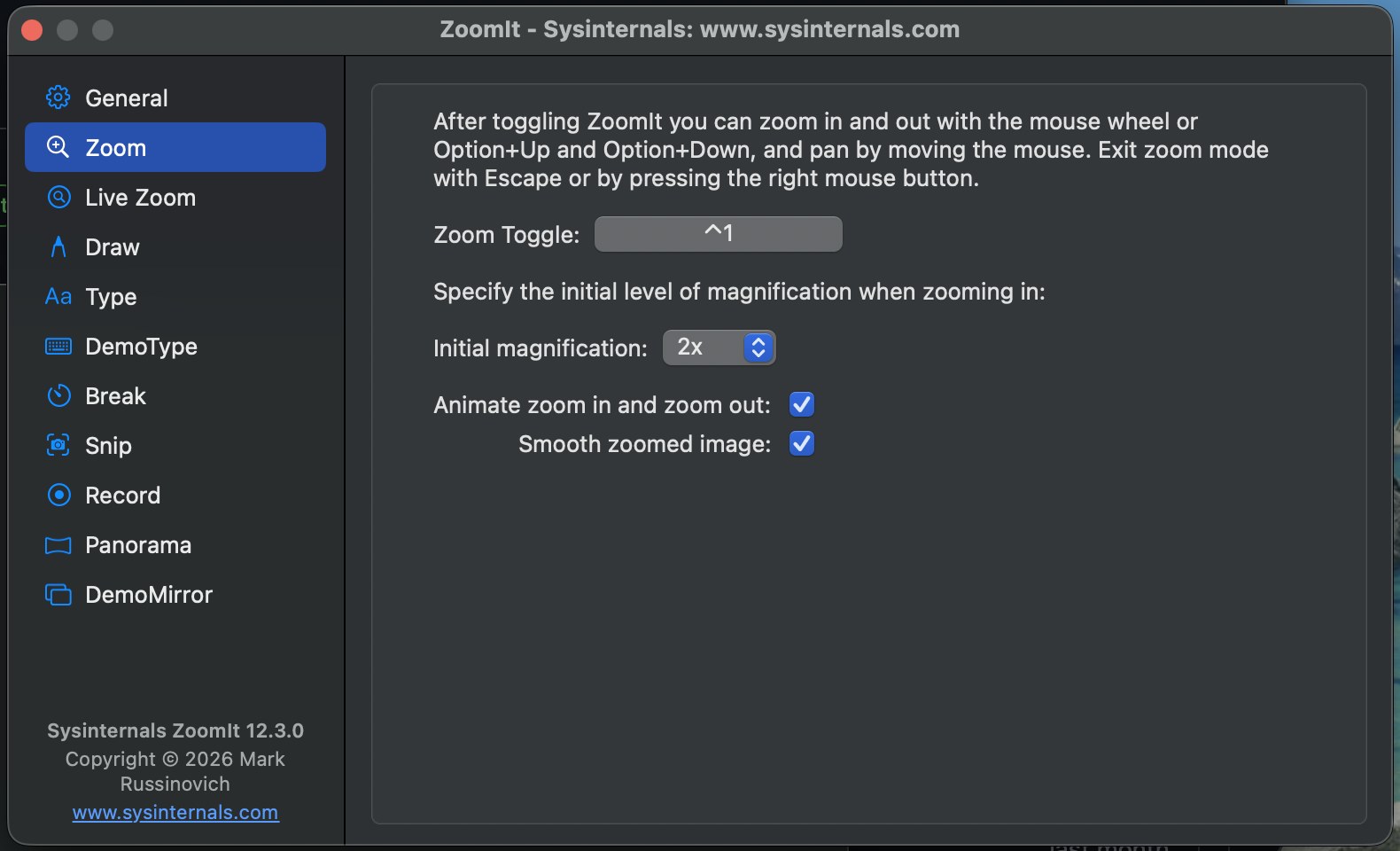
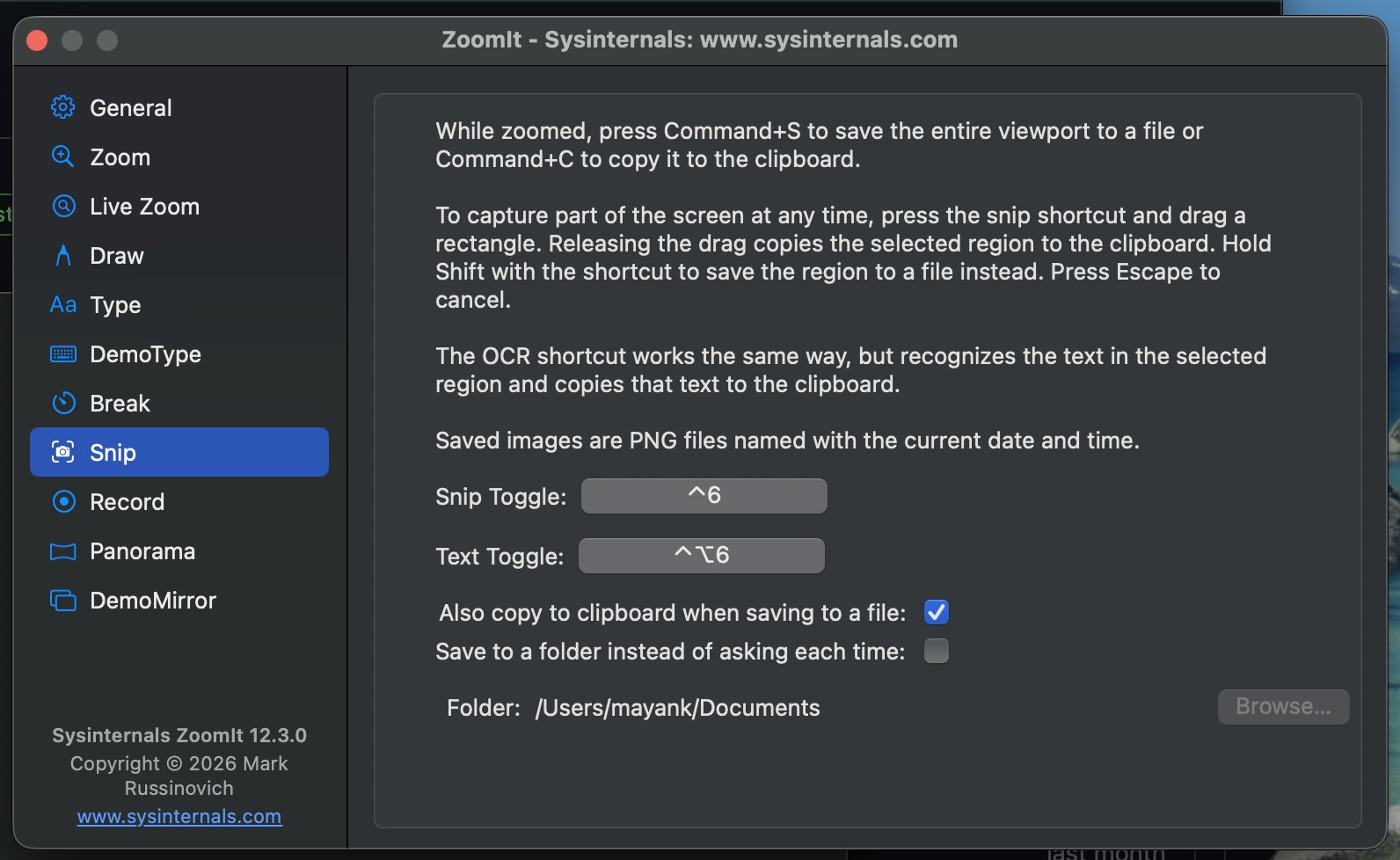
To get started, press Control+1 to zoom, Control+2 to draw, Control+5 to record your screen, or Control+6 to copy a selected screen area to the clipboard. You can change these shortcuts in Settings. Here’s a demo showing off the controls:
You can expect more Microsoft apps to appear on macOS, as AI continues to accelerate development. At the same time, it’s also raising security concerns for Windows, and Microsoft is warning customers to avoid delaying monthly updates.
The post Microsoft Azure CTO used AI to port 20-year-old Windows tool to macOS in two days: “I was flabbergasted” appeared first on Windows Latest