
Microsoft has confirmed that it’s coming after every ancient dialog left in Windows 11, including those that we barely use.
March Rogers, Microsoft’s Partner Director of Design, reiterated the plan after users pointed out that parts of Settings still look nothing like the rest of Windows 11.
One of the examples is the Voice packages dialog under Settings > Time & language > Speech. If you try to add voices, Windows opens a separate window with a language search box, checkboxes, and a list of voice packages.
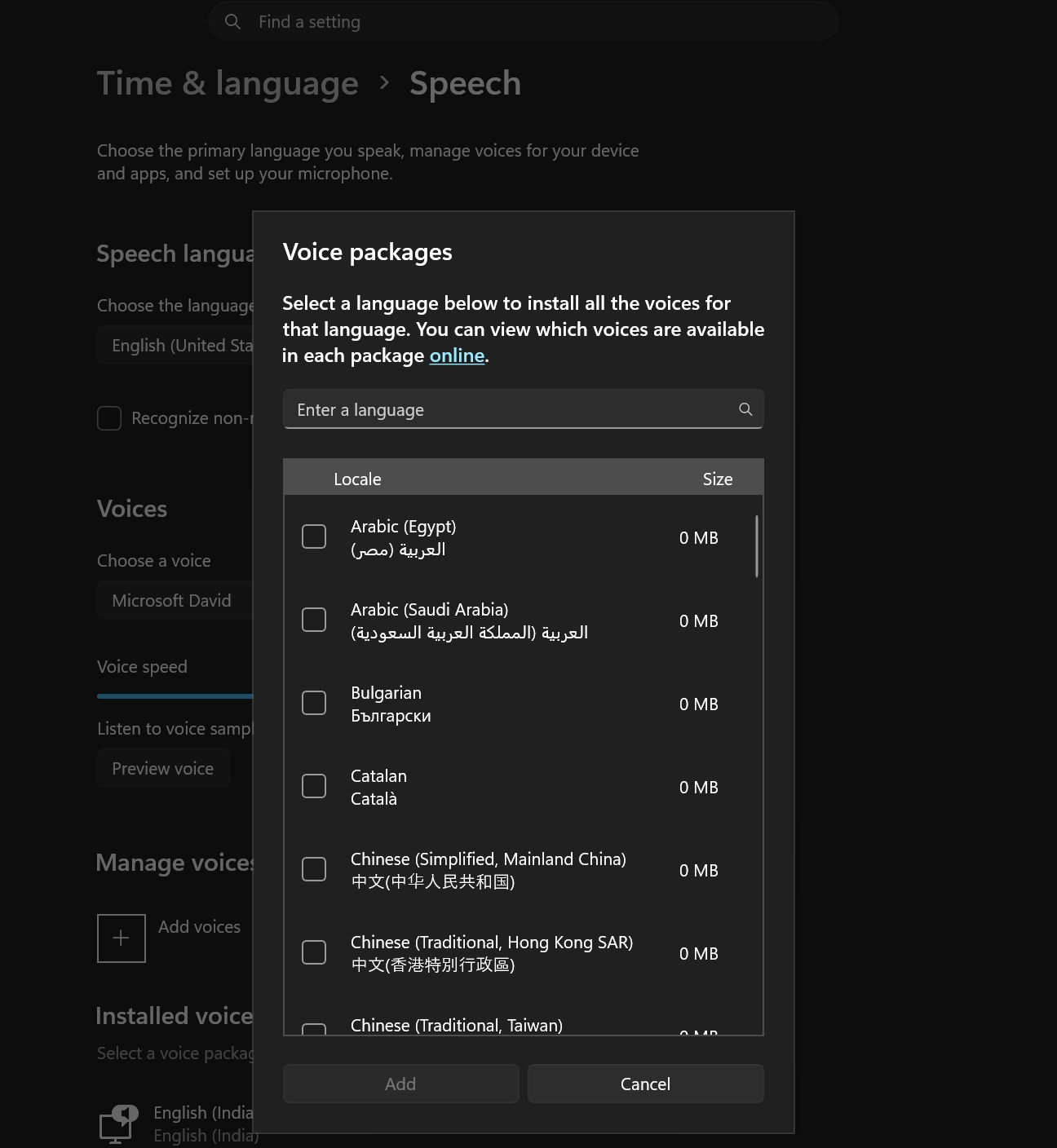
Now, if you take a closer look, you’d notice that the “Voice packages” dialog is not even using rounded corners. And it’s quite funny, if you ask me. Microsoft made “rounded corners” a big deal for Windows 11, and it even rolled them out to legacy areas of the operating system, such as the Control Panel.
But here, we’ve got Windows Settings using the legacy Voice packages UI, and it’s not even using rounded corners!
This dialog may not be something most of us use regularly, but it’s still a fair complaint, and it points to a broader problem with Windows 11. Even in 2026, it’s still quite normal to come across Windows 95, Windows 7, Windows 8.1, and even Windows 3.1-era dialogs or design approaches in Windows 11.
Regardless, the good news is that even something as less important as the Voice packages dialog is getting a makeover, according to March Rogers.
“We are gradually working our way through modernizing older UI in Windows and the voice packages dialog is on our list,” Rogers wrote in a post on X, first spotted by Windows Latest.
In another post, one user asked why they still run into Windows 8.1-era dialogs, to which Rogers confirmed that they’re being worked on. One example is “Reset this PC,” which lets you choose what to keep or remove everything, and is also getting a makeover. Right now, it’s built using the Windows 8.1 design language.
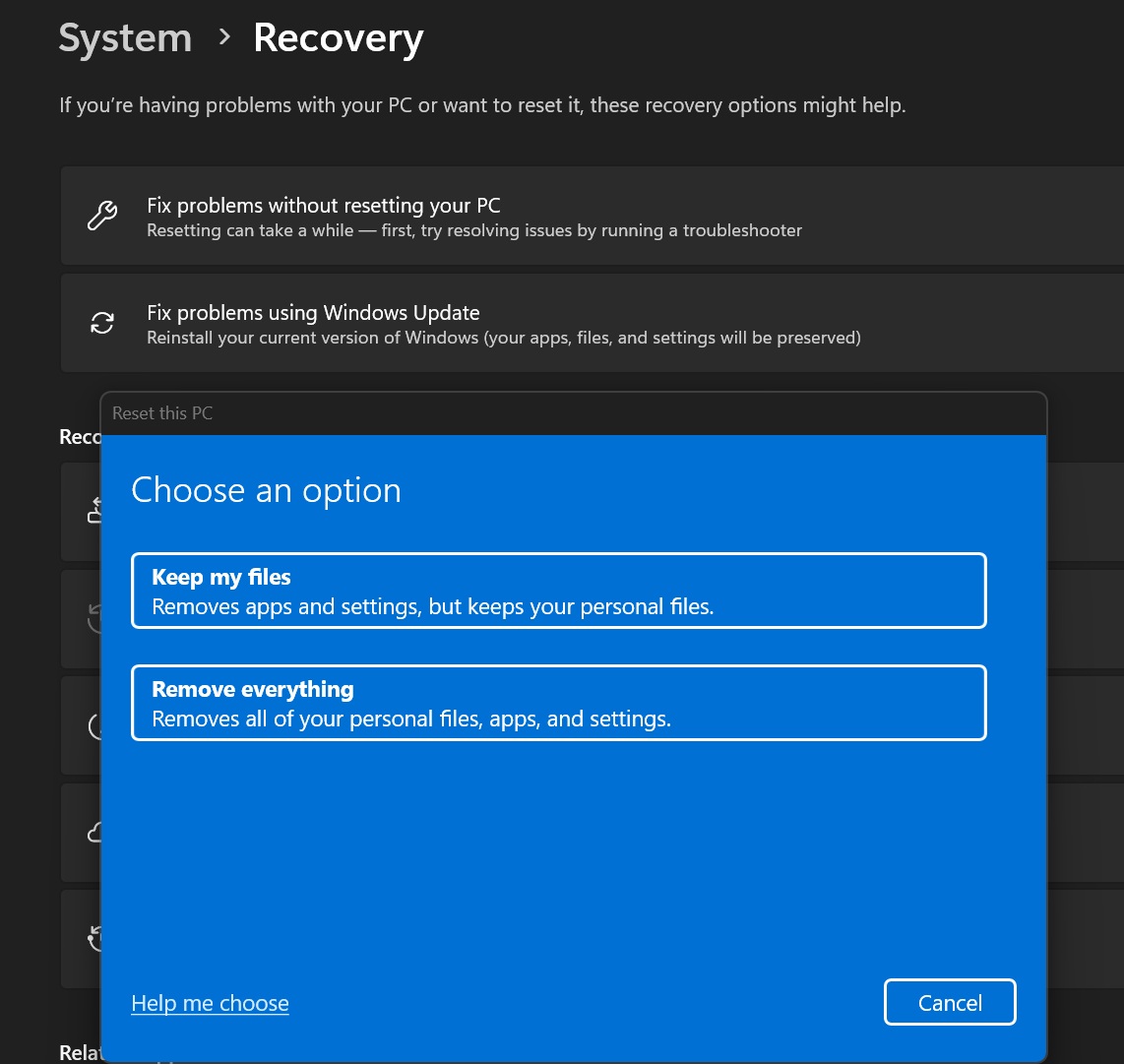
Rogers’ statements aren’t coming out of nowhere, as Microsoft previously confirmed that it plans to rewrite older dialogs in Windows 11.
Back in May, Rogers said, “We are working through our list of all older dialogs and rewriting them in WinUI 3.”
Microsoft is rebuilding Windows 11’s old dialogs in WinUI 3
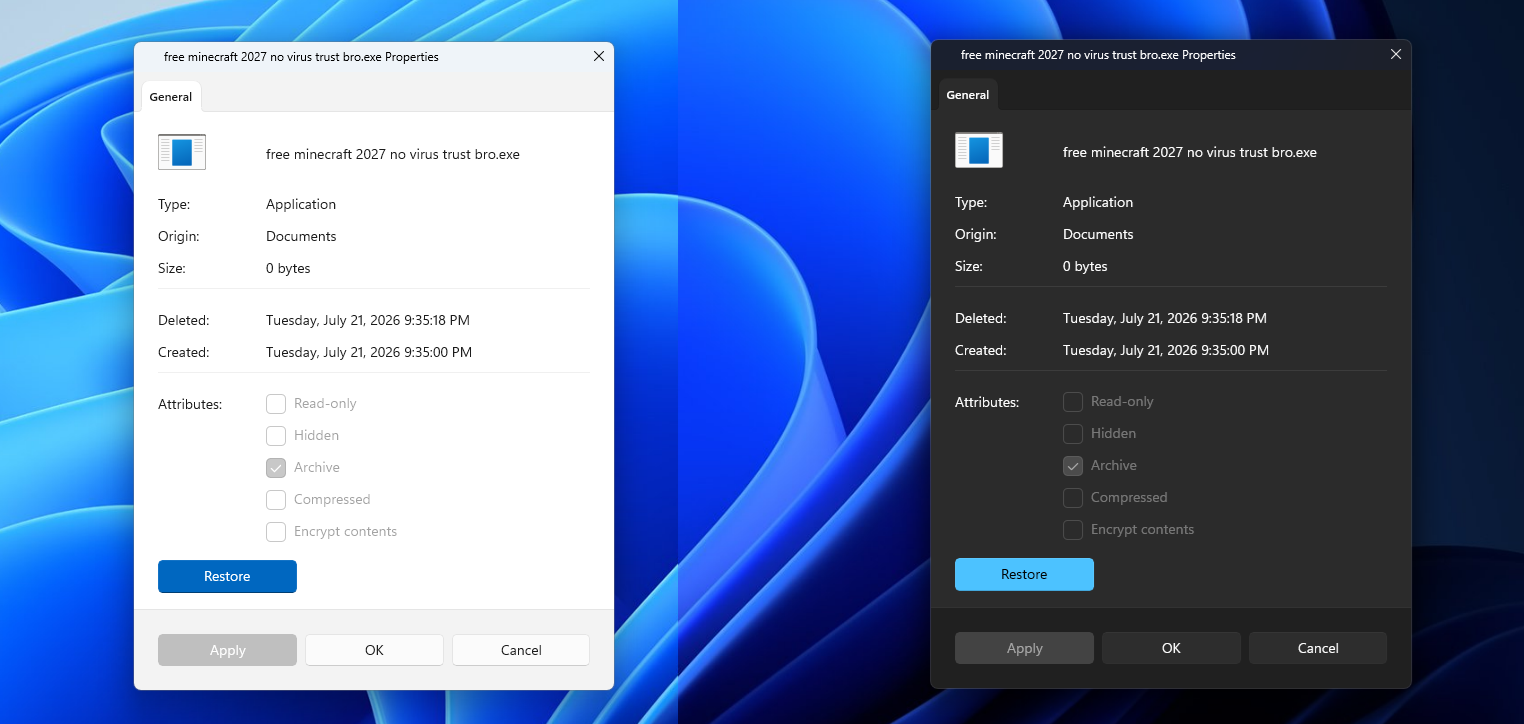
I’ve been tracking Windows 11’s design changes for months now, and at this point, I’ve come to the realization that Microsoft has two approaches.
First, some existing dialogs are getting dark mode support. Second, some dialogs are being completely rebuilt using WinUI 3, Microsoft’s modern native UI framework. This approach is being followed because Microsoft just can’t take every old dialog, replace it with a modern version, and expect nothing to break.
Microsoft previously noted a new “low-risk” approach for modernizing legacy areas of the OS, and it’s starting by adding dark mode where a full rewrite could be risky.
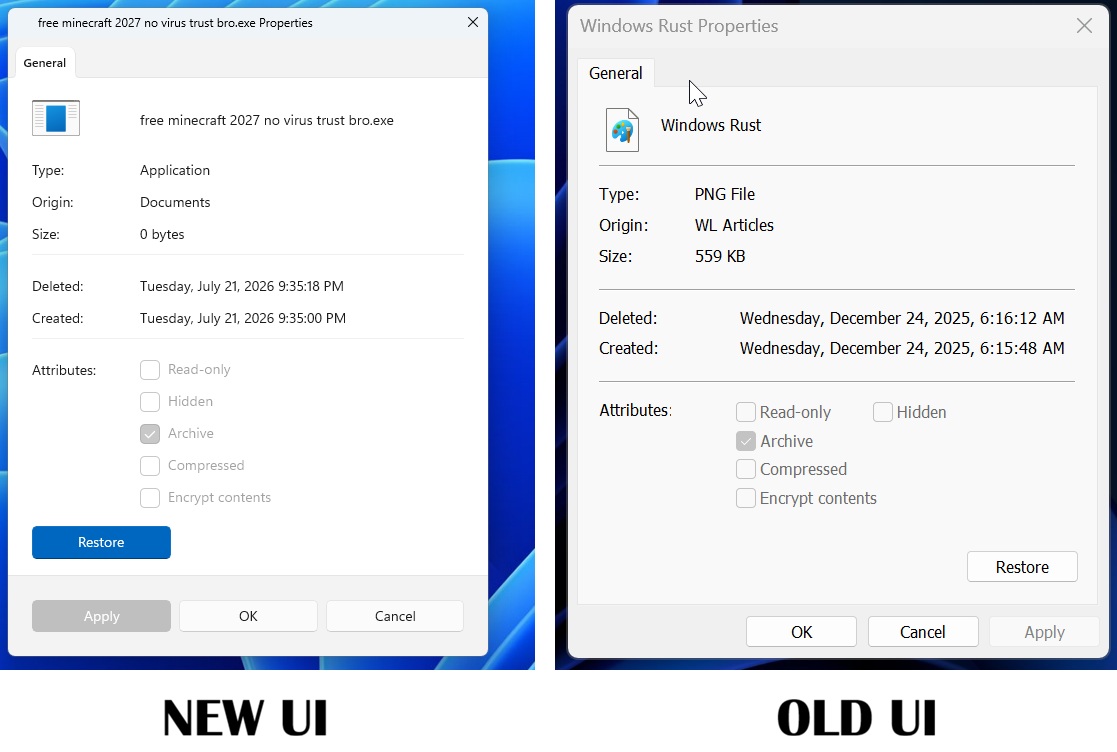
At the same time, the File Properties dialog has actually been rebuilt in WinUI 3, so it’s not like Microsoft does not want to bring the modern framework to all areas. The approach depends on how risky it is to replace the existing code.
The modern Run dialog
The Run dialog is one of the clearest examples of a middle ground between these two approaches.
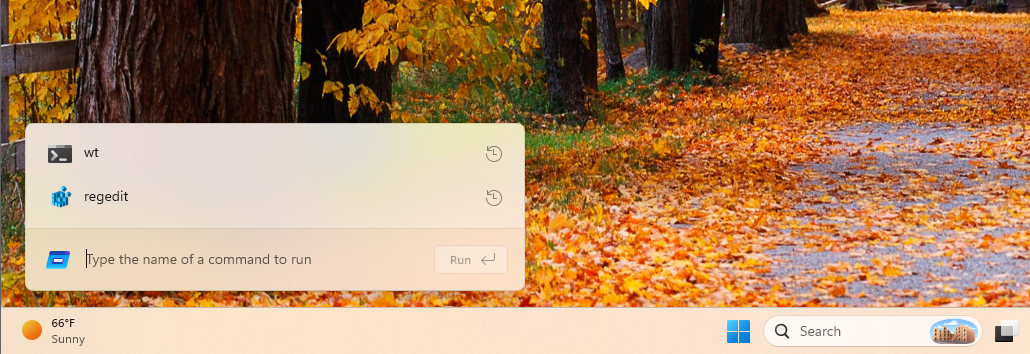
Microsoft built a new version using C# and WinUI 3, with dark mode, an updated history list, and support for opening your home directory using ~. At the same time, it’s not killing off the legacy Run dialog.
In fact, the modern Run dialog will be optional, at least initially, and you can switch between the new and legacy versions.
It’s also worth noting that Microsoft found the new Run dialog to be faster than the legacy version. The company reported a median time-to-show of 94 milliseconds, compared to 103 milliseconds for the legacy version.
It’s a small difference, but I think it’s a useful example because a modern interface shouldn’t need to come with slower performance, and it also proves that WinUI can be faster.
AutoPlay and Print Management
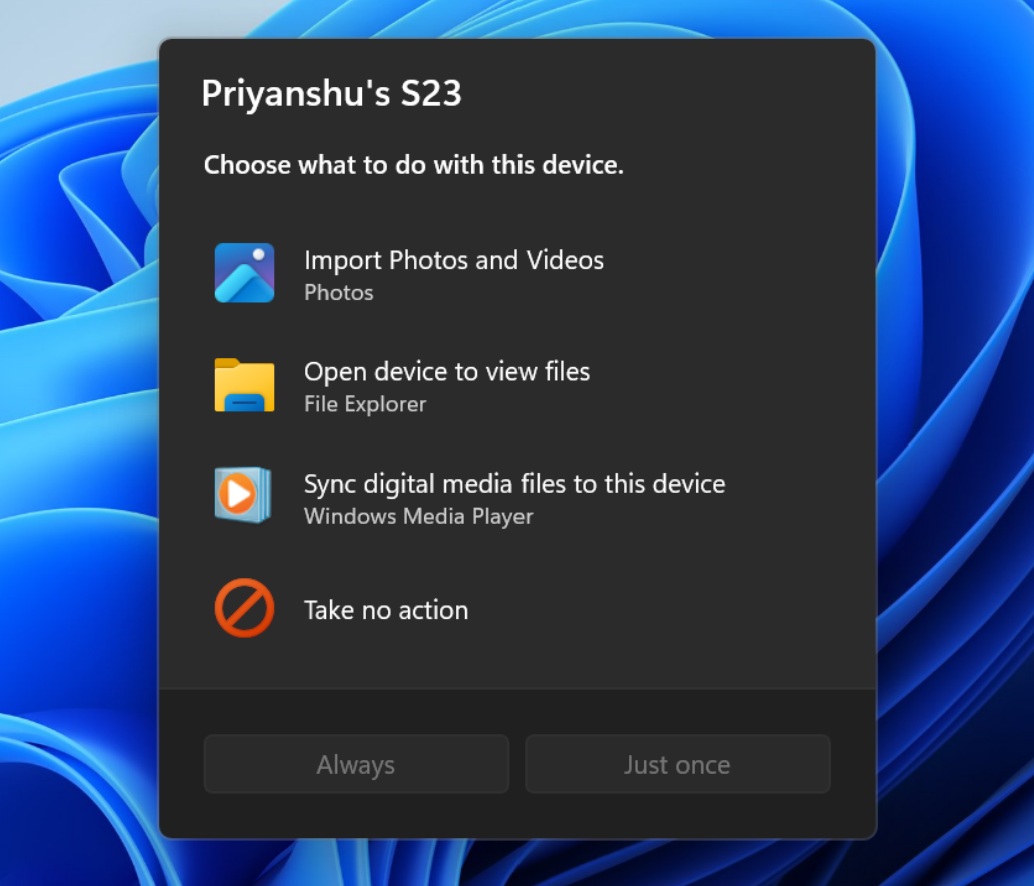
Microsoft has also confirmed that AutoPlay is getting its own WinUI 3 redesign. This is the dialog that appears when you connect certain removable devices, such as your phone, and Windows asks what you’d like to do with it.
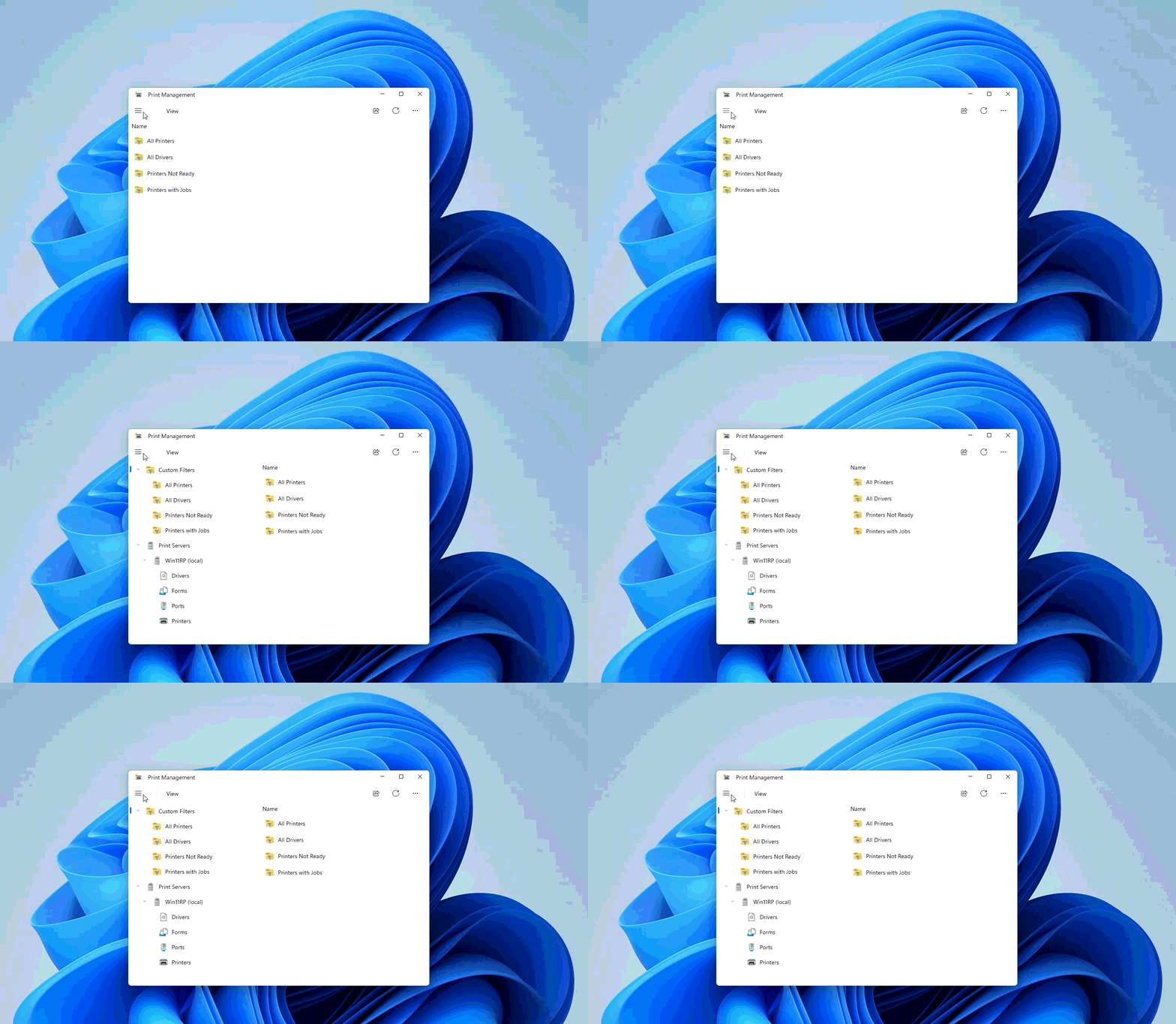
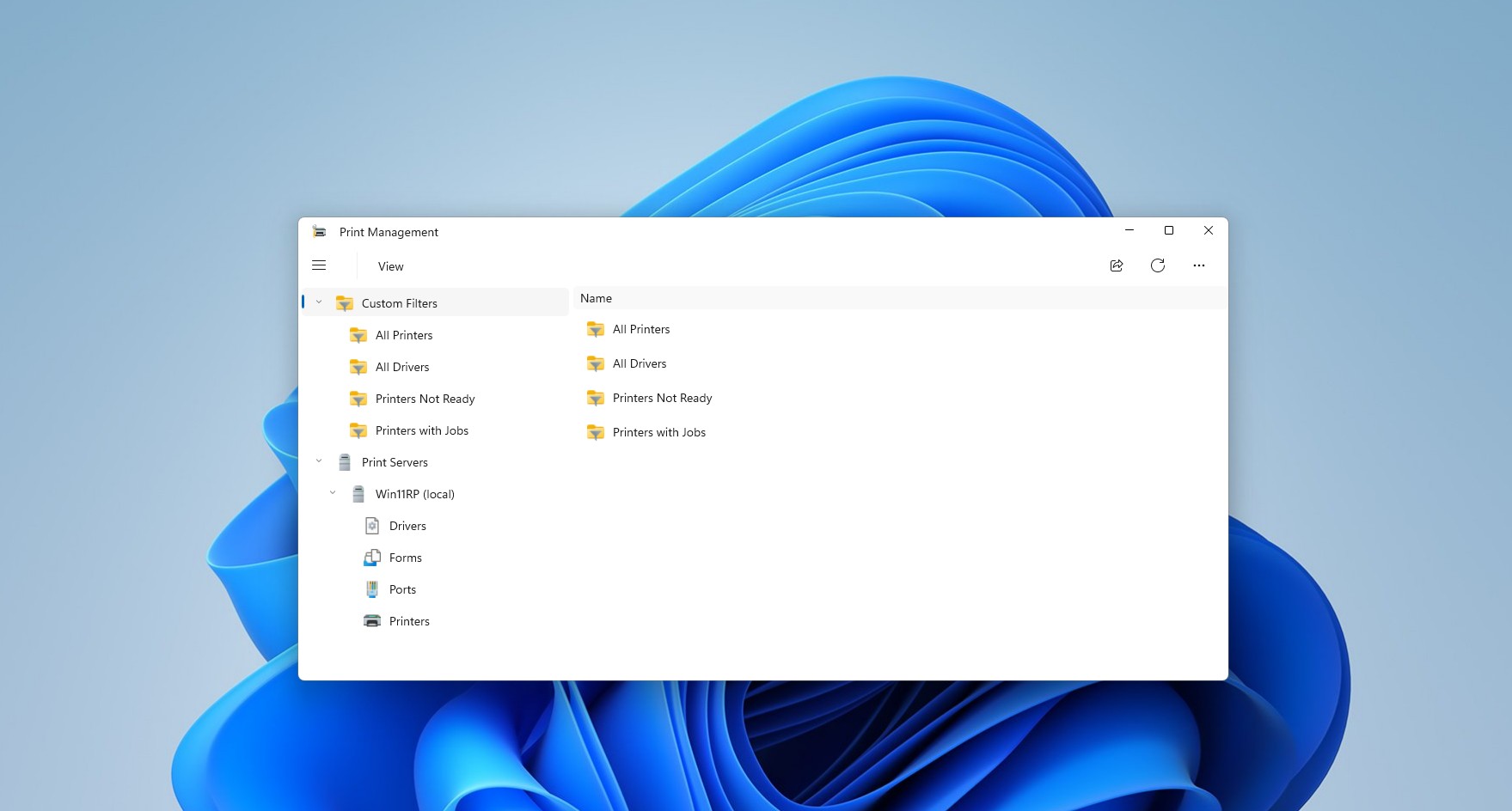
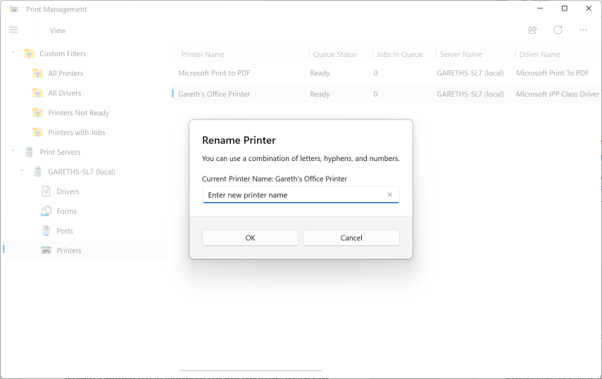
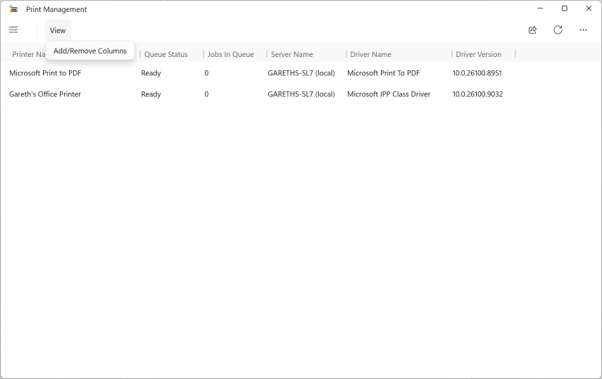
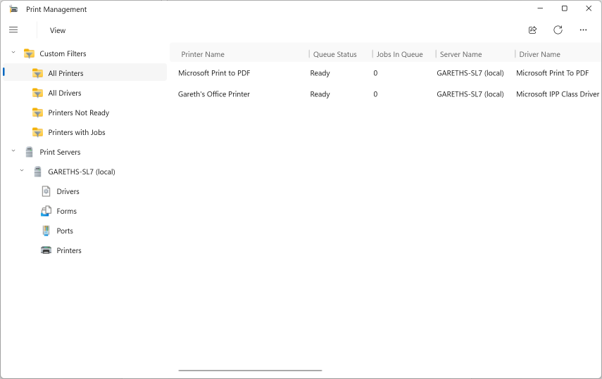
Another interesting example is the new Print Management app, which is built using WinUI and is as good as the legacy printing tools.
Local accounts, the login screen and Settings
Some of the old interfaces are particularly embarrassing because they still refer to features that no longer exist.
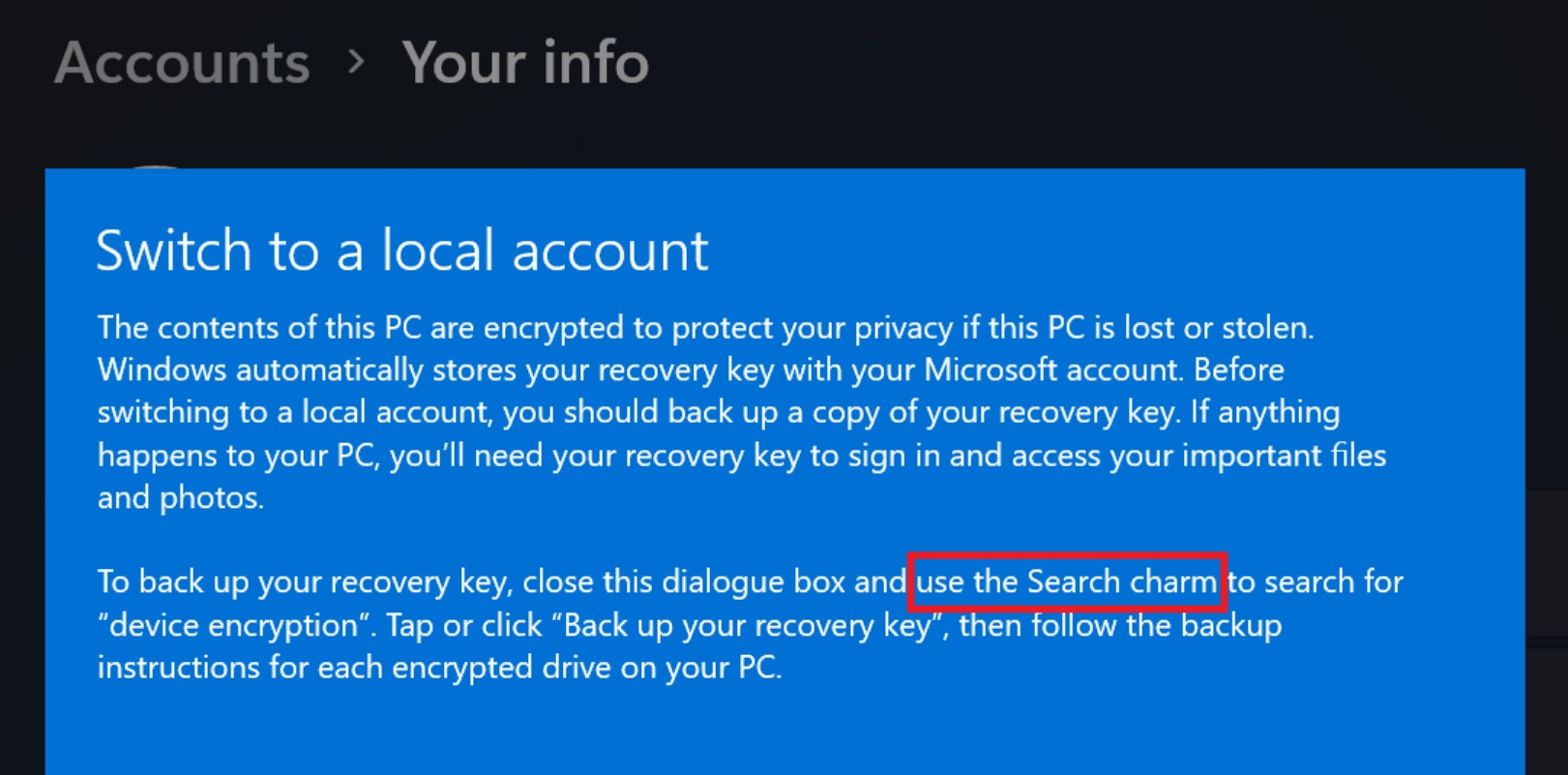
For example, Windows 11’s local-account switching flow can show a device-encryption warning that tells you to use the Windows 8 Search charm. Interestingly, even that is on the list of “revamps,” according to Marcus Ash, who leads Design and Research for Windows and Devices.
Microsoft previously confirmed that the Windows 8-style input switcher on the login screen will be redesigned with Windows 11’s UI. Within Settings itself, Microsoft has been updating pages, account dialogs, and Pen settings, and you can expect more improvements.
But don’t expect the company to kill off the Control Panel. It’s here to stay.
The post Windows 11 is getting a new look as Microsoft’s design boss confirms more ancient dialogs are next appeared first on Windows Latest