
Windows 11 KB5124010 is now rolling out, and it lets you try new features before the next Patch Tuesday release. This update significantly improves Bluetooth, makes File Explorer faster, and more. Microsoft has published direct download links for the KB5124010 offline installer (.msu), but you can always (and should) use Windows Update if you can.
KB5124010 is an optional update, so it won’t download or install unless you manually choose to seek it. The update shows up as “2026-09 Preview Update (KB5124010) (26200.9550)” and advances PCs to Windows 11 Build 26200.9550 in the case of version 25H2, and 26100.9550 on version 24H2.
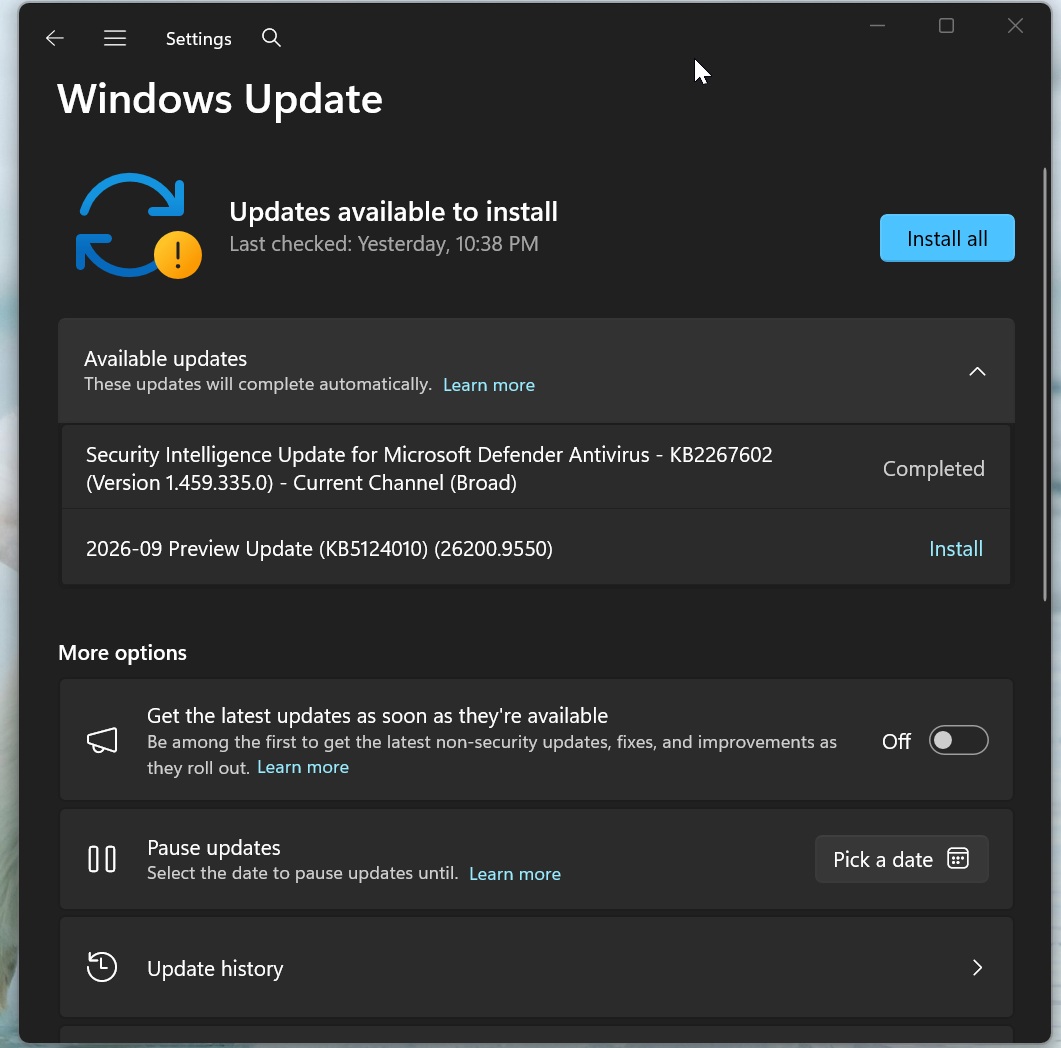
I also noticed that today’s optional update will download automatically in the background if you’ve turned on the toggle “Get latest updates…”.
As Microsoft’s Windows design and research boss previously noted, you should use the toggle if you want to try new features first, but at the same time, it also means your PC will download optional updates automatically.
Note: If you choose to skip today’s update, you’re not going to miss out on anything, as everything included in this release rolls out on October 13 as part of the Patch Tuesday cycle.
Download Links for Windows 11 KB5124010
Windows 11 KB5124010 Direct Download Links: 64-bit and ARM64 | Microsoft Update Catalog lets you grab offline installers (.msu) for all monthly Windows updates, including the one rolling out today. And you can use it if you’ve run into errors with Windows Update, but in all other cases, it’s better to stick to Windows Update.
Windows updates are now much larger in size, particularly those downloaded via Update Catalog. For example, today’s update is over 5GB if you use Update Catalog, and it’s a little under 1.5GB if you use Windows Update, assuming you’ve installed all recent Windows updates. Windows 11 updates are cumulative, which means they include all previous missing changes.
| Build Number | Size | OS Version | Architecture |
|---|---|---|---|
| 26200.9550 | 4960.7 MB | Windows 11 25H2 | x64-based |
| 26200.9550 | 4960.7 MB | Windows 11 25H2 | arm64-based |
| 26100.9550 | 4796.9 MB | Windows 11 24H2 | x64-based |
| 26100.9550 | 4796.9 MB | Windows 11 24H2 | arm64-based |
What’s new in Windows 11 Build 26200.9550 (25H2) / Build 26100.9550 (24H2)?
Windows 11 Build 26200.9550 has a lot of interesting stuff to check out, but remember that everything is rolling out gradually, so it’s likely you won’t see anything visibly different other than a new build number.
Microsoft insists gradual rollout is necessary to ensure quality, but if you can’t wait, the company recommends turning on the “Get latest updates…” toggle on the Windows Update page and increasing the odds in your favour.
1. File Explorer is getting better, and now lets you easily view blocked files
If you remember, an update that rolled out last year made it difficult to preview files directly in File Explorer when downloaded from the internet. That means if you download a document from OneDrive, Google Drive, or even Microsoft Word web, and try to preview it in File Explorer’s Preview pane, you won’t be able to.
File Explorer blocks previews for files downloaded from the web, and Microsoft required you to manually unblock the file from its Properties > General or using PowerShell scripts, but it’s being addressed today.
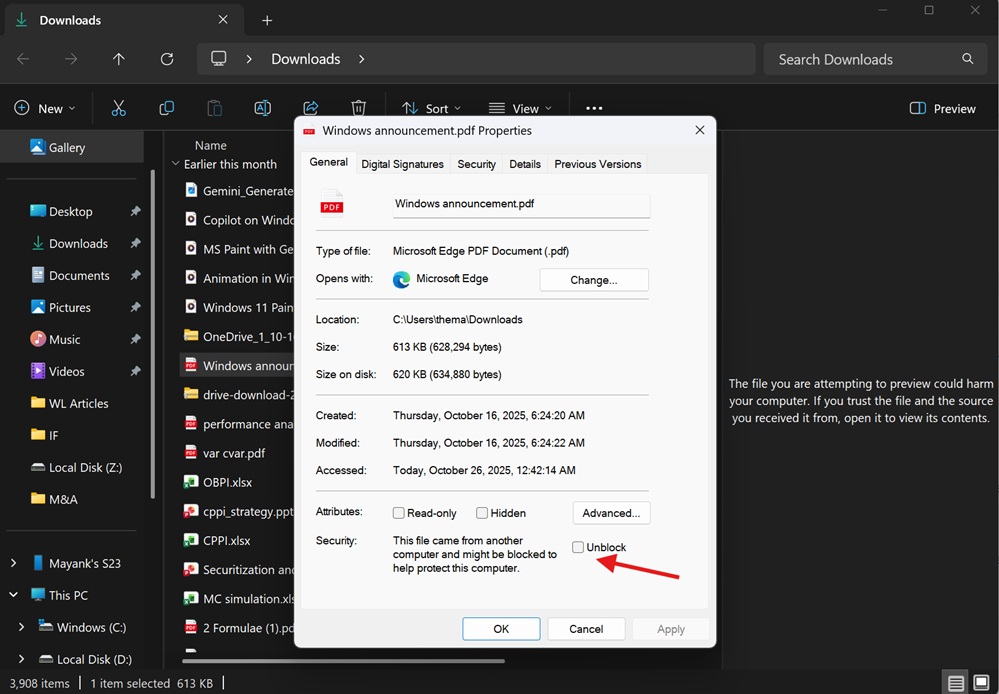
With Windows 11 KB5124010, Microsoft has added a new “Preview anyway” toggle that lets you immediately preview HTML files:
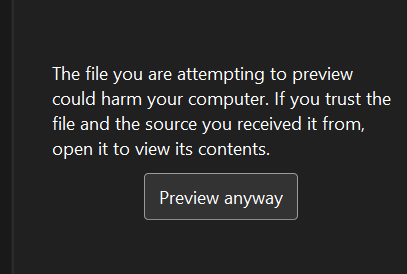
In the case of non-HTML files, such as PDFs, that restriction is now gone entirely, and all downloaded files are previewed automatically! So we’re sort of going back to the original behaviour, except for HTML files, which are anyway getting a “Preview” button.
In addition, Windows Latest noticed that the “Home” tab in File Explorer can now remember the state of sections. For example, if you collapsed the “Recent” section and opened File Explorer again, you’d notice that the section remains collapsed. Previously, it would always expand, which is the default state, and not remember the preference.
Here’s everything else rolling out to File Explorer today:
- New! This update improves the reliability of thumbnail previews for cloud files in the Details pane. The pane has also been reorganized so file properties are easier to find and review at a glance.
- New! This update addresses an issue that could clear the address bar contents when entering edit mode by clicking near the right side of the address bar.
2. Emoji 17 now rolling out on Windows 11
Microsoft is adding Emoji 17.0 support to Windows 11, and it includes a couple of fun emojis, such as a distorted face and even a hairy creature. These emojis came to mobile a little while ago, and they’re now coming to Windows.
Microsoft confirmed that emojis can be accessed via Windows key + Period (.), and Windows 11 KB5124010 also improves several existing emojis, so you can recognize them better. Previously, Windows had a bug where emojis looked different from Android/iOS, but now, you’ll have some similarities, particularly with the kissing cat and lotus emojis.
3. Personalization is getting better
There has been a bug on Windows 11 where applying certain wallpapers or making some personalizations does not get applied, including a bug where Windows shows a black wallpaper instead of the one you set up. This is finally getting fixed, and Microsoft has also made the Personalization > Background page in Settings more reliable.
Moreover, Windows 11 KB5124010 adds support for DIB image files, so if you’ve got an image in DIB, you can now set it as the desktop background instead of converting it to PNG or JPEG, for example.
Last but not least, Microsoft has added support for slideshow wallpapers in multiple desktop setups. That means if you switch back and forth between desktops, your slideshow wallpapers won’t switch back to Picture itself. Slideshows are now fully supported across multiple desktops.
Here’s a list of other personalization-related fixes in today’s update:
- A bug has been fixed that hurts the quality of desktop background previews.
- A bug has been fixed where desktop wallpaper changes are not processed immediately.
And that’s pretty much it. Unlike previous updates, today’s optional update is not huge, and there are no groundbreaking changes. At the same time, it can break audio on some PCs, particularly those that use USB audio, and Microsoft says it’s still looking into the root cause.
The post Windows 11 KB5124010 is out with major changes, direct download links for offline installer (.msu) appeared first on Windows Latest