
We tested Windows 11’s Low Latency Profile extensively, and we can confirm that it does not hurt your CPU, it does not drain your battery, and it does not cause your PC to run hot. We had multiple testing sessions, with HWiNFO and Task Manager running with battery status monitored throughout. Microsoft’s CPU Boost tech works as designed, and the concerns circulating online about overheating or processor damage are based on a misunderstanding of CPU Speed boost versus CPU Utilization.
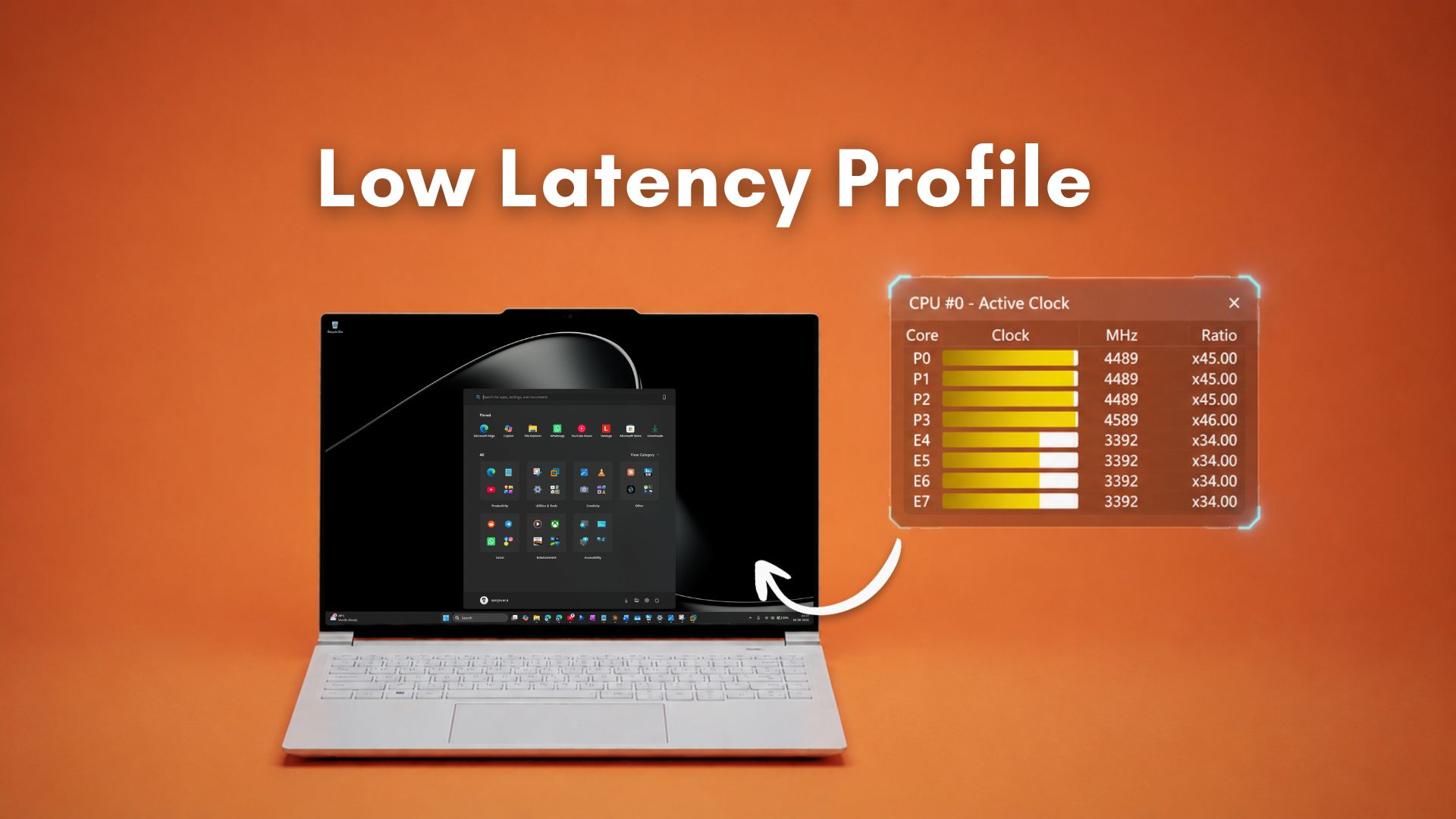
Low Latency Profile is part of the June 2026 Patch Tuesday update (KB5094126), and it is now rolling out to all Windows 11 PCs on versions 24H2 and 25H2. The feature is a scheduler-level enhancement that instantly spikes the CPU clock speed to its maximum turbo frequency for one to three seconds the moment you interact with the Start menu, Windows Search, or Action Center. We reported on this well before launch, and we first tested it back in May when it was still hidden inside Insider builds. The results then and now are consistent. Faster, smoother shell experiences, with no observable thermal or battery penalty.
Also, we have said this before, and we’ll say it again. Low Latency Profile is not a lazy fix. Not even close. If anything, the question you should be asking Microsoft is why they didn’t do this years ago. There are no downsides. As you’ll see in the testing below, the CPU speed jumps up, but the CPU utilization barely moves, and this is why Low Latency Profile causes no harm.
Testing CPU usage with Low Latency Profile enabled for core shell experiences
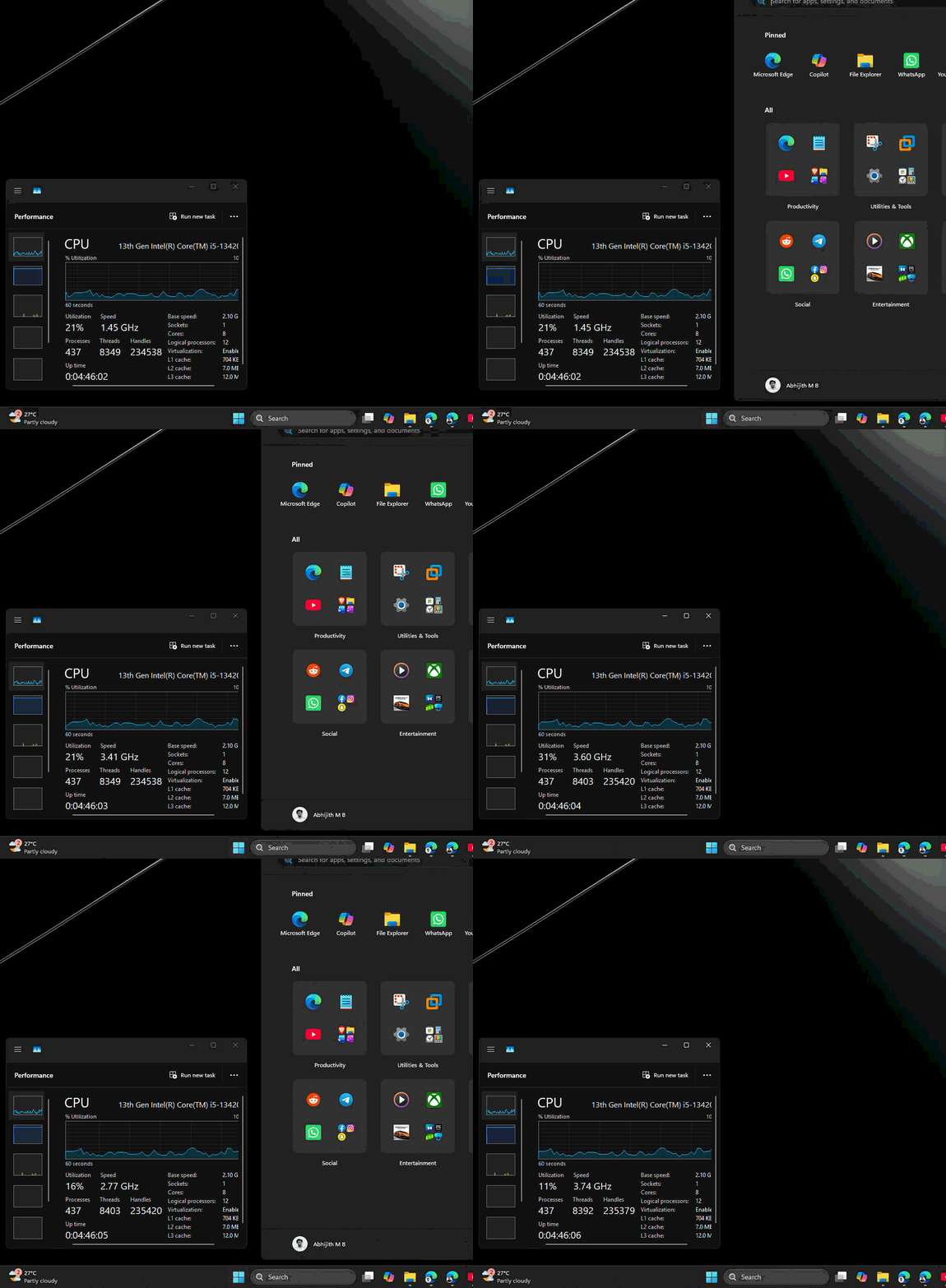
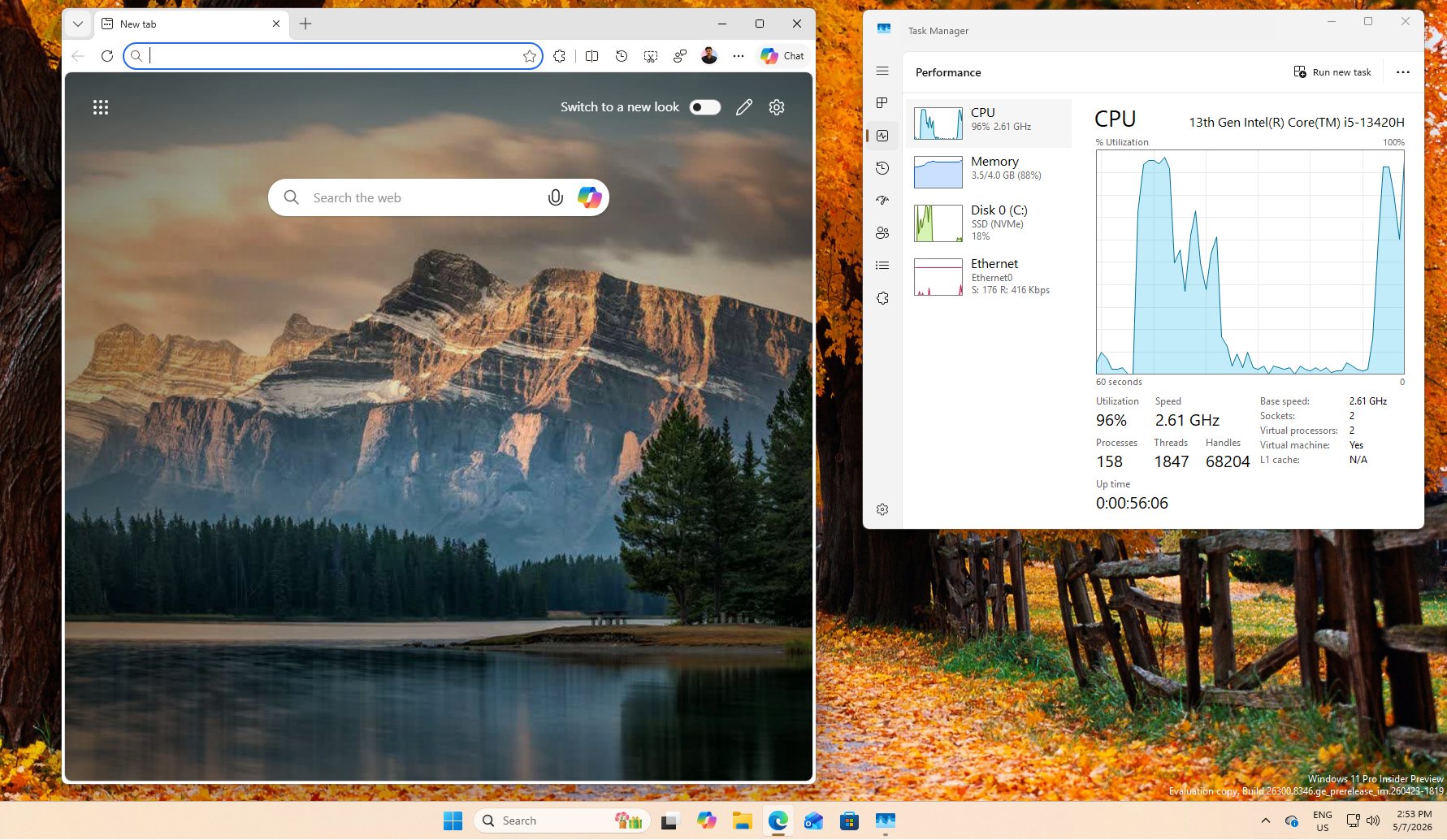
To verify Low Latency Profile’s behavior, I ran Task Manager and HWiNFO alongside screen recordings across three separate shell interactions: the Start menu, Windows Search, and Action Center with Quick Settings. At the time of testing, CPU Utilization on my machine was hovering between 20% and 30%, naturally elevated because of screen recording software, around a hundred Edge tabs open (not even exaggerating), and WhatsApp running in the system tray, which as we reported, is consuming north of 1.2GB of RAM. So the baseline load was already higher than idle, which is how we normally use our PCs.
Start menu CPU usage with Low Latency Profile
Before enabling the feature, the Start menu would open with that familiar slight hesitation, almost imperceptible on a fast desktop, but very noticeable on budget hardware. After enabling it, the menu snaps open immediately.
In this screen recording, and subsequent ones, I have Task Manager running. I opened the Start menu repeatedly, waiting each time for the CPU clock to settle back to idle before triggering it again. Every single time, the CPU speed jumped above 4GHz, reaching 4.5GHz on some triggers. That jump confirms that Low Latency Profile is at work. But the main observation is that CPU utilization, which was already between 20% and 30% due to background load, did not go up.
To push my point further, I invoked the Start menu repeatedly in quick succession, giving it no time to settle between triggers. Even then, as CPU speed kept bouncing above 4GHz, the utilization percentage was the same. The frequency spike is just a clock boost, not a load increase.
Windows Search loads faster with CPU Boost
Windows Search is getting a lot better on its own, with the June 2026 update allowing searches with just two characters, among other improvements coming soon. Low Latency Profile makes the Search bar more responsive. During my testing, CPU frequency during idle was hovering between 2GHz and 3GHz. CPU utilization was between 10% and 25%.
When I clicked into the Search bar, the CPU frequency immediately jumped above 4GHz, touching 4.5GHz. The Search panel loaded faster than without Low Latency Profile, and the experience felt noticeably more snappy. CPU utilization did not move up from the ambient 10% to 25% range.
Action Center and Quick Settings have never been this smooth
Action Center and Quick Settings were tested under the same conditions. CPU frequency was between 2GHz and 3GHz at idle, with Utilization between 15% and 25%. On triggering Action Center by clicking the taskbar clock area, the CPU Speed jumped above 4GHz and toward 4.5GHz. The panel appeared more smoothly than before the feature was enabled.
CPU utilization did not increase during these interactions. Never while opening once, and never while opening repeatedly
To push it further, I combined all three shell triggers in rapid sequence. In that combined test, where I opened the Start menu, Search, Action Center, and Quick Settings back to back, CPU speed climbed above 4.5GHz at times, while utilization continued to be in its usual range of 15% to 30%. In case you’re wondering, RAM also showed no change. The CPU Frequency spikes are completely isolated from the CPU Utilization figure.
One caveat worth mentioning is that if you are running an extremely underpowered PC, one with 4GB RAM and a dual-core processor, where the system is already constrained just running Windows, you might see CPU utilization reach maximum sometimes. It is only because such a machine is already at its limit before Low Latency Profile even enters the picture. For any reasonably functional PC, there is no CPU Utilization increase.
Does Low Latency Profile harm the CPU? CPU frequency vs CPU utilization, explained
People concerned about Low Latency Profile overheating their PC or wearing out the processor are conflating two completely different things: CPU Speed (frequency) and CPU Utilization. All you need to do is understand the difference.
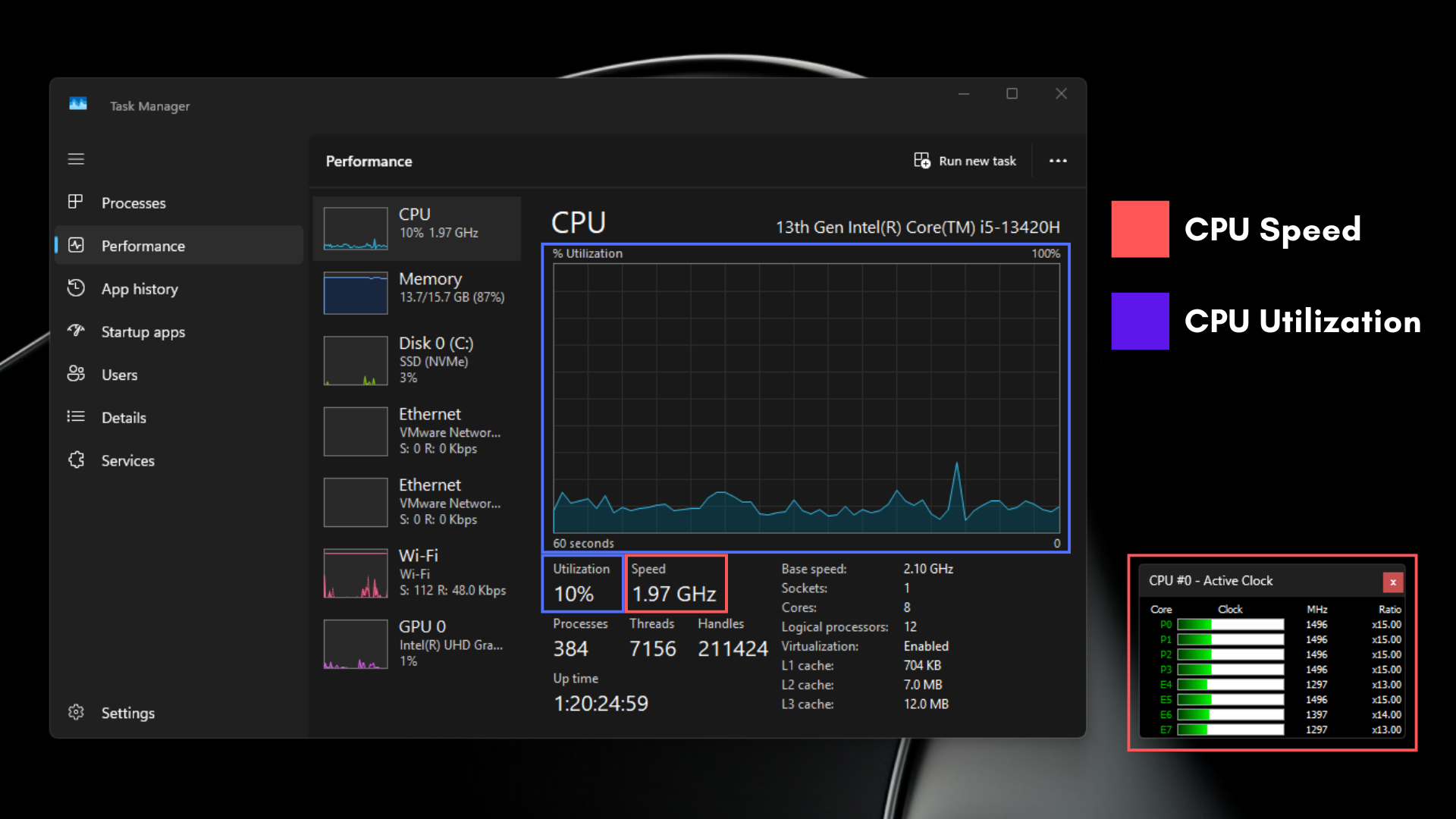
CPU utilization is the percentage of time the processor spends doing actual work. High CPU utilization, say 90% or above sustained for long periods, is what generates heat, drains battery, and creates thermal throttling over time. It is the load figure. When you render a video or compile code, CPU utilization climbs and stays high, which is where thermal and power concerns are legitimate.
CPU frequency is simply the speed at which the processor runs its clock cycles. Your CPU runs at different frequencies all the time, all day, without you noticing or caring. When the system is idle, it drops to around 800MHz to 1.5GHz to save power. When a brief task arrives, it boosts to its turbo frequency, sometimes 4GHz or above, for a moment, then drops back.
Turbo Boost has been doing this since Intel introduced it over a decade ago. Low Latency Profile makes that frequency spike happen immediately and deliberately when you interact with the Windows shell, rather than letting the scheduler ramp up gradually. But the mechanism is the same technology your CPU already uses constantly.
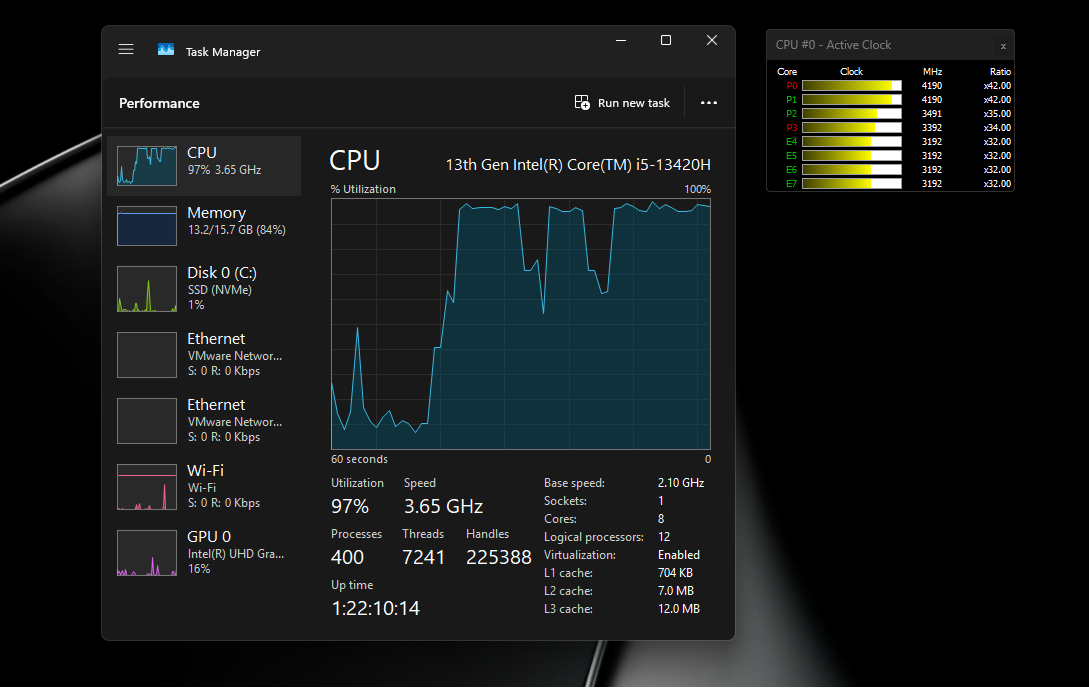
The relationship between frequency and heat is not linear. A brief 2-second spike to 4.5GHz at low utilization produces far less heat than sustained operation at 2GHz with 80% utilization. What generates heat is the combination of clock speed and the amount of work being done, not frequency alone. In our testing, there was no measurable change in surface temperatures during continuous Low Latency Profile triggers, precisely because the utilization did not change. The processor ran faster for a moment, did its job, and returned to idle.
Is Low Latency Profile the same as overclocking?
Overclocking means running a processor permanently beyond its rated speeds, usually by modifying voltages and multipliers through the BIOS. It carries real risks because the CPU is operating outside its designed parameters continuously, which can shorten its lifespan and generate significantly more heat over time.
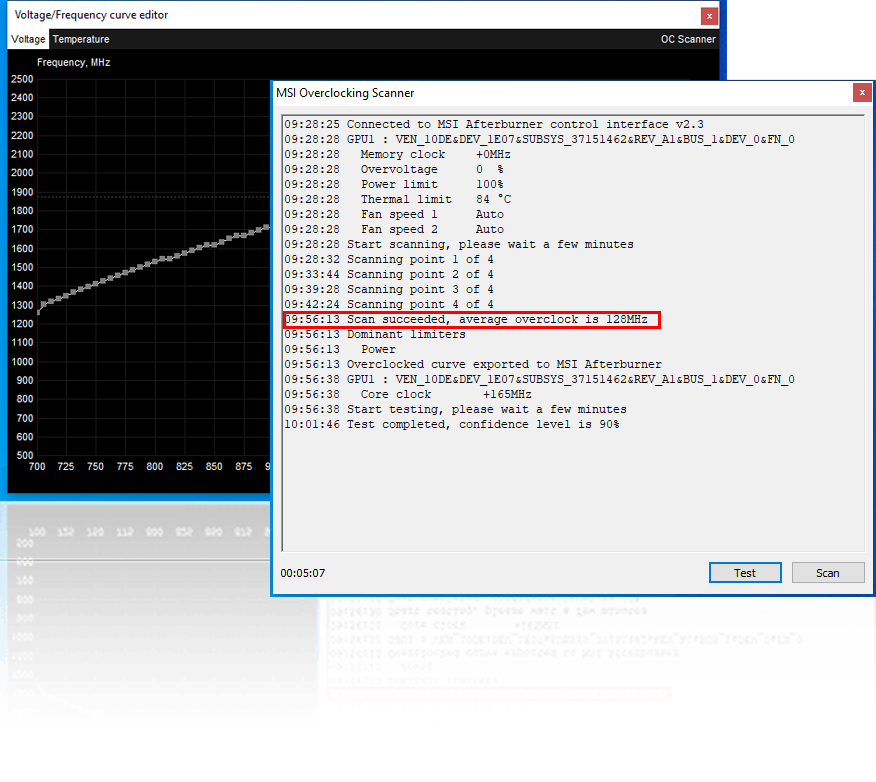
Low Latency Profile is the opposite of that. It instructs the Windows scheduler to use the CPU’s existing turbo frequency, which is already within the processor’s official specification, immediately and reliably when you trigger the Start menu or other flyouts. There are no BIOS modifications or voltage changes. Your CPU already has a turbo frequency that it reaches during demanding tasks. Low Latency Profile ensures it reaches that frequency without the usual delay. The burst lasts one to three seconds at most, and the CPU returns to a low-power idle state afterward.
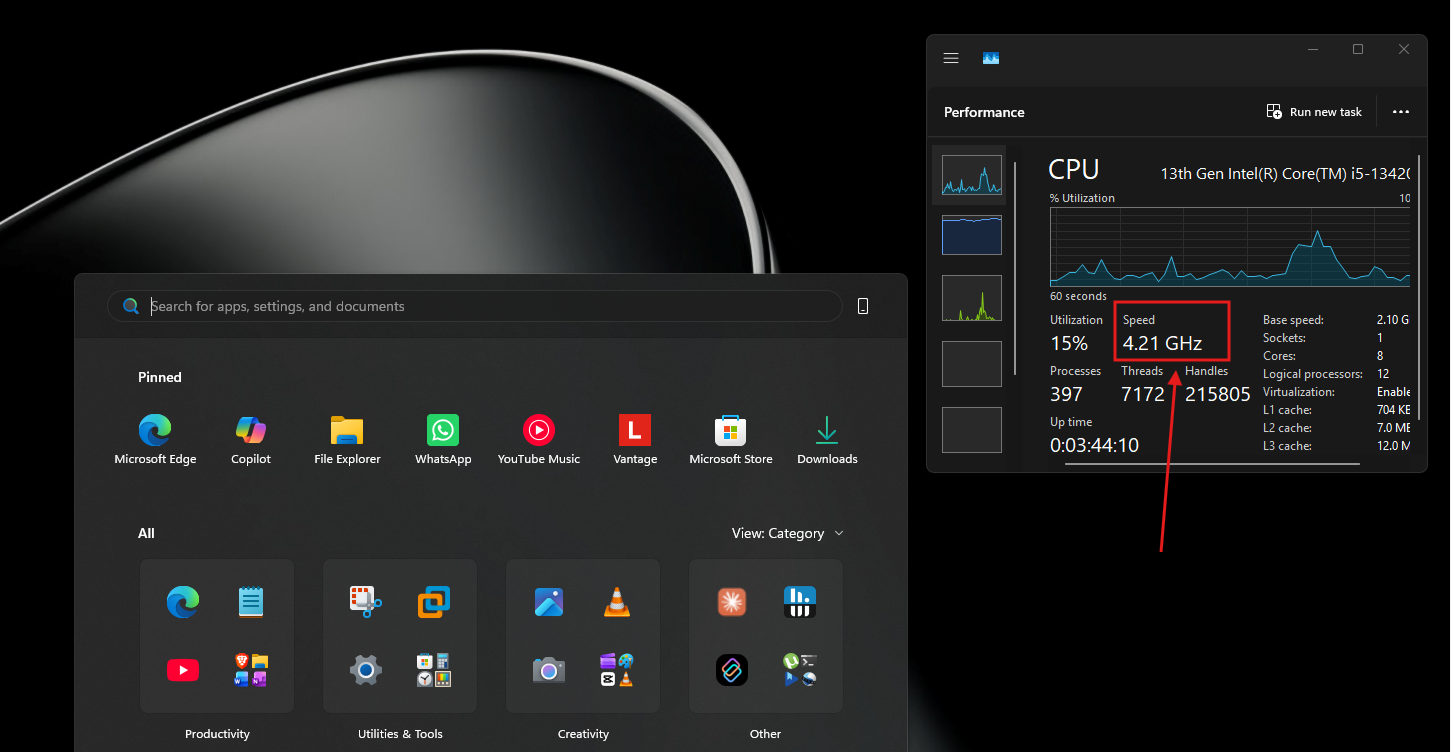
Low Latency Profile operates entirely within the hardware’s designed boundaries.
Race to sleep is the technology behind Low Latency Profile
The concept at work here is called “race to sleep” (sometimes called “race to idle”). By running the CPU at maximum frequency and completing a task as quickly as possible, the processor can return to its deep low-power sleep state faster than if it had done the same task at a lower, slower clock speed. A CPU that sleeps more, overall, draws less power than one that runs at moderate frequency for a longer period to accomplish the same outcome.
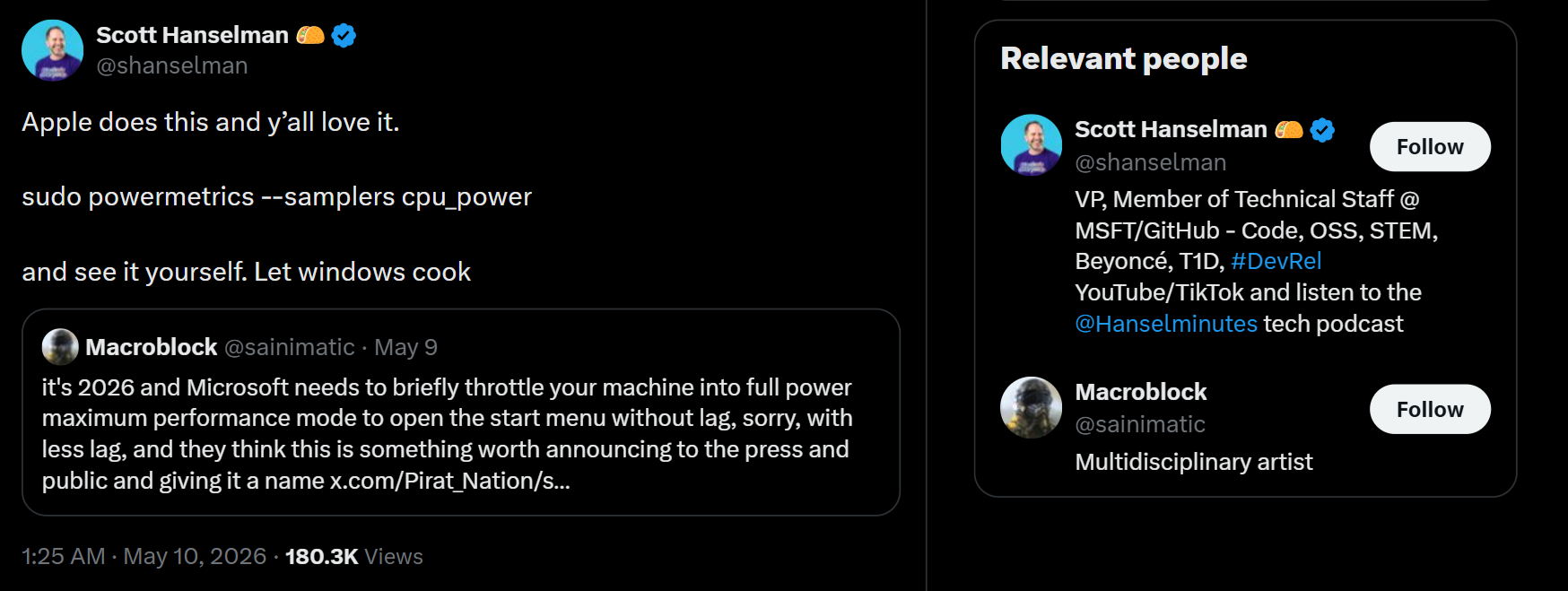
Microsoft VP Scott Hanselman confirmed this when he defended Low Latency Profile against criticism, noting that Apple’s devices have used this scheduler for years, and that the improvement is especially pronounced on ARM processors like Qualcomm’s Snapdragon X series.
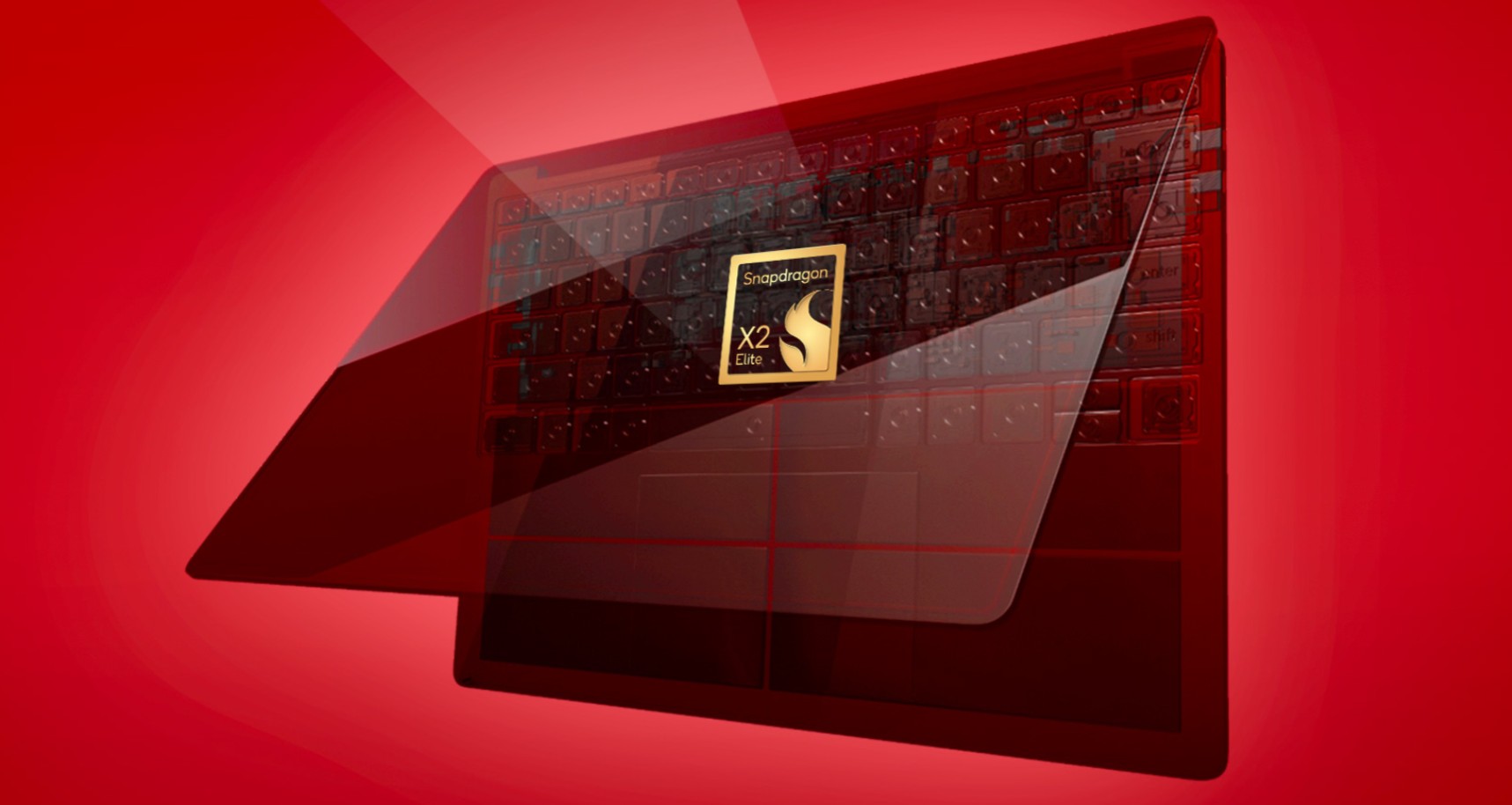
On ARM chips, power state transitions happen in microseconds rather than milliseconds, meaning the frequency spike and the subsequent return to sleep happen far more efficiently than on traditional x86 silicon. Snapdragon X Elite laptops and even the recently announced Surface Laptop Ultra, and other RTX Spark-based devices will see an outsized benefit from this feature, though x86 machines absolutely benefit as well.
Android uses its own version of this via the Android Dynamic Performance Framework (ADPF), which allows apps to dynamically communicate their performance needs to the hardware. Apple’s macOS assigns user-initiated UI interactions to the highest-performance cores available through QoS scheduling.
Every major OS has some form of this. Windows is catching up, not inventing something new, and the criticism towards Microsoft is unfair.
Low Latency Profile is not a lazy fix, and here’s what Microsoft is doing
Undoubtedly, the biggest criticism when Low Latency Profile was first revealed was that Microsoft was papering over bloated Windows shell code with a brute-force CPU boost trick. Some users called it a band-aid. A funny comment I found was “flooring an accelerator instead of servicing the engine”. Not going to lie, it’s a good line. But it’s wrong.
For Low Latency Profile to be a lazy fix, Microsoft would have to be only using it instead of fixing Windows 11’s code. That is not what is happening. Microsoft is rewriting the Start menu and core shell components in native WinUI 3, replacing the web-based, Electron-adjacent frameworks that have slowed Windows 11’s shell since launch. We covered Microsoft’s commitment to native UI for Windows 11.
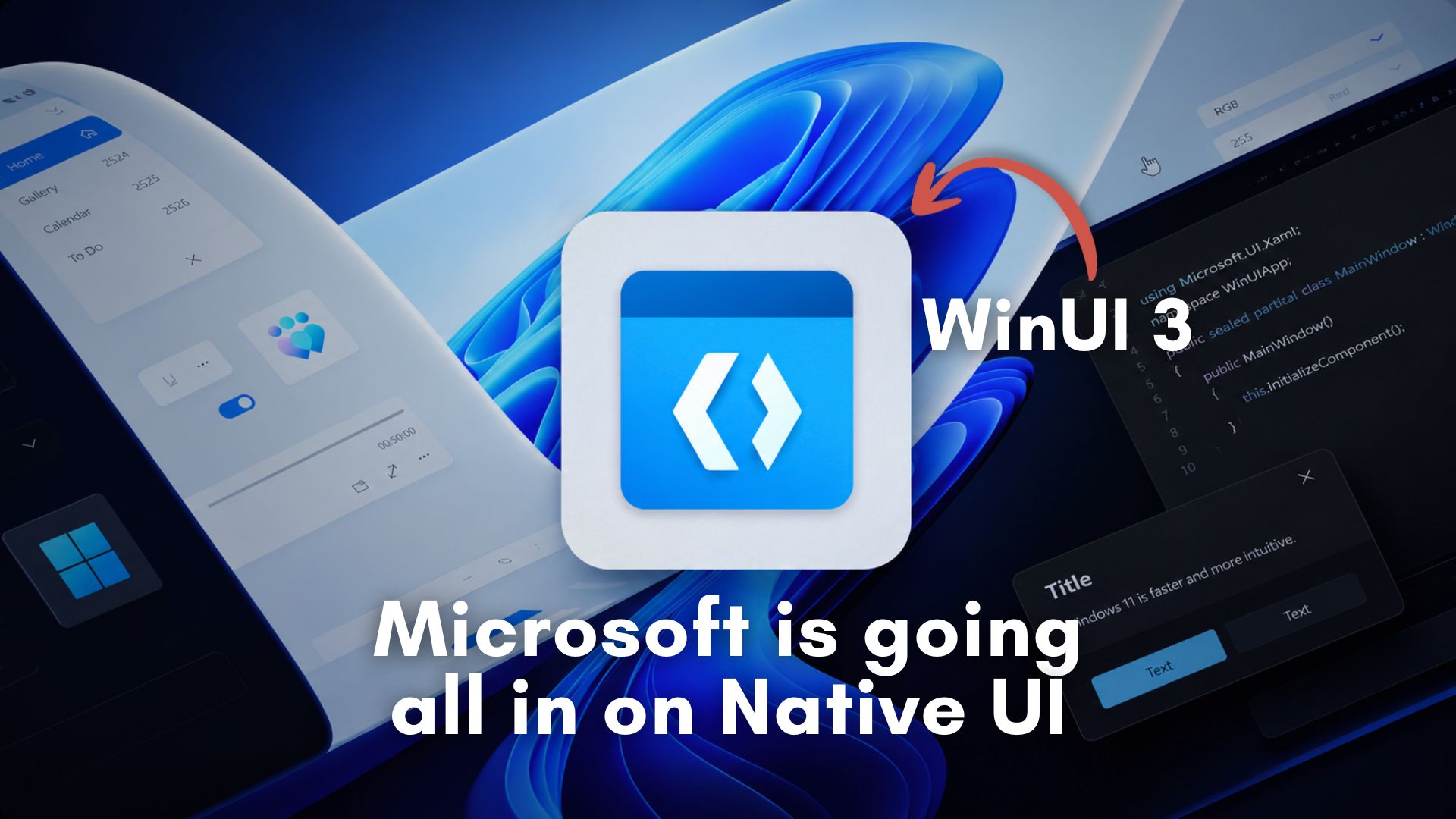
The company has already cut memory allocations in File Explorer by 41% and reduced time spent executing WinUI code by 25%. A WinUI 3-based Start menu is already in development and confirmed. Microsoft is bringing 10 new features to the taskbar and Start menu alongside these architectural improvements.
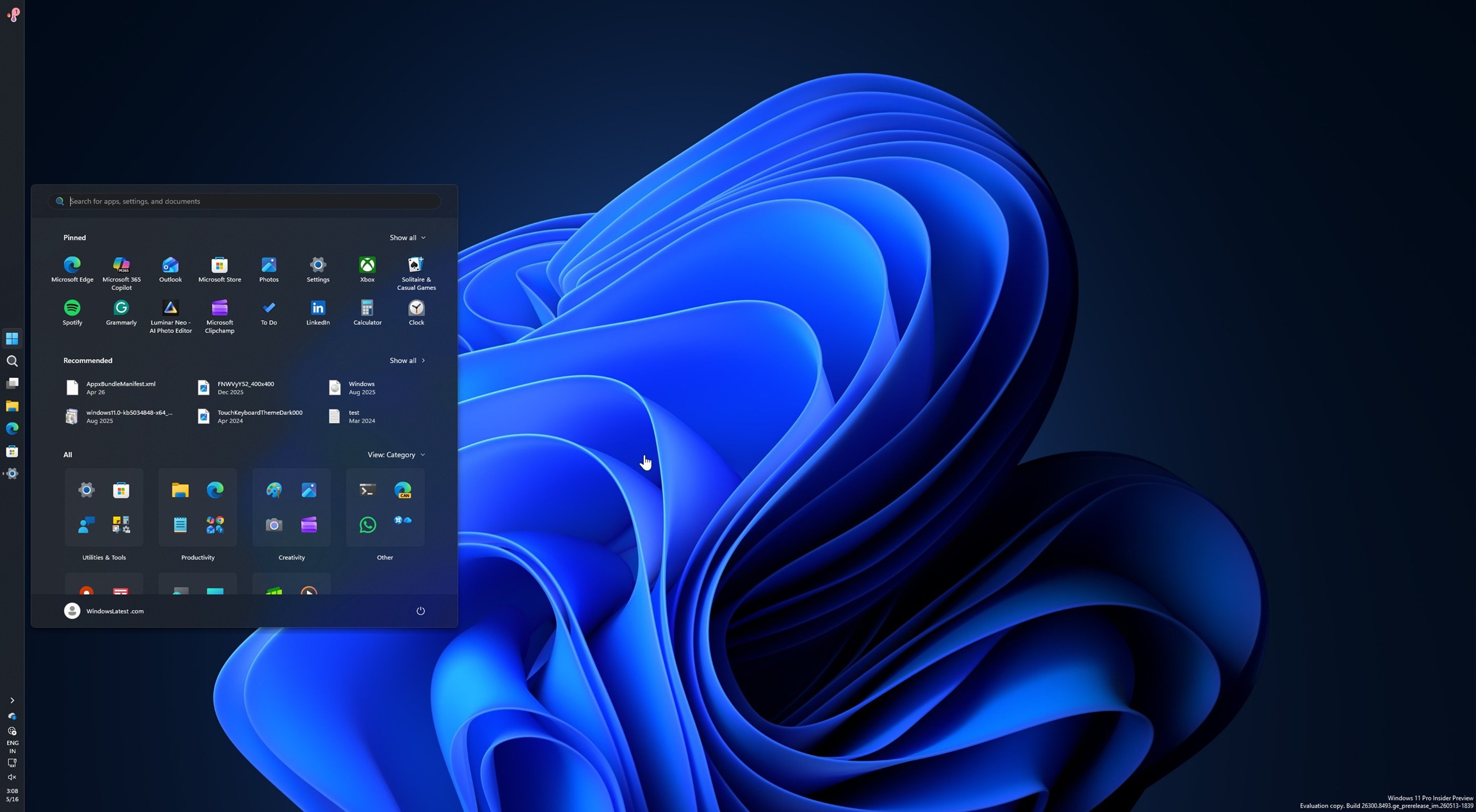
Low Latency Profile exists in parallel with this code cleanup, and not instead of it. When the Start menu eventually runs entirely in native WinUI 3 code, it will be both lighter and backed by a scheduler that immediately boosts CPU frequency when we open it. The compound effect of those two changes working together is what I’m looking forward to.
Race to sleep is not a new concept. It is a decades-old technique used in mobile chip design and adopted by every major OS on the market. Microsoft adding it to Windows 11 is a sign that the OS is finally catching up with modern power management principles.
So no, Low Latency Profile will not damage your CPU. No, it will not drain your battery or overheat your machine. And no, it is not a lazy substitute for real optimization. The data from our testing is clear, and so is the logic once you understand the difference between CPU frequency and CPU utilization. After the June 2026 update, it will be gradually enabled, but if you’re eager to try it, you can force enable it and let it do its job.
The post Tested: Windows 11’s new CPU boost doesn’t damage your CPU, drain your battery, or cause heat appeared first on Windows Latest