
Windows 11 KB5094126 is the biggest update of the year with dozens of new features, including the highly anticipated Low Latency Profile. However, Windows Latest has received several reports that the June 2026 Update is causing boot failures (BSODs or BitLocker Recovery) on some PCs, mostly HP, and is also breaking cloud sync in File Explorer.
Microsoft released KB5094126 (Build 26200.8655) on June 9, 2026, as part of the company’s June 2026 Patch Tuesday cycle, and it installs automatically unless you’ve deferred the update before it was downloaded. The June update patches up to 200 security flaws, including 33 critical and five zero-day bugs.
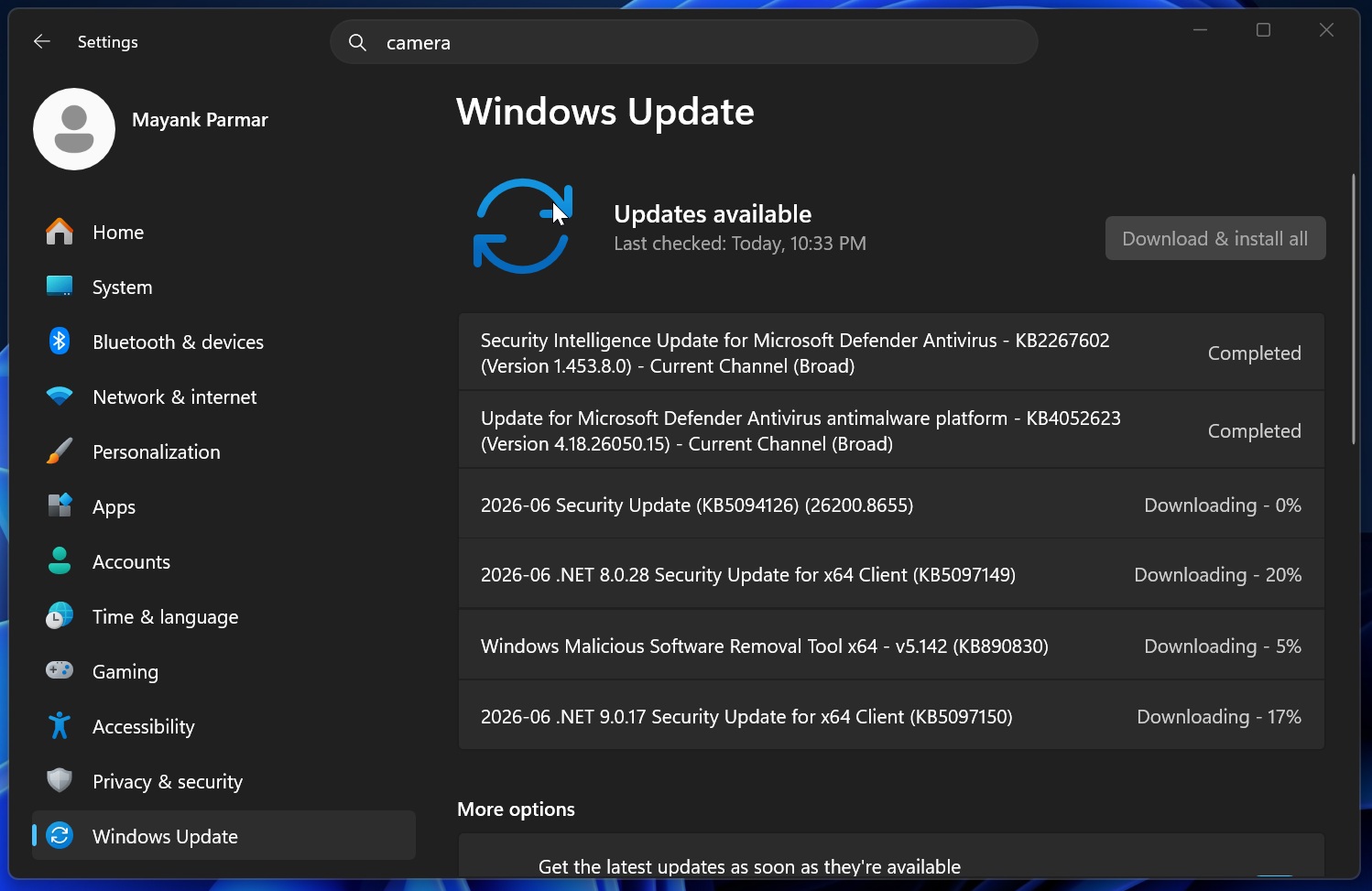
But while KB5094126 is important and must be installed on all PCs, the rollout has not been smooth for everyone. One user told me that they manage hundreds of HP hardware devices at their organization, and after they deployed the June 2026 update, most PCs were unable to boot due to the BitLocker recovery screen or Black Screen of Death (BSOD, previously Blue Screen of Death).
One of the HP models that appears to be most affected is the EliteBook 840 G10, which is typically used by HP’s premium customers, mostly enterprises. But the problem is not just isolated to a specific HP model. Based on our research, the June 2026 Update is wrecking the following PCs:
- HP EliteBook 840 G10
- HP ProBook 460 G11 / HP 460 G11
- HP Engage One Pro 15.6 G2 AiO POS
- HP ZBook
- Dell Precision
- Dell Precision 7530
Of course, you might own one of the listed PCs and never run into a problem, as the issue appears to be tied to the BIOS and Windows update. My understanding is that June BSODs are not Microsoft’s fault alone, as it appears to be due to a compatibility issue between the update and BIOS or EFI/System partition settings misconfigured by HP.
Why is the June 2026 update causing boot failure on some PCs?
Windows Latest understands that Windows 11 KB5094126 seems to touch Secure Boot-related files, certificates, Boot Manager, or EFI contents. On affected devices, especially older images with a 100MB EFI partition instead of a newer 500MB to 1GB partition, Windows fails to write the required files.
If you’re affected and you manage to boot, you should check Event Viewer. You’ll find dozens of TPM-WMI errors, with one saying “The secure boot update failed to update Boot Manager (2023) due to the error: insufficient disk space.”
HP devices seem more exposed because HP stores BIOS or firmware recovery files under the EFI partition, such as EFIHPDEVFW, which can consume a lot of space. So the actual issue may not be the SSD or Windows install itself, but the small or bloated EFI partition.
When you try installing Windows 11 KB5094126, and the update fails there, Secure Boot blocks Windows from loading, which causes a Black Screen of Death (BSOD) with error 0xc0430001. In other cases, if you have BitLocker turned on, you’ll be sent to recovery mode, where you need to enter the key.
You might also run into Secure Boot signature verification errors.
Microsoft previously told Windows Latest that KB5094126 turns on the Secure Boot certificate update for most supported PCs, so that lines up with the reports we’re seeing.
What to do if your PC is not booting after the Windows 11 June 2026 Update?
I’ve heard from our customers that their PCs get stuck in a recovery loop and may not boot at all, even after you enter the BitLocker key. In that case, you need to temporarily disable Secure Boot and get back into Windows. This is the only workaround that has worked on all affected PCs:
- Make sure you’ve backed up BitLocker recovery keys or use a Microsoft account, which automatically stores your keys.
- Boot into BIOS by pressing the Esc key before the OEM logo shows up. If Esc isn’t working, check with the manufacturer. Esc works on all HP PCs.
- In BIOS, look for Secure Boot and disable it. You could be asked to enter the BitLocker key, which you can find in your Microsoft account.
- After disabling Secure Boot, exit BIOS and boot to Windows. Finally, install the cumulative update.
- Reboot and let it apply successfully.
- Go back to BIOS and re-enable Secure Boot.
I also recommend that you make sure BIOS/UEFI is updated, but if the above workaround doesn’t work, you’ll need to turn off Secure Boot until Microsoft or HP offers an explanation.
Also, once Windows boots to the desktop, you should check if you have enough free space in the EFI partition. In case you don’t, I recommend resizing it. It’s necessary for some PCs because I’ve heard PCs with low EFI are still running into problems. In other cases, I don’t think Windows is crashing due to EFI on all PCs.
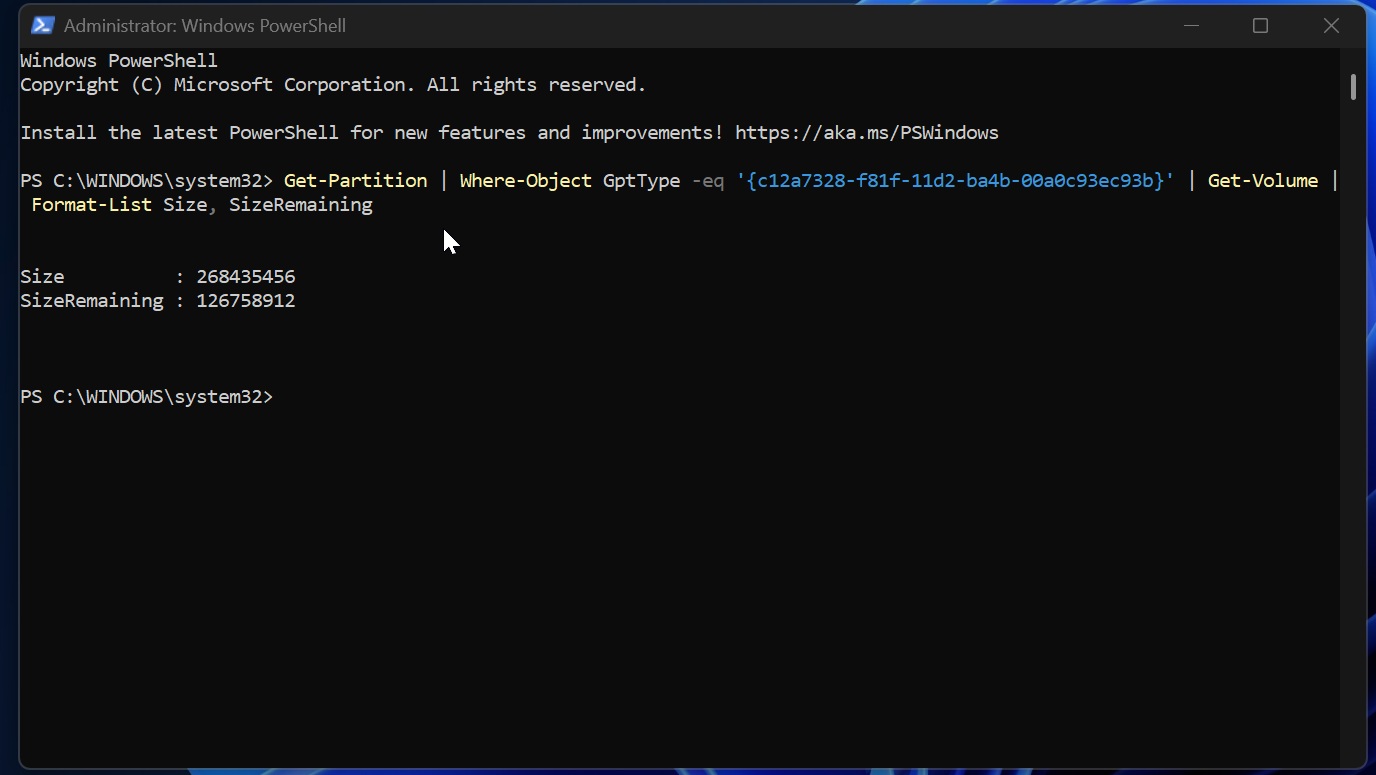
In fact, Microsoft clarified that it patched EFI-related crashes in the June 2026 update, so it doesn’t make sense if you run into BSODs due to it. It’s very likely that an outdated BIOS or UEFI version is causing problems when you install the June update. We suspect a mismatch between BIOS and Windows updates for Secure Boot.
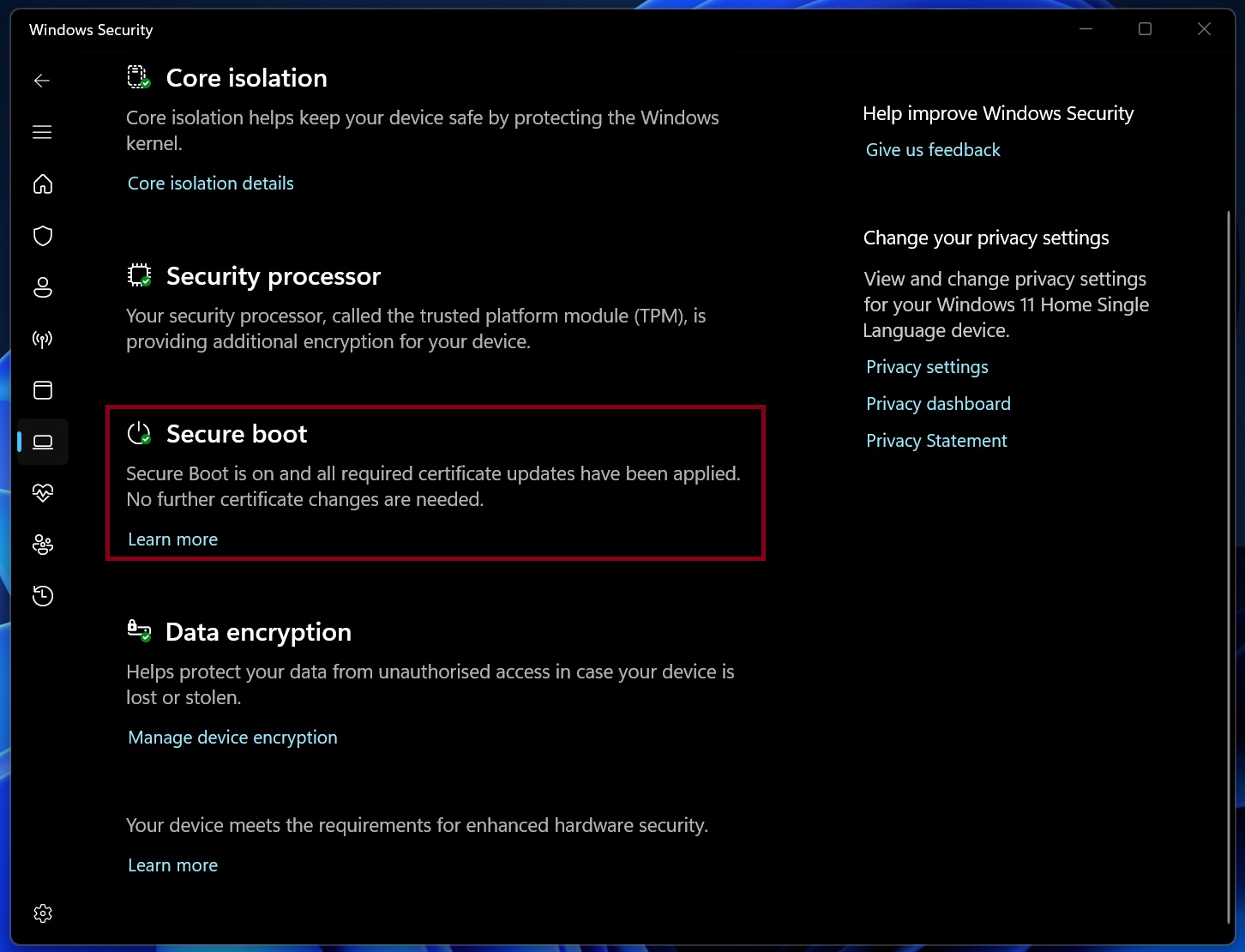
It’s also worth noting that it’s not just Windows Latest’s readers who have run into BSODs after the June 2026 update. We’re seeing similar reports on Reddit and Microsoft’s Feedback Hub. Given how attentive the company has been lately, I wouldn’t be surprised if we see an acknowledgment within a few days.
“I’ve got this issue, pushed out updates to an early ring of devices and a bunch conflicted but 1 received this issue. – These are HP Engage One Pro 15.6 G2 AiO POS systems,” one user wrote in a Reddit post. “So the common denominator seems to be HP devices. I haven’t seen a single report on this issue that isn’t HP.”
In a Feedback Hub post, one user complained that Windows 11 KB5094126 creates a DPC_WATCHDOG_VIOLATION boot loop, and removing the patch allows the PC to boot correctly.
“This update broke my machine. It crashes when attempting rollback, it crashes when updating this feedback, etc,” Jonathan, one of the affected users, wrote in a post on Feedback Hub. “I am 100% sure this KB is broken. Rolled it back, tried reinstalling KB5094126, and it created a boot loop again.”
Windows 11 KB5094126 is breaking File Explorer integration for OneDrive
After installing the Windows 11 KB5094126 update, some of you can no longer open OneDrive from File Explorer’s left pane, tray icon, or existing shortcuts on your PC. The update appears to have broken OneDrive’s integration in File Explorer on some PCs, and it’s unclear how many users are affected.
If you’re affected, you can no longer open OneDrive from File Explorer after installing KB5094126. This means if you right-click OneDrive in the system tray and choose the Explorer option, it’ll not react, and your folder won’t open inside File Explorer. One user told me that removing Windows KB5094126 instantly fixed it.
On further investigation, Windows Latest found that the problem may not be isolated to OneDrive, as Dropbox and iCloud Drive had the same problem. However, it’s not as widespread as the OneDrive problem.
Is it impossible to access cloud files or folders in File Explorer after the June update?
Well, not really. If you manually go to C:Usersusername… and try opening the folders, cloud folders will open fine, but if you use File Explorer’s sidebar or icon in the system tray to open folders, which is the most used route, your action will fail.
However, not everybody is affected. I personally did not run into the issue on my Windows 11 25H2 PCs, but that doesn’t mean a problem does not exist. I’ve received multiple reports from our readers. My OneDrive version was 26.088.0510.0004, and there’s a newer version rolling out, but there is no strong proof that updating OneDrive fixes it.
Windows Latest understands that Windows 11 KB5094126 appears to break Explorer’s cloud storage shell integration, especially on systems with UAC disabled and local admin accounts.
If you switch to a Microsoft account and turn on UAC, you should be able to easily access your cloud files again as you normally do. In other cases, you can either remove the update and wait for Microsoft to patch it up.
KB5094126 is also breaking Word integration in some business apps
There’s another confirmed bug where the June 2026 Windows update breaks Microsoft Word integration in some line-of-business apps, such as dental and accounting software. Word itself still opens documents normally, but apps that embed Word, automate Word, or open Word documents inside their own document or workpaper system are failing.
Based on reports, Windows Latest identified the following apps with issues:
- Dentrix
- Softdent
- CCH ProSystem fx Engagement
- CCH ProSystem fx Workpaper Manager
- Older Eaglesoft / SmartDoc
- Neurology software using Word for reports
It’s unclear what exactly happened, but based on my conversation with an admin who manages hundreds of PCs with these apps, it’s likely that Microsoft made a change that broke apps relying on Microsoft Word automation.
This means Word itself is not broken, but it is possible that a Windows update changed how Windows works with Office automation for third-party apps.
If you run into this issue, you will need to remove the update from Windows Update > Update History > Uninstall updates and select the KB5094126 update you want to uninstall. Reboot Windows to finish applying changes.
Microsoft quietly changes how desktop.ini works, breaking custom folder icons
With Windows 11 KB5094126, Microsoft quietly made a change to the desktop.ini, which broke custom folders on some PCs. This change was confirmed in a support document spotted by Windows Latest.
For those unaware, desktop.ini is a file that is hidden when you normally open folders, but it’s used by third-party apps or advanced users to customize how a folder looks. For example, you can configure the desktop.ini inside a folder to change its icon, show a different name than the actual/real folder name.
After the June 9, 2026 security updates, Windows became stricter about trusting these desktop.ini files. As a result, Windows now ignores the desktop.ini files if you can’t prove the file is genuine and comes from a trusted source. For example, if you downloaded the .ini file from the internet or used a third-party app, folder customizations may not work.
However, this change does not mean Windows 11 KB5094126 blocks access to folders or files. It only changes how folders are displayed in File Explorer on PCs where you used desktop.ini for customization.
If you want desktop.ini to work, make sure it’s added to Trusted Sites by running the following commands in PowerShell:
Unblock-File "C:YourFolderPathdesktop.ini"
The above command unlocks a single desktop.ini file, but if you run the following command, you can unlock all desktop.ini files in a folder:
Get-ChildItem "C:YourFolderPath" -Recurse -Filter desktop.ini -Force | Unblock-File
It’s unclear if Microsoft will improve the behavior, but it’s similar to a change we’ve previously seen with the Preview pane in File Explorer.
The post Windows 11 KB5094126 BSODs some PCs (HP?), breaks OneDrive in File Explorer, and other issues confirmed appeared first on Windows Latest