
Microsoft is rolling out the June 2026 Patch Tuesday update, KB5094126 (OS Builds 26200.8655 and 26100.8655), for Windows 11 versions 25H2 and 24H2. The update is a long one, covering everything from accessibility improvements and USB reliability to font rendering fixes and Secure Boot certificate changes. But a handful of features in this update stand out in a way the others do not.
Here is a closer look at the five best features in the June 2026 Patch Tuesday update, along with a bonus and one honorable mention, which didn’t make the cut in the top 5 for a very specific reason.
1. Low Latency Profile makes the Start menu, Search, and Action Center noticeably faster
Microsoft describes it in the changelog as follows, without giving the feature a name: “[General Performance] This update accelerates app launch and core shell experiences such as Start menu, Search, and Action Center.”
Low Latency Profile is a CPU scheduling change that Windows Latest reported back in May would ship with the June Patch Tuesday update. And it turns out, we were right.
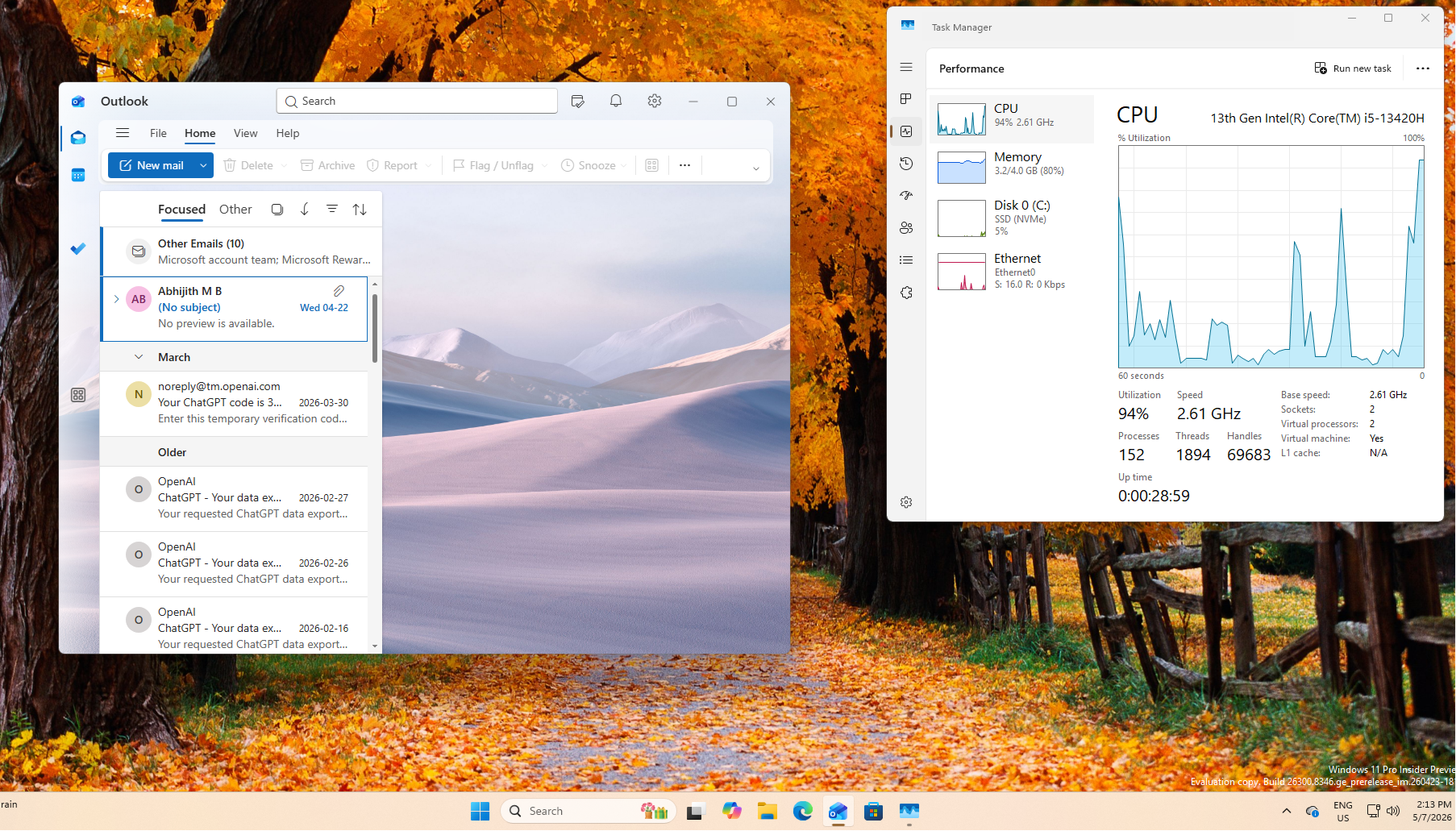
The feature works by briefly spiking the CPU to its maximum frequency for one to three seconds the moment you trigger a high-priority interactive action, such as clicking Start or opening Search. The Windows CPU scheduler usually manages clock speeds to balance power and performance. Low Latency Profile bypasses that pacing for a short burst, so the shell has everything it needs to render immediately instead of waiting on a gradually ramping clock.
When we tested it on a constrained dual-core VM with 4GB of RAM, Edge spiked to 96% CPU utilization on launch, opened almost instantly, and dropped back to normal within three seconds. Something as heavy as the Outlook app, which is getting 15 new features, shows a very dramatic difference is low-end hardware.
On regular, more powerful hardware, the effect is less dramatic but still noticeable, particularly in how consistently smooth shell flyouts feel. We also tested the new Start menu with Low Latency Profile active, and the opening animation is significantly snappier. There was no drop in battery life and no heating issues in our testing.
The feature did generate some controversy when it first leaked. Critics called it a brute-force workaround rather than an OS optimization. Microsoft VP Scott Hanselman pushed back, and we covered it because Hanselman’s point was valid. Apple’s devices have used similar short-burst responsiveness techniques for years, and no one calls that a lazy fix. Interestingly, Linux also does something similar through scheduling policies that favor latency for interactive tasks. It is a well-established approach, and Windows is finally catching up.
Since there is no toggle in Settings for this feature, you may want to verify whether it has been activated on your device. We covered what happens to your CPU when the Low Latency Profile is working, and the short version is that you should see brief CPU spikes in Task Manager at the exact moment you open Start or Search. If those spikes appear and disappear within seconds, the feature is doing its job.
Low Latency Profile is part of the gradual rollout phase in the June update, so it will not activate on every device the day the update installs. It will roll out over time.
2. Multi-App Camera ends Windows 11’s one-app-at-a-time webcam lock
The official changelog entry says: “[Camera] New! Windows 11’s Multi-App Camera feature allows multiple applications to access your camera stream at the same time. Basic Camera mode in Windows 11 enables simplified camera functionality, useful for troubleshooting or improving stability when your camera is not working correctly.”
We covered this change when it first appeared in the May 2026 optional update. Before this update, Windows enforced an exclusive hardware lock on your webcam. If Google Meet was already using your camera, and you get a WhatsApp desktop video call, the camera would get an error. Only one app could hold the camera at a time.
Before the update:
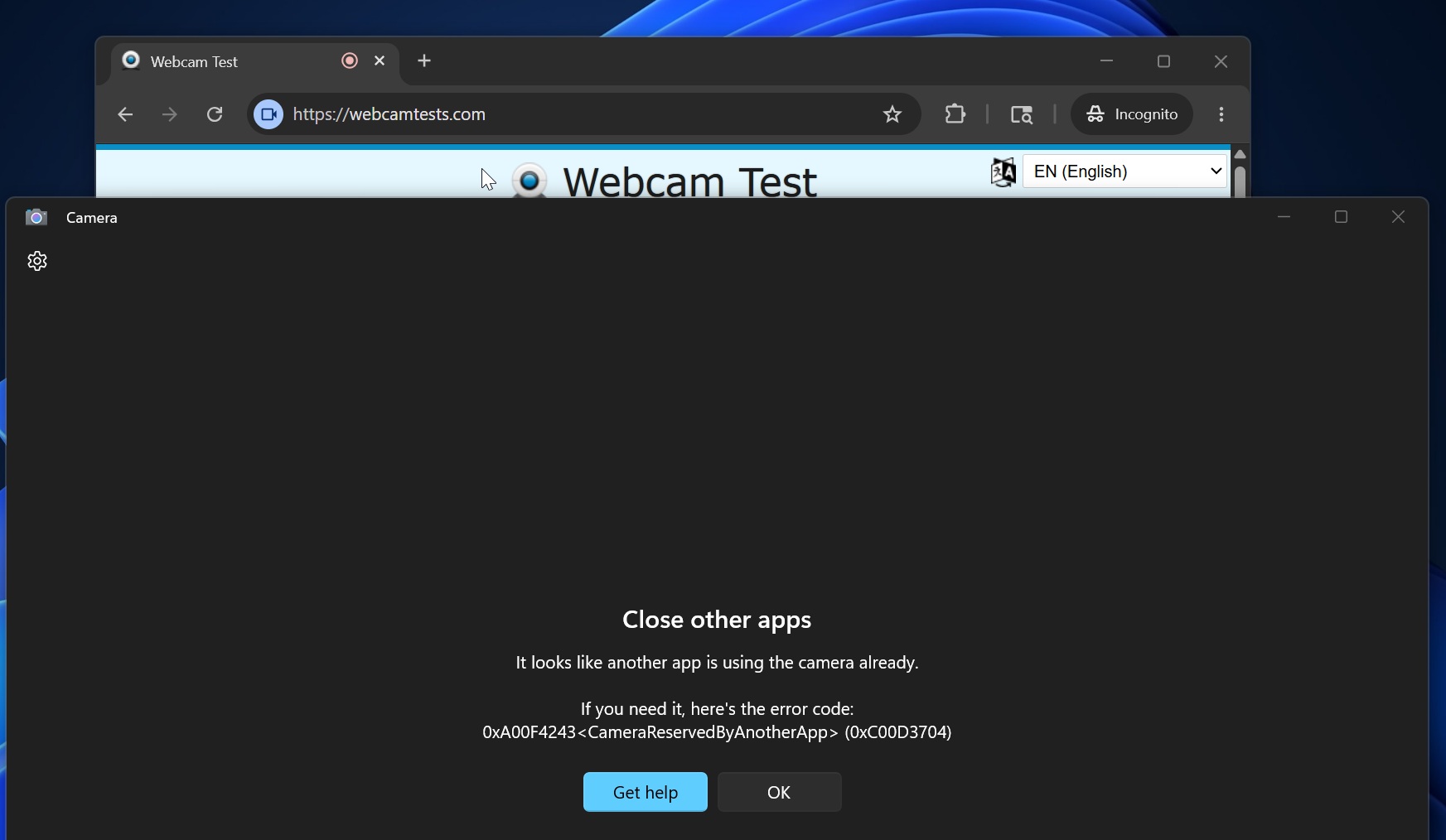
Multi-App Camera removes that restriction. Multiple apps can now access the same camera stream simultaneously, running a video call while recording with OBS, using two different conferencing tools at once, or streaming while also monitoring your feed in a separate app.
After the update:
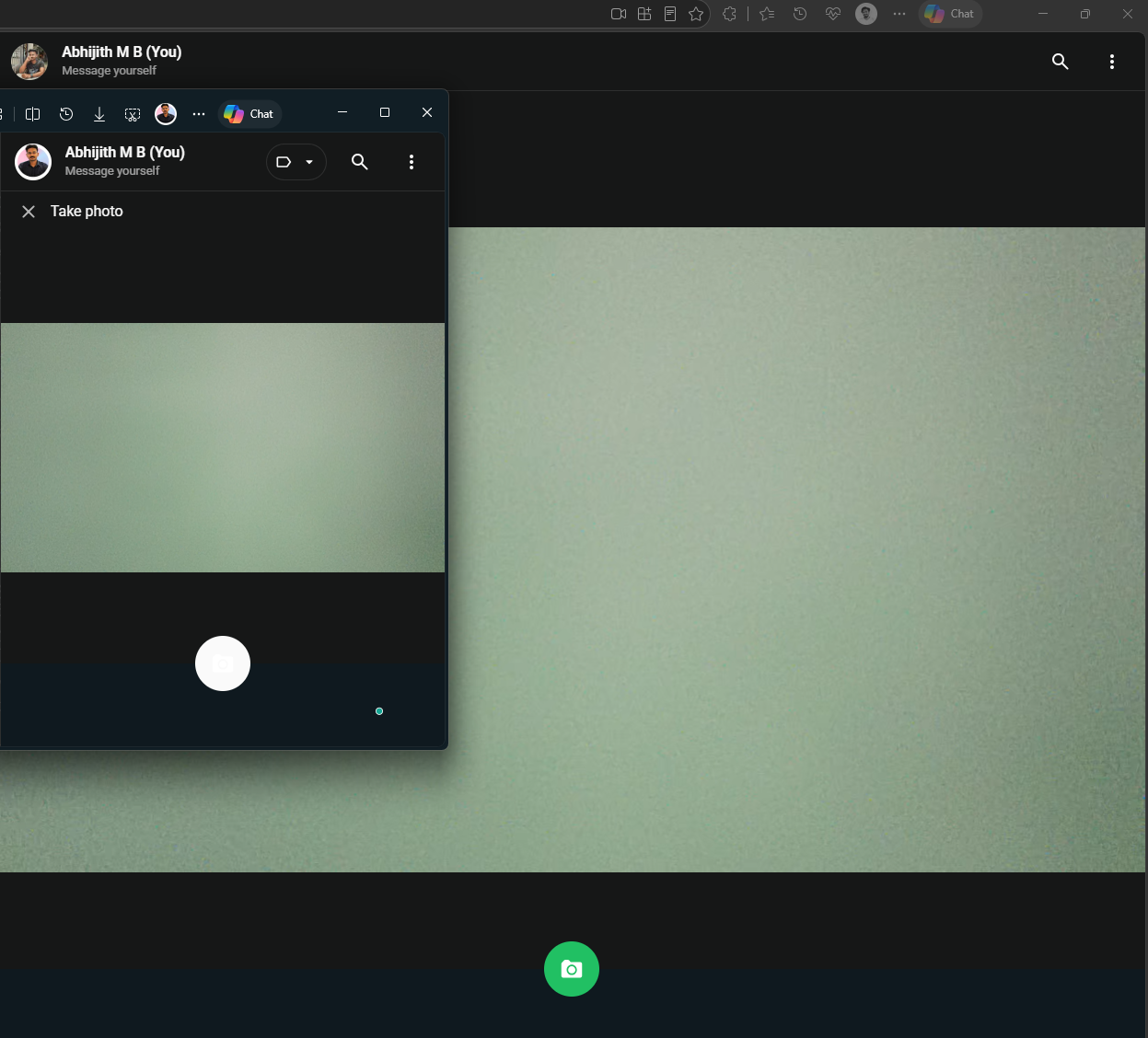
Worth noting is how unusual this is across major platforms. On Android, two apps cannot stream from the same physical camera lens simultaneously. If one app is using the front camera and another tries to access it, Android throws a CameraAccessException and forces the first app to give it up. Android does allow two apps to use separate physical lenses, though a single sensor remains exclusive.
macOS does not natively support this either, though workarounds using Audio MIDI Setup and third-party virtual camera software exist. Linux with PipeWire can handle multi-app camera streams natively on modern distributions, but that is a middleware layer, not an OS-level feature.
Windows 11 now does this at the OS level, configurable through Settings and Group Policy. Enterprise admins can manage both Multi-App Camera mode and Basic Camera mode through Group Policy under Computer Configuration > Administrative Templates > Windows Components > Camera > Configure Camera Options.
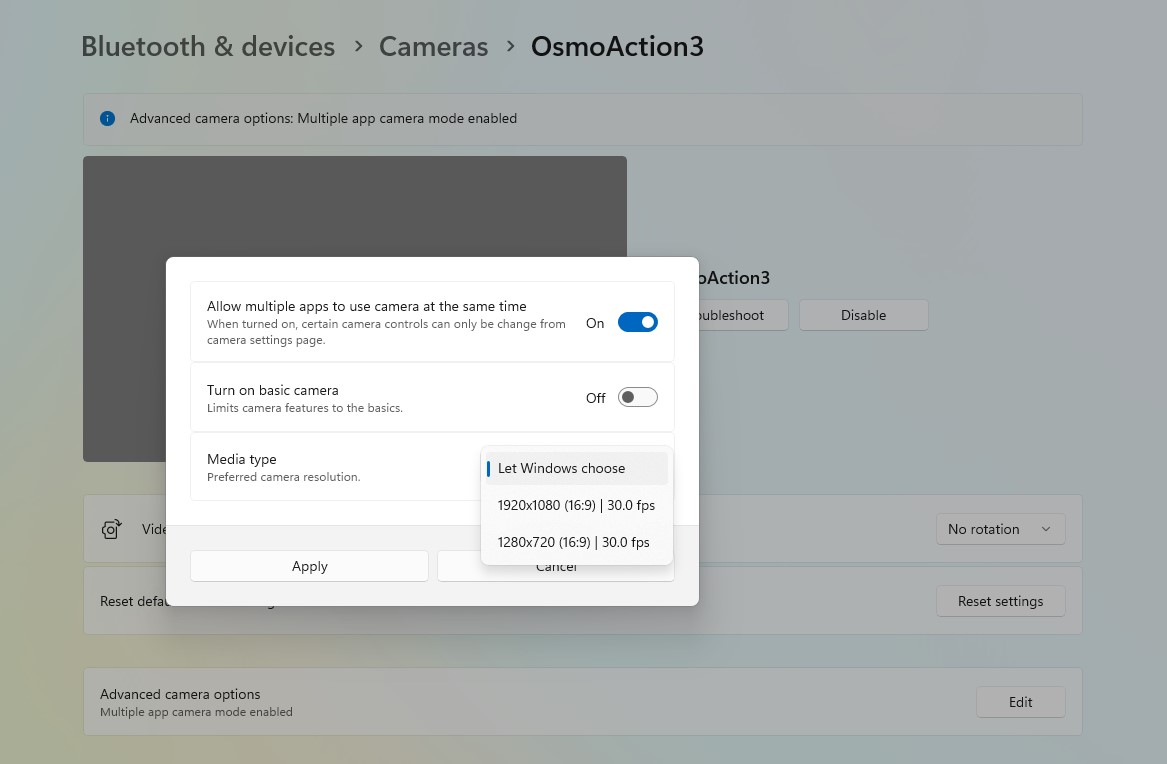
When Basic Camera Mode is enabled, Windows bypasses the OEM’s camera driver and falls back to Microsoft’s generic camera driver. If your camera works in Basic Camera mode but not normally, that is a clear diagnostic signal that the problem is with the OEM’s driver and not the hardware itself. For IT support teams, this is a genuinely useful troubleshooting tool.
3. Shared Audio brings two-headphone listening to Windows 11, no Apple hardware required
Microsoft says in the changelog: “[Shared Audio] New! Shared Audio enables two people to listen to the same audio from a single Windows 11 PC at the same time. It uses Bluetooth LE Audio broadcast technology to make sharing easy.”
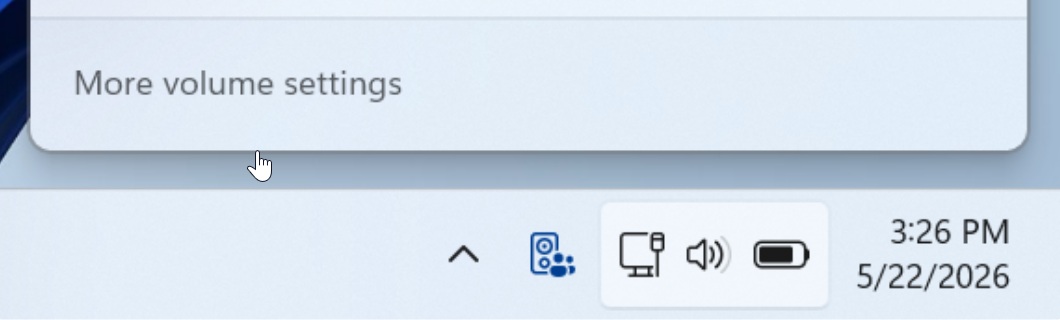
Windows Latest spotted Shared Audio in early testing back in July 2025, and now it is finally rolling out to all Windows 11 users. As we reported in May, Microsoft is bringing AirPods-style audio sharing to Windows 11, letting two people listen on one PC with their own headphones. The feature is part of Microsoft’s pledge to make Bluetooth, audio, camera, and USB connections more capable on Windows 11.
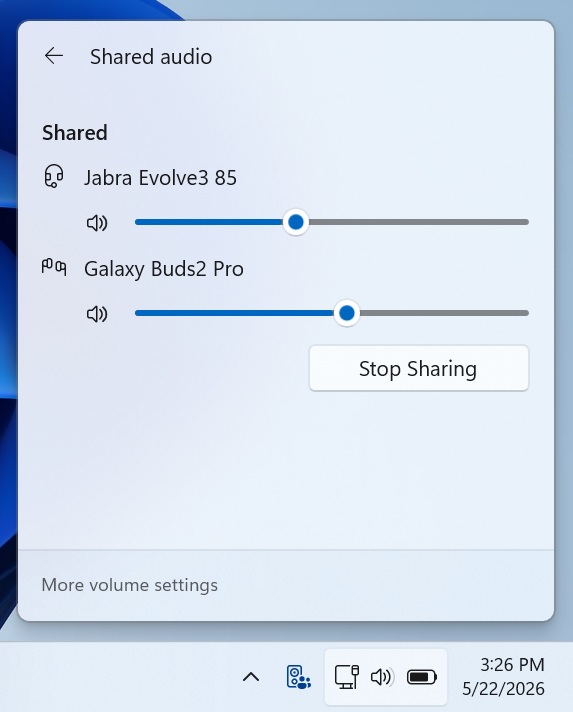
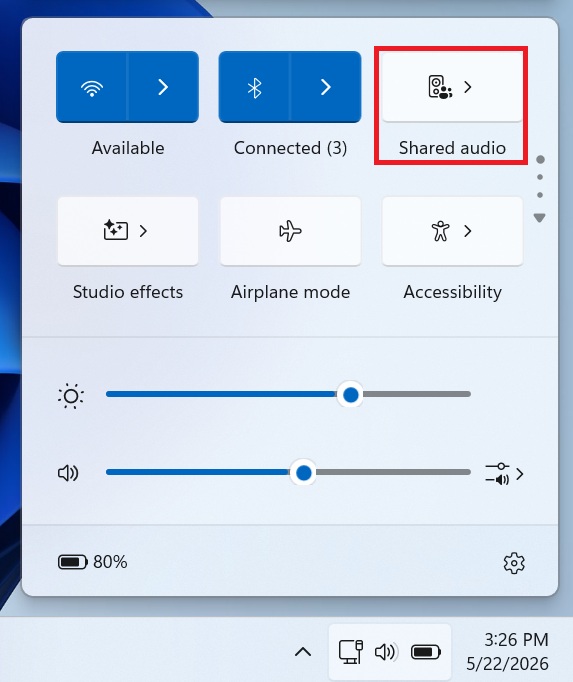
To use Shared Audio, open Quick Settings from the taskbar, select Shared Audio, pick two supported, paired, and connected Bluetooth LE Audio devices, and then hit Start sharing. Both listeners hear the same audio stream from the same PC simultaneously.
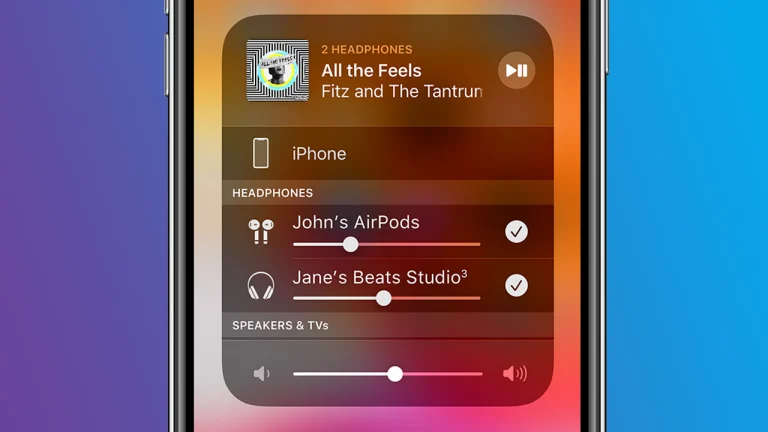
Now, let me tell you something that does not get said enough. Apple users have had a version of this on iPhone and iPad for years through Audio Sharing, and many have held it up as a reason to stay in the Apple ecosystem. But the Apple version only works with AirPods and select Beats headphones. It does not work with headphones from Sony, Bose, Sennheiser, or any other brand.
The MacBook, for all its reputation, does not even support this natively at all. Getting dual-headphone audio on a MacBook requires digging into the Audio MIDI Setup utility, creating a manual multi-output device, and going through a process that most people would never find on their own. There is no Quick Settings toggle for it.
Windows 11’s Shared Audio, by contrast, works with any pair of Bluetooth LE Audio-compatible headphones, regardless of brand. You could be using Sony WH-1000XM6 headphones on one side and Jabra Evolve2 headphones on the other, and as long as both support Bluetooth LE Audio, Shared Audio works. You do not need to be inside anyone’s product ecosystem. You can walk into any electronics store, buy two different brands of LE Audio headphones, and the feature will work. The openness of Windows and its hardware ecosystem is doing real work here.
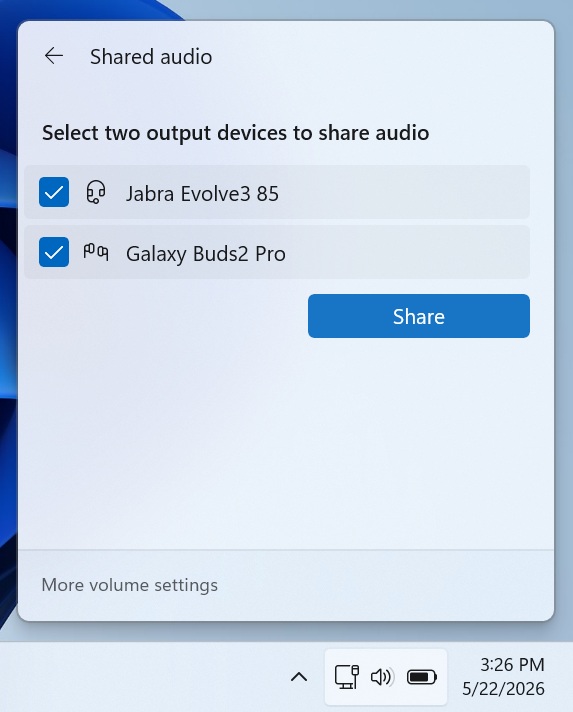
Note that Classic Bluetooth headphones, regardless of their quality, are not compatible, because the synchronized multi-stream capability that Shared Audio relies on is a feature of the LE Audio specification and is not part of the Classic Bluetooth standard. Fortunately, most new Bluetooth headsets have the LE standard.
4. Task Manager now shows NPU usage across individual processes
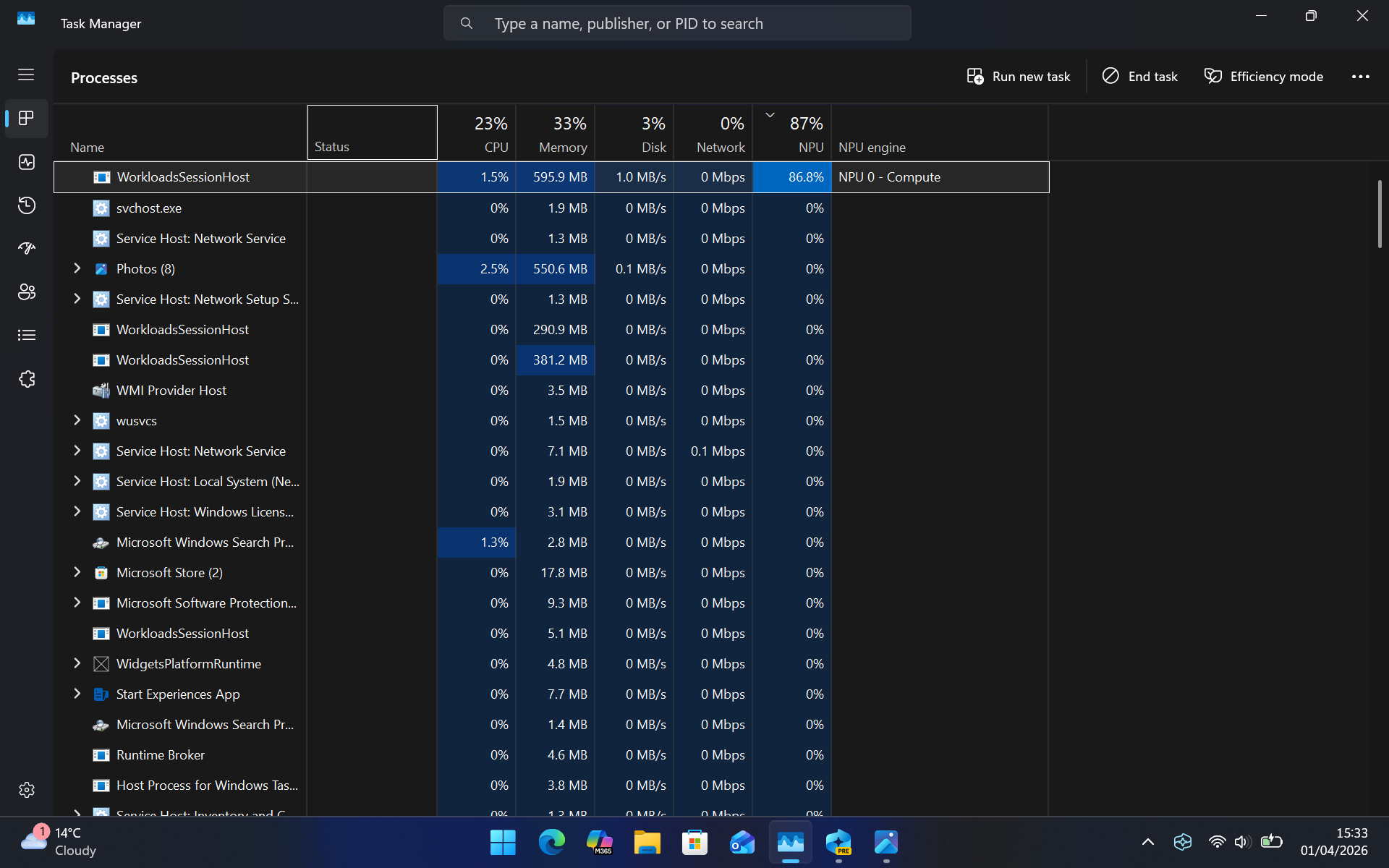
Microsoft’s changelog says: “[Task Manager] New! Task Manager now offers improved visibility into NPU usage on PCs with an NPU. New optional NPU and NPU Engine columns are available on the Processes, Users, and Details pages, along with NPU Dedicated Memory and NPU Shared Memory optional columns on the Details page. Neural engines that are part of a GPU now appear on the Performance page, providing a more complete view of AI-related activity.”
Task Manager on Windows 11 already showed a basic NPU tile on the Performance page, with a utilization graph and shared memory readout. The June 2026 update does not replace that. What changes is that NPU visibility now extends from the Performance page into the process-level view, where it did not exist before.
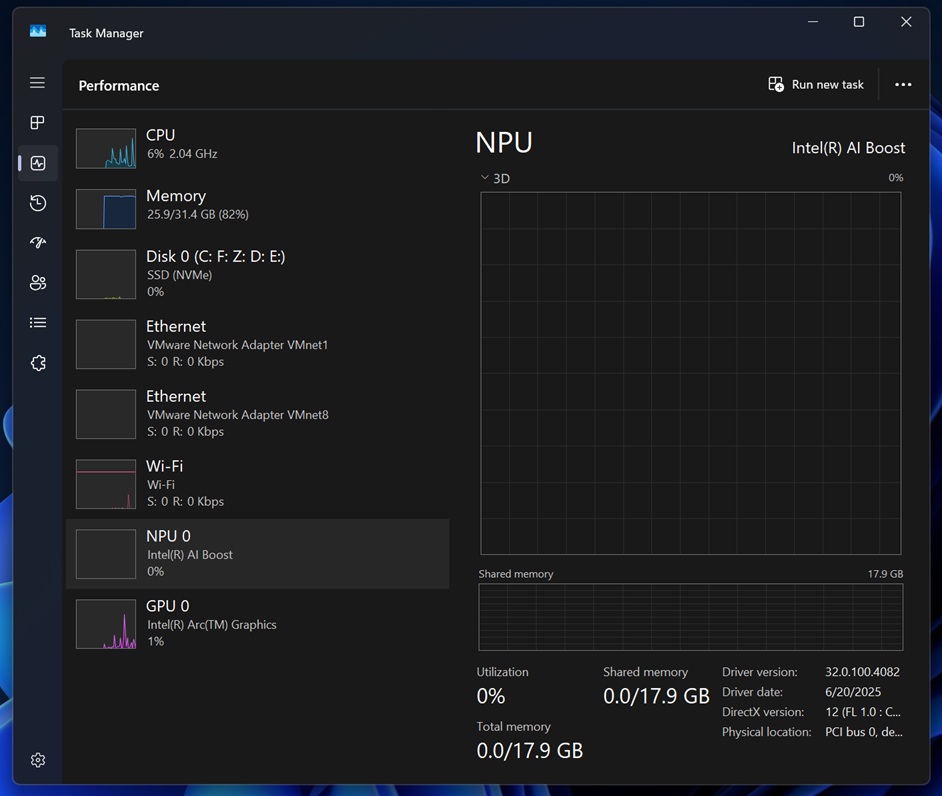
The new optional NPU and NPU Engine columns on the Processes, Users, and Details pages let you see, for the first time, exactly which applications are using your NPU and how hard. If an app is running a background AI task like transcription, noise suppression, or a local model inference, it now shows up in the list. You can sort by NPU load the same way you sort by CPU or GPU load. For Copilot+ PC owners who have been told their NPU is doing important AI work but had no way to verify it, this answers that question.
The Details page goes further with NPU Dedicated Memory and NPU Shared Memory columns, which show whether a process is pulling from memory reserved specifically for the NPU or borrowing from shared system memory. On the Performance page itself, neural engines that are part of a GPU now also appear. This is relevant on modern Intel Core Ultra and AMD Ryzen AI processors, where AI acceleration is sometimes split across both a discrete NPU and engine blocks embedded inside the GPU die.
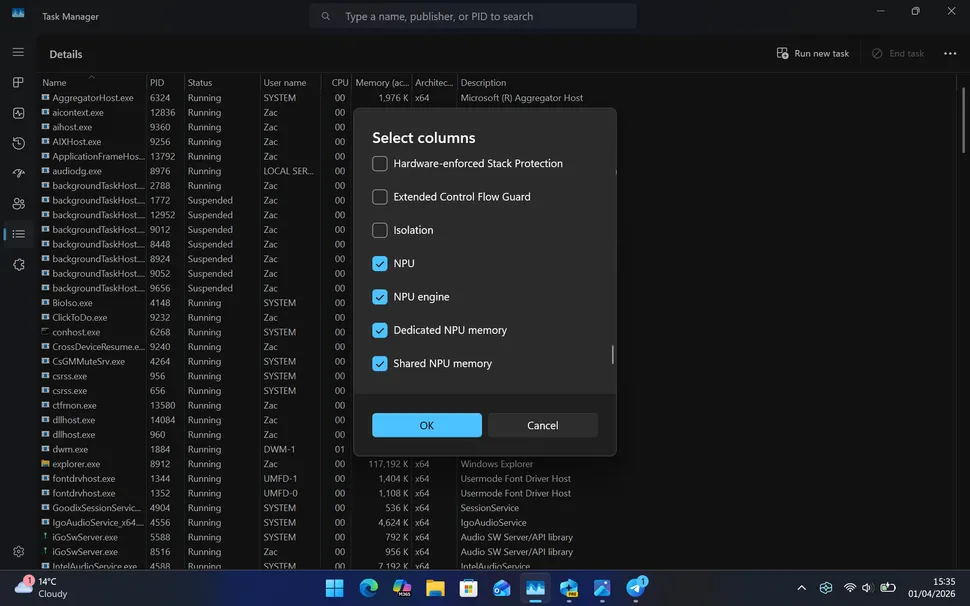
A new Isolation column also arrives on the Processes and Details pages. It shows whether an app is running inside an AppContainer, which is Windows’s security sandbox used for most Store apps. This is a useful diagnostic and security visibility addition for IT admins. To enable any of these columns, right-click a column header inside Task Manager and select them from the list.
5. Windows Search now finds files from just two characters
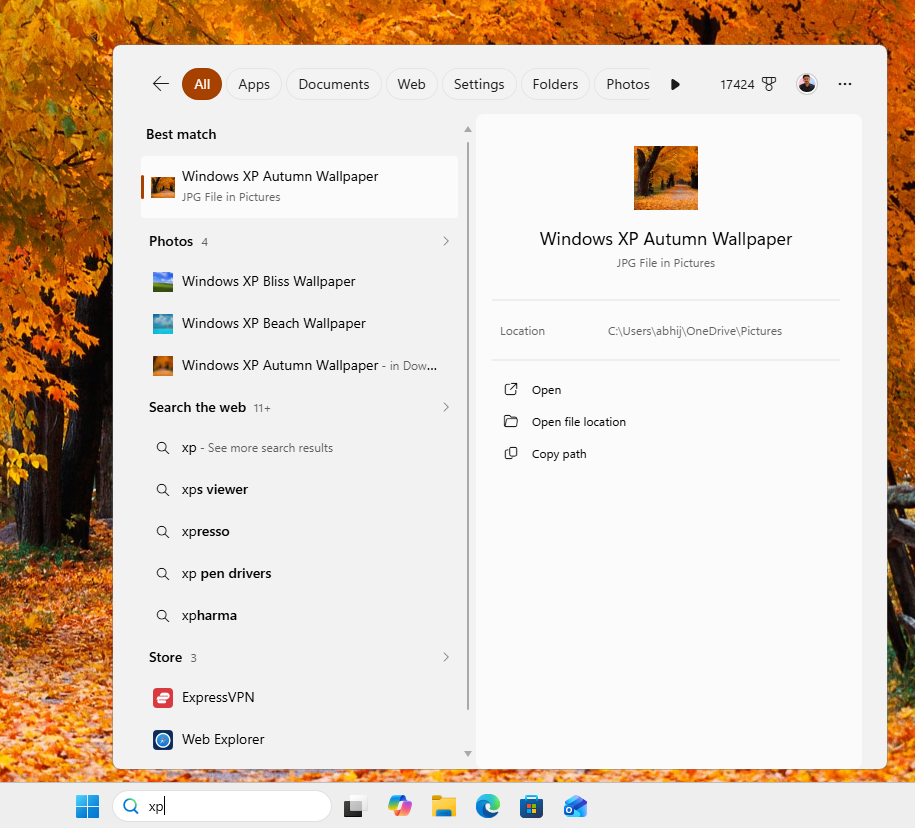
The changelog states: “[Windows Search Box] Windows Search will now find and prioritize files with as few as two characters.”
As we reported in detail, Windows Search previously required at least three characters before it would begin returning file results. For files with short names, abbreviations, or two-letter codes, this meant you had to type extra characters, wait for the search to process, and still hope the result showed. The June 2026 update drops that threshold to two characters.
Before the update:
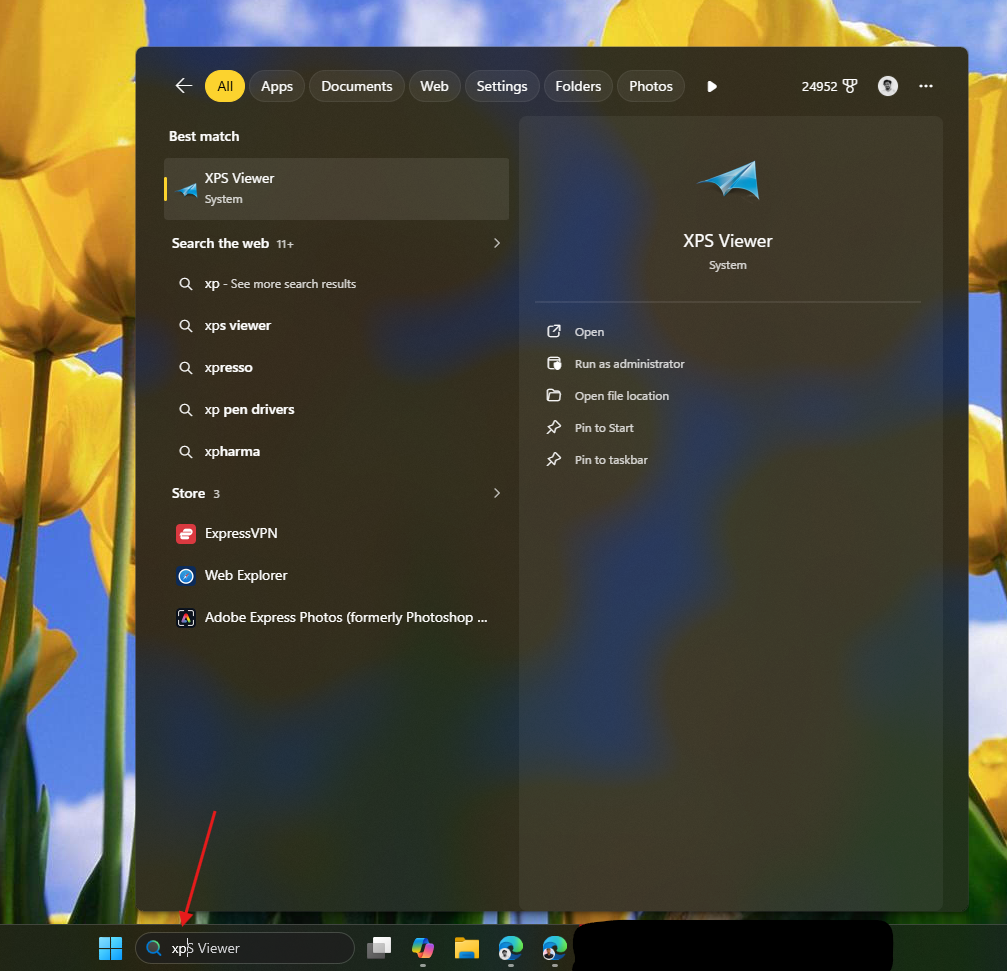
This is a blessing for power users, too. Short-named project files, abbreviation-based folder names, and any filename where the first two characters are enough to identify what you want now show up in search results as soon as you type them. The update also improves how Search prioritizes these results, so the two-character match appears at the top rather than being buried under web results or app suggestions.
After the update:
It is worth noting that the June Patch Tuesday update delivers only this two-character improvement. A second and more significant Search change, called Search by Substring, is still in testing in Windows Insider builds and has not shipped to stable yet. Substring search would let Windows find files with compound names like MeetingNotesApril or ProjectStatusReport by matching fragments like “april” or “status” anywhere in the filename, not just at the start. That feature, when it eventually ships, will be a far bigger deal.
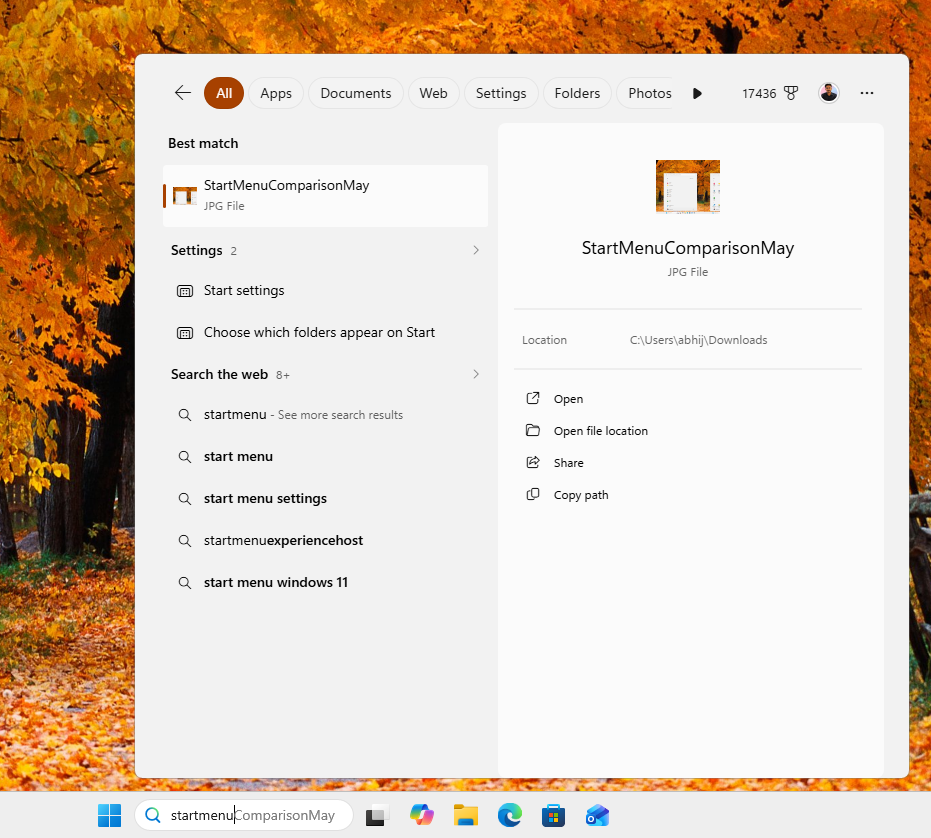
Separately, Microsoft is also working on letting users remove Bing results from Windows Search entirely. We covered both sides of that story. Microsoft says Windows 11 Search will stop pushing web results over your apps and local files in most cases. Those changes are still in the testing phase and not part of the June Patch Tuesday update, but the direction is clearly toward a Search experience that respects local files first.
But what I really want to see is a cleaner Search UI, instead of the cluttered monstrosity we have now.
Bonus: Windows Hello now reliably defaults back to face and fingerprint sign-in
If you have face recognition or fingerprint unlocking configured on your laptop, you may have noticed that Windows would sometimes fall back to showing the PIN prompt instead, particularly after a restart or after a Windows update forced a PIN verification. Once you authenticate with PIN once, Windows would sometimes continue presenting PIN at the lock screen even though your biometrics were fully configured and working.
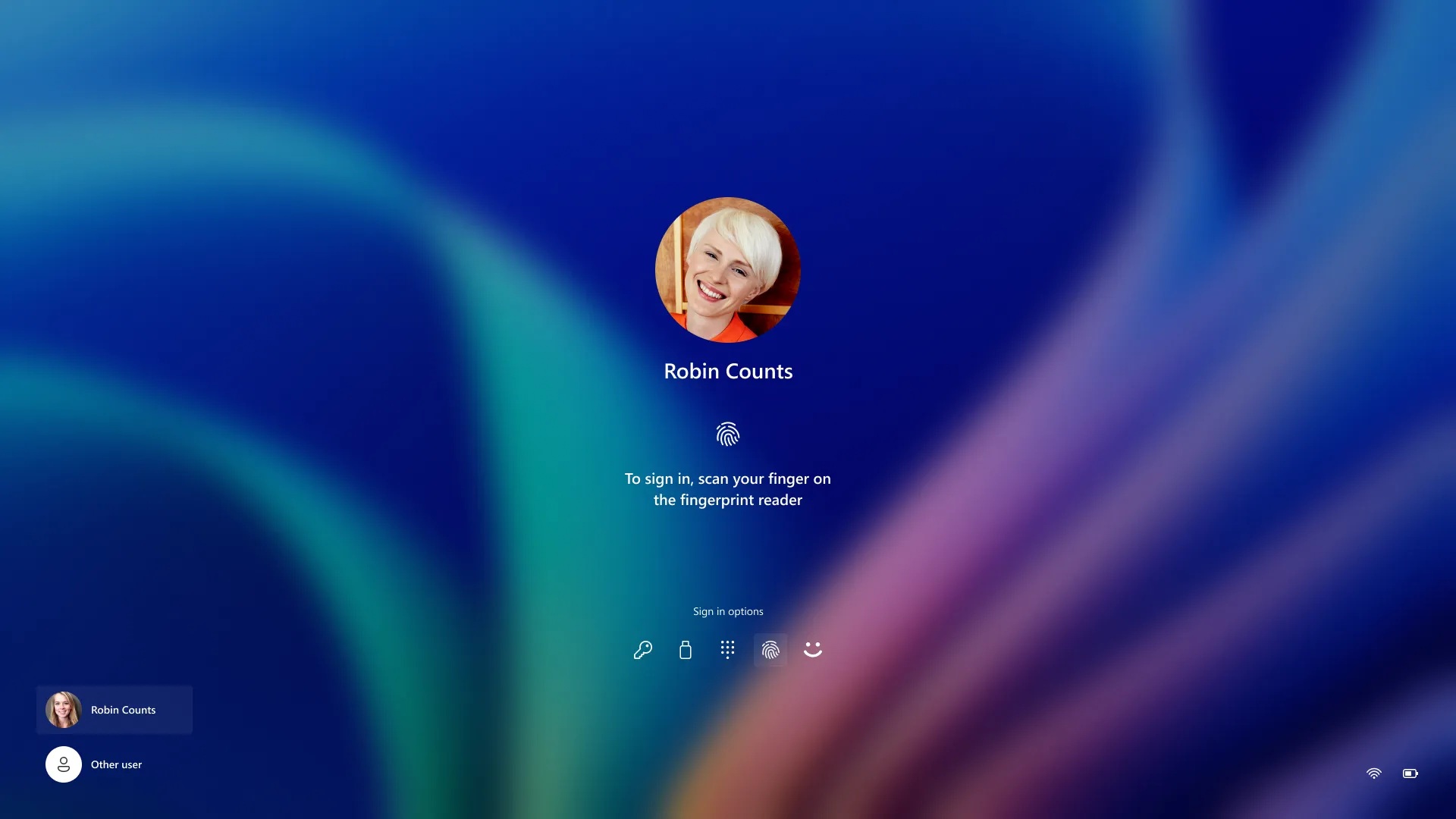
The June update fixes this. Face and fingerprint sign-in now reassert themselves as the default after every session. If you use PIN three consecutive times in a row, Windows intentionally keeps PIN until you switch back, which handles the case where someone cannot get biometrics to work and needs to rely on their PIN without being constantly interrupted by face or fingerprint prompts.
Windows Hello also fixes the delay between when a device wakes from Modern Standby and when face or fingerprint authentication becomes available.
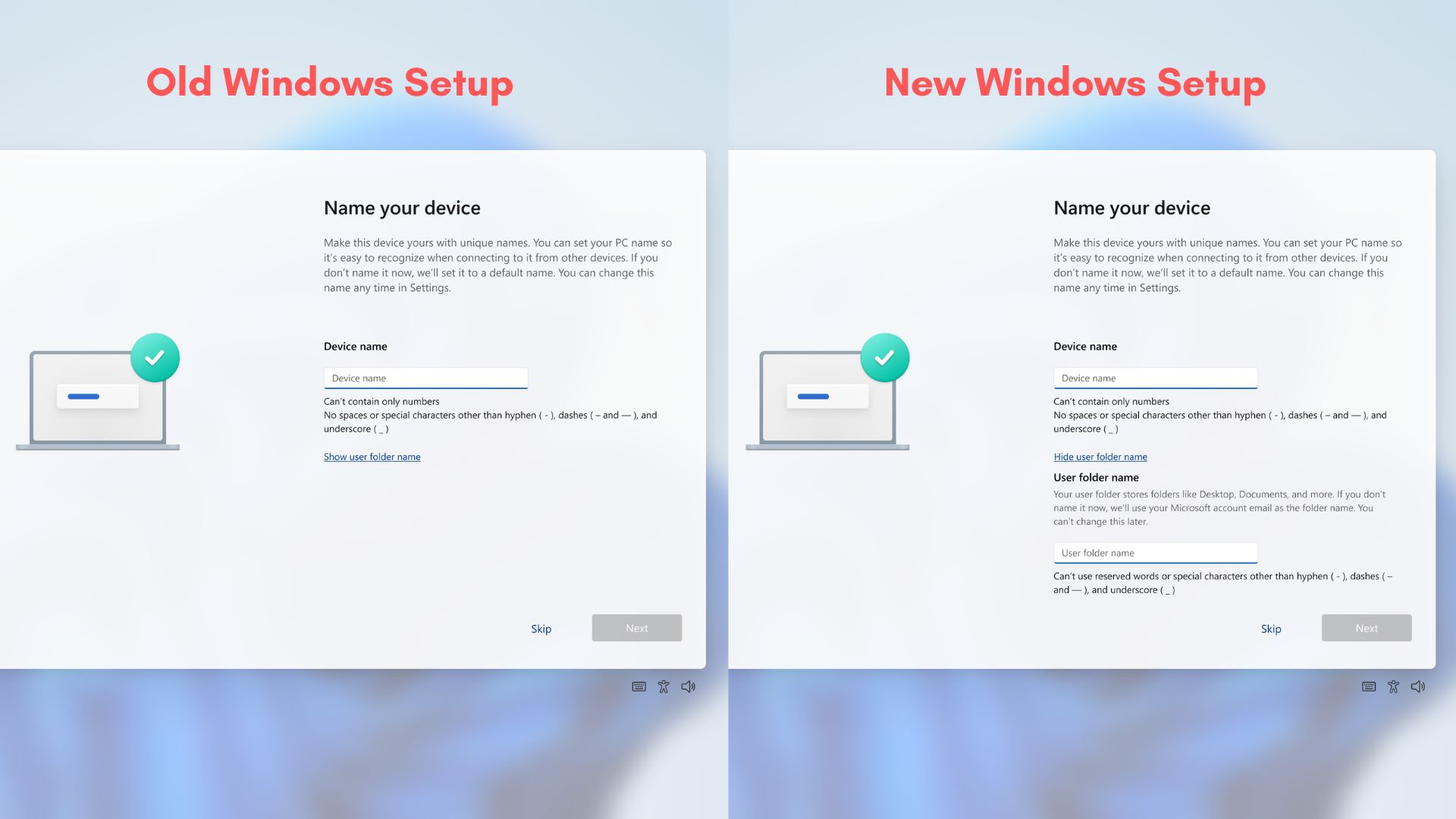
Honourable mention: Windows Setup finally lets you name your own user folder, but only on fresh installs
The changelog includes: “[Windows Setup] New! You can now choose a custom name for your user folder on the Device Name page during Windows setup.”
We wrote about this when it came in the May 2026 optional update, explaining how Microsoft is removing Windows 11’s default 5-letter user folder name. For decades, Windows has automatically generated the C:Users folder name from the first five characters of your Microsoft account email, producing paths like C:Usersabhij that could not be easily changed later.
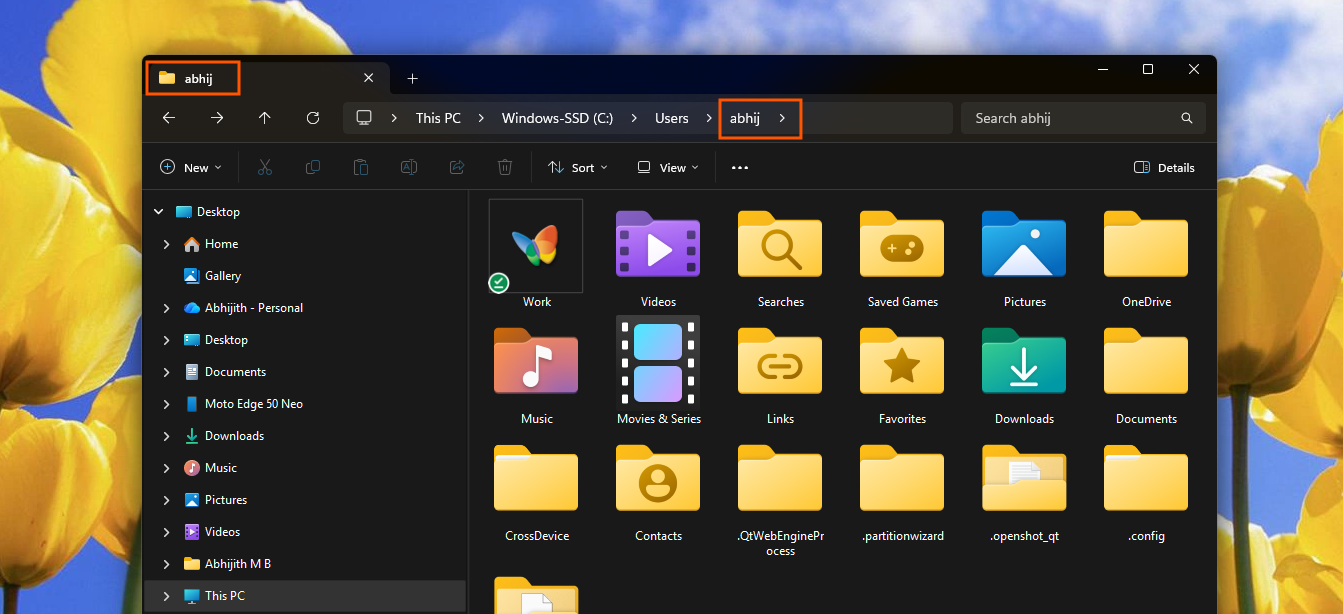
The June update adds a text field on the Device Name page during OOBE that lets you specify a custom folder name before Windows creates the profile.
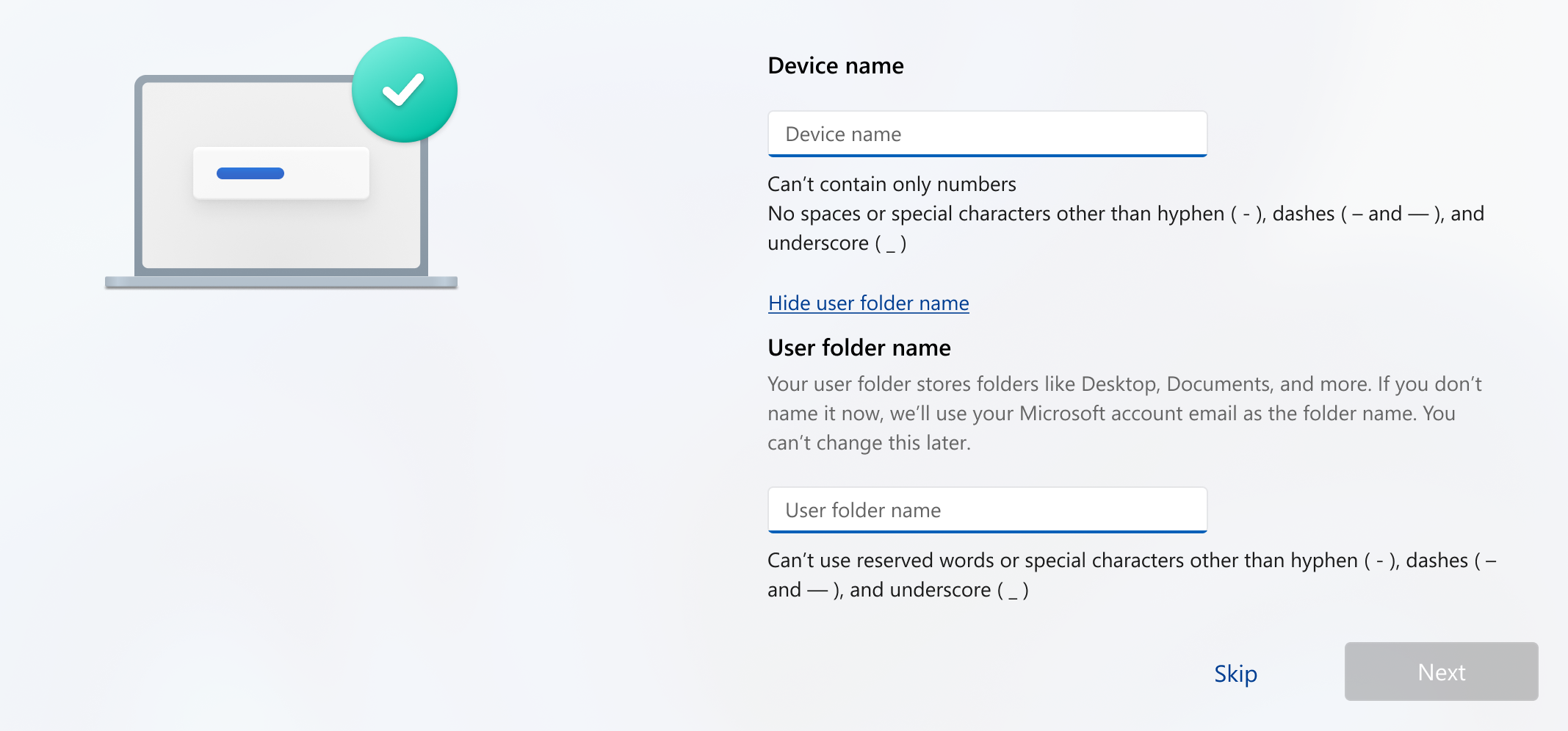
The reason it did not make our top five list is the significant limitation at the end of that changelog sentence: the option is available during setup only. If you skip the step, Windows uses the default naming behavior and continues setup as usual.
And changing the folder name after setup is not a viable workaround. The C:Users folder path is linked to hundreds of registry entries across HKEY_LOCAL_MACHINESOFTWAREMicrosoftWindows NTCurrentVersionProfileList, file permission records, symbolic links, and application-specific path references added in by installers.
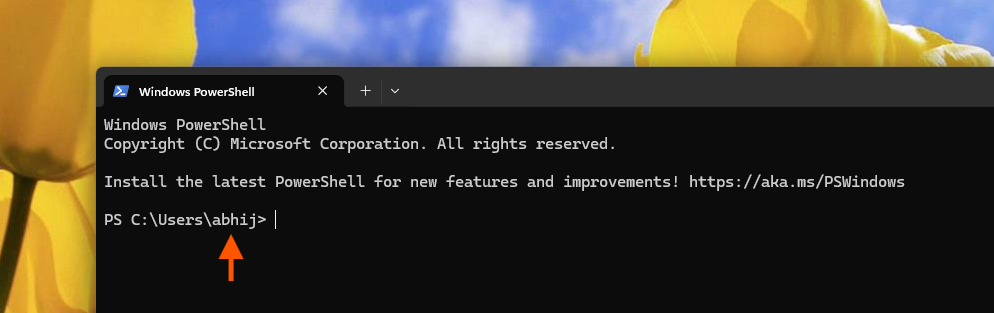
Attempting to rename the folder and update the registry manually is a deadly path to breaking Microsoft Store apps, including OneDrive and Outlook, and in some cases, results in Windows being unable to load the user profile at all on the next login. It is a genuinely risky operation that Microsoft itself does not recommend or support for existing installations. The only safe way has always been to set it correctly at setup time.
The new setup option finally makes that possible without workarounds. But for the majority of Windows 11 users who already have their system set up, it is not a change that will affect them at all.
Anyway, if Microsoft brings back the option to set up Windows 11 with a local account, this wouldn’t have been an issue. Fortunately, Microsoft is working on it.
Why the June 2026 update is the most important one to install this year
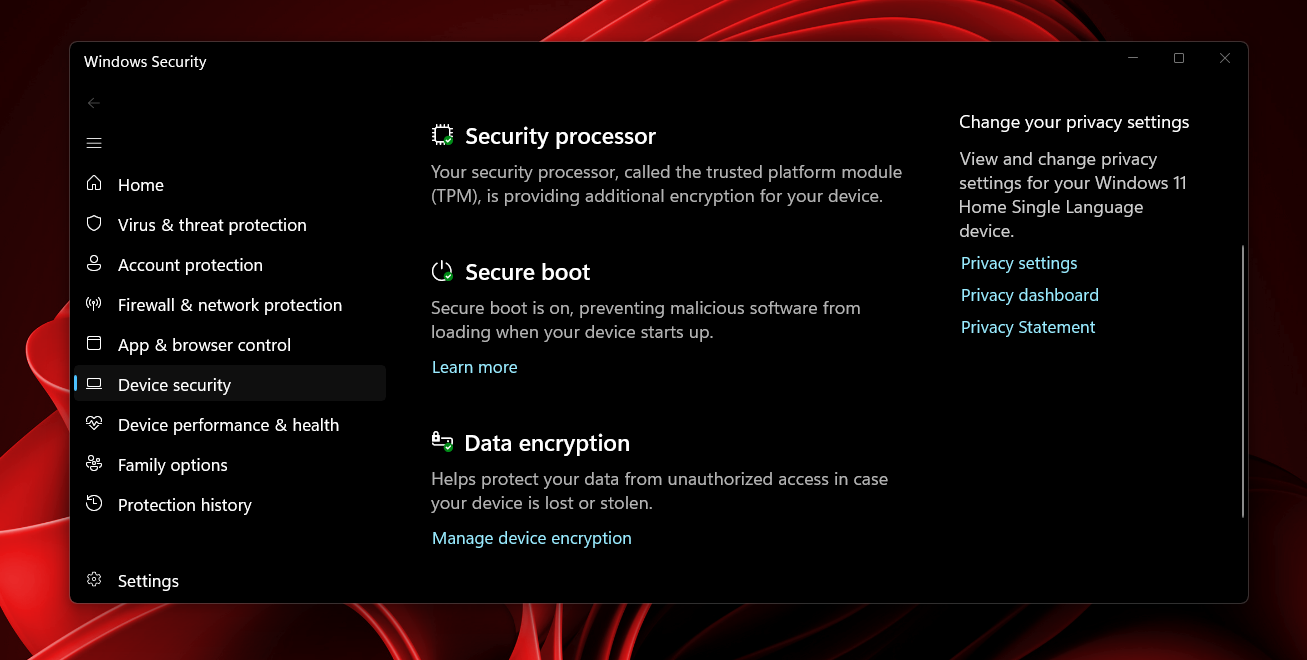
Apart from the new features, the June 2026 Patch Tuesday update is also the one that carries Secure Boot certificate updates as part of the mandatory normal rollout. Secure Boot certificates originally issued in 2011 are expiring this month, and the June update begins automatically delivering the updated 2023 certificates to eligible devices. Unlike the gradual rollout features above, this change installs immediately when you apply the update.
The rest of the June update covers USB4 display reliability, USB3 fault recovery, touch keyboard improvements, wallpaper persistence fixes, Times New Roman rendering fixes for Greek and Cyrillic scripts, Task Scheduler column persistence, and Microsoft Store download performance improvements, among other things. You can read about it all from our detailed coverage of the Windows 11 June 2026 Security update.
To install the mandatory June 2026 update, go to Settings > Windows Update > Check for updates and install KB5094126. Your PC will move to Build 26200.8655 or 26100.8655, depending on whether you are on 25H2 or 24H2.
The post Microsoft just dropped Windows 11’s biggest update of 2026, and these are the 5 best features appeared first on Windows Latest