
A month ago, we reported that new Outlook took up to 10 seconds to open an email from a Windows 11 notification, which is absurd for a popular email client. This week, though, I wasn’t expecting it to open in about half the time when I randomly clicked on an email notification from Outlook.
Obviously, clicking a new email notification is supposed to take you straight to that message. In our original test, new Outlook opened the app, loaded the full inbox, and then made you wait around 10 seconds before the email showed up.
The funny part was that opening Outlook manually from the Start menu and clicking the new email yourself was faster than clicking the notification meant to take you there.
Nowadays this is what we expect of Microsoft, but the Outlook Classic app, for comparison, never had this problem to begin with. Either way, as our article went viral, someone from Microsoft might’ve seen it because we now have a fix for this delay.
New Outlook now opens the notification email in half the time
On Outlook version 1.2026.713.100, the delay is noticeably shorter. Clicking a notification still opens the full app and inbox first, but the specific email now shows up in around 5 seconds instead of 10.
Microsoft has not called this out as a headline feature anywhere. The closest match in the official changelog is a July 1, 2026 entry that simply says “Various fixes to functionality and performance,” which is the software giant’s typical phrase for most silent bug fixes. But the improvement is real and repeatable in my testing.
Comparison of speed difference from one month ago:
In our June 22 report on new Outlook’s upcoming feature list, we noted that Microsoft was testing a fix for slow and delayed notifications internally, without a release date attached.
Later that month, Microsoft announced grouped notifications to cut down on spam, but still would not confirm anything about the load time itself. Even our coverage of the Quick Parts rollout noted that the notification bug was still unpatched at that point. The fix appears to have come quietly sometime after that.
Outlook Classic is still the one to beat
Cutting the delay in half is a real improvement, and I will give Microsoft credit for it. But Outlook Classic opens the correct email the moment you click the notification. Half of 10 seconds is still 5 seconds longer than instant!
It is the same story we found with RAM and CPU usage back in June, where new Outlook idles at 490 MB to 636 MB and around 4% CPU, against Classic’s 117 MB to 148 MB and under 1% CPU.
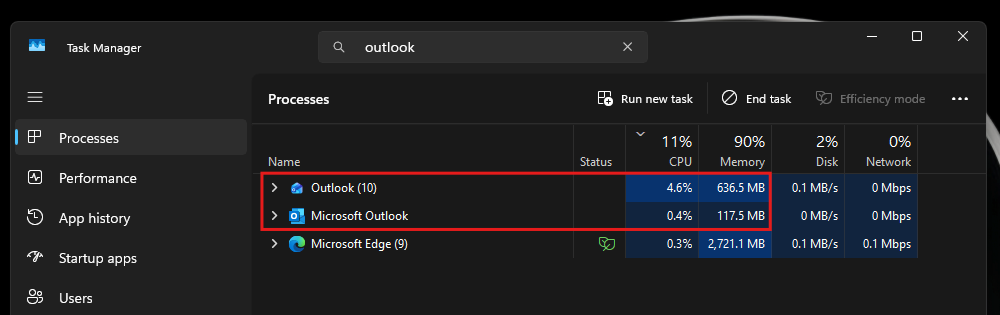
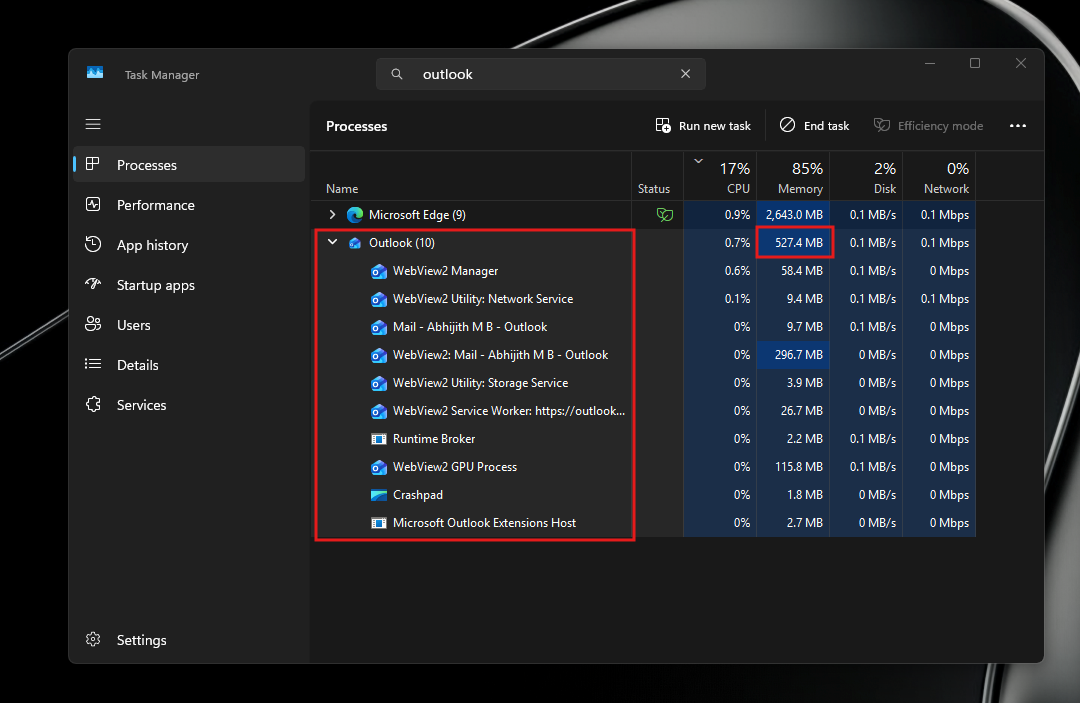
New Outlook, being a glorified web app, runs as 10 separate WebView2-driven processes in Task Manager, essentially making it a full-fledged browser window that uses as much RAM as it needs. Classic runs as a single efficient process. The difference in architecture is staggering.
As we reported, Microsoft’s plan is to force New Outlook on everyone by 2027. But the users aren’t happy with it, with one of them describing switching to the new client as “painful” and saying it “drives me crazy.”
Microsoft is not backing off, though. Classic Outlook holdouts are still set to move to new Outlook starting March 2027, and Microsoft says adoption is “strong and accelerating,” even as its own roadmap concedes that Classic remains supported until at least 2029.
Outlook Classic is losing ground anyway
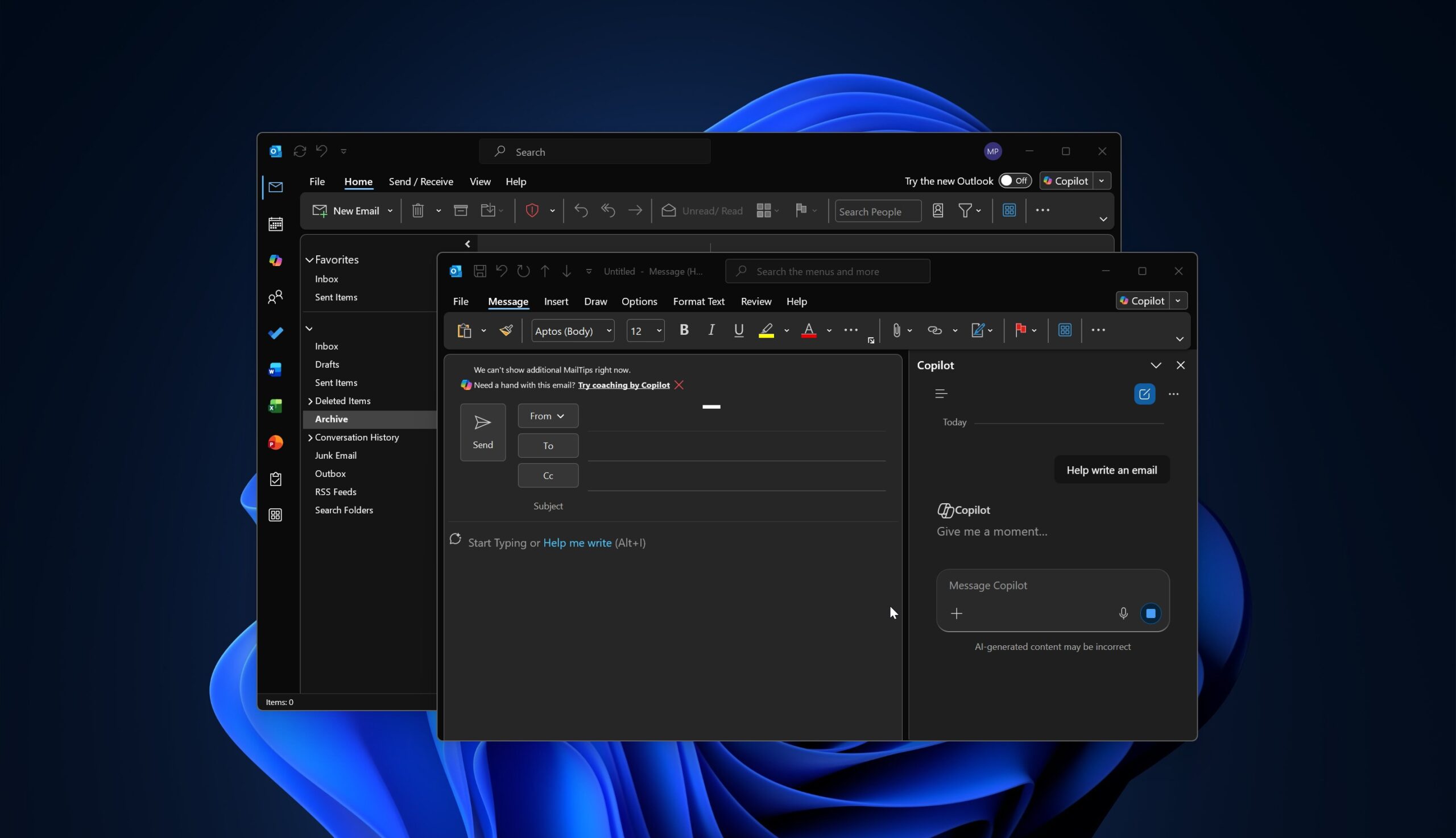
While new Outlook chips away at its performance debt, Microsoft has been pushing Copilot into Classic instead of new features. Microsoft confirmed in mid-July that it will force-enable the Copilot “Draft an email message” feature across every version of Outlook, including Classic, later this year.
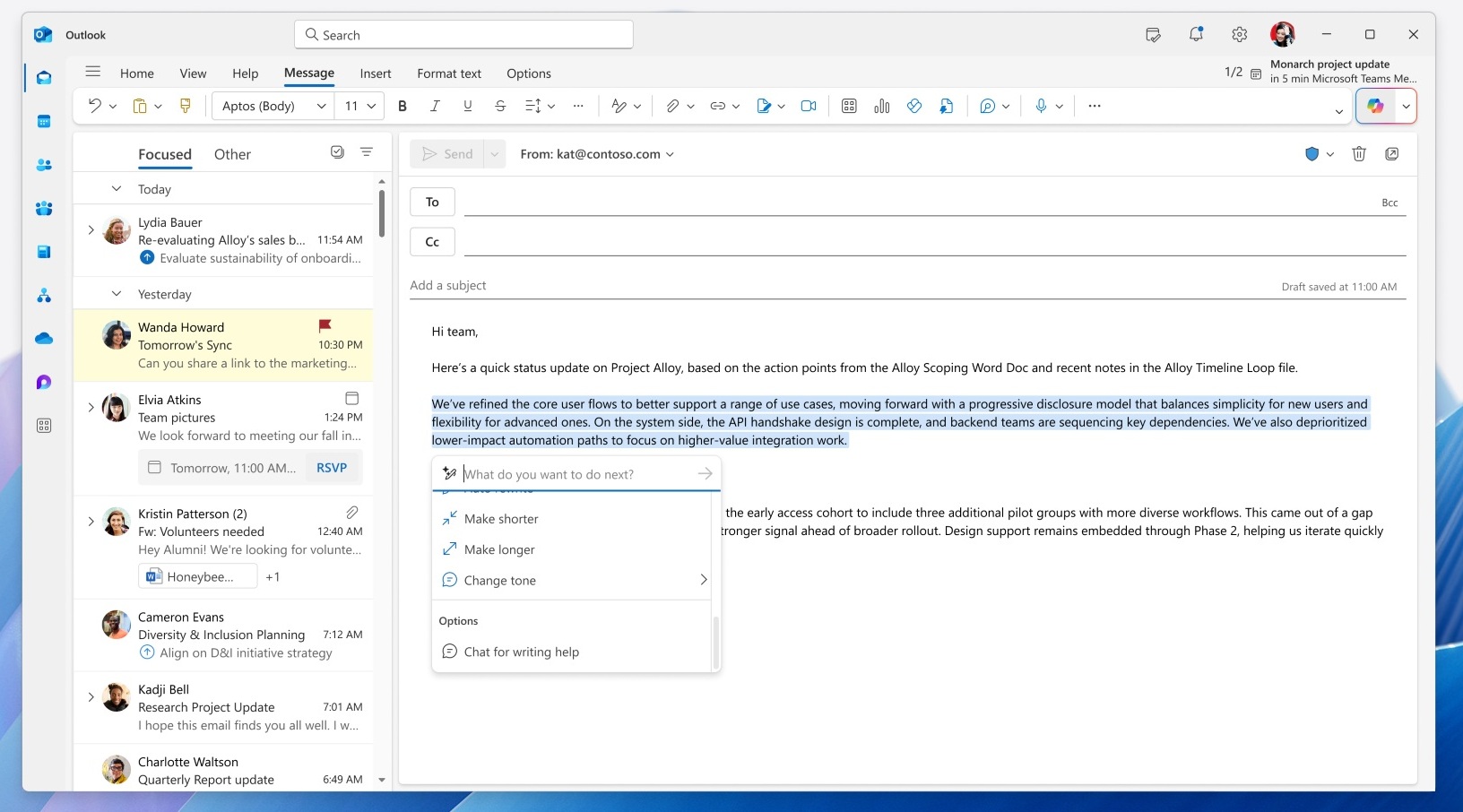
Later, the company said Classic Outlook is also getting an always-visible Copilot button, similar to the floating button already in Word, Excel, and PowerPoint. Both require a paid Microsoft 365 Copilot license.
Meanwhile, one useful Classic-only feature is on its way out. Microsoft is retiring Meeting Insights, the tool that showed relevant files and emails inside a meeting invite, starting in September 2026. Its replacement, “Prepare for this meeting,” also needs a Copilot license, so anyone without one loses the feature.
New Outlook keeps closing feature gaps instead
New Outlook, on the other hand, is picking up the features Classic users have had for years. Planner integration began rolling out in mid-July, letting you manage tasks alongside email and calendar without switching to Teams.
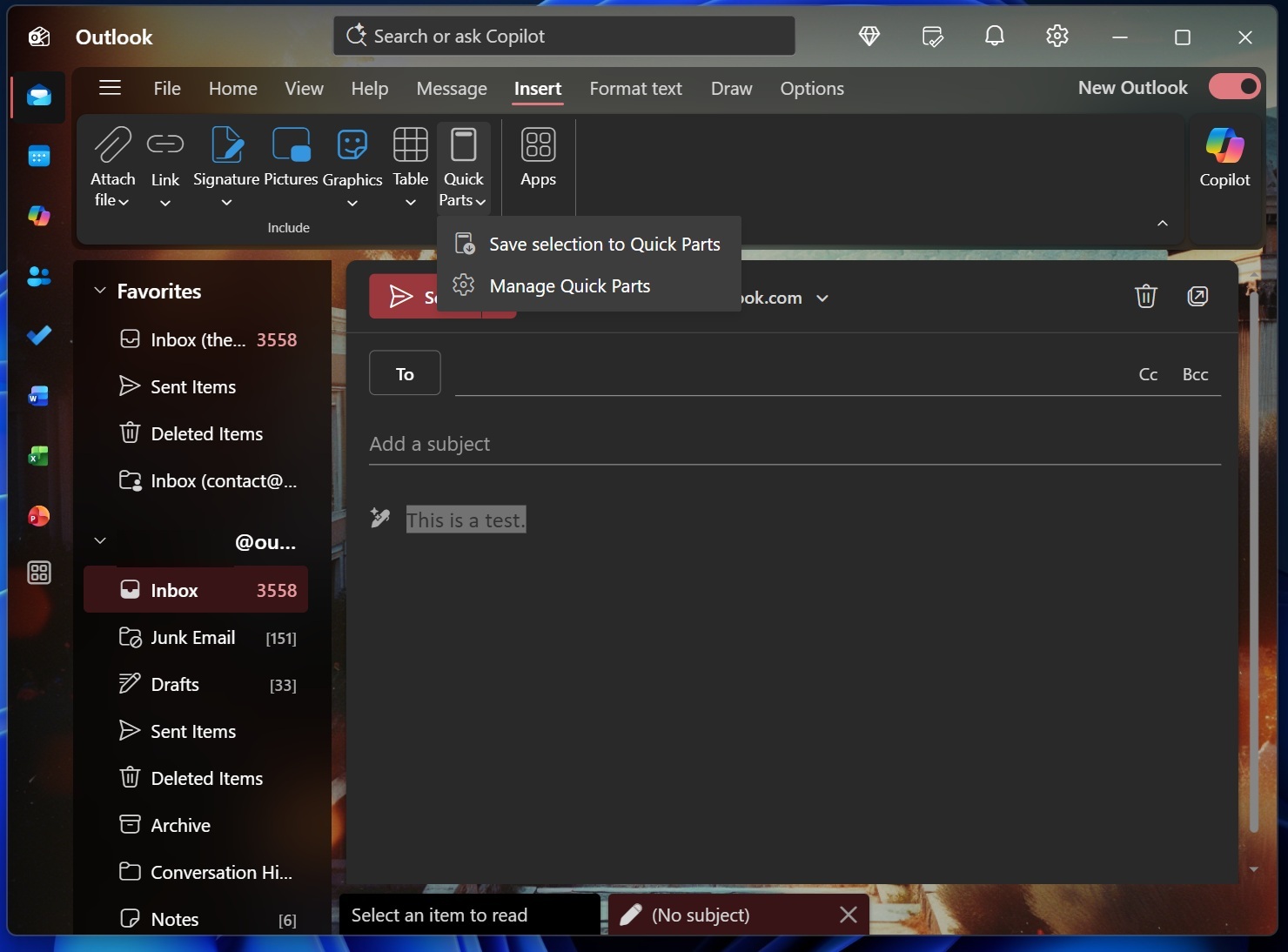
Quick Parts, classic’s reusable email snippets tool, reached everyone in the first week of July after months in limited testing. A stale-reply warning, which flags you when responding to an old message in a thread with newer replies, is due in August, and Microsoft detailed it alongside new drag-and-drop email categorization coming in September.
New Outlook also picked up .PST support, letting you import old calendars and contacts directly from local archive files, though it still depends on Classic to load .PST files behind the scenes.
Even offline support, one of new Outlook’s weakest areas, picked up file attachments in June, months after Microsoft first promised it. New Outlook is closing the feature gap while Classic gets sidelined into a Copilot delivery vehicle.
For now, if instant notification response is important to your workflow, Outlook Classic remains the faster choice. New Outlook is getting there. But as long as it remains a web app, it won’t ever reach anywhere.
The post Microsoft still can’t make New Outlook as fast as Classic, but the notification bug is less painful appeared first on Windows Latest