
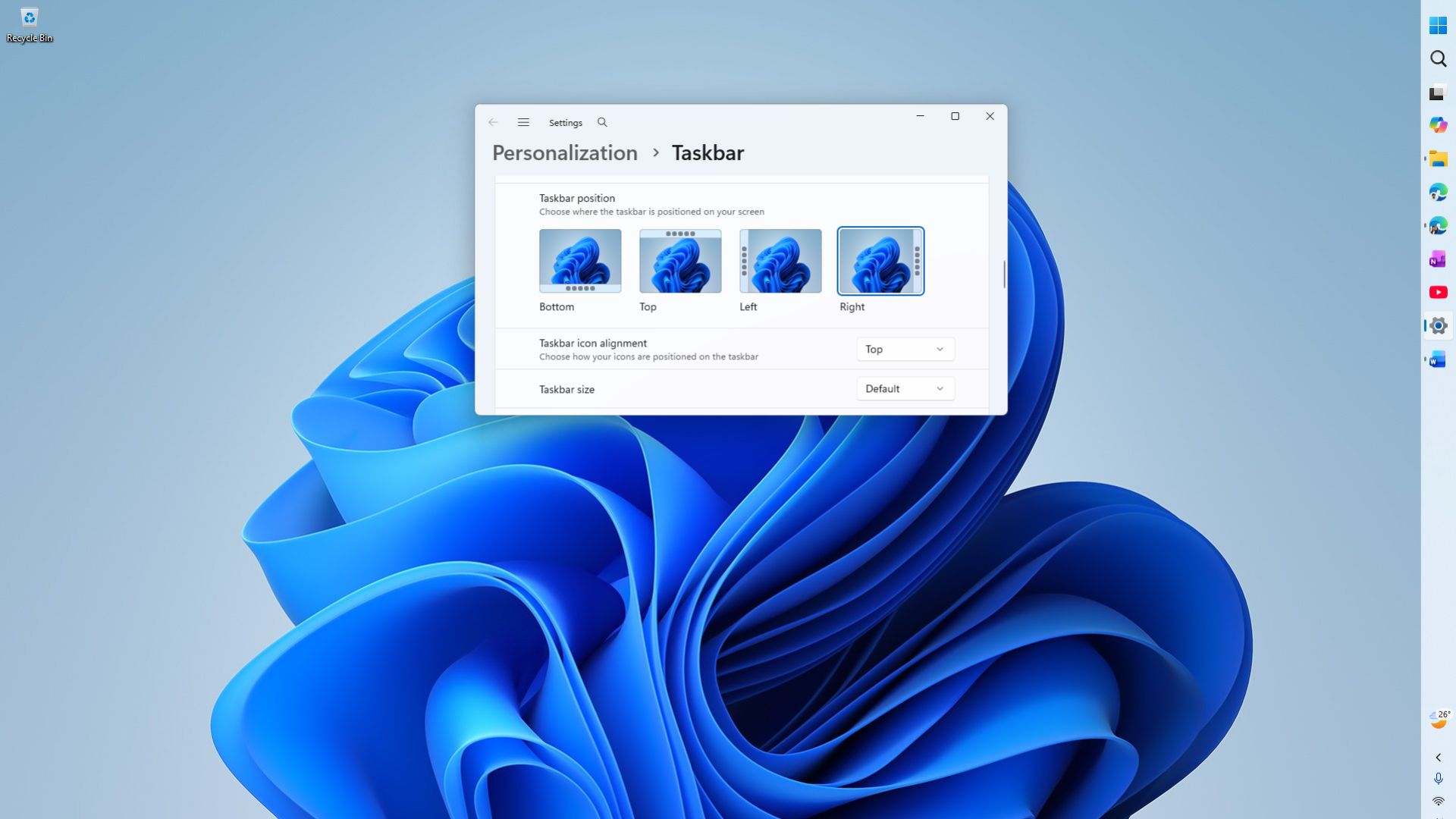
The September 2026 Patch Tuesday update, KB5124008, is out, and it finally lets you move the Windows 11 taskbar to any edge of the screen. I have been on a vertical taskbar since the August optional update reached my PC, and moving my taskbar to the side is one of the first things I do on any Windows 11 install now.
I still remember how annoying it was that Windows 11 launched in 2021 without this ability. Moving the taskbar to the top, left, or right had been standard since Windows 95, and I felt there was no reason for Microsoft to avoid it apart from pure apathy, which is similar to what the company confirmed a few months after Windows 11’s launch.
The request to bring it back became one of the most upvoted items in the Feedback Hub, and people turned to registry hacks and third-party tools like ExplorerPatcher and StartAllBack just to get their taskbar back where they wanted it.
Like most features that come with major updates, this one too rolls out gradually through Controlled Feature Rollout, so installing KB5124008 does not guarantee you will see it immediately. Fortunately, there is a safe way to force it on your PC.
How to enable the movable taskbar right now
First, install KB5124008 through Settings > Windows Update, or grab the offline .msu installer for KB5124008. It bumps your PC to Build 26200.9445 on version 25H2 or Build 26100.9445 on version 24H2. Restart once it finishes.
After rebooting, check Settings > Personalization > Taskbar > Taskbar behaviors for a Taskbar position option. If it is not there yet, know that your PC already received the code, but Microsoft has not flipped the remote switch for your device. It’s done to ensure stability.
Before the update:
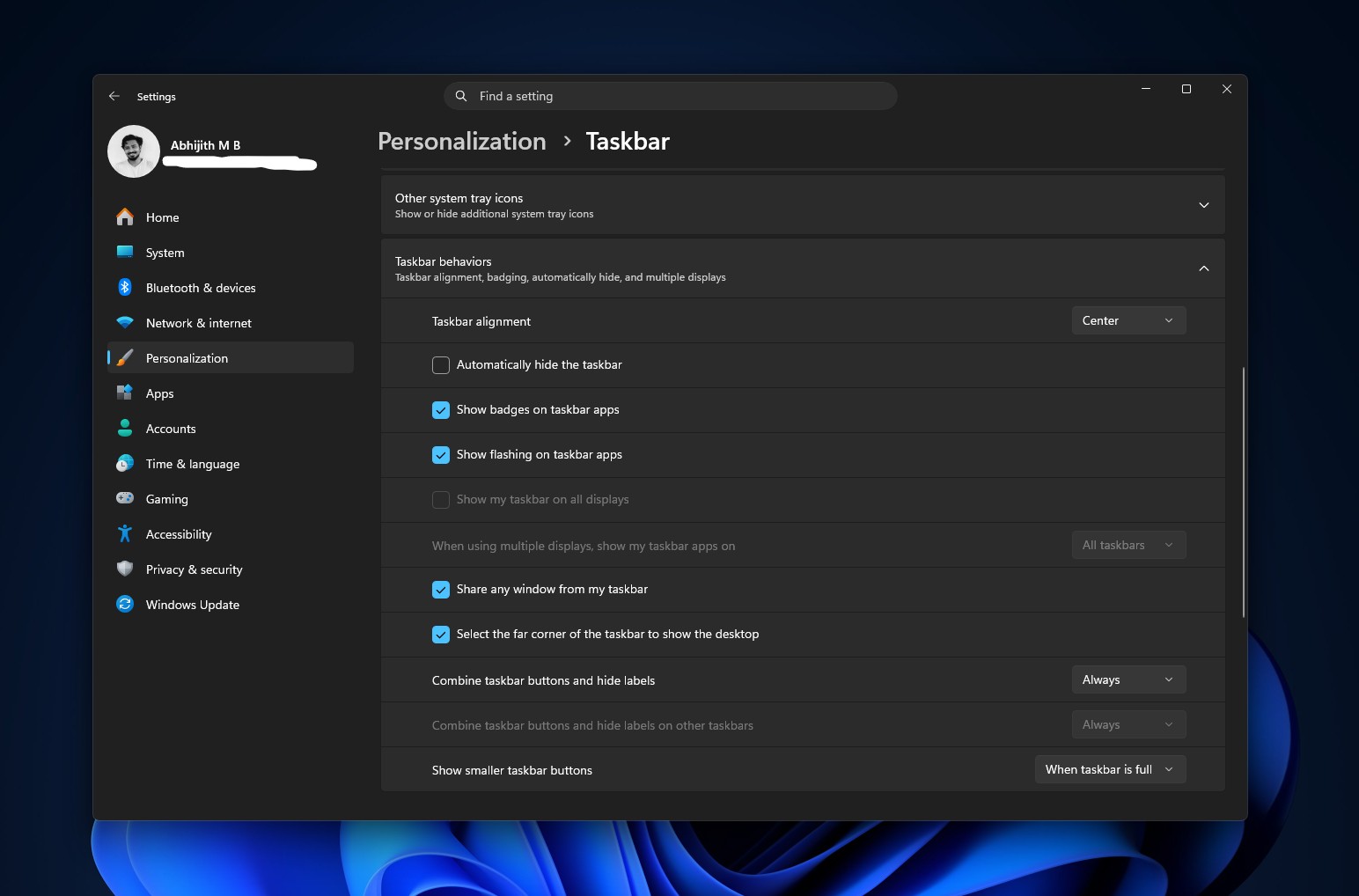
Anyway, let’s flip it on ourselves:
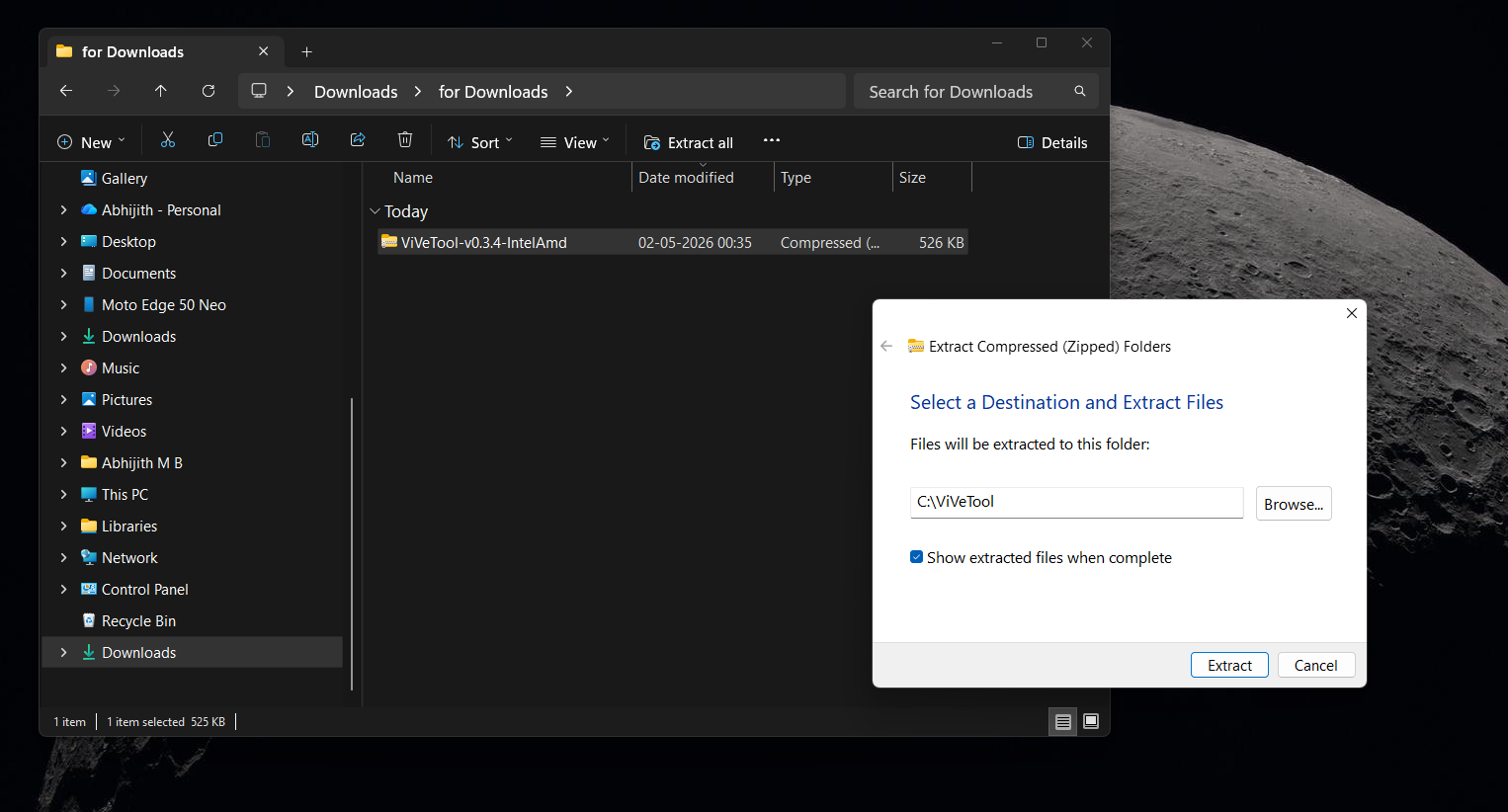
Download ViVeTool from its GitHub page, extract it to a folder like C:ViVeTool, then open Command Prompt as administrator and type cd C:ViVeTool.
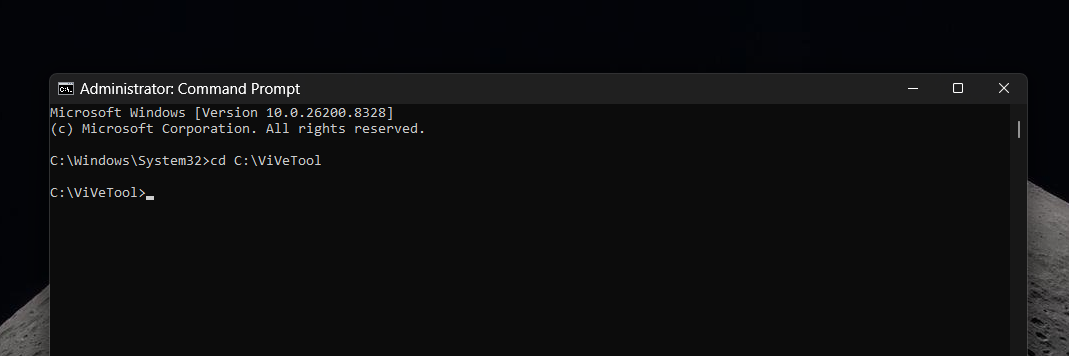
Run this command:
vivetool /enable /id:61161244,61754985
Restart your PC. If the taskbar position option still is not showing, run the full bundle to cover this update’s other features too, including the resizable Start menu and Bing-free Search:
vivetool /enable /id:61161244,61754985,62353331,62762248
Restart your PC again.
Then, go to Settings > Personalization > Taskbar > Taskbar behaviors, and you’ll see a new option to pick Left, Top, Right, or Bottom under Taskbar position. It even has a neat visual representation of what each position looks like.
After the update:
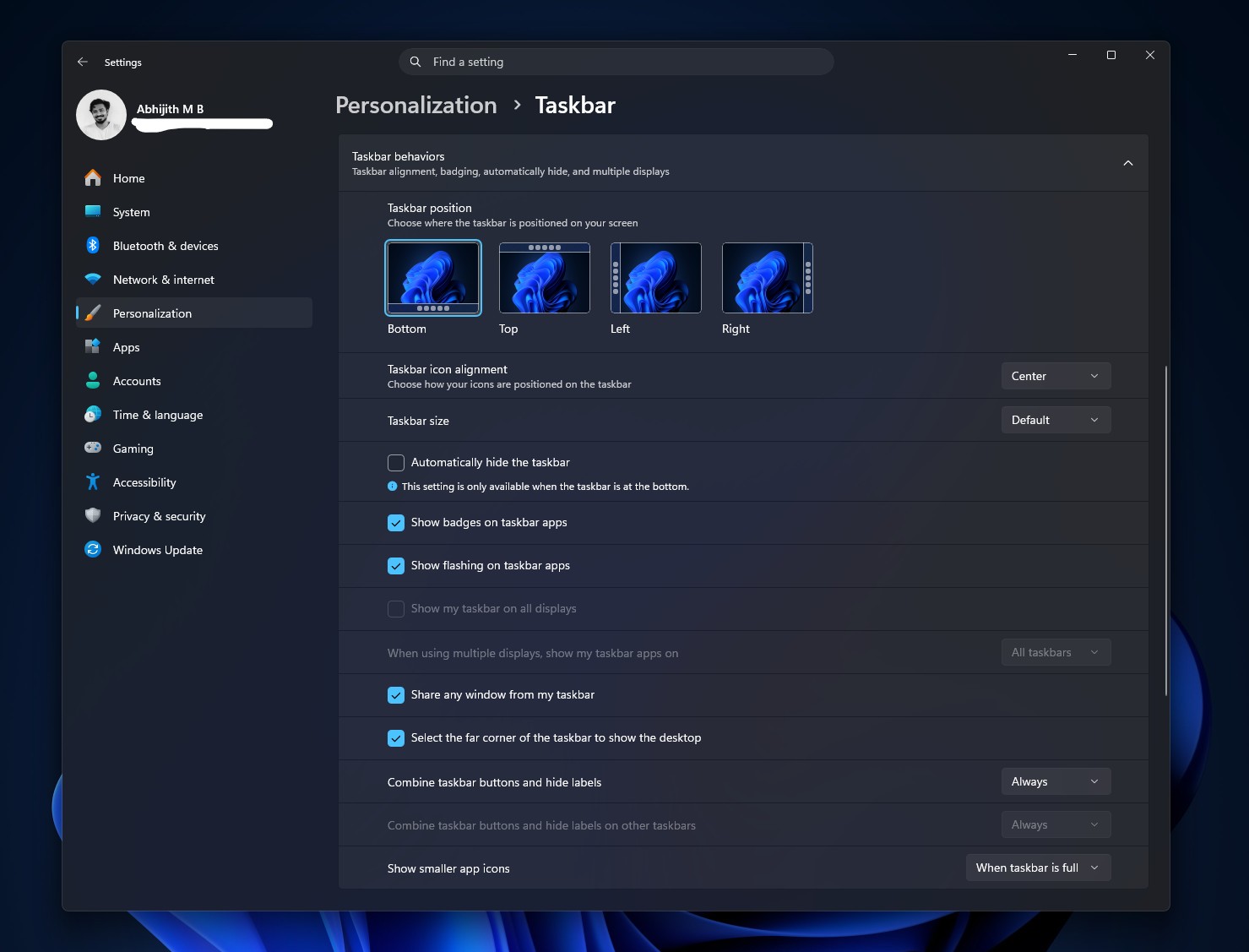
Vertical taskbars are back to Windows
I tested the taskbar in all positions and the Start menu and Search adapt to wherever you place the bar, and icon alignment adjusts automatically so nothing looks off-center. Animations, tooltips, and flyouts all follow the new position correctly too.
However, a few things give away that this is still version one of the features. If you used Windows 10, you might be familiar with dragging and taskbar to reposition it. Well, that’s just not possible here. You have to go to the Settings to move the taskbar.
The Settings also has options to change the Start button and icon alignment, which changes based on the orientation: top or center for vertical taskbar and left and centre for top and bottom taskbars.
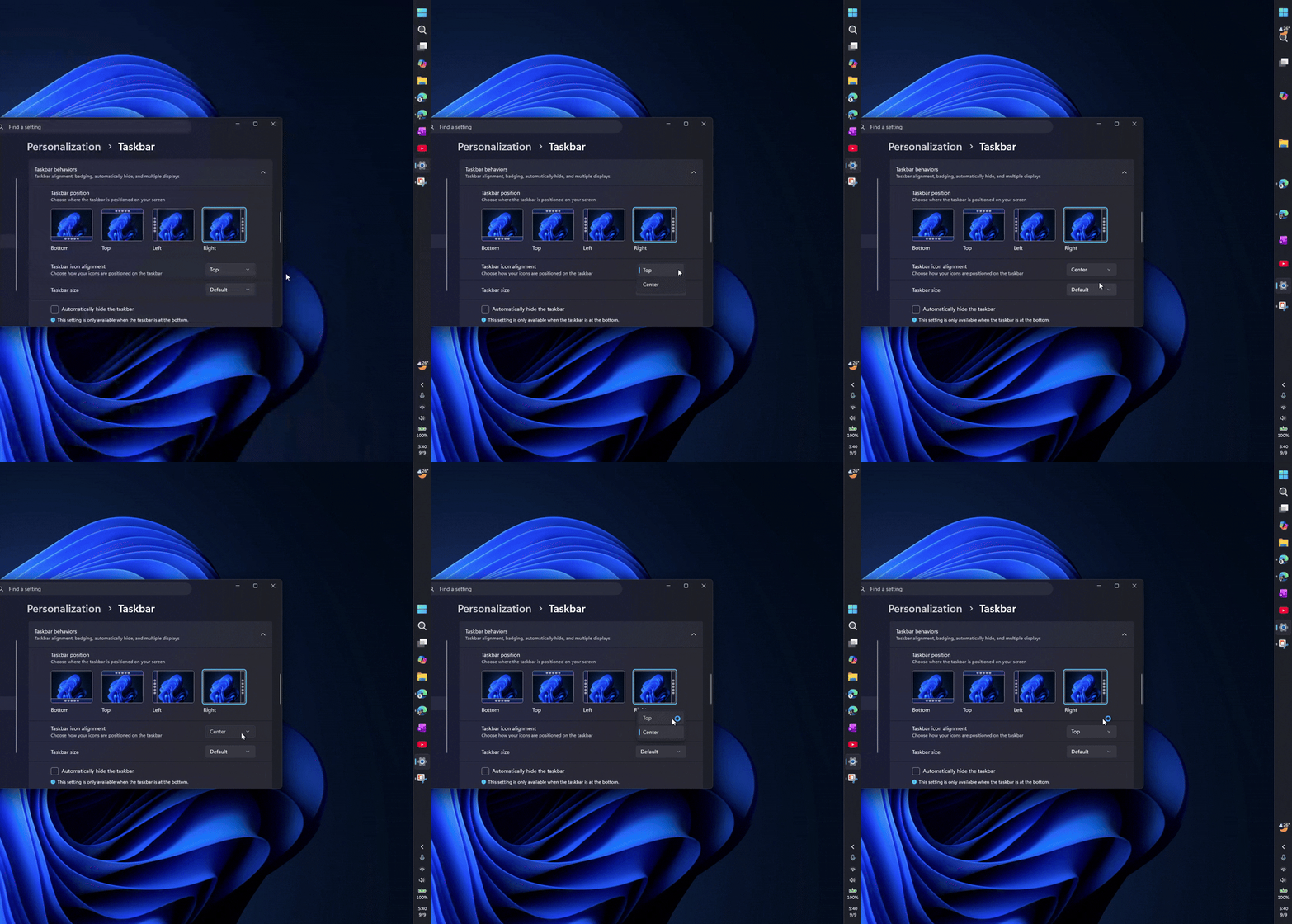
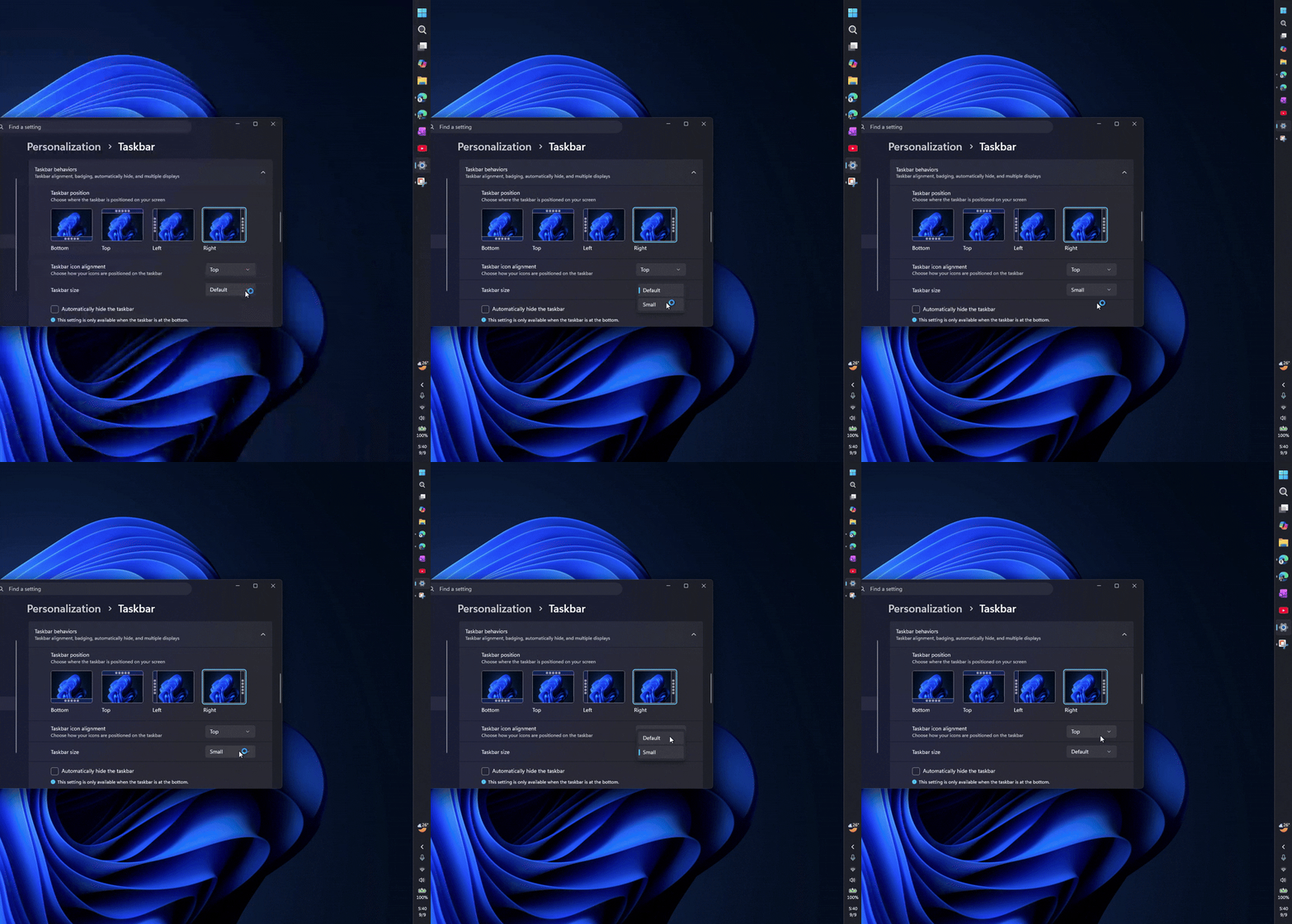
I like that we can make the taskbar smaller now. However, the bar itself becomes smaller only when it is in the bottom or upper positions. The icons become smaller regardless of the orientation.
Same goes for the Search box, which doesn’t show up in vertical positions, but I understand that it’s a design issue and not a skill issue, as I can’t imagine how they’ll add a horizontal search box in a vertical taskbar.
However, the automatically hide option for the taskbar is also limited to the bottom position only, which I do not understand why. And if you have a 2 in 1 PC, the option “Optimise taskbar for touch interactions when this device is used as a tablet” also works only in the taskbar bottom position.
Maybe, now that Microsoft’s senior engineer mentioned that typing code is absolutely over, maybe AI can help bring this feature faster.
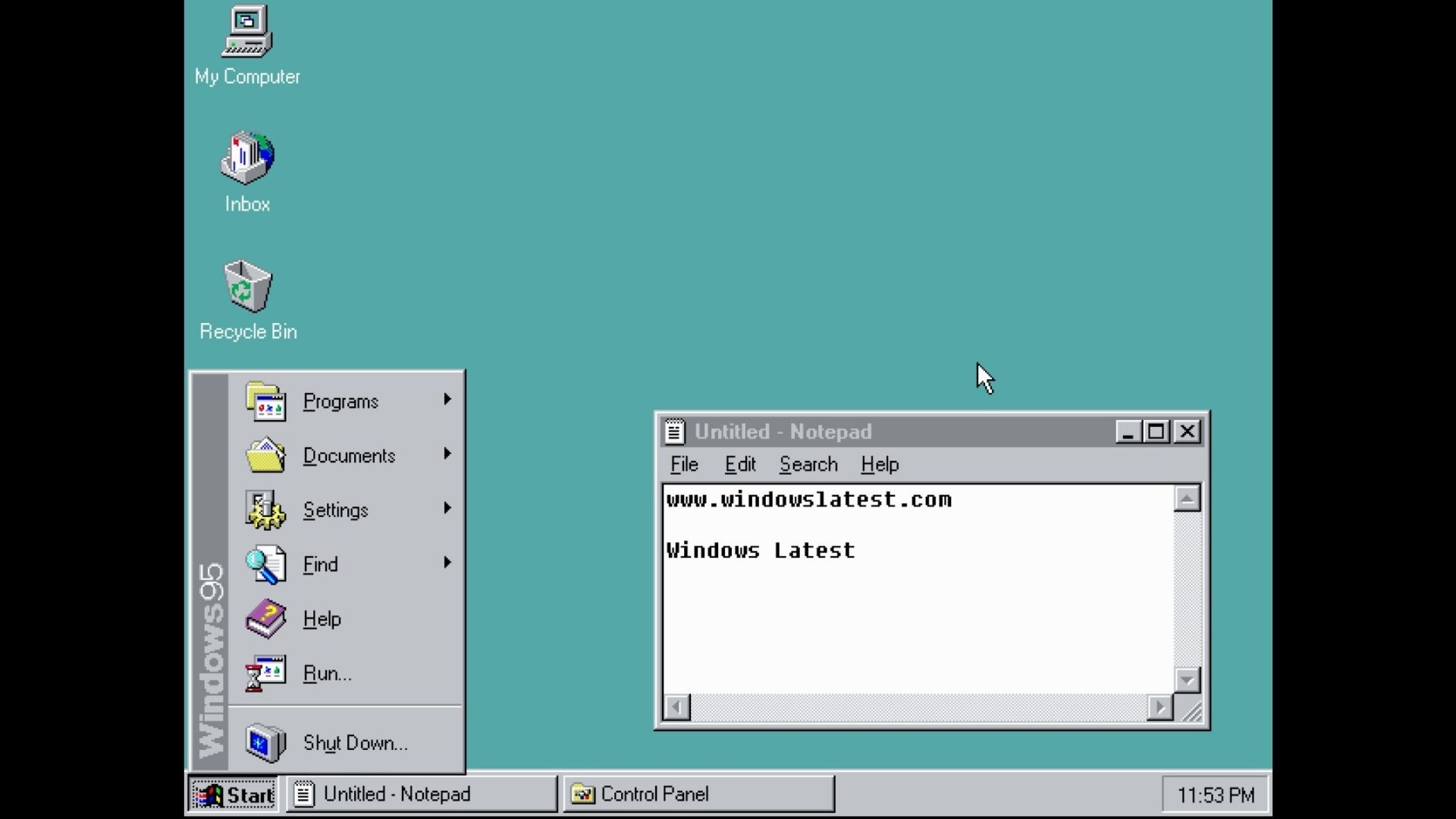
That said, I am still happy that we got these changes sooner rather than later. The taskbar was an original idea in Windows 95, and it’s insane to think that I am still excited for more features to come to it.
Installing KB5124008 now is safe, even before the rollout reaches you
If you have already installed the August optional update without issues, installing KB5124008 and running the ViVeTool commands is safe. If you prefer to wait, the feature will automatically turn on after days or maybe weeks. I have noticed that it turns on earlier on newer devices.
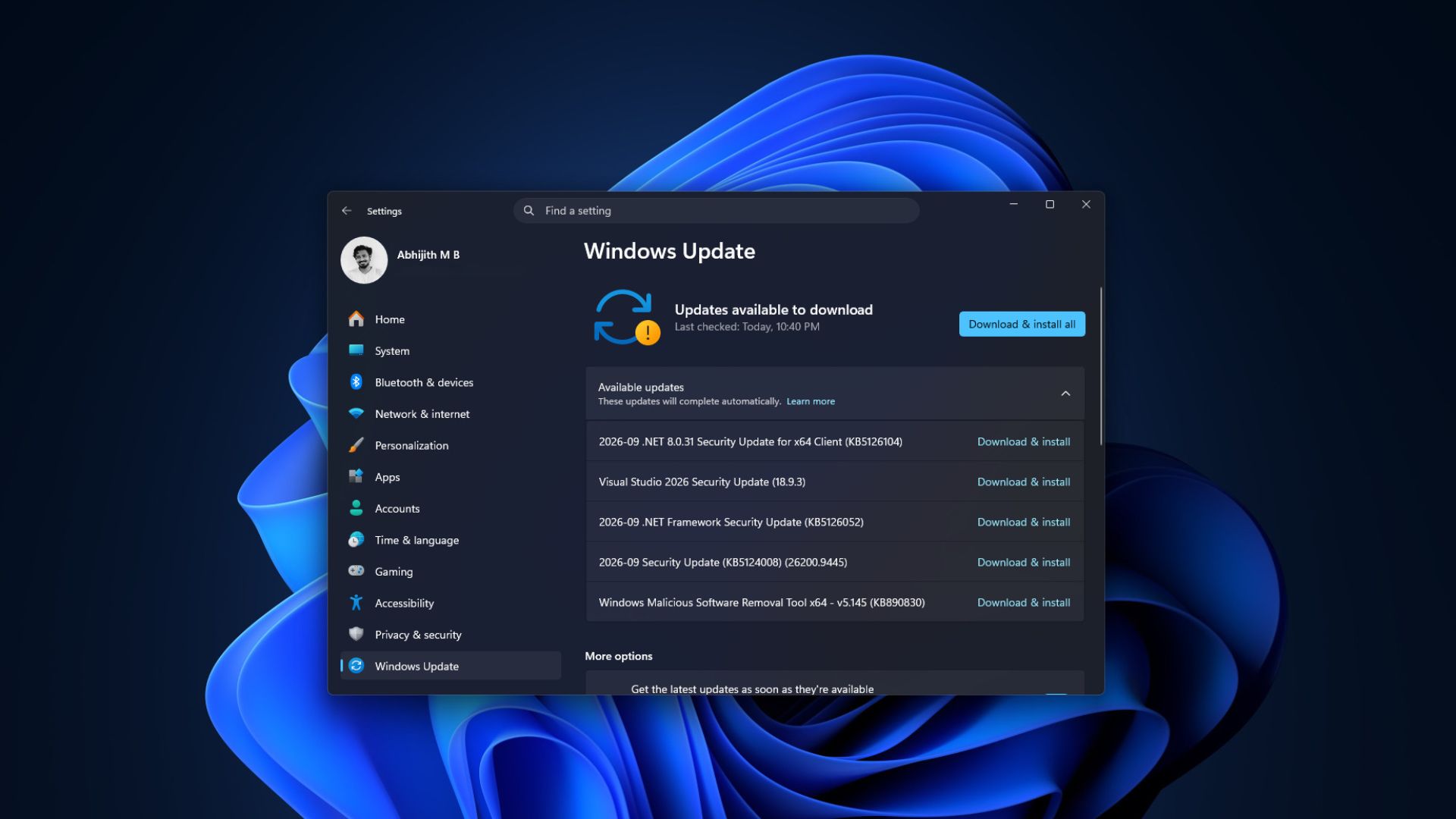
Either way, you don’t have to think twice before installing the September 2026 security update, because Microsoft fixed a record 974 issues this month and that is no small feat.
Go to Settings > Windows Update > Check for updates to download and install the update.
The post Windows 11 just restored a Windows 10 feature after five years, the movable taskbar appeared first on Windows Latest