
Microsoft has started rolling out the September 2026 Patch Tuesday (KB5124008 – OS build 26200.9445 and 26100.9445) update for Windows 11, and after testing it thoroughly, I would say this is the biggest update this year (so far).
The last two months, July and August, didn’t have much to rave about, apart from many small but worthwhile reliability fixes. The September update finally brings the movable taskbar, resizable Start menu, and a fully clean Search to every eligible PC. I have been waiting for months for these to come out of Insider preview.
The update takes everything from the August 27 optional preview and adds it into the mandatory September security release for Windows 11 version 25H2 and 24H2. I already spent two weeks testing most of this in the optional update, and the improvement over July and August raises the ceiling on what Windows 11’s quality looks like.
Like every recent release, this update arrives in two phases: A gradual rollout gives features to devices over time through Microsoft’s Controlled Feature Rollout system, so most of what is listed below may take extra days or weeks to show up after you install. A normal rollout comes to every eligible device at once and covers the security-critical pieces, including Secure Boot.
Note: Windows 11 version 24H2 Home and Pro reach end of updates on October 13, 2026, with Enterprise and Education supported until October 12, 2027. Secure Boot certificates from 2011 also continue expiring in stages through 2026, and Microsoft says PCs still waiting on the newer 2023 certificates will keep booting and updating normally in the meantime.
What’s new in the Windows 11 September 2026 Patch Tuesday update
Here is everything arriving with the September update.
- The taskbar can move to any edge of the screen for the first time since Windows 11 launched in 2021.
- A smaller taskbar option shrinks both the icons and the bar’s height.
- The Start menu gets Small, Automatic, and Large size options, plus independent toggles for Pinned, Recent, and All.
- Windows Search drops Bing and Microsoft Store results if you turn them off, and gets faster once you do.
- Administrator protection begins rolling out, moving Windows toward just-in-time admin privileges.
- Windows Autopilot device preparation adds general availability for device association.
- Process Isolation arrives for Microsoft Execution Containers, meant for agentic and coding tasks.
- WMIC is fully removed from Windows 11 24H2 and 25H2, with no way to bring it back.
- A batch of smaller fixes covers Japanese input, Outlook search, touchpad reliability, and Narrator’s Natural Voices setup.
You can now have a vertical taskbar or move it to the top
Taskbar on top is the headline feature, and it undoes one of the most criticized decisions Windows 11 made at launch.
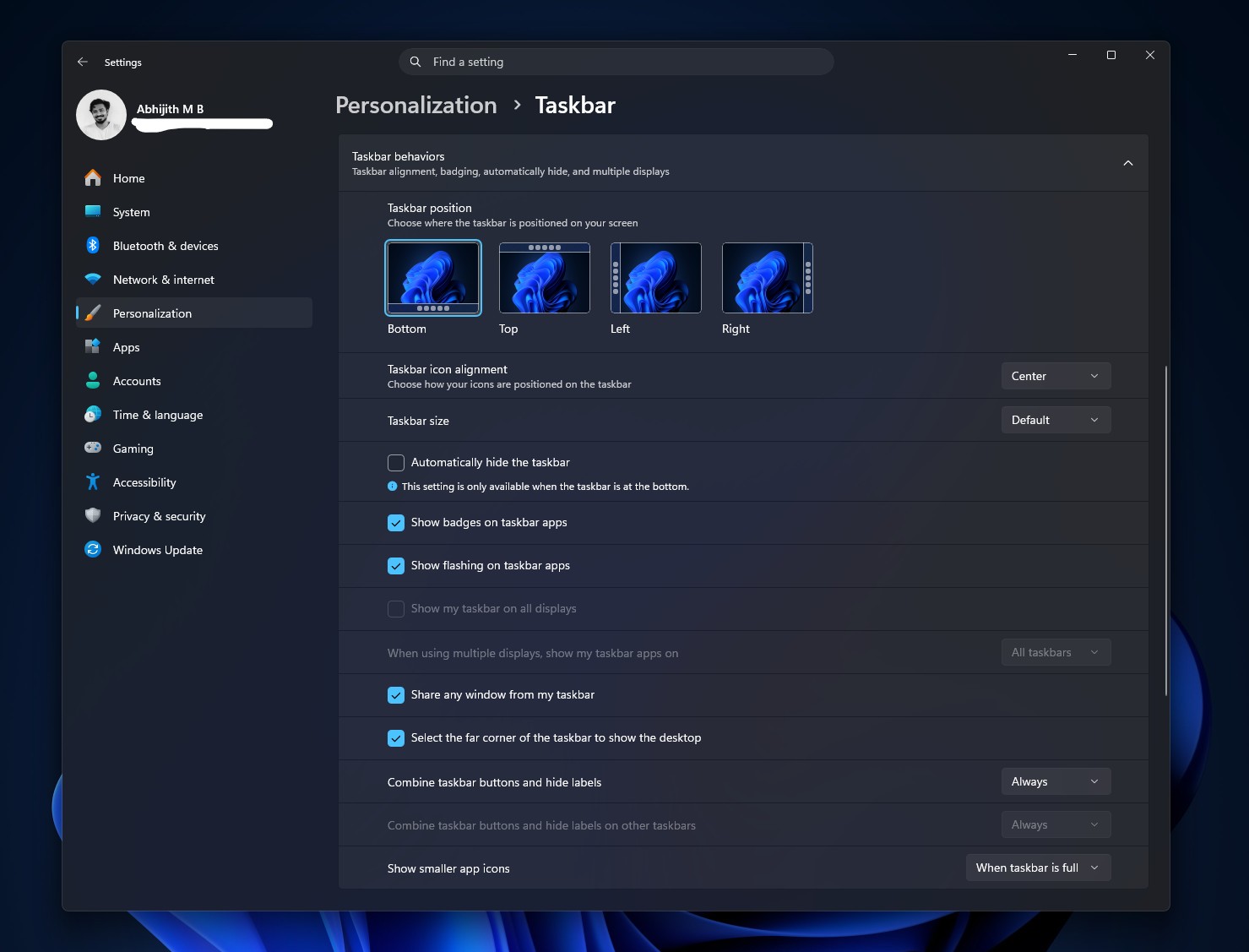
Under Settings > Personalization > Taskbar > Taskbar behaviors > Taskbar position, you can now choose Left, Top, Right, or Bottom.
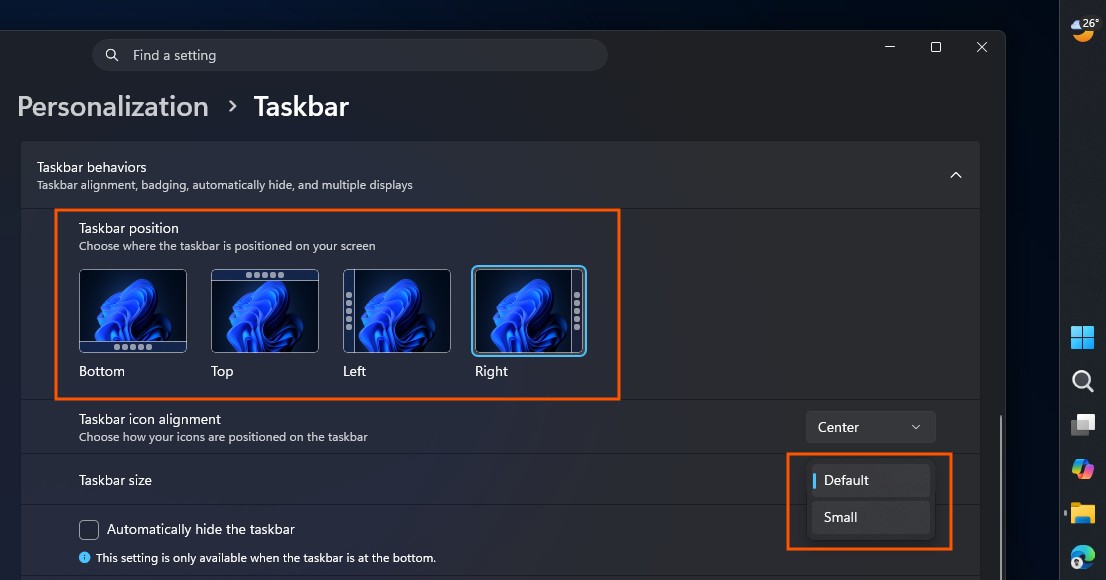
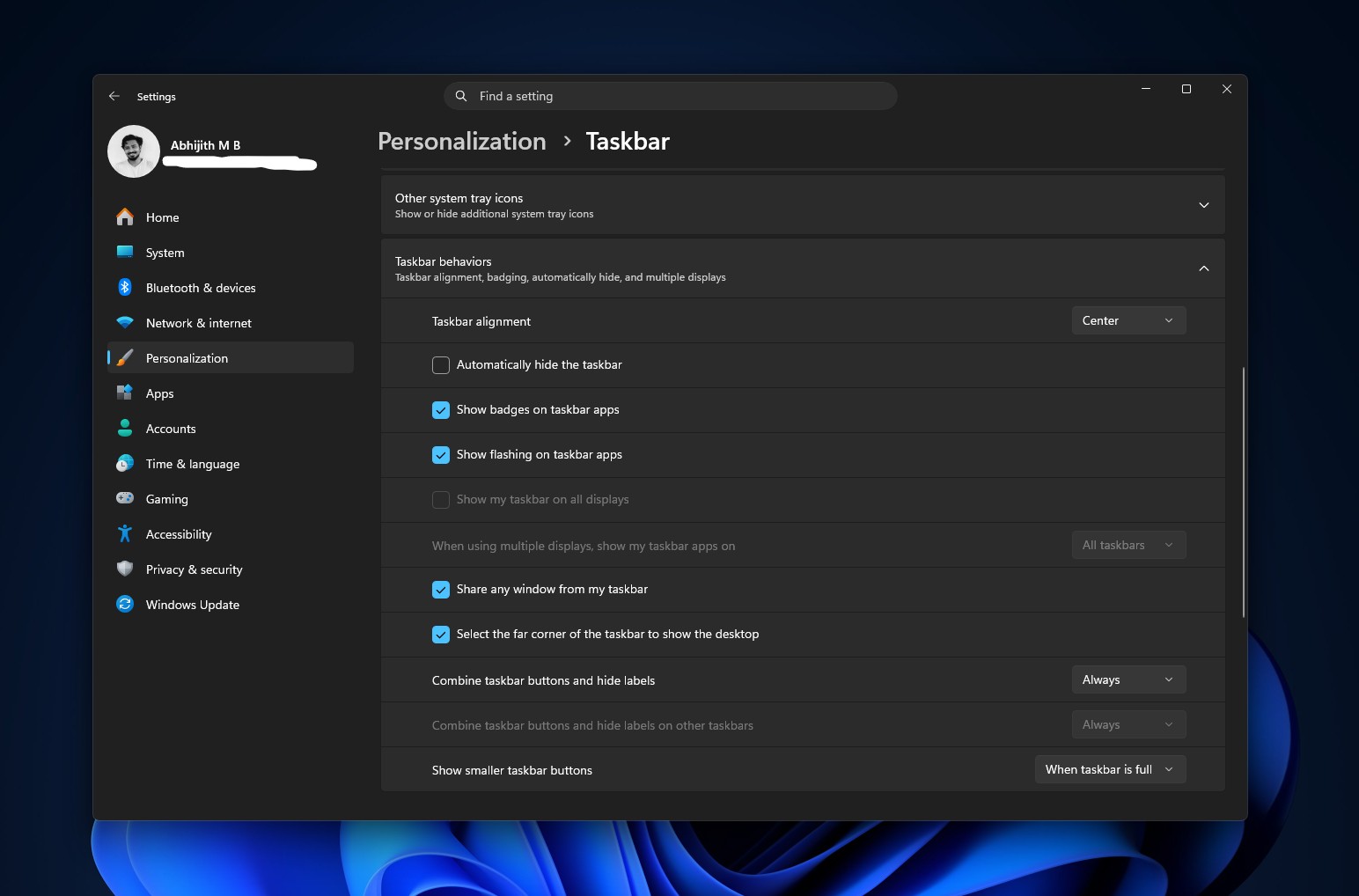
Before the update:
After the update:
In my testing, tooltips, flyouts, and animations all follow the taskbar to its new position correctly, and most existing customization settings, including keeping icons uncombined, work regardless of where you place it.
Also, if you think your taskbar is too big, you can now make it smaller. However, the smaller setting on my 14” laptop makes it too small, and the default one is too large.
There is also one limitation. The search box and the smaller taskbar variant currently only work when the taskbar is at the top or bottom, so moving it to either side drops both until Microsoft extends support further.
The Taskbar behaviors section of the settings page is expanded by default now too, so these options are easier to find.
I tested a vertical taskbar on the left edge for a few days during the optional update, and I haven’t looked back since. Windows 10 didn’t let you shrink the taskbar height, only the icons, so at least in this aspect, Windows 11 slightly edges out Windows 10.
The Start menu finally stops covering your whole screen
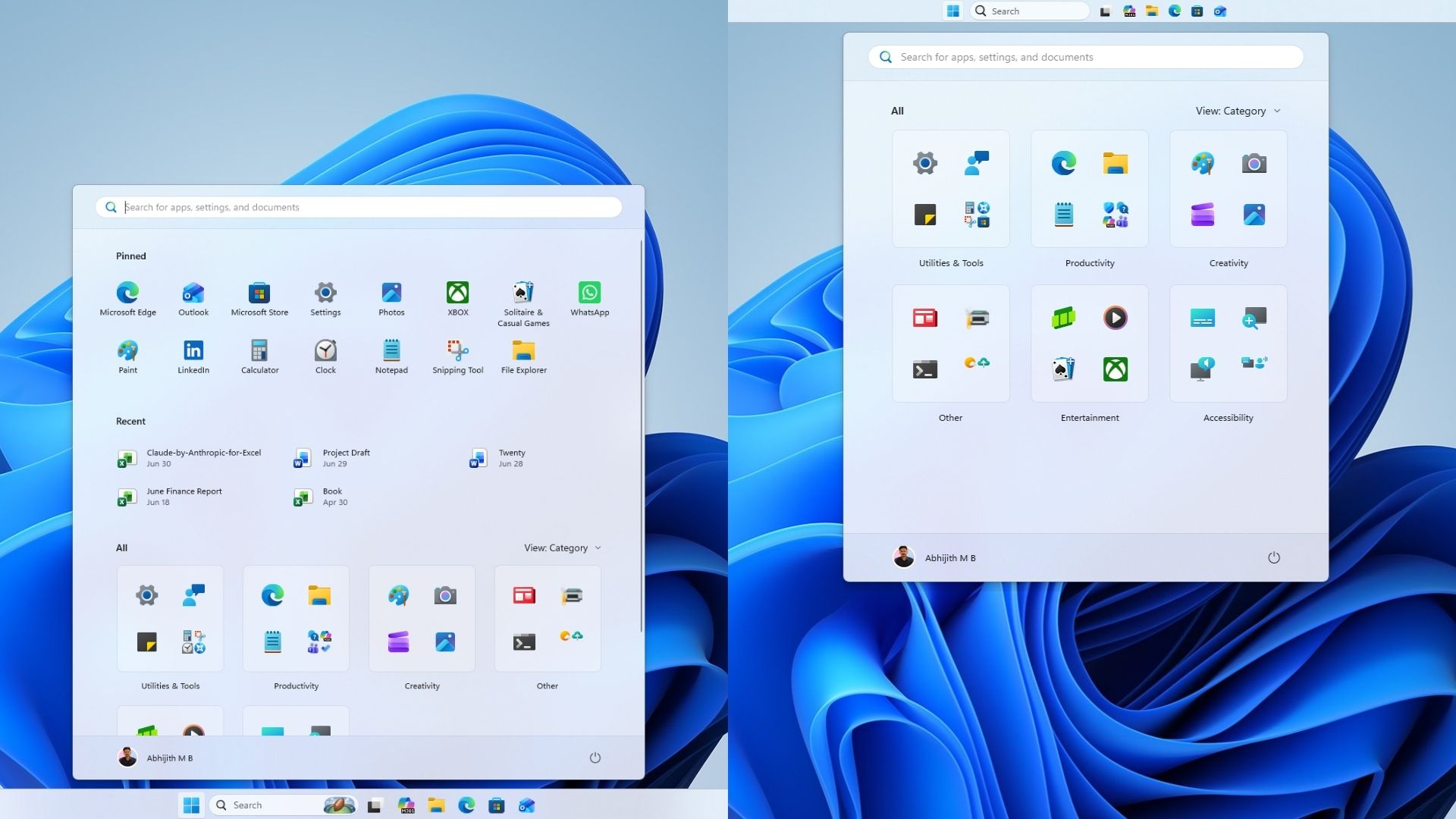
Windows 11’s Start menu had grown to cover close to 90 percent of vertical screen space on some laptops since the November 2025 redesign, up from roughly 50 to 60 percent before it. The September update fixes that, and to be honest, I find this more exciting than a movable taskbar.
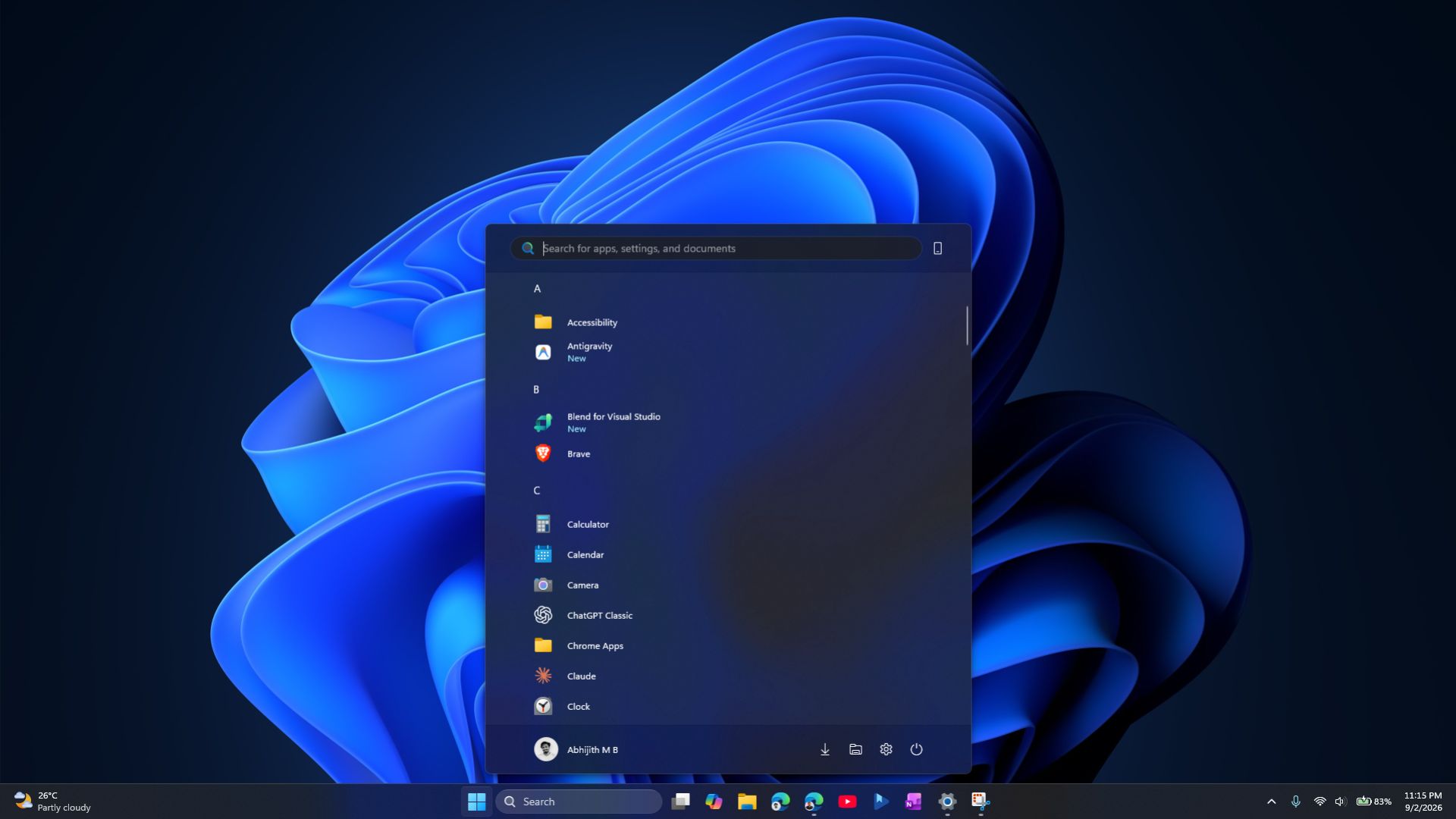
Under Settings > Personalization > Start > Start menu size, you can now choose Automatic, Small, or Large instead of being stuck with whatever size Microsoft’s adaptive layout picked.
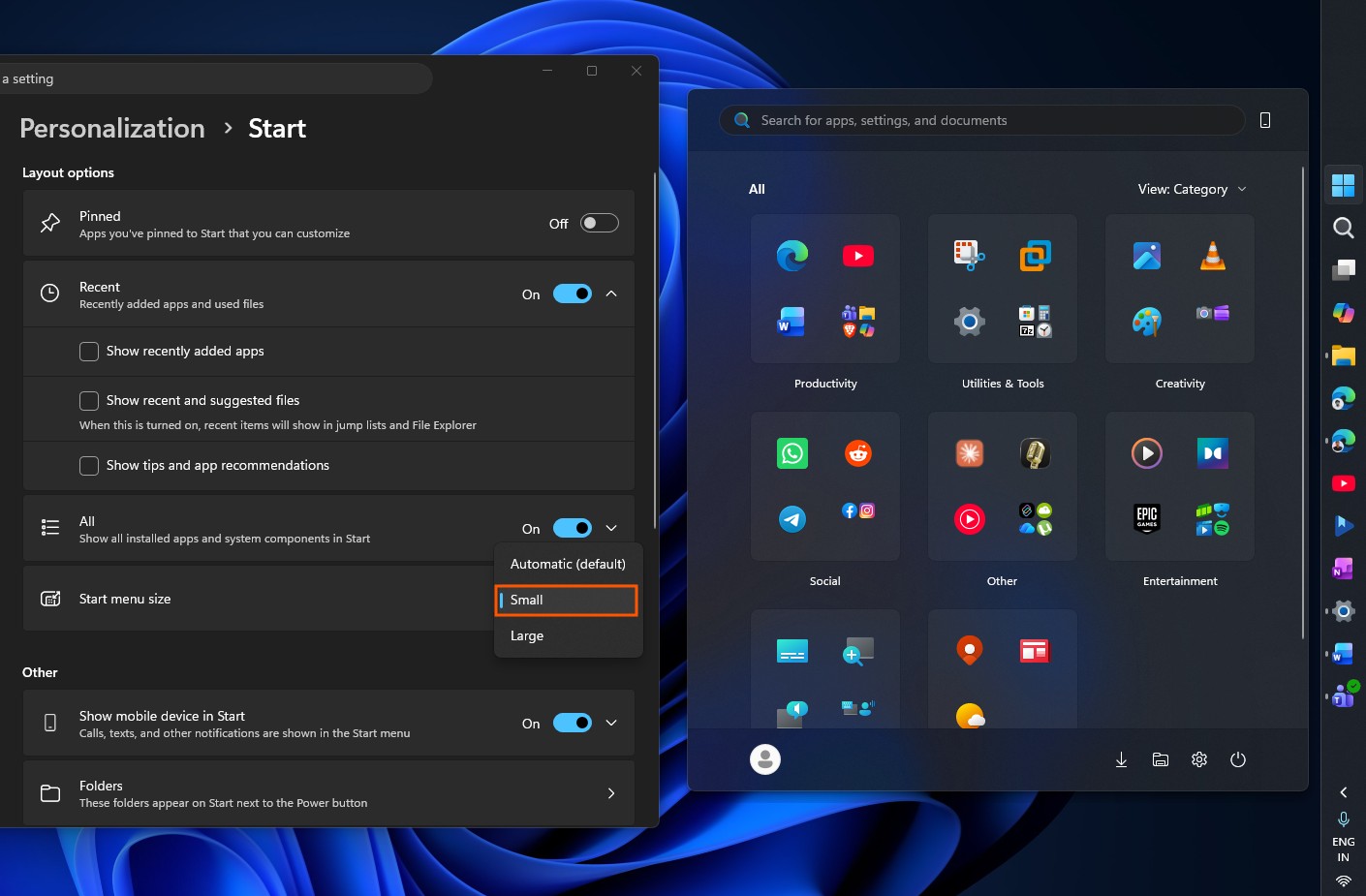
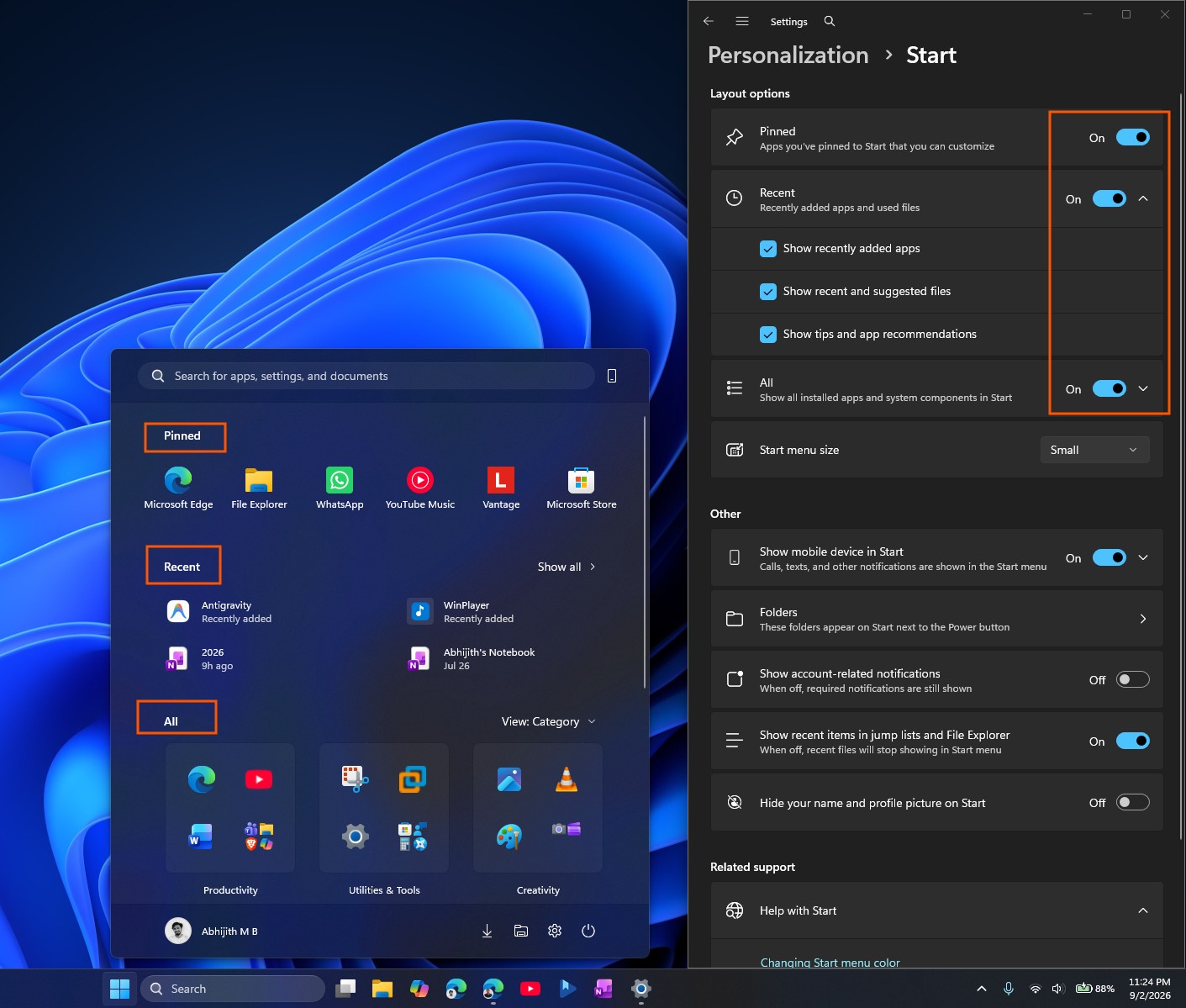
The Recommended section is renamed Recent, both in the Start menu and on the settings page, and you get independent toggles to show or hide Pinned, Recent, and All separately.
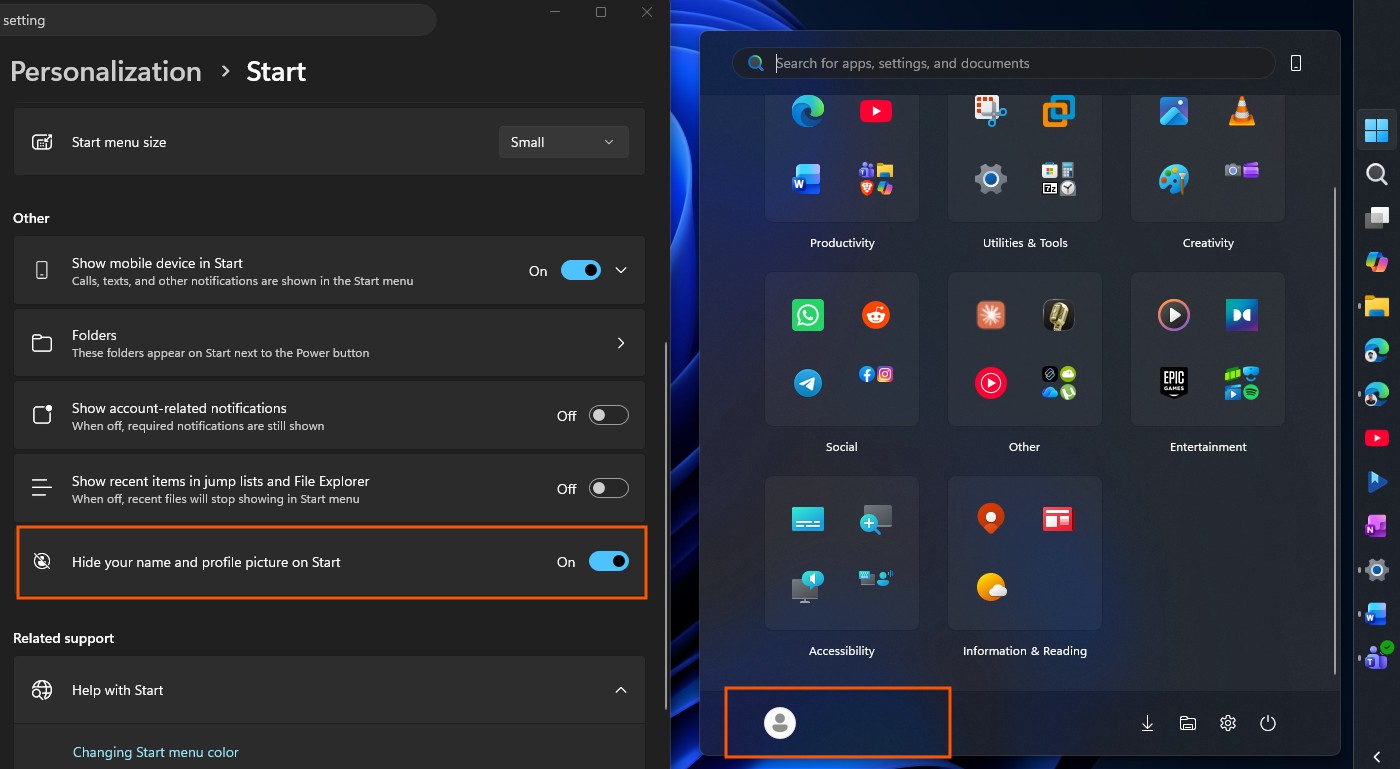
A new Hide your name and profile picture on Start option is useful if you stream, share your screen, or record your desktop regularly. Start menu view preferences are also retained more reliably now.
One caveat I noticed is that these toggles do not change the Start menu’s overall size; only the dedicated size dropdown does that. Small is the option I would pick for most laptops.
Windows Search drops Bing and gets noticeably faster
Search gets the most requested privacy change Windows 11 has brought this year. Under Settings > Privacy & security > Search, a new Show suggested search results section lets you turn off Web Searches and Microsoft Store suggestions independently.
Turn both off and Search shows only what exists on your PC, apps, settings, and files, without going for a web result, which basically means it’s now instant!
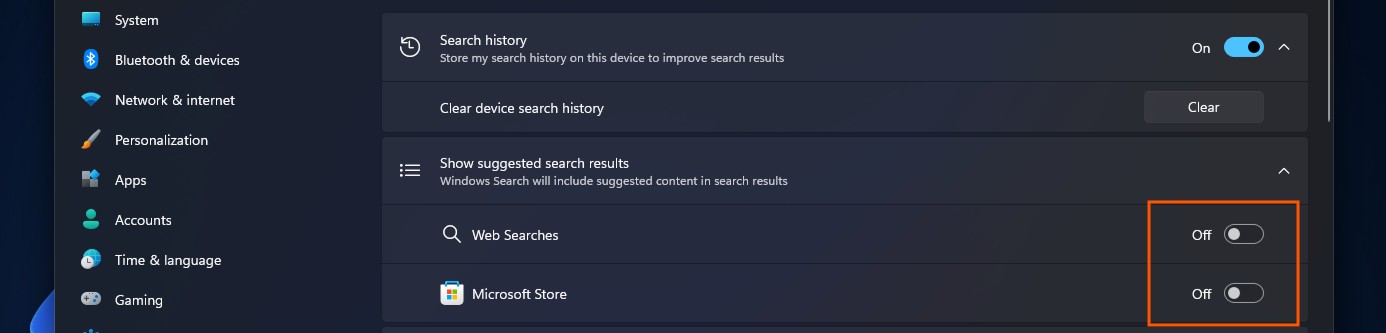
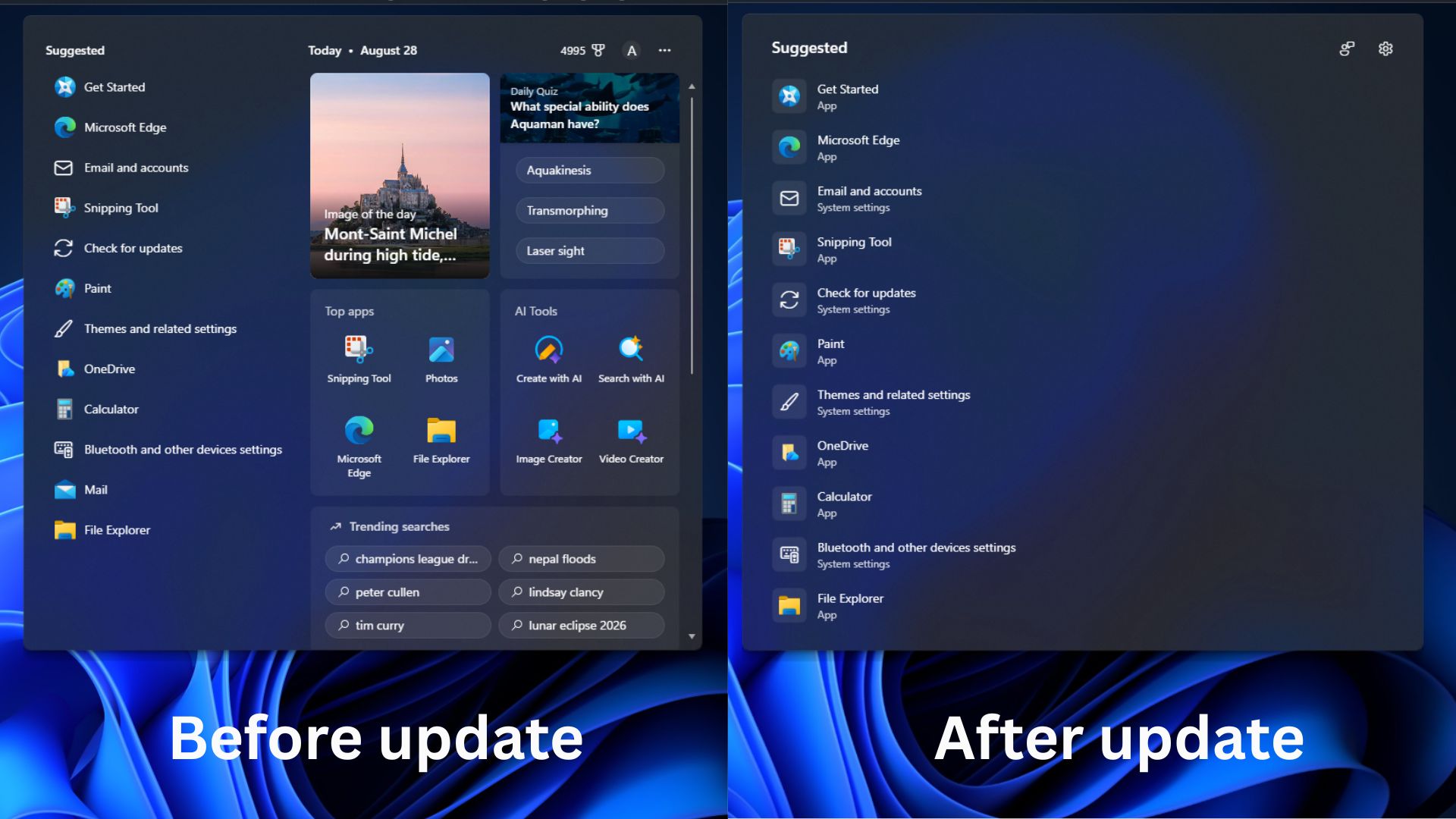
Search UI is simplified by default now too, showing your recent searches instead of a feed of promotional tiles and trivia, and search results now show a label showing whether it is an app, file, setting, web result, or Store suggestion.
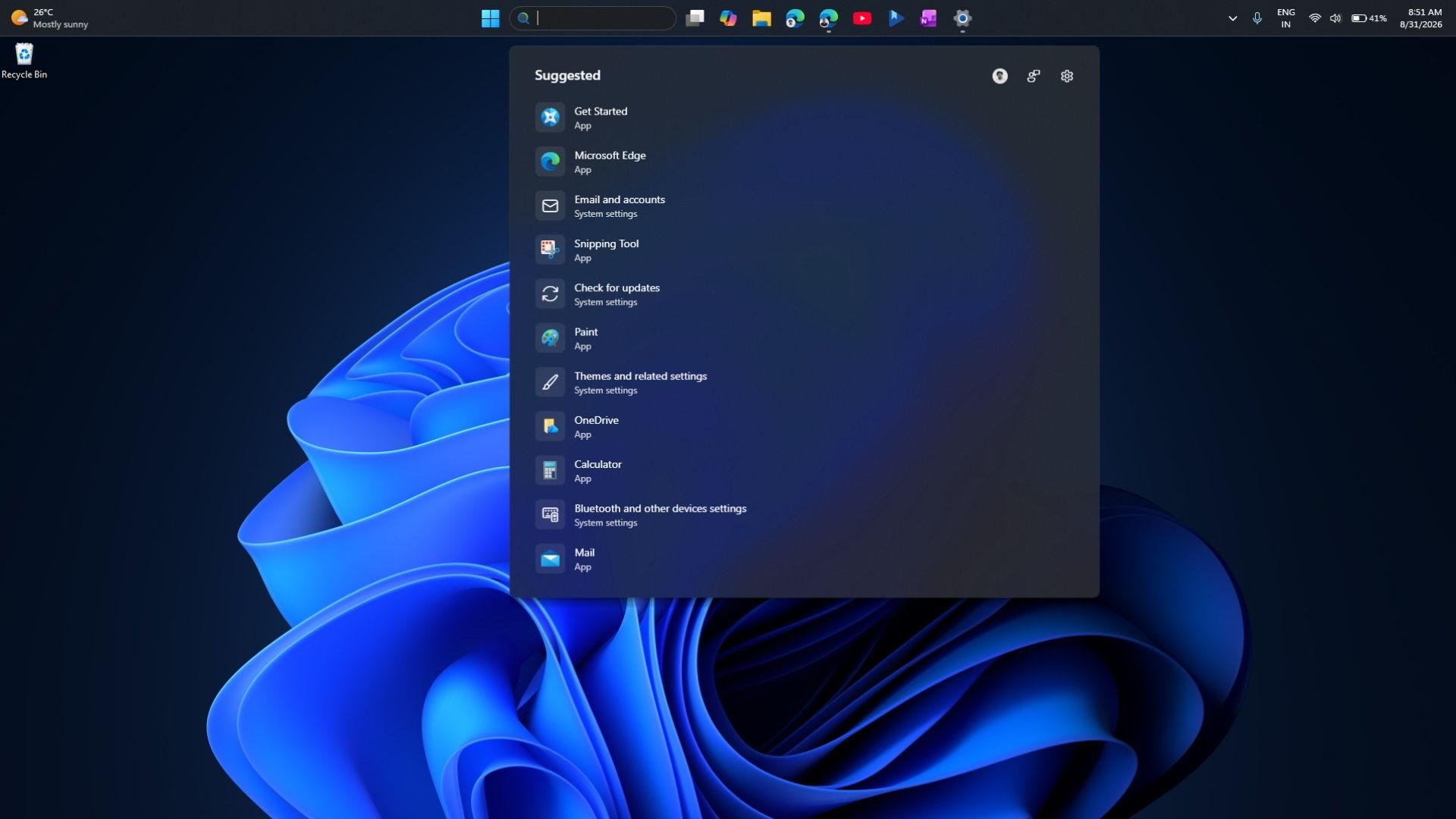
To make relevant Search results show up quicker, Windows now automatically indexes your most-used folders, so files in those locations start appearing in results without manual setup. But if you don’t like this setting, you can control it under Settings > Privacy & security > Search > Automatically find additional relevant locations.
Typo tolerance, which I tested back when it first reached Insiders in June, naturally got better with this update. Searching a misspelled or partial app name now shows the app you wanted.
Administrator protection begins rolling out after a rocky start
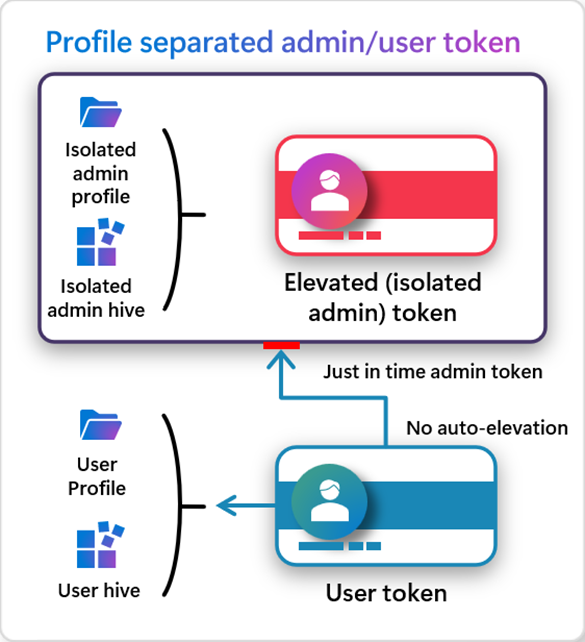
Administrator protection moves Windows away from free-floating admin rights to just-in-time privilege elevation. So, instead of a process that holds admin rights indefinitely once granted, Windows creates a temporary, isolated admin token for a specific task and destroys it once that task finishes.
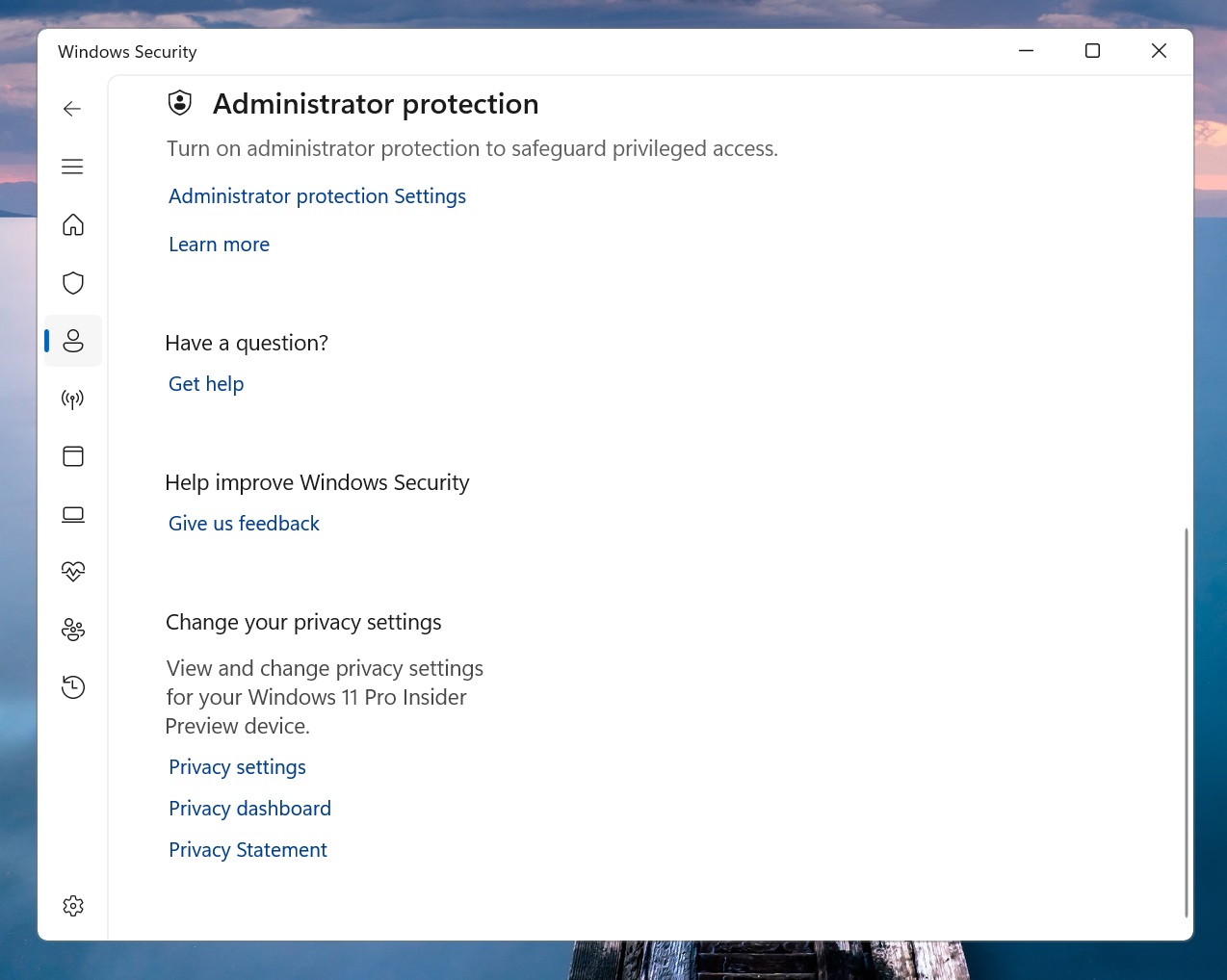
Note that this is not a formal security boundary, as it hardens against elevation-of-privilege attacks through profile separation instead of guaranteeing complete protection.
Microsoft first disclosed the feature in October 2025 through KB5067036, and this update marks its resumption after a pause. It remains off by default, and turning it on requires OMA-URI through Microsoft Intune or a Group Policy setting, so this is still an IT admin decision.
Windows Autopilot and Microsoft Execution Containers get enterprise-focused additions
Windows Autopilot device preparation reaches general availability for device association, letting organizations find trusted devices before enrollment and enable device-targeted policies and automatic corporate enrollment during setup. It is squarely an IT deployment feature and will not be visible to most people.
Interestingly, Microsoft Execution Containers gain Process Isolation, a lightweight boundary aimed at responsive workloads like coding agents and model-generated code. It uses Windows’s own containment capabilities to restrict a process’s access to files, networking, and the user interface according to policy.
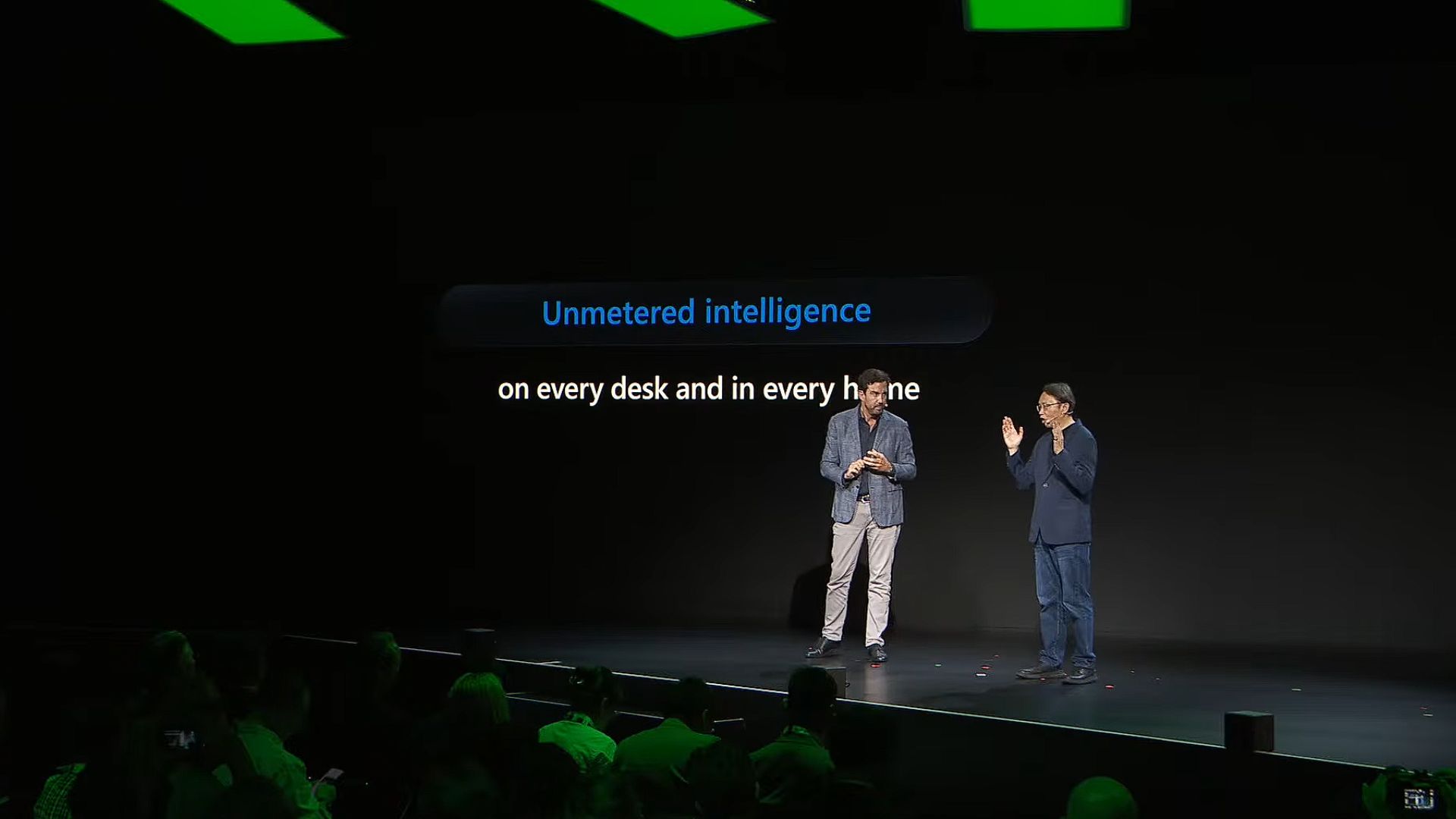
A few days ago, at IFA 2026, Microsoft confirmed their plans to bring unmetered intelligence on every desk and in every home, and Microsoft Execution Containers form the crutch for that vision.
Continuing with the AI stuff, Windows adds preview support for tagging agentic processes with an opaque identifier that gets passed automatically to child processes and included in Web Account Manager authentication requests. Microsoft flags the identifier format as subject to change, since this is explicitly a preview capability.
WMIC is completely gone, with no way to bring it back
Windows 11 24H2 and 25H2 no longer include the Windows Management Instrumentation Command-line utility, closing off the last route back to it after Microsoft removed it from new installations and pulled it as a Feature on Demand.
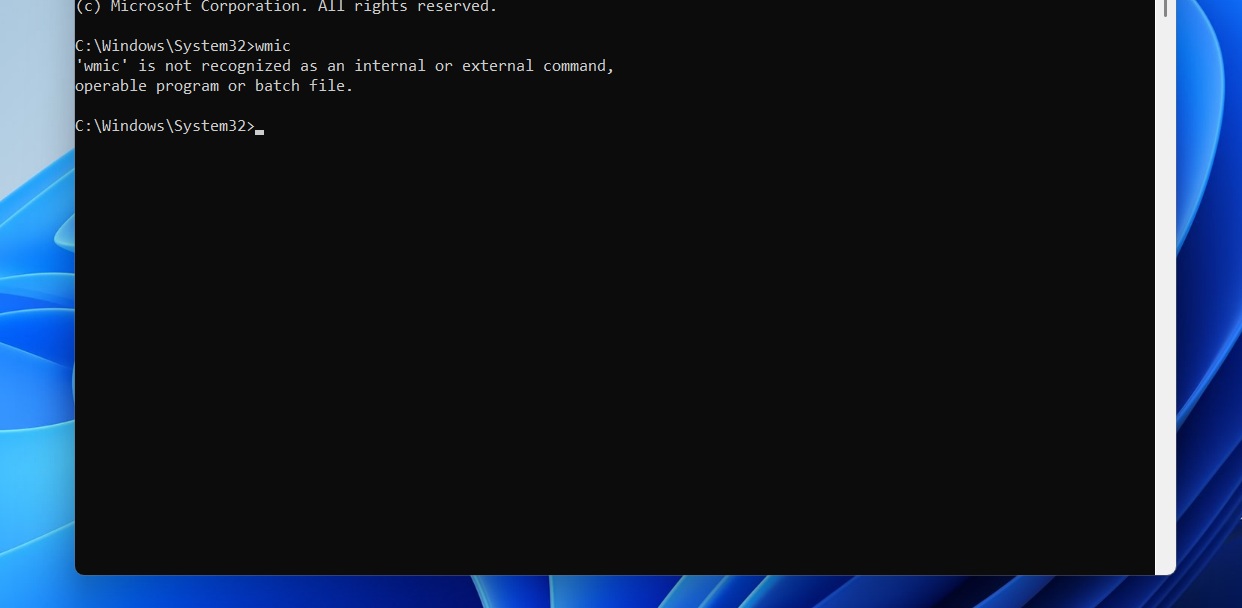
However, WMI, the management infrastructure the tool depended on, is still completely supported. Only the wmic.exe command-line wrapper is gone. We confirmed this on an early build, and once you are on this update, there is no registry edit or DISM command that restores it.
File Explorer, Windows Share, and multitasking pick up smaller refinements
File Explorer Home launches faster and feels more responsive, and the Recommended carousel on Home now supports touch scrolling for easier browsing on touch devices.
Windows Share adds the ability for work and school account holders to discover and install relevant apps from the share window, manageable under Settings > System > Share.
Switching between virtual desktops is smoother and more responsive now too. Updated progress indicators also appear consistently across startup, sign-in, restart, shutdown, and update installation, replacing the Windows 8 style we had for years.
Cryptography, networking, and input reliability improvements
The post-quantum algorithm ML-KEM can now be used as a standalone algorithm for TLS key exchange. Earlier, it was added to hybrid groups. This is useful for organizations already preparing their infrastructure for post-quantum standards.
Networking picks up two fixes: better resiliency with VPN-related background processes that could stop responding, and a corrected netsh wlan show wlanreport output for Japanese users.
On the input side, Windows fixed reliability issues with the Japanese IME that were causing typing to hang, and voice typing now remembers automatic punctuation and launcher settings between sessions.
Display settings navigation is more reliable, and your brightness level now persists correctly after Energy Saver turns itself off. This has been bugging me for quite some time, and I’m glad it’s finally fixed.
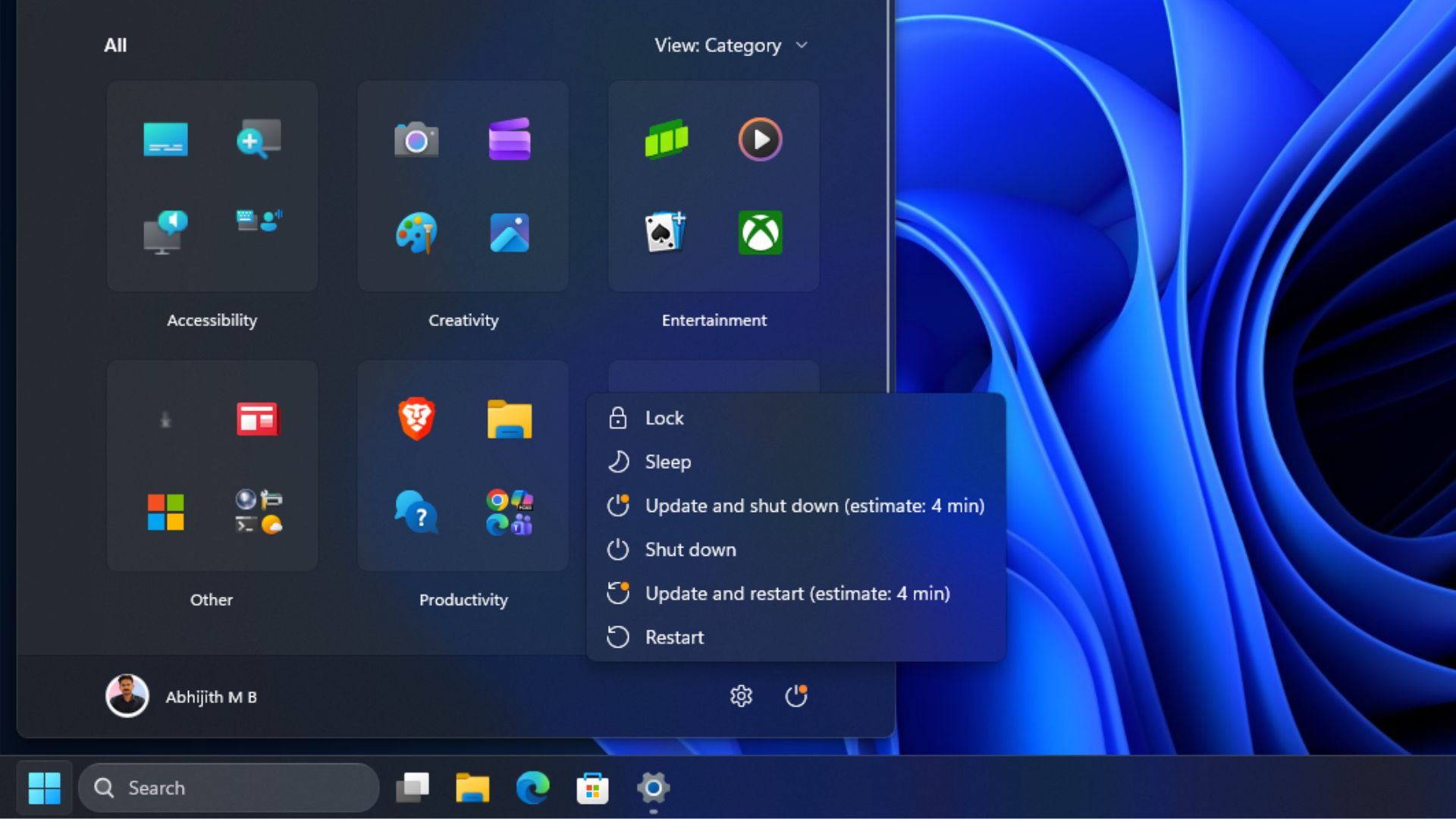
Task Manager shows app history information more reliably, and PCs manually put to sleep now correctly return to sleep after finishing an update, even with automatic sleep set to off. In fact, you can also shut down your PC now without having to wait until it restarts and installs the update.
App updates also get a coordination mechanism through the Windows Update Orchestration Platform, letting participating apps schedule their updates alongside Windows Update for a more streamlined experience.
Packaged WinUI 3 apps that require elevation can now also support in-app purchases through Microsoft’s integrated commerce platform. WinUI 3 has been getting a lot of attention these days, and I’m all for it.
Windows Setup gets a streamlined keyboard step and a refreshed Get Started app
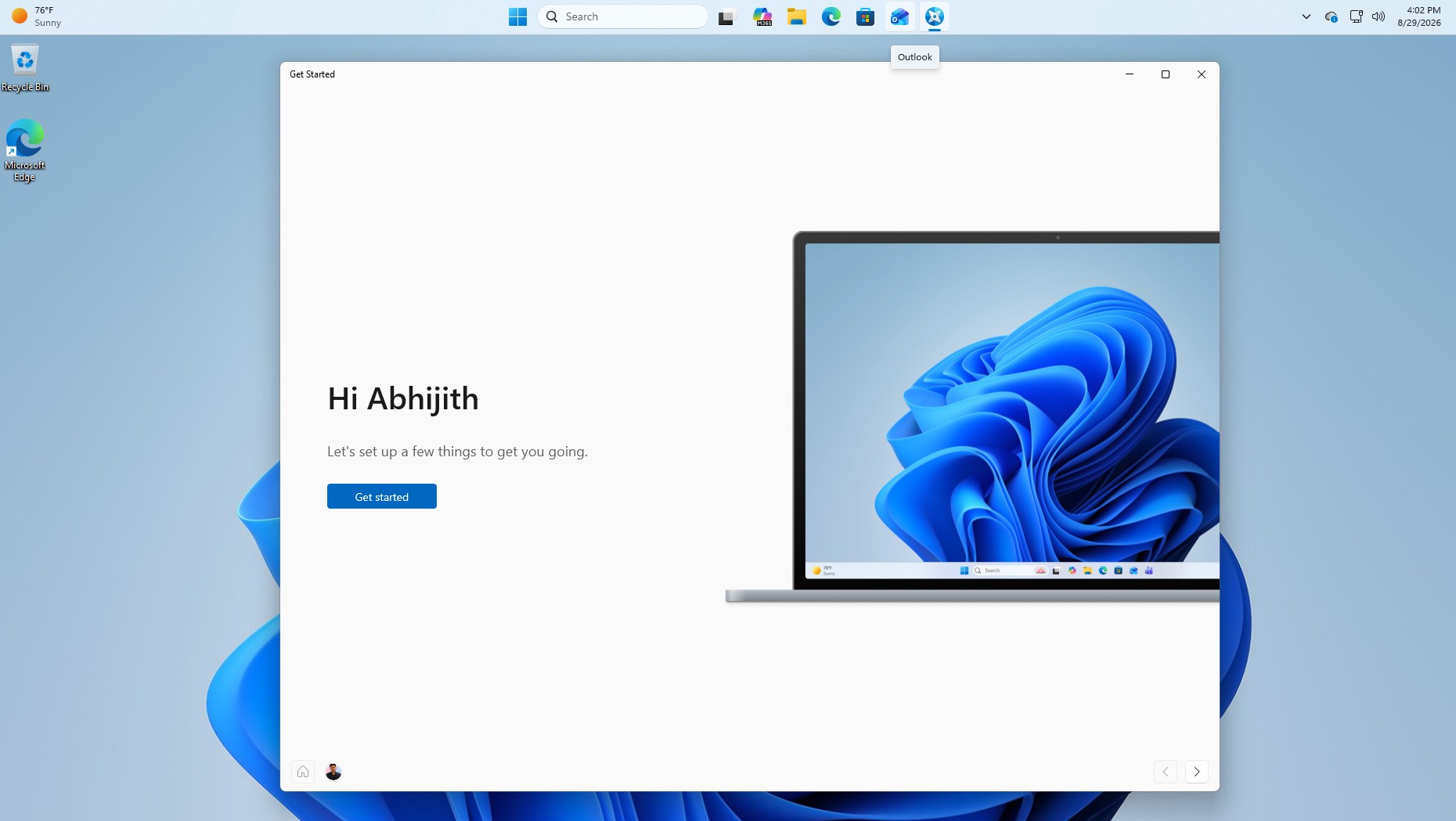
Windows Setup now streamlines the secondary keyboard selection screen, making it easier to skip when you do not need it. The Get Started app is also refreshed with new App install, Site pinning, and Theme pages to help personalize a new PC and highlight features during first setup.
Other fixes shipping in the normal rollout
A handful of smaller fixes ship in the normal rollout phase in this update’s security patches:
- Narrator’s Natural Voices experience now installs and sets up more reliably from the settings dialog.
- Japanese text input in RemoteApp applications now displays correctly while typing.
- Outlook search on Japanese-language devices now shows the correct “To” label and returns expected results in Sent Items and Advanced Find.
- Touchpad reliability also improves on some devices, so gestures and mouse-drag actions respond as expected.
AI components are updated in the background
The September update refreshes the usual internal AI components Windows 11 uses across the system to version 1.2608.951.0, including Image Search, Content Extraction, Semantic Analysis, and the Settings Model. These update silently, and no action is needed from you.
Servicing stack update
Microsoft is shipping servicing stack update KB5124008 with this release, improving the reliability of the Windows update installation process.
How to install the September 2026 Patch Tuesday update
Go to Settings > Windows Update > Check for updates to grab it.
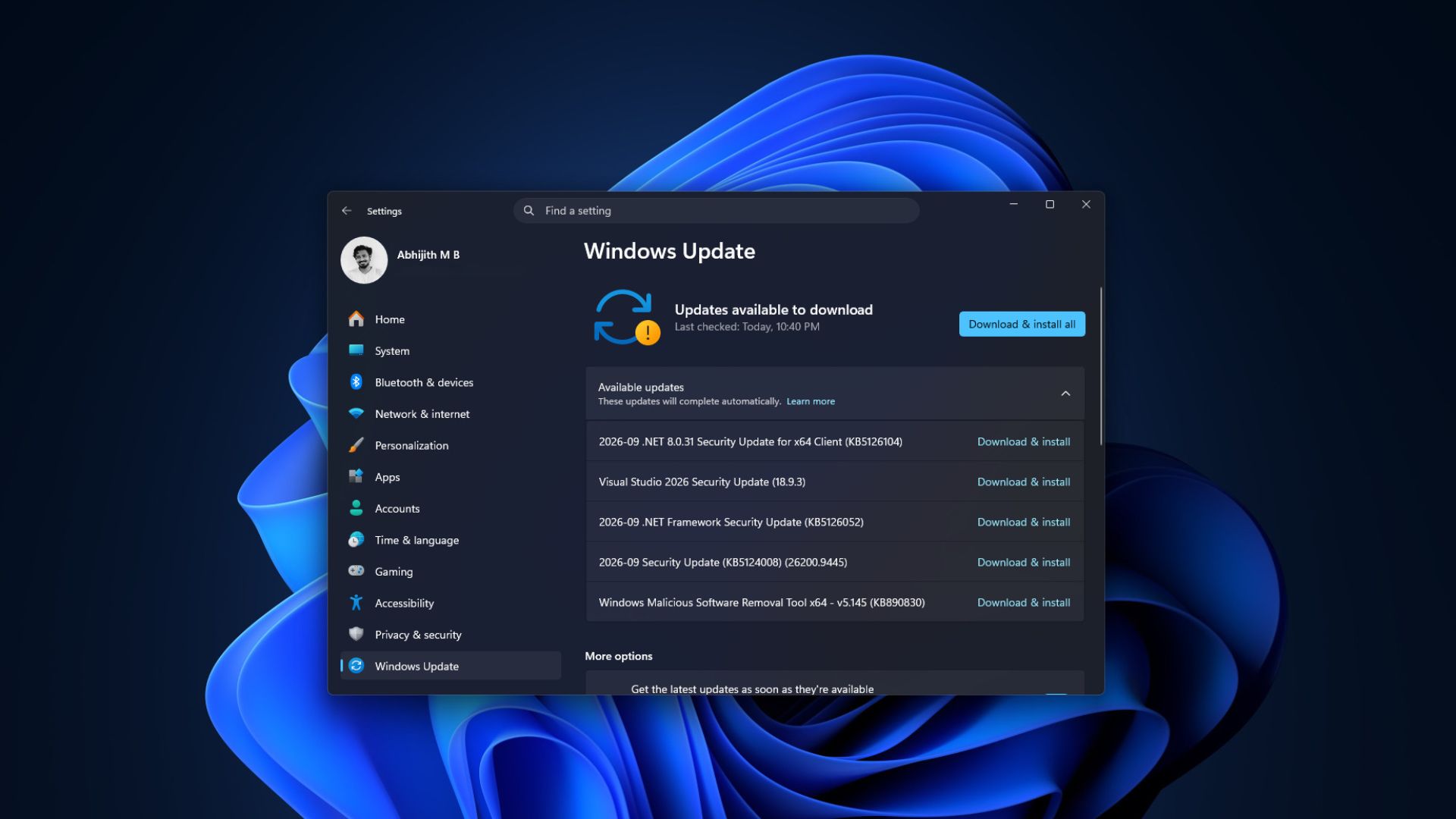
Turning on “Get the latest updates as soon as they’re available” can help it appear sooner. Given how much of this update is gradual, do not be surprised if the taskbar position option, the Start menu size dropdown, or the new Search settings take days or weeks to show up even after installing, since Microsoft controls the rollout of each feature through CFR.
That said, KB5124008 is the kind of Windows 11 update I recommend everyone install. It also fixes known bugs from last month’s optional update.
Getting much-awaited features for all eligible PCs means that more such features are being tested in Insider previews. If Microsoft keeps pairing months of small fixes with releases like this one, Windows 11 will become a considerably better operating system by the time 2026 wraps up.
The post I tested Windows 11 September 2026 update, here’s everything new, improved, and fixed appeared first on Windows Latest