
Copilot already lives inside New Outlook for Windows and even mobile apps, including Android and iOS. On mobile, you have the Copilot button next to the compose button. On Windows, Copilot lives inside the left sidebar and as a button in the ribbon menu. Now, it’s coming directly to the inbox via a new “Wrap up your day” feature.
I spotted “Wrap up your day” in New Outlook for Windows and Android. At first, I wondered if it was part of Microsoft Viva Insights, but I don’t recall turning that on. I’m also now seeing the feature in my personal accounts, which ruled that out.
I checked another personal Microsoft account with a Microsoft 365 Copilot subscription, and it also has “Wrap up your day.” As the bubble makes quite obvious, the feature helps summarize your emails from the day and plan for tomorrow based on events or meetings you may have.
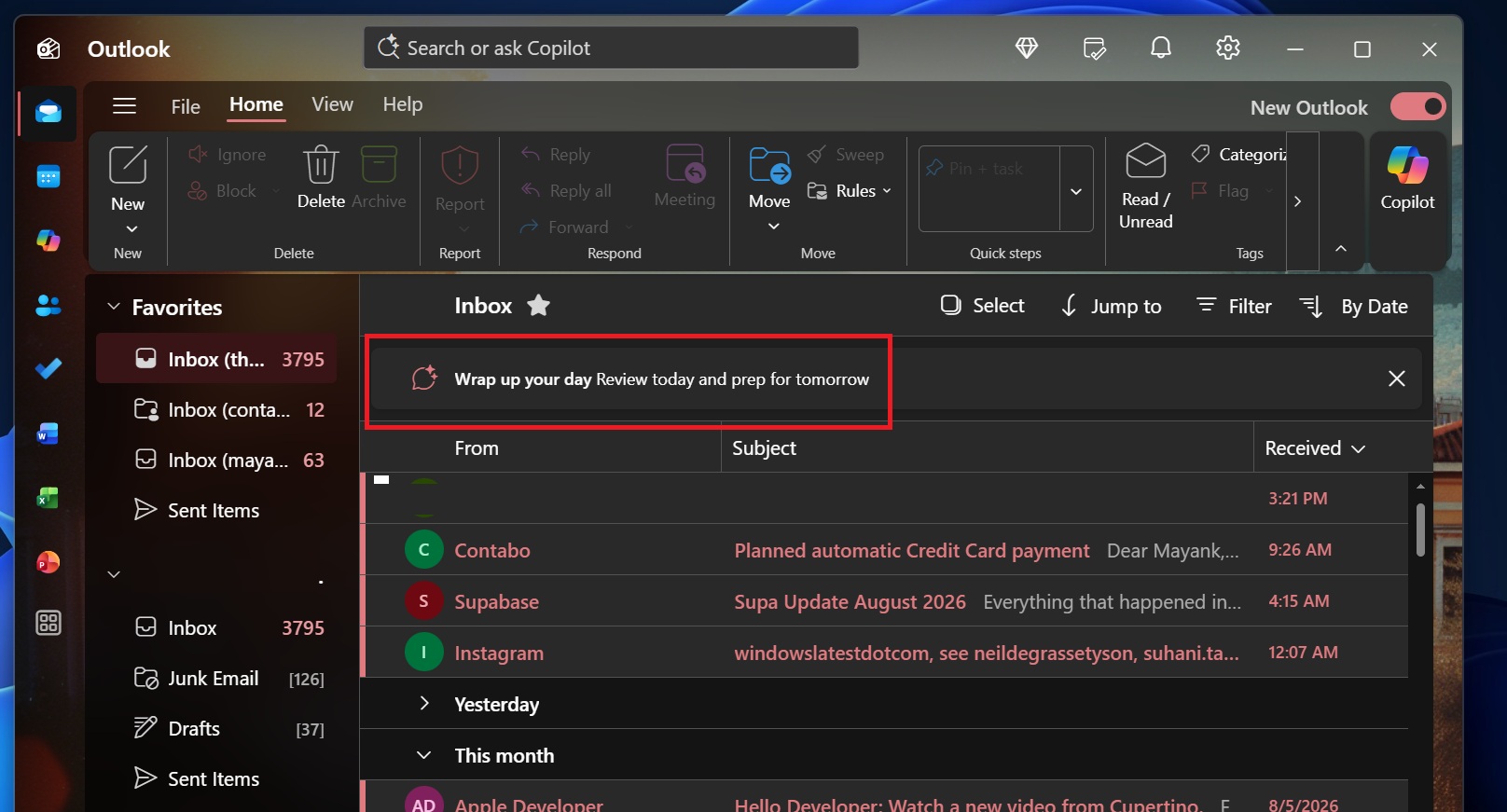
I clicked “Wrap up your day,” and it opened Copilot in the right sidebar with a prompt that instructs Outlook to:
- Create an executive and concise evening Inbox Brief for emails in Inbox (Focused and Other) and Sent from the last 8 hours only.
- Organize the answer around what you accomplished today, the top three things to focus on based on urgency Copilot detected across your inboxes, and the top three priorities for tomorrow.
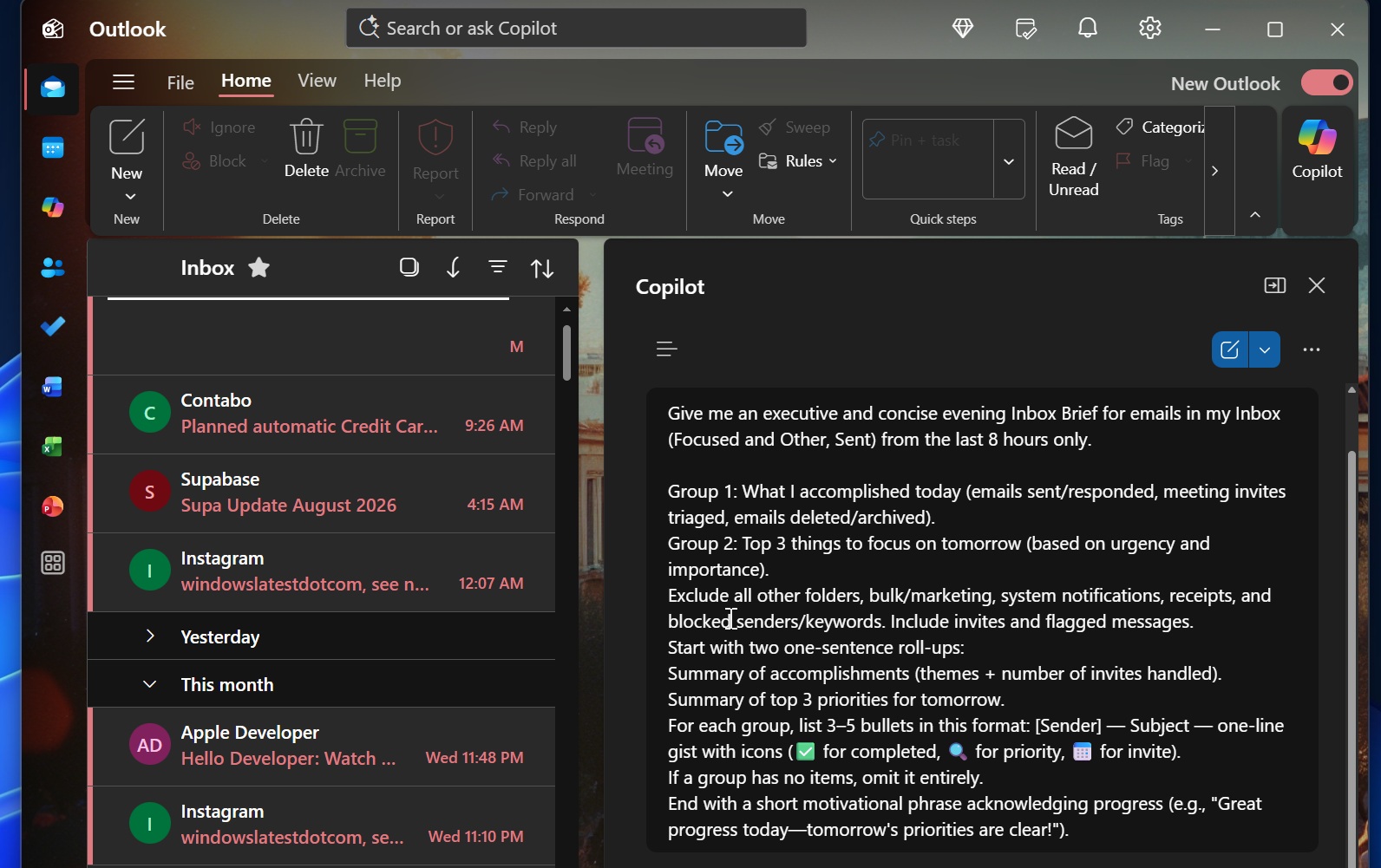
And yes, Copilot also wants you to stay motivated, so the prompt specifically tells AI to conclude the summary with a “motivational phrase acknowledging progress.”
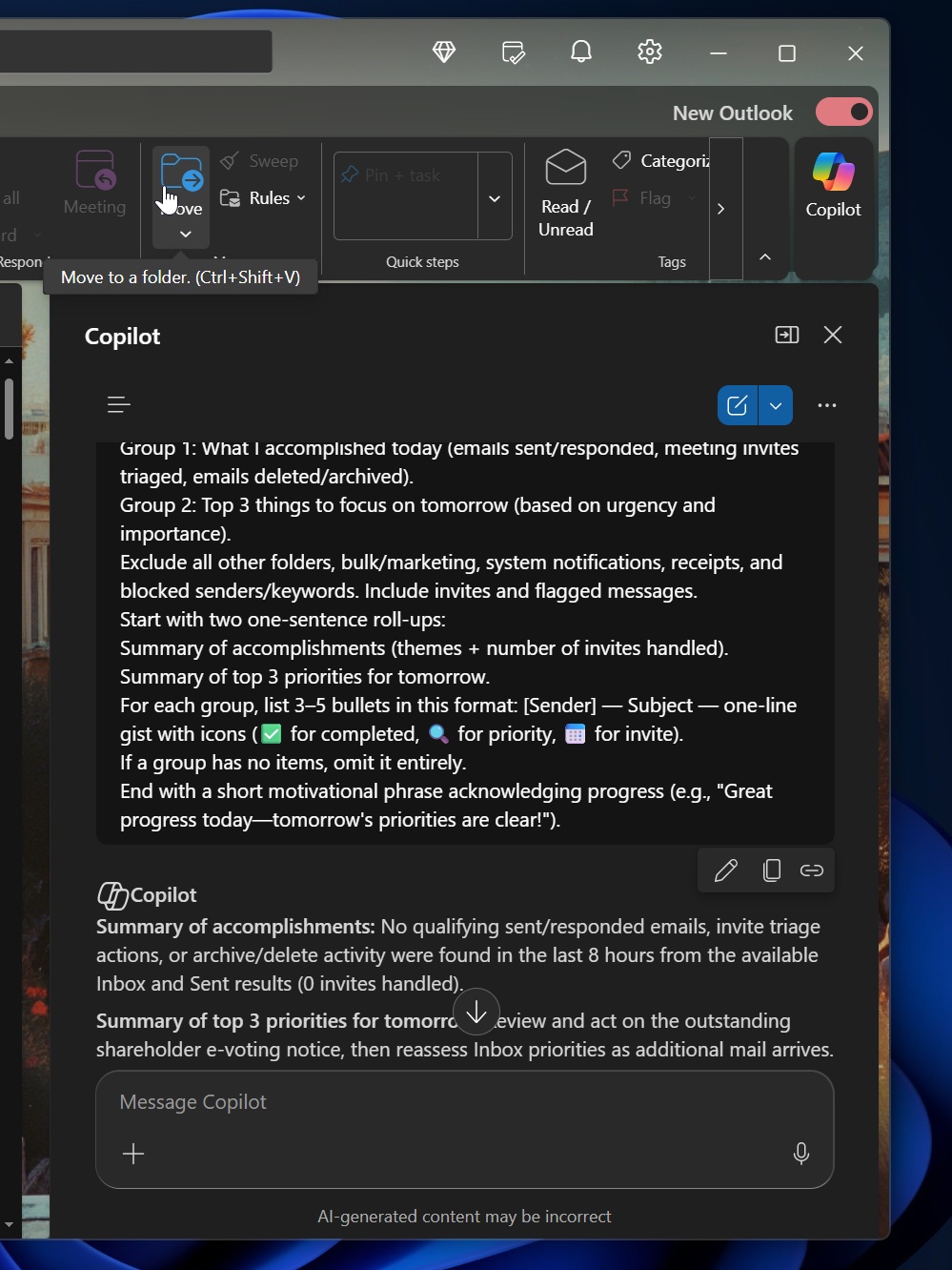
I don’t exactly dislike the idea, but Copilot did not ask my permission before reading my inbox, sent emails, and other folders. It straight up scanned everything it could and came up with a summary that wasn’t exactly useful.
I don’t think I’m alone in saying Copilot in Outlook is not as good as it could have been. To be fair, Gemini in Gmail also doesn’t do justice to the so-called AI experience.
But how can you turn off the “Wrap up” alerts that send you to Copilot? I couldn’t find any specific toggle for this feature, so you cannot turn it off directly. Your best bet is to downgrade to a Microsoft 365 plan without Copilot or switch to Outlook Classic if you use Windows.
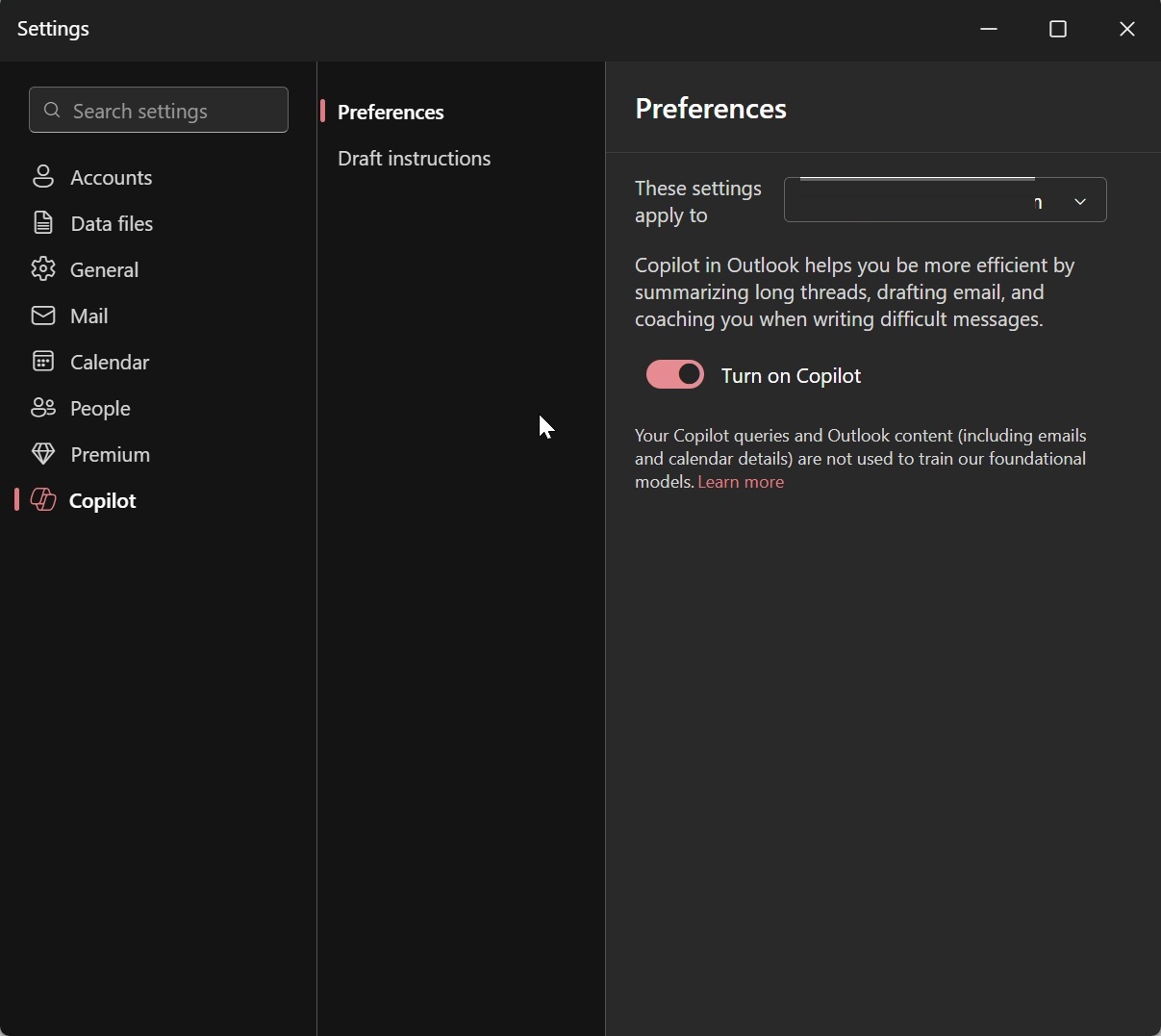
Or you can also try turning off Copilot in Outlook Settings, but the wrap alerts reappeared the next day on my PC:
Outlook Classic still has “less” Copilot
Outlook Classic still does not have Copilot-powered Wrap up alerts. New Outlook, on the other hand, now has Copilot in the left sidebar, ribbon menu, compose box, Search, and now the inbox as a Wrap up reminder.
It’s quite insane how aggressively Microsoft is pushing Copilot in Outlook, and it’s almost ruining the experience for me.
For me, the most annoying change was the Copilot button next to the compose button on Android. I almost always accidentally clicked Copilot because of muscle memory, and it took me a while before I got used to the new placement.
There’s no denying Copilot is here to stay, and I’ve already reported that it’s coming to Outlook Classic as well, but Microsoft really needs to start asking consumers if they want these features before turning them on automatically.
We all love choices, or at least I do, and I wouldn’t mind using Copilot if it wasn’t constantly nudged down my throat.
The post Microsoft found another way to force Copilot on you in Outlook, and it’s called Wrap Up Your Day appeared first on Windows Latest