
Microsoft has confirmed that Windows 11 will now bundle driver updates, .NET, and firmware updates together with the monthly security update, so your PC restarts only once instead of multiple times a month.
First spotted by Windows Latest, the change applies to Windows 11 versions 24H2, 25H2, and 26H1, and started rolling out with updates released on and after July 28, 2026, and is now gradually rolling out with the August 14 Patch Tuesday update.
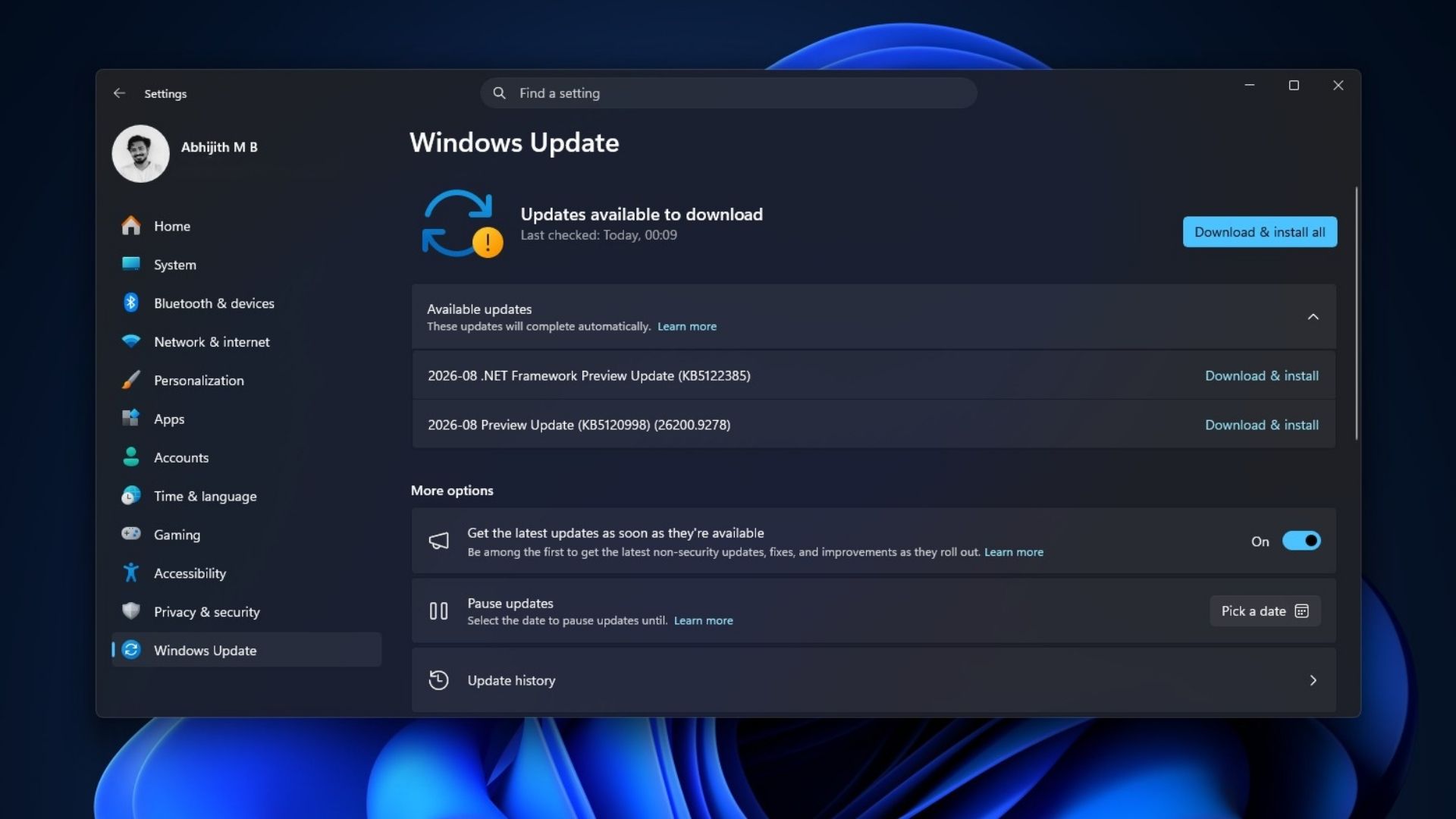
As a long-term Windows user, I can vouch that this change solves a real annoyance. A PC restarting for a driver update on a Tuesday, then again for .NET on a Thursday, then again for the security patch the following week, has been a normal Windows Update experience for years, and it should not have needed to be.
Windows 11 will now restart just once a month for updates
Updates that need a restart now wait quietly in the background until your monthly security update, typically released on the second Tuesday of each month, is ready to install. Once that monthly update is ready, Windows installs everything together and schedules a single restart, ideally outside your active hours so it does not interrupt whatever you are doing.
“Starting with the Windows updates released on and after July 28, 2026, Windows brings these updates together, so you restart just once a month. Instead of restarting for each update as it arrives and installs, Windows holds updates that need a restart and installs them together with the monthly security update. The result is a more predictable update experience with fewer interruptions.”, Microsoft noted in a support document.
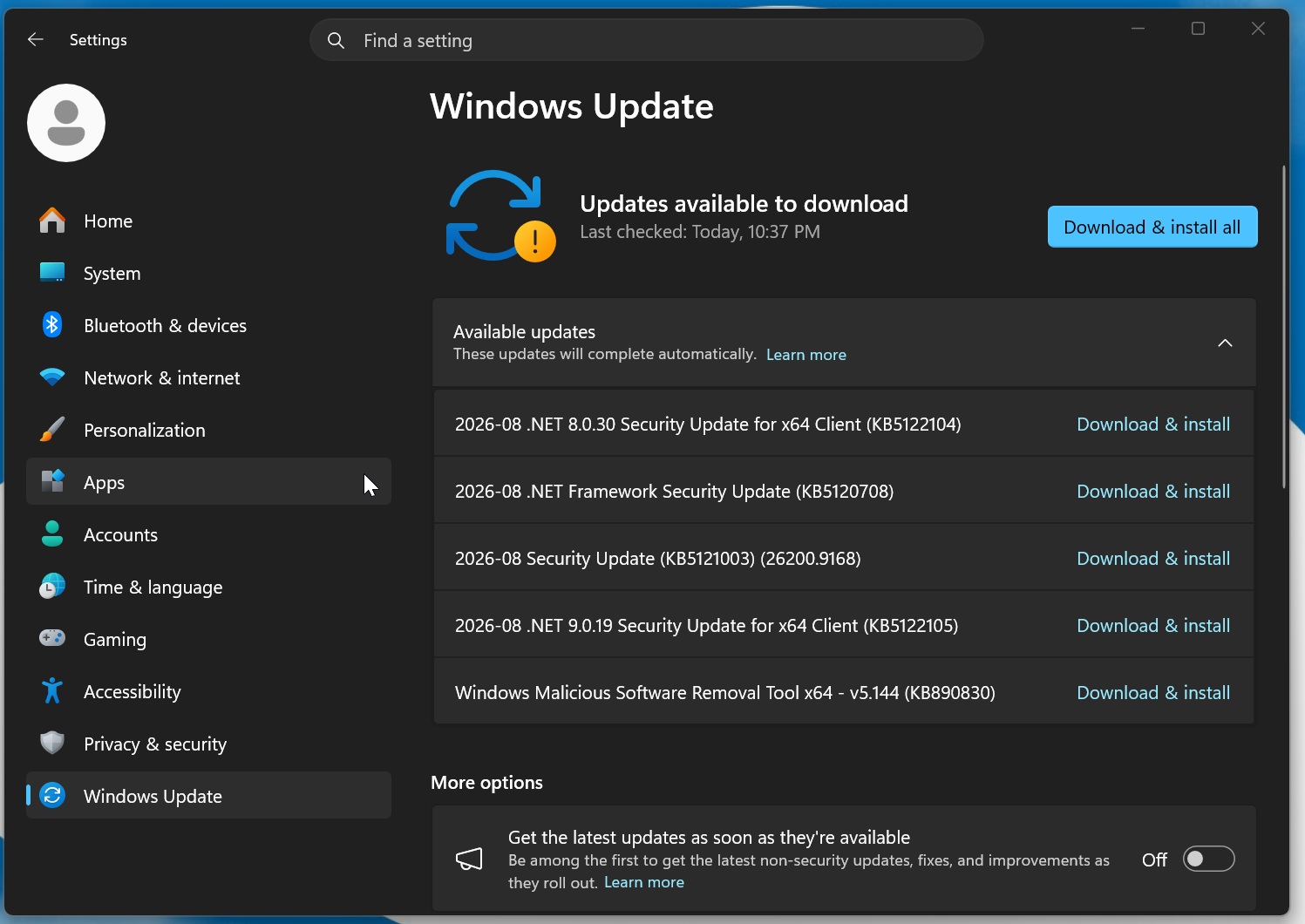
Microsoft is combining three categories of updates:
- Driver updates delivered through Windows Update
- .NET updates
- firmware updates
Your security update still installs on its normal monthly schedule regardless, so bundling these together does not delay any protection.
- You will see combined updates listed under Settings > Windows Update > Available updates.
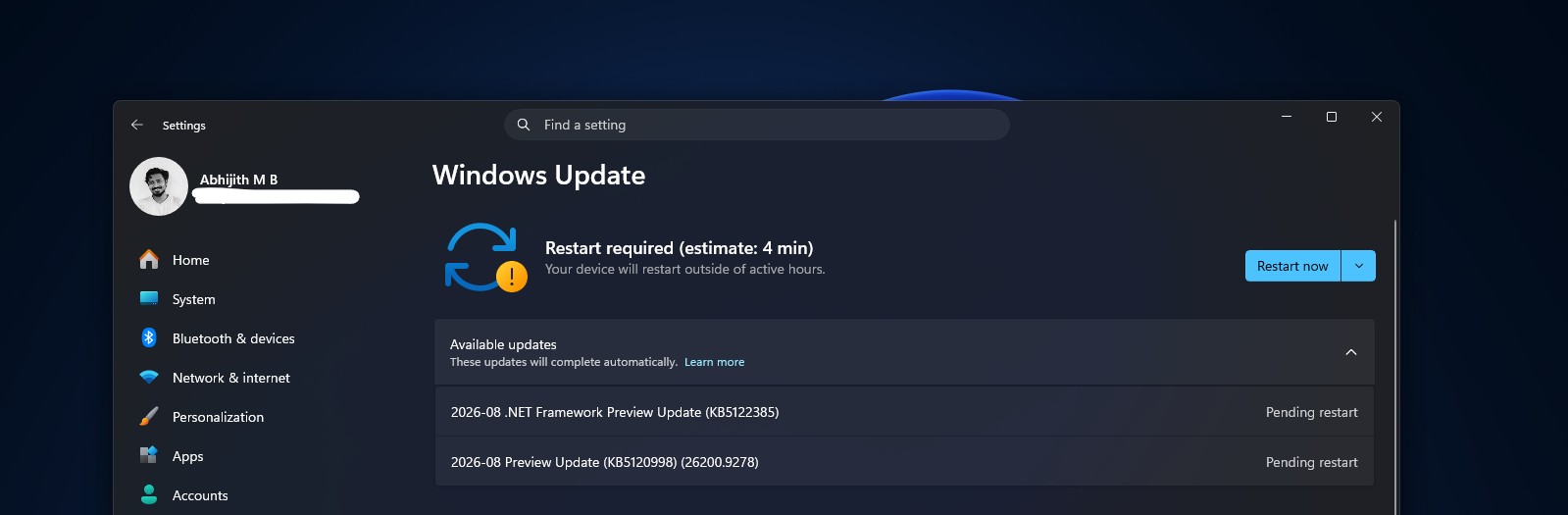
- To restart sooner than the scheduled time, go to Settings > Windows Update and select Restart now, or use Start > Power > Update and restart.
- You can also select the Windows Update tray icon and choose Restart now.
- Active hours, which control when Windows avoids restarting automatically, are configurable under Settings > Windows Update > Advanced options.
However, some updates are exempt from this batching and still install immediately regardless of your monthly cycle. Microsoft Defender security intelligence updates, AI component updates, critical or expedited driver updates, and emergency or out-of-band fixes all install right away to keep your PC protected, and it’s totally justified.
Many updates also apply with no restart needed at all, so you will not notice most of them.
Pausing Windows updates is now easier
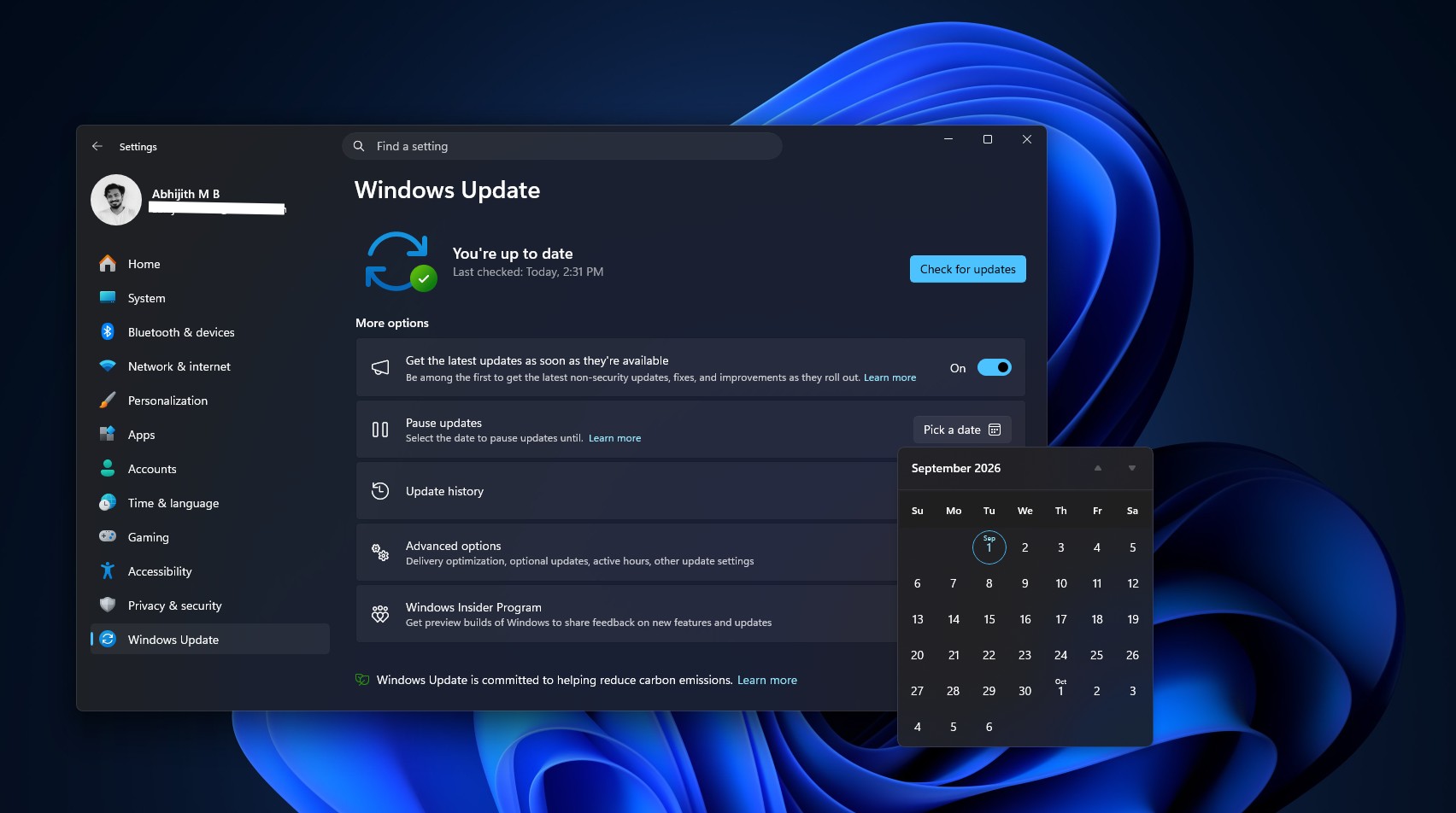
If you are not ready to update at all, Windows still lets you pause updates for up to 35 days from Settings > Windows Update, and you can keep re-pausing once that window closes. Microsoft notes this experience is rolling out gradually and will not hold combined updates indefinitely, so a PC that has been waiting a long time will eventually install and restart anyway to stay protected.
This fixes years of accumulated chaos with Windows Update
Multiple restarts a month were really more of a side effect of Windows Update growing more categories over the years without anyone rationalizing how they interacted.
Windows Latest previously reported that Windows 11’s biggest monthly updates could sometimes trigger two separate reboots, one for the Patch Tuesday update itself and a second one to finish installing a .NET Framework or Secure Boot update included with it.
The August 2026 Patch Tuesday update, KB5121003, also had several .NET updates, and since it is used by Windows apps, including those by Microsoft, you should install these updates with the Windows updates, which meant that Windows could reboot twice to finish installing all the available updates.
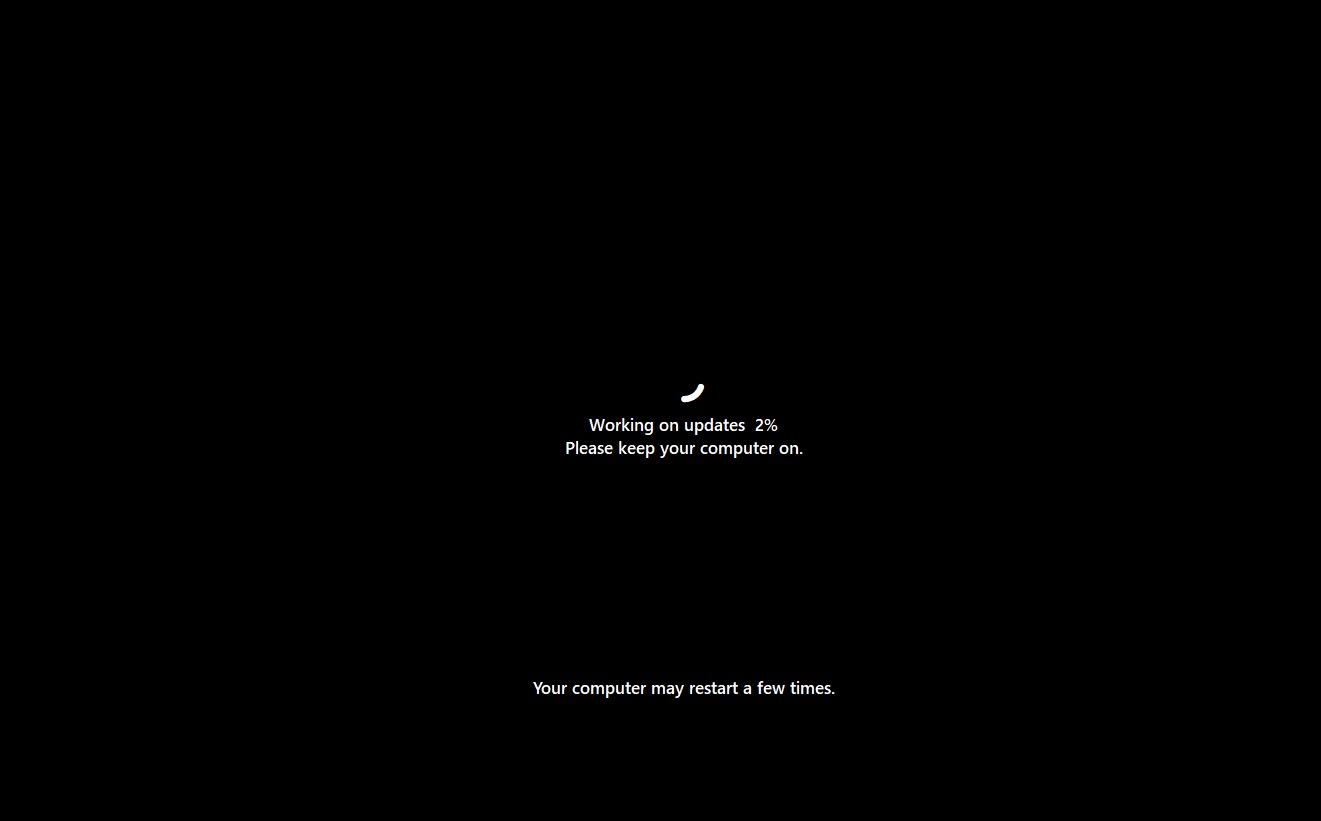
But this is fine since you do not have to manually reboot it twice, and it would happen automatically. What’s not fine was the fact that you were forced to reboot your PC after an update was downloaded, even if you just wanted to shut it down.
Also, for years, selecting Update and shut down would quietly restart your PC instead of turning it off, a bug traced partly to Fast Startup and partly to how Windows handled pending installations, affecting Windows 7 through 11.
Microsoft finally fixed that bug with Windows 11 25H2 build 26200.7019 back in November 2025, adding the fix into that month’s mandatory Patch Tuesday release.
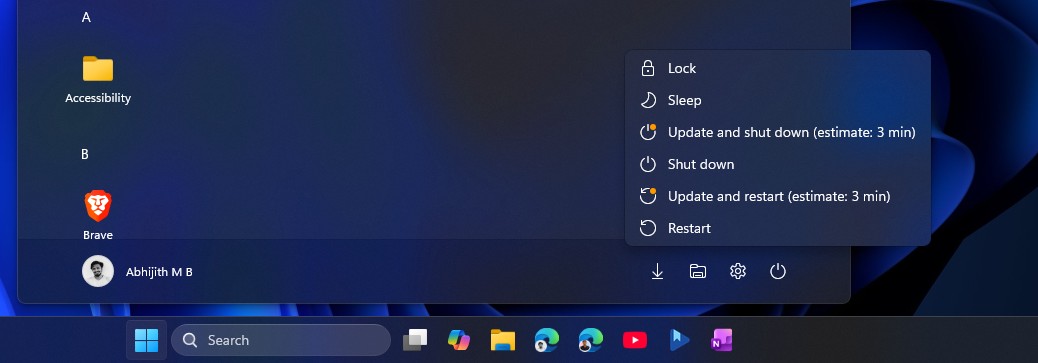
Microsoft followed that fix with a major overhaul. In April 2026, Windows Latest went hands-on with sweeping changes to how Windows 11 handles updates, based on more than 7,600 pieces of user feedback. Microsoft split the old two-button power menu into four separate options:
- Update and shut down
- Shutdown
- Update and restart
- Restart
So, you can turn off or restart your PC without being forced to install a pending update first. It also added an Update later button during Windows 11 setup and a proper calendar for pausing updates, replacing the old one-week pause button with a Pick a date option good for up to 35 days at a stretch.
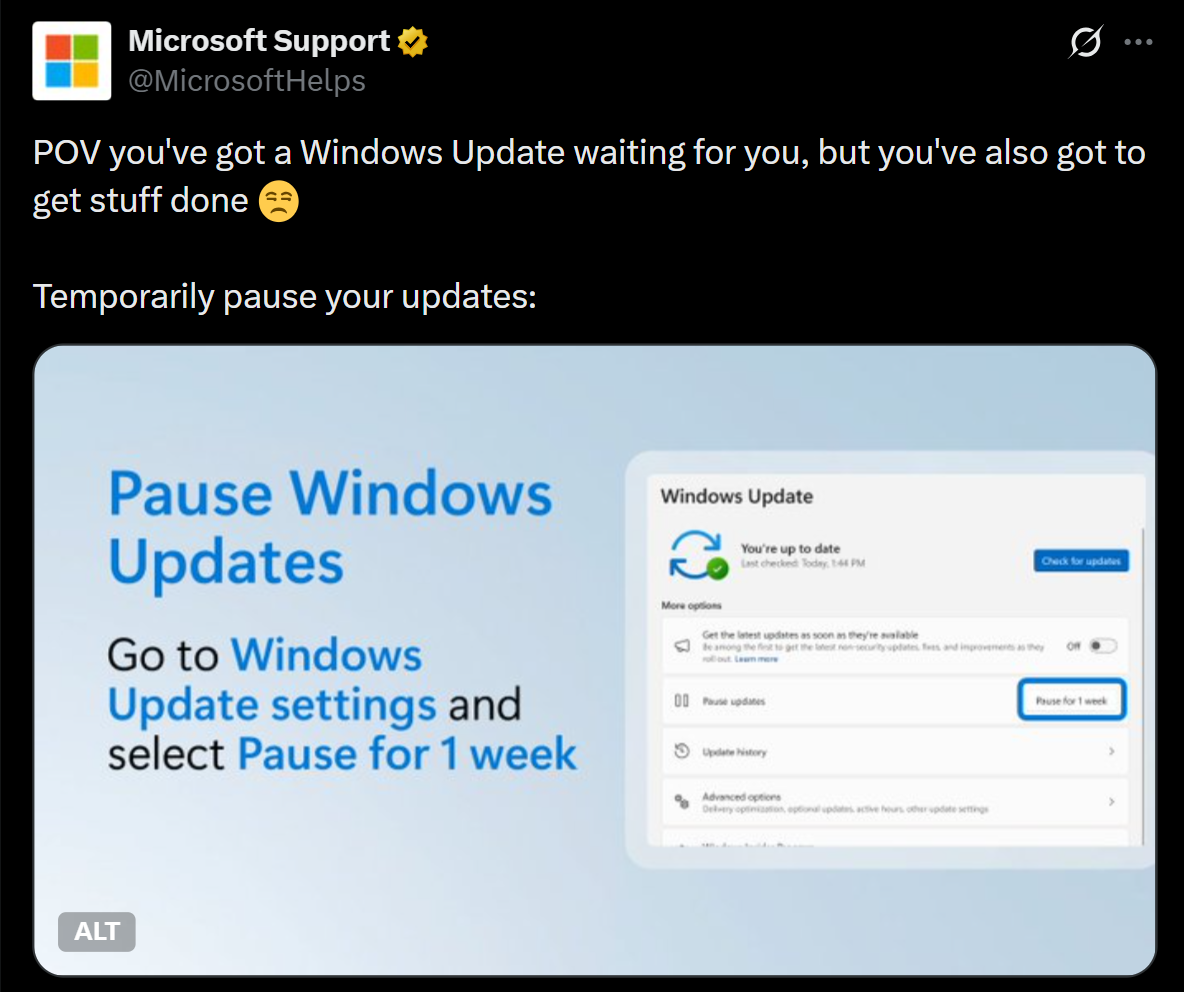
Microsoft even used its own support channels to remind people these controls existed. In May 2026, the official Microsoft Support account posted on X reminding everyone they could pause updates while in the middle of work, showing the basic one-week pause button while the far more capable 35-day version was already being tested with Insiders, and is now available to all PCs.
Credit where it’s due, along with this new one-restart-a-month feature for Windows updates, Microsoft has now addressed nearly every part of the update experience that used to interrupt people without warning: how updates get paused, how the power menu works, and now how many times your PC needs to restart in a given month.
Do you pause Windows updates or do you install them as soon as you can?
The post “More interruptions than necessary,” Microsoft on Windows 11’s forced reboots for updates, rolls out a fix appeared first on Windows Latest