
The August optional update brought some of the most requested changes Windows 11 has ever shipped, and the new Search, without Bing and Copilot results, is my favorite of the bunch.
However, for most users, it will not turn on immediately. Microsoft is rolling it out gradually, and since this is an optional update in the first place, plenty of users will not even install it.
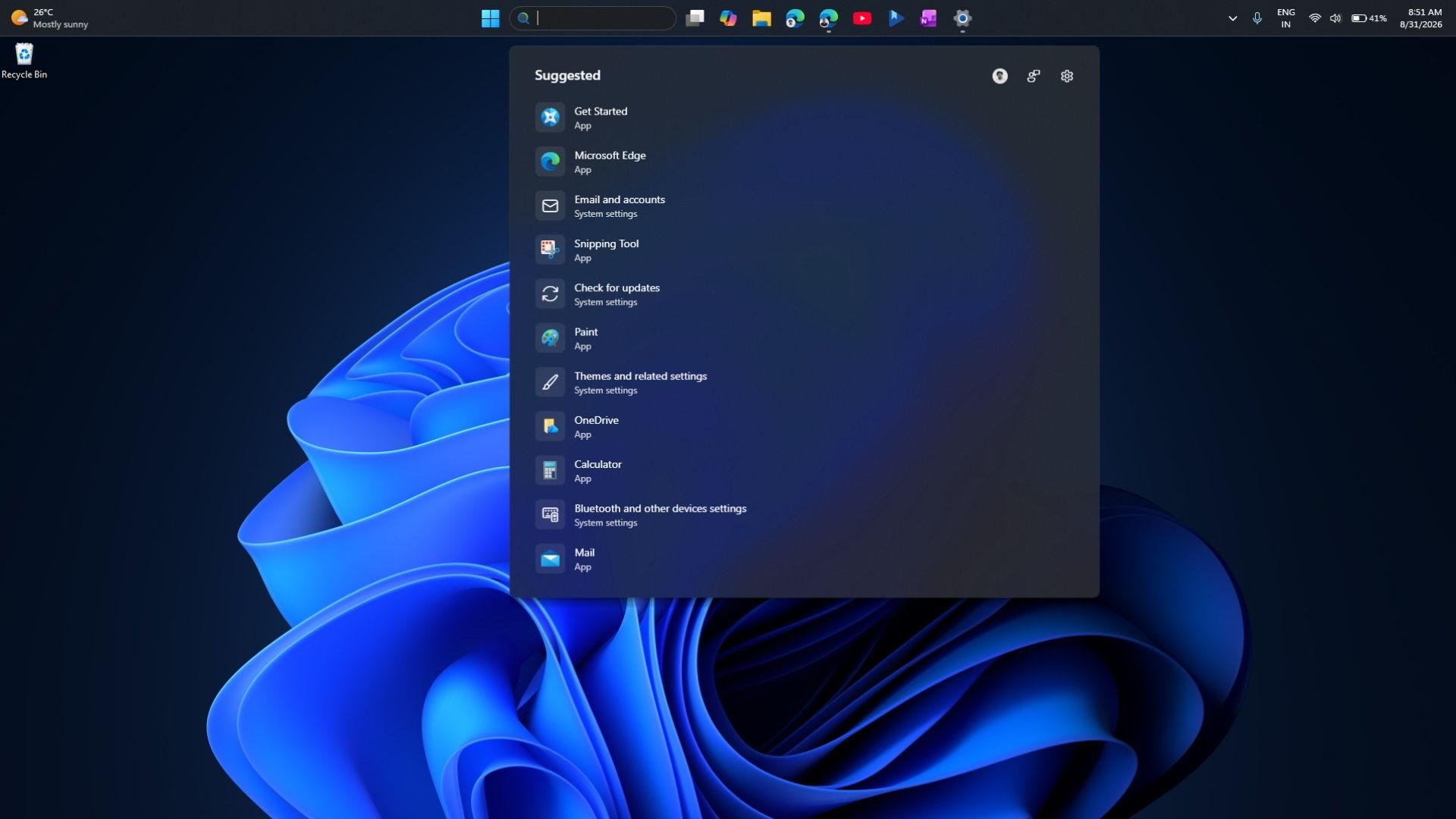
I have been testing this version of Search on Insider builds for two months and could not wait to get it running on my main PC. And if you can’t wait either, here is how you can get the MSN-free Search on your PC.
How to force-enable the new cleaner and faster Search in Windows 11
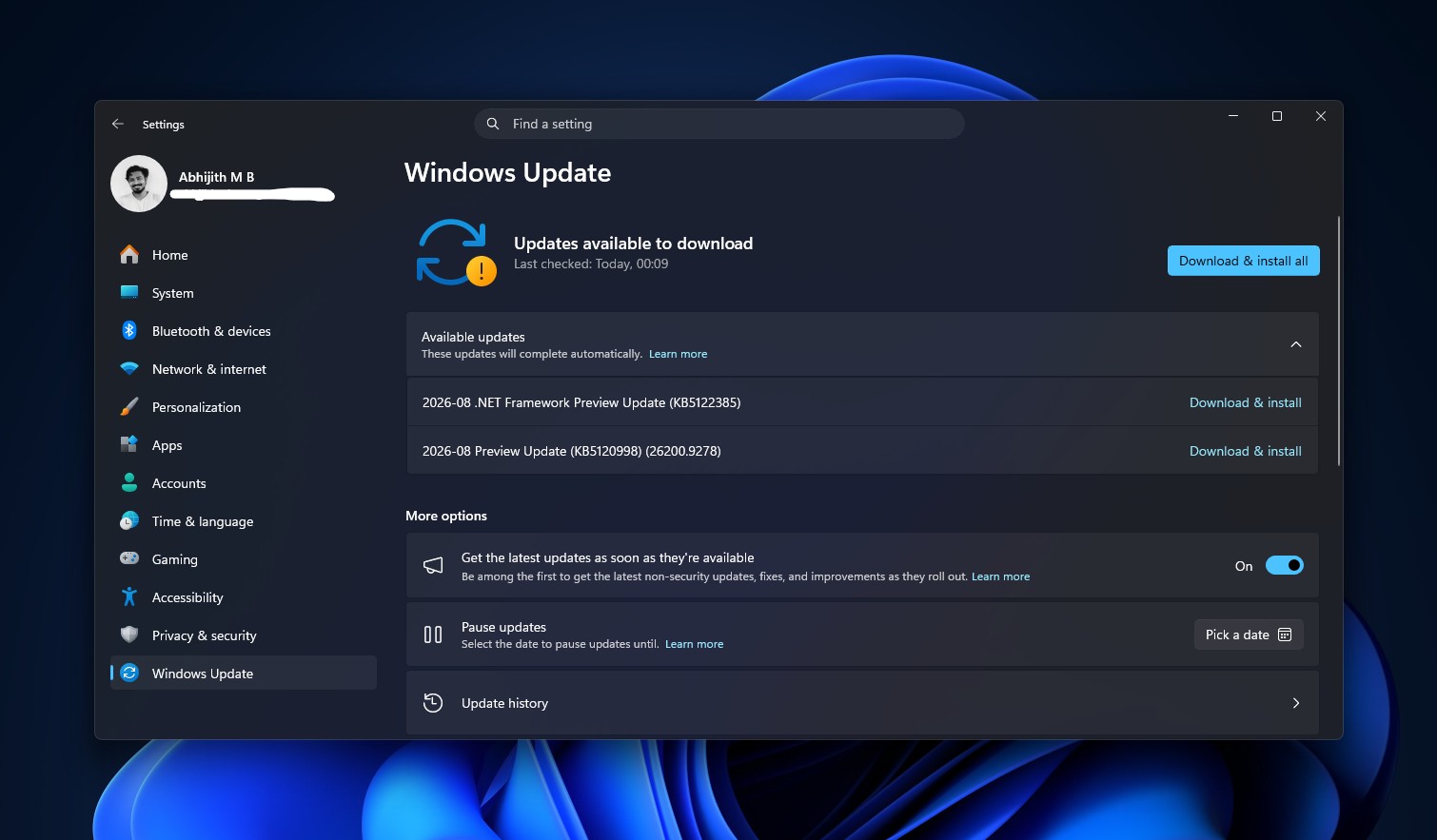
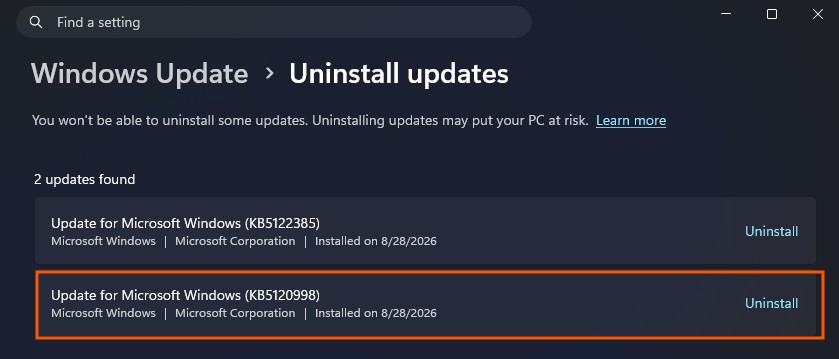
Go to Settings > Windows Update and install KB5120998, the August 2026 optional update. It bumps your PC to build 26200.9278 on version 25H2 or 26100.9278 on version 24H2. Restart once it finishes.
After rebooting, open Search and check whether the new layout has already shown up. Most PCs will not see it yet, since Microsoft ships this kind of change through Controlled Feature Rollout and switches it on for devices in stages. Your PC already has the code if you installed the update. Microsoft just has not flipped the remote switch for you.
- Download ViVeTool from its official GitHub page. Grab the ViVeTool-v0.3.4-IntelAmd.zip file for Intel or AMD PCs, or the Snapdragon build for Copilot+ PCs on Arm.
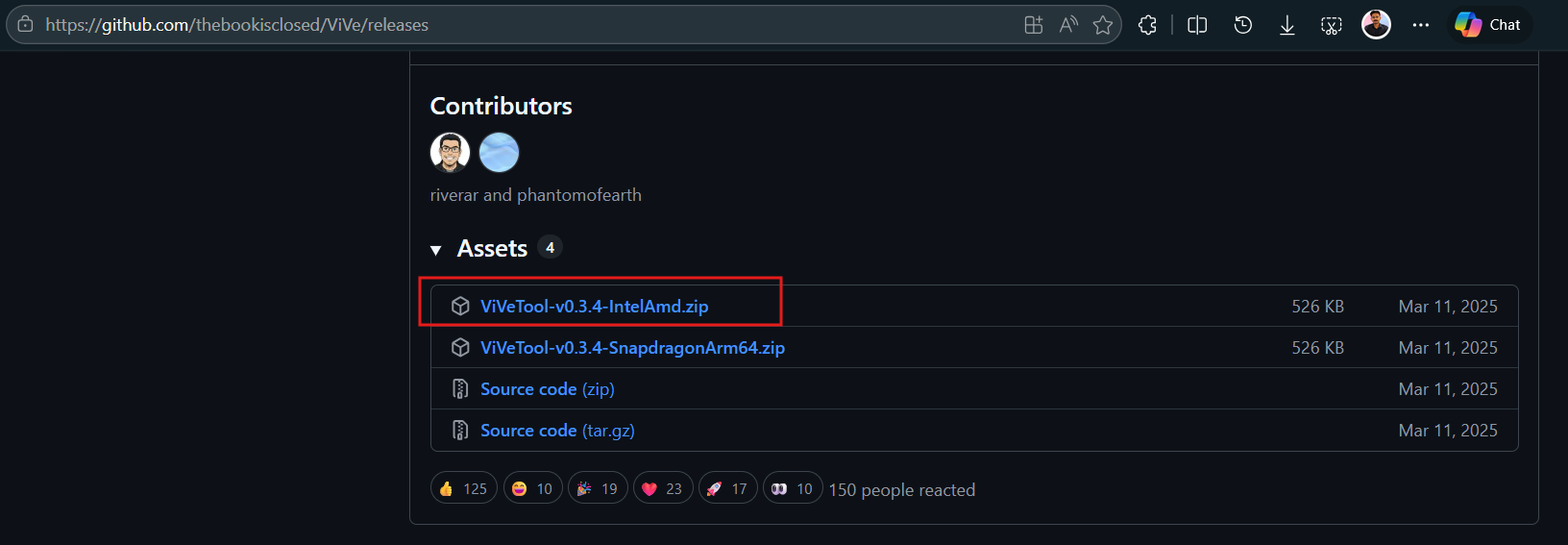
Download ViVeTool. Credit: Windows Latest - Extract the zip file to a simple folder, like C:ViVeTool.
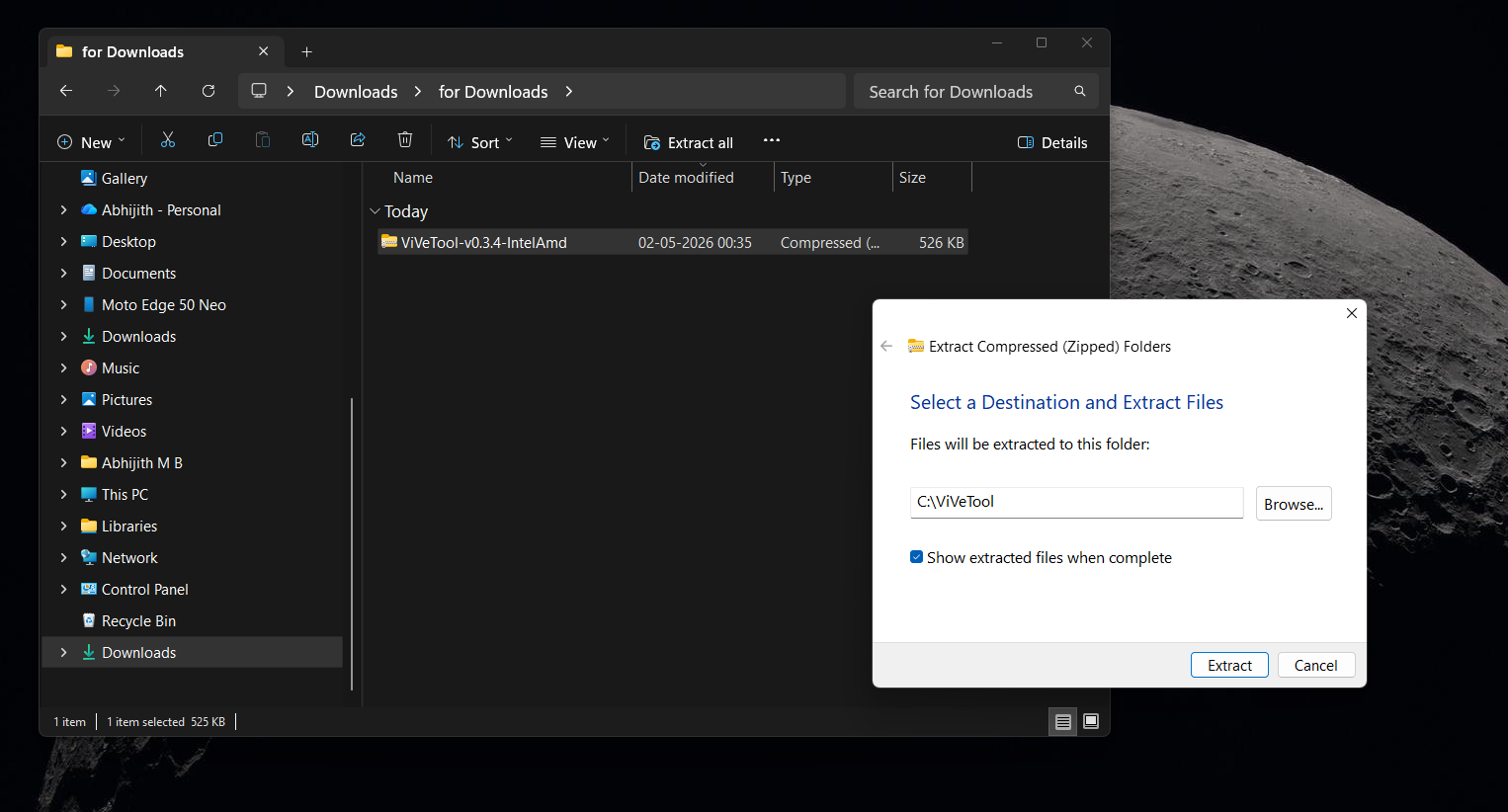
Extract ViVeTool .zip to C drive. Credit: Windows Latest - Open the Start menu, type cmd, right-click Command Prompt, and choose Run as administrator.
- Type cd C:ViVeTool and press Enter to move into that folder.
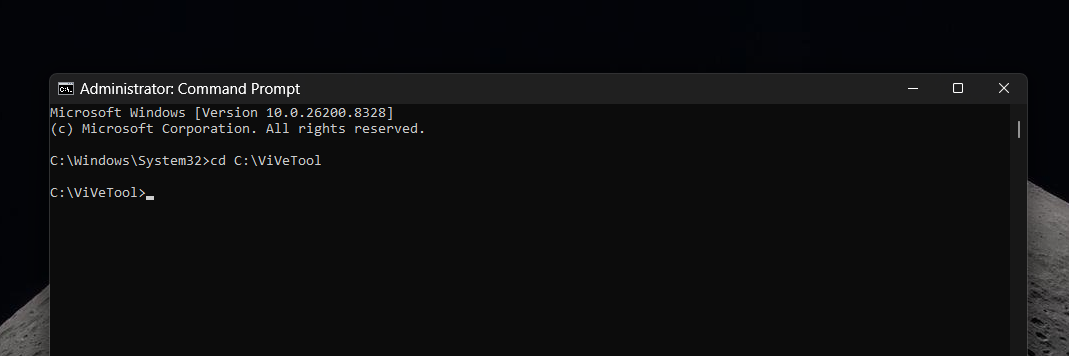
ViVeTool in Command Prompt. Credit: Windows Latest
With Command Prompt still open as administrator, type this and press Enter:
vivetool /enable /id:62353331,62762248
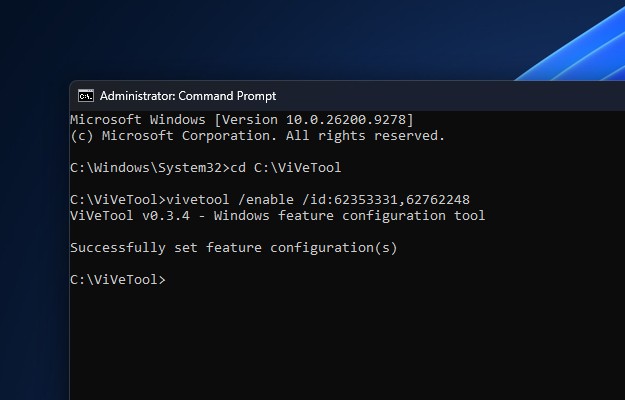
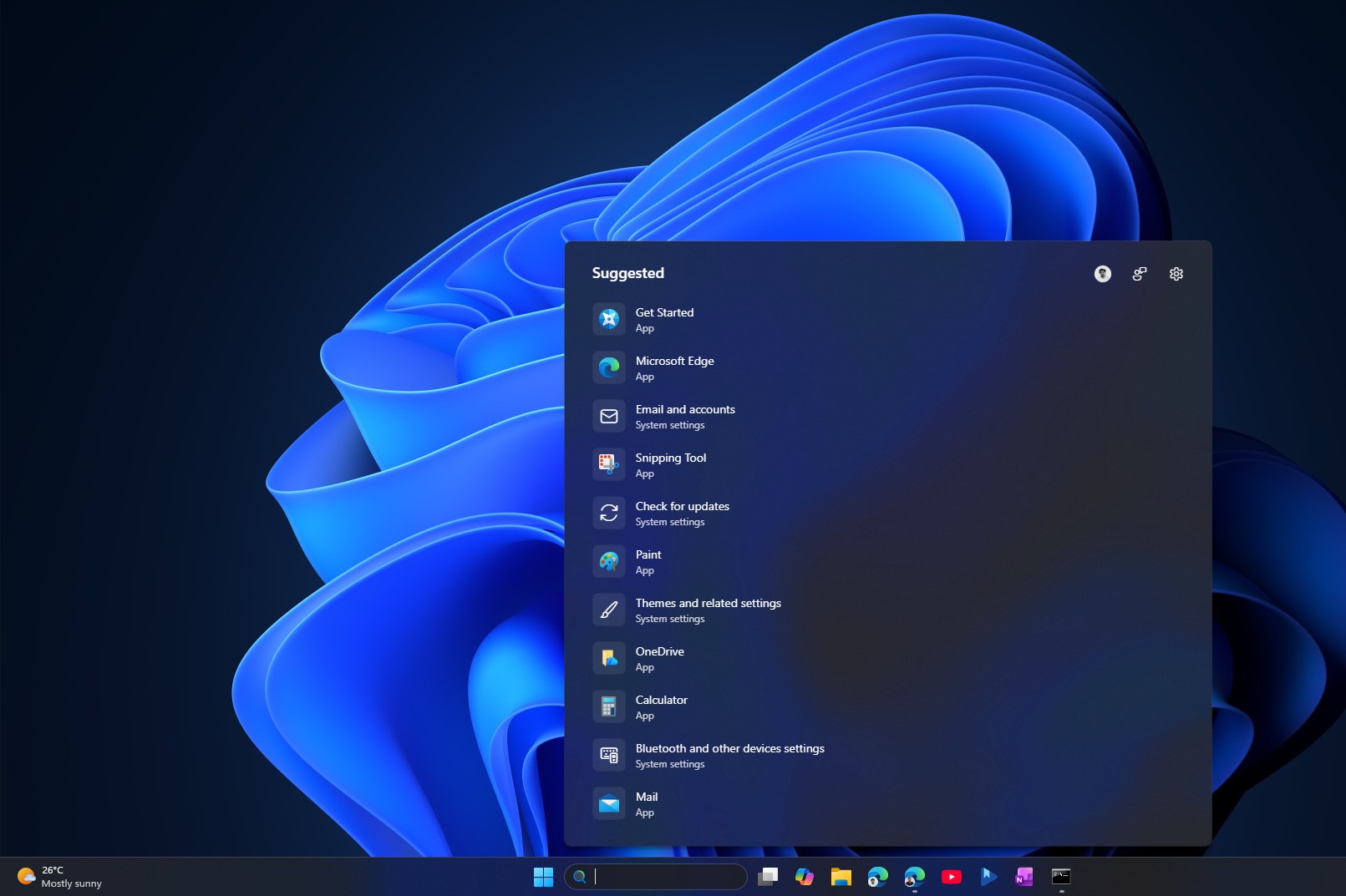
Restart your PC. Open Search once it comes back, and you should see the new layout. Click on the Gear icon at the top-right in Search to go to the settings, and you will see a new Show suggested search results section in Settings.
If nothing changed, or if you got the new layout but the web and Store toggles are missing, run the full feature bundle instead to be sure you have everything from this update, including the movable taskbar and customizable Start menu:
vivetool /enable /id:61161244,61754985,62353331,62762248
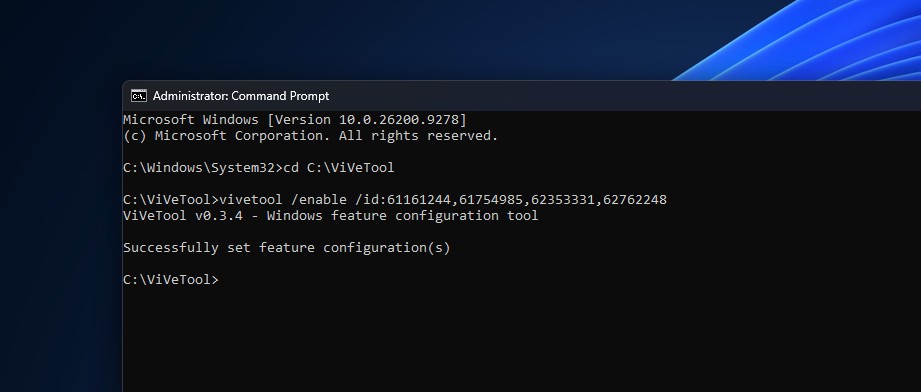
Restart again. To disable this new Search, you can use these same commands with enable replaced by disable. Feature IDs correspond to specific builds and can stop working once Microsoft adds a feature permanently into Windows.
What the new Windows 11 Search looks and feels like
Open Search without typing anything, and the home screen is stripped down to almost nothing. Gone are the image of the day, the daily trivia question, trending searches, and the row of suggested apps that used to pad out the panel. Search now shows your recent searches only.
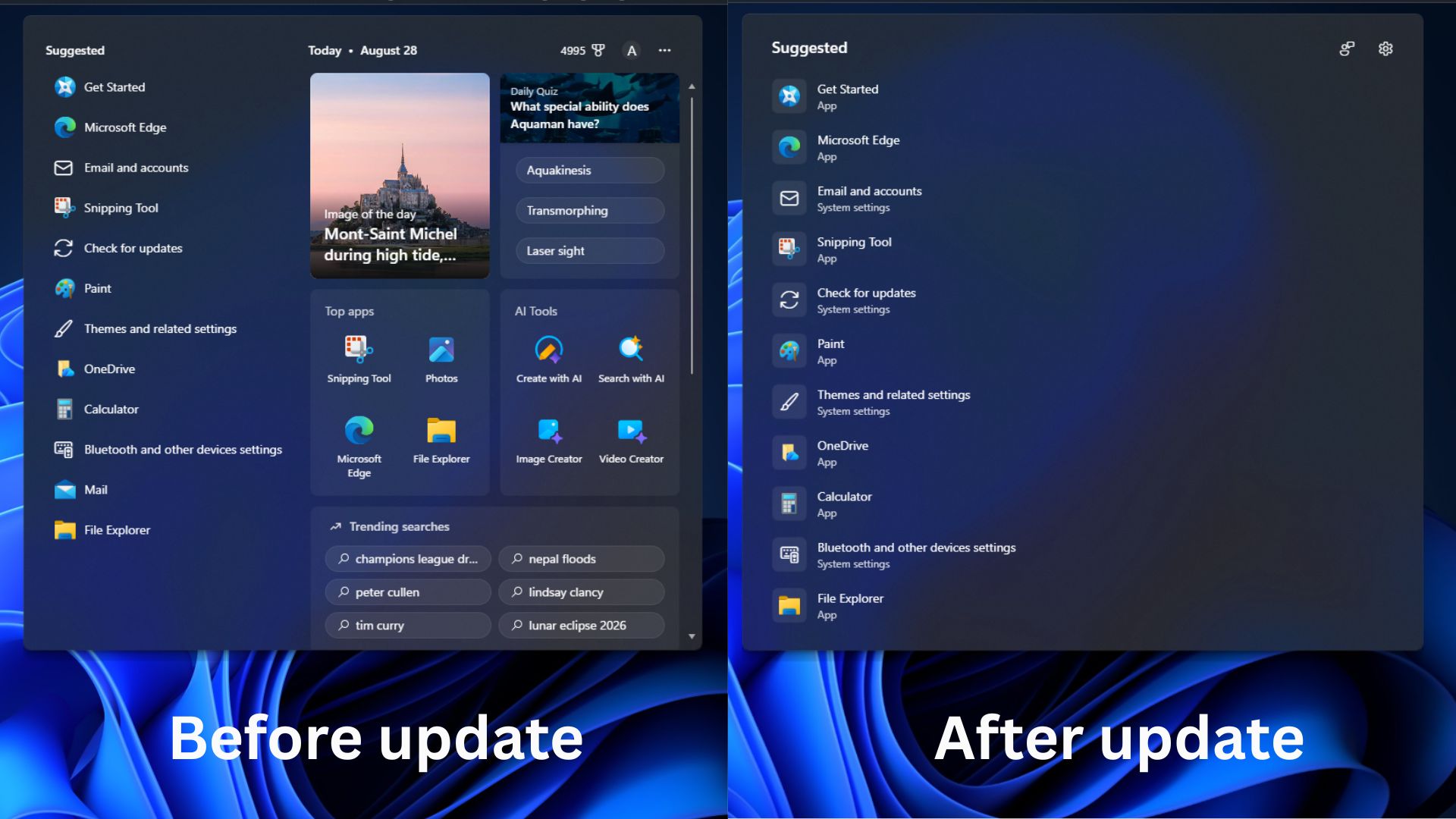
Old Search content like that was not native to Windows in the first place. It was web-based material piped in from Bing, also eating RAM.
Before the update:
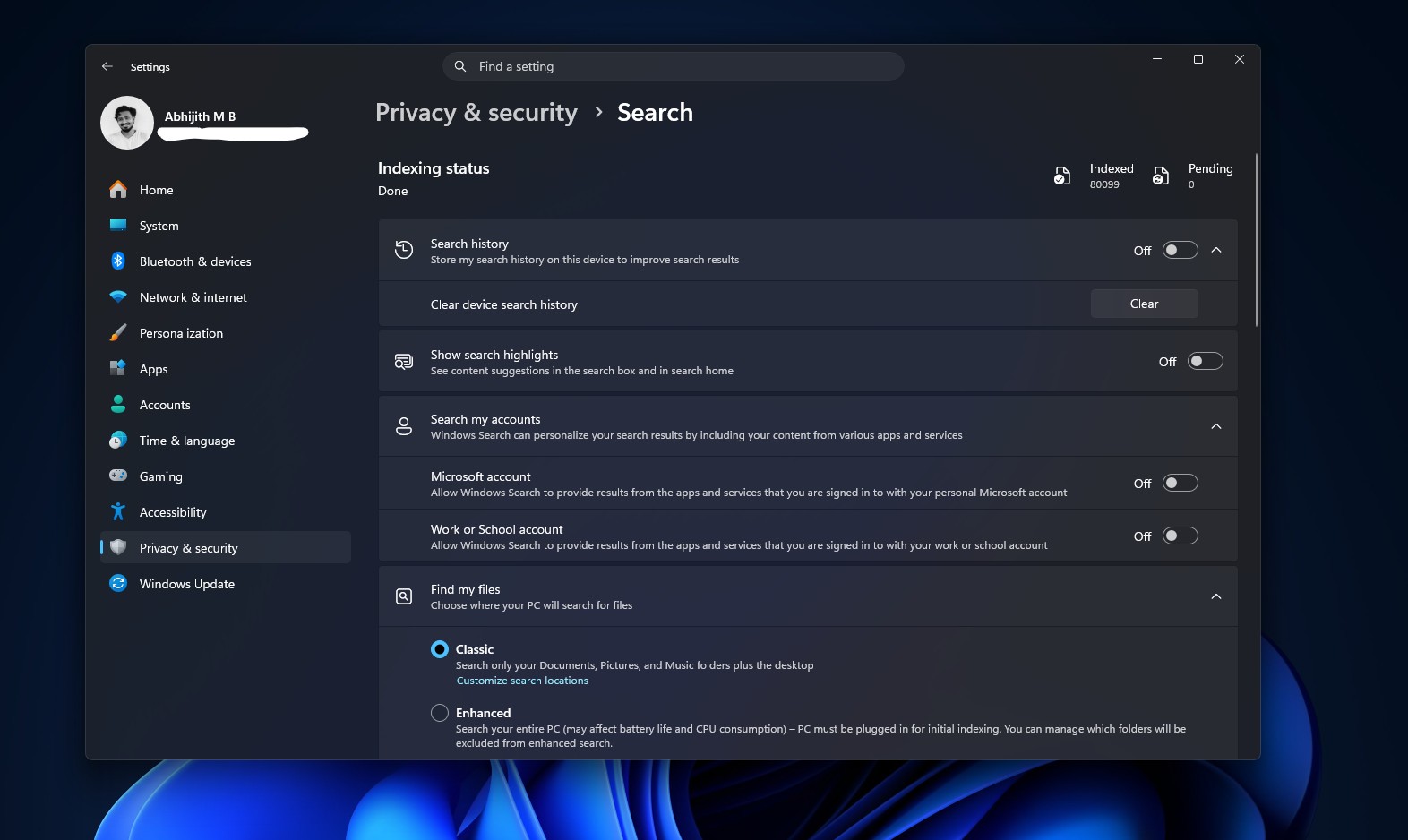
Go to Settings > Privacy & security > Search, and you will find a new section called Show suggested search results, with two separate toggles, one for Web Searches and one for Microsoft Store.
After the update:
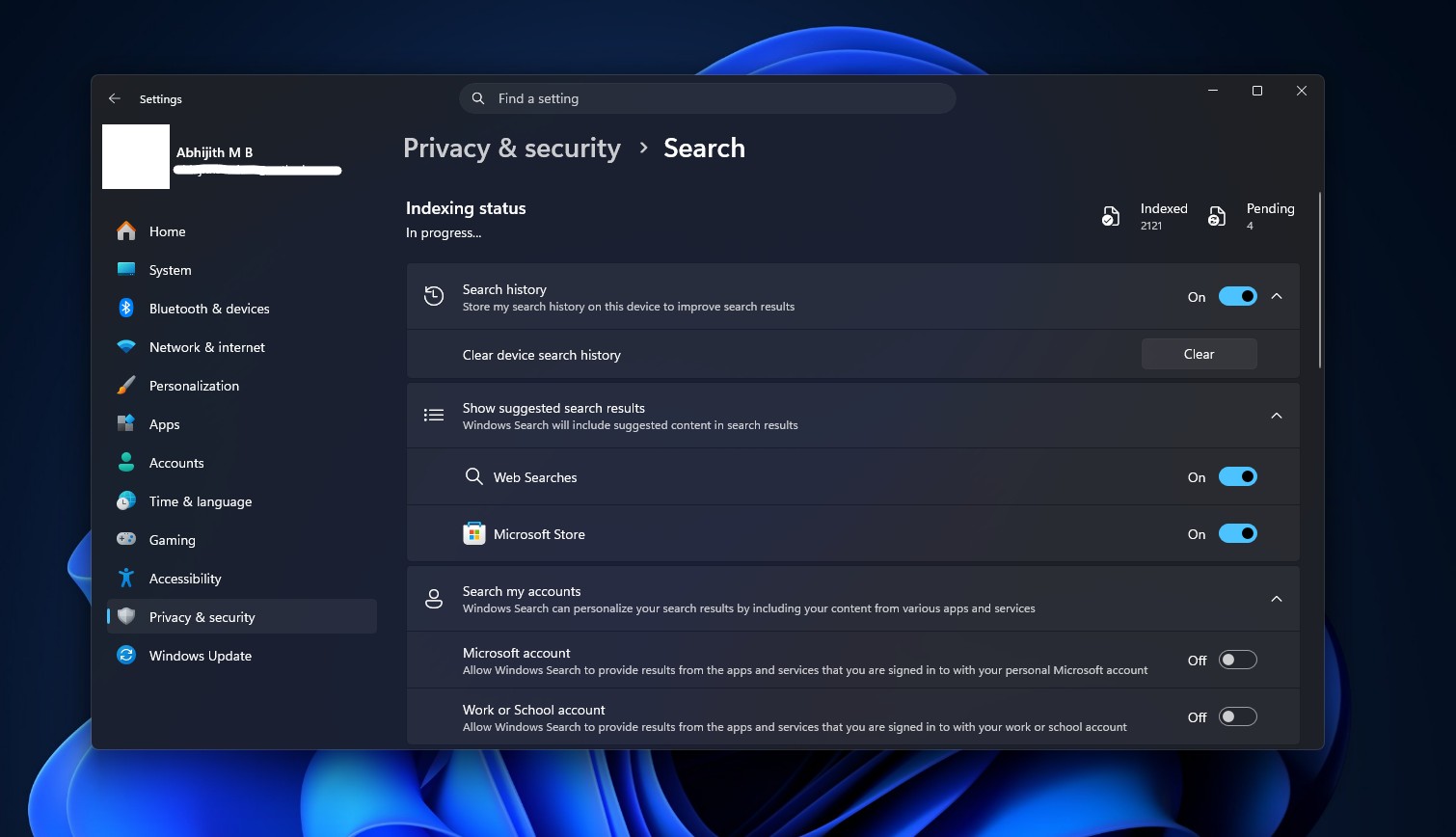
You can turn off Bing while keeping Store suggestions, flip both off for a fully local Search, or leave everything on. Turning off Web Searches is where the speed comes from, since Search no longer waits on a web round-trip before showing you the results.
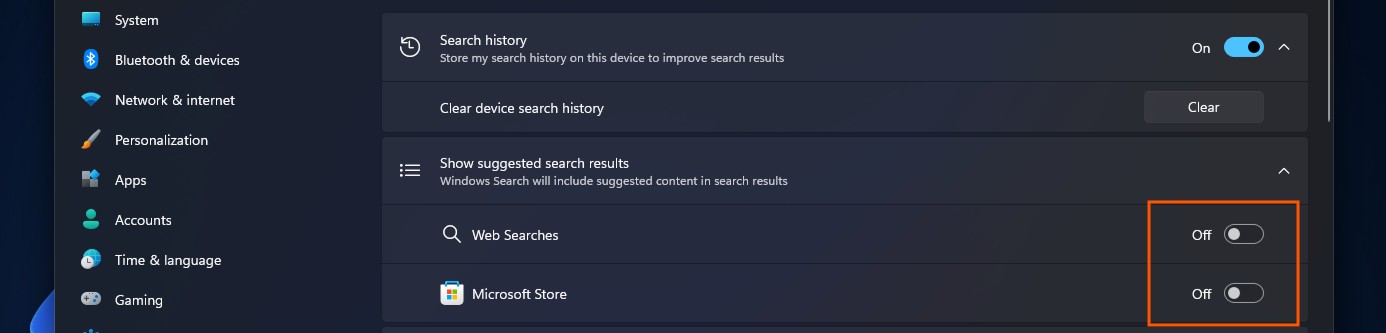
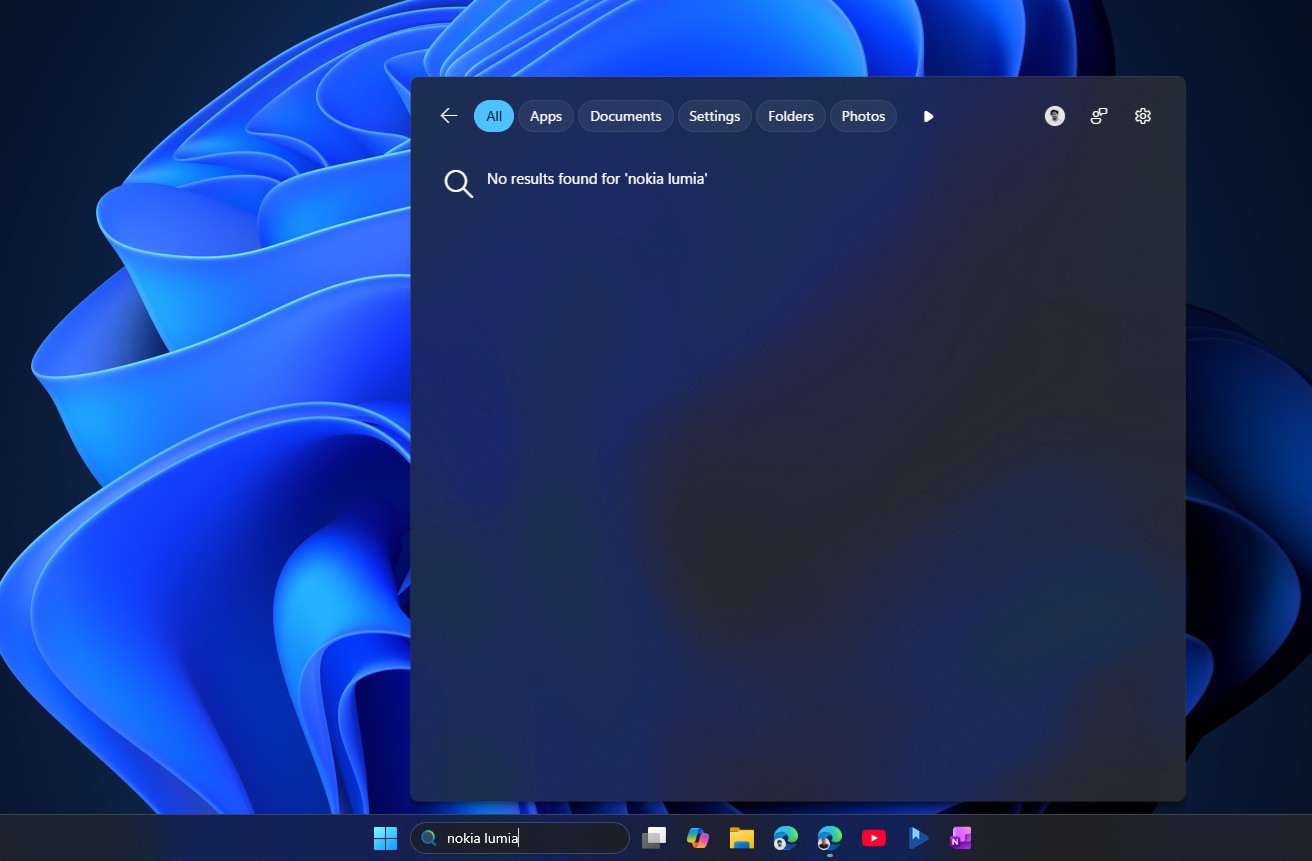
With both toggles off, a search with no local match returns nothing at all.
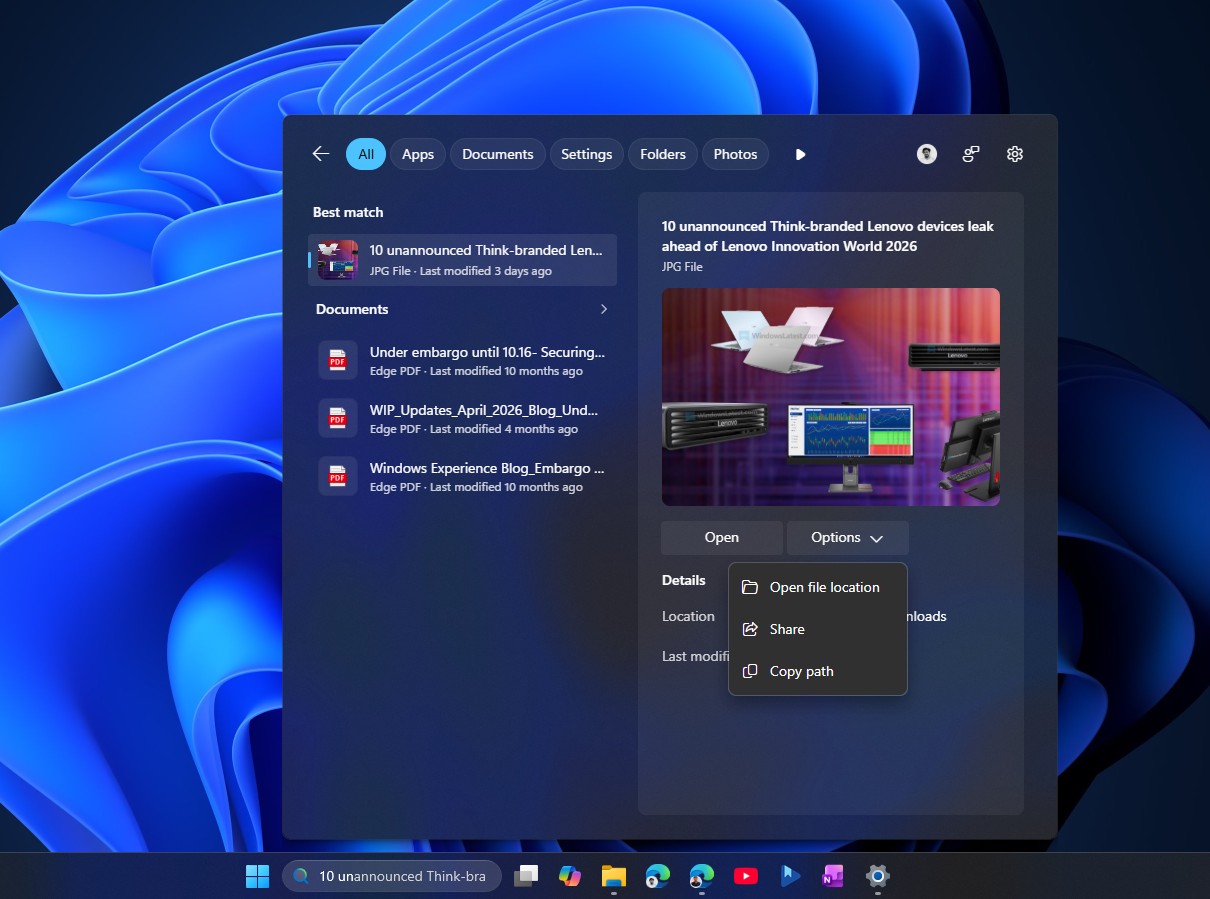
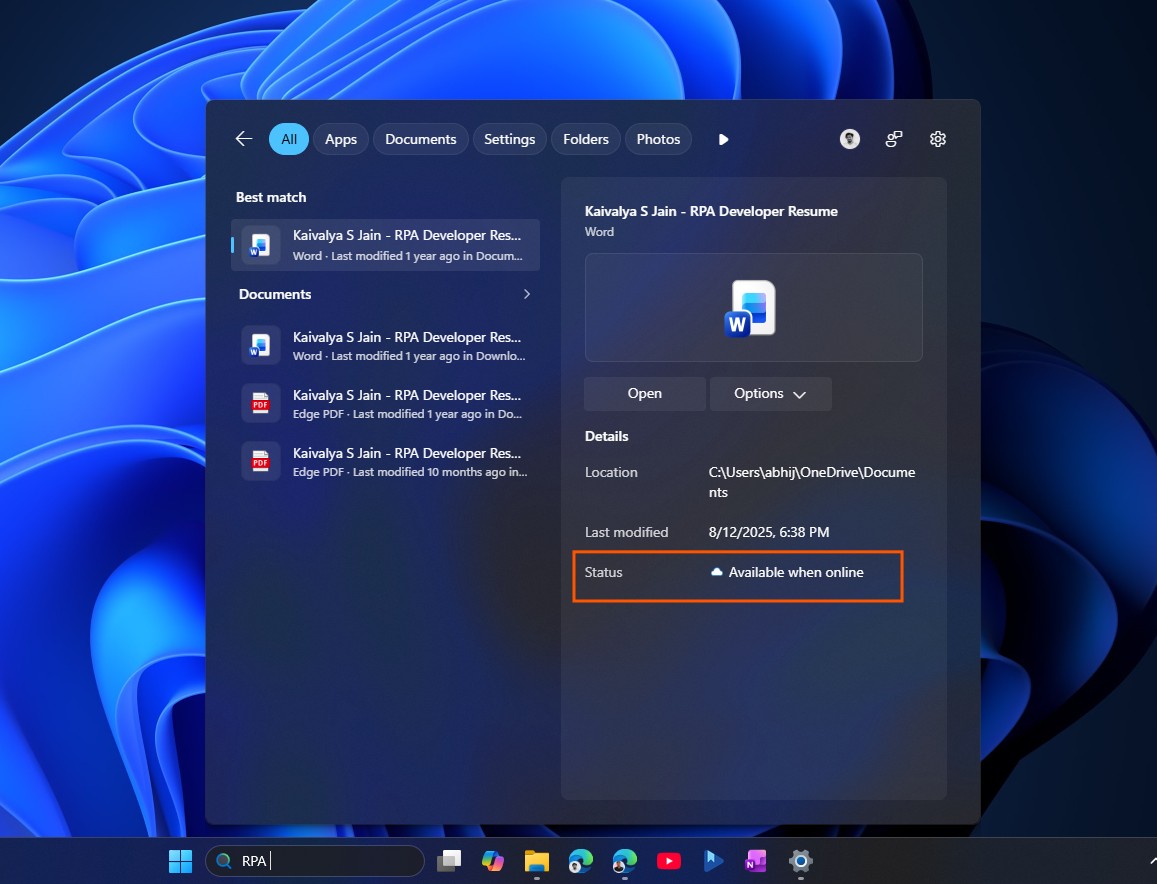
Search results now also show labels of where it comes from: an app, a setting, a local file, a web result, or a Store suggestion. Search for a document, and the preview pane on the right shows a proper thumbnail, the file path, the last modified date, and quick actions like Open and Copy path.
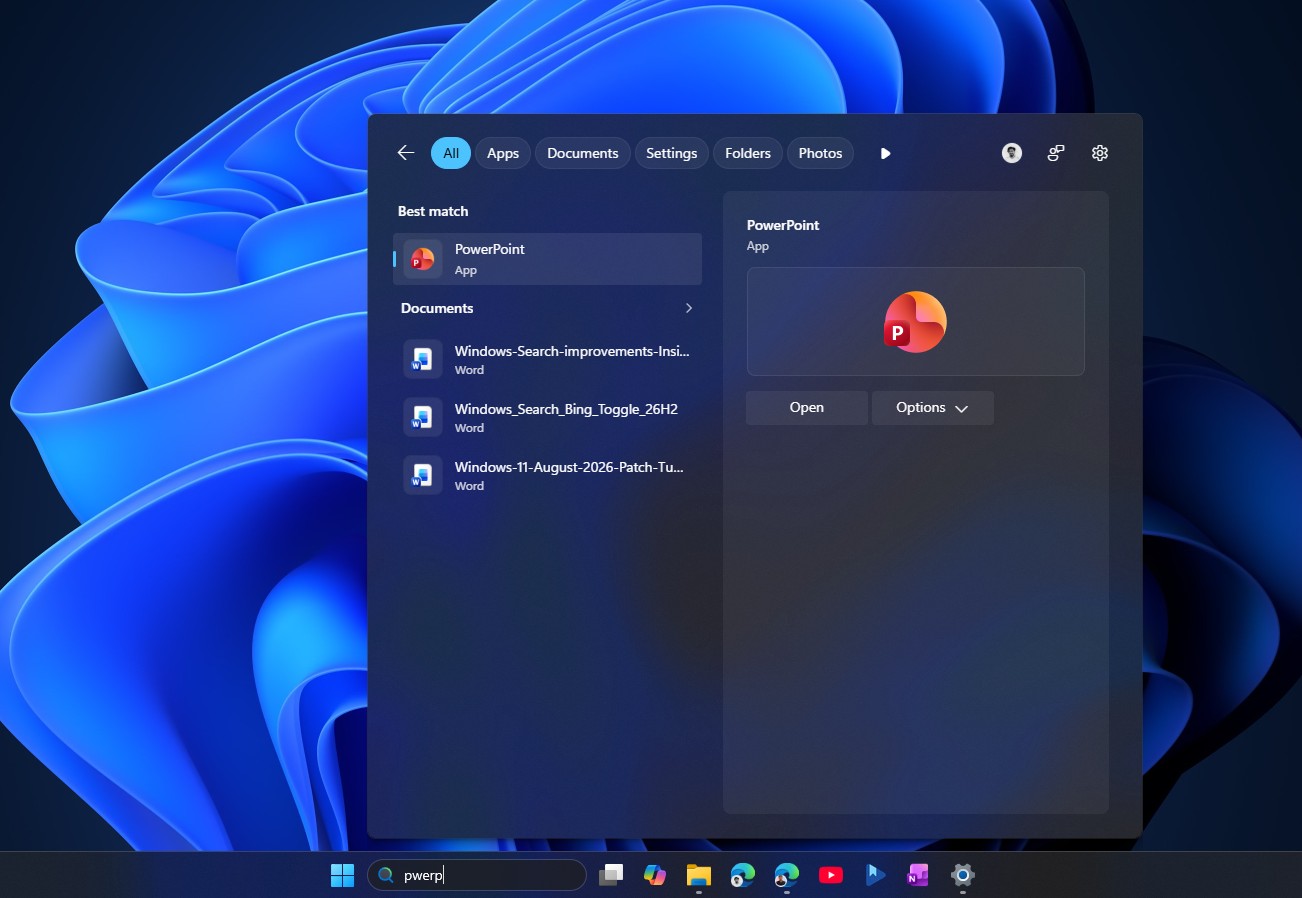
As an improvement from the previous updates, typos aren’t a problem anymore. Type utlook and Search shows the Outlook app as the best match instead of a Bing search for the misspelling. It also works for dropped letters and partial words, so pwerp finds PowerPoint and tskm still finds Task Manager.
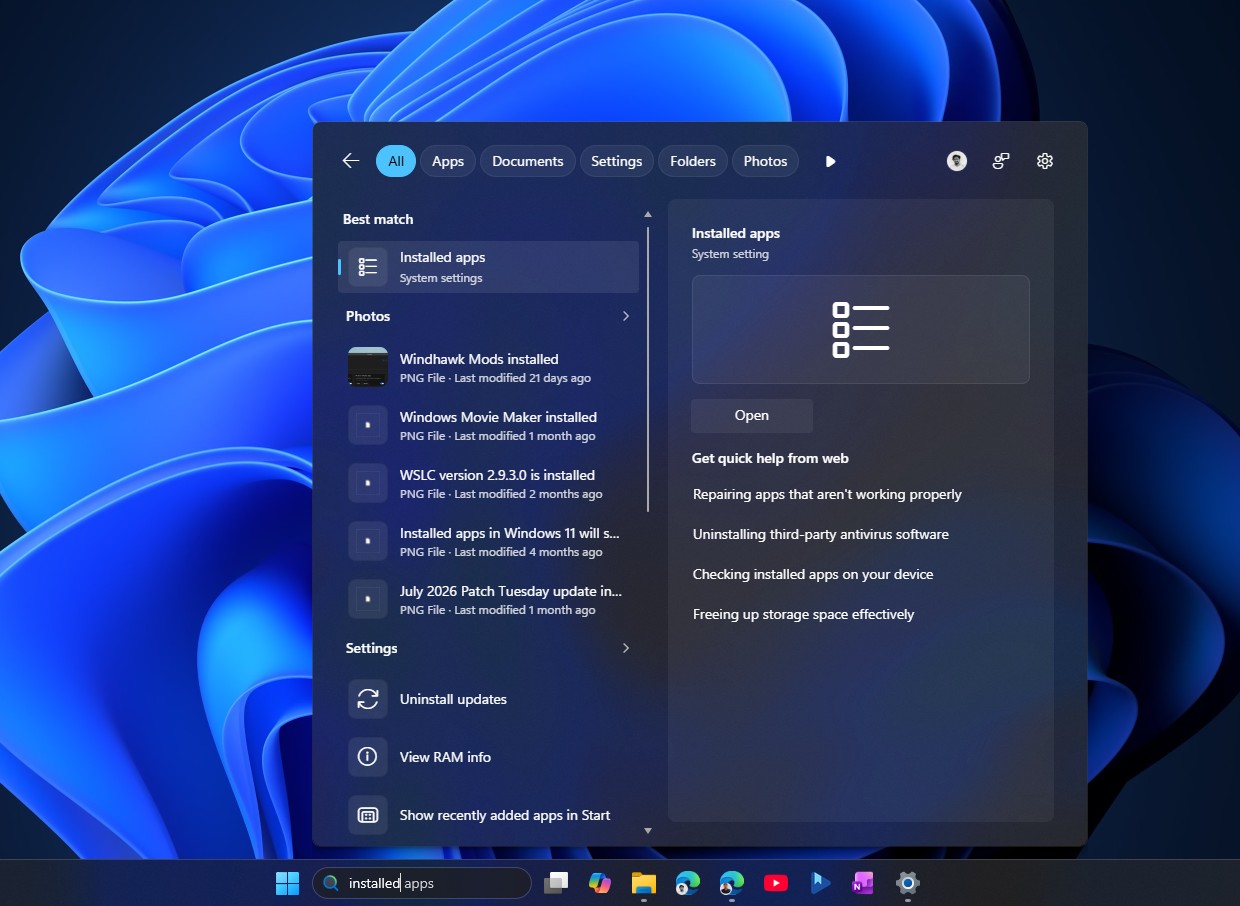
Windows settings also gets the same tuning, so searching installed goes straight to the Installed apps page instead of a generic support article.
File search keeps building on changes that already reached stable Windows 11 earlier this year. Search fires off file results after just two characters instead of three, and substring matching means a compound file name like StartMenuComparisonMay shows up whether you type menu or may.
Cloud and connected files now show up along with local ones when they are the stronger match, which helps if you keep files split between OneDrive and your PC.
Microsoft says Search reliability has also improved, with fewer crashes and loading issues. On my daily-driver PC, the animation speed alone feels noticeably faster than before.
Before you install, know about the cursor and wallpaper bugs in this update
KB5120998 has some problems, though. Windows Latest first reported cursor styling breaking and wallpapers resetting to solid black right after the update went out, based on a fast-growing pile of reports. Microsoft has since confirmed the cursor issue in its release health dashboard, stating that “mouse cursor personalization settings are being changed or reverted to certain standard settings” following installation of KB5120998.
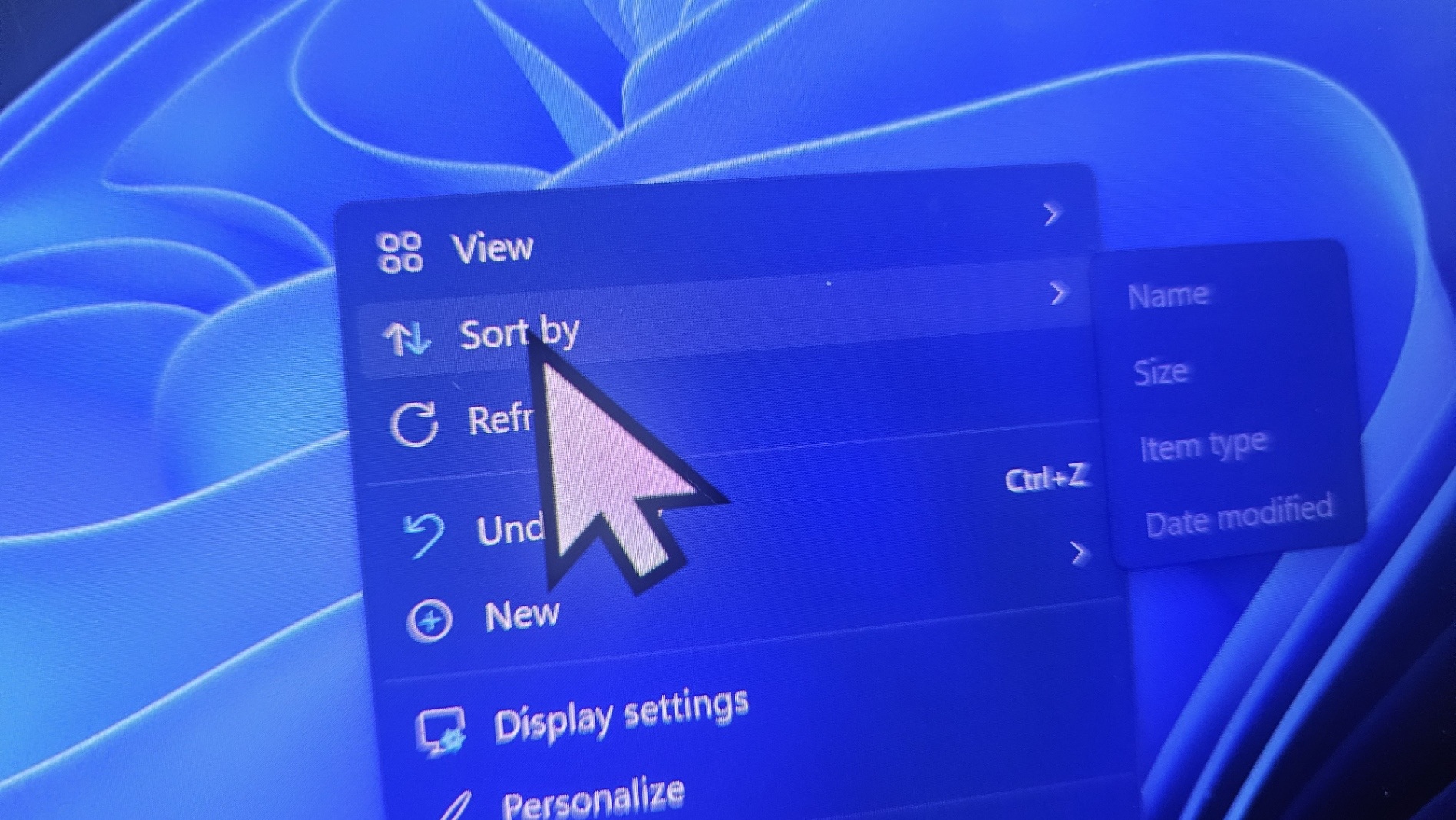
Custom cursor schemes can revert to a default look, a white cursor can turn into a larger black one and vice versa, and cursor animations can stop working correctly. The wallpaper bug is still unacknowledged by Microsoft, resetting your desktop background to solid black on every restart. The only confirmed fix for either bug right now is uninstalling KB5120998 through Settings > Windows Update > Update history > Uninstall updates.
If you already installed the update and have not run into either bug, you are almost certainly fine to proceed with the ViVeTool steps above. If you have not installed it yet, it is worth waiting. The mandatory Patch Tuesday update arrives September 8, 2026, and adds in everything from this optional release, hopefully with a fix for the cursor and wallpaper bugs by then.
The post Windows 11’s faster, Bing-free Search released, enable it using these steps appeared first on Windows Latest