
To enable Xbox mode in Windows 11, open Settings > Gaming and toggle ‘Xbox Mode.’ This toggle appears only on PCs with Build 26200.8328/26100.8328 or higher, but Microsoft told Windows Latest that the feature is rolling out, so it’s not available on all PCs out of the box. In that case, you need to force enable it, and I’ll explain how.
Back in March, at GDC 2026, Microsoft said that they’ll bring Xbox mode to all PCs by April. Well, it’s almost fair to say that the company kept their promise, because Xbox mode just arrived for all Windows 11 users with the April optional update KB5083631.
It’s one thing to bring a new feature at the end of a month on an optional update, but it’s a different ballgame to not give the feature to users who have already installed the update. I’m, of course, talking about Microsoft’s Controlled Feature Rollout (CFR), which is the technology they use to roll out features gradually to ensure stability.
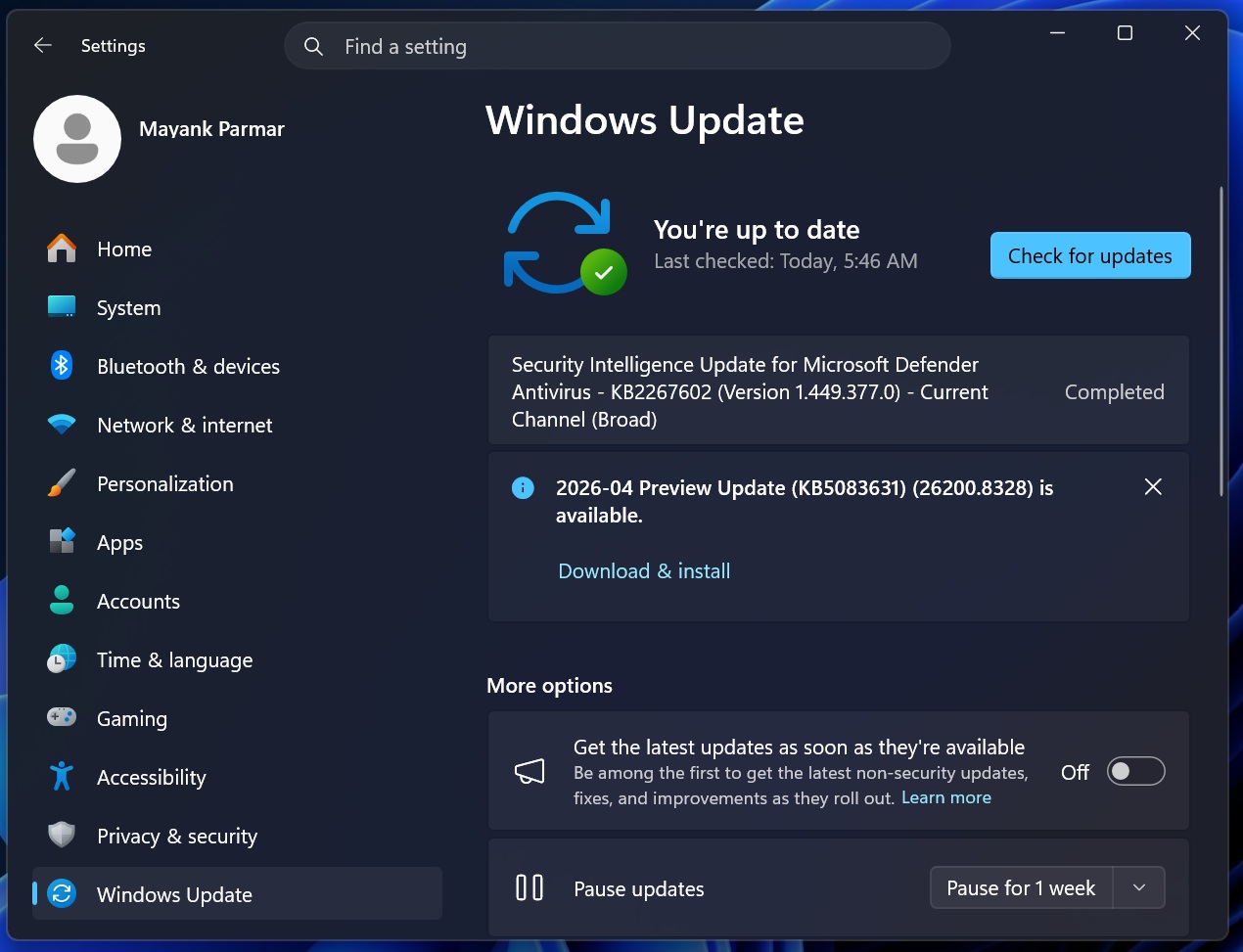
So, if you have installed 2026-04 Preview Update (KB5083631) (26200.8328), go to Settings > Gaming and see if you have a new Xbox mode on top. If it’s not there, CFR is in action here. Fret not, as you can easily enable it using an open-source third-party tool.
How to force enable Xbox Mode in Windows 11
Technically, after you install the latest Windows 11 optional update, your PC already has the code for Xbox Mode, but it is hidden. ViVeTool is an open-source, third-party command-line utility used by power users to enable or disable such hidden features in Windows 11, and is exactly what we are using to get Xbox mode.
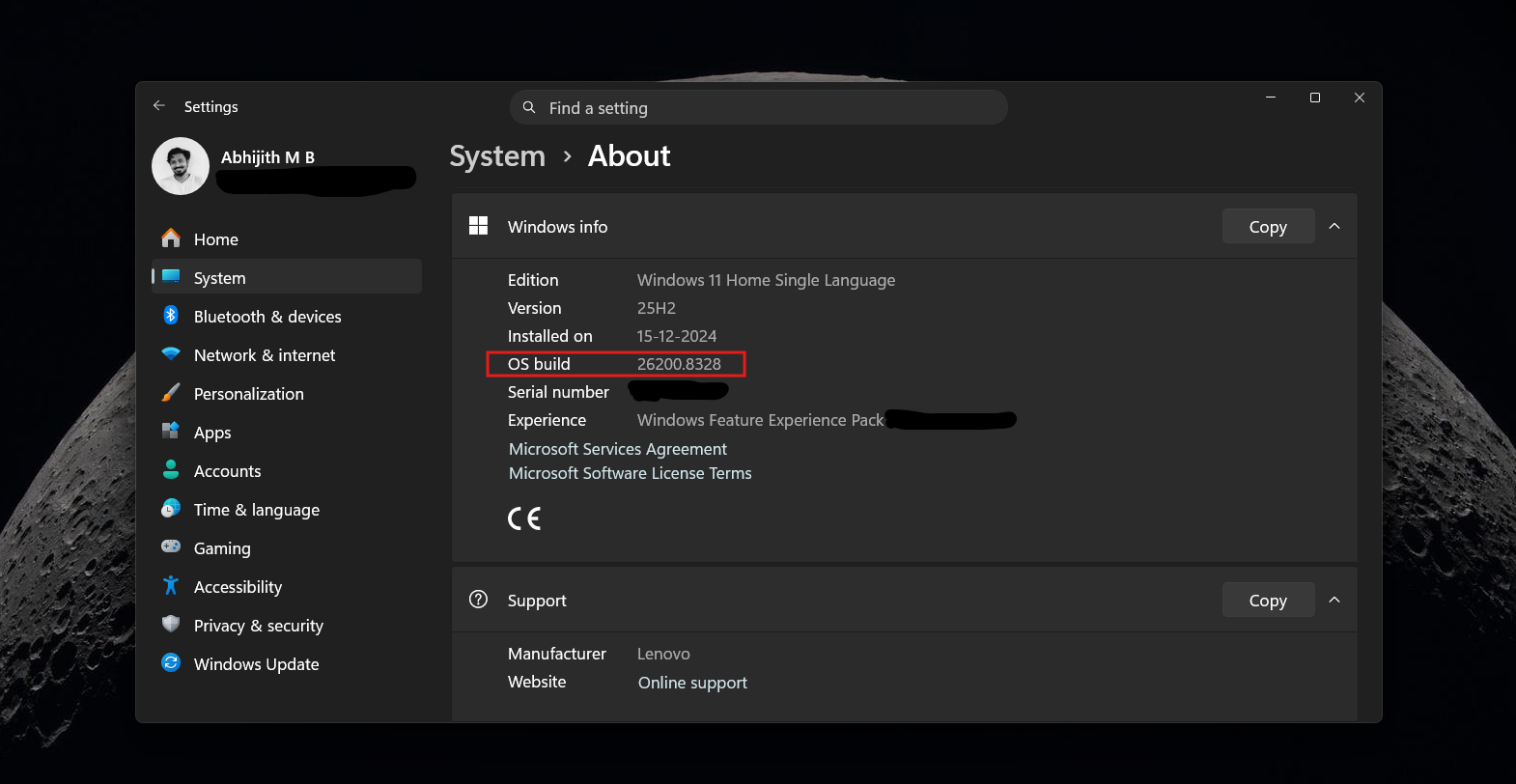
But first, make sure you have already installed Windows 11 KB5083631 (2026-04 Preview Update) with build 26200.8328 or a higher version by going to Settings > System > About.
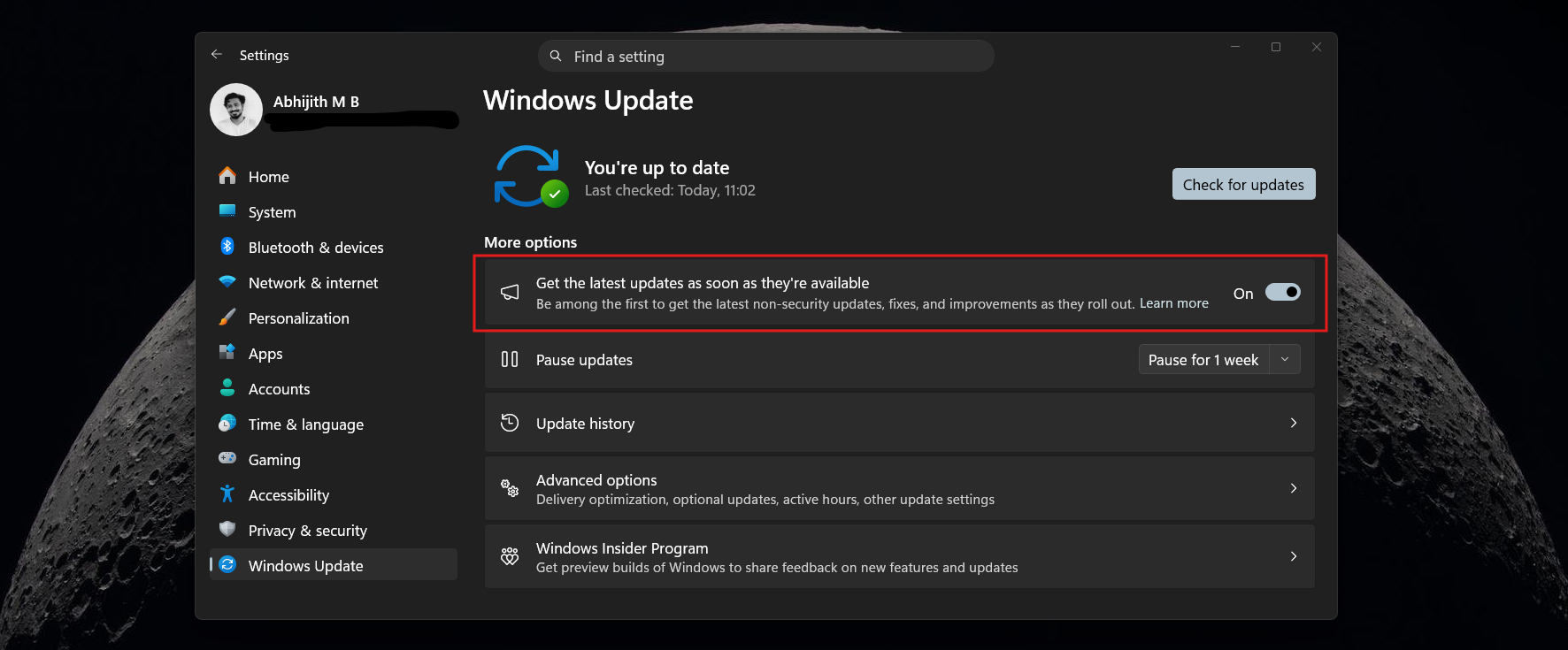
If not, go to Settings > Windows Update > Check for updates and install the update. Turn on “Get the latest updates as soon as they’re available” toggle if you still haven’t received the update.
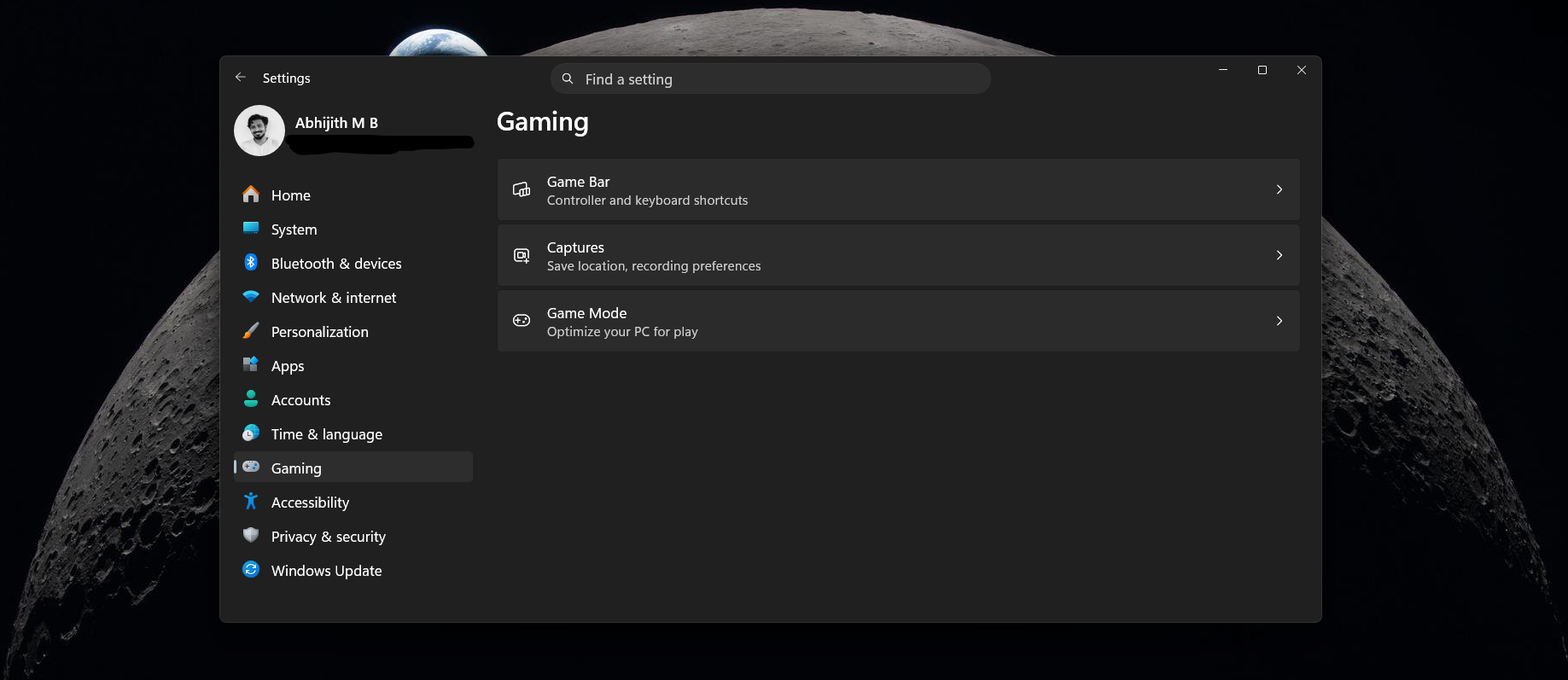
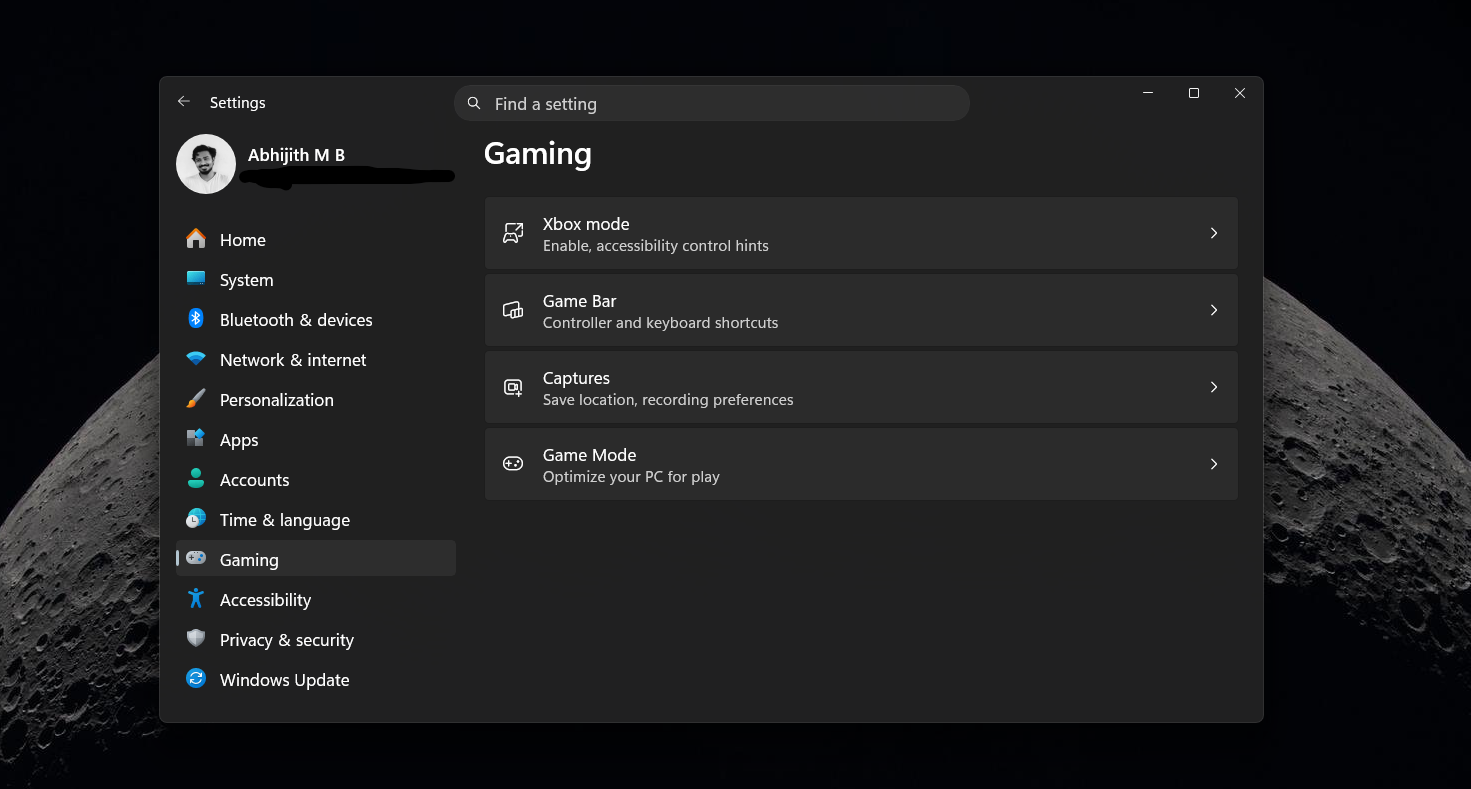
Before getting Xbox mode, the Windows 11 Gaming settings page has Game Bar, Captures, and Game Mode.
Note: In our tests, Xbox mode worked well, but force enabling may cause some performance hiccups in your PC. Proceed if you can’t wait till your PC gets it naturally.
Here are the full steps to force enable Xbox mode in Windows 11:
- Head over to the official GitHub repository for ViVeTool and download the latest .zip release.
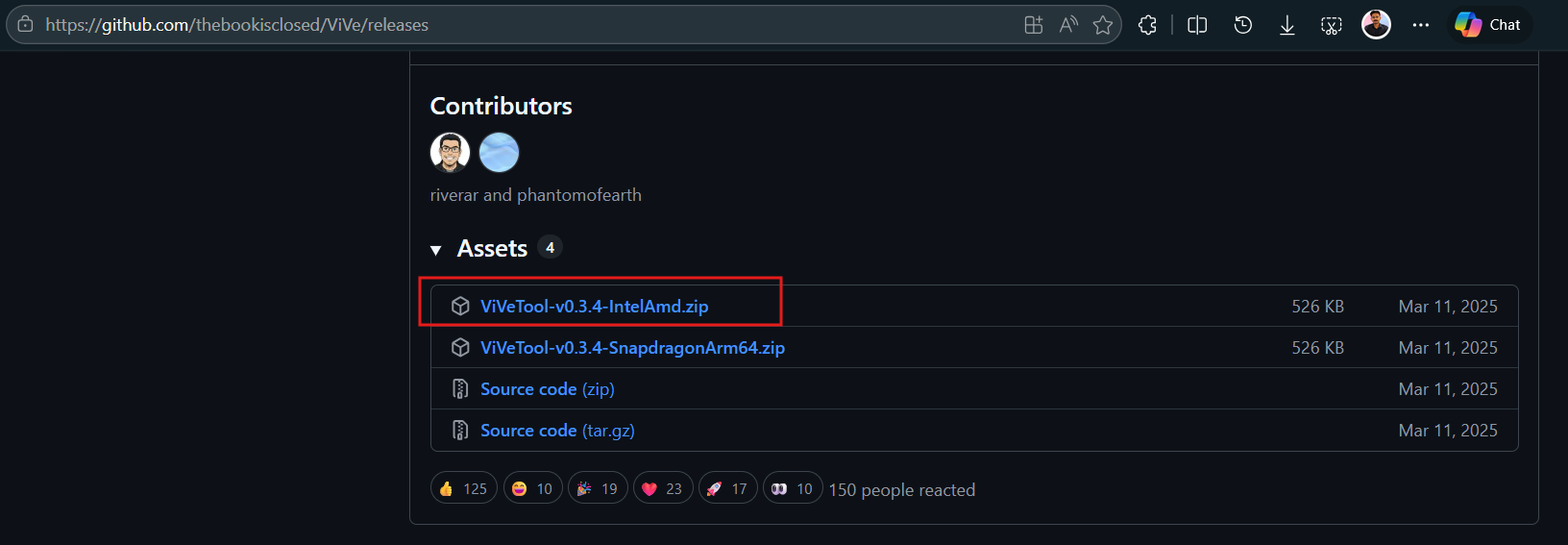
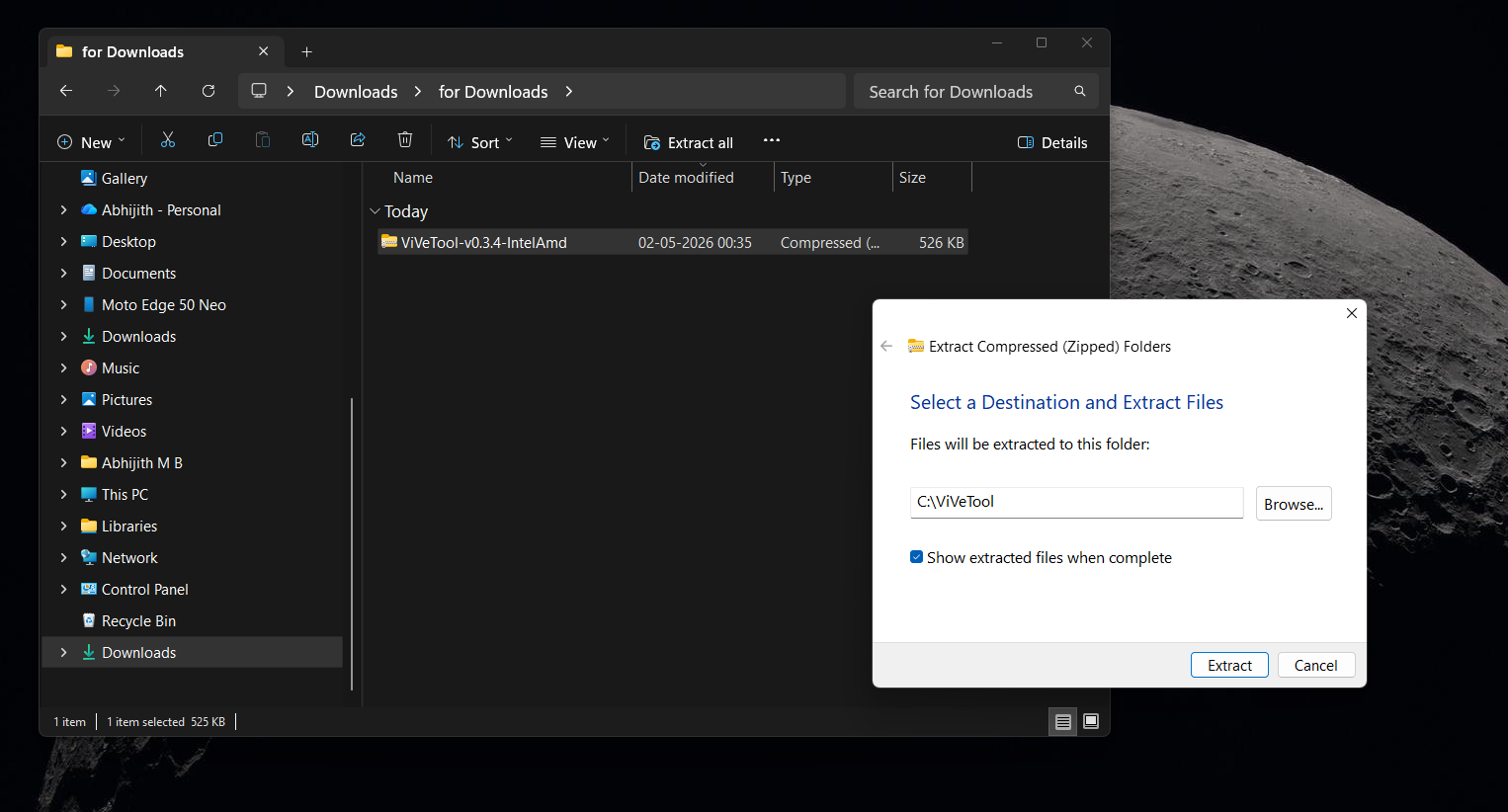
- Once downloaded, extract the contents of the zip file to a location that is easy to find. For the sake of this guide, we recommend extracting it directly to the root of your C: drive in a new folder named “ViVeTool” (so the path is C:ViVeTool).
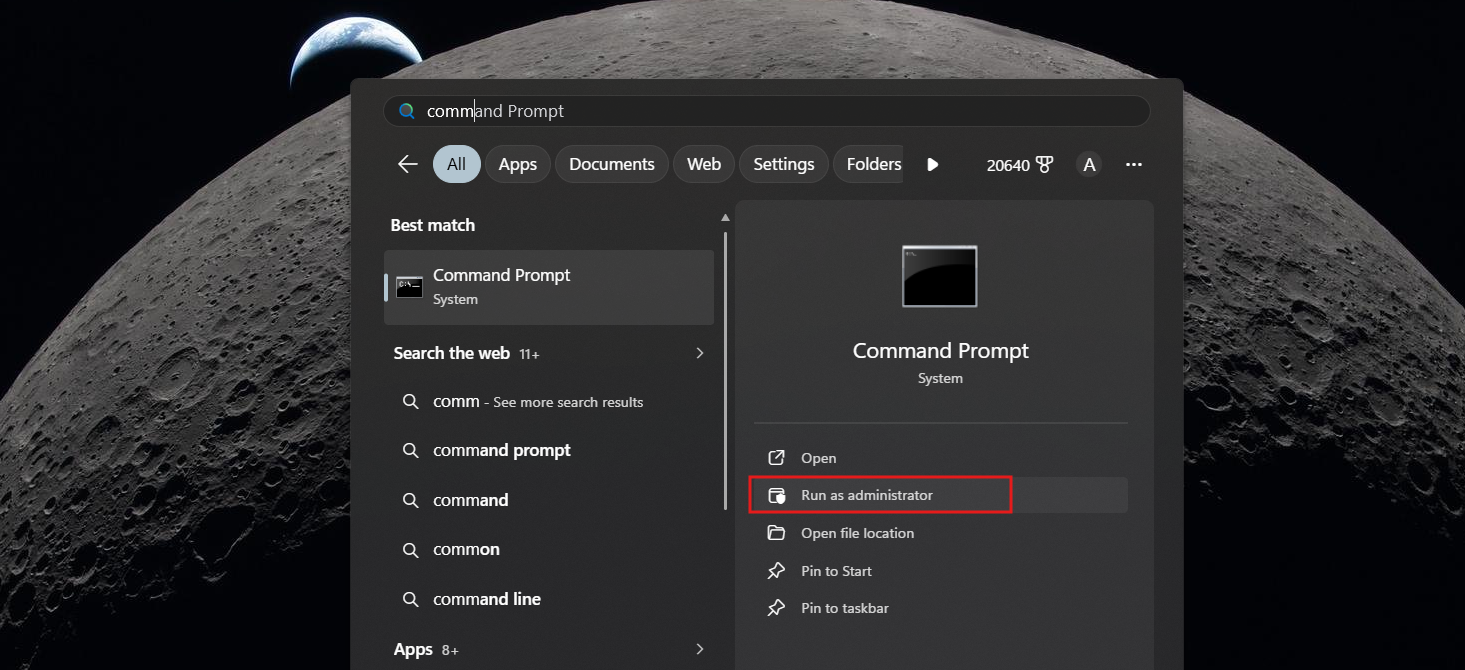
- Open Start menu, search for Command Prompt, and select Run as administrator. (ViVeTool requires admin privileges to make changes to your system)
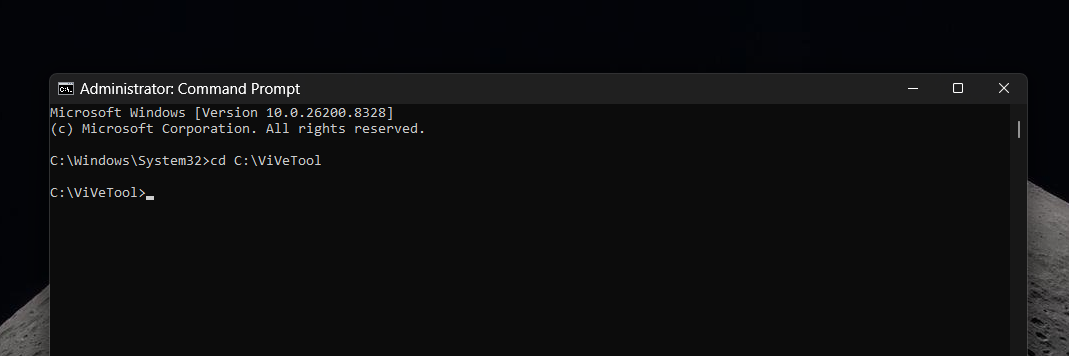
- In the Command Prompt window, you need to navigate to the folder where you extracted the tool. Type the command cd C:ViVeTool and press Enter:
- Now, type the following command to enable the hidden Xbox mode IDs and press Enter: vivetool /enable /id:58989070,59765208
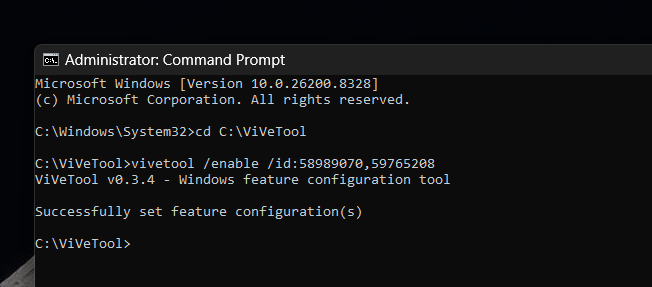
- If done correctly, Command Prompt will return a message saying, “Successfully set feature configuration”.
- Close the Command Prompt and restart your PC for the changes to take effect.
Once your PC boots back up, head over to Settings > Gaming. You should now see the shiny new Xbox mode option sitting right at the top of the menu, just above Game Bar.
If you click into the new Xbox mode menu, you’ll find the Enable Xbox mode turned on by default.
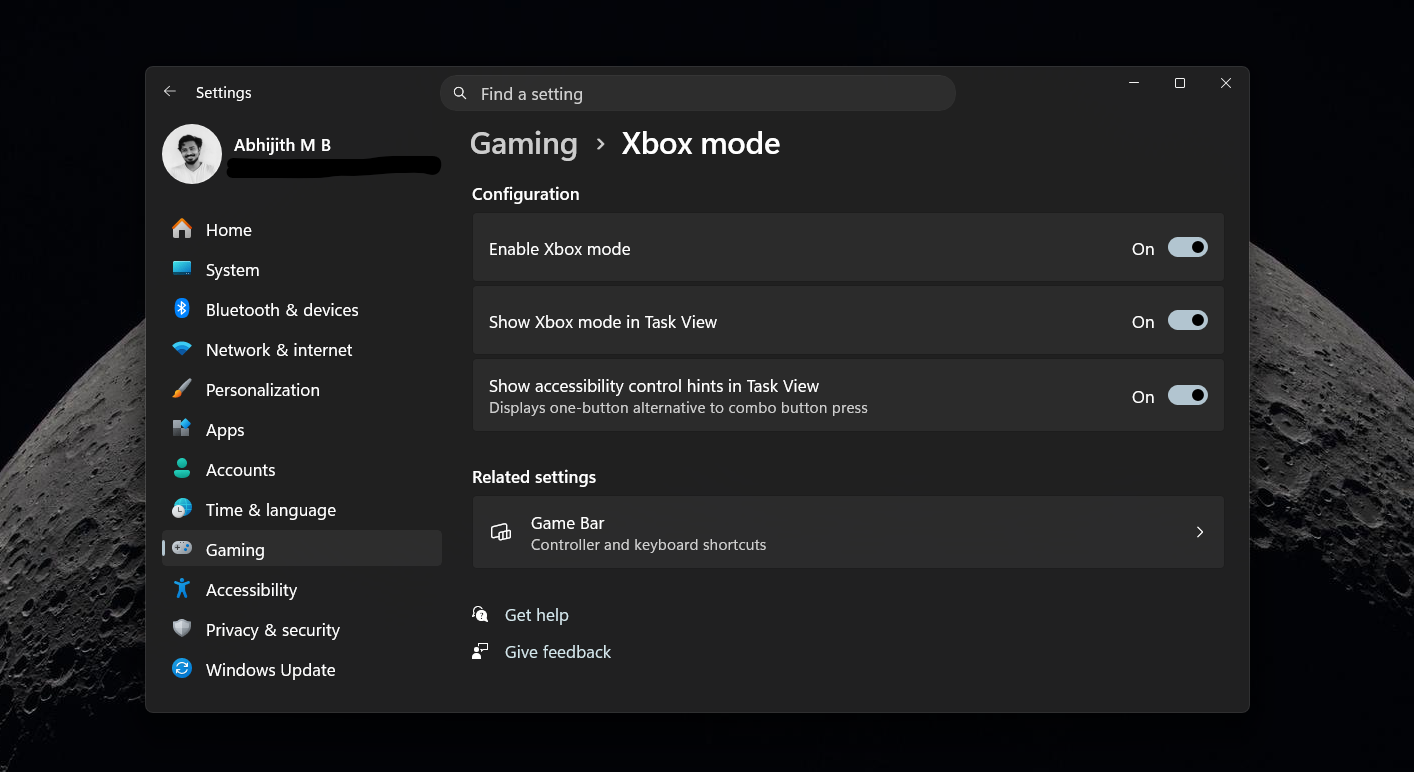
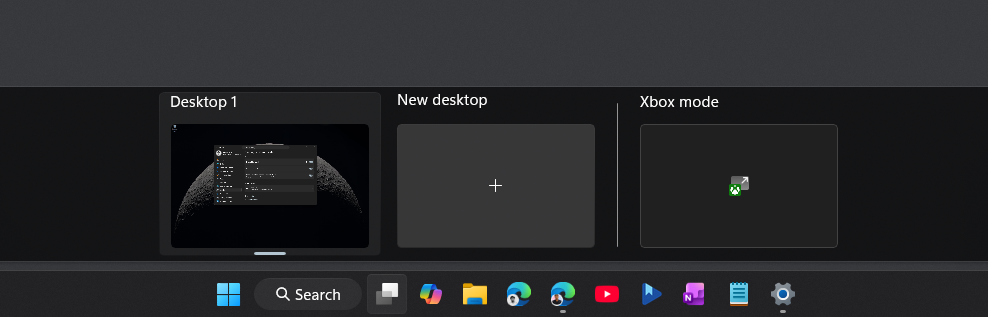
Just below that, Microsoft has included toggles to Show Xbox mode in Task View and Show accessibility control hints in Task View (which displays a one-button alternative to combo button presses). Both of these are turned off by default, but I would recommend that you turn them on.
While it is clear that Microsoft is still testing the waters by hiding this behind a Controlled Feature Rollout, forcing it on gives us a great look at how Windows 11 is continuing to blur the lines between PC gaming and the Xbox console ecosystem.
Xbox mode improves gaming performance on regular PCs
We actually had the chance to test this console-style UI a month and a half ago when it was still lingering internally under the “Full Screen Experience” moniker. Now that it is officially rolling out as Xbox mode, we found a few changes, too.
Now, after enabling Xbox mode, when I opened the Xbox app, there was a new button on the top right corner that instantly takes you to Xbox mode.
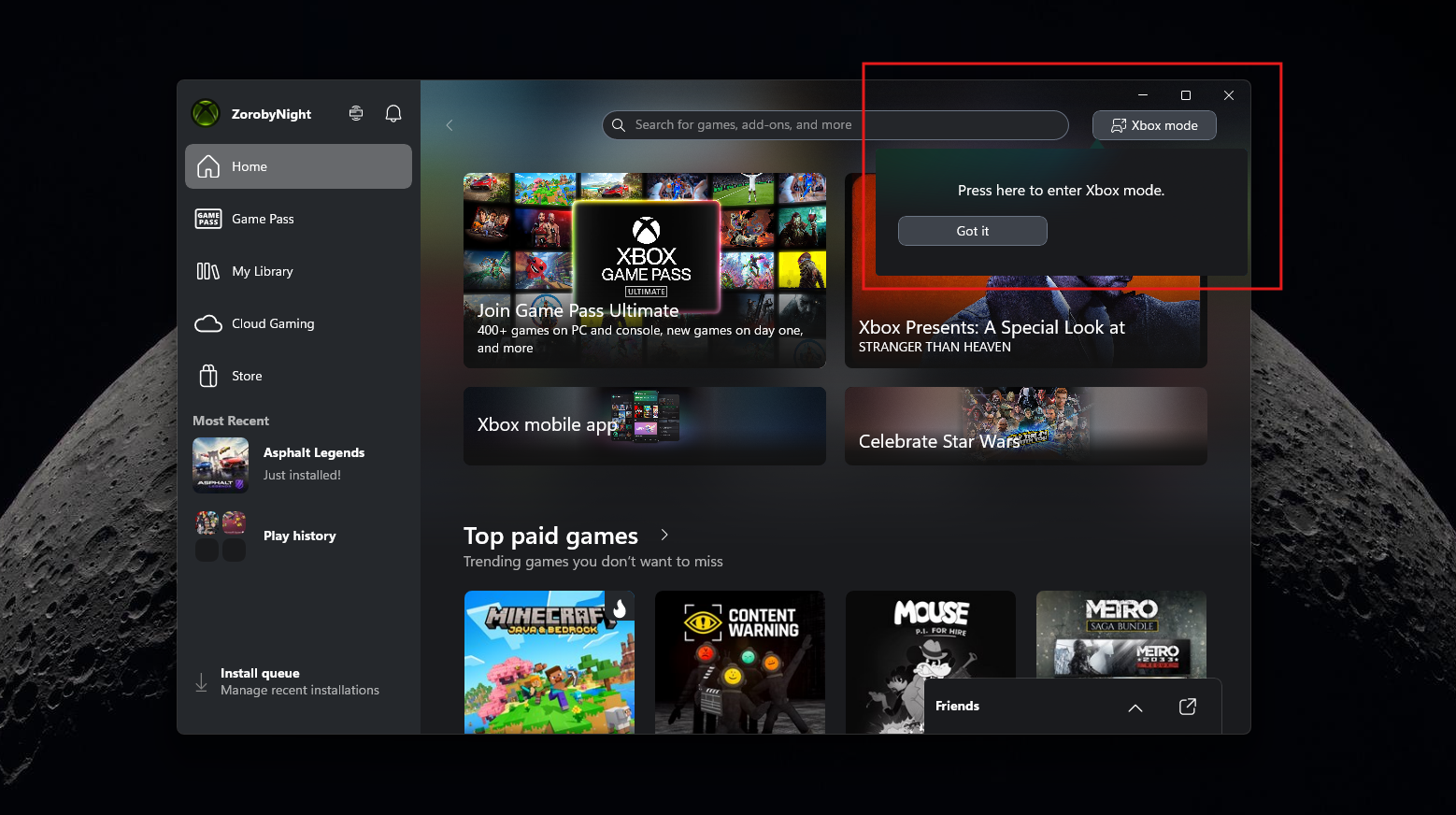
I have an external monitor connected to my laptop, but when Xbox mode opened, it disabled my external monitor, which is how it should be. Note that Xbox mode is a full-screen controller-first environment and doesn’t work well with just a keyboard and mouse.
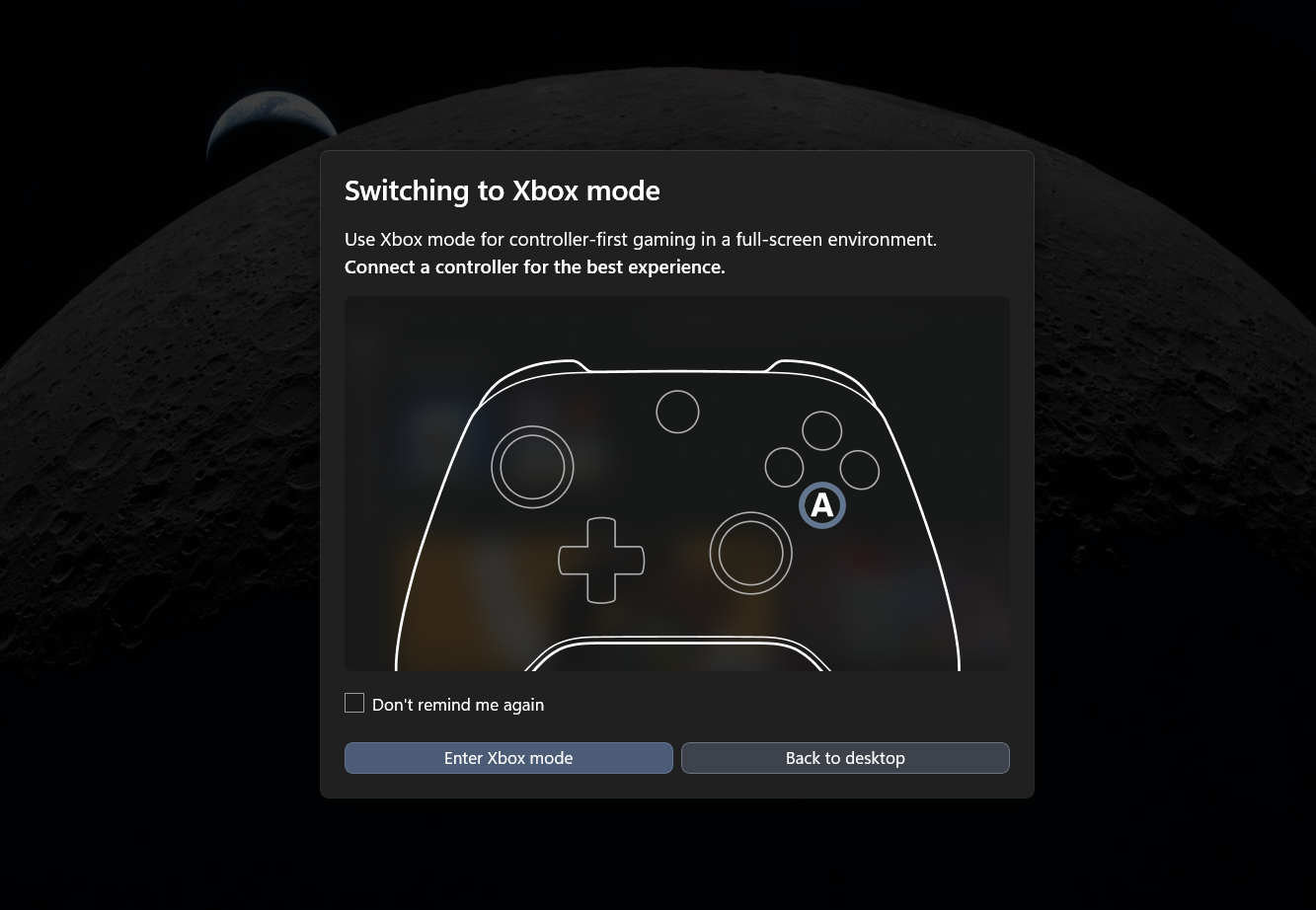
In Xbox mode, Windows operates in a more efficient way during a gaming session. Our early testing showed that the interface disables several background desktop components, freeing up roughly 1 to 2 GB of system memory. This significantly reduces system overhead and gives your PC more breathing room.
We need as much RAM as we can from our PCs, as Microsoft says 32GB of RAM is the “no-worries” upgrade for Windows 11 gaming.
The interface itself completely reorganizes the Xbox app into a unified, controller-first dashboard. You get large tiles and horizontal rows, giving you instant access to your Library, Game Pass, Cloud Gaming, and the Store, all without ever needing to touch a mouse or keyboard.
Now, in the Xbox app, there is also an Exit Xbox mode button on the top right.
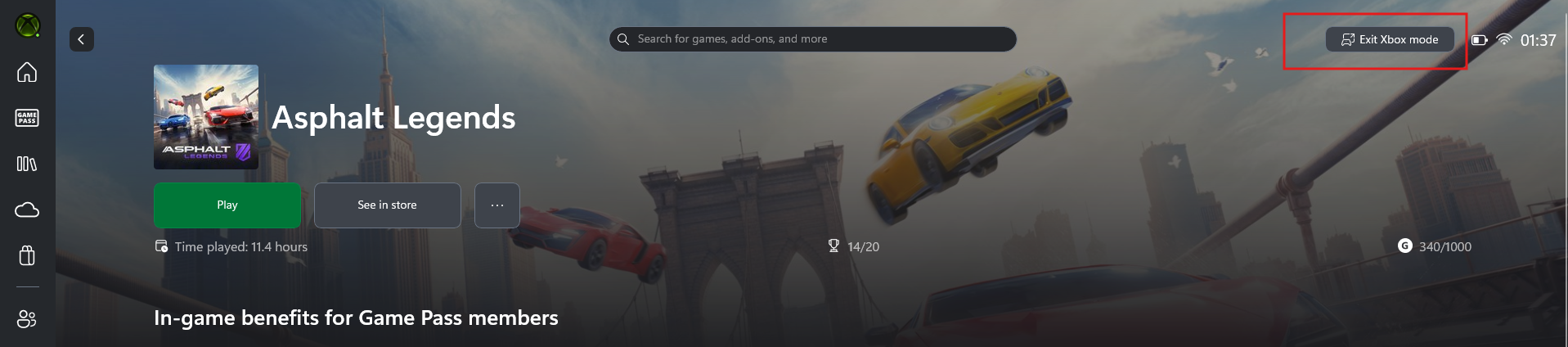
If you ever need to jump back to your regular desktop for a quick task, just press Windows Key + Tab and select “Windows desktop” to instantly return to your traditional workflow. No need for a restart.
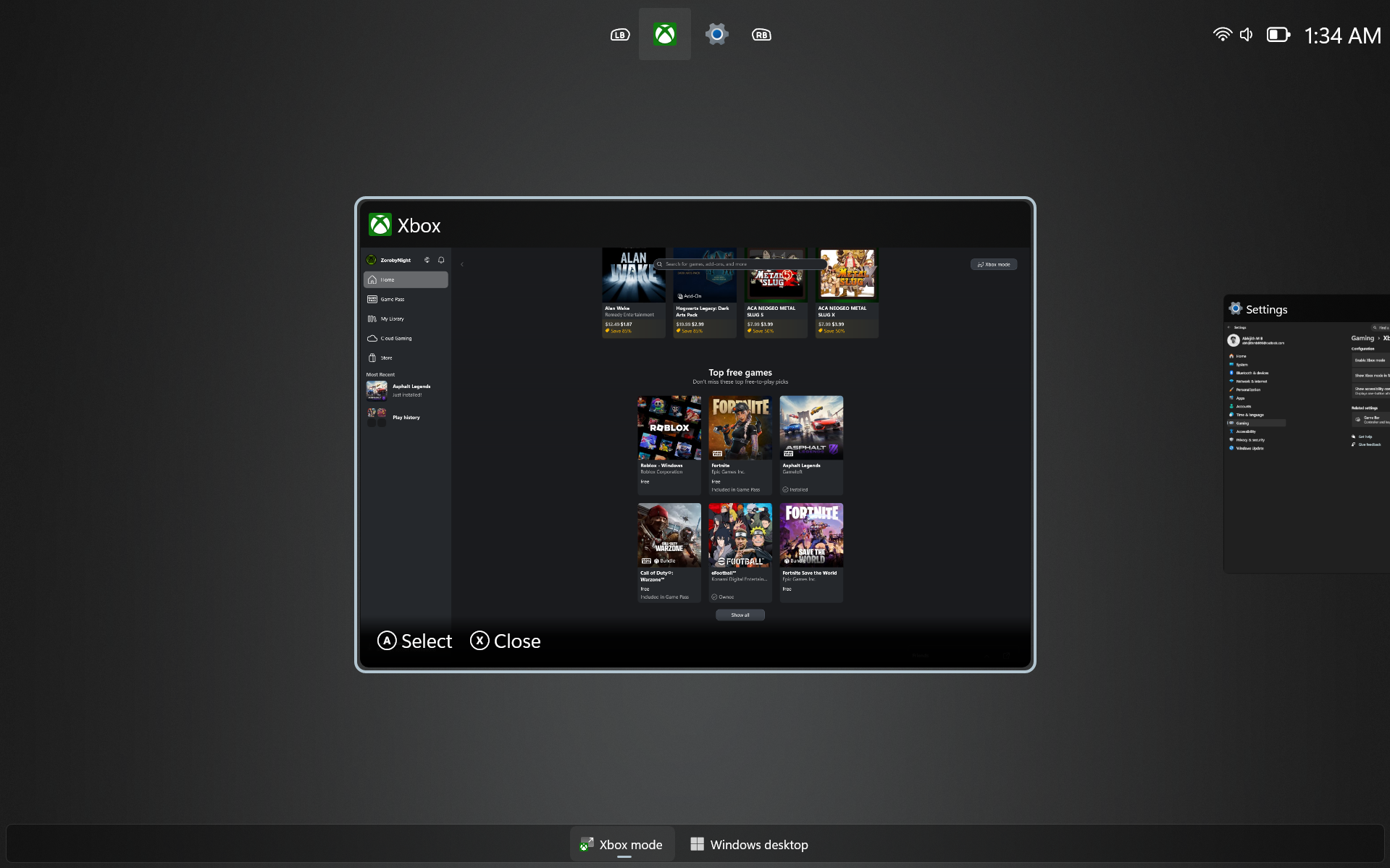
And if you decide the console experience isn’t for you, disabling it is just as simple. You can toggle off the “Enable Xbox mode” option directly in Settings > Gaming > Xbox mode.
Alternatively, if you used ViVeTool to force it, you can just open Command Prompt as an administrator and run vivetool /disable /id:58989070,59765208.
Xbox mode is a massive step forward for regular PC gamers, because there are a lot of us who have a dedicated gaming PC that doesn’t need any other applications or background services.
While Xbox mode improves the immediate gaming experience on Windows, the OS itself is also working on getting much faster. Between this new dedicated gaming environment and Microsoft’s recent promises to reduce OS RAM usage and streamline the platform throughout 2026, the company is aggressively pushing to ensure Windows remains the absolute best place to game.
The post How to force-enable Xbox Mode in Windows 11, and why Microsoft hides it appeared first on Windows Latest