
Like many of you, I rely on Windows 11 Search all the time because I frequently create and download files. However, you may have noticed that Search is not very good at finding recently accessed files or files stored in locations you visit frequently. Microsoft is now addressing this with a new feature called “Automatically find additional relevant locations.”
To understand how this new feature could make Windows Search better, consider this example. You download or create images and files throughout the day, and the next day, you try to find one using a certain phrase, but Search does not return any results. Finally, you manually open the folder where it is saved and find it almost immediately.
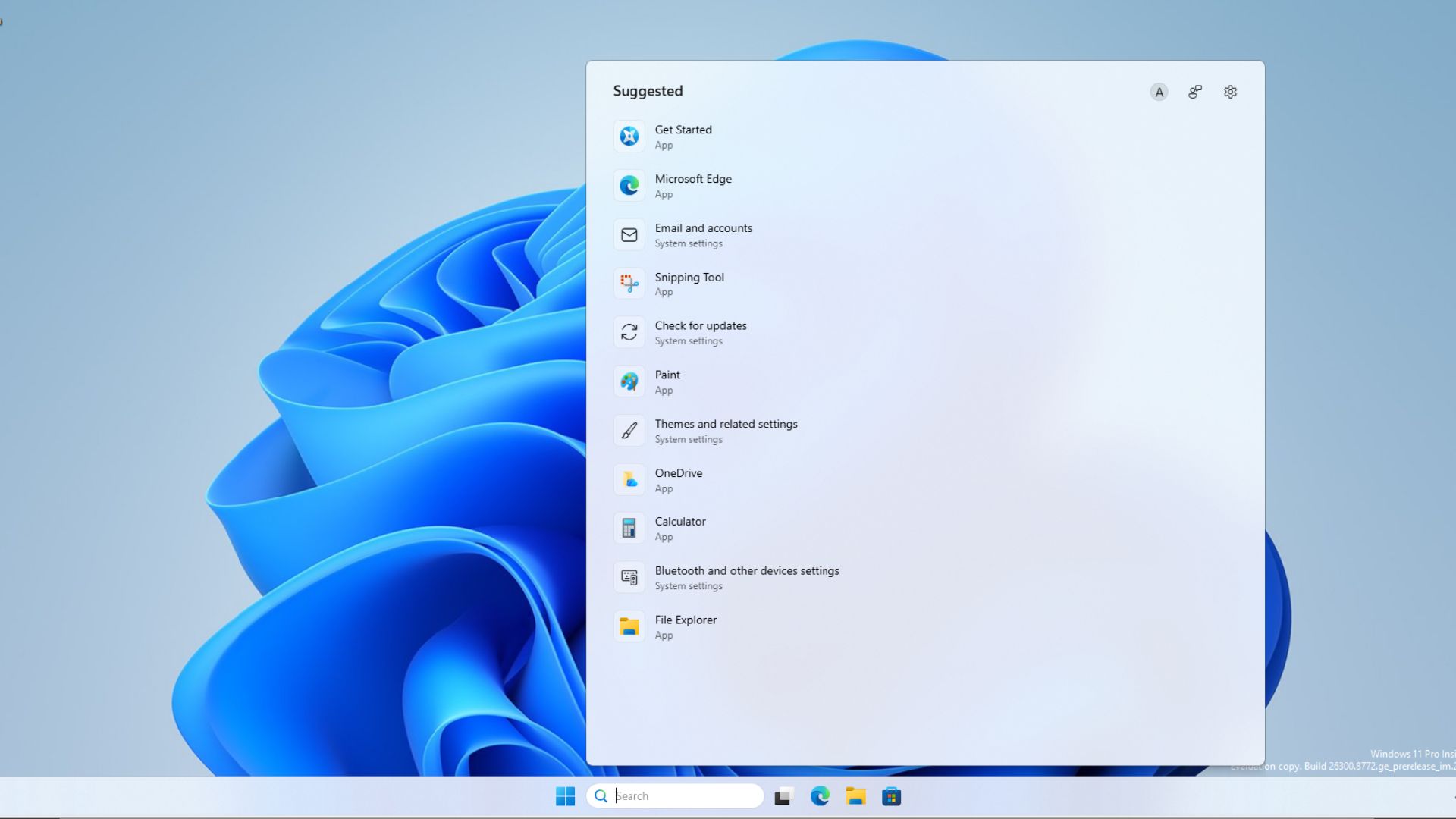
At this point, you might wonder why Windows Search can’t find it for you. Is it broken, or is something wrong with your PC? It actually comes down to how indexing is configured on your PC, and in most cases, it is limited to certain folders.
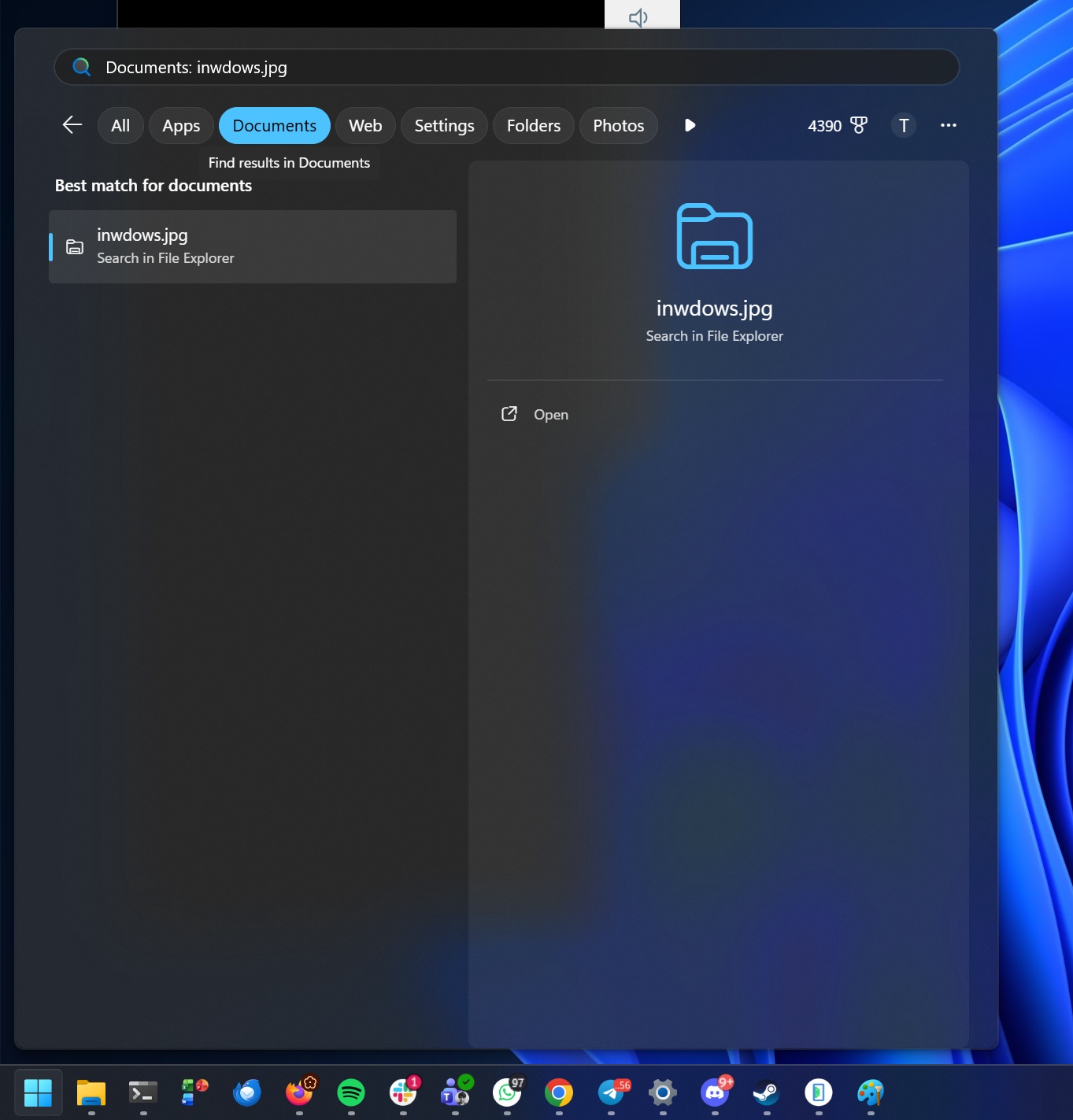
Just like Google Search, Windows Search also maintains an index of certain locations. By default, it focuses on commonly used folders such as Pictures, Documents, and Desktop. It’s not supposed to dig deeper into your other folders, including Downloads, and that’s good enough for most use cases.
“Search Indexing in Windows improves the speed and efficiency of searches by creating an index of files and their properties on your device,” Microsoft noted in a support document. “This index allows Windows to quickly locate and retrieve the information you need.”
In other words, the Windows Search index is just like the index in a book. It helps you easily locate what matters to you.
For example, even your mobile device and apps such as Gmail have their own indexes, which is why you can locate your emails almost instantly. That wouldn’t happen if Google had to directly search through its servers from scratch every time. It’s also why Outlook for Windows, even though it’s a web app, can find your previous emails with a single search.
Windows Search works in a similar fashion. If something is not present in its index, it won’t be able to find it at all, and your only option would be to rely on File Explorer, which could take ages.
Windows Search offers ‘Classic’ and ‘Enhanced’ indexing, but it’s not ideal for everyone
You can manually add another location for indexing, and Windows Search will automatically start indexing files in that specific directory. Alternatively, you can switch to Enhanced mode, where Windows Search indexes all your partitions, including files and folders you may never need.
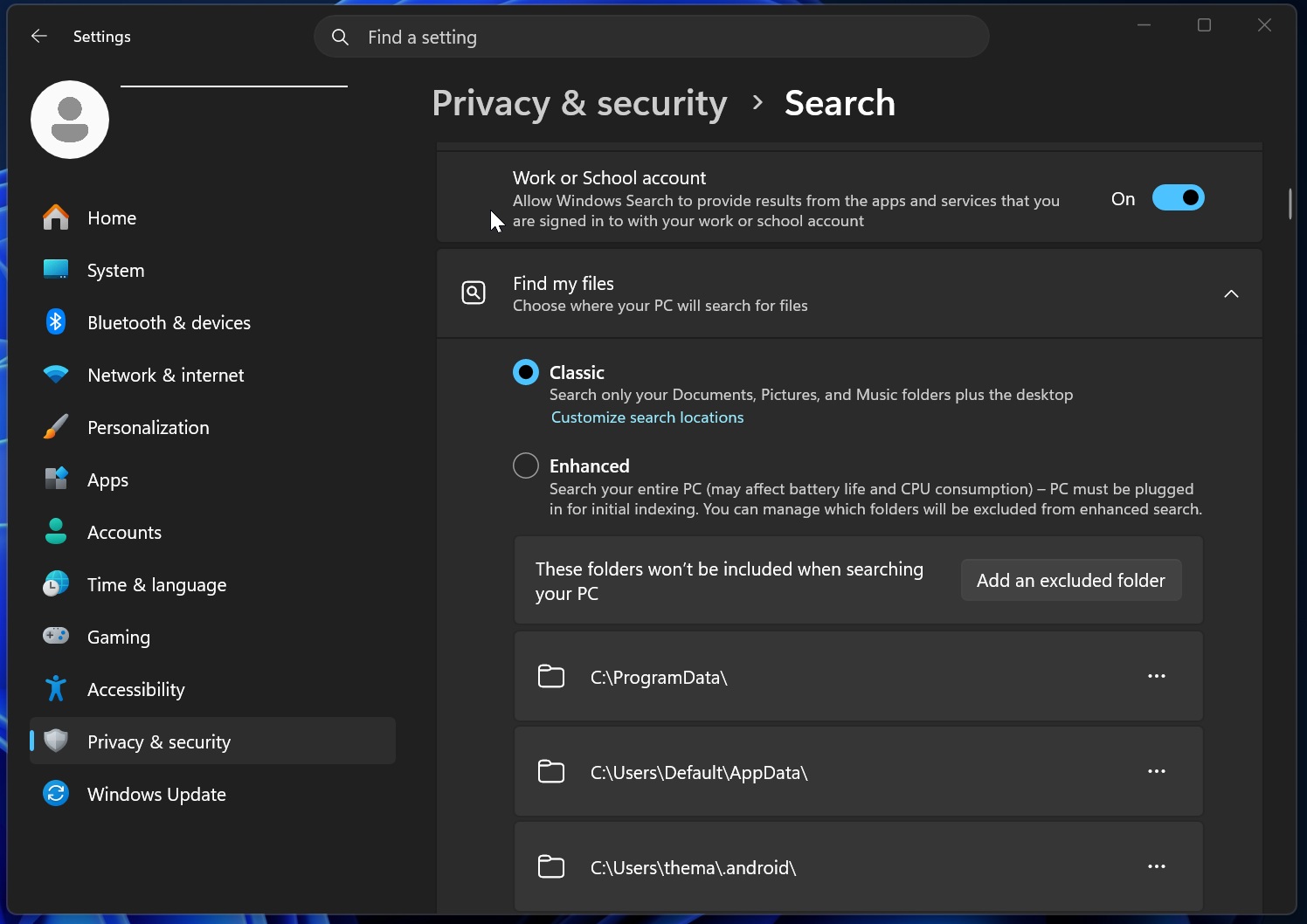
However, Enhanced mode is not ideal for most use cases. You might end up seeing files in search results that you don’t need, and there are also performance and power concerns.
“Enhanced mode provides more comprehensive search results but may use more system resources,” the company noted.
Until now, your best bet has been to manually add the locations you want Windows Search to index, but that’s not an ideal solution.
Microsoft plans to automatically index your favorite folders to improve Windows Search
After all these years, Microsoft may have finally found a feature that addresses these issues. It’s called “Automatically find additional relevant locations.”
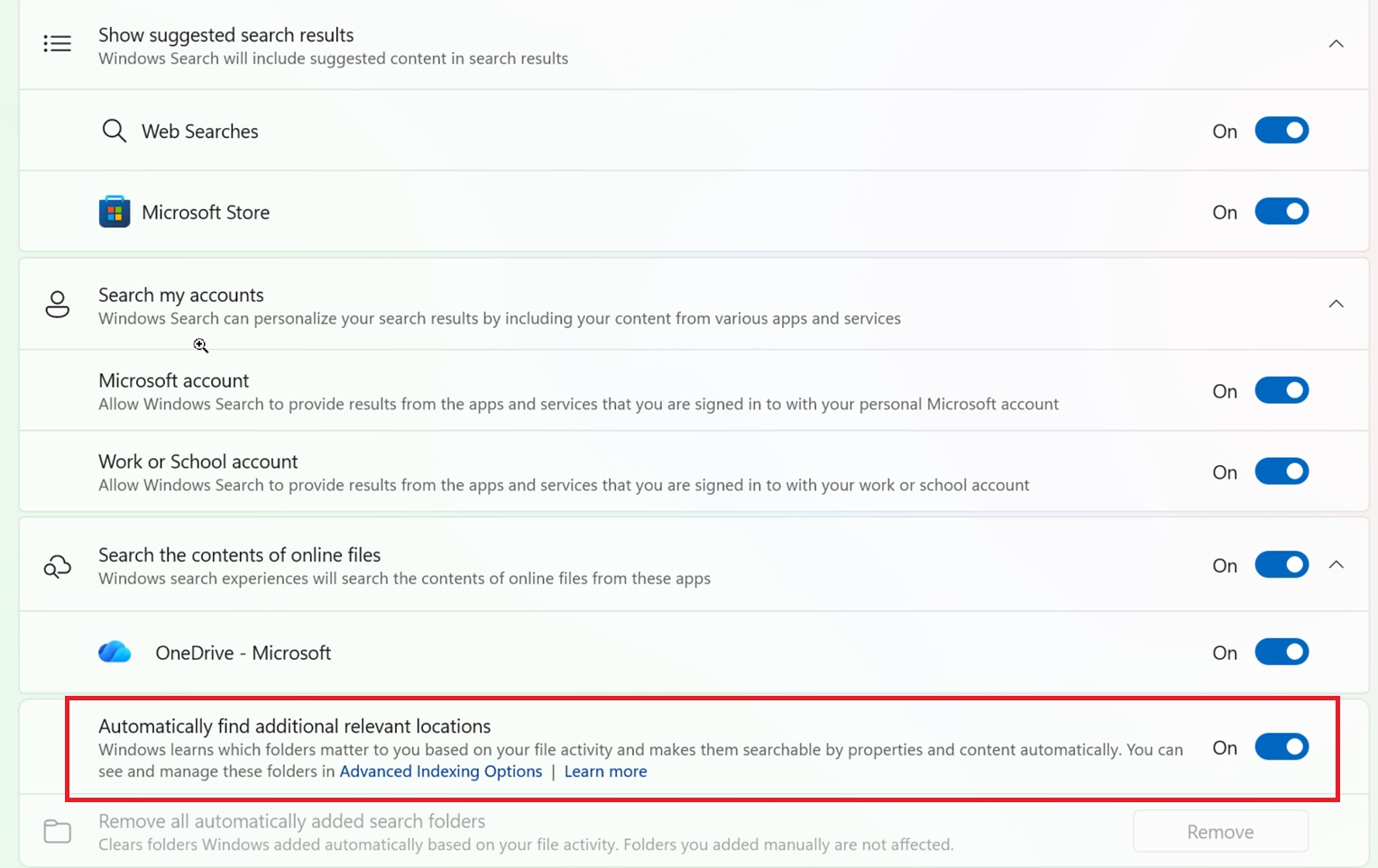
Instead of waiting for you to add your preferred locations or turn on Enhanced mode, which most people may not even know about, Windows will now understand which folders are important to you based on your activity and make those locations easily searchable.
“Windows learns which folders matter to you based on your file activity and makes them searchable by properties and content automatically,” a new setting toggle reads.
You can always choose to manually block a folder if it is accidentally picked up by Windows Search’s new automated indexing engine.
This feature should make searching for files on your PC much easier and faster. However, in the worst-case scenario, if Windows Search indexes several large folders, its cache may consume a little more storage, and you may need to clear it.
Windows Search’s automatic indexing is a great idea, and it could solve most of its problems, but it’s not the only new feature rolling out. Microsoft is also shipping a new Windows Search experience that can better understand typos and help you find local files using as few as two characters.
There are also plans to turn off Bing search and ads in Windows Search results, and here’s how it looks like when you make the change:
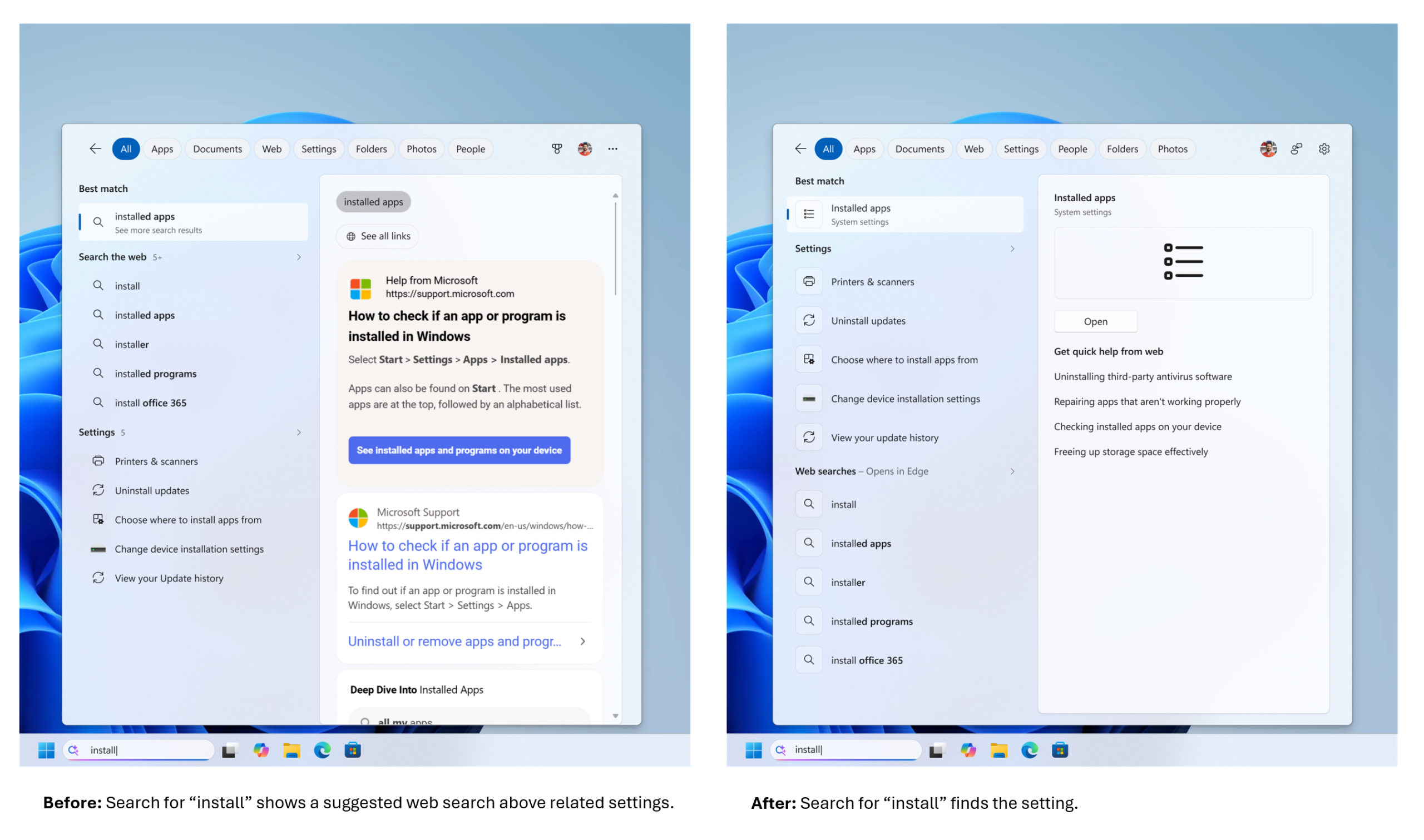
All these changes will become available later this year, but some are already shipping, such as the improvement for typos in Windows Search.
The post Windows 11 Search is fixing its biggest annoyance, will find files in folders you actually use appeared first on Windows Latest