
If you’re a Windows 11 user and you haven’t paused updates, you’ve probably already spotted a Windows Update status icon on the left side of your taskbar.
It is the mandatory Patch Tuesday security update that arrived on July 14. If you’re on the fence about installing it, well, this update, like last month’s Patch Tuesday update, comes packed with features, fixes, and improvements. And Microsoft fixing 570 flaws in this single update is reason enough to stop putting it off.
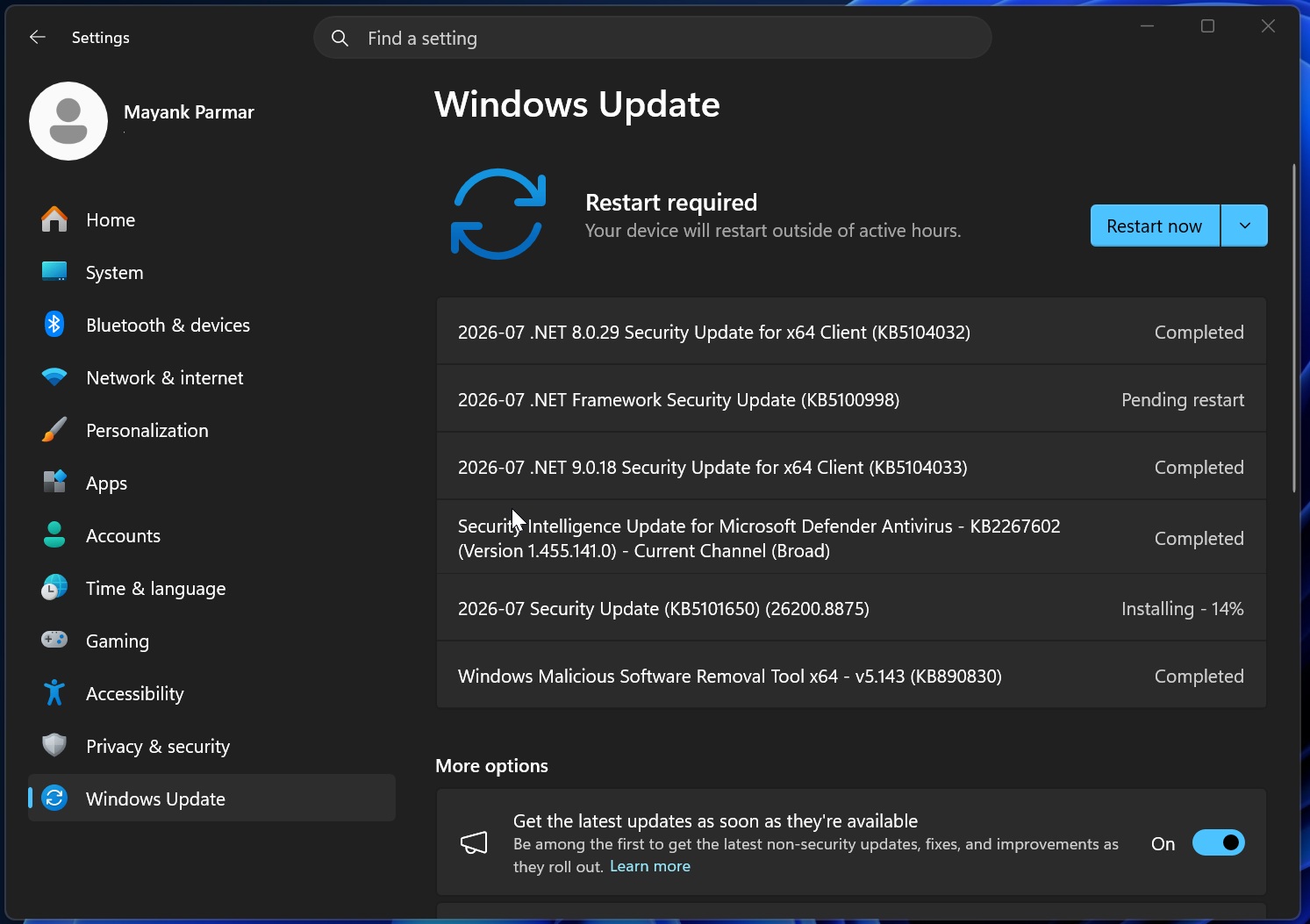
But if you want to know the highlights of the July 2026 Windows update, we have tested it all and ranked the best five features that your PC is getting this month.
Note that most, if not all, of these features are part of Microsoft’s gradual rollout scheme, meaning that even after you update them, your PC may not show those features immediately, as Microsoft only enables it ones Windows decides your PC can handle it without any issues.
#1 Windows 11’s Widgets board finally stops opening itself
Anyone who has brushed a finger too close to the Widgets icon on the taskbar has had the annoying experience of watching the whole board slide open with clickbait news headlines and ads. Well, KB5101650 makes Widgets usable!
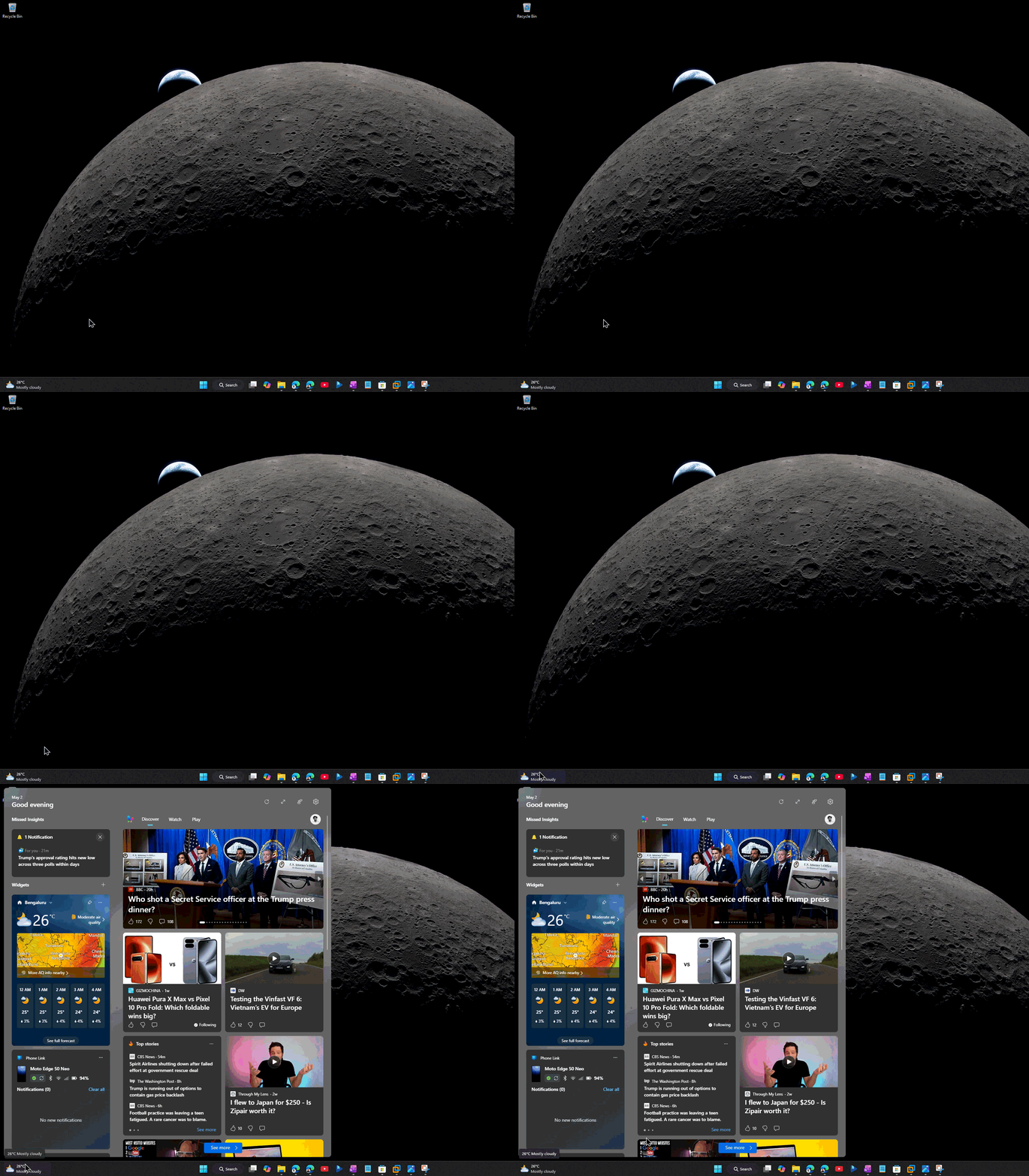
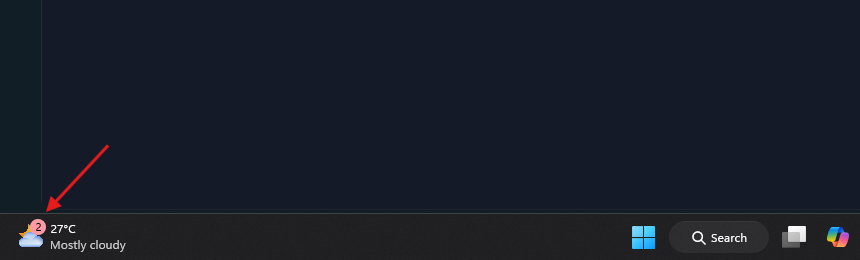
It no longer opens on hover by default, and Microsoft has also toned down the taskbar badge behaviour, with notification counts minimized out of the box and badge colors matched to your Windows accent color instead of red (which always tempted me to click on it).
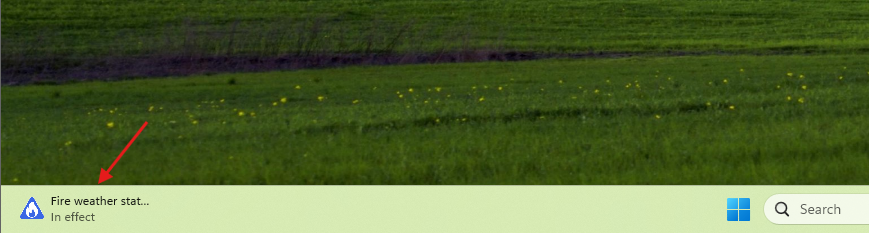
First-time users are also taken to the Widgets dashboard now instead of getting funneled into the MSN feed first. Microsoft has been walking back the ads and feed content in Widgets for a while, and this update extends that cleanup to the lock screen too, where new users will now see just a Weather widget instead of the crowded row of cards Windows used to show.
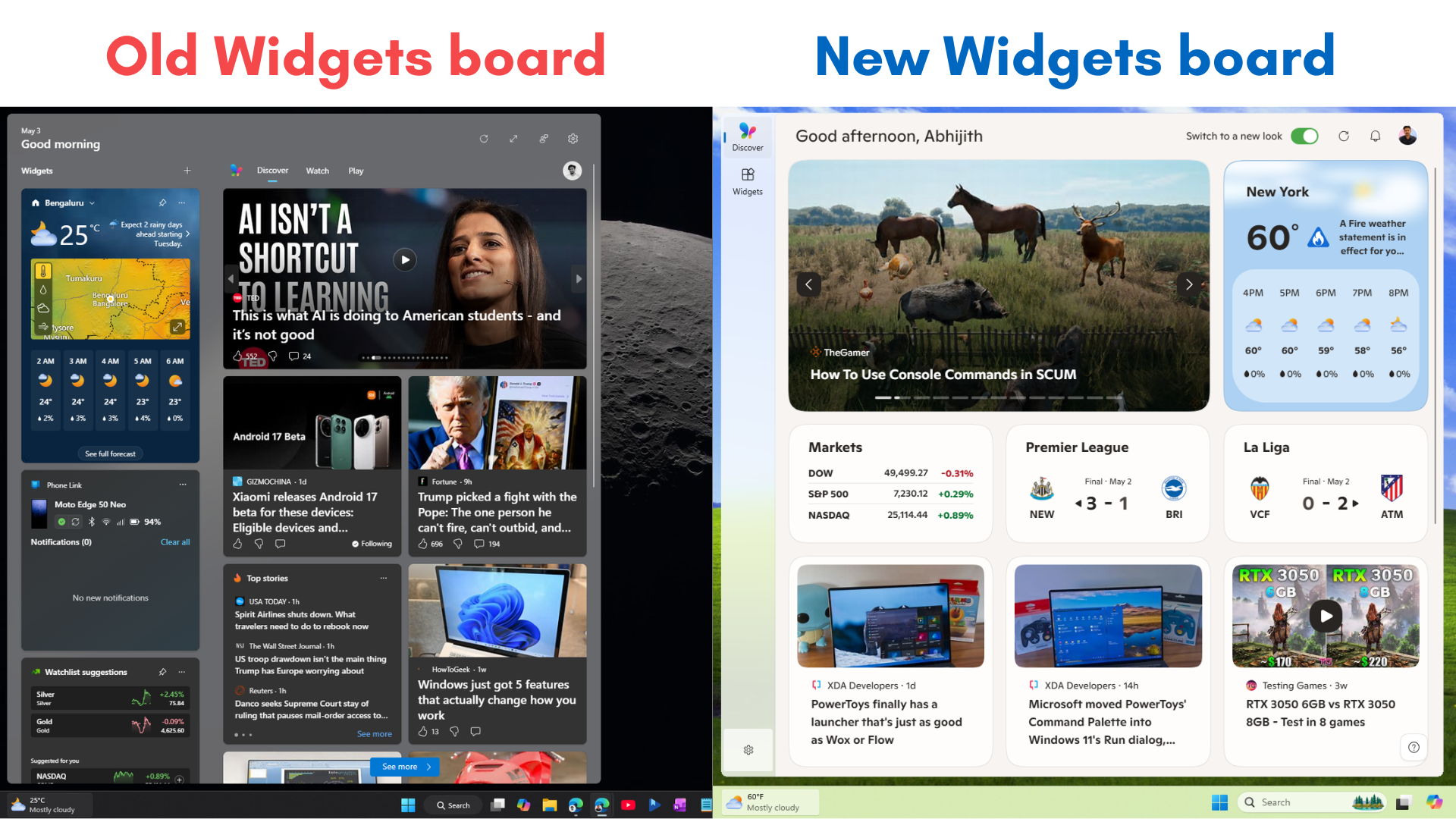
Dashboard icons show a small badge with the count of unread alerts, and that badge clears automatically once you leave the dashboard. You can, of course, configure all this from inside Widgets settings if you’d rather have things back the old way.
#2 Windows Update finally gets a real calendar to pause updates
For years, pausing updates on Windows 11 had us being forced to choose from a dropdown that only showed fixed one-week increments starting with 1 week to 5 weeks. But what if you wanted to pause for, say, 6 days or 10 days?
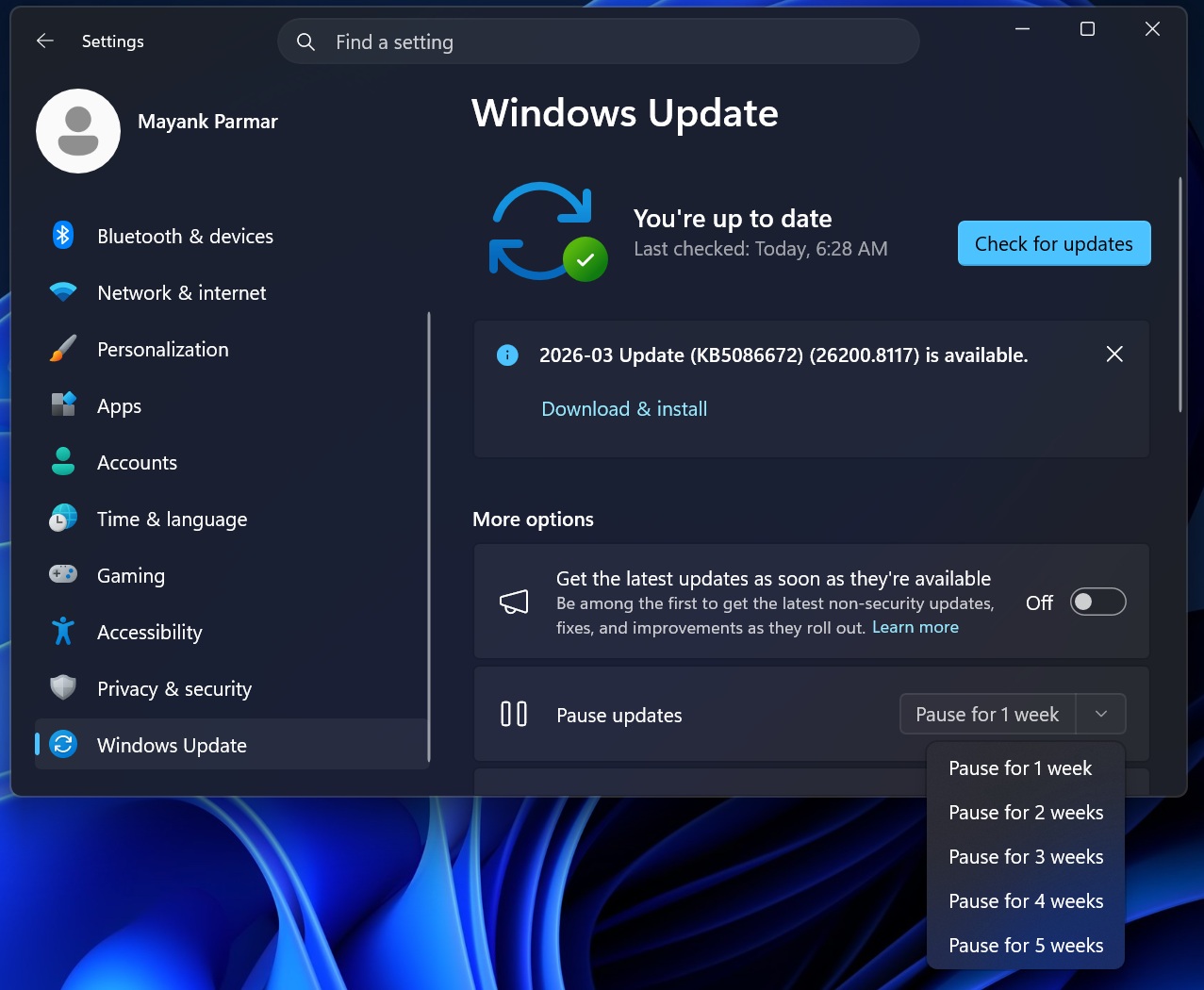
KB5101650 finally brings a calendar picker inside Settings > Windows Update, letting you choose an end date up to 35 days out.
The 35-day ceiling itself hasn’t moved up, but what’s changed is that you can now line up a pause with something real, a work trip, an exam week, or just a stretch where you don’t want your PC rebooting on its own.
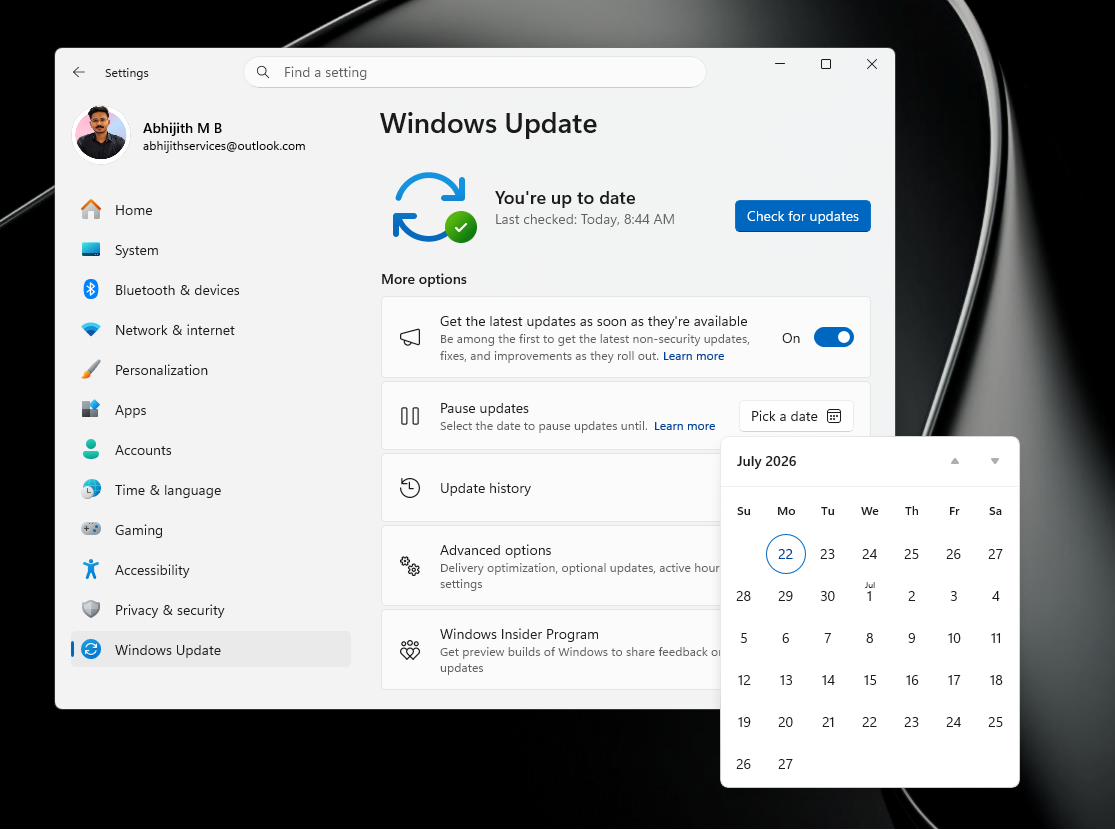
You can also re-pause by picking a new date once your current pause is close to expiring, as long as the new date stays within 35 days of today.
But note that a few things change while a pause is active. Updates that need a restart won’t download or install until you stop the pause, Windows won’t restart on its own to finish an install, and anything already mid-install when you set the pause gets cancelled. Once the window runs out, Windows checks for and installs whatever’s pending. We tested Microsoft’s update controls extensively earlier this year, and the calendar picker is a clear step up.
#3 Point-in-time Restore is the update’s biggest deal, and it rolls back your whole PC
Of the five, Microsoft made this the first thing in their release notes. Point-in-time Restore is a full-system recovery tool that’s been sitting in Insider testing for months, and the July update finally brings it to every eligible Windows 11 PC.
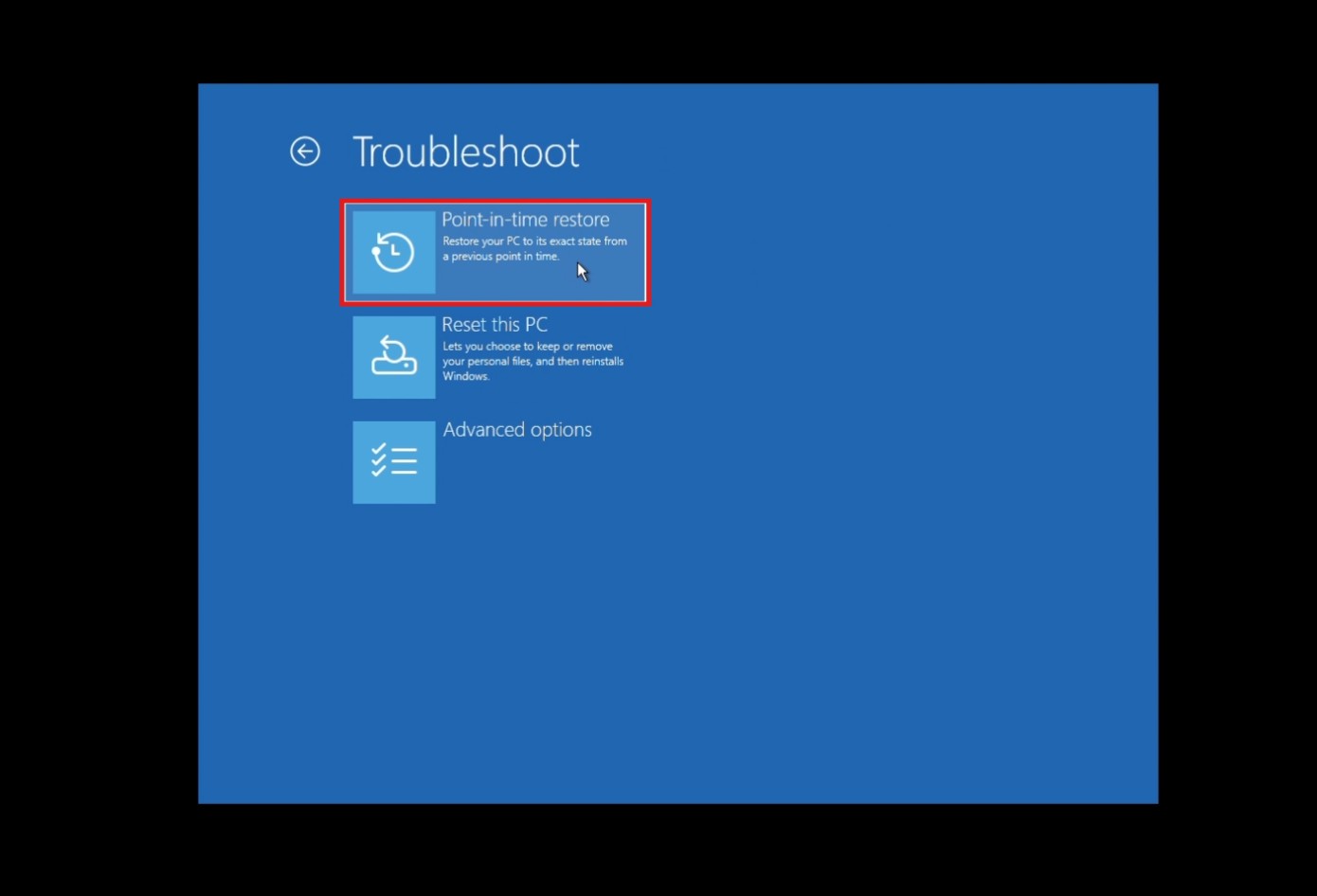
Turn it on, and Windows automatically snapshots your entire system, apps, settings, and personal files included, and keeps those snapshots for up to 72 hours. If a driver update goes wrong, an app installation breaks something, or a Windows update itself causes trouble, you can boot into the recovery environment, pick a restore point, and roll the whole PC back to that moment.
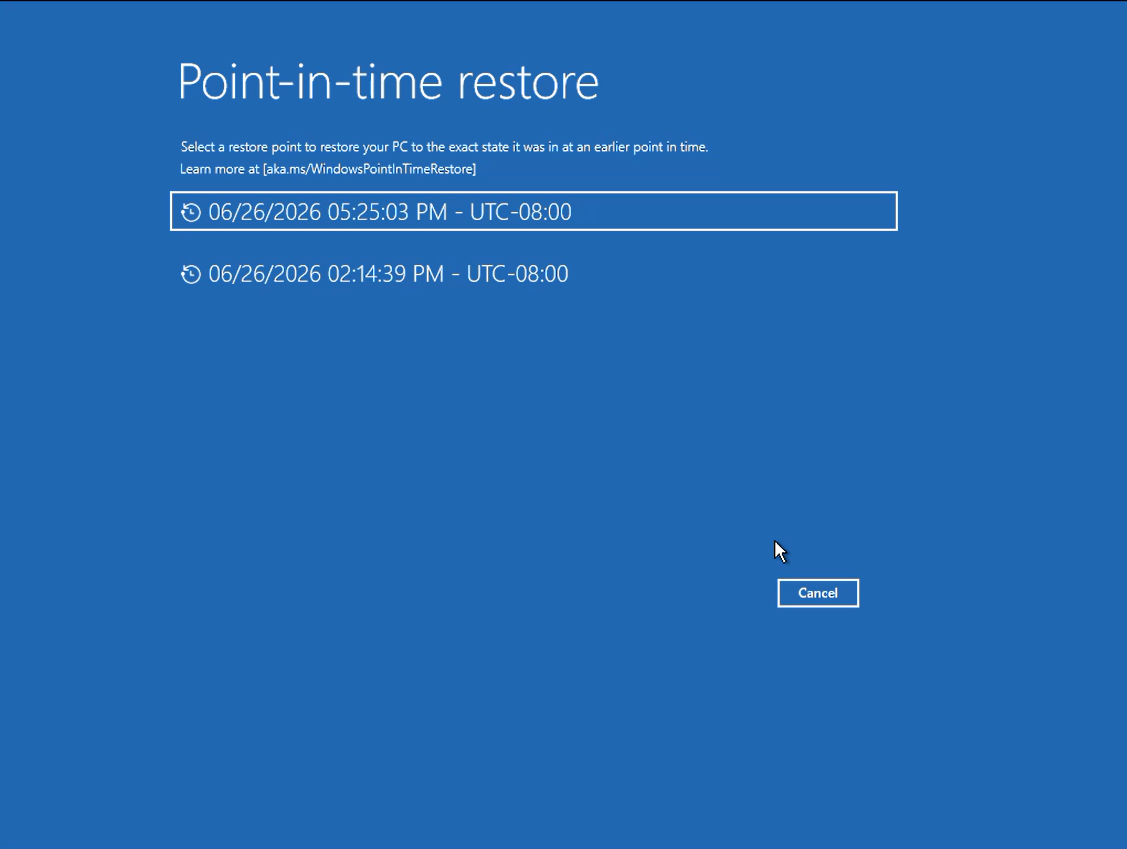
It runs on Volume Shadow Copy Service, creating block-level snapshots in the background without interrupting whatever you’re doing. It is a meaningful upgrade over the old System Restore tool, which only touched system files and the registry.
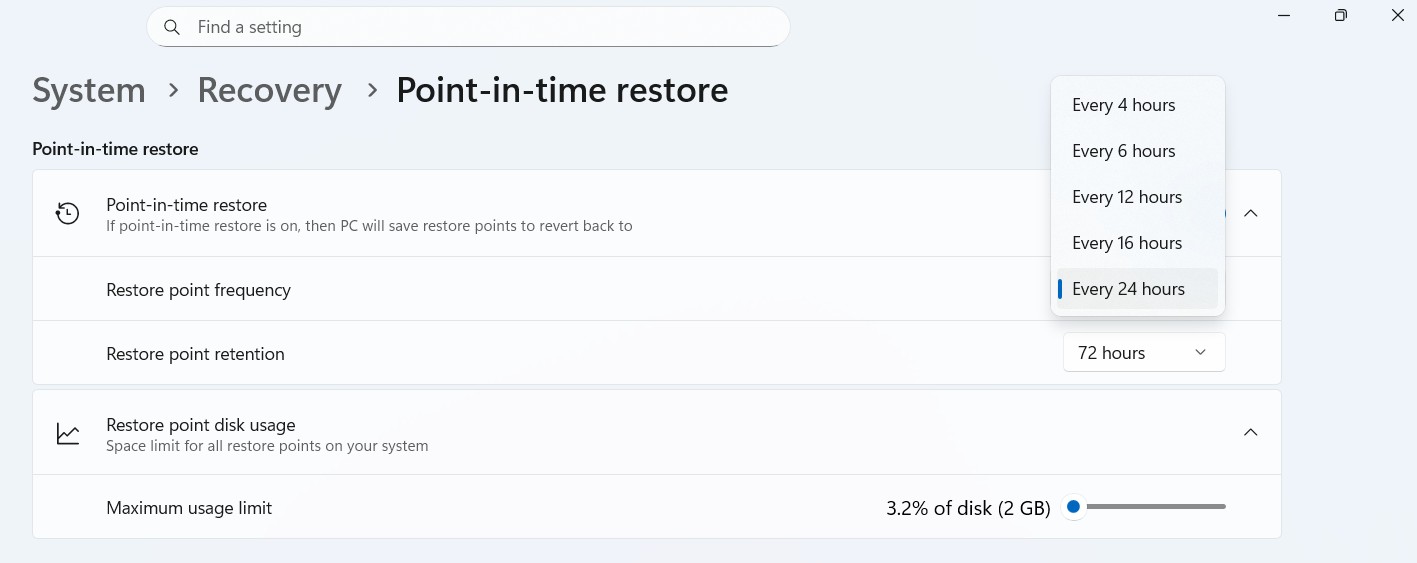
Head to Settings > System > Recovery once the feature reaches your PC, and you can set how often restore points are created, anywhere from every 4 hours to every 24 hours, along with how long they stick around. It works completely offline, so there’s no cloud dependency or subscription.
There are trade-offs, though. Every change made after a restore point gets wiped once you roll back to it: files, passwords, certificates, which is understandable. The feature also needs breathing room to work, using up to 50GB of storage, and it only turns on by default if your PC has at least 200GB of total disk space, so smaller drives and most virtual machines start with it switched off.
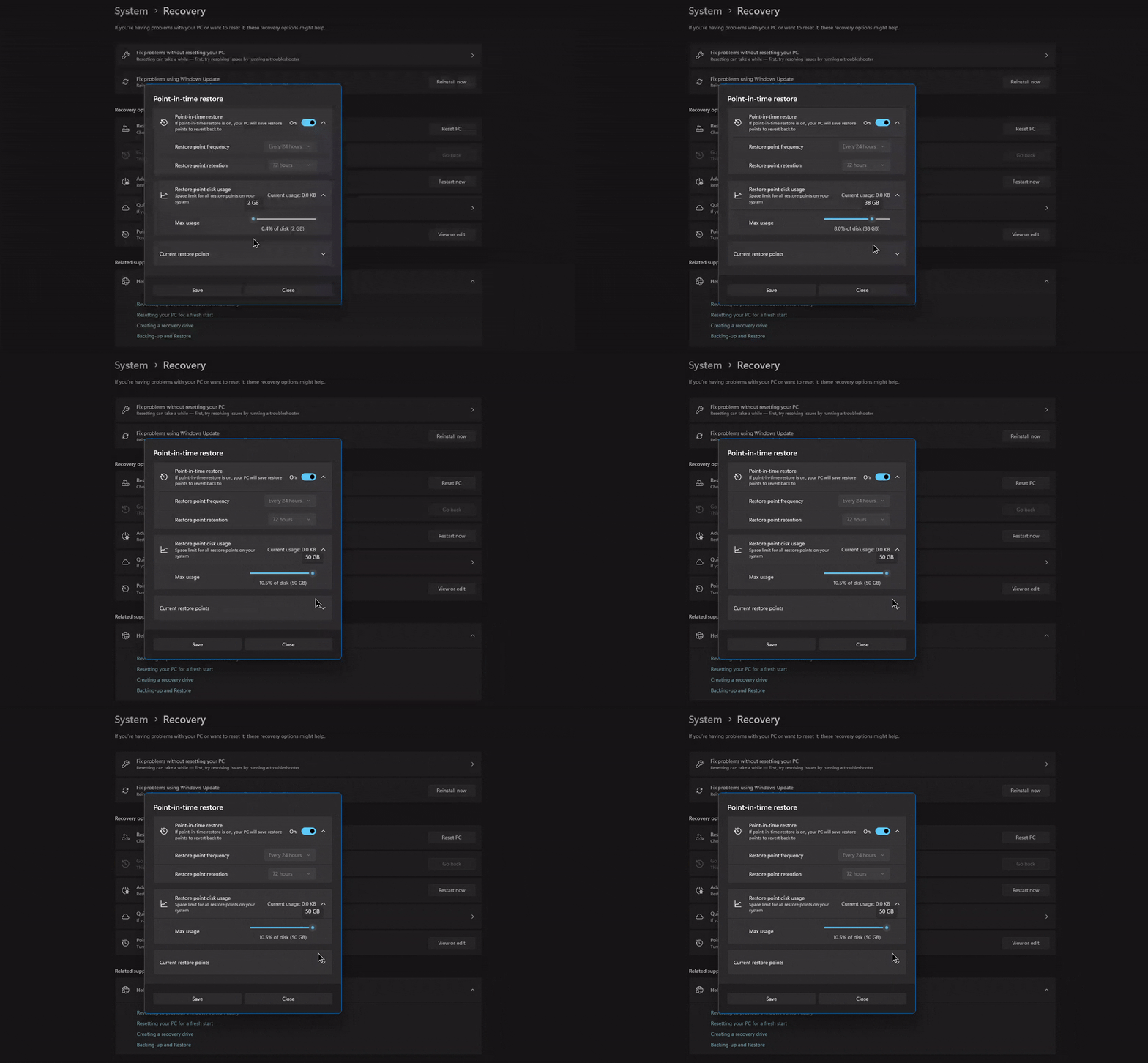
Still, I would say that it makes using a PC less worrisome for anyone who has watched their PC jump into BSOD for some reason.
#4 Screen Tint gives your eyes a break, and Magnifier gets easier to control
For anyone who deals with headaches or eye strain after long stretches in front of a screen, the July update may help reduce it with Screen Tint. It lays a full-screen color overlay across your display, and unlike Night Light, which only nudges the color temperature warmer or cooler, Screen Tint hands you control over both the color and how intense the effect is.
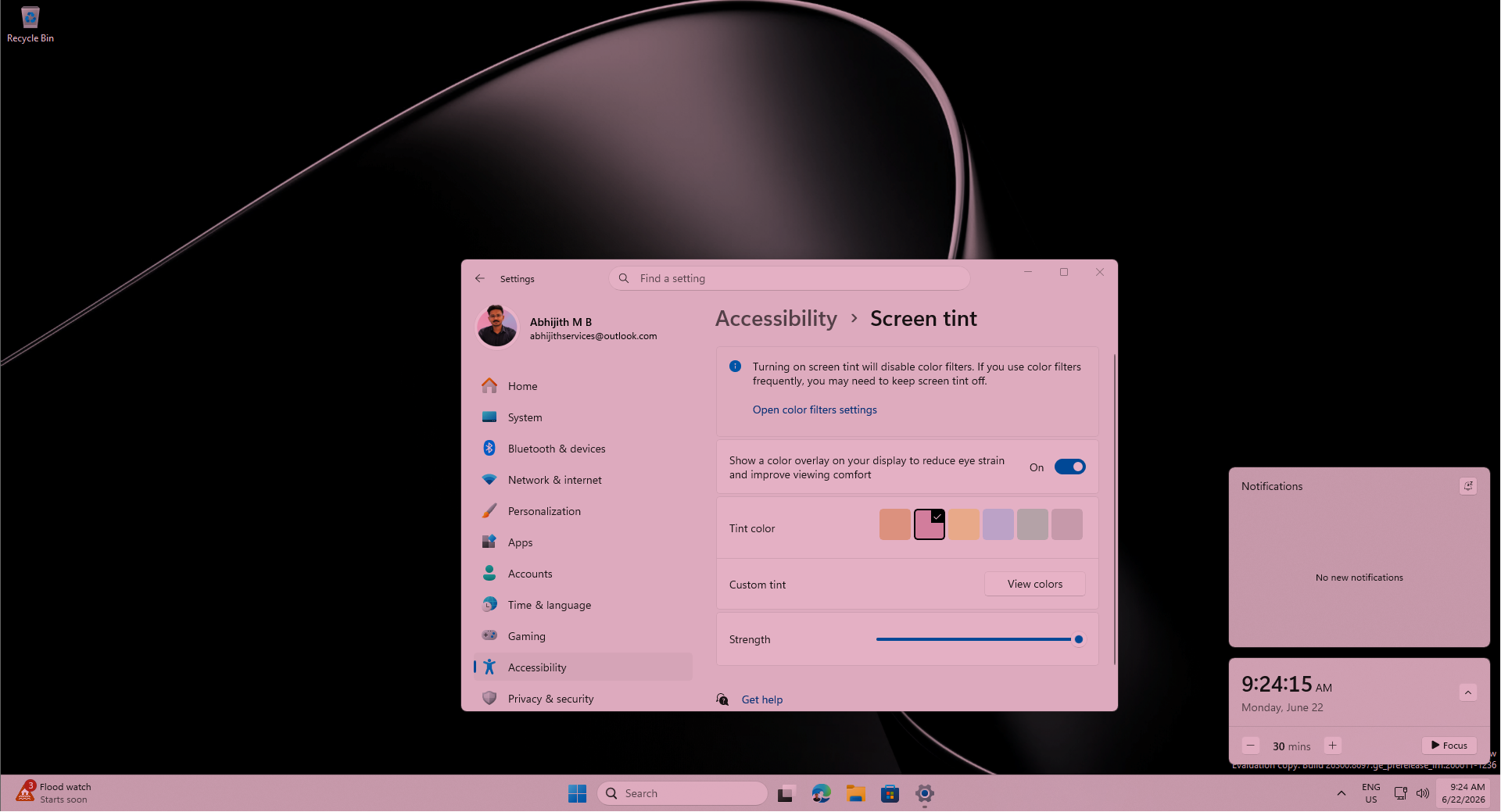
There are up to six preset colors to pick from, including a Calm amber tone that’s similar in spirit to Night Light, alongside blue, green, and a few others. You can also dial in a custom color and adjust the intensity with a slider.
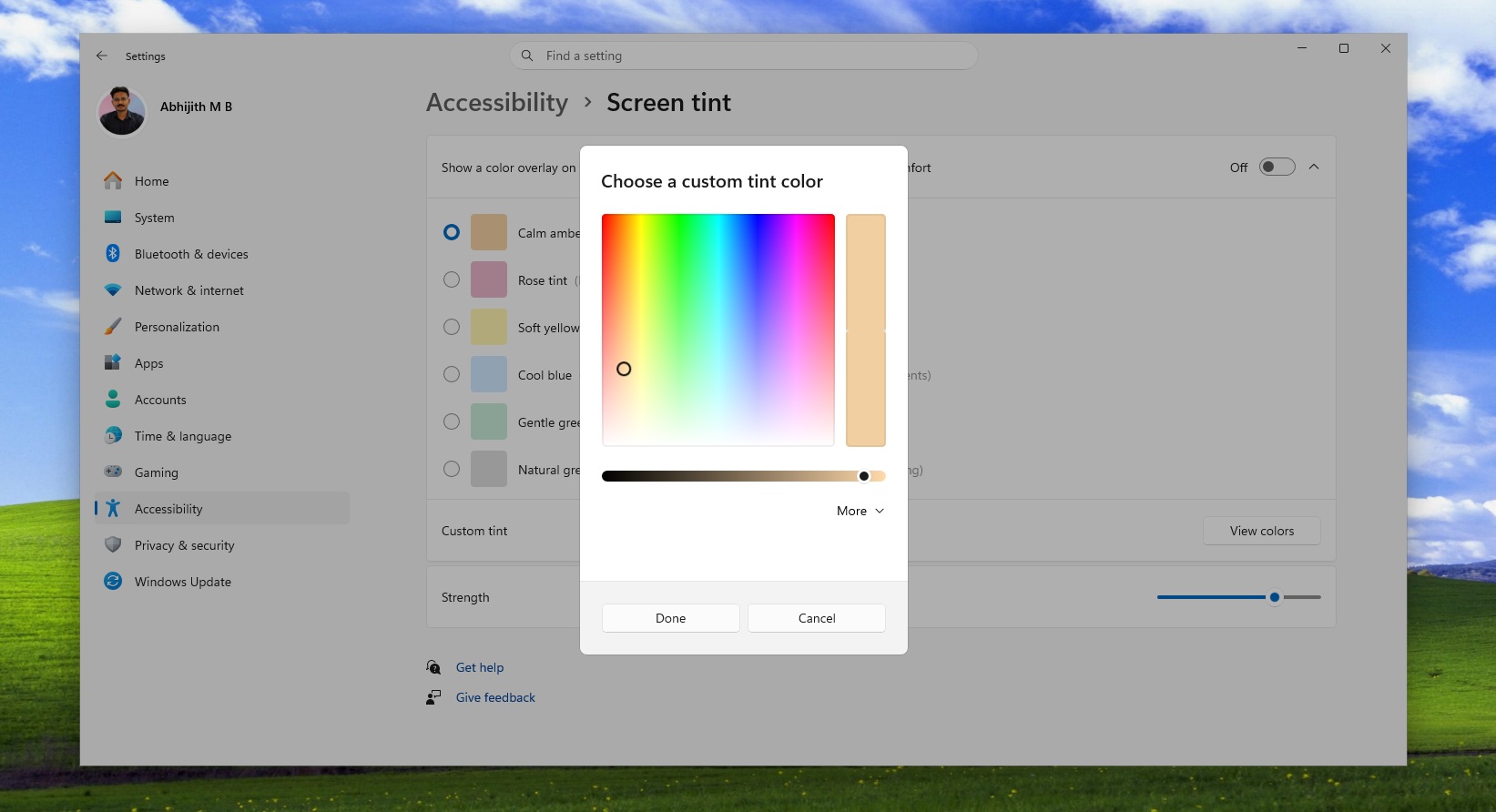
For people who already wear tinted glasses to manage photosensitivity, or who just find certain screen colors uncomfortable, this gives Windows a built-in software alternative, and is available under Settings > Accessibility.
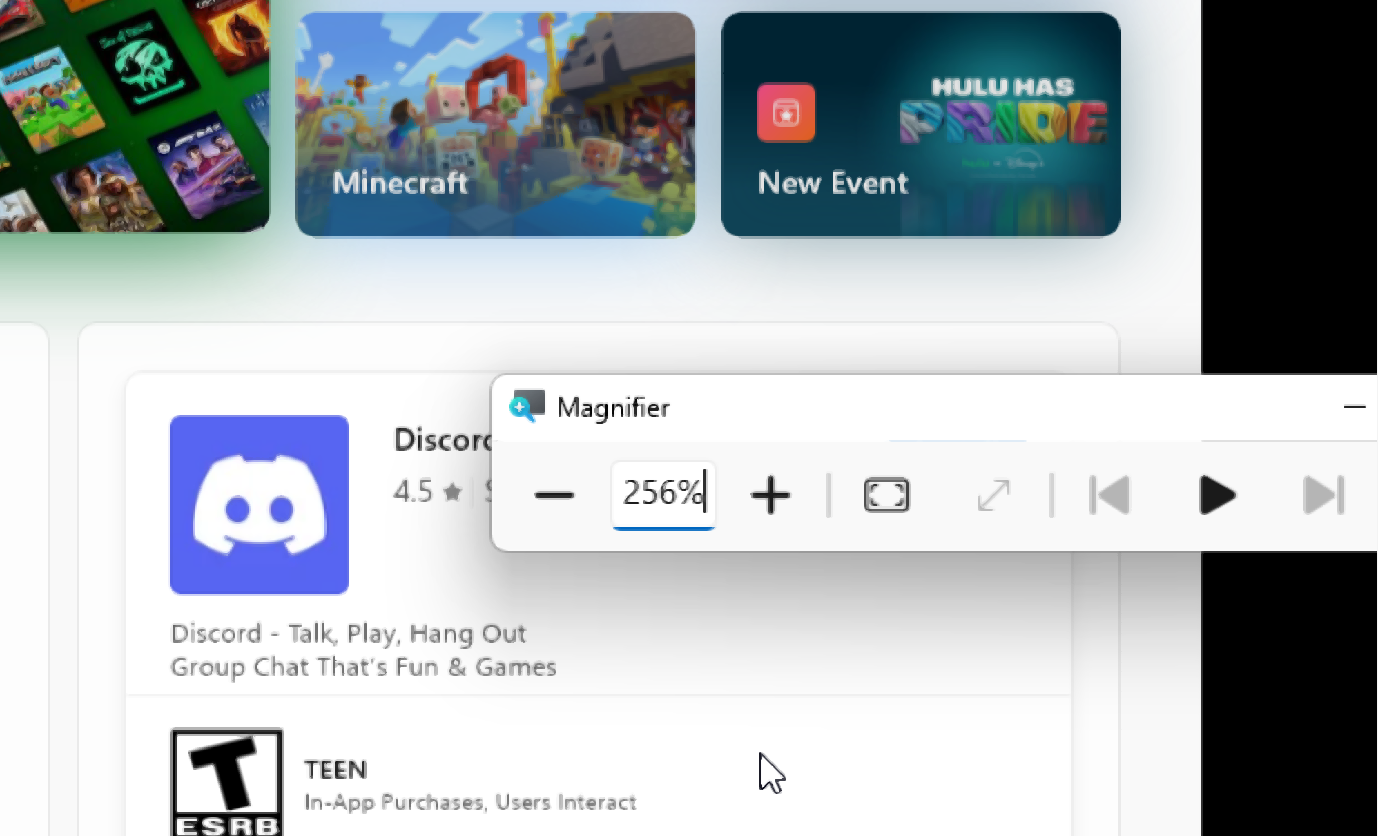
In Magnifier, you can now type any zoom percentage into the Magnifier window instead of dragging a slider and hoping you land on the right number, and you can adjust the zoom increments directly from the Magnifier bar’s own settings menu. Press the Windows key and the (+) key to activate Magnifier.
#5 Bluetooth gets its biggest reliability update in years
Bluetooth on Windows has been a sore spot for a long time, and Microsoft had already promised earlier this year to make Bluetooth, audio, camera, and USB connections steadier. The July 2926 update bundles multiple fixes across microphone sync, device compatibility, audio stability, connection reliability, and device management. It is rare to see this many Bluetooth improvements in a single update.
Mute-state syncing is a very welcome feature. Press the mute button on a Bluetooth headset, and Windows now keeps that mute state synced between the audio mixer and the Hands-Free Profile. Before this fix, your headset’s mute light and what Windows understood about your mic could fall out of sync, which made for some awkward moments on calls. Note that this only applies to devices using HFP.
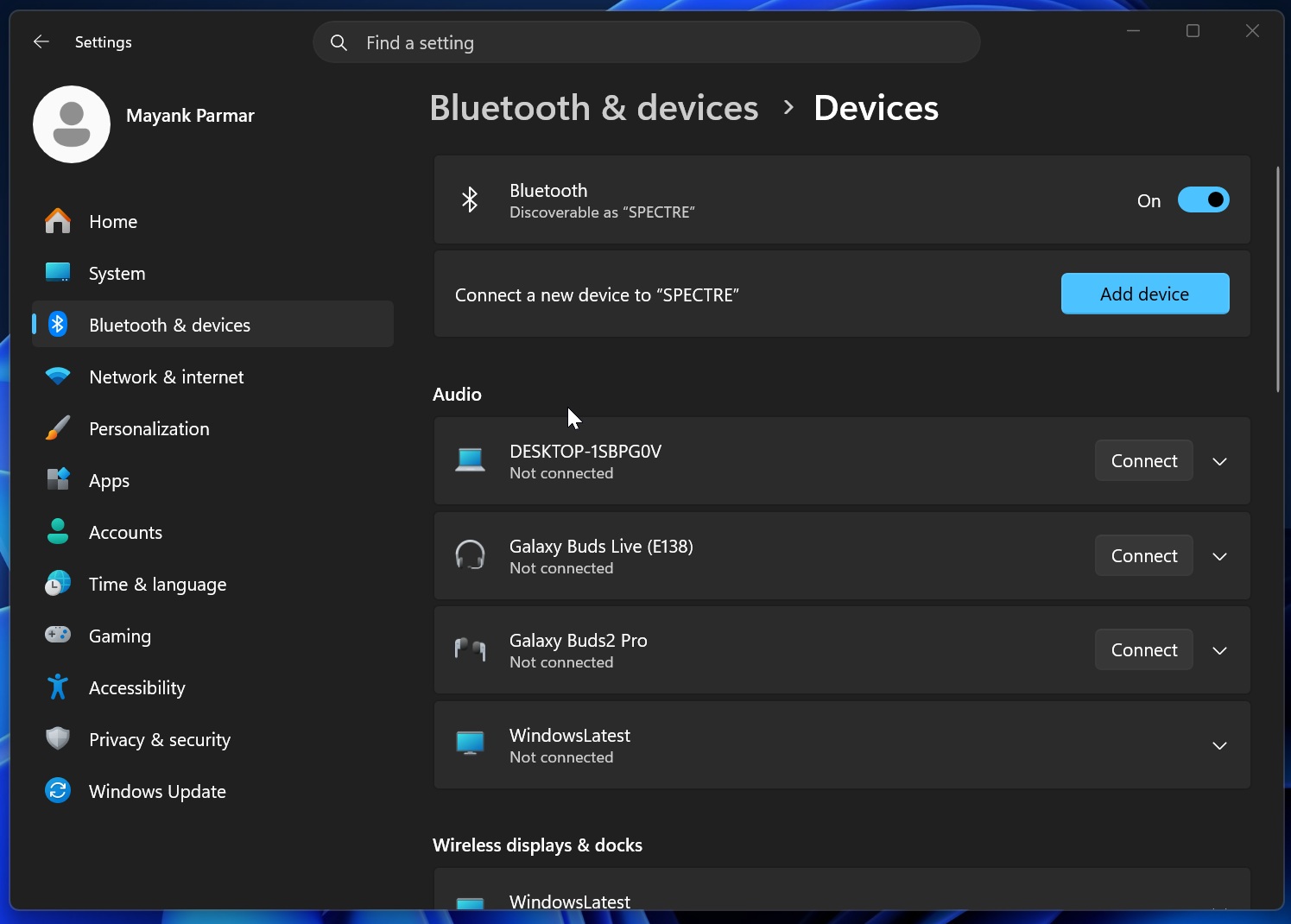
On the device side, AirPods now show up faster in pairing mode, and Beats Studio Pro headphones get sturdier microphone reliability, which should make iPhone owners with a Windows PC a little happier.
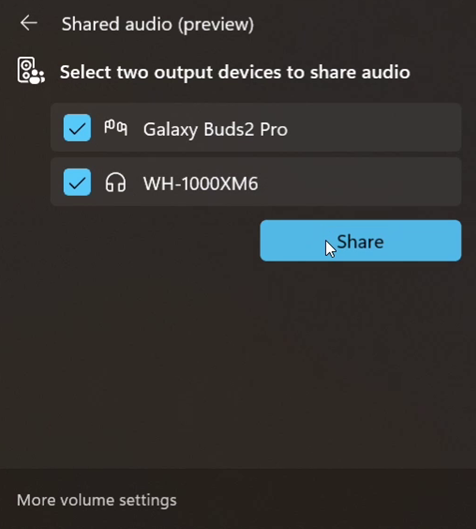
Bluetooth LE Audio streaming, the backbone behind features like Shared Audio, recovers more reliably after a dropped connection and starts playing audio faster when the mic is also active. Classic Bluetooth audio devices reconnect quicker too after a PC wakes up from hibernation.
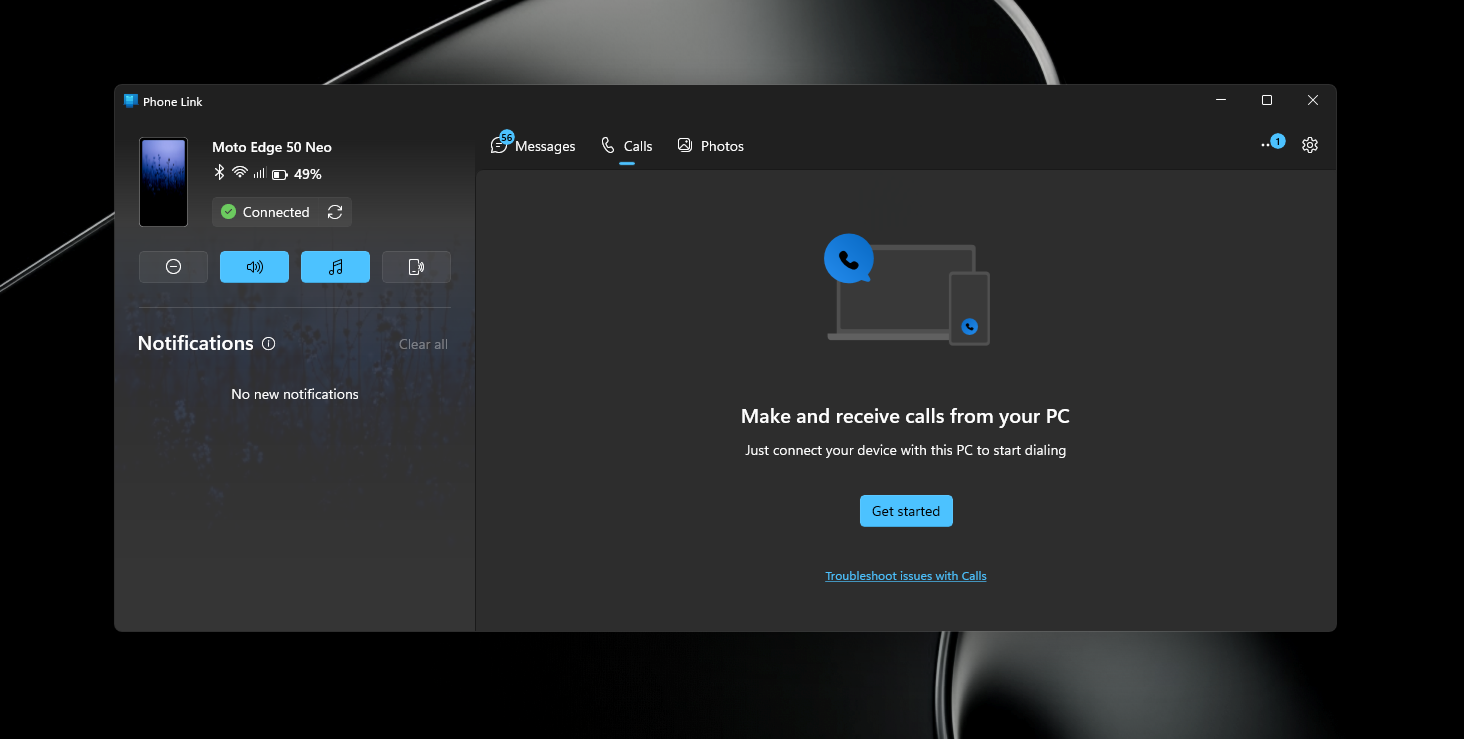
Phone Link picks up smarter call routing. Dial an outgoing call from a phone paired to your PC, and audio now stays on the phone while it rings, only jumping over to your PC once you answer there. This is Apple-level integration happening between two completely different operating systems (Windows + Android), and I commend Microsoft for this. Also, incoming calls from a paired phone also stay quiet on your PC if Do Not Disturb is turned on.
Other changes worth knowing about in the July update
KB5101650 also has a long tail of smaller fixes and refinements. File Explorer launches noticeably faster now, part of the same speed work Microsoft has been rolling out, and disk image mounting feels smoother too. The address bar finally handles paths with double backslashes and quotation marks without tripping up.
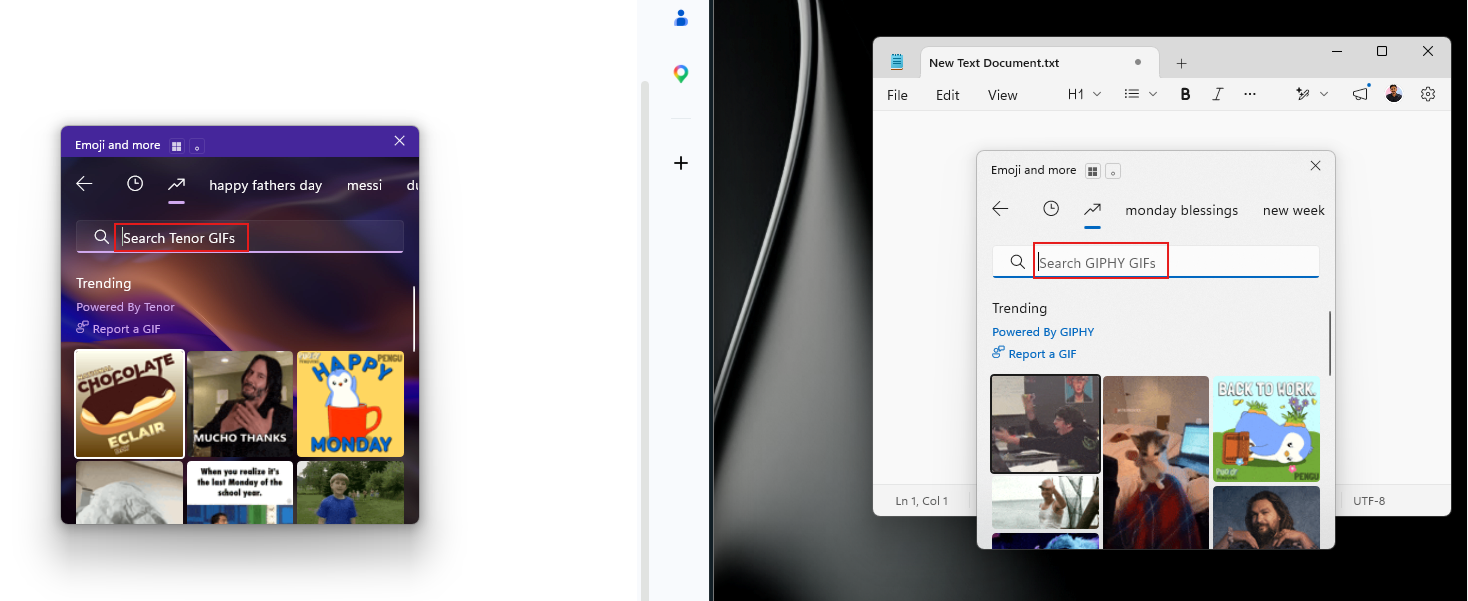
Voice access and voice typing on Copilot+ PCs now support French, German, and Spanish, correcting grammar, punctuation, and recognition errors in real time as you speak. The emoji panel now uses GIPHY as the GIF provider, instead of the deprecated Tenor.
New printer installations default to Internet Printing Protocol instead of older driver-based setups under Microsoft’s Windows Ready Print push, which should make first-time printer setup less of a headache.
And if you use a touchpad instead of a mouse, you can now resize the bottom-right right-click zone under Settings > Bluetooth & devices > Touchpad, handy (no pun intended) if your palm kept triggering accidental right-clicks.
Microsoft fixed a bug that made BITS, the background service behind updates and downloads, drag out shutdown times longer than they should be.
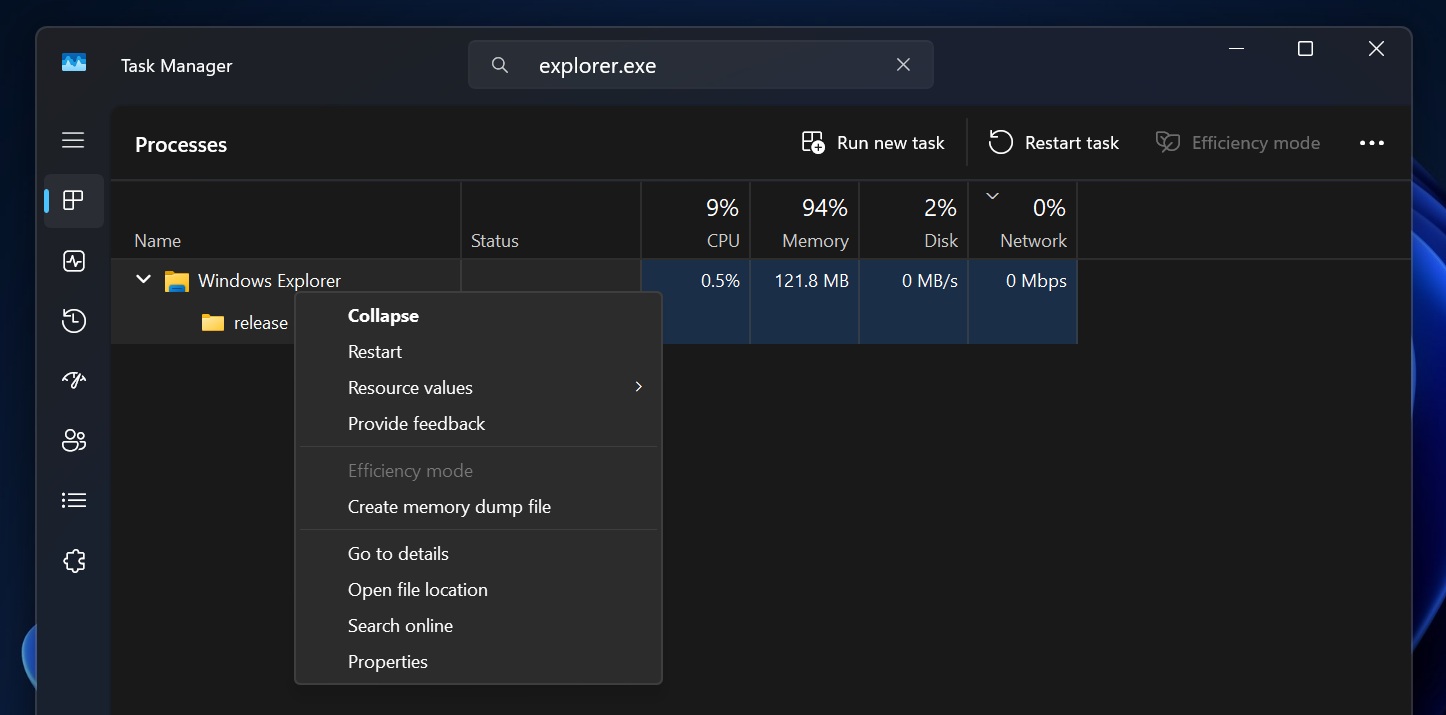
Explorer.exe reliability improves across the taskbar, sign-in, and Start menu too, following months of Microsoft chasing down shell stability issues.
Networking gets a batch of fixes for Wi-Fi power blue screens, cellular connectivity, IPv6 VPNs, and virtual machines.
But if none of these excite you, and you’re waiting for something huge, Microsoft has already cooked up a few of them for Insiders, and the latest one makes searching apps and files in Windows a premium experience.
Windows Search is the next exciting feature among Windows Insiders
Microsoft just decluttered Windows Search for Insiders, stripping out the MSN tiles, the daily quiz, trending searches, and sponsored shopping cards that used to populate the panel whenever you opened it.
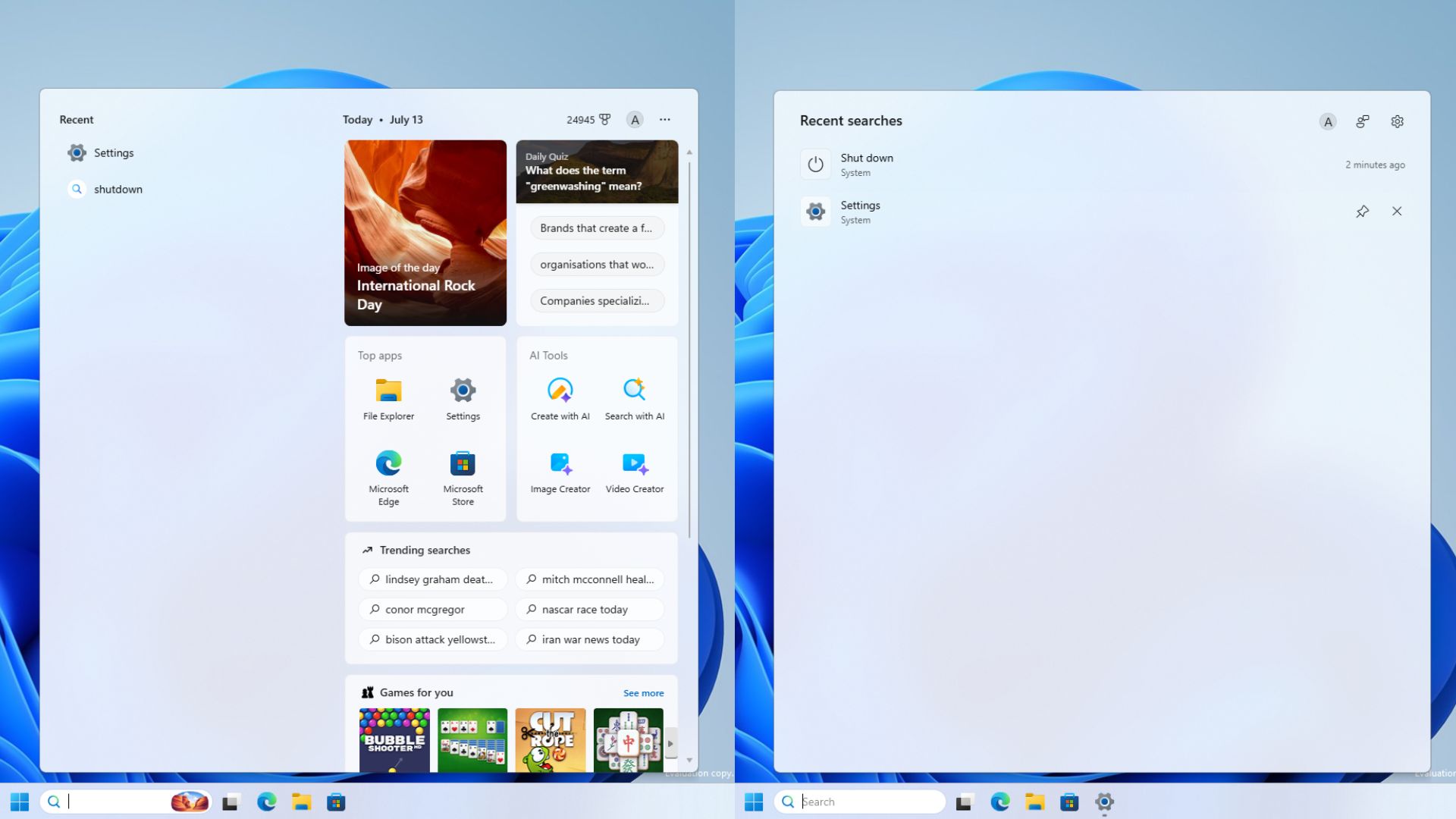
In their place, Search now leads with your recent searches, labels every result by where it comes from (an app, a setting, a file, or the web), and most importantly, lets you turn off Bing web results and Microsoft Store suggestions through two new toggles under Settings > Privacy & security > Search.
Local matches also rank ahead of web results now, so typing a typo like “utlook” shows the Outlook app instead of a Bing search for your misspelling.
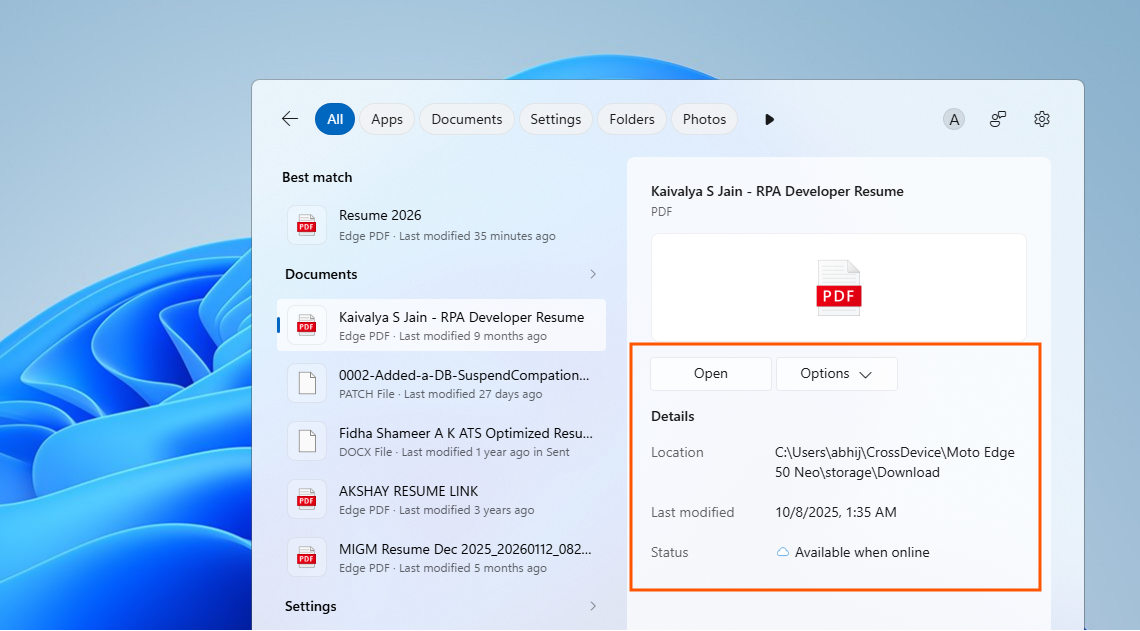
It’s currently rolling out to Insiders on the Experimental channel, and there’s no word yet on when it reaches everyone else. But this, along with the movable taskbar, and the resizable Start menu, shows that Microsoft clearly has a solid set of changes queued up.
What to know before you install July’s update
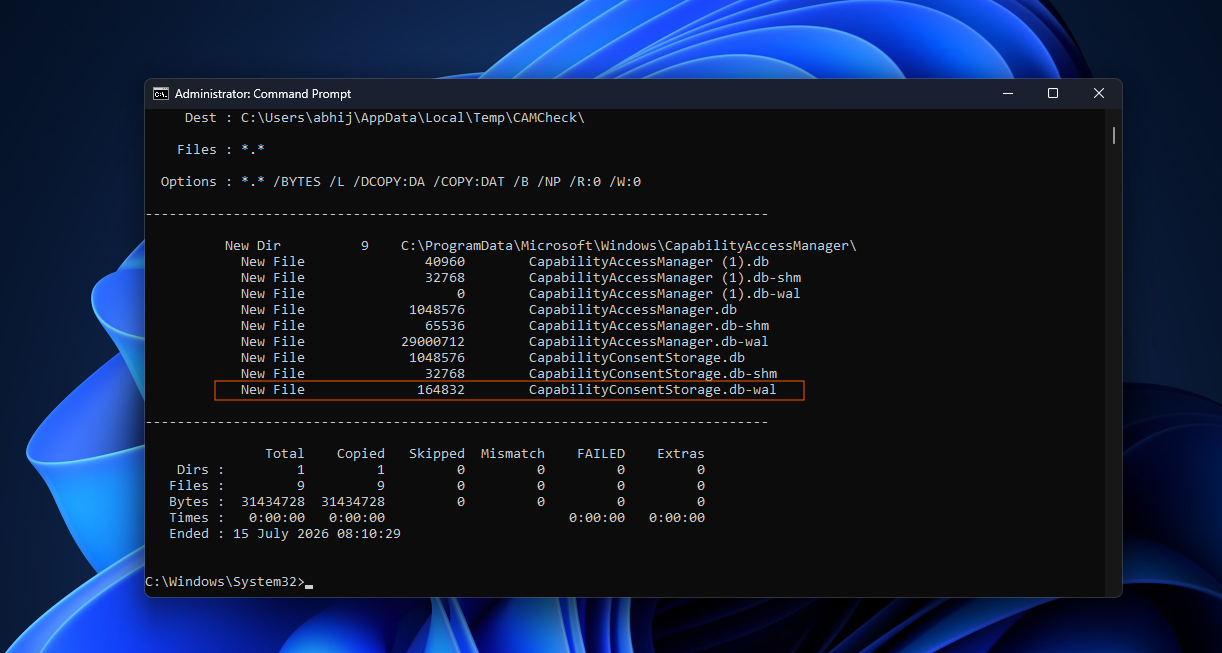
Windows Latest recently reported about a storage issue that has been quietly filling up system drives since earlier this year, sometimes by hundreds of gigabytes. The bug involved a file called CapabilityAccessManager.db-wal that kept growing without ever being cleaned up properly.
Fortunately, KB5101650 has the fix for the storage bug, but if your file has already ballooned to an unreasonable size, you may still need to clear it manually afterward.
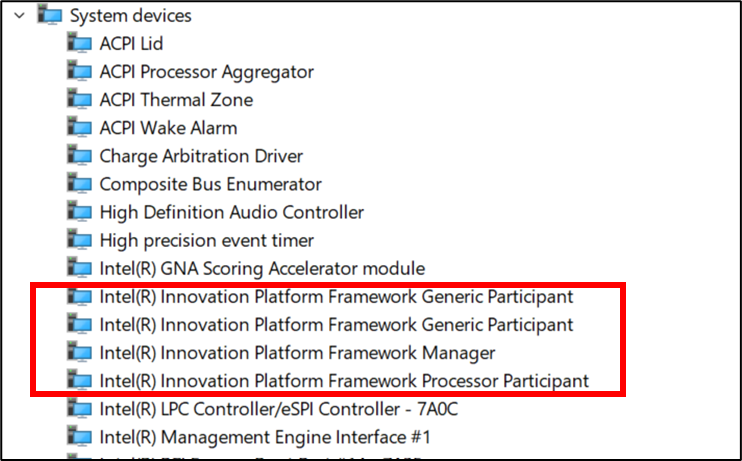
Microsoft’s July security update isn’t without its rough edges. There’s also a compatibility issue specific to some Dell PCs. Microsoft has confirmed that KB5101650 can cause unexpected shutdowns, poor performance, increased heat, and battery drain on certain Intel-based Dell devices, and it’s due to a conflict between a new USB-C Connection Manager component and Dell’s Intel Innovation Platform Framework driver. Microsoft has already blocked the update from reaching affected Dell PCs while they work on a fix, so if you own a Dell laptop and haven’t seen the update offered yet, this is the likely reason.
To install the update yourself, head to Settings > Windows Update > Check for updates. It’ll show up as KB5101650 and move your PC to Build 26200.8875 or 26100.8875 depending on whether you’re running 25H2 or 24H2, with one reboot needed to finish.
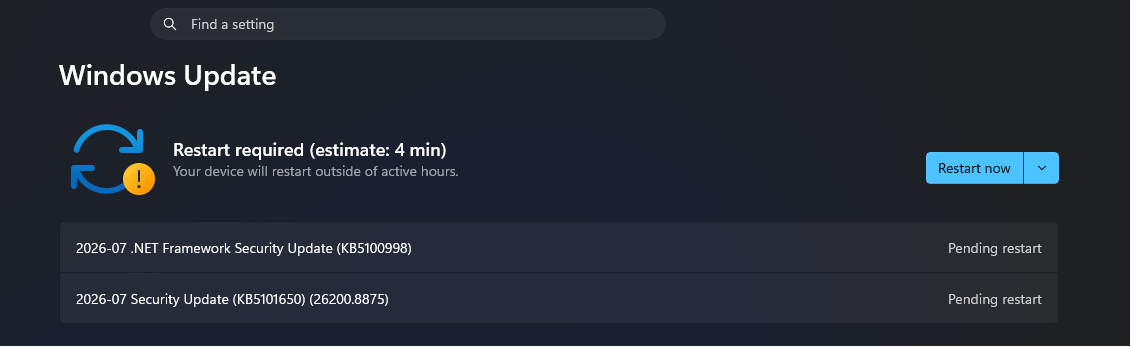
If you’d rather hold off, the old calendar picker under Windows Update lets you pause things for up to 5 weeks while you wait it out. But given the sheer number of security fixes this update brings, alongside useful features like Point-in-time Restore and the Bluetooth overhaul, I’d recommend installing it as soon as possible.
The post Windows 11’s biggest summer update just landed with 5 new features, but you won’t get them all today appeared first on Windows Latest