
As Microsoft attempts to match its rhetorical mea culpa regarding Windows stagnating evolution, the company has now come out with documentation on how the operating system receives updates in the future.
Cumulative monthly updates will not have pop-ups or prompts that cover the details of when and why the updates are arriving, but Microsoft at least wants to offer its own bit of clarity on your next set of updates.
According to the latest Windows IT Pro blog post, senior director of communications Chris Morrissey explains that Microsoft is tightening the definitions of each update type so IT admins and the occasional savvy Windows users understand what’s bundled in each release.
Microsoft themselves admit the terminology has been a mess. The company says people tend to use “B release,” quality update, security update, monthly cumulative update, and latest cumulative update (LCU) interchangeably, and now they are attempting to get everyone on the same page before introducing anything new.
Windows Patch Tuesday gets more transparency
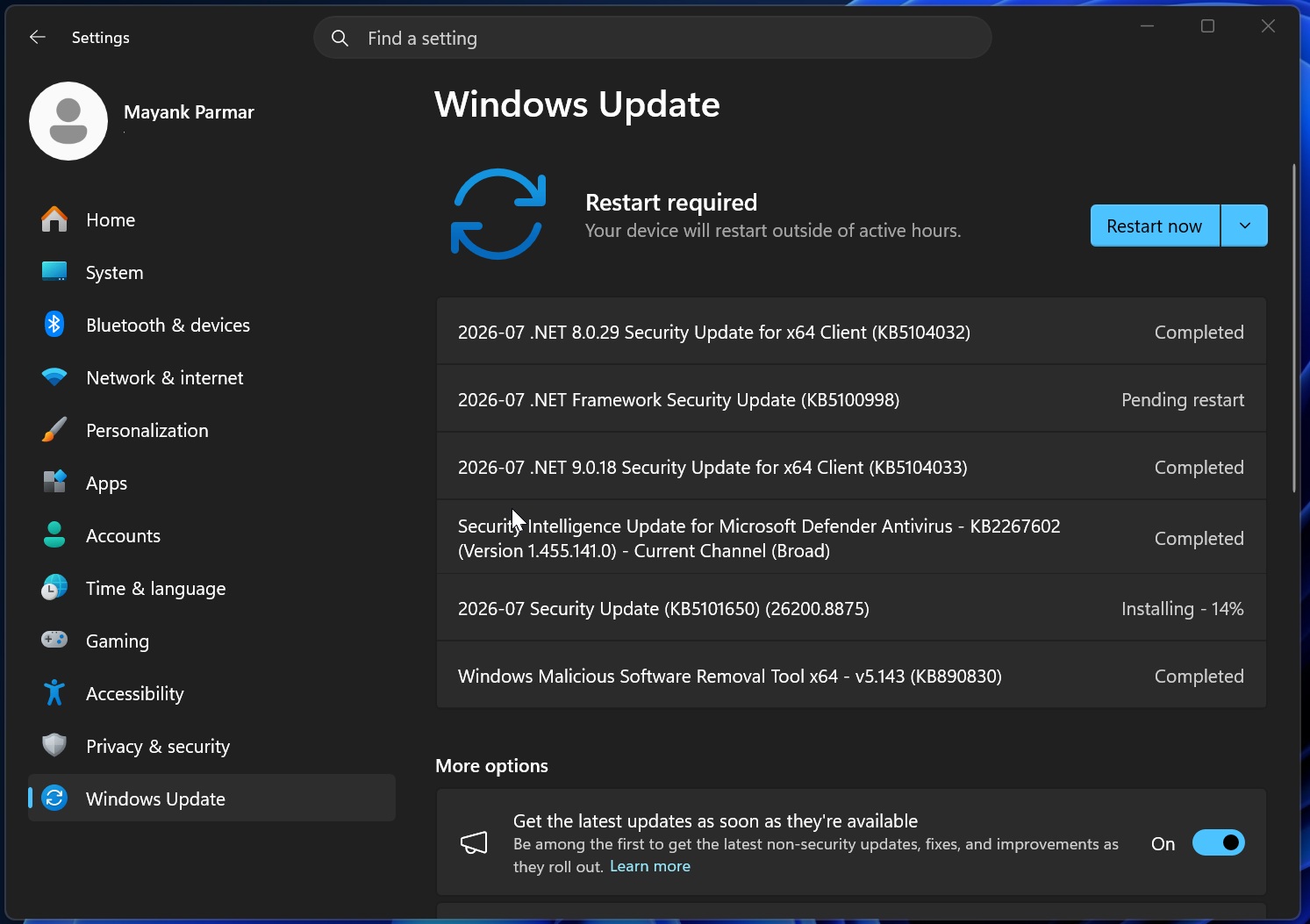
Starting with the basics, the Windows update that arrives every second Tuesday of each month, lovingly referred to as Patch Tuesday, will continue to deliver a cumulative experience. Users and IT admins can continue to rely on getting the latest drivers, features, and patches that normally make up the installation.
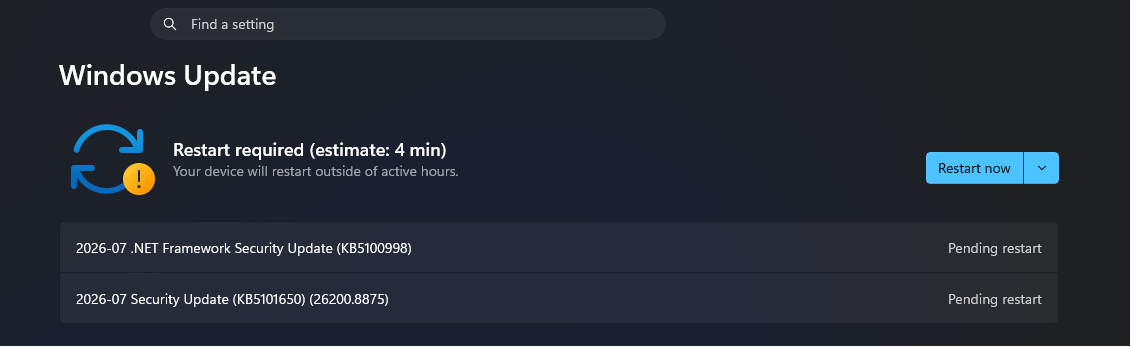
To be specific about what “cumulative” means here, each Patch Tuesday release comes in the security and non-security content from the prior month’s optional preview update as well. So, installing the latest monthly update brings a device fully current, without needing to track down and install several older updates first.
How that update reaches your device depends on the kind of setup you’re running. Regular users and small businesses mostly use the built-in Windows Update to handle this automatically. Larger organizations have more options on the table, including Windows Autopatch, Microsoft Intune, Windows Server Update Services (WSUS), Configuration Manager, the Microsoft Update Catalog, or third-party patch management tools, depending on how much control an IT team wants over the rollout.
In addition to the usually rolled-up update, Patch Tuesday releases will also gain support for ‘hotpatch’ updates to address organizations that need quicker compliance issues addressed. The upcoming hot patches will deliver security fixes without requiring the ceremonial restart of the device. But, before you get ahead of yourself, “baseline updates” will mandate a restart after installation. While it might seem like a niche, power-user tweak, I think we can all appreciate fewer restarts when they come as once-a-month updates.
It’s easy to assume hotpatch replaces the restart. It doesn’t. A quarterly baseline update, which is a regular monthly security update that does require a restart, is what brings a device up to date on every feature first. Only after that baseline comes, do the two following monthly updates install as hotpatches, security fixes only, with no restart attached. So, you’re not skipping restarts; you’re trading four a year for one.
C and D Releases change to Optional Non-Security Previews
Another tweak the Windows team is doing with updates is that “C” or “D” releases will now go by optional non-security preview updates. Typically, the optional non-security preview update comes down the pipe during the fourth week of the month, with an opportunity to validate upcoming fixes before they become concrete parts of the upcoming security update for the operating system.
The old “C” and “D” shorthand isn’t disappearing. Microsoft says you might still spot those letters in IT management tools or older documentation, but going forward, Windows Update itself will label these as YYYY-MM Preview Update, followed by the KB number and build number, so there’s a consistent naming pattern to look for regardless of what an admin console calls it internally.
Similar to Patch Tuesday, the Optional non-security preview updates are cumulative in nature and only support the latest versions of Windows. For some of the upcoming features we’ve documented over the past few months, such as point-in-time restore, the optional non-security preview release cycle might be the delivery system.
Point-in-time restore shipped exactly this way with KB5095093, the June 2026 optional preview update, before it rolled out more broadly the following month. We tested it on Build 26200.8737 and found it creates recovery snapshots you can restore from if an app or driver update leaves your PC in a bad state, which is a decent example of Microsoft using this update type to let a feature mature before it reaches everyone.
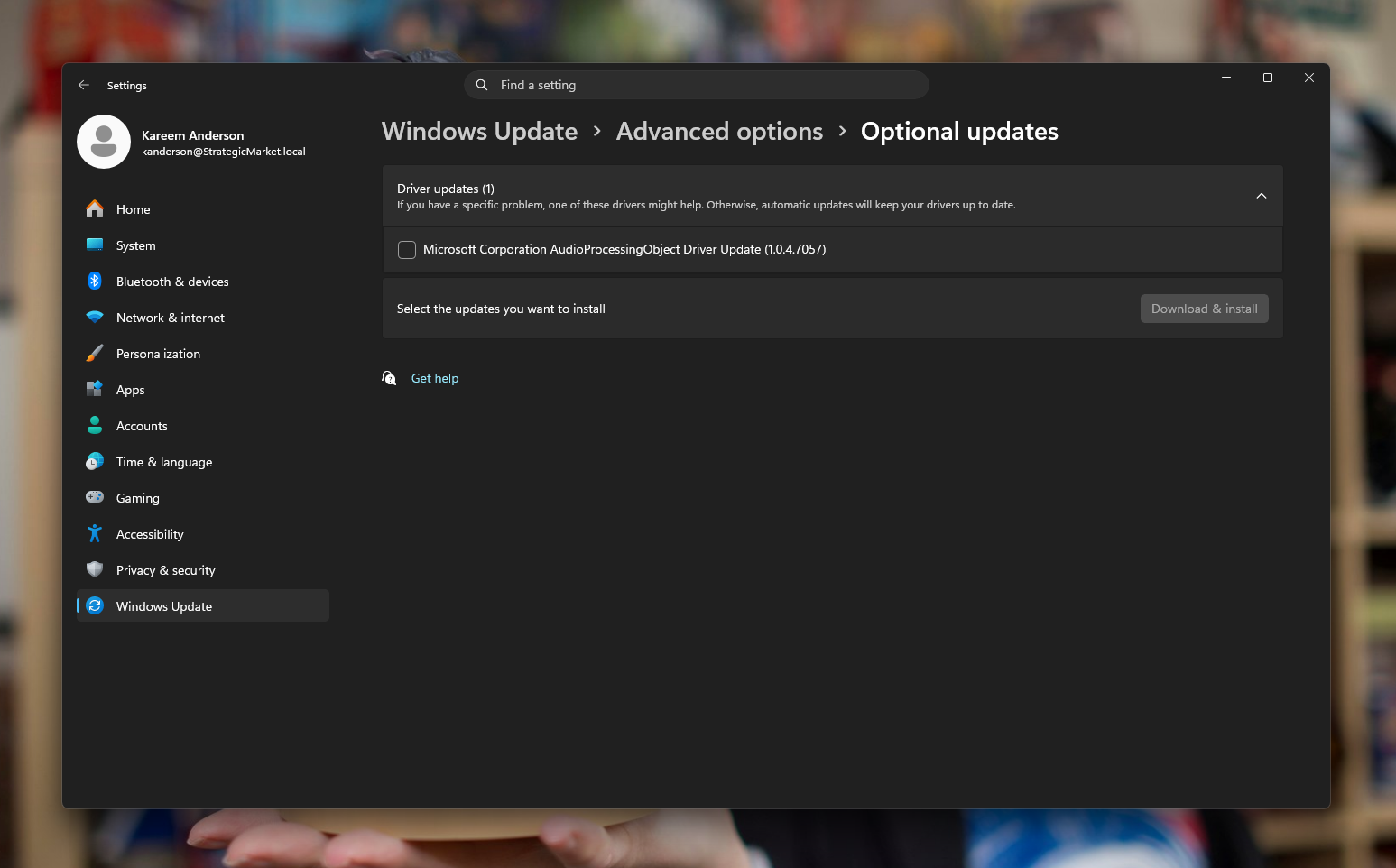
If you’re not the patience type, you can manually trigger the update by navigating to Settings > Windows Update > Advanced options > Optional updates. From there, you can select whatever update is available, download, and install.
What is a Windows OOB, and should you install it?
Lastly, the Windows team would like you to know what the Out of Band Updates (OOB) experience is and what to expect. OOB updates are those pesky, high-risk security-related updates that arrive in more unpredictable intervals. Between the second Tuesday and the fourth week of every month, there might come a third update that could stall your workflow in the most unwelcome instances.
However, it should be known that some OOB’s are optional. While most are recommended and cumulative, many of these updates are ultimately handled by IT admins who are constantly on the lookout for vulnerabilities and thus are deployed via management tools such as Autopatch, the Microsoft Update Catalog, and other enterprise tools.
How new features reach your PC
Microsoft says new capabilities can arrive through the annual feature update, through monthly updates, or through Microsoft Store updates for in-box apps, and which path a given feature takes depends on how ready it is and how much testing it still needs.
The mechanism doing most of the work here is something Microsoft calls Controlled Feature Rollout, or CFR. In practice, this means a feature’s code can already be sitting on your PC after an update installs, but the feature itself will be switched off until Microsoft’s systems decide your device is a good candidate to turn it on. That’s the reason a lot of people install an update, don’t see the feature Microsoft announced for it, and assume something broke.
For organizations that don’t want features flipping on without warning, commercial management controls exist to keep CFR-delivered capabilities off by default until an IT team decides otherwise.
The company recommends installing security updates as soon as they’re available, and for anyone curious enough to want early access, joining the Windows Insider Program is the suggested route to test features and send feedback.
While Microsoft doesn’t seem to be consolidating the number of update channels, it’s at least trying to clarify what each update contains and whether you or your IT admin can dismiss the latest update notification or take a quick coffee break to quickly secure your device.
The post Microsoft admits Windows 11 update names have been a mess, clarifies what each monthly release actually delivers appeared first on Windows Latest