
Microsoft has started rolling out the July 2026 Patch Tuesday update for Windows 11, and we have tested all major features, improvements, and fixes in the mandatory security update. The headline is Point-in-time restore, a full-system rollback that finally reaches a broad rollout after months of hiding in Insider builds. But personally, I’m happier about the Widgets being quieter!
The update ships as KB5101650 (OS build 26200.8875 and 26100.8875 for Windows 11 version 25H2 and 24H2, and it brings every non-security change from the June 23 optional update. So, you get a recovery overhaul, the biggest Bluetooth fix Windows 11 has had in years, a faster File Explorer, new accessibility tools, and the Secure Boot certificate rollout, all in one package.
Like all recent releases, the July update arrives in two phases. A gradual rollout hands features to devices over time, so a few of the items below may take extra days to appear after you install. A normal rollout goes to every eligible device at once and includes the security-critical pieces, including Secure Boot.
Microsoft also confirms the redesigned Start menu is now available on commercial and managed devices, after it already rolled out to everyone else earlier this month.
Note that Windows 11 version 24H2 Home and Pro reach end of updates on October 13, 2026, with Enterprise and Education supported until October 2027. If you are still on 24H2 Home, Microsoft is already force-installing 25H2 to keep you current, and 24H2 is now on the list of 15 products Microsoft is retiring in 2026.
What’s new in the Windows 11 July 2026 Patch Tuesday update
Here is everything arriving with the July 2026 update.
- Point-in-time restore reaches a wider rollout, letting you roll back your PC to an automatic restore point from the last 72 hours.
- Windows Update adds a calendar to pause updates until a chosen date, up to 35 days
- Widgets get a quieter default, no longer opening on hover and keeping notifications and taskbar badges minimized.
- Screen tint arrives in Accessibility with a full-screen color overlay to reduce eye strain, alongside more precise Magnifier zoom controls.
- File Explorer launches faster, mounts disk images more smoothly, and fixes a batch of address bar and rename bugs.
- The biggest Bluetooth update yet is here, with faster AirPods pairing, better Beats Studio Pro mic reliability, and steadier LE Audio.
- Voice access and voice typing add French, German, and Spanish on Copilot+ PCs.
- New printers install using Internet Printing Protocol by default through Windows Ready Print.
- You can resize the touchpad right-click zone in Settings.
- BITS no longer drags out your shutdown, and explorer.exe reliability improves across the taskbar, sign-in, and Start menu.
- Networking gets fixes for Wi-Fi power blue screens, cellular, IPv6 VPNs, and virtualized environments.
- Secure Boot certificate updates continue rolling out to more eligible devices in the normal phase.
- The emoji panel swaps Google’s Tenor for GIPHY as its GIF source.
- The Recycle Bin bug that showed an internal file name when permanently deleting a file is fixed.
- Taskbar notification badges now update correctly, and Graphics Kernel changes let PCs with more than 32GB of RAM run larger local AI models.
Point-in-time restore is the headline feature that makes PC recovery easier
The standout in the July update is Point-in-time restore, and it is arguably the most useful non-AI feature Windows 11 has added all year. I tested Point-in-time restore back when it was still hidden in Insider builds, and it recovered my full set of apps, settings, and local files.
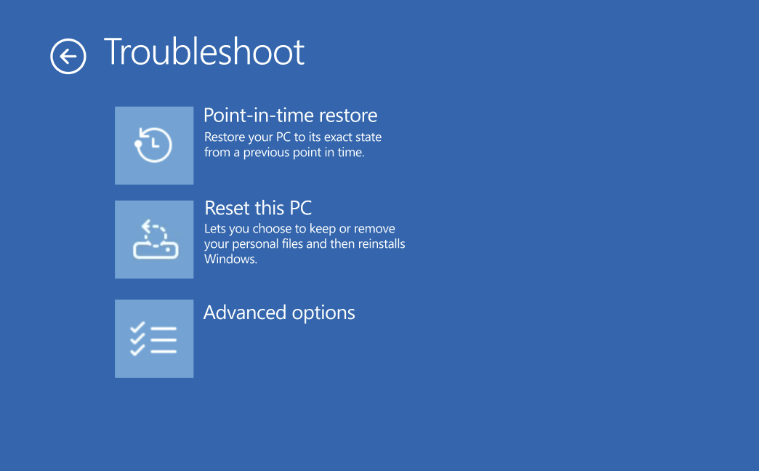
Point-in-time restore uses Volume Shadow Copy Service to capture a block-level copy of your entire OS volume at fixed intervals. Unlike System Restore, which only tracks system files, registry, and drivers, a restore point here includes everything on the drive, including your personal files. So, it performs a miniature full-disk rollback.
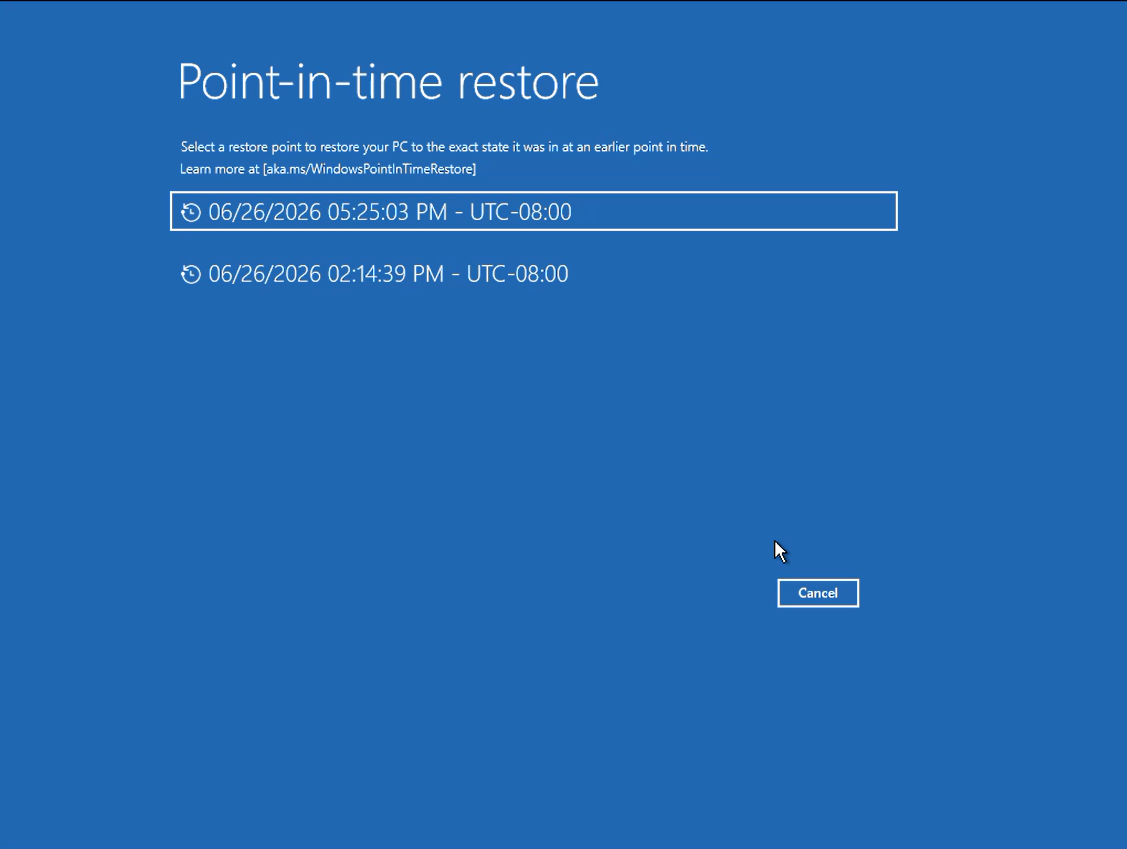
Restore points are stored locally on your SSD and work offline. Windows keeps them for up to 72 hours by default and creates a new one every 24 hours, though you can tighten the frequency to as little as 4 hours. When something breaks, such as a bad driver, a failed update, or a misconfiguration, you boot into the recovery environment, pick a restore point, and Windows rewrites the changed blocks back to that state.
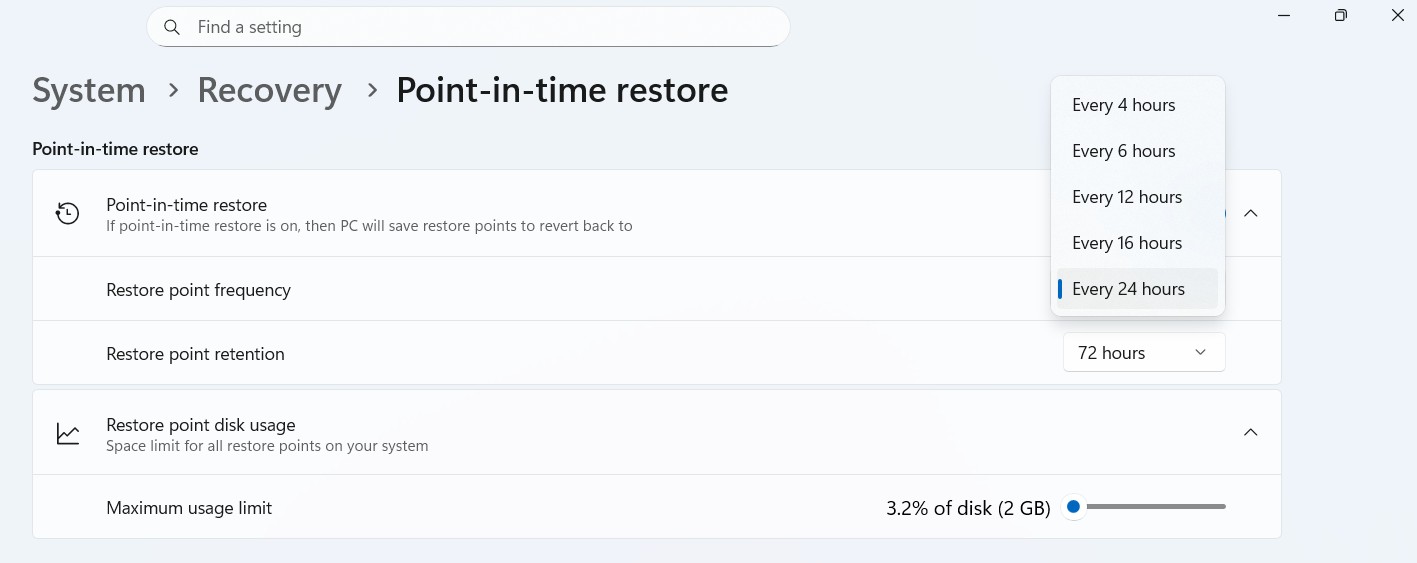
There are trade-offs worth knowing, though. Every change made after a restore point is lost once you roll back, including files, passwords, and certificates. The feature also needs room to work, and Microsoft says it can use up to 50GB of storage for restore points.
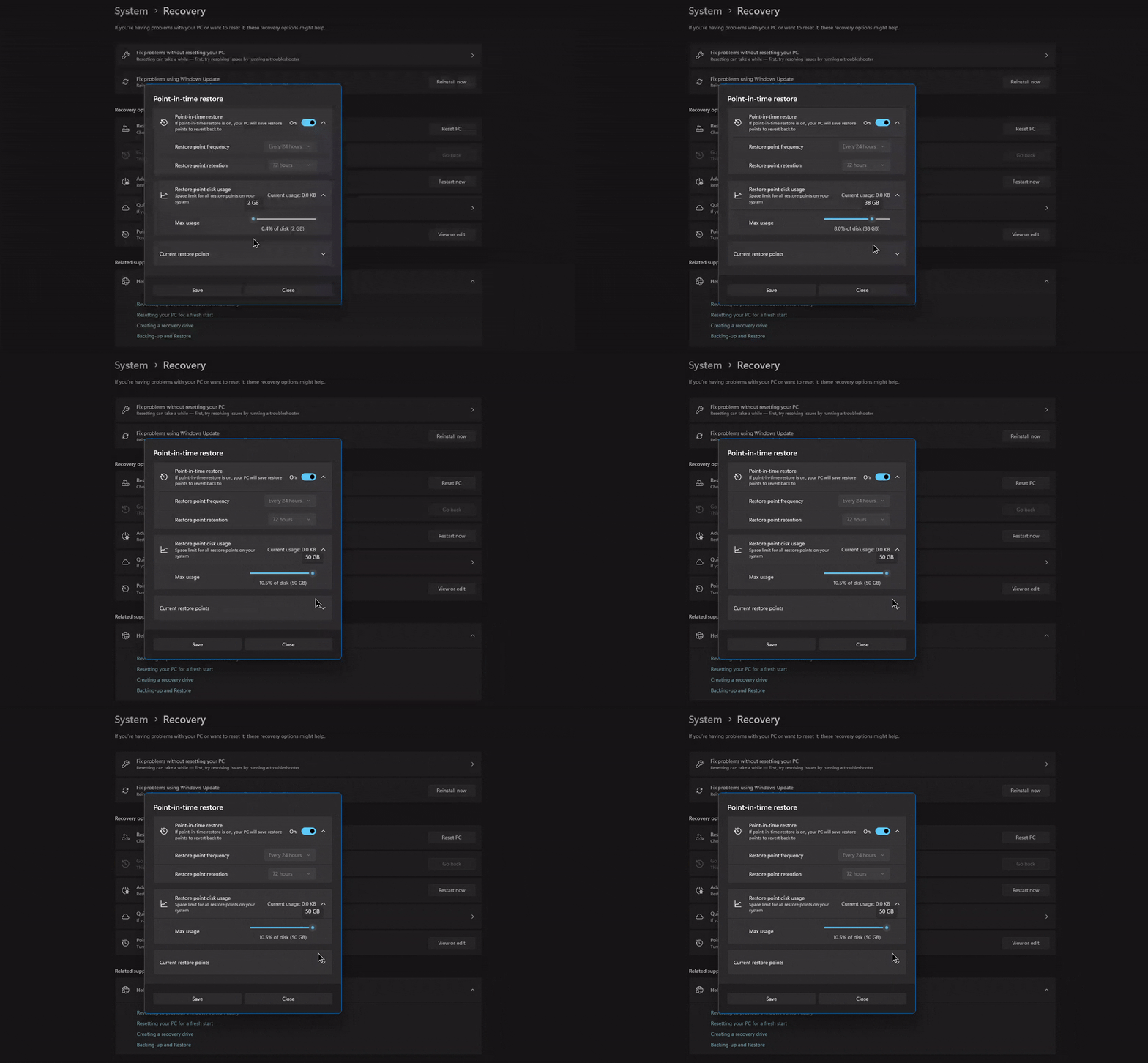
Note that it only turns on by default if your PC has at least 200GB of total disk space, so smaller drives and most virtual machines start with it switched off. Still, for anyone who has ever endured the painful sight of a bad update sending a PC into a boot loop, having a full rollback point offline on the drive is a relief.
Windows Update gets a calendar to pause updates for up to 35 days
Windows Update picks up a much cleaner way to hold off on updates. Instead of the old dropdown that only showed fixed one-week increments, you now pick an exact end date from a calendar in Settings > Windows Update, up to 35 days out.
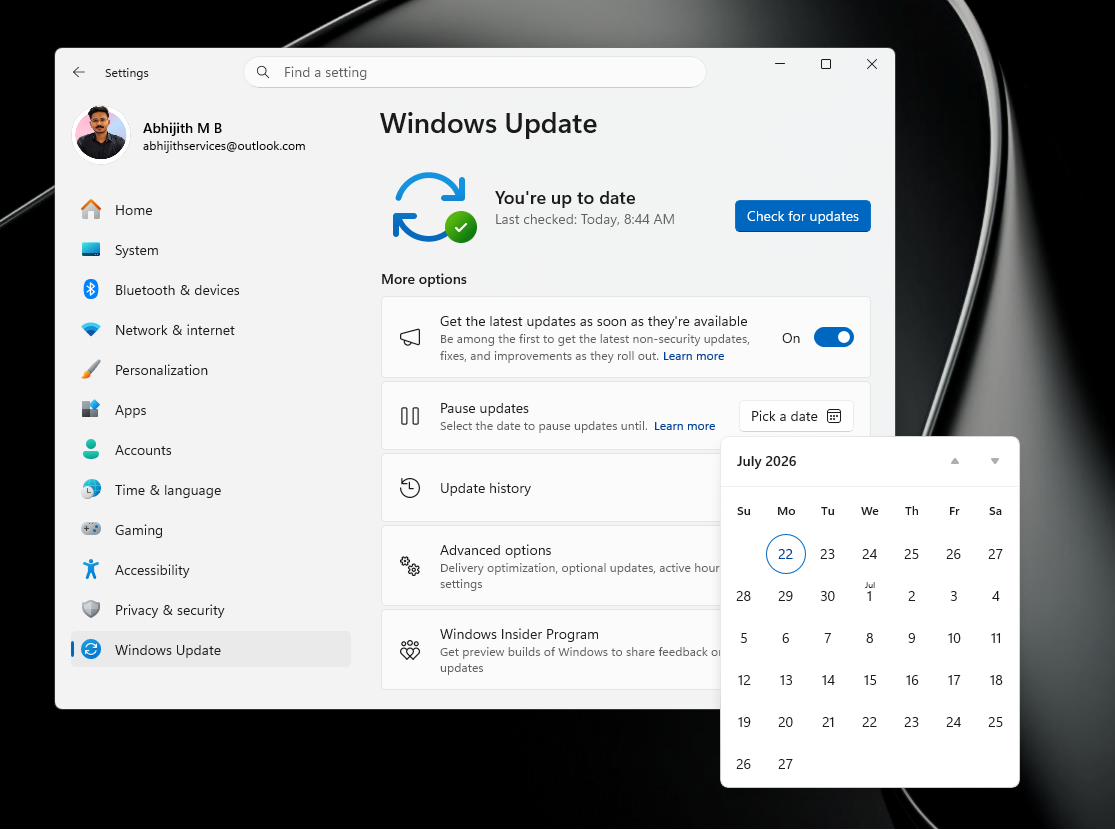
The 35-day limit itself has not changed, but the date picker makes it far easier to line up a pause with a real deadline, like a trip or a busy work stretch, rather than counting weeks in your head. If you are diligent, you can also extend the pause again later by choosing a new date, as long as it stays within 35 days from the current day. Previously paused time didn’t stack on top.
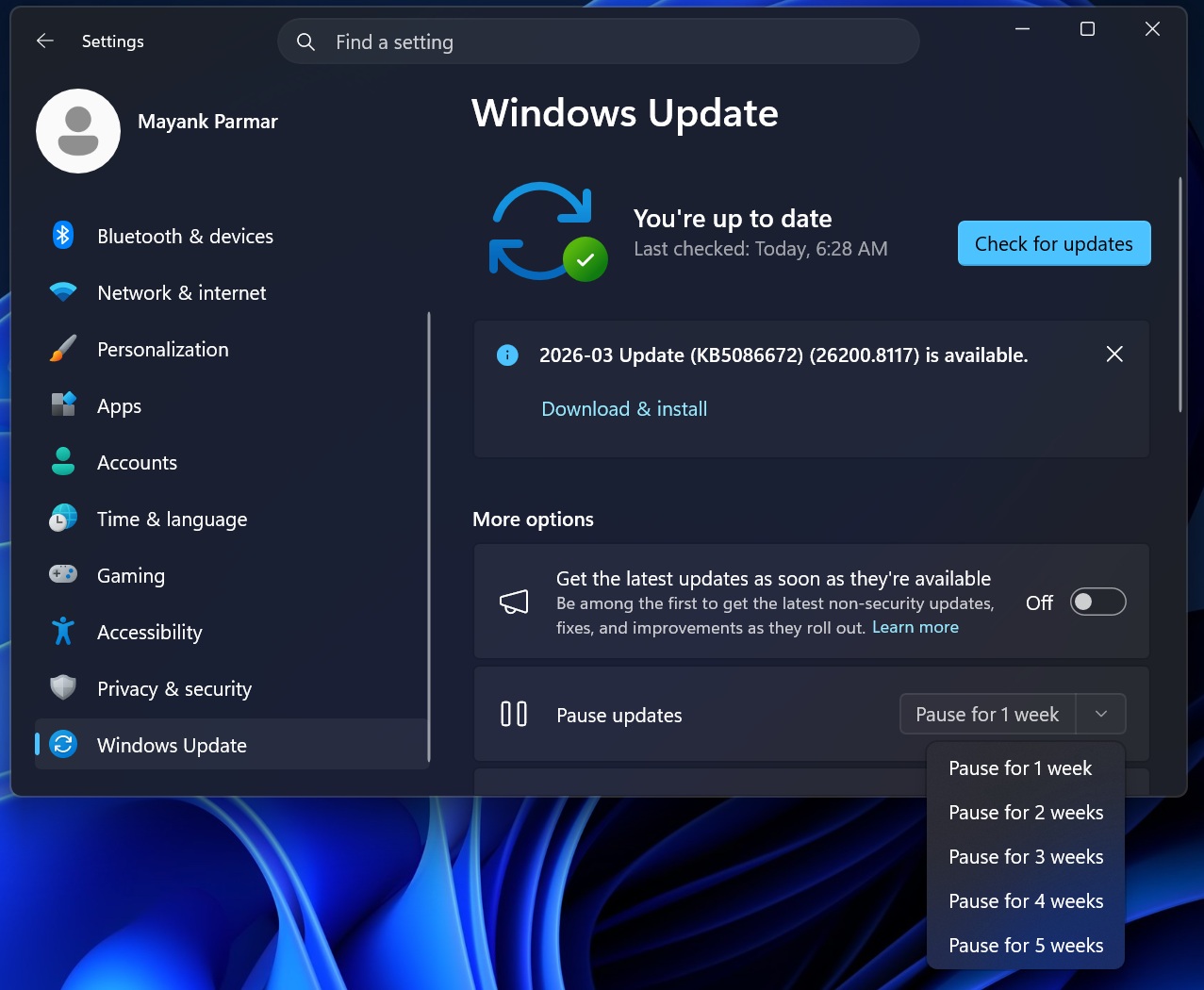
A few things change while a pause is active. Updates that need a restart will not download or install until the pause ends, and Windows will not restart on its own to finish an install while paused. Any update already in progress when you set the pause gets canceled. When the window expires, Windows immediately checks for and installs whatever is pending, unless you re-pause first. We tested the feature fully in our hands-on with Windows 11’s update controls, and it works the way Microsoft describes.
Windows 11 gets its biggest Bluetooth fix, and AirPods and Beats work better
The July update quietly carries the biggest concentrated Bluetooth fix Windows 11 has seen. I ran into it when I installed the June optional build, when my Galaxy Buds stopped dropping, and AirPods started pairing noticeably faster. Microsoft says the improvements cover compatibility with specific audio devices, including AirPods and Beats Studio Pro.
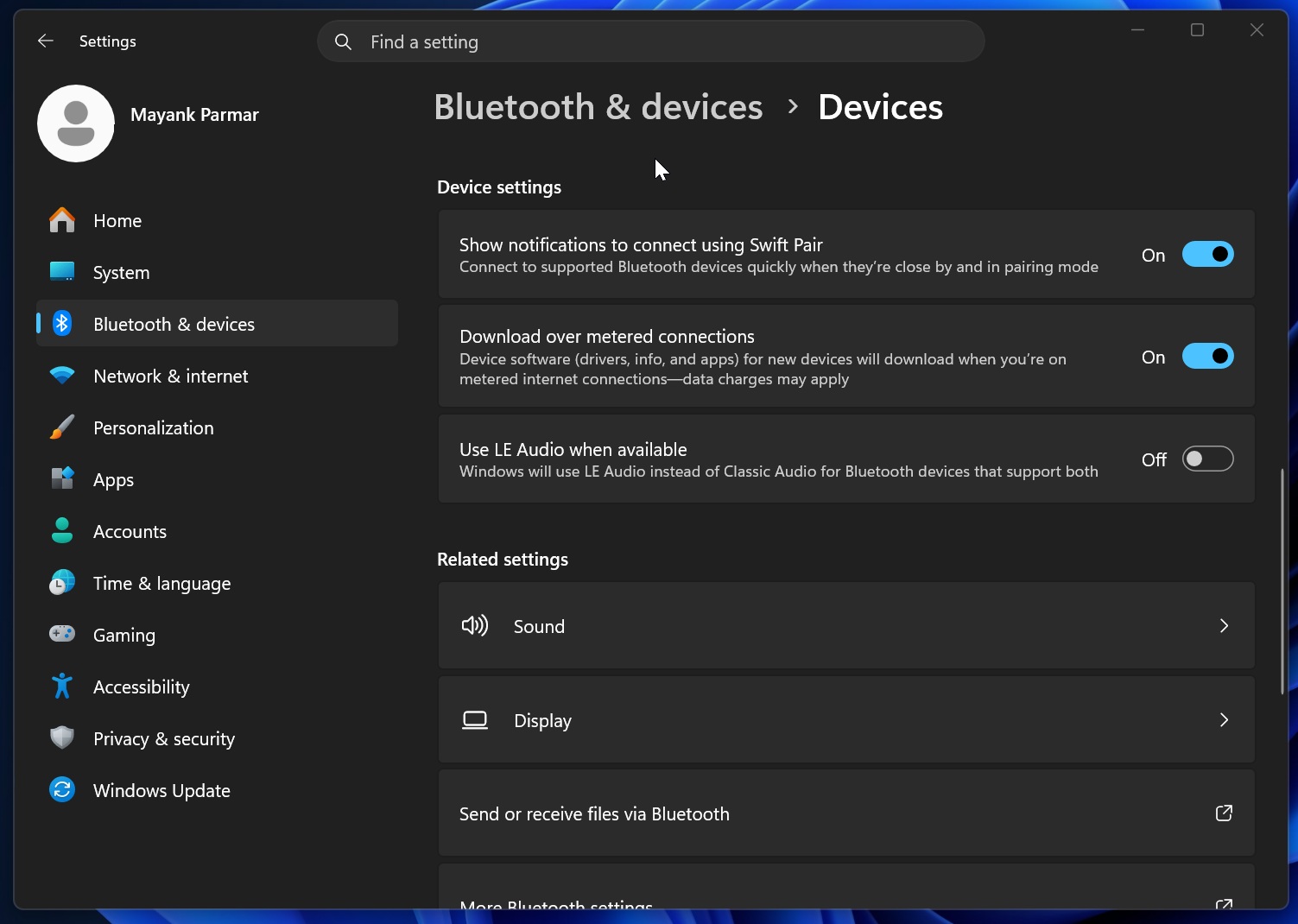
The most useful change is mute-state syncing. Windows now keeps the microphone mute state in sync between the audio mixer and the Hands-Free Profile, so muting your mic in Windows no longer leaves your headset thinking it is still live, and tapping mute on the headset is respected back in Windows. Note that mute sync only works on devices that use HFP.
Microsoft also addressed a nasty error code 0x9F linked to certain manufacturer Bluetooth drivers, improved voice-call reliability on Classic Audio devices using HFP so calls no longer stutter when the mic and audio run together, and reduced the delay before LE Audio accessories start playing sound while the microphone is active. Windows also stops showing a “Remove failed” message when you try to remove a device whose Bluetooth radio is unavailable.
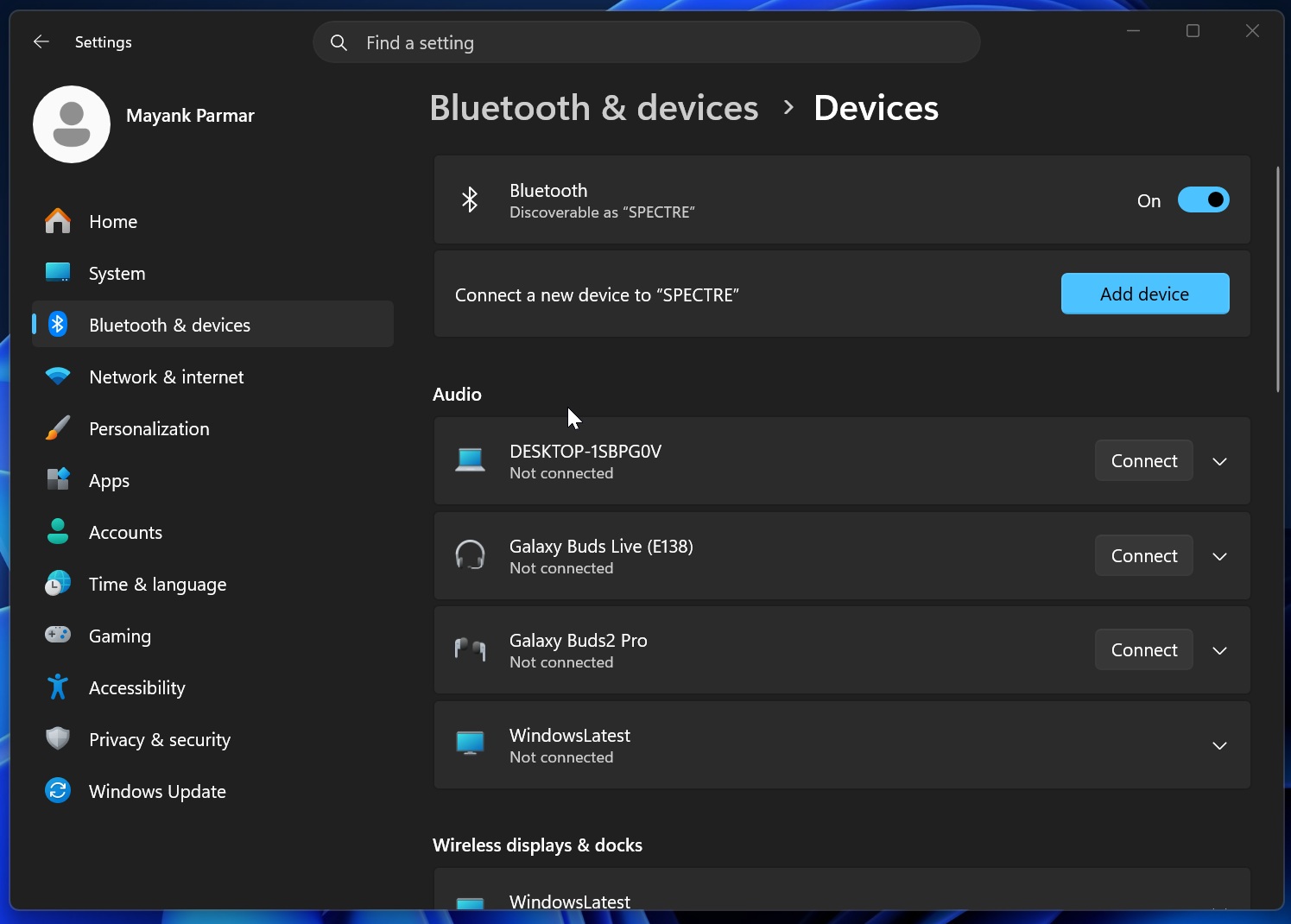
I’m delighted that classic Bluetooth audio devices reconnect faster after the PC wakes from hibernation, LE Audio accessories are steadier when another device such as a phone grabs the connection, and LE Audio streaming recovers more reliably after a dropout. The Bluetooth and Devices Settings page, which was for a long time a source of lag and crashes, is smoother as well.
New features rolling out gradually with the July 2026 update
Most of the changes above and below arrive through Microsoft’s Controlled Feature Rollout system. If you install the July update and some of these are not visible yet, that is expected behaviour.
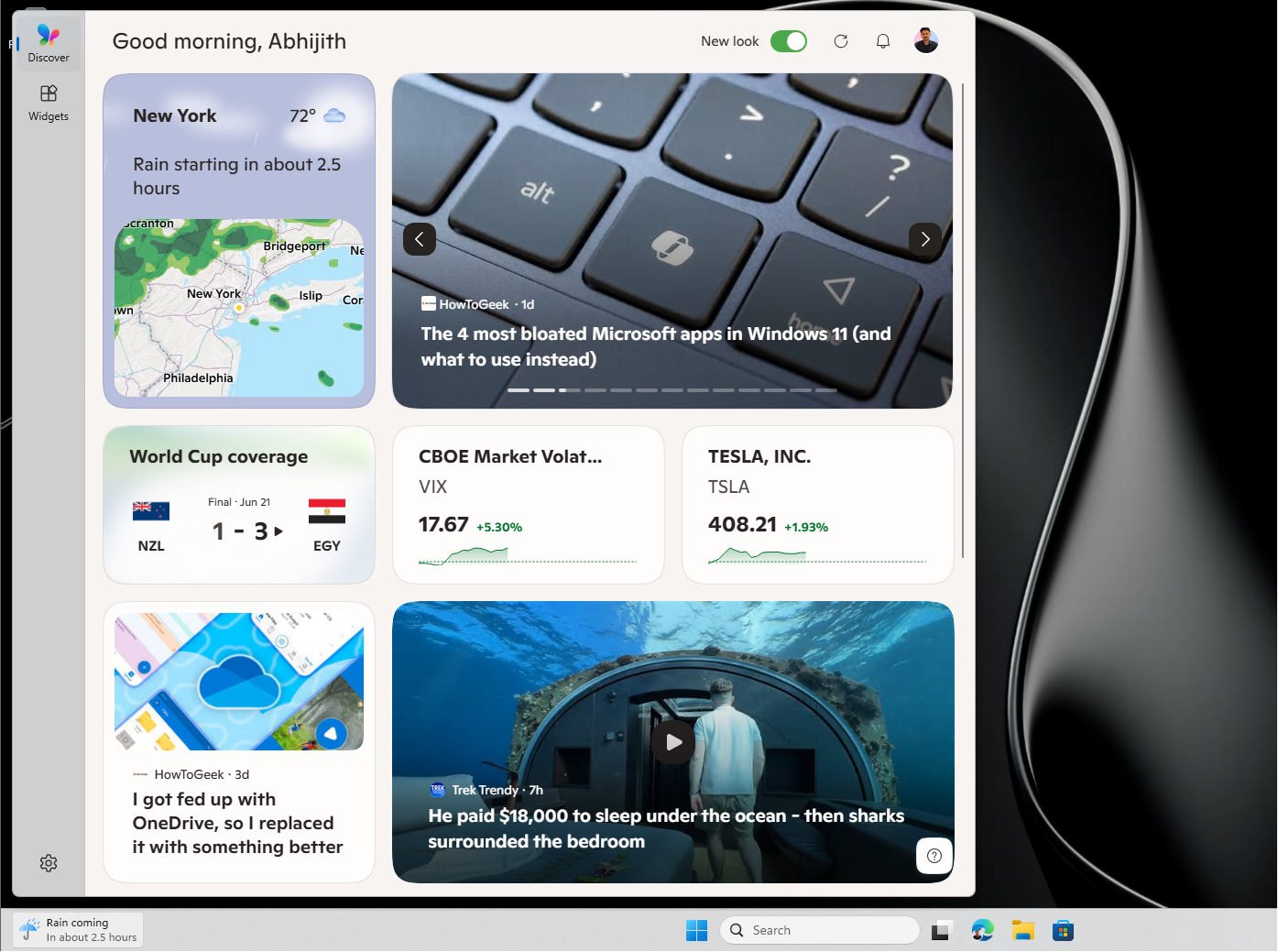
Widgets get a quieter, less distracting experience
The Widgets board finally calms down. Widgets no longer open on hover, notifications and taskbar badges are minimized by default, and the board opens straight to the dashboard on first use.
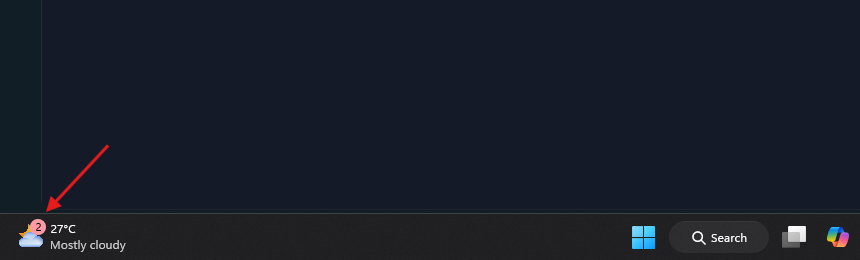
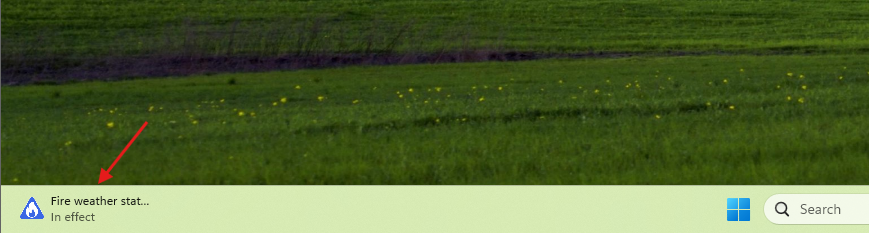
Dashboard icons show a count of new alerts, and the badge clears automatically when you leave that dashboard. Microsoft keeps some of your default settings based on how you use Widgets and adjusts others to cut interruptions, and there are reliability, responsiveness, and visual quality improvements across the board. We reported this back in May when Microsoft said they’ll turn off the MSN feed and ads in Widgets by default.
Screen tint and sharper Magnifier controls arrive in Accessibility
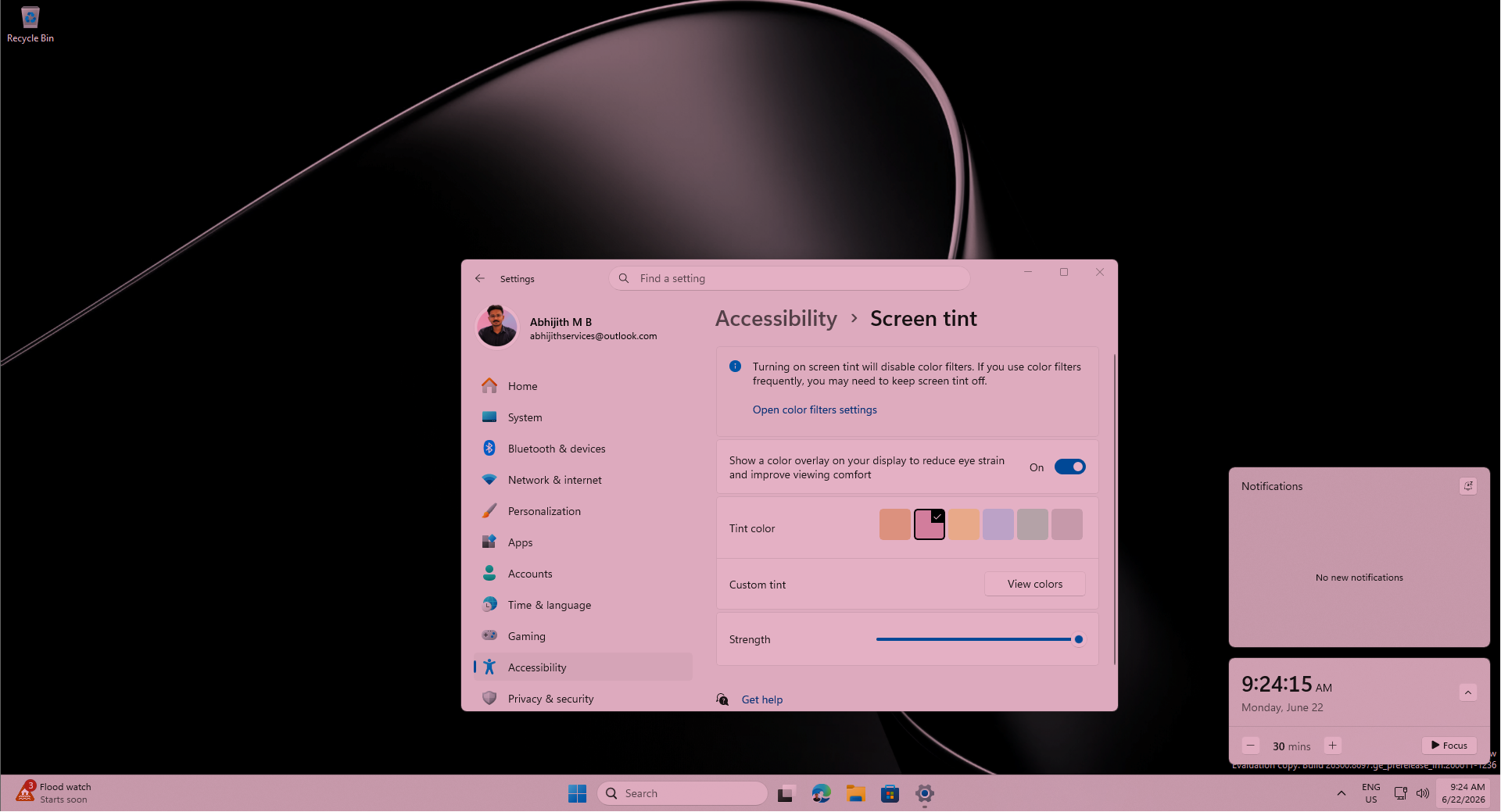
Accessibility gains a new Screen tint option under Settings > Accessibility. It lays a full-screen color overlay across the display to ease eye strain, with preset colors, adjustable intensity, and an option to turn on automatically. I first spotted Windows 11’s hidden screen tint feature months ago, and now it ships properly.
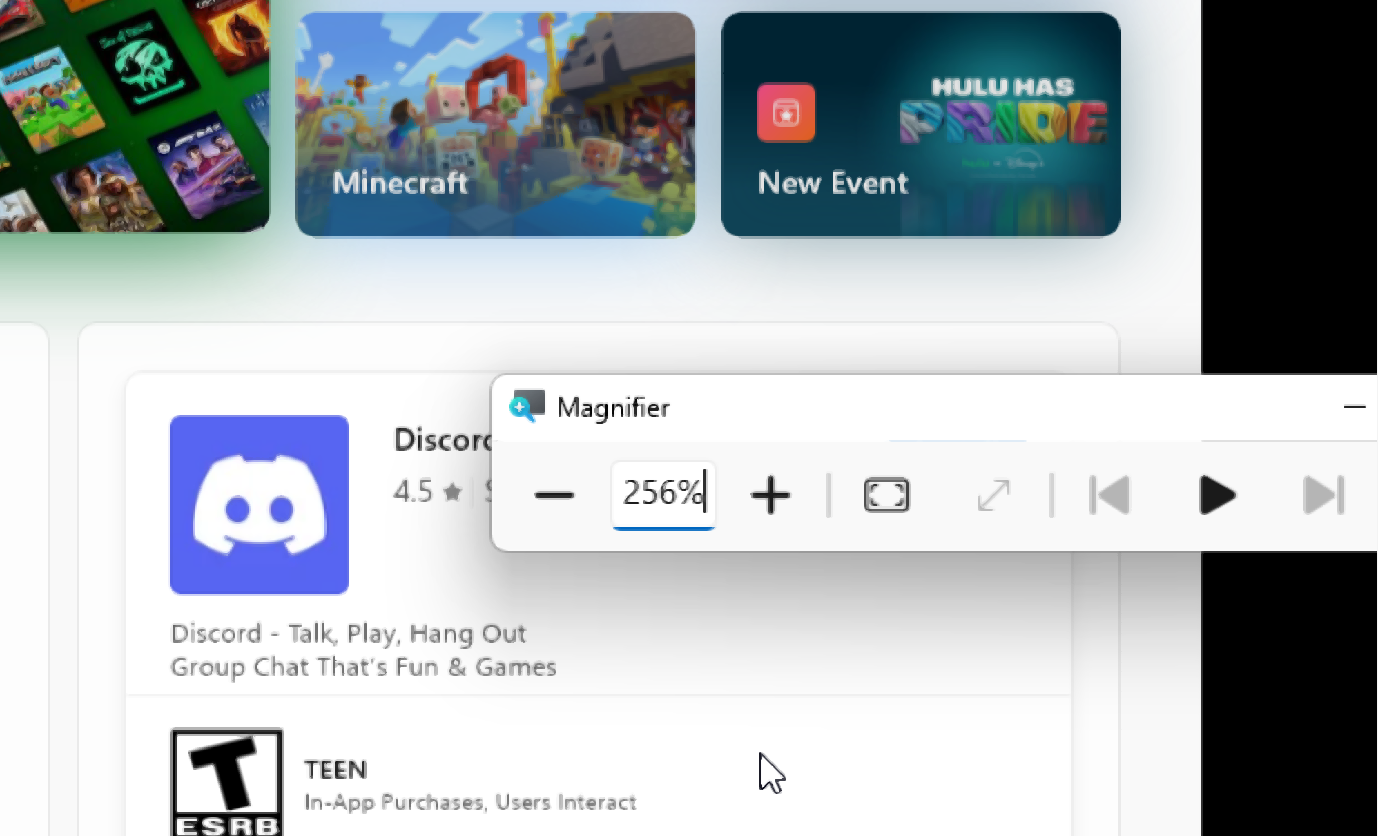
Magnifier gets more precise too. You can type a zoom percentage directly and change it in set increments in the Magnifier window, and you can adjust those zoom increments straight from the magnifier bar instead of digging into Settings each time.
File Explorer gets faster and clears out several long-standing bugs
File Explorer launches noticeably quicker, part of the same speed work Microsoft began rolling out separately, and no, it is not preloading. Beyond launch speed, the hover quick actions on File Explorer Home, like Open file location and Ask Copilot, now work for work and school accounts on Entra ID, though that piece is not available in the European Economic Area.
The rest is a tidy round of fixes. Disk image mounting feels more responsive, the address bar now accepts paths with double backslashes and quotation marks, and the suggestion dropdown reliably closes after you pick an item.
Microsoft also fixed the OneDrive shortcut breaking when File Explorer runs as administrator, stopped OneDrive files from appearing duplicated in Favorites, and cleaned up Rename so text no longer keeps re-selecting and case-only renames show up immediately.
Voice access and voice typing add French, German, and Spanish
Voice access and voice typing now work in French, German, and Spanish. As you speak, Windows improves the text in real time, correcting grammar, punctuation, and recognition errors even with background noise, which cuts down on manual edits. Note that this one is limited to Copilot+ PCs.
New printers install over IPP by default with Windows Ready Print
New printer installations now default to the Internet Printing Protocol when the printer supports it, which simplifies setup and improves reliability under Microsoft’s Windows Ready Print effort. If you would rather not use it, there is a toggle under Settings > Bluetooth & devices > Printers & scanners. The change lines up with Microsoft winding down third-party printer drivers.
You can resize the touchpad right-click zone
There is a small but welcome input tweak for those who prefer touchpads instead of a mouse. Under Settings > Bluetooth & devices > Touchpad, you can now size the bottom-right right-click zone as default, small, medium, or large, which controls how much of the corner responds to a single-finger right-click.
It only shows up on touchpads with a pressable surface, and a Custom option appears if your OEM provides its own settings. Windows also recognizes English characters better inside Japanese handwriting input now.
Phone Link improves call audio routing between phone and PC
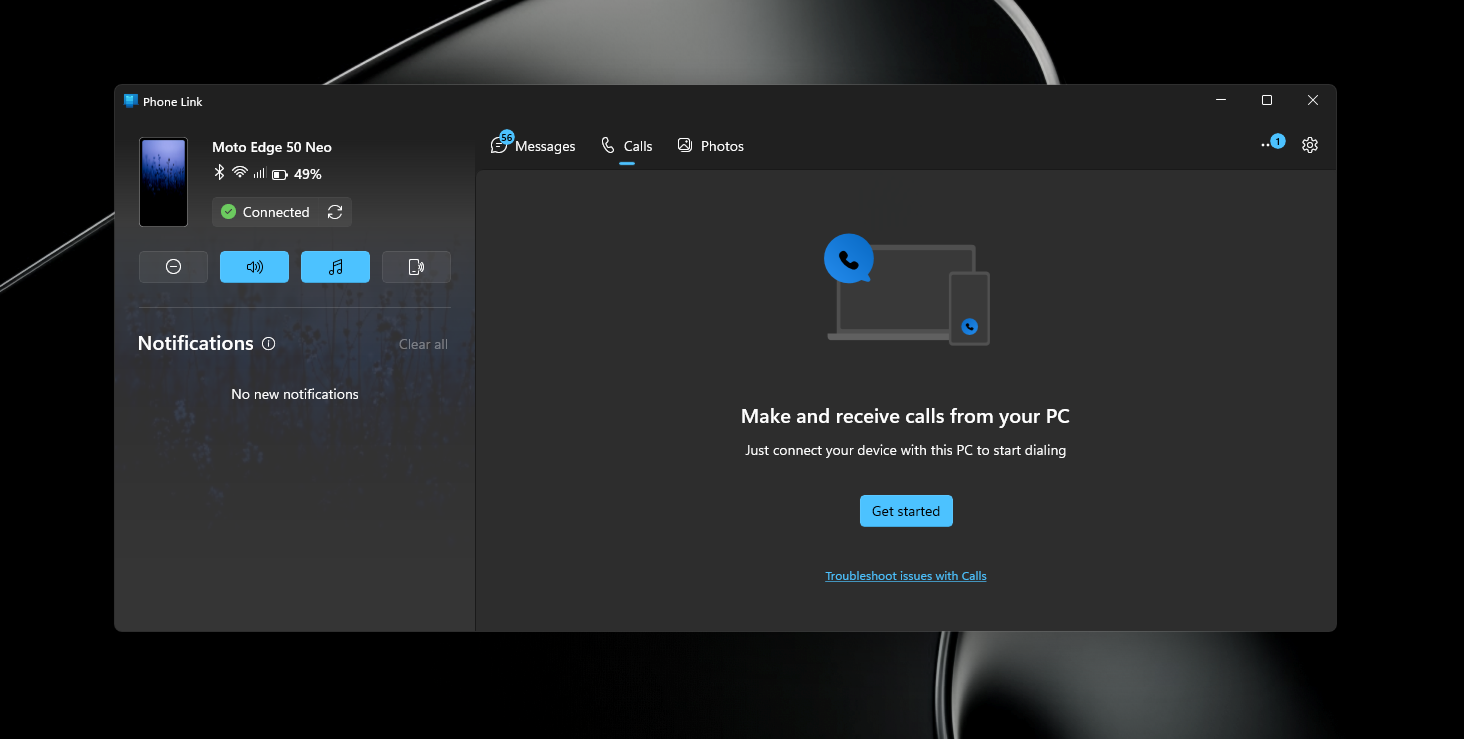
Call handling through a paired phone is smarter. When you dial out from the phone, audio stays on the phone while it rings and only moves to the PC once you answer on the PC. And with Do Not Disturb turned on in Windows, an incoming call from the paired phone no longer rings through your PC.
System and performance improvements in the July 2026 update
BITS shutdown delay is reduced for faster shutdowns
Microsoft admitted that a bug caused BITS, the background service Windows uses for update and download tasks, to drag out shutdown even when you were already on the shutdown screen. The July update reduces the time Windows takes to stop BITS during shutdown. It will not make every PC shut down dramatically faster, but if yours hangs for a few extra seconds, this should help.
Explorer.exe reliability improves across taskbar, sign-in, and Start menu
Microsoft has been chasing explorer.exe stability for months, and the July update lands a broad fix. It addresses login and lock screen issues tied to third-party credential providers, reduces the odds of taskbar icons showing up as blank gray placeholders, and improves navigation to Home in File Explorer during OneDrive sync.
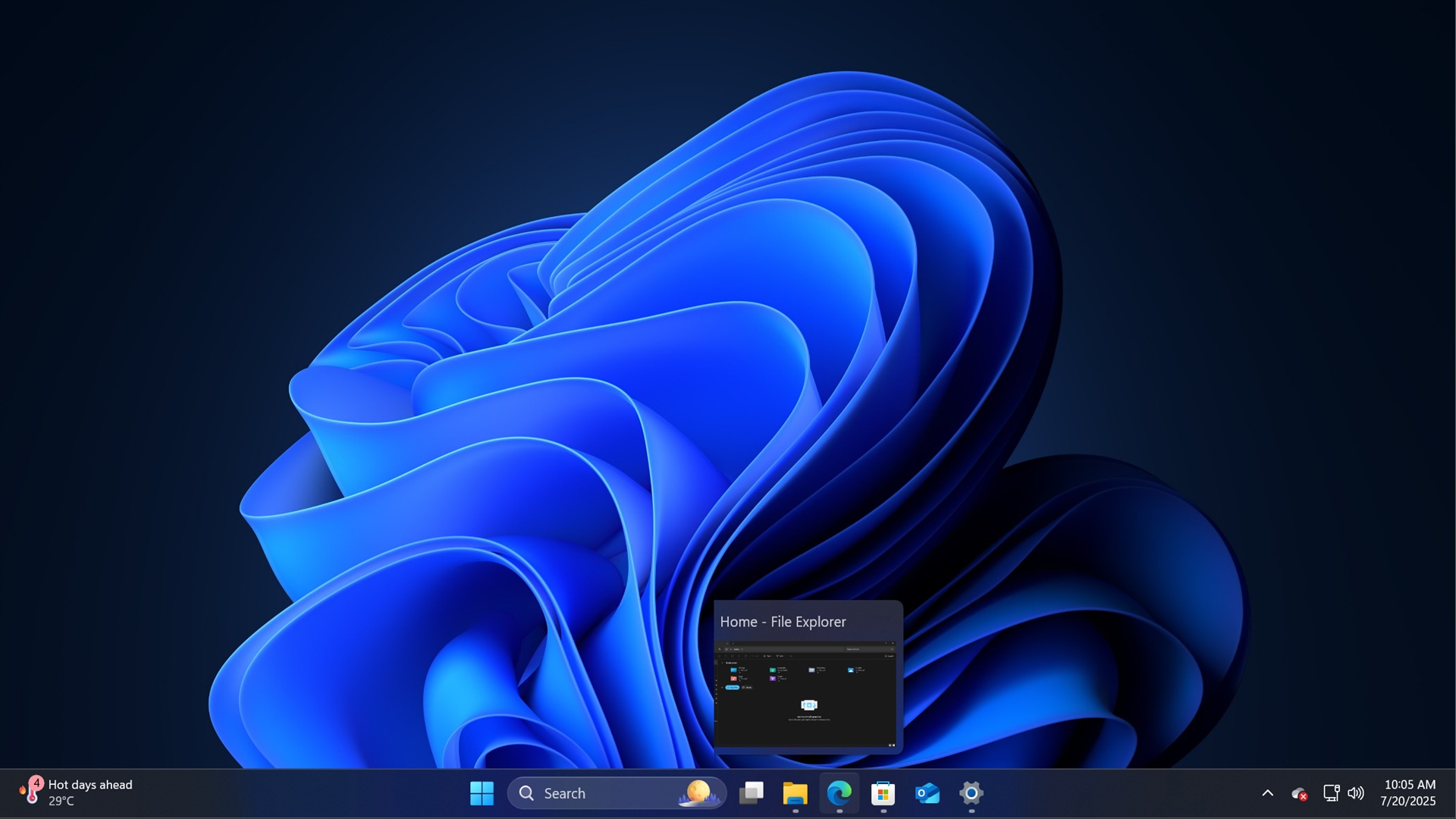
It also steadies explorer.exe when switching desktops, launching apps with shell extensions, and using acrylic blur in the Start menu, Settings, and the lock screen. Since explorer.exe powers the whole shell, a blank taskbar was only the tip of the iceberg.
Networking gets fixes for Wi-Fi, VPNs, and Virtual Machines
Microsoft reduced blue screen errors linked to Wi-Fi power, improved cellular (WWAN) connectivity including support for IPv6 VPNs, and improved compatibility with third-party VPN software and SR-IOV setups on server hardware. Network adapter settings and bindings now survive OS upgrades.
On the virtualization side, Confidential VMs use SR-IOV hardware acceleration by default for better throughput, and a nested Hyper-V network setup issue was corrected.
WSL works better with VPNs in mirrored networking mode
Windows Subsystem for Linux gets a targeted fix for mirrored networking mode when a VPN is active, part of the set of WSL networking and setup improvements Microsoft has been shipping.
Remote Desktop, display, graphics, and other refinements
Remote Desktop gets a refreshed dialog design when you enable it under Settings > System > Remote Desktop. Display and graphics improvements get more reliable rendering while scrolling across multiple monitors and steadier color profile application. On the Graphics Kernel side, a memory-management change lets PCs with more than 32GB of RAM run larger local AI models.
I also found a few smaller items to round it out. The inbox HD Audio driver is more reliable now, the Start menu opens more consistently when you click the left edge of a left-aligned taskbar, and Search group policies apply more reliably. Location settings like Default location now grey out when location services are off, so it is clearer they are inactive. Microsoft also resolved unexpected UAC prompts that some installers threw up after the May update, KB5089549.
Secure Boot certificate updates keep rolling out in the normal phase
Unlike the gradual features above, the Secure Boot work comes in the normal rollout, so it applies as soon as you install. With this update, Windows quality updates include additional high-confidence device targeting data, which widens the pool of devices eligible to automatically receive the new 2023 Secure Boot certificates. Devices still only get the certificates after showing enough successful update signals, so it stays a controlled, phased rollout.
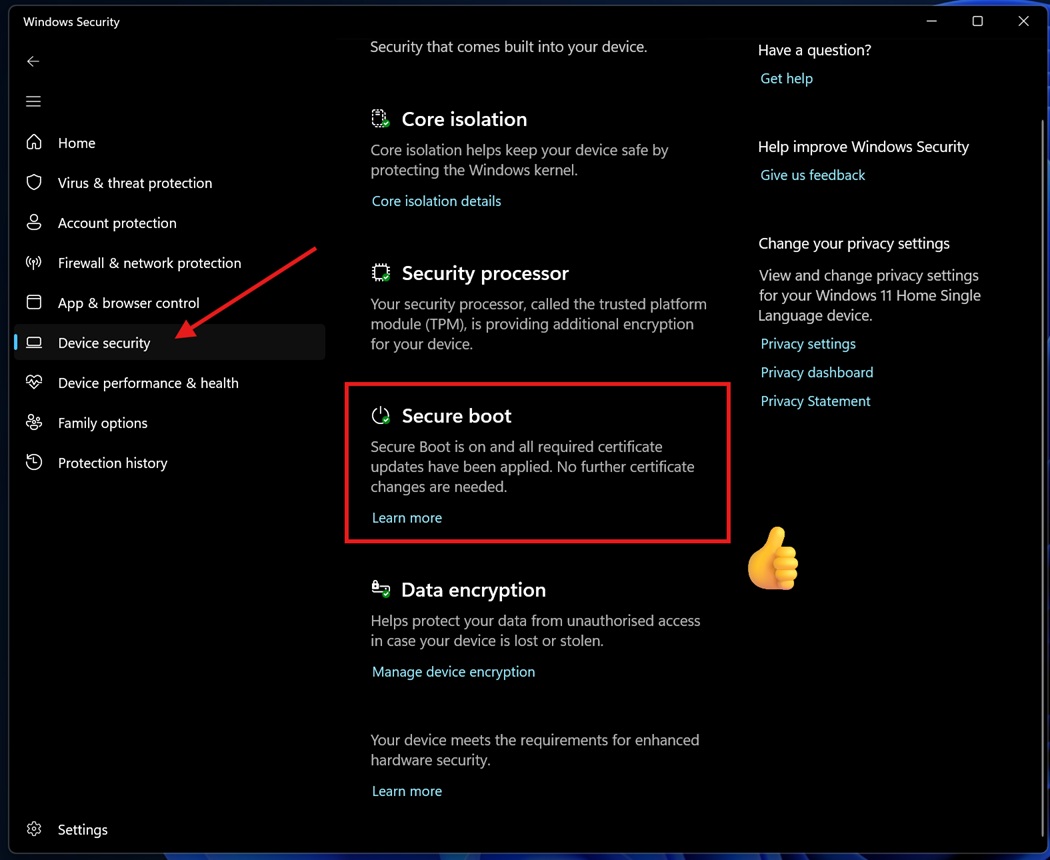
The context here is the 2011 certificates expiring in June 2026. Most consumer PCs received the 2023 certificates months ago, and Microsoft has been detailing how to verify Secure Boot status and what to do if your PC missed the update. The messier cases have been on the OEM side, where Dell, HP, Lenovo, ASUS, and Acer published their own certificate fixes after the deadline. Microsoft has also confirmed that the Secure Boot update was failing on some Windows 11 PCs and promised a resolution.
The emoji panel swaps Tenor for GIPHY
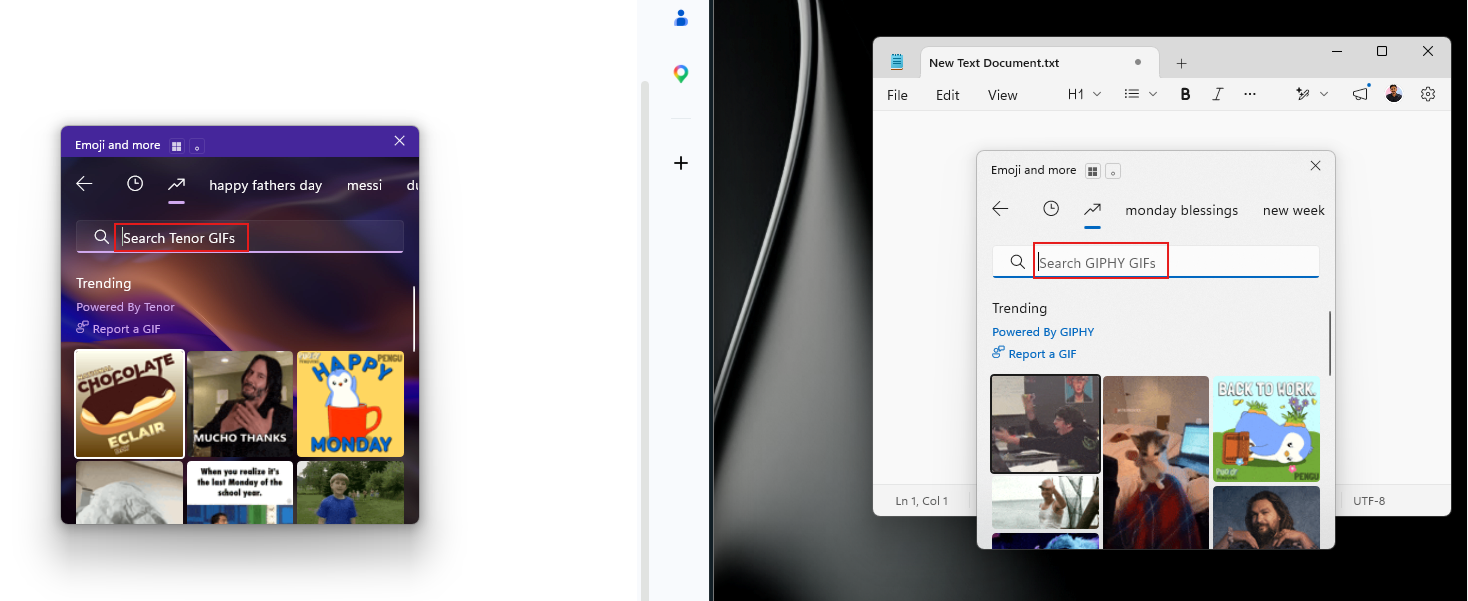
Small change, but you will notice it if you use GIFs. The emoji panel (Windows key + period) now pulls GIF content from GIPHY after Google deprecated its Tenor API. Microsoft flagged that starting June 30, 2026, you need the latest Windows update to keep using GIFs in the panel; otherwise, you may be treated with “GIF service is not available” error. Installing the July update restores access.
Other fixes shipping in the normal rollout
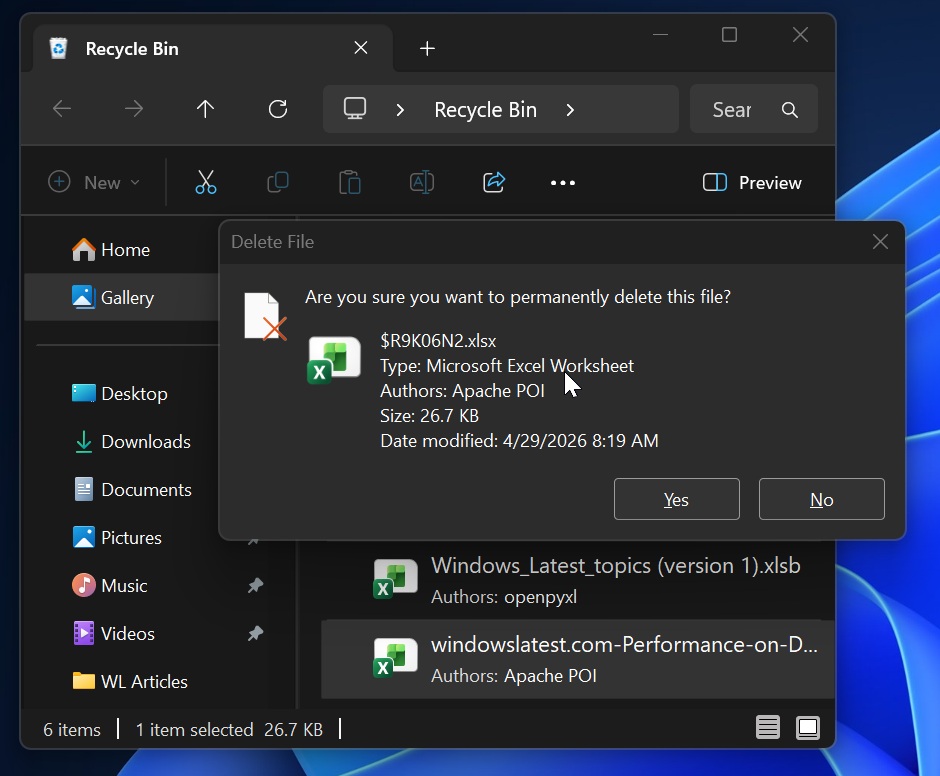
A handful of fixes arrive immediately alongside Secure Boot. The most important is the Recycle Bin fix. After the June security update, KB5094126, the confirmation dialog could show an internal Recycle Bin file name instead of the original name when you permanently deleted a file, and that is corrected now.
Elsewhere, Taskbar notification badges update correctly again, so counts and badge visuals are accurate. Networking connections to shared resources, including unauthenticated null session connections used by functions like NetUseAdd, are more reliable. Authentication improves for Netlogon secure channel connections between domain controllers, which helps member servers reach domain controllers set up before 2025. And Storage gets a fix that improves disk space usage for the CapabilityAccessManager.db-wal file.
AI components are updated in the background
The July update also refreshes the internal AI components Windows 11 uses across the system to version 1.2605.856.0. The list covers Image Search, Content Extraction, Semantic Analysis, and the Settings Model. Microsoft does not publish detailed notes for these, but they help with features like intelligent Windows Search and settings recommendations.
Servicing stack update and known issues
Microsoft is shipping a servicing stack update alongside ((KB5101650)), as it does with most releases. Servicing stack updates improve the component that installs Windows updates, so future patches apply more reliably.
The July release also clears one of the June cycle’s known issues, the Recycle Bin naming bug noted above.
How to install the July 2026 Patch Tuesday update
To grab the update, head to Settings > Windows Update > Check for updates. It shows up as KB5101650 and moves your PC to Build 26200.8875 and 26100.8875, depending on whether you are on Windows 11 25H2 or 24H2. Turning on “Get the latest updates as soon as they’re available” can show it sooner, and your system reboots once to finish.
Since so much of this update is gradual, do not worry if Point-in-time restore, the calendar pause, or the Bluetooth improvements are not all there on day one. As Microsoft keeps working to steady Windows 11, the July Patch Tuesday is one I would install as soon as it arrives.
The post I tested Windows 11 July 2026 Updates. Here’s everything new, improved, and fixed appeared first on Windows Latest