
Microsoft is still hoping that Outlook Classic holdouts will eventually start using new Outlook on Windows 11, and it is testing at least ten new features. This includes advanced Mail Merge, a new mini calendar, a single view for all your accounts, a reliable notifications experience, and a bunch of other changes, but I don’t think they’re enough to undo the damage.
I use New Outlook and Outlook Classic to manage more than ten Microsoft 365 workplaces, and while Outlook Classic works very well, New Outlook is a hot mess. It doesn’t even support most attributes in the Mail Merge experience, and the most annoying issue is that it doesn’t handle notifications correctly.
In our tests, Windows Latest observed that the new Outlook takes more than 10 seconds to load an email from a notification, whereas Outlook Classic or any other email client opens in less than 10 seconds. However, a slow-opening notification is still better than no notifications at all.
Over the past few weeks, as I added more accounts to New Outlook, I noticed that it stopped sending me alerts for my other accounts.
Turns out it’s a known issue, and Microsoft is aware of it. I’m told that Microsoft is testing a major update for New Outlook on Windows 11 to address underlying performance issues, including slow or delayed notifications, but it’s unclear when that change will begin rolling out.
Regardless, for now, there are at least 10 features that have been confirmed with a release date.
1. Greater control over folders in new Outlook (October 2026)
Microsoft says Outlook’s October 2026 update will give you more control over folders. This means you can now choose whether the unread or total item count appears in your folder pane. For example, if you want, you can now show the count for unread items in the folder pane (left side). Or you can choose to show the total items/emails in that folder.
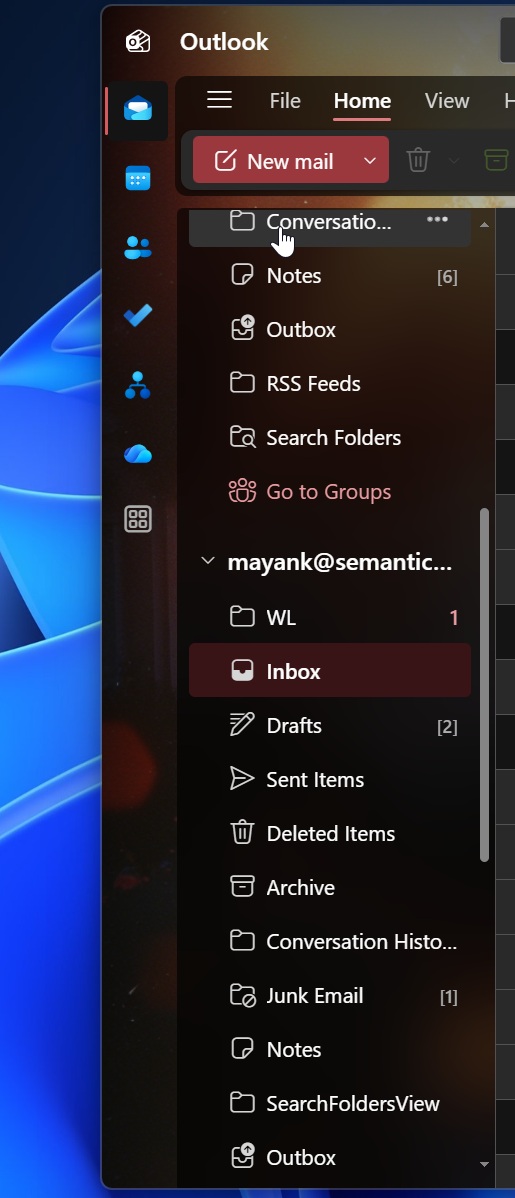
Right now, Outlook only shows you the unread count, but you might want to see the total count sometimes. It’s really up to the use case or your preference. For example, some might remember the item count from yesterday, and if there’s anything new, they’ll notice immediately because the count would have gone up.
Or you might want to see how many emails are in a folder. For those use cases, you can now right-click in the folder pane and select one of the options.
2. New Outlook to finally support advanced Mail Merge (September 2026)
New Outlook has a Mail Merge feature, but it’s quite basic, and it’s mostly about sending the same email to many people. It defeats the whole point of “Mail Merge,” which is to replace fields like name, company, location, invoice number, etc.
Right now, Mail Merge is mostly about sending the same email to many people. The improvement means Outlook can replace fields like name, company, location, invoice number, plan name, etc. With basic support, which is available right now, you can replace fields with values per email address.
Microsoft is testing an advanced version of Mail Merge, which lets each recipient receive a separate email where only their email address appears in the “To” field. You’ll be able to personalize it with other details as well, including their names.
3. Word, Excel, and PowerPoint files now integrate better with the new Outlook (September 2026)
Microsoft is testing a new feature for Windows 11’s Outlook where you will be able to send local Office files as a copy via email, even when you’re actively working in an open file.
4. Folder pane now gives you greater control (September 2026)
Microsoft is testing a new experience for your favorite folders where you can switch between different folders without opening the full folder pane.
For example, if you’ve collapsed the favorite pane entirely, each of the favorite folders will appear in a vertical list, so you can click the one you use the most and always see the total count or unread emails. And more importantly, Outlook will remember your preference, so if you right-click and choose one of the options, your selection will not change if you reopen the app next time.
Microsoft says the experience is similar to what you had in Outlook Classic.
5. All-accounts view coming to New Outlook in August 2026
Similar to Gmail’s All inboxes feature, you will soon have a new “All accounts view” in New Outlook that lets you see emails from all your connected accounts in a single inbox.
When you use “All accounts view,” you don’t have to merge emails because you can access them from all your inboxes. However, it’s more than just a view access because the new Outlook also lets you delete, move, archive, and read messages across all accounts between mailboxes.
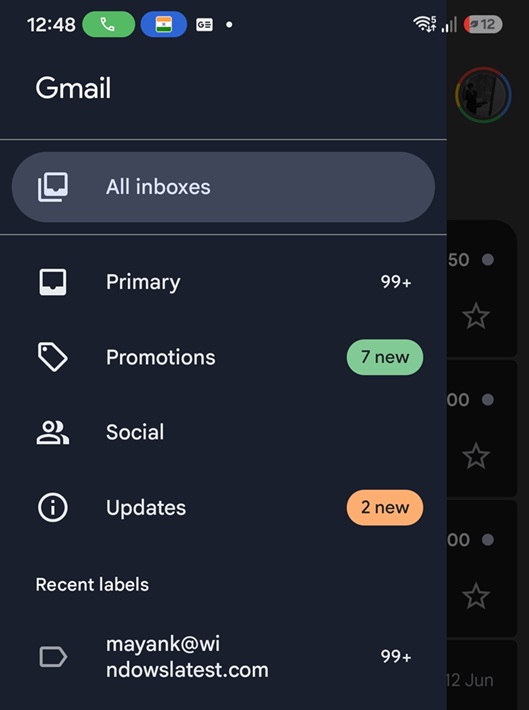
Microsoft also plans to turn on Copilot’s AI-assisted email workflows for all accounts view, and even immersive search will find messages from all connected accounts.
6. Outlook will let you grant mail delegate sharing permissions (July 2026)
Microsoft has confirmed that July 2026’s update will roll out the ability to delegate sharing permissions from the New Outlook for Windows 11 (and Windows 10). You can grant access to the mailbox and manage permissions granted for folders as well.
7. Outlook is testing PST file integration to import calendars and contacts (July 2026)
Microsoft has planned some PST-related advancements, including the ability to import calendars and contacts to a mailbox.
8. Several minor improvements to restore Outlook Classic-like experience
Windows Latest spotted dozens of improvements for New Outlook, and some of the changes would bring it in line with the Outlook Classic experience. Here’s the list of everything coming in the next few weeks:
- The Calendar can now use basic conditional formatting rules.
- Outlook is adding the ability to view and take action on the dates.
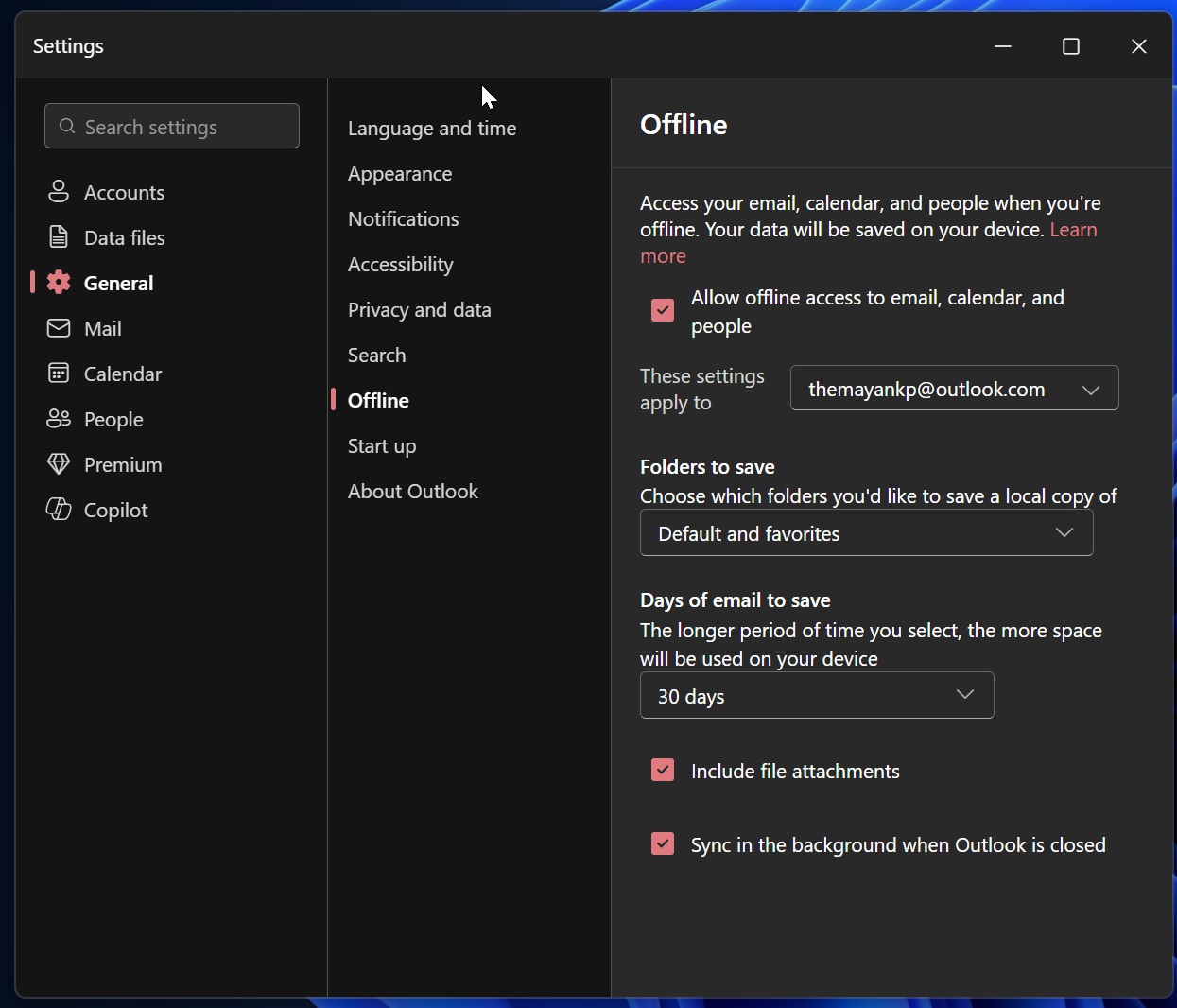
- Offline support for Outlook includes adding attachments and up to 2 years of email sync.
- You can now modify the preview text for emails in the messages list and have it take up to 2 lines.
- You can now Sort By value (e.g., Size).
- Outlook is also adding sort by Flag Due Date.
- You can now see your teammates’ calendars in the left pane.
Last but not least, New Outlook is testing the ability to bulk open and close calendar groups, similar to Outlook Classic.
This is a solid list of improvements, and the new Outlook is starting to look better. Perhaps it’s becoming a better choice for regular use, even if it’s still not as good as the original native Mail & Calendar app. However, businesses still prefer Outlook Classic because it’s faster and supports advanced features that cater to their specific needs.
The post Microsoft reveals all the features coming to New Outlook, but Outlook Classic still beats it appeared first on Windows Latest