
If you thought shutting down your Windows PC every time after hours of work would give it a fresh start when you turn it back on, well, you were wrong. Turns out, if Fast Startup is enabled, which it is by default, Windows takes a detour.
Windows has three startup modes:
- Cold (from a completely powered-off state)
- Wake-from-hibernation
- Fast (combines the first two, added in Windows 8)
When you shut down your PC, the Fast Startup feature preserves a part of the OS state. Of course, all your apps close and you’ll get signed out as well. But when you click the power button the next time, it restores this saved state, which makes Windows boot faster.

Clicking Restart clears everything and does a cold boot of Windows, and that is why it is slower, but sometimes fixes bugs that Shut down cannot.
Also, this is Windows Latest, so read along to get the full technical explanation of why the Restart button can give Windows a cleaner start than Shut down, even though the latter sounds more final.
Restart vs Shut Down: What’s the Difference?
In Windows (or in any OS, for that matter), apart from the UI, libraries, and services, there are two key parts that make it up:
- The kernel is the core of Windows, the part that manages memory, processes, and hardware. It loads first when Windows starts and will be running the entire time your PC is on.
- Drivers are small programs that let the kernel talk to your hardware, your GPU, Wi-Fi card, and everything else plugged in.
The following is the difference between what happens when you press Shut down and when you press Restart, assuming that Fast Startup is on:
| Step | Shut down (Fast Startup) | Restart |
|---|---|---|
| 1 | Apps close, you’re logged off | Apps close, you’re logged off |
| 2 | Kernel stays loaded in memory | Kernel session ends completely |
| 3 | Kernel and drivers get saved to hiberfil.sys | Nothing is saved |
| 4 | PC powers off | PC powers off and reboots immediately |
| 5 | Next power-on: saved kernel is restored from hiberfil.sys | Full boot: kernel and drivers load fresh from scratch |
Note that hiberfil.sys is just a file on your hard drive, which contains a snapshot of that kernel session and already loaded drivers.
So, when you click the power button after a shutdown, Windows loads the saved snapshot back into memory instead of starting the kernel and loading all drivers.
It’s definitely faster, but if there was anything wrong with that kernel session, such as a stuck driver or a corrupted service, the chances of them coming back are high.
During a restart, the kernel session ends for good, and Windows rebuilds everything the next second. All drivers load fresh, the kernel initializes from scratch, and whatever was wrong with the old session doesn’t technically carry over. So Restart shuts down your PC more completely.

This makes restart better than shutdown. Knowing this, whenever I want to shut down my PC for more than a day, I restart it first, and then shut down. Yes, it’s annoying, but Fast Startup is worth it.
What is the use of Fast Startup in Windows?
In the past, Windows was notorious for slow startup. In those days, a mechanical hard disk had to read thousands of individual system files and drivers, and many PCs took 1 to 3 minutes to boot. No one has that kind of patience anymore!
When Microsoft was designing Windows 8, their telemetry data showed that more than half of all users preferred to fully shut down their PCs at night, instead of using sleep mode. A wanted a “true” shutdown experience, but despised the waiting part in the morning; Microsoft engineered Fast Startup as a middle ground.

The idea was to turn the core operating system files into a single, contiguous hibernation file, and to save it on the hard drive every time you shut down your PC. The result was that boot times with mechanical disks went from minutes to seconds.
Fast Startup exists because Windows 8 needed a faster boot time.
Fast Startup becomes an issue when something is actually wrong with your current session, which is exactly when a full Restart, or a full shutdown, becomes useful.
How to force a full shutdown on Windows 11
If you want to shut down your PC for good, without Fast Startup, and get all the goodness of a Restart, Microsoft actually has a command to do it.
Save your work first if you’re trying this.
For a full shutdown that skips Fast Startup, open Command Prompt or the Run box and use:
shutdown /s /t 0
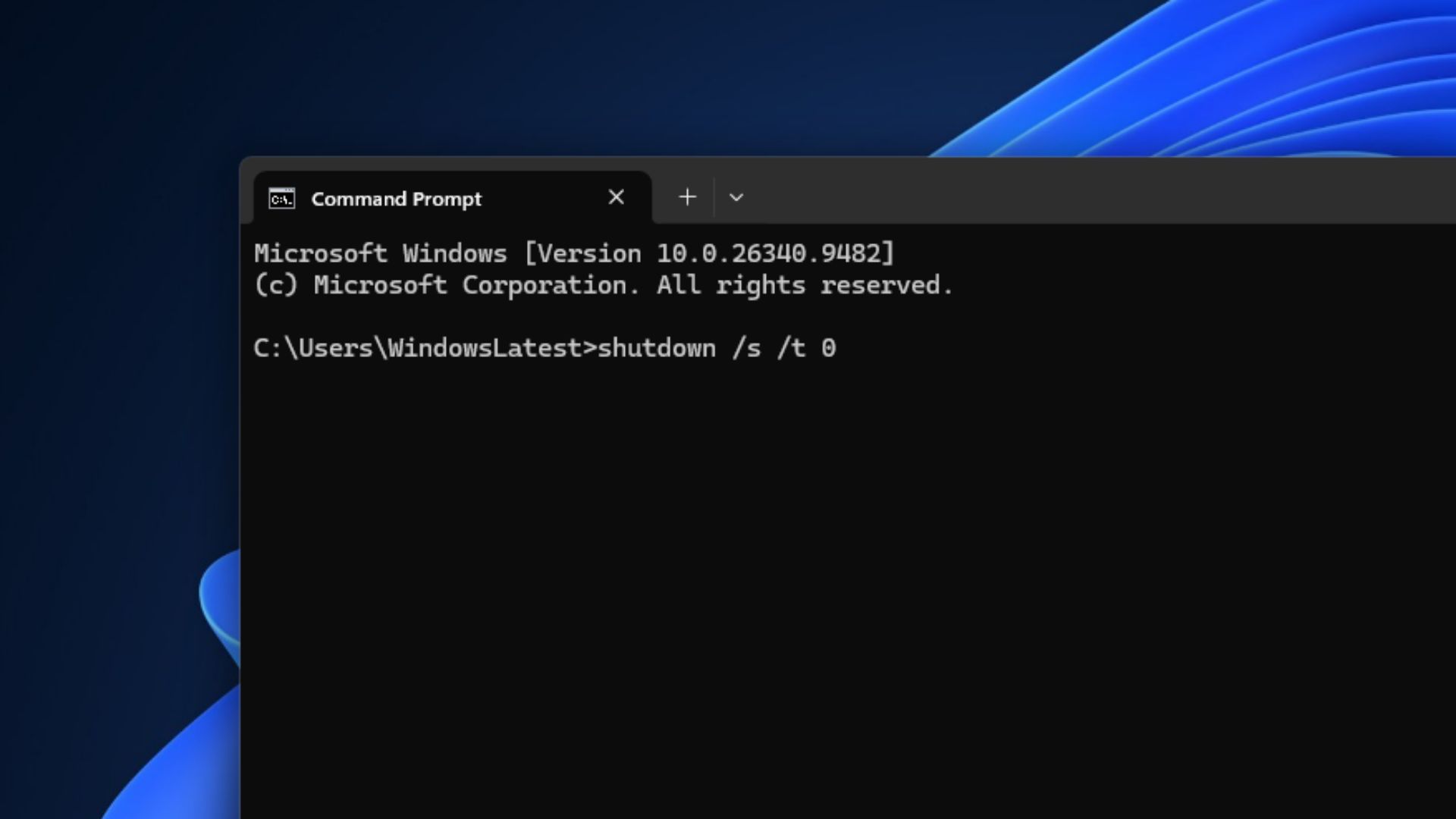
If you want the regular shutdown that prepares your PC for Fast Startup, add /hybrid instead:
shutdown /s /hybrid /t 0
Microsoft has several shutdown command reference, which lists Windows 11 and Windows 10 as supported. But avoid adding /f to either command. It forces every running app to close without warning you first, and this can cost you unsaved data.
Note that this isn’t something Microsoft is telling you to do. Fast Startup’s troubleshooting page says disabling it “is not recommended,” since the feature exists to make ordinary shutdown-to-boot transitions faster for everyone.
When to restart, when to shut down, and when to force a full shutdown
- Restart when you need a completely fresh Windows session.
- Shut down when you just want the PC off for a bit.
- shutdown /s /t 0 when you need a full shutdown without the hybrid Fast Startup step.
Fast Startup wasn’t devoid of issues, though. We reported back in 2020 that Windows Updates could fail to install because some pending update operations needed the full shutdown sequence.
So, the next time you get a bug and someone asks you to turn your PC off and on again, do yourself a favour and restart your PC.
The post Microsoft explains why restarting Windows can shut it down more completely than actually shutting it down appeared first on Windows Latest