
The July 2026 Patch Tuesday update is out, and buried in it is a storage fix some users have been waiting on since March. Windows 11 KB5101650 patches the Capability Access Manager bug that quietly filled system drives, and since it ships in the normal rollout phase, it installs on every eligible PC without needing to wait for a gradual rollout.
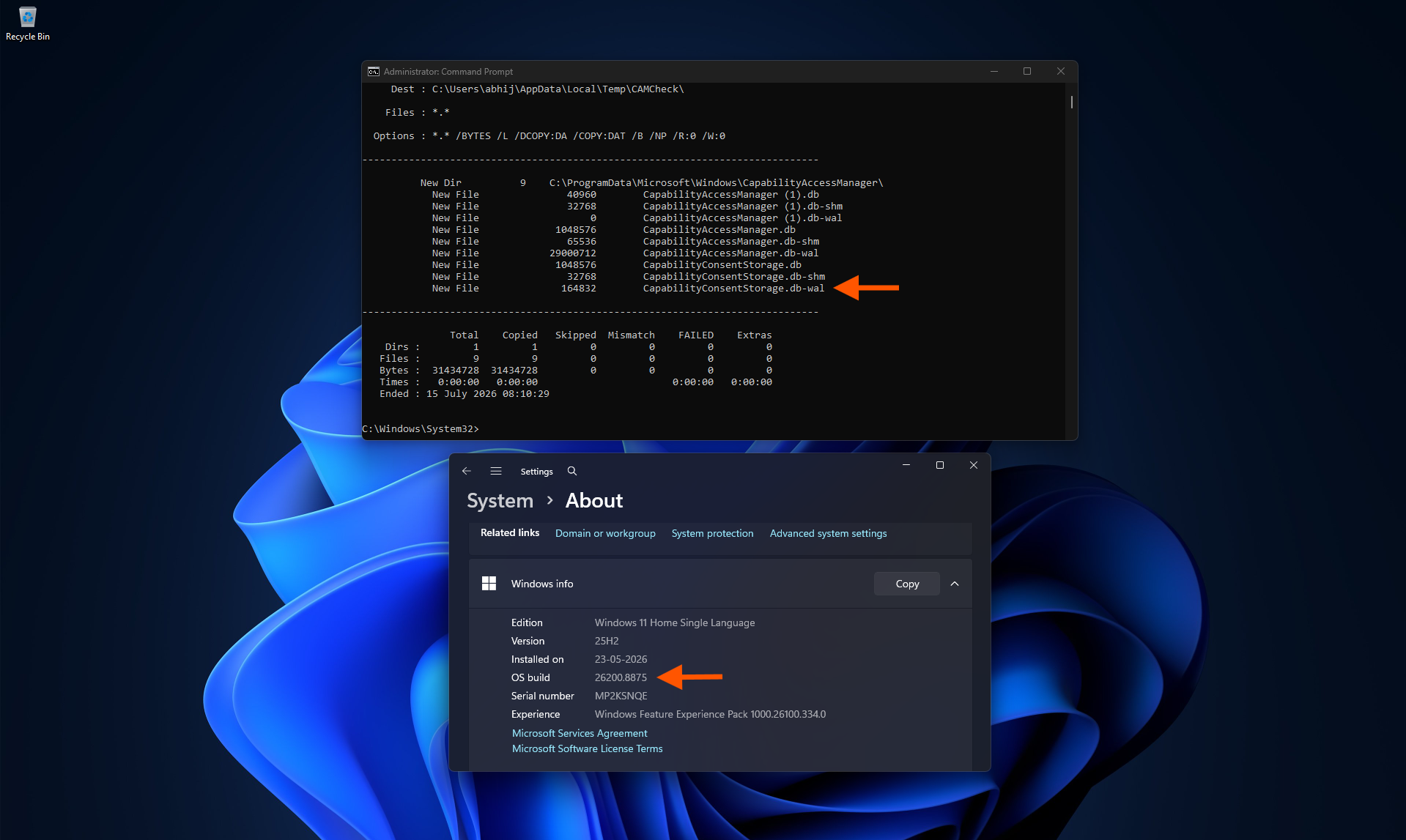
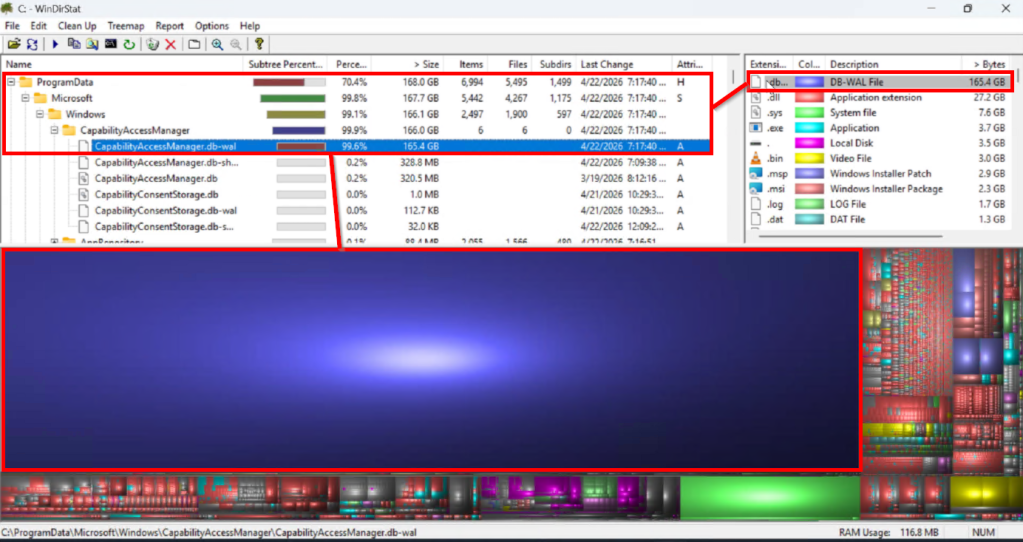
Windows Latest documented how the bug ate up to 500GB of storage earlier this month. One file called CapabilityAccessManager.db-wal kept growing until the C: drive ran out of room, and Windows did not name the file responsible anywhere in Settings.
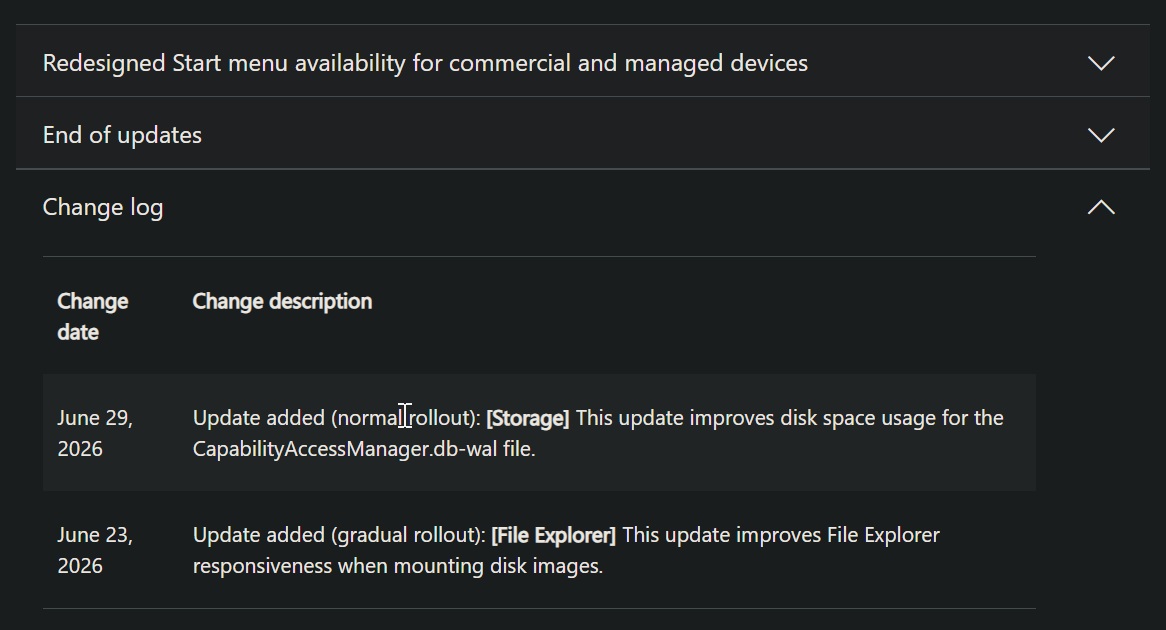
For a bug that could swallow half a terabyte, Microsoft’s fix note is rather subtle:
“[Storage] This update improves disk space usage for the CapabilityAccessManager.db-wal file.”
What changed for CapabilityAccessManager.db-wal in the July update
The fix first appeared in the June optional update, KB5095093, though not on release day. Microsoft added the Storage line to that changelog on June 29, six days after the update went out.
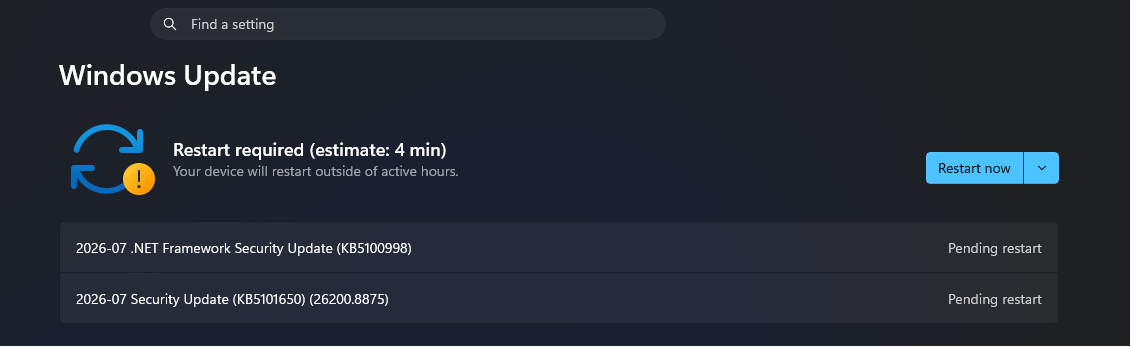
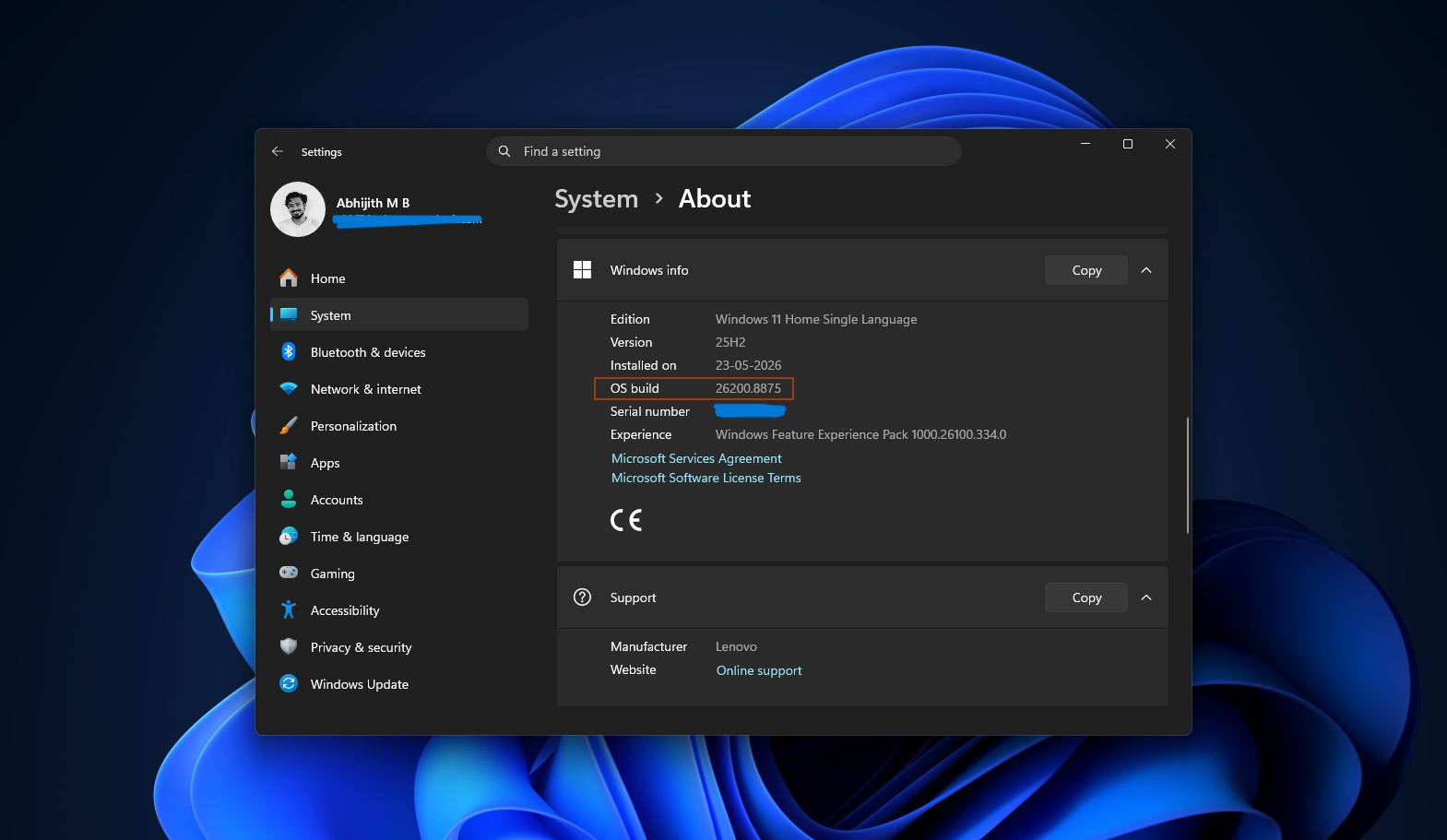
KB5101650 brings over every non-security change from the June preview, which puts the fix on Build 26200.8875 for Windows 11 25H2 and Build 26100.8875 for 24H2. This storage fix comes to your PC in a normal rollout, meaning every eligible device gets it at once, unlike the gradual rollout Microsoft uses to stagger features such as Point-in-time restore or the new Widgets behaviour. Install the update, and the storage fix is active.
Microsoft’s phrasing, “improves disk space usage,” describes the checkpoint process going forward. It does not say whether a WAL file that has already grown to 200GB shrinks automatically, and multiple users who installed the June preview reported their file was still large right after the update, only returning to normal once they removed it manually.
Treat the July update as the step that stops further growth, then check the file yourself to confirm whether cleanup is still needed.
Why CapabilityAccessManager.db-wal grew to hundreds of gigabytes
Capability Access Manager runs as a service called camsvc, and it logs every time an app requests the camera, microphone, location, or screen capture. Those events show up in a SQLite database at C:ProgramDataMicrosoftWindowsCapabilityAccessManager.
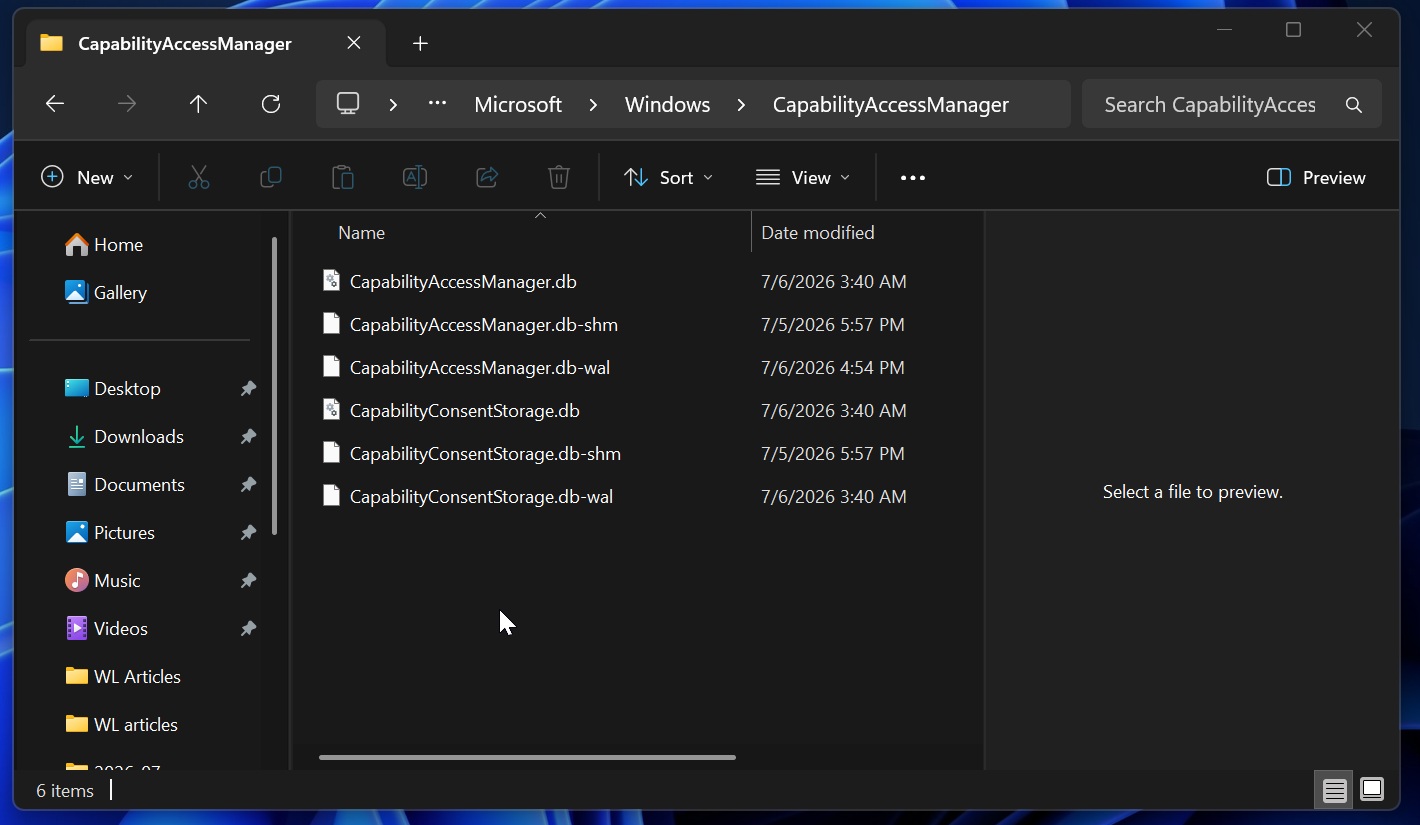
CapabilityAccessManager.db is the database itself. The .db-wal file is its write-ahead log, a staging area for changes that have not been added back into the database yet. Windows is supposed to checkpoint that log periodically and shrink it. On affected PCs, that checkpoint did not run, so the log kept stacking writes without any cleanup.
Geolocation-heavy apps kept triggering the write, but Windows was the point of failure
IT admin Max Allen tracked the bug across roughly 10,000 endpoints on his Azure to the Max blog, and every product his team flagged as a heavy writer was about geolocation. Rainmeter’s WiFiStatus plugin was the first documented case, reported in March 2025 by a user whose file hit 30GB in under 10 hours after Windows 11 24H2 made the plugin request location access. Rainmeter developer jsmorley confirmed on that thread that the plugin was querying the database roughly 10 times a second.
Dell’s SmartByte network utility, built by Rivet Networks, turned up repeatedly in later reports as well. On Allen’s blog, one reader who queried the database directly found SmartByte Network Service responsible for 9,355 writes in just 30 minutes after clearing the file, with a related RivetAPS process adding 923 more. Another comment traced their 91GB file to GeoComply, a location-verification app used by regulated sports betting sites, and confirmed the WAL stopped growing once the app was uninstalled.
The third-party software is not really at fault, though. When Allen’s team stopped the flagged apps on test machines, the WAL file kept refusing to merge into the main database on its own. Opening the same files manually in DB Browser for SQLite merged them without any error, so the database itself remained intact throughout. The checkpoint logic inside camsvc was the broken part, and the flagged apps were simply the ones writing to it fastest.
Every affected machine in Allen’s fleet was running the March 2026 update or later, specifically builds 10.0.26200.8037, 10.0.26200.8039, or 10.0.26200.8246. Windows Latest understands a February or March 2026 update introduced the problem.
Microsoft confirmed the bug internally in May, weeks before the public changelog note
June 29 was not the first time Microsoft acknowledged this. According to Allen’s reporting, Microsoft’s support team privately confirmed the bug as a known issue on May 13, 2026, in response to a support case he had opened, and said the product team was working on a permanent fix expected around late June or early July. Microsoft also shared a manual workaround at that point, which involved booting into Safe Mode through msconfig, running net stop camsvc, and deleting the WAL file directly.
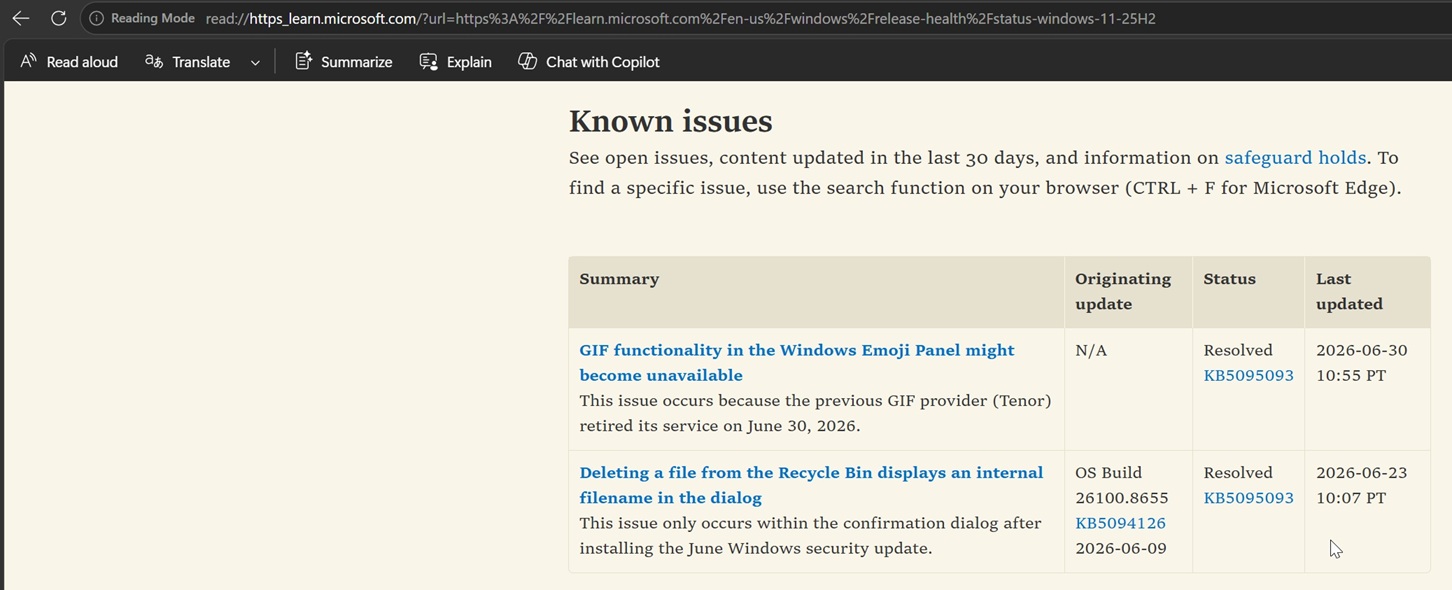
The Windows release health dashboard does not show that confirmation anywhere. The known issues page for Windows 11 25H2 lists a GIF panel problem and a Recycle Bin file-naming glitch, both resolved, with no entry describing a bug capable of filling a storage drive.
Across roughly 10,000 devices tracked over one week, 59% had a WAL file over 1GB, the average file grew by 1.1GB, several hundred grew by more than 10GB, and the worst machine added 65GB in that single week. One device reached 332GB. Around 200 machines needed manual intervention, and Allen projected another 300 would run out of space before the July 14 update arrived.
For comparison, a separate scan across roughly 8,000 devices by other IT admins found exactly one file over 500MB. The bug hit some environments hard while leaving most machines untouched, which likely explains why it stayed off the public dashboard for so long.
How to check if your PC is affected
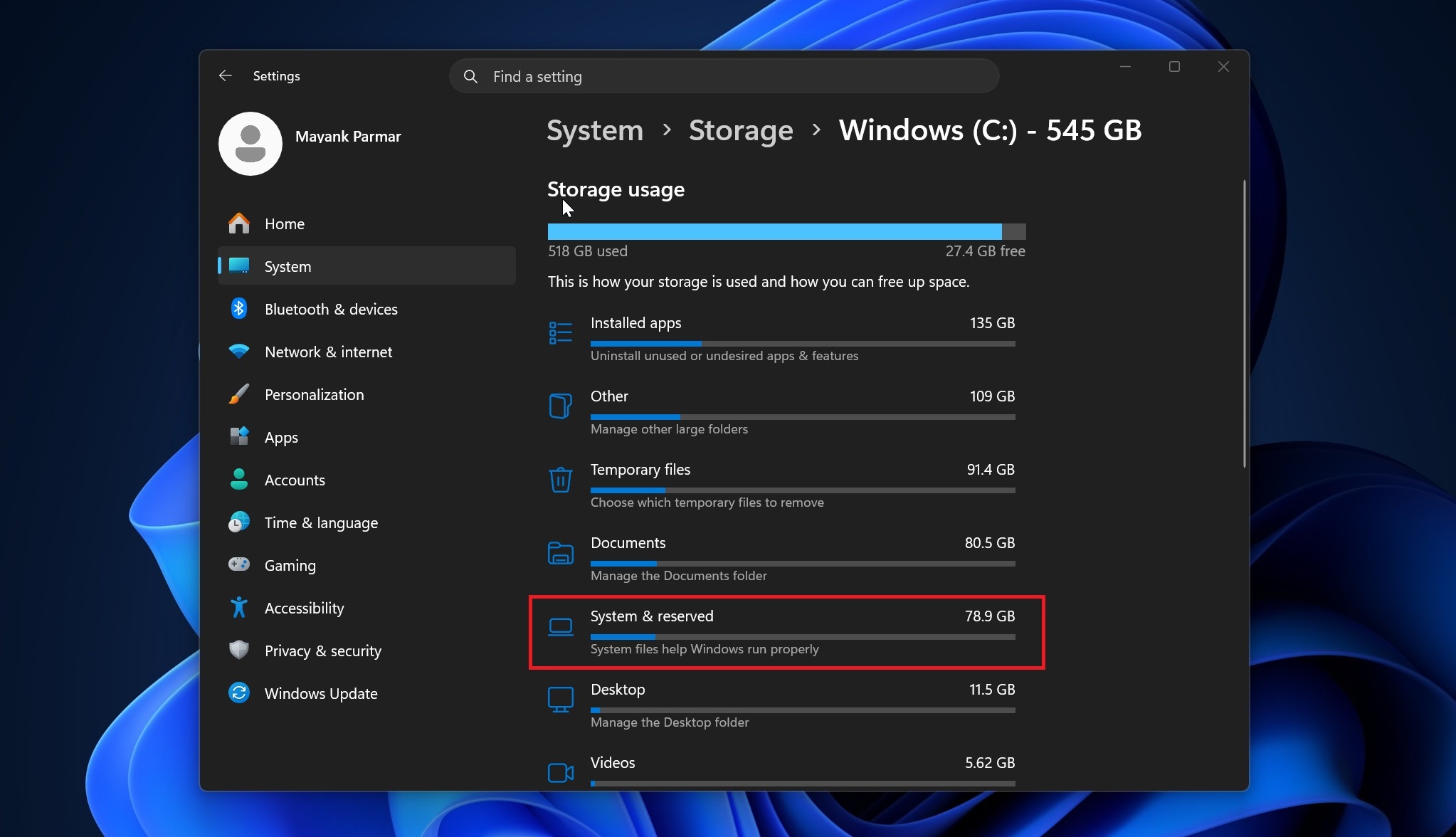
Open Settings > Storage > Show more categories > System & Reserved and check System files. A figure in the hundreds of gigabytes, with no hibernation file or oversized page file to explain it, would be the issue. Windows does not name the file responsible anywhere in this screen.
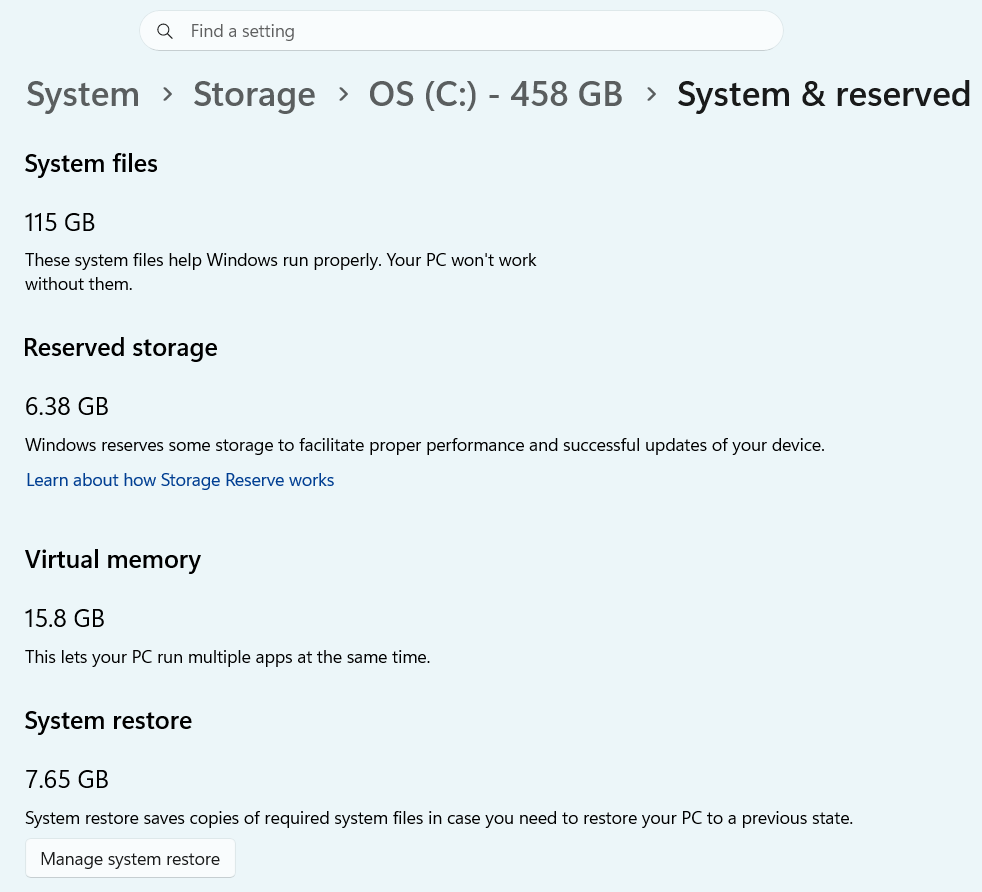
To confirm without needing permissions, run this in an elevated Command Prompt.
robocopy “C:ProgramDataMicrosoftWindowsCapabilityAccessManager” “%TEMP%CAMCheck” /L /B /R:0 /W:0 /BYTES /NP
/L lists files only, /B is backup mode so Robocopy can read protected system files without taking ownership, and /R:0 with /W:0 stops it from retrying when access is blocked. Nothing gets copied.
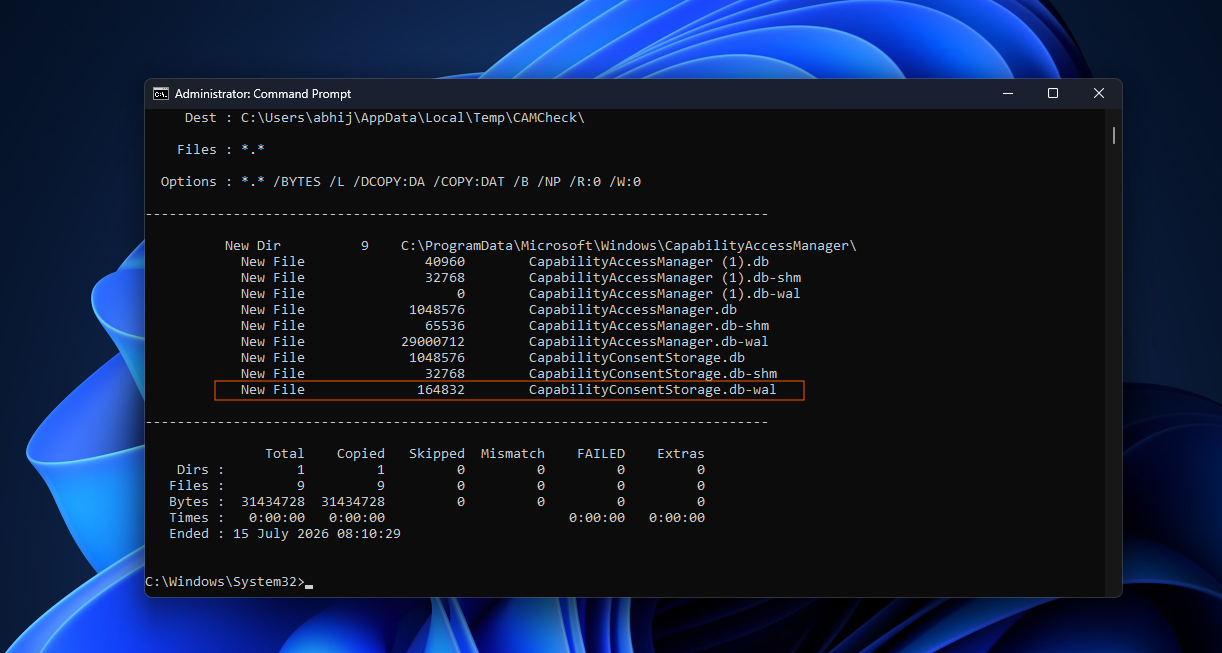
Check the byte count next to CapabilityAccessManager.db-wal. On a healthy system, it is around 1.6MB. If it reads several gigabytes, or grows when you run the command again ten minutes later, your PC is affected.
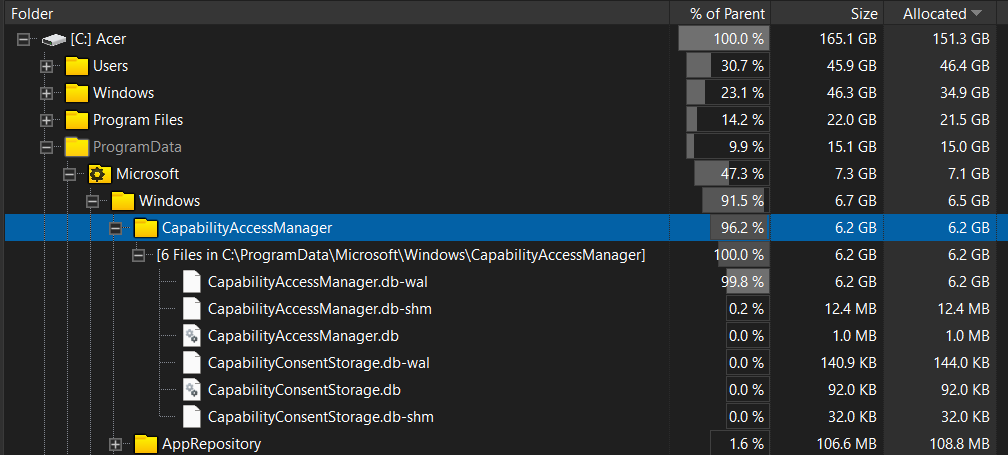
WizTree, TreeSize, and WinDirStat work too, though the folder is locked to the SYSTEM account, so a normal admin scan usually shows the space as unaccounted for instead of pointing at the file.
How to reclaim storage after installing KB5101650
To verify if the storage fix applied to your PC, install the July update first. Clearing the log before patching restarts the same cycle, and one user on the Microsoft Q&A thread, when the bug first showed up, reported the file climbing back close to 1.8GB a day after a manual reset.
After the reboot, check the file again. If it has dropped to a few hundred kilobytes, the fix worked, and there is nothing left to do.
Proceed to the following steps only if you don’t see any change after installing the July update:
If it is still enormous, Microsoft’s guidance before the fix, shared in the same Q&A thread, was to delete CapabilityAccessManager.db-wal from Safe Mode after stopping camsvc, and to leave every other file in that folder alone, including CapabilityAccessManager.db itself. One user on that thread recovered 276.6GB this way.
A Reddit user in r/WindowsHelp took the Windows Recovery Environment route instead, renaming a 200GB file instead of deleting it, letting Windows build a fresh log automatically, and removing the old renamed copy only after confirming the new one worked.
Deleting the file the wrong way can break Wi-Fi and camera permissions
Several users on the Microsoft Q&A thread reported trouble at this step. Deleting the WAL file while camsvc was still running, or taking manual ownership of the folder to get past the access denied error, left some of them with no Wi-Fi networks showing up, camsvc failing to start with error 1067, or the Location page in Settings timing out.
Resetting permissions with icacls “C:ProgramDataMicrosoftWindowsCapabilityAccessManager” /reset /T /C restored normal function in those cases. A few users also lost their saved Wi-Fi passwords and had to reconnect manually, then re-grant camera and microphone access to apps that had previously been approved.
If your drive is already full and Windows Update cannot download KB5101650, clearing the file first is the only option available. Everyone else should install the update, verify the file size afterward, and only opt for deletion if the number has not come down.
The post Microsoft just fixed a bug using massive Windows 11 storage, verify if it’s applied to your PC appeared first on Windows Latest