
Microsoft has pushed the Secure Boot 2023 certificate update to all eligible Windows 11 and Windows 10 PCs, hours before the first expiration deadline hits on June 24, 2026. We have received a statement from Microsoft confirming the wider rollout: “With this update, Windows quality updates include additional high confidence device targeting data, increasing coverage of devices eligible to automatically receive new Secure Boot certificates. Devices receive the new certificates only after demonstrating sufficient successful update signals, maintaining a controlled and phased rollout.”
If your PC received the June 2026 Patch Tuesday update, there is a very good chance the Secure Boot 2023 certificates have already landed on your device without you doing anything. Here is how to check and what to do if your PC is showing a warning.
What is the Secure Boot Certificate Update?
Secure Boot is a firmware-level security feature that runs before Windows even starts loading. It verifies the digital signature of every boot component, blocking rootkits and bootkits from inserting themselves into the startup chain. The certificates that back this system were issued in 2011, and Microsoft Corporation KEK CA 2011 expires on June 24, 2026, followed by Microsoft UEFI CA 2011 on June 27, and Microsoft Windows Production PCA 2011 on October 19, 2026.
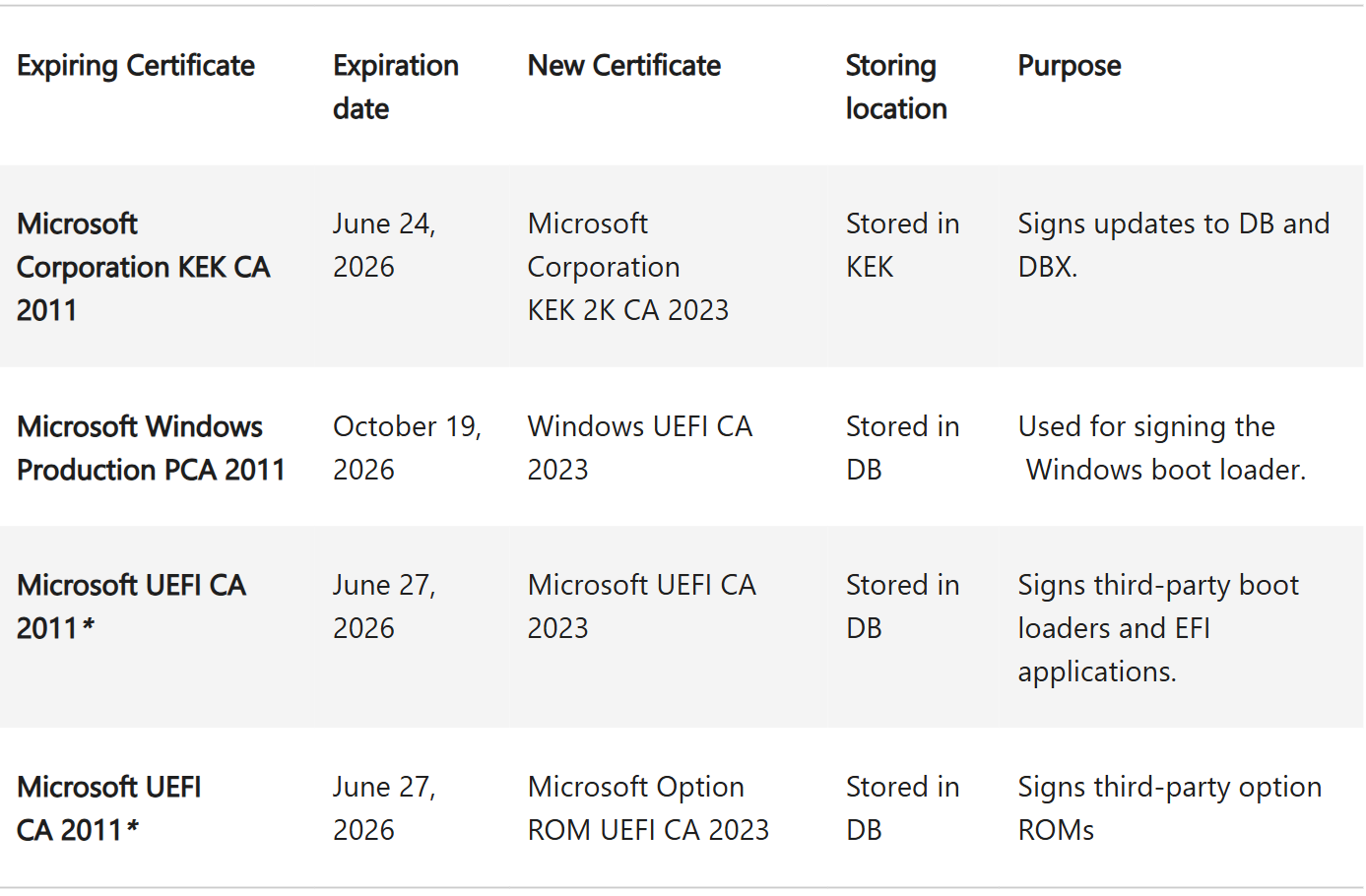
To keep Secure Boot functioning for future security updates after those dates, Microsoft has been rolling out replacement 2023 certificates through Windows Update since 2024. The June 2026 update significantly expanded the pool of eligible devices, moving the vast majority of supported PCs into what Microsoft calls the “high confidence” category, where the update can be applied automatically and safely.
How to check if your PC has the Secure Boot 2023 Certificates
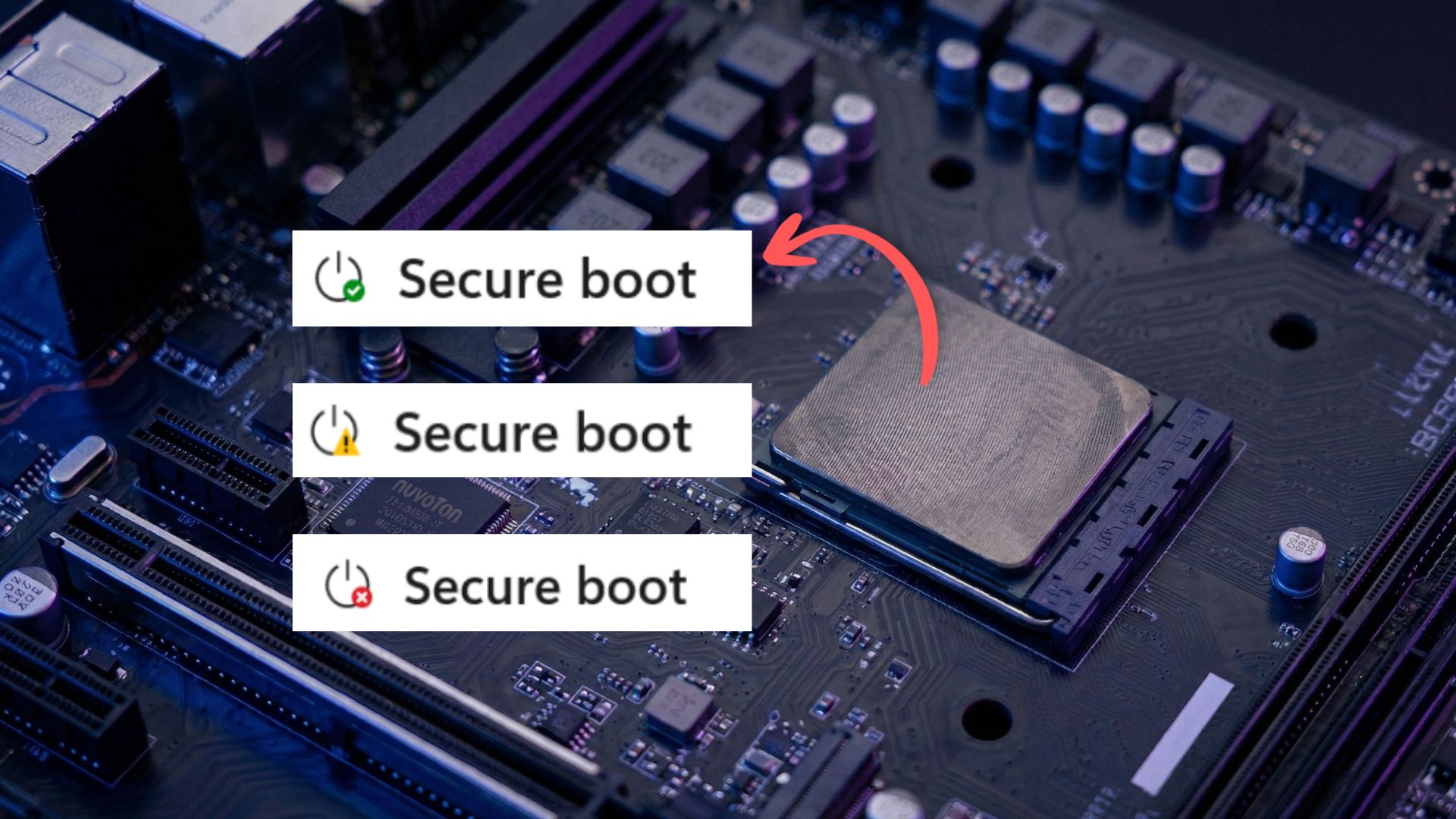
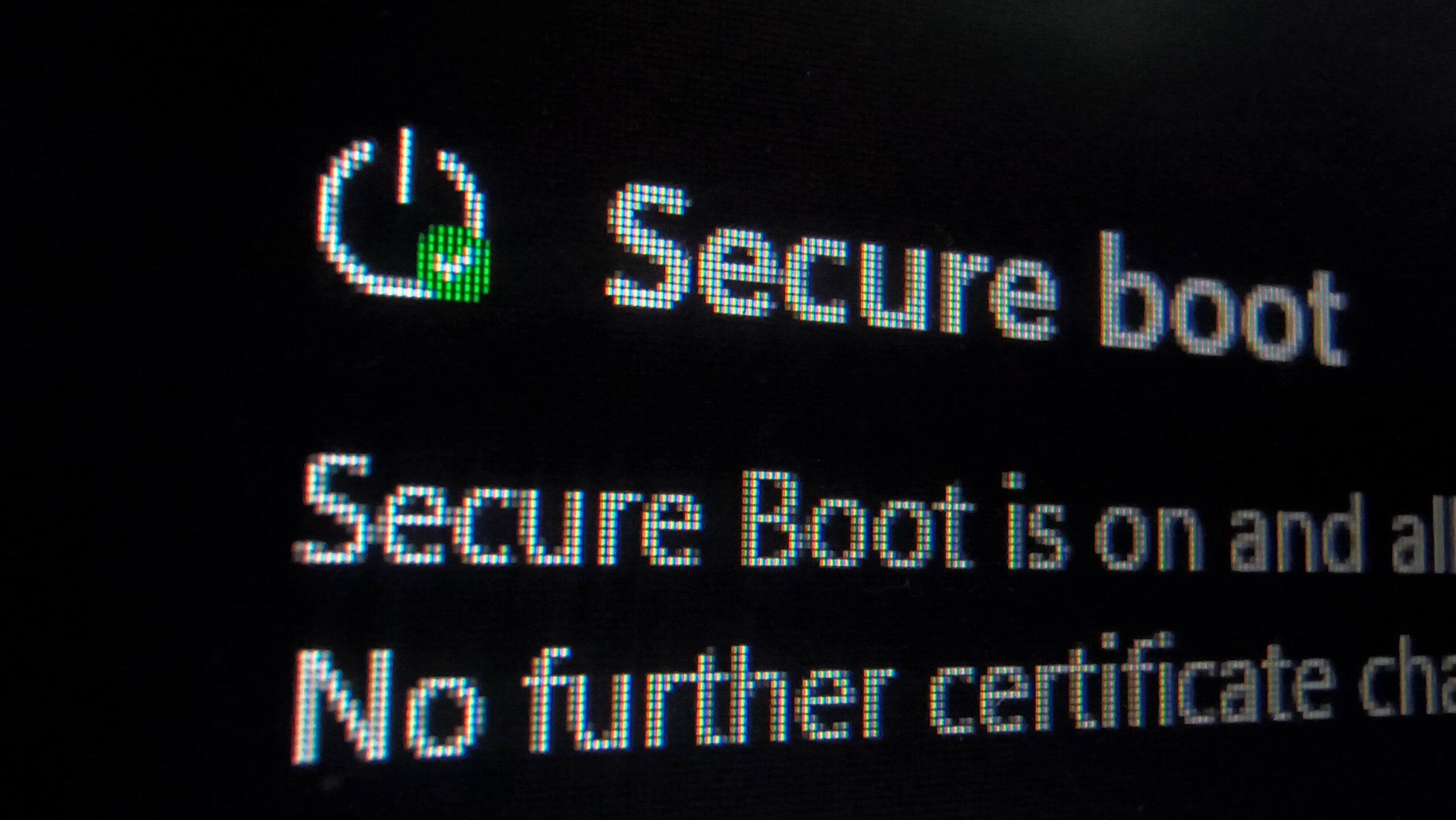
The quickest way to verify is through the Windows Security app, a feature Microsoft added in the April 2026 Windows 11 update. Open Windows Security, click Device Security from the left menu, then scroll to the Secure Boot section. You will see one of three status indicators.
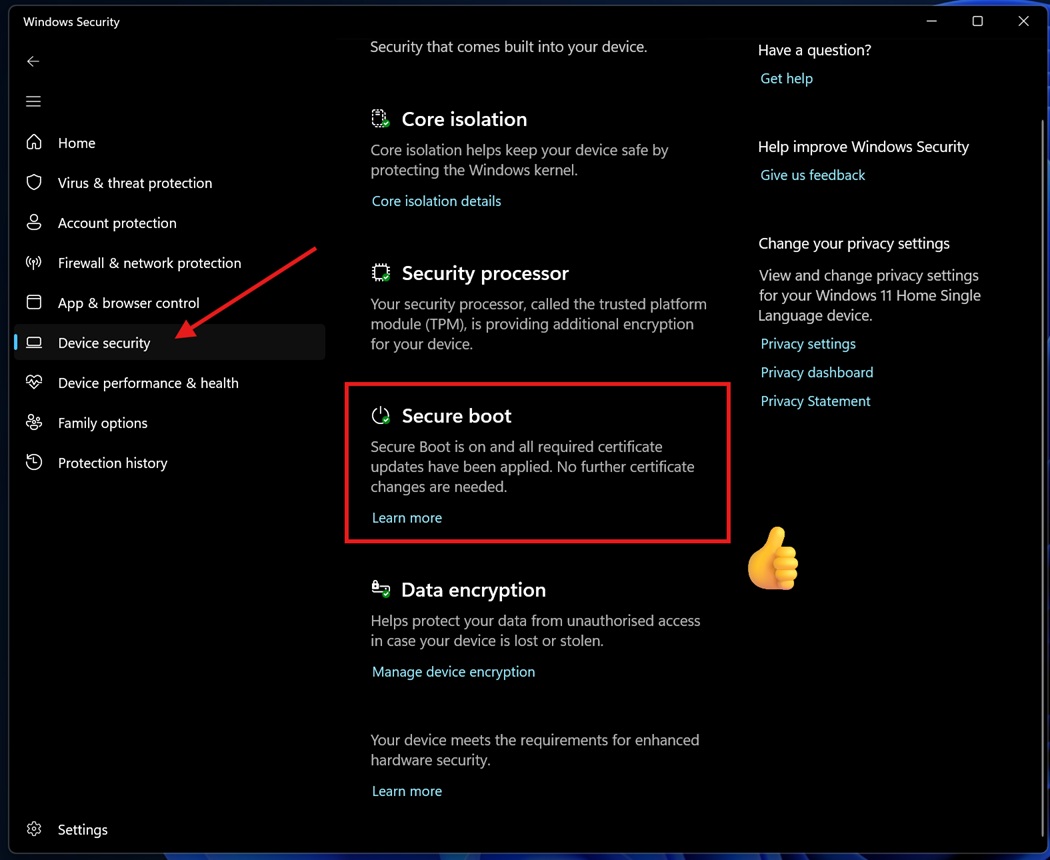
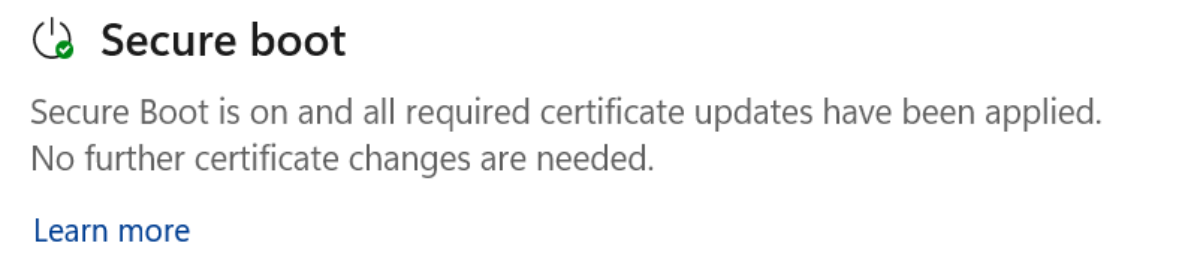
A green checkmark with the message that all required certificate updates have been applied means your PC is fully up to date, and no action is needed.
A yellow warning means the update is pending. Your device may need more compatibility data, or it may need a BIOS update from your PC manufacturer before the certificates can be installed. Microsoft will keep trying to push it automatically.
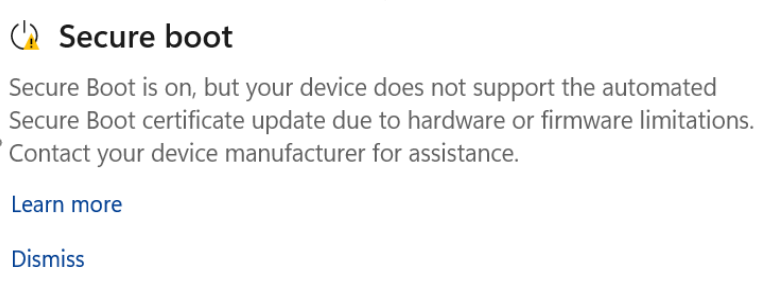
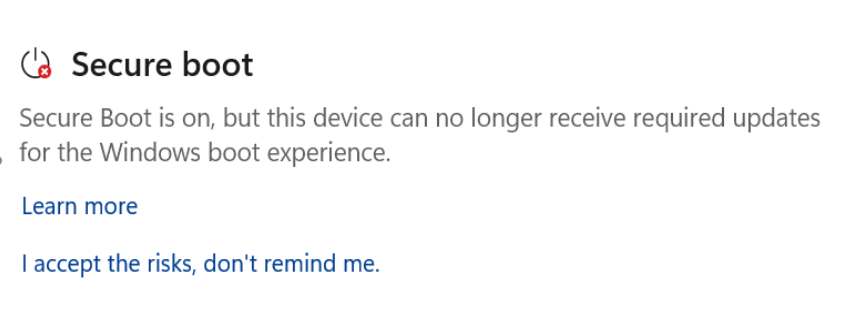
A red alert indicates a specific issue blocking the update, typically a firmware incompatibility. At that point, check your PC manufacturer’s support page for a BIOS update.
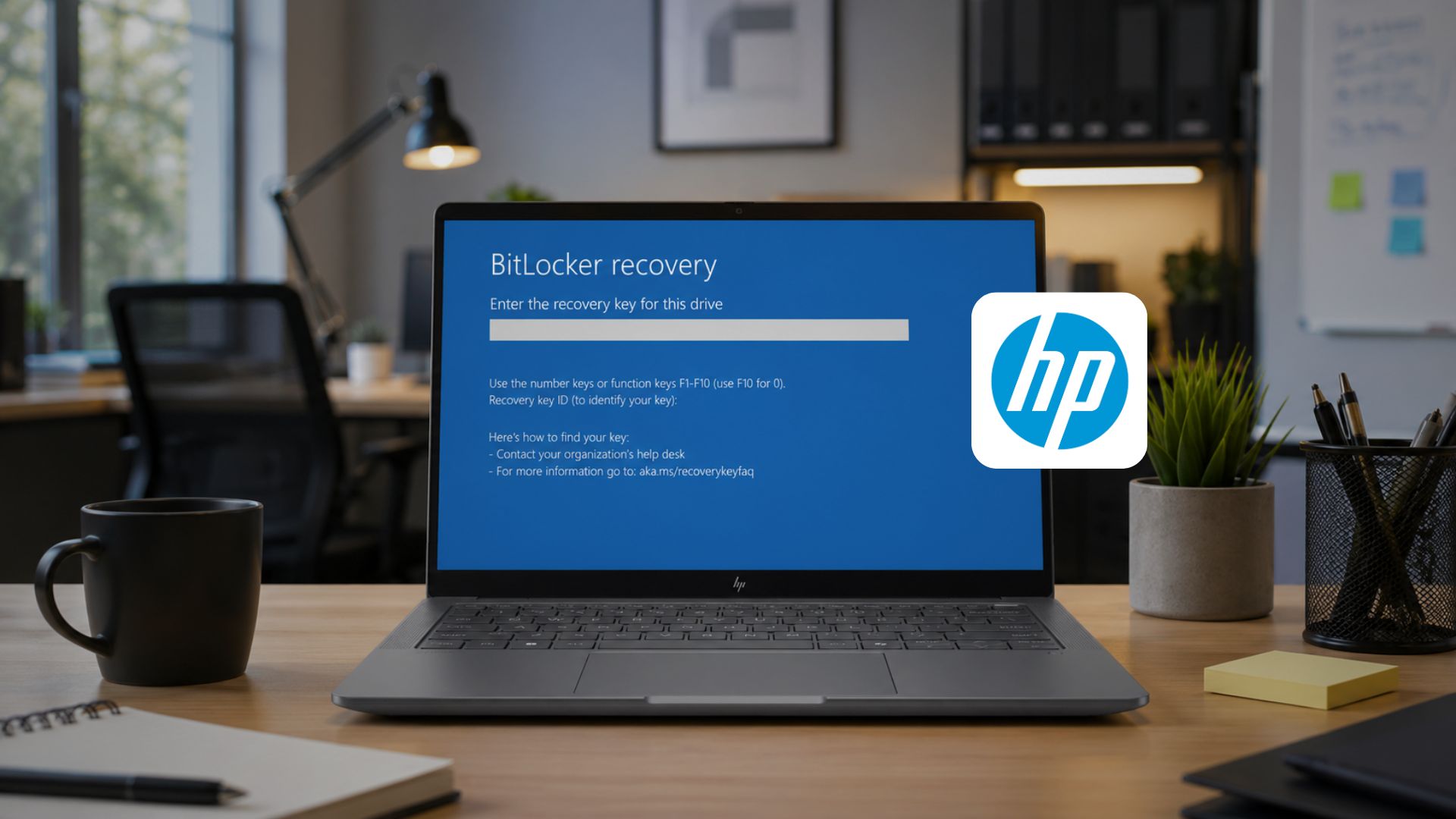
For HP users specifically, a faulty BIOS update from HP earlier this year caused BitLocker recovery loops, so check for a corrected BIOS version rather than assuming the most recent one is safe.
If the Secure Boot section is missing from Device Security, your PC likely has Secure Boot disabled or was installed using the registry bypass on unsupported hardware. We covered what this means in detail for Secure Boot in older and unsupported PCs.
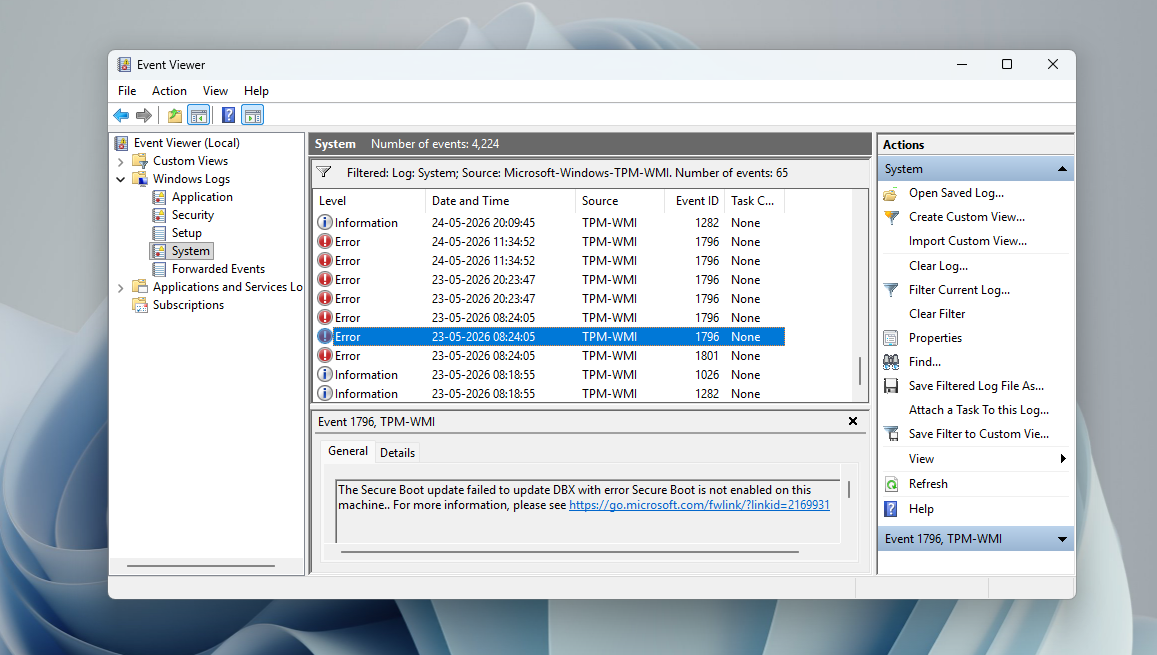
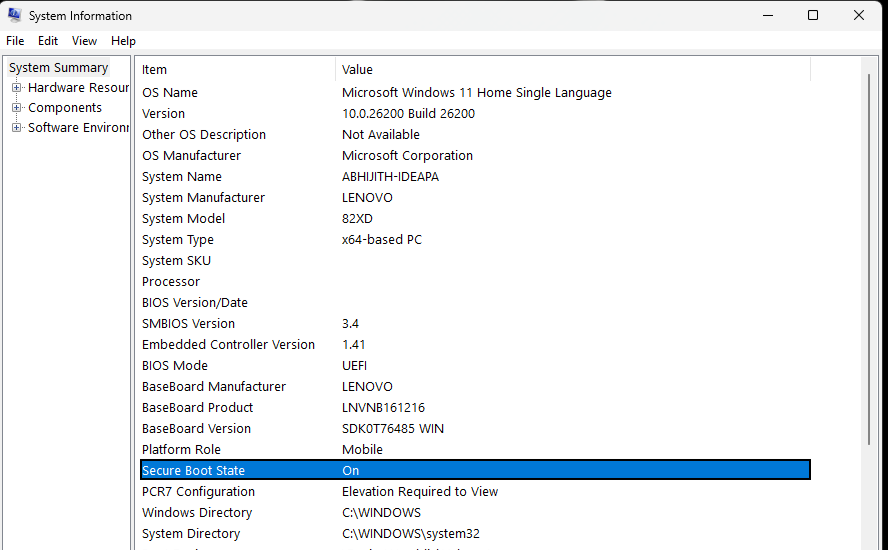
If you like a more traditional way to check Secure Boot Status, open System Information (press Win + R, type msinfo32, hit Enter) and look for the Secure Boot State line under System Summary. For a registry or PowerShell-level audit, we published a full Secure Boot verification guide earlier this year.
What if your PC did not receive the Secure Boot update?
Although a rarity, missing the Secure Boot certificate update does not mean your PC stops working. Microsoft has confirmed that devices without the 2023 certificates will continue to boot normally and receive regular Windows updates. What stops, is the ability to receive future boot-level security updates, including revocations for newly discovered malicious bootloaders and fixes for vulnerabilities like the BlackLotus bootkit. The security degradation is gradual, not immediate.
For most home users on modern hardware, the update arrived automatically, and there is nothing to do. If your PC is showing a yellow warning, it’s enough to wait for the next Windows Update cycle. Microsoft continues expanding device coverage with each monthly update.
If you are thinking about Secure Boot on an older PC where the manufacturer has stopped pushing BIOS updates, the chances of getting the 2023 certificates are rather slim.
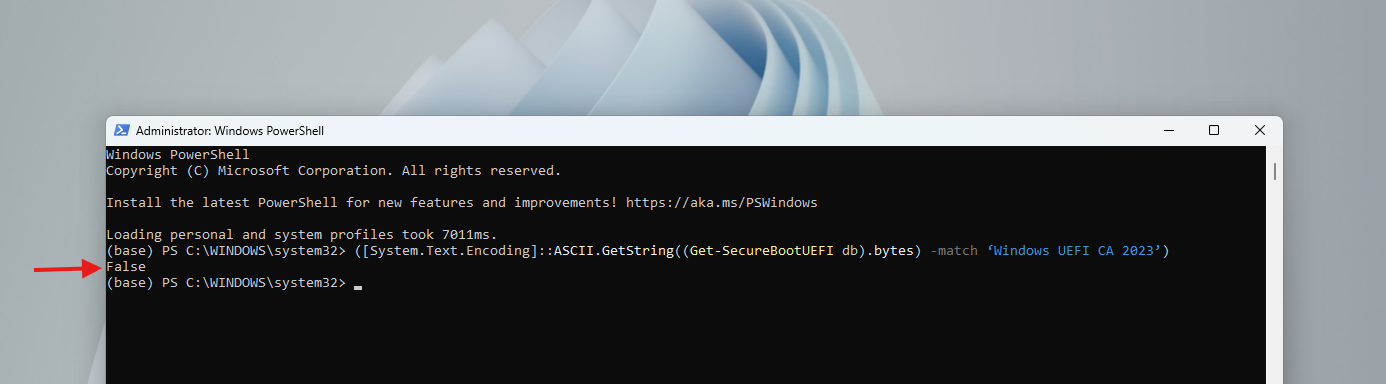
Secure Boot 2023 updates have been failing on some PCs because of firmware incompatibilities, and for those devices, there may not be a straightforward fix. The priority for those users is to check whether a BIOS update exists before attempting any manual intervention.
Your PC may restart twice after updates and it is normal
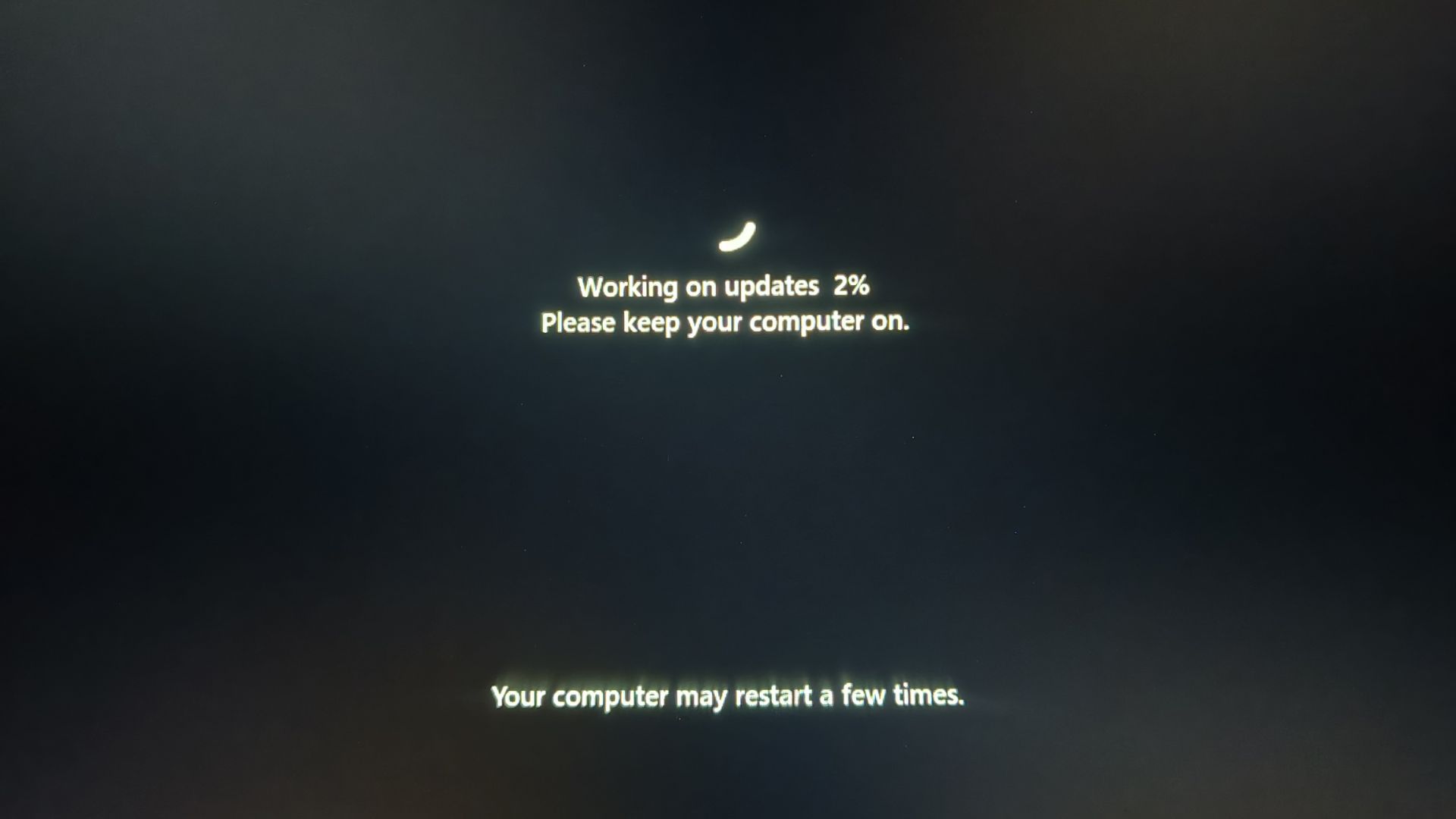
Some users have noticed their PCs restarting two or three times after recent Windows updates and assumed something went wrong. Microsoft confirmed this is expected behavior, specifically because of the Secure Boot certificate process. Writing the new certificates to the firmware, then applying the updated boot manager, and then booting Windows with the new chain each requires separate reboots. If your PC restarted more than once after the June update, it was working correctly.
The SecureBoot folder in Windows is not a Virus
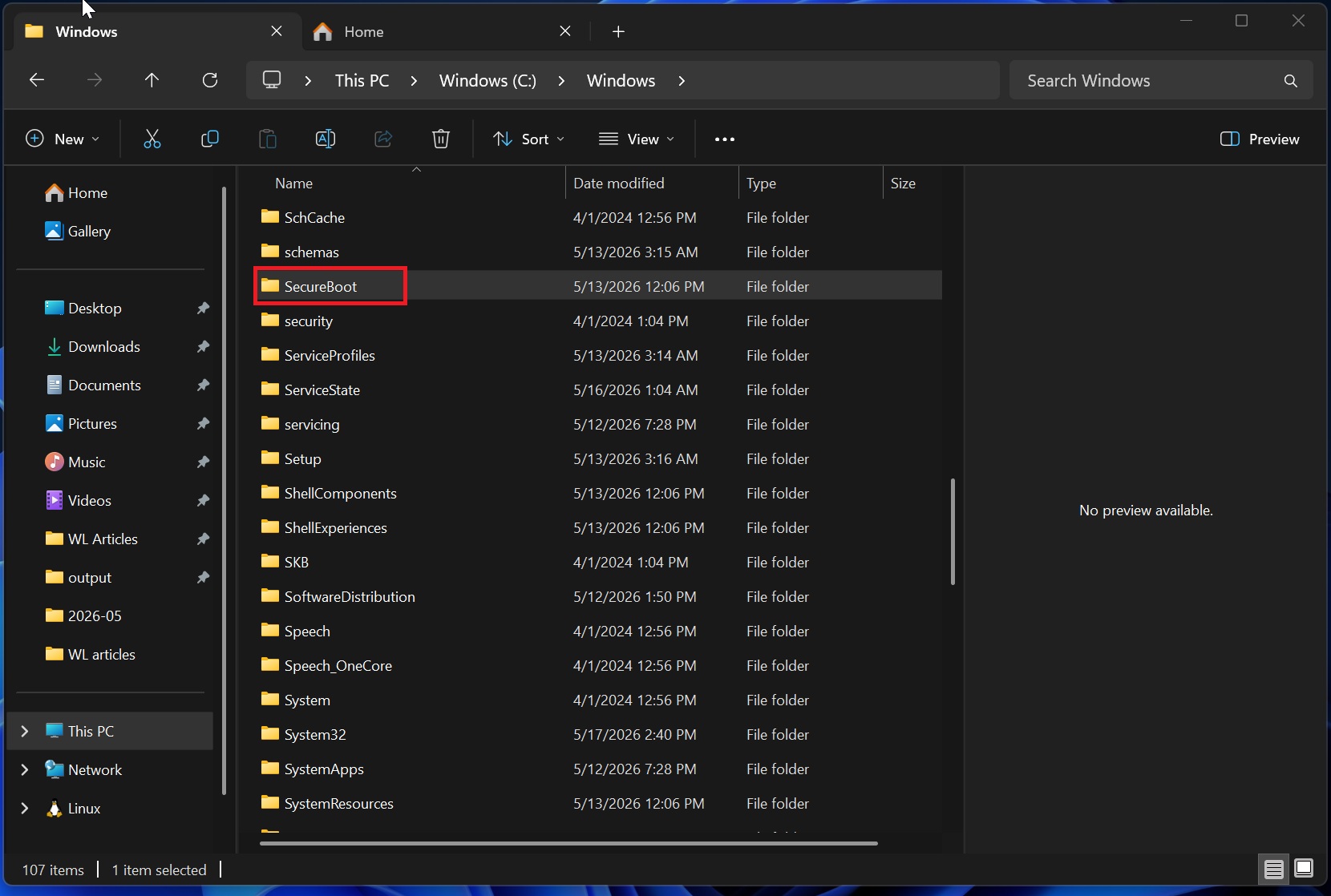
Around the time of the May 2026 update, a lot of users noticed a new folder at C:WindowsSecureBoot and were concerned, thinking it was malware. Microsoft confirmed it is not a bug and you should not delete it. Windows uses the folder to stage the cryptographic certificate files before writing them to the firmware.
Windows 10 users are also getting the Secure Boot update
The fact that Windows 10, which has reached end of life, is still getting Secure Boot updates is proof enough of how important a change this is. Windows 10 users enrolled in the Extended Security Updates program started getting Secure Boot status reporting from the May 2026 update KB5087544. The update mechanism is identical across both operating systems. If you are on Windows 10 and no longer receiving updates because you are not in the ESU program, the certificate update will not arrive through Windows Update.
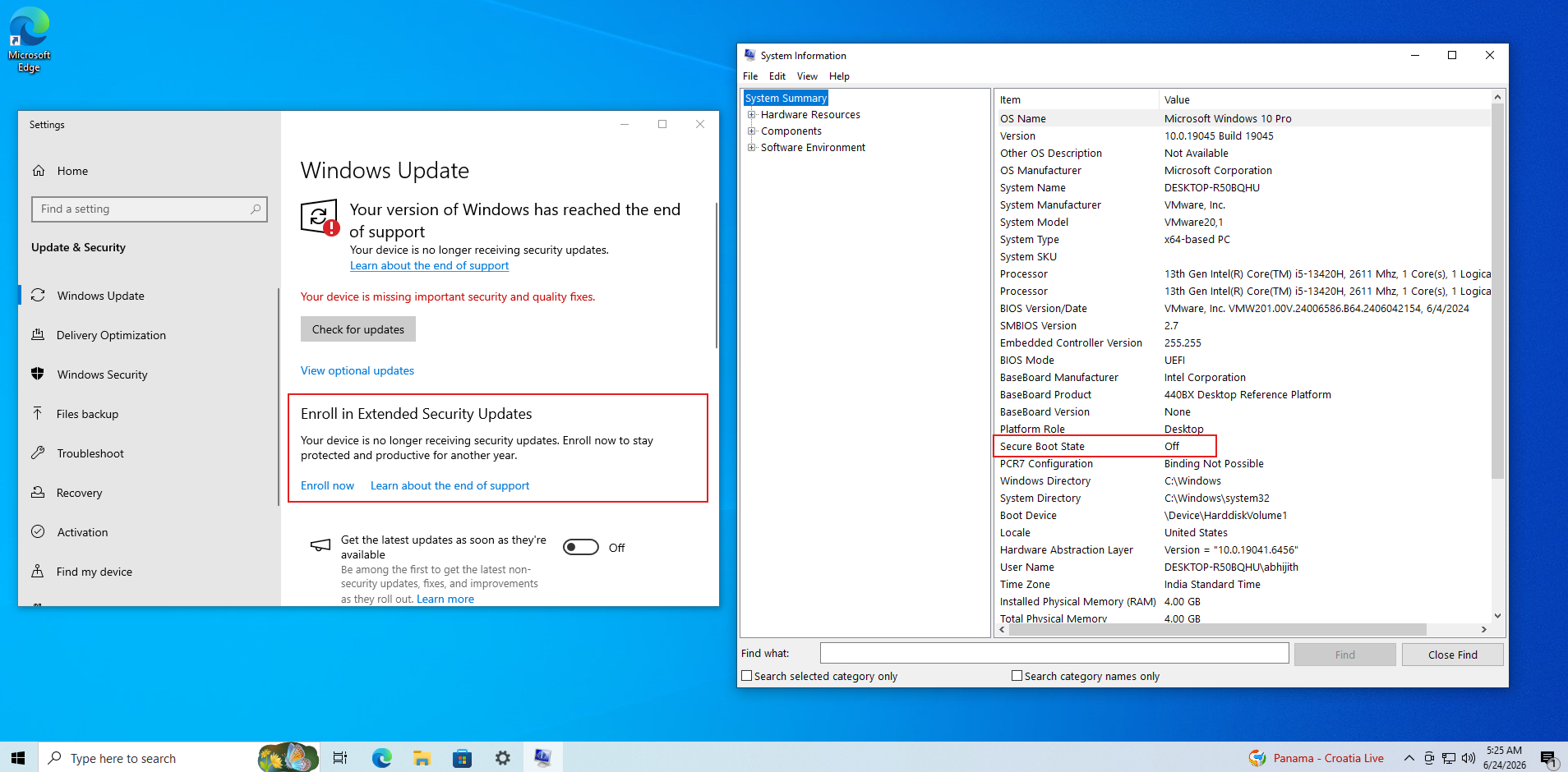
Of course, enrolling in ESU means that you’ll have to move from a local account to a Microsoft account on your Windows 10 PC.
Windows 11 users should also know that Windows Latest tested and covered everything new in the June 2026 update, which was the update that brought the widest-yet rollout of the Secure Boot certificates.
For IT Admins: What the Deadline means starting June 24
The June 24 expiration of the Microsoft Corporation KEK CA 2011 means Microsoft loses the ability to sign new Secure Boot revocation payloads (DBX updates) with the old key. All existing signed payloads and the manual rollout methods continue working. The DB key does not expire until October 19, so Microsoft can still sign new boot managers until then. Microsoft held two detailed AMA sessions with engineers specifically for IT administrators covering device confidence buckets, Intune monitoring, PXE boot scenarios, and caveats with virtual machines. For enterprise fleet management, aka.ms/GetSecureBoot remains the central resource.
For devices in the temporarily paused bucket, the path forward is a BIOS update from the OEM. Forcing the update through registry keys on a paused device without a firmware update first is not recommended and may trigger boot failures or BitLocker recovery.
The post Windows 11 Secure Boot update released to all, hours ahead of expiry appeared first on Windows Latest