
For years, the overarching philosophy behind Windows updates has been to force them onto our PCs as quickly as possible. Now, Microsoft appears to be changing its tune. In a somewhat surprising acknowledgement of user frustration, the company is reminding people that they do not have to update their PCs immediately if they are in the middle of a workflow.
In a recent post on X, the official Microsoft Support account shared the common frustration of getting a Windows Update while you’re hard at work, and how to get over it.
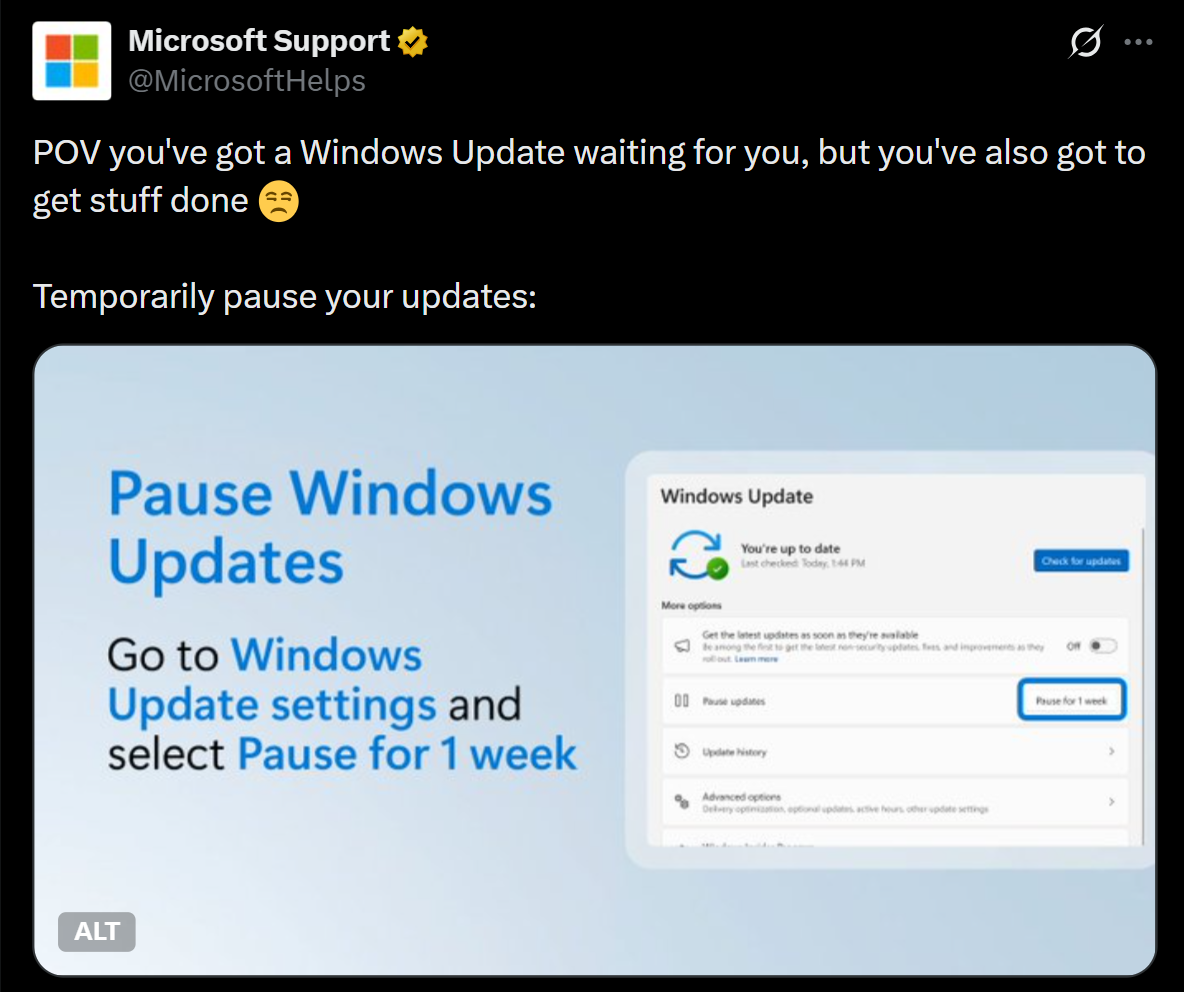
The image attached to the post highlights the standard “Pause for 1 week” button currently available to all Windows 11 users. However, what the post fails to mention is that this specific menu is already being overhauled. As the company publicizes this temporary workaround, Microsoft is already testing significantly more granular Windows update controls with Insiders, which will drastically change how we handle software updates.
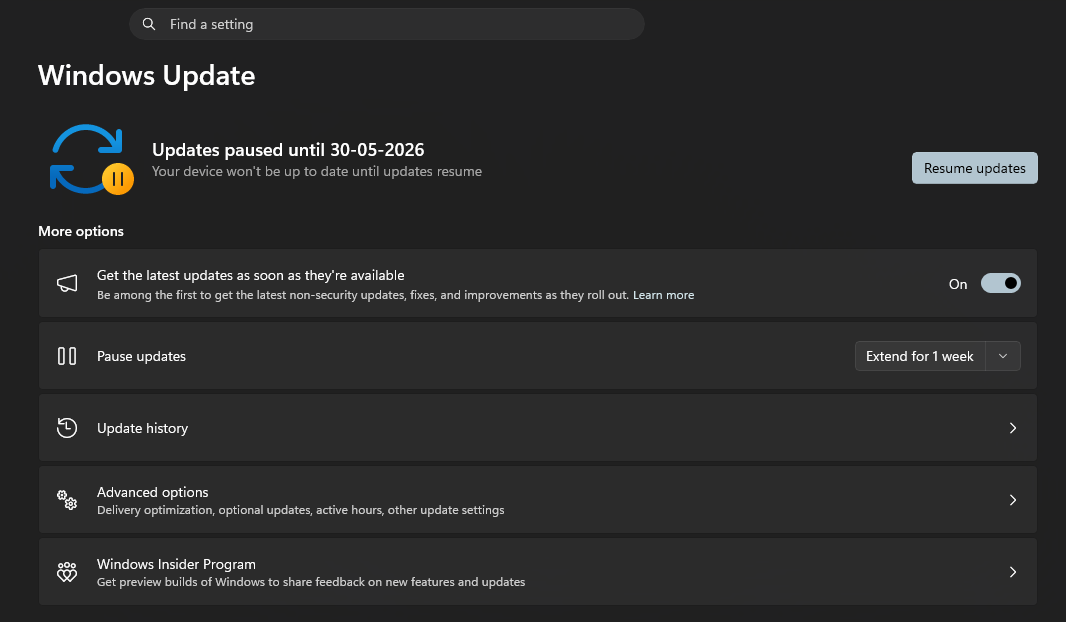
From a one-week delay to indefinitely pausing Windows updates
Although Microsoft’s post mentions pausing for just a week, if you are running the retail version of Windows 11 today, you will have options to pause updates for up to five weeks. Once that last week expires, your system will attempt to download the latest patches. You cannot pause updates after this.
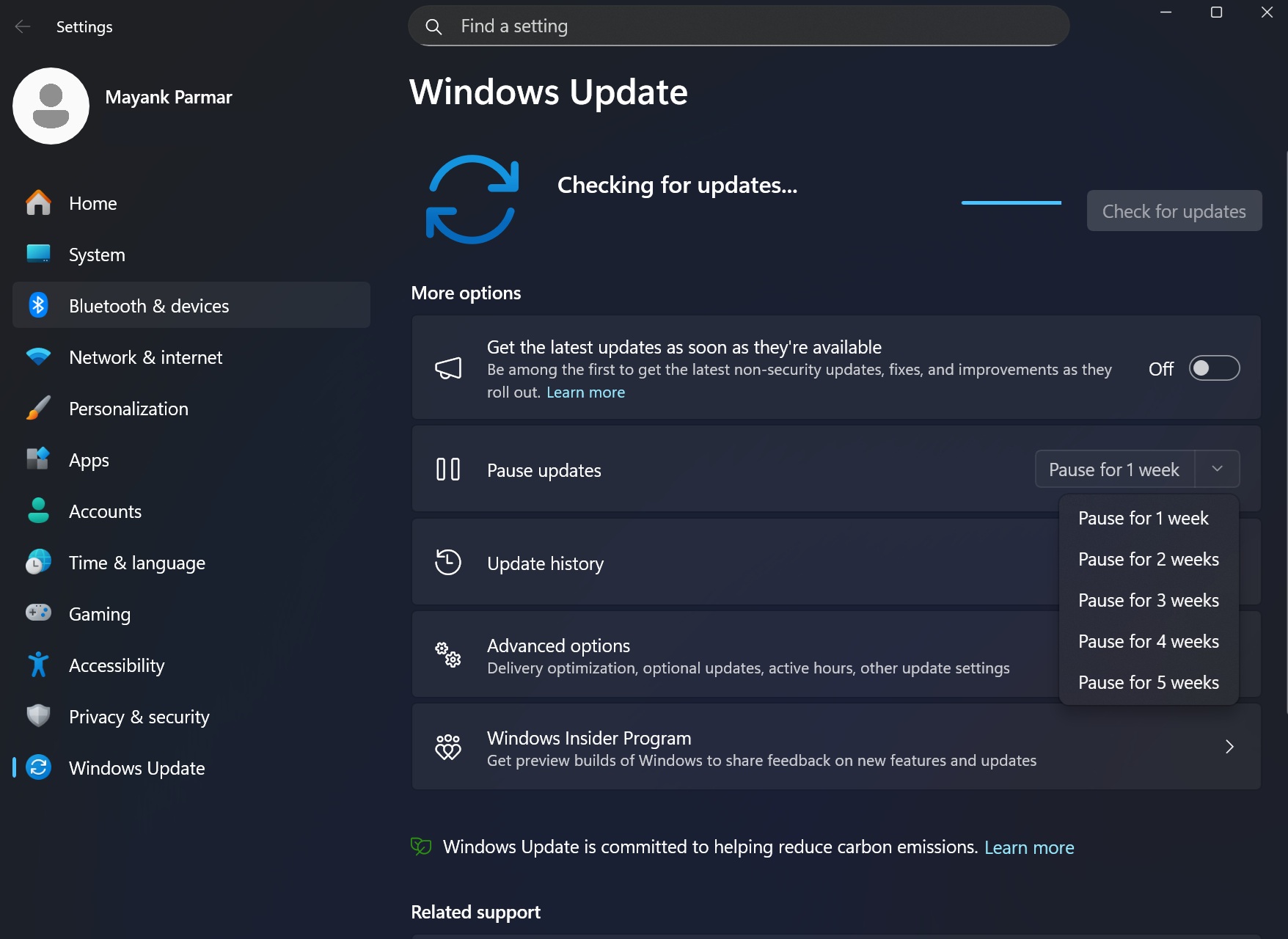
But, of course, you may not need to pause for a week; maybe just a day or two is enough. Or maybe you need to pause until a particular date. Or maybe even for two months!
For Windows Insiders, Microsoft has replaced the futile one-week button with a new “Pick a date” feature. This new calendar in the Windows update page allows you to pause updates for up to 35 days at a time. More importantly, once that 35-day window approaches its end, you can simply open the calendar and extend the pause again. By chaining these delays, you can theoretically pause Windows updates indefinitely.
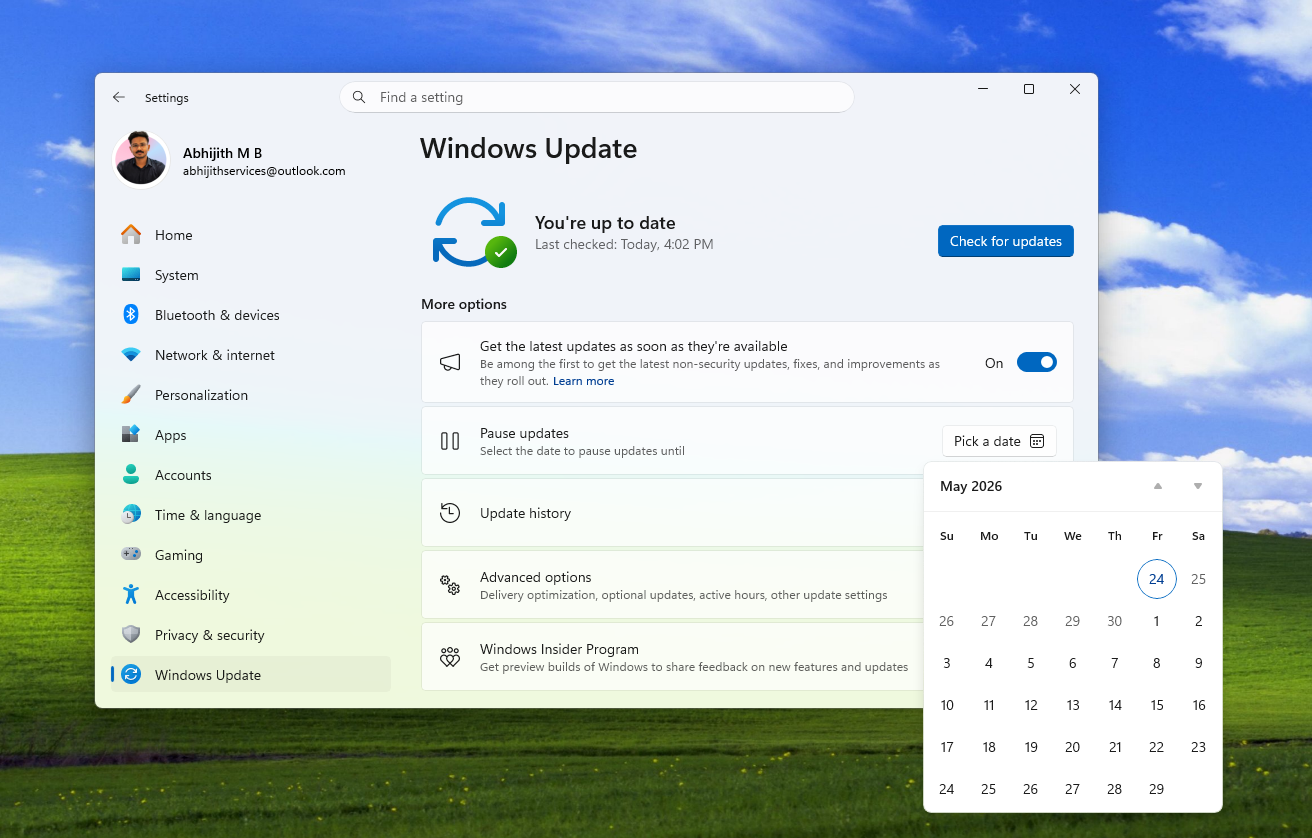
The new option to pick a date until which you can pause updates will come soon to all Windows 11 PCs. While leaving a machine completely unpatched is a terrible idea for security reasons, it is incredibly refreshing to finally have such a level of granular control natively built into Windows 11. This reminds me of the old Windows XP and Windows 7 days when I never once thought about updating my OS!
Windows 11 has too many updates in a month
Microsoft’s sudden push to make Windows updates less intrusive is actually them finding a solution to a problem that they created.
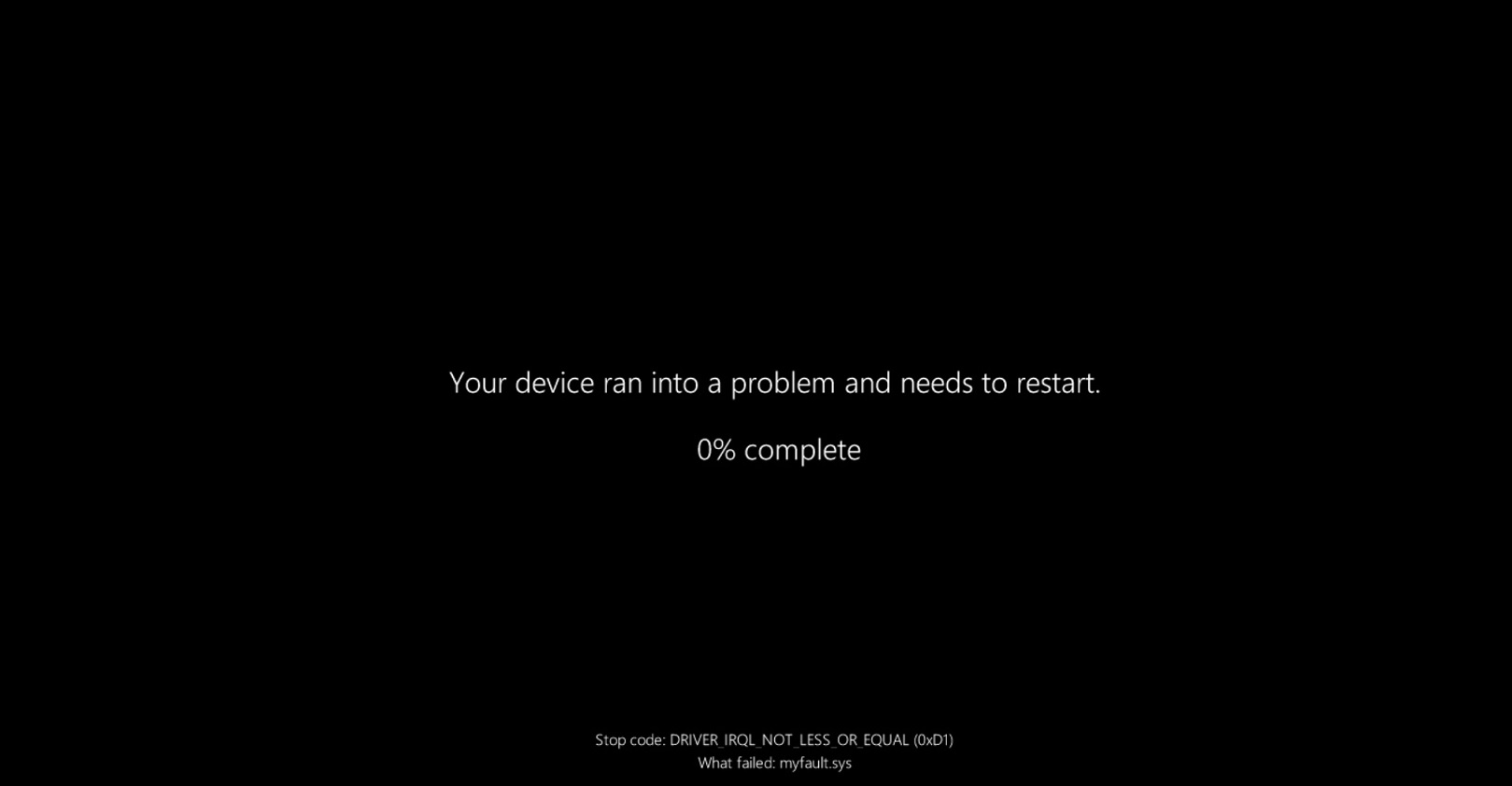
My current Windows 11 PC is now three years old. As someone who tests the latest builds, I am genuinely always excited to see new updates roll in, as it means new features and tweaks to explore. I also have a rather terrible habit of never actually shutting down my computer. The only time my machine ever reboots is when a Windows update forces it to. On the rare occasions when I leave my PC running continuously for more than three weeks, I invariably end up staring at a Blue Screen of Death. But surprisingly, in all my time testing these builds, I have never experienced a failed update.
However, my enthusiasm is an outlier. The vast majority of Microsoft’s 1.6 billion Windows 11 users do not track development cycles. They have no idea what “Patch Tuesday” is, they do not care about out-of-band emergency fixes, and they certainly do not seek out optional preview updates. To the average professional, a mandatory Windows update is nothing more than an intrusive distraction that interrupts their workflow and risks breaking their software environment.

It’s okay to think that Microsoft contrived an aggressive update problem and is now attempting to sell the solution. This is partially true. Unlike macOS, which still has a much smaller slice of the desktop pie, the staggering market share of Windows makes it the primary target for malicious actors. Microsoft just does not have the luxury of letting known vulnerabilities be unpatched, and so frequent security updates are a necessary evil.
My personal gripe is with Microsoft’s “continuous innovation” delivery model. Instead of saving major features for a single, exuberant annual release, Microsoft bundles new tools, UI changes, and web-app integrations into these monthly security updates. If Windows returned to a highly anticipated yearly launch schedule, similar to the hype cycle Apple enjoys with macOS, users would likely be far more receptive. It would isolate feature disruptions to a single day, build immense community excitement, and leave the rest of the year dedicated solely to silent, invisible security patches.
Why are updates taking longer to install

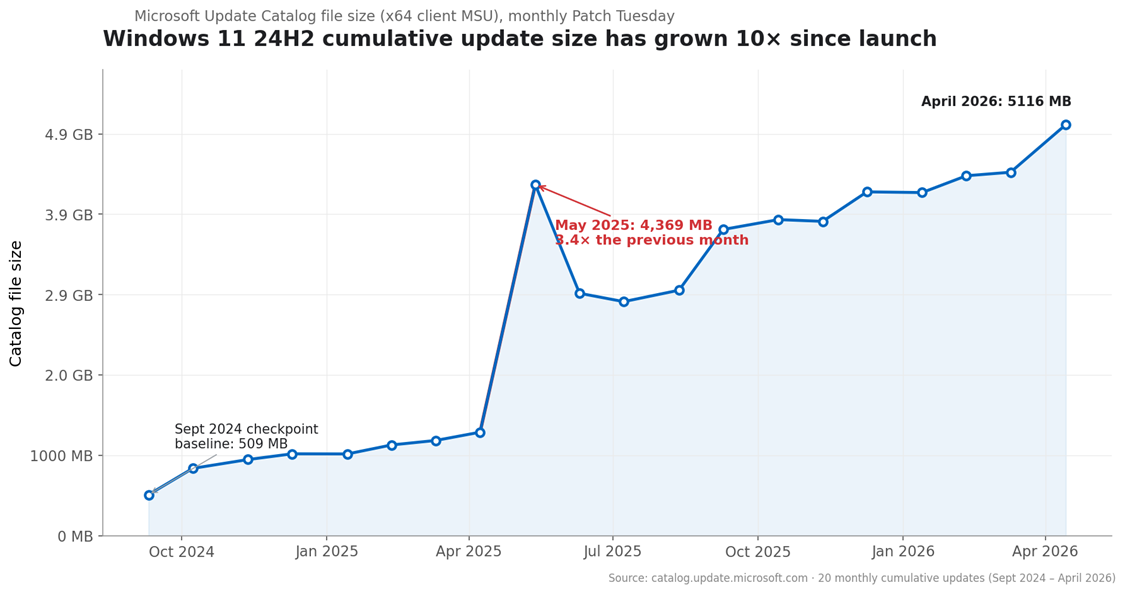
Over the past year, Windows Latest noticed that the time it takes to download and install a patch has increased considerably.
I analyzed Windows 11’s massive 5GB monthly .msu updates, and while the integration of Copilot and on-device machine learning models certainly inflates the package size, the issue is in how Microsoft packages cumulative updates. For maximum backward compatibility across millions of wildly different hardware configurations, the catalog packages have swelled to massive proportions, frequently crossing the 4GB mark. Yes, delta logic helps minimize what your specific PC downloads, but the complexity of the OS makes applying these updates still take a considerable amount of time.
Also, in an official documentation, Microsoft revealed why some Windows 11 updates take a while to install even after a quick download. According to the tech giant, if an update appears stuck on the spinning circle screen, it is by design.
Windows 11 now triggers automatic real-time recovery mechanisms in the background the moment it detects an installation failure. So, instead of abruptly failing and throwing a vague error code, the OS takes additional steps to repair and complete the installation without user intervention.
While this background troubleshooting prevents your PC from entering a bad update state and drastically improves overall success rates, it intentionally extends the length of the reboot sequence, making greater user control over updates more essential than ever.
Complete control over Windows 11 updates is finally on the horizon
Microsoft’s recent social media post is just the tip of the iceberg. The company has realized that forcing users to update at inconvenient times only damages the brand’s reputation.
As detailed in our recent hands-on coverage, Microsoft is finally giving you full control over Windows 11 updates. The sweeping changes currently rolling out in the Insider channels address almost every major pain point users have complained about over the last decade.
One of the most requested features now in testing is the decoupling of the power menu. Historically, if Windows downloaded an update in the background, your only option when turning off your PC for the night was “Update and shut down.” This hijacked the power-down sequence, forcing you to sit and wait while the machine configured files. Moving forward, the power menu will feature four distinct buttons:
- Update and shut down
- Shutdown
- Update and restart
- Restart
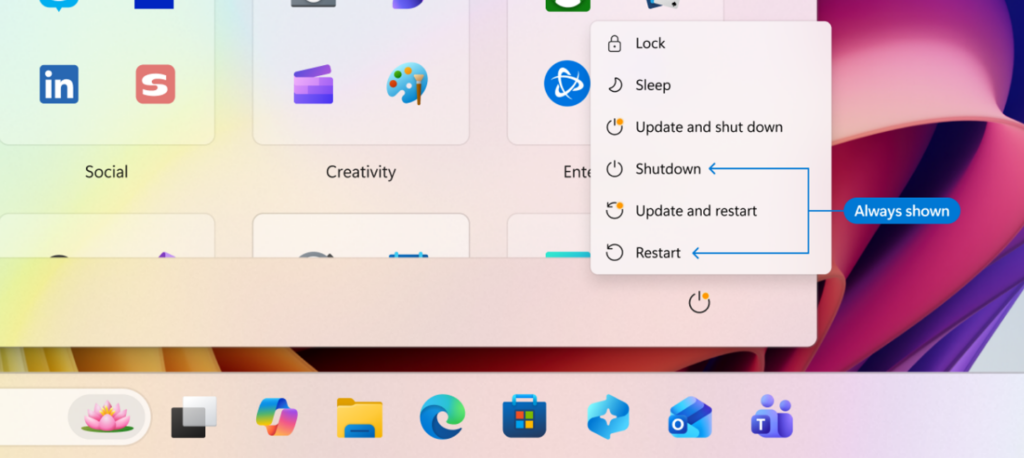
The standalone “Shutdown” and “Restart” buttons will always be available, so you can turn your system off for the night without installing the downloaded Windows update.
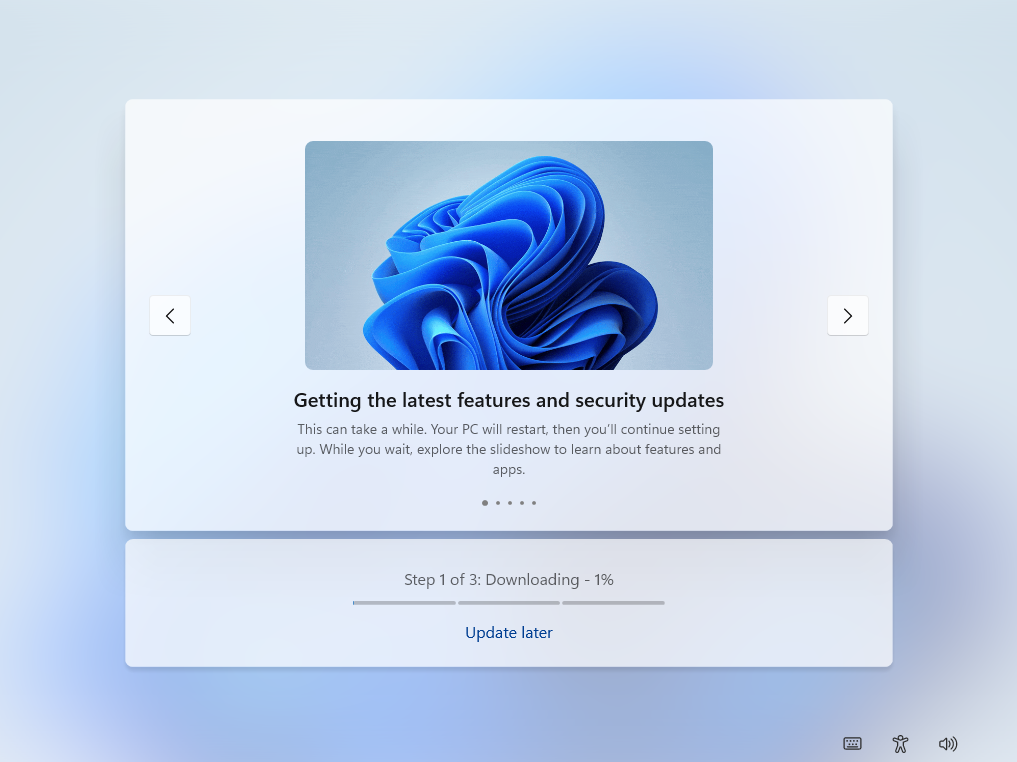
Also, we made a detailed report on how long Windows 11 setup takes. But now, when setting up a new Windows 11 PC, you are no longer forced to sit through an agonizingly long update sequence before reaching the desktop. A new “Update later” button allows you to bypass it.
As someone who always looks for the details in an update, the notorious driver updates, which presented with cryptic, identical titles, made it impossible for me to know what component was being modified. Microsoft is now injecting the device class directly into the title. Before clicking install, you will know precisely if the update targets your display, audio interface, battery controller, or a specific USB extension.
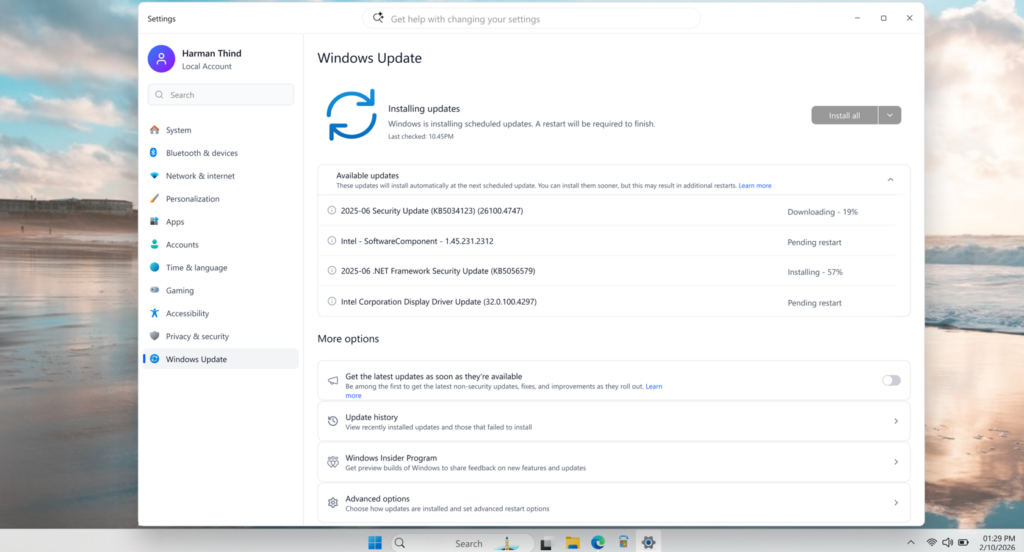
All of these granular controls in the Windows update are part of Microsoft’s goal of reducing the Windows update experience to a single monthly restart. Microsoft is finally treating its user base like professionals who are capable of managing their own hardware. It was long overdue, but it completely changes the narrative around Windows 11’s frustrating updates.
The post Microsoft says you should pause Windows 11 Updates when you need to work, as it tests greater controller appeared first on Windows Latest