
Microsoft has started rolling out the April 2026 Patch Tuesday update for Windows 11 with KB5083769 (Builds 26200.8246 on 25H2 and 26100.8246 on 24H2). The April release is a meaningful update that brings significant accessibility improvements, display and hardware enhancements, and several quality-of-life additions across Settings and File Explorer.
The update applies to Windows 11 versions 25H2 and 24H2, continuing Microsoft’s now-standard two-phase rollout strategy, which, interestingly, is being rolled out for Insider channels. Some features arrive immediately for all devices through the normal rollout, while others are being delivered gradually through Microsoft’s Controlled Feature Rollout (CFR) system.
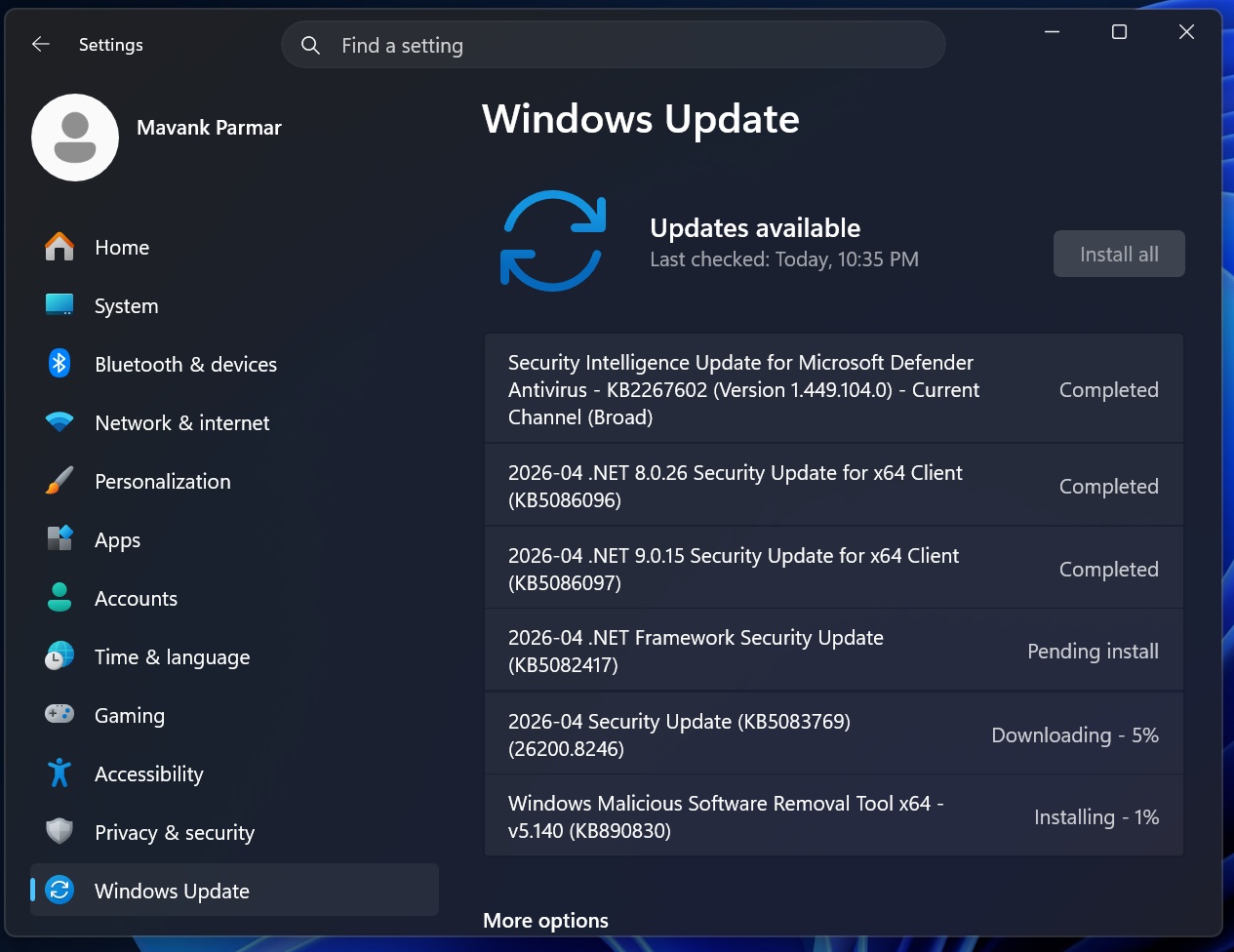
Like February and March before it, this April update continues Microsoft’s push in 2026 to make Windows 11 more reliable, more accessible, and better suited for modern hardware. There is no headline feature this month, but the cumulative improvements are genuinely useful.
Here is everything that is included in the April 2026 Patch Tuesday update.
New features rolling out with the April 2026 Windows 11 update
All the new features in this update are arriving through Microsoft’s gradual rollout system. If you install the update and a particular feature has not shown up yet, give it a few days or weeks. Microsoft uses this approach to catch issues early before pushing changes to the full Windows install base.
Narrator now works with Copilot on all Windows 11 devices
One of the more meaningful accessibility additions in the April 2026 update is a significant expansion of Narrator’s image description capability. Until now, Narrator’s rich image descriptions were limited to Copilot+ PCs with on-device AI processing. With this update, Microsoft is opening that door for all Windows 11 PCs.
On any Windows 11 device, you can now press Narrator key + Ctrl + D to describe a focused image, or Narrator key + Ctrl + S to describe the full screen. When you trigger either shortcut, Copilot opens with the image already loaded, and you can type a prompt to get a customized, detailed description. Importantly, Microsoft notes that the image is only shared after you choose to describe it, meaning nothing is sent to Copilot automatically.
On Copilot+ PCs, the experience remains faster because Narrator still delivers instant on-device descriptions. For those who want additional context, there is also an option to ask Copilot for more details from that same interface.
This is a practical and long-overdue improvement for blind and low-vision users who depend on Narrator as their primary interface.
Smart App Control can now be toggled without reinstalling Windows
Microsoft began laying the groundwork for this change back in January 2026, and the April Patch Tuesday update is when it starts reaching users.
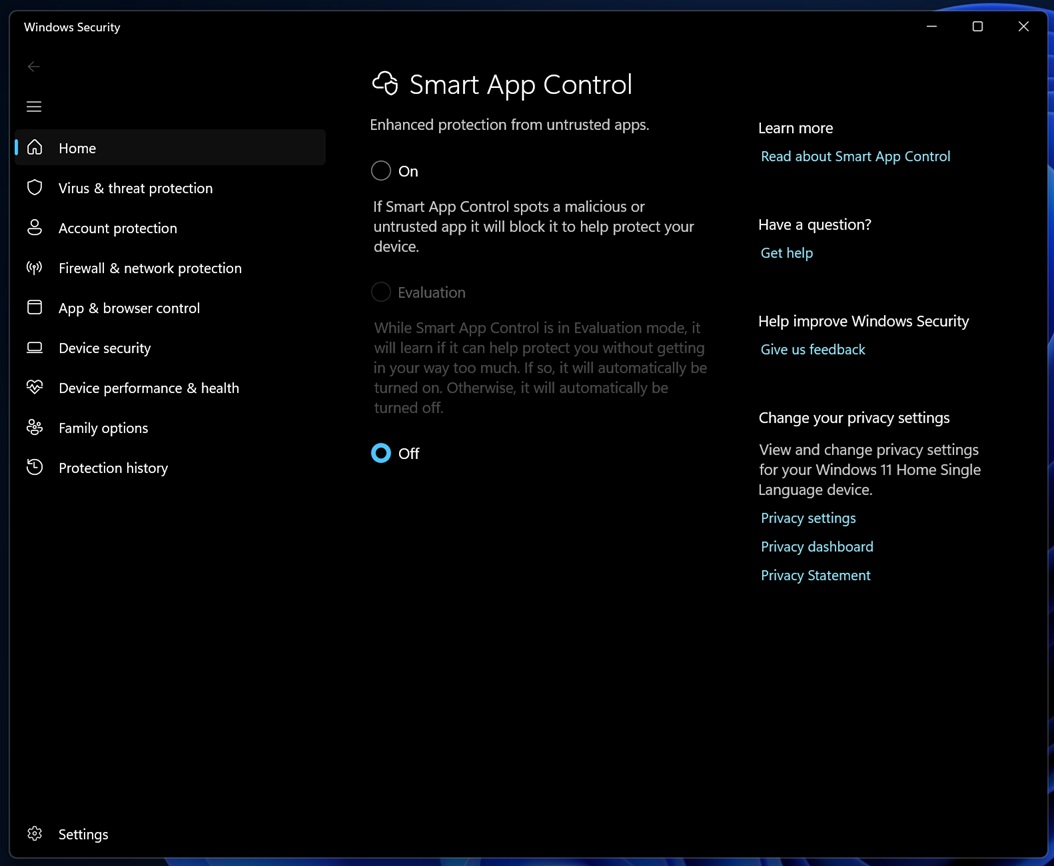
Smart App Control (SAC) has long had a frustrating limitation. Once you enabled it, the only supported way to disable it was a clean reinstall of Windows. This restriction is now gone. You can turn Smart App Control on or off at any time by heading to Settings, then Windows Security, then App and Browser Control, and finally Smart App Control settings.
When SAC is enabled, it works by blocking apps that are untrusted or potentially harmful before they can run. Removing the reinstall requirement makes the feature far more practical, especially for developers and power users who frequently install tools that SAC might flag.
Microsoft 365 Family subscribers can now upgrade plans directly from Settings
After installing Windows 11 April 2026 Update, if you are on a Microsoft 365 Family subscription, you can now upgrade to a different Microsoft 365 plan directly from Settings. The option is under Settings, then Accounts.
If you would rather not see this prompt, you can turn it off by going to Settings and disabling Suggested content. It is a sensible change that makes account management accessible without forcing you to open a browser.
Settings app redesign continues with Accounts dialogs and the About page
Microsoft is continuing to modernize the Settings app with Windows 11 April 2026 Update, and two areas receive notable visual updates.
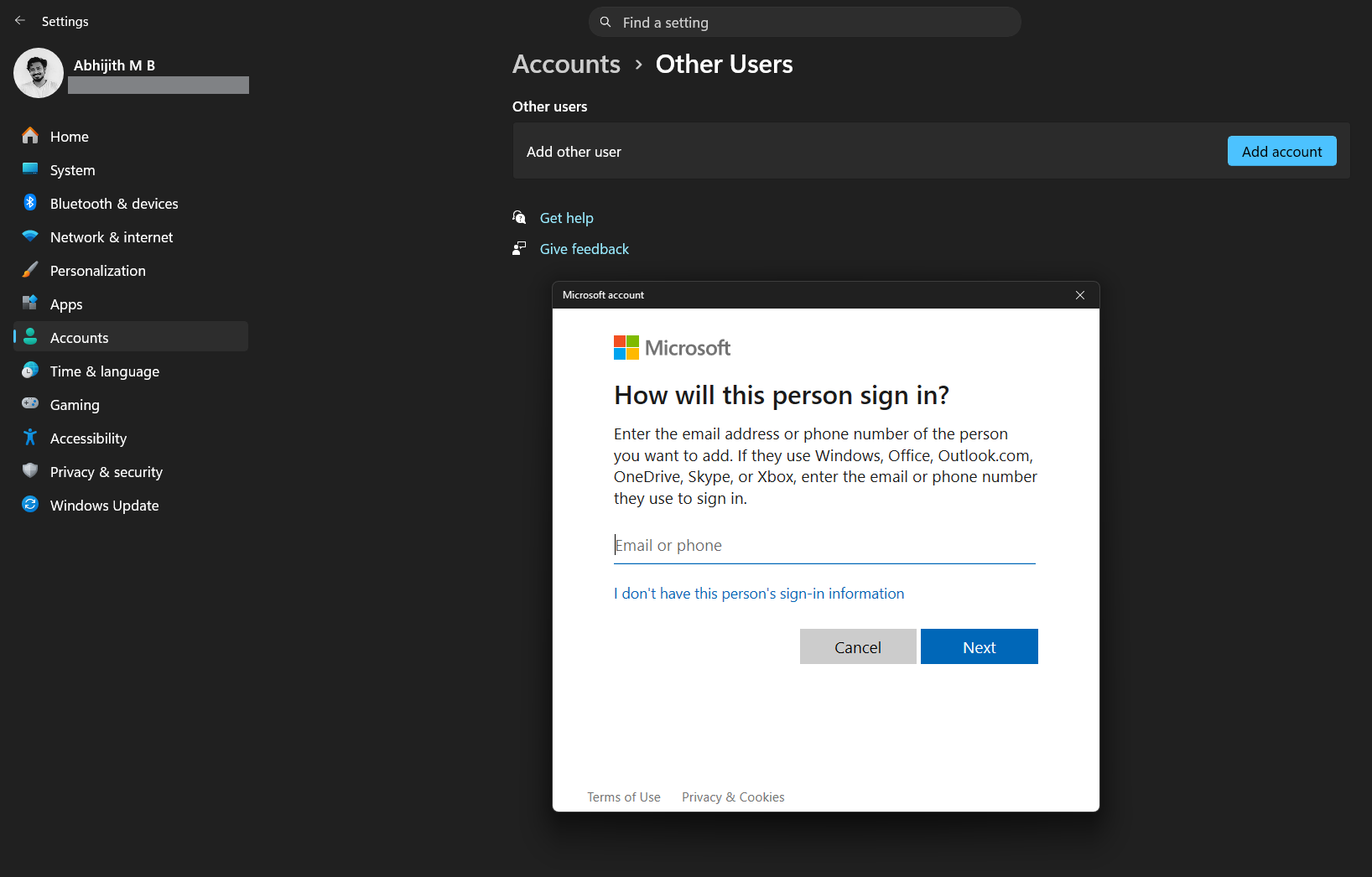
First, the dialog boxes inside Settings, then Accounts, then Other users have been redesigned to match the modern Windows visual style and to properly support dark mode.
Second, the Settings About page has been improved with a more structured layout. Device specifications are now easier to read, and navigation to related components, such as Storage settings, is more direct. This connects naturally to the device information card on the Settings Home page, which has also been updated to display key specifications more clearly and consistently.
Microsoft is clearly working through the Settings app section by section, and April’s update touches two more areas that were overdue for a refresh.
On the performance side, the Settings Home page loads faster after Windows 11 April 2026 Update. Microsoft has also improved how the system handles required updates when you’re prompted inside Settings, which should reduce failed or stuck updates.
Pen tail button gains a new Copilot key option
For users with compatible stylus hardware, the Pen settings page now includes a new option for the pen tail button.
The new setting is called “Same as Copilot key,” and it lets you configure the pen tail button to open whatever app is assigned to the Copilot key on your keyboard.
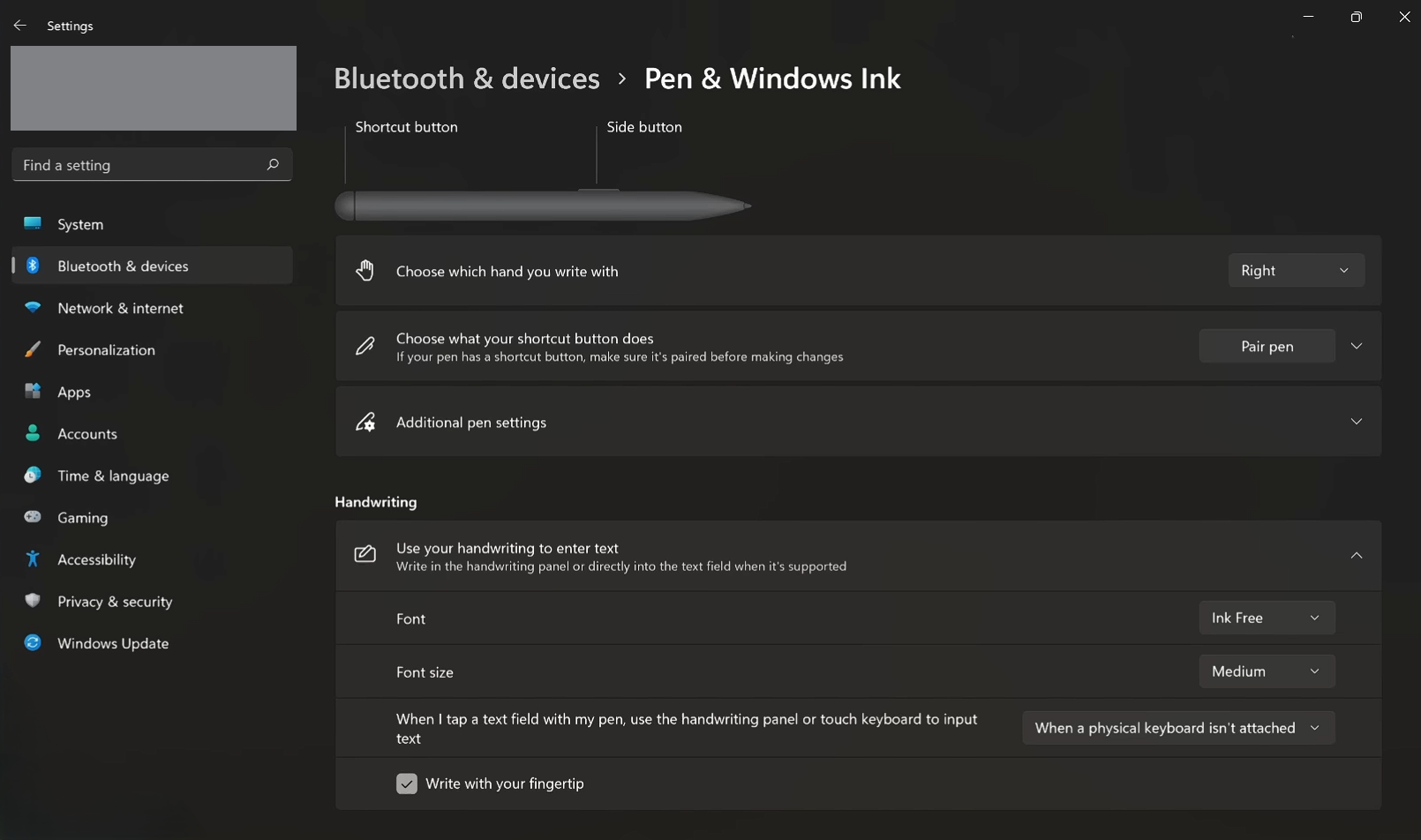
This is useful for Surface and other pen-enabled devices where users want consistent behavior between hardware inputs. It’s nice to see Microsoft is still actively developing pen integration as more devices are getting touch screens.
April 2026 update brings multiple improvements across Windows 11
The April 2026 update also includes a wide range of reliability and quality improvements across different areas of Windows 11. These arrive through both the gradual rollout and the normal rollout channels.
File Explorer gets several reliability and usability fixes
File Explorer receives a handful of improvements in Windows 11 April 2026 Update, and they address some genuinely common frustrations.
You can now more reliably unblock files that were downloaded from the internet in order to preview them inside File Explorer. Previously, this process could fail in certain situations, which was confusing and disruptive.
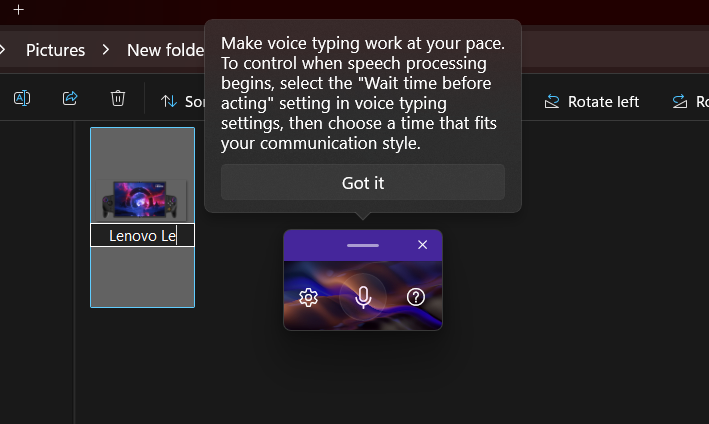
Voice Typing, which you can activate with the Windows logo key + H, now works when renaming a file in File Explorer. This was a gap that felt particularly odd given that Voice Typing works in most text fields across Windows.
Finally, the Advanced Security Settings window for folders now lets you sort permissions entries by Principal. This is a welcome addition for administrators and power users who manage folder permissions and need to quickly audit or rearrange access entries.
Display improvements for monitors, HDR, and USB4
The April 2026 Patch Tuesday includes a solid set of display-related reliability improvements, some of which address relatively niche but important scenarios.
Monitors can now report refresh rates higher than 1000 Hz, which is useful for the growing segment of high-end gaming monitors pushing those boundaries.
When using a native USB4 monitor connection, the USB controller can now enter its lowest power level while the PC is sleeping. This helps save battery life on laptops connected to USB4 displays, which was a noticeable power drain in some configurations.
Auto rotation reliability has also improved after resuming from sleep, which should reduce the frustrating experience of a display staying in the wrong orientation after waking a device.
HDR reliability has improved for displays with non-compliant DisplayID 2.0 blocks, and monitors with DisplayID now report a more accurate physical size when queried through WMI monitor APIs. Both changes are relevant to IT administrators and setups where accurate display metadata matters.
Voice Access improves number detection in English
Microsoft has improved how Voice Access detects and writes numbers when used in English. It’s a much-needed improvement for users who count on Voice Access as their primary input method, particularly where dictating numbers accurately is important, such as composing documents, filling forms, or searching through data.
Safe mode and system reliability fixes
The update improves the reliability of loading taskbar components when Windows is running in safe mode. This is a niche scenario, but it is the kind of situation where reliability is paramount, since safe mode is usually invoked when something has already gone wrong.
Windows Hello fingerprint reliability improvements
Windows Hello Fingerprint authentication has received reliability improvements for certain devices. Microsoft has not specified which devices are affected, but fingerprint recognition failures on affected hardware should be reduced or eliminated after installing this update.
MIDI short message handling improved
The audio stack receives a targeted fix in this update. Microsoft has improved how short MIDI messages are handled in cases where an application is initialized without providing long message buffers. This is a technical fix, but it is useful for music production.
Start menu Group Policy reliability fix
The Start menu now more reliably applies layouts configured through Group Policy when a desktopAppLink entry is present in the JSON configuration. This is an enterprise-focused fix that helps IT administrators ensure consistent Start menu layouts across managed devices.
Remote Desktop gets a PowerShell command fix
The Set-RDSessionCollectionConfiguration PowerShell command now properly recognizes the DisableSeamlessLanguageBar parameter. Previously, this parameter was ignored, which was a frustration for admins managing Remote Desktop Session Host configurations through scripting.
System File Checker removes a stray error message
Running sfc /scannow could previously display an extraneous error message even when no real issues were present. This update removes that misleading output, making the tool’s results easier to interpret.
Printing baseline updated
Microsoft has updated the downlevel baseline support for printer connections. The new baseline is Windows 10 version 1607 and Windows Server 2016 (Build 14393).
Organizations still using older print server configurations should review this change to understand any compatibility implications.
Quality improvements in the normal rollout of the April 2026 update
Several improvements are arriving through the normal rollout, meaning they should reach eligible devices more quickly than the gradual feature rollout.
Application Control for Business gets more accurate ID tagging
Application Control for Business policies receives an improvement to Application ID tagging. With this fix, the system is better at identifying which apps should receive tags. This is an improvement for organizations using AppControl policies to manage what software can run on their devices.
Narrator Natural Voices become more reliable
The Natural Voices experience in Narrator has been improved. Setup for Natural Voices is also more reliable, reducing the chance of failures during initial download and configuration. For those who use Narrator’s Natural Voices as their primary screen reader experience, this should mean fewer interruptions and a smoother setup when configuring a new device.
Windows Recovery Environment improves stability for ARM64 devices
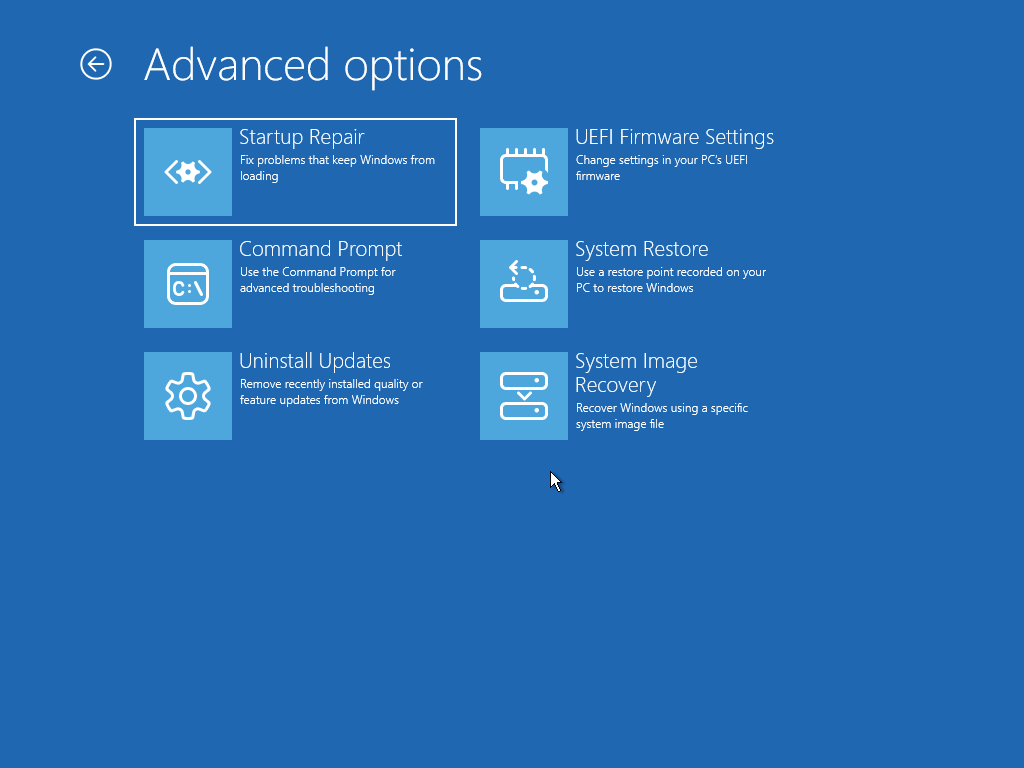
Microsoft has improved stability in Windows Recovery Environment (WinRE) when running x64 apps on ARM64 devices. Previously, some x64 apps running under emulation in WinRE could behave unpredictably. After this update, these apps should run more smoothly and respond as expected during recovery.
Windows Update Standalone Installer bug fixed
A specific and annoying bug in Windows 11 version 25H2 has been resolved. When using the Windows Update Standalone Installer (WUSA) to install updates, some users would encounter error code ERROR_BAD_PATHNAME. This could happen when double-clicking an .msu file or when running WUSA from a network share that contained multiple .msu files. The April update resolves this issue.
AI components updated in the background
The April 2026 update also refreshes several internal AI components that power features across Windows 11. The following components have been updated to version 1.2603.377.0
Image Search, Content Extraction, Semantic Analysis, and Settings Model.
Microsoft does not publish detailed changelogs for these components. They work behind the scenes to power features like Windows Search, intelligent recommendations, and other AI-assisted behaviors in the OS.
Servicing stack improvements and known issues in the April update
Alongside the main update, Microsoft is shipping a servicing stack update (KB5079387) for Windows 11. Servicing stack updates improve the underlying component that handles Windows Update itself, making sure future patches download and install correctly. This SSU applies to Build 26100.8112.
There are no known issues with the update.
Microsoft continues to warn about Secure Boot certificate expiration
Alongside the April Patch Tuesday update, Microsoft is reinforcing a warning that they have been saying for a while. Secure Boot certificates used by most Windows devices are set to begin expiring in June 2026. If these certificates are not updated before they expire, some personal and business devices could face problems booting securely.
Microsoft recommends that both individual users and IT administrators review the official guidance and take steps to update certificates in advance. For most home users, this process will happen automatically through Windows Update as Microsoft continues its controlled rollout of the new Secure Boot certificates. Organizations managing their own update infrastructure should consult Microsoft’s documentation to understand whether manual action is required.
The March 2026 update introduced infrastructure to help prepare devices for this transition, and the April update continues that work. If your PC is already receiving updates normally, you are likely already in good shape. But if you manage a fleet of business devices or use custom Secure Boot configurations, now is the time to verify.
As always, we recommend installing the April 2026 Patch Tuesday update once it becomes available on your device. To check, head to Settings, then Windows Update, and select Check for updates.
The post Windows 11 April 2026 Update tested: What’s new, improved and fixed appeared first on Windows Latest