
Microsoft has started rolling out Windows 11 26H2, also called the Windows 11 2026 Update, and you can install it with Windows Update, the Windows 11 Installation Assistant, the Media Creation Tool, an ISO file, or Rufus.
If your PC already shows 26H2 available for download, that’s the easiest way for all regular home users. If you aren’t one, the Installation Assistant or an ISO can get you there as well. If you need a bootable USB, use Microsoft’s Media Creation Tool or Rufus, and if your PC doesn’t meet Microsoft’s requirements, Rufus can tweak the installation media to skip some of those checks.
“Built on the same servicing foundation as recent Windows 11 releases, version 26H2 delivers the latest Windows innovations with a streamlined update experience designed to minimize disruption,” John Cable, Vice President of Product Management for Windows Servicing and Delivery, wrote in Microsoft’s announcement.
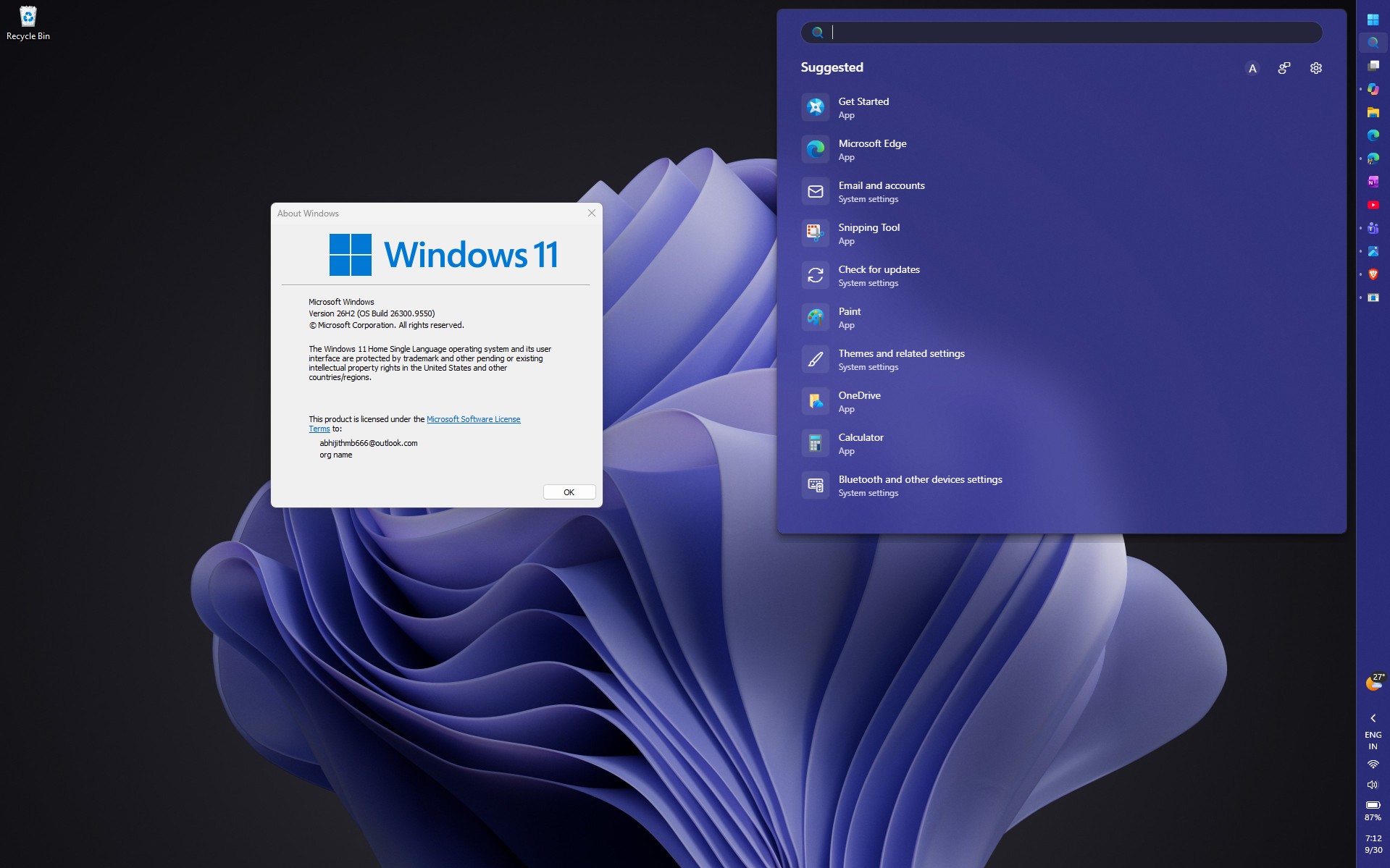
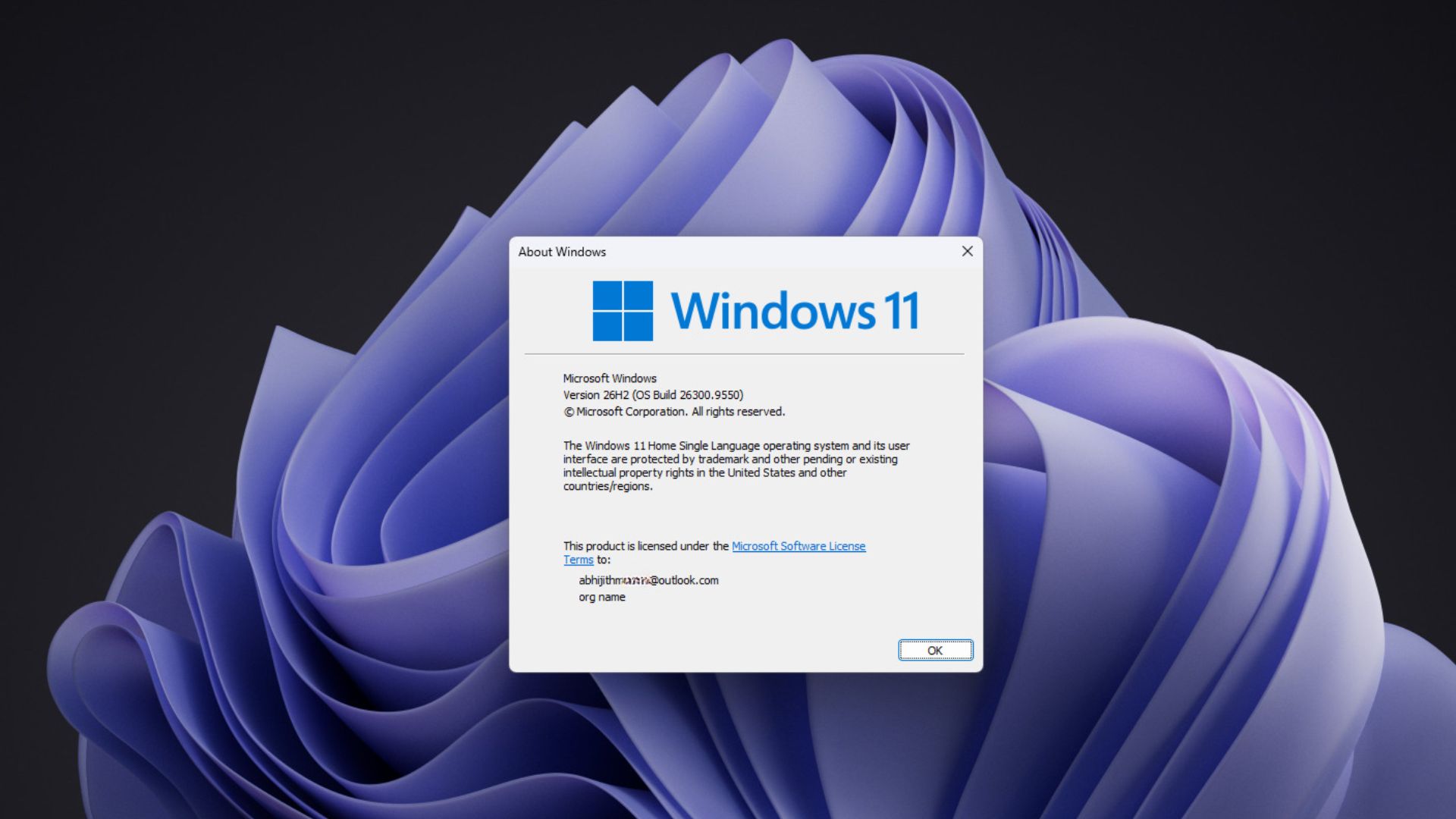
I installed Windows 11 26H2 on my daily driver PC, and it showed Build 26300.9550 after installation. However, these methods do different jobs, so pick the one that you want.
Before installing Windows 11 26H2, check these things
An upgrade keeps your apps, files, and settings. A clean installation wipes the existing Windows installation and starts fresh. And installation media lets you install Windows on another PC or keep a bootable USB or ISO for later.
| Method | Best for | Keeps files and apps? | Needs USB? |
|---|---|---|---|
| Windows Update | Normal upgrade | Yes | No |
| Installation Assistant | Upgrading the current PC before Windows Update offers 26H2 | Yes | No |
| ISO | Upgrade or clean install | Depends | Optional |
| Media Creation Tool | Clean install or another PC | Depends | Yes |
| Rufus | Custom USB, unsupported PC, special setup | Depends | Yes |
If you run Windows Setup from within your existing Windows installation, you’re usually performing an in-place upgrade. If you boot from a USB installer, you’re usually installing Windows from scratch.
Also, back up your files. A clean install can delete everything on the drive, and Microsoft recommends backing up before you install or reinstall Windows.
If you’re not sure your PC can run Windows 11, Microsoft’s PC Health Check app will tell you.
Method 1 – Install Windows 11 26H2 using Windows Update
Windows Update is what Microsoft prefers, and for PCs on Windows 11 24H2 or 25H2, it’s also the fastest. According to John Cable, “installation is similar to a monthly update, requiring only a small download and a quick restart to transition to Windows 11, version 26H2.”
- Open Settings.
- Go to Windows Update.
- Turn on Get the latest updates as soon as they’re available to be among the first to get 26H2.
- Select Check for updates.
- When “Windows 11, version 26H2” appears, select Download and install.
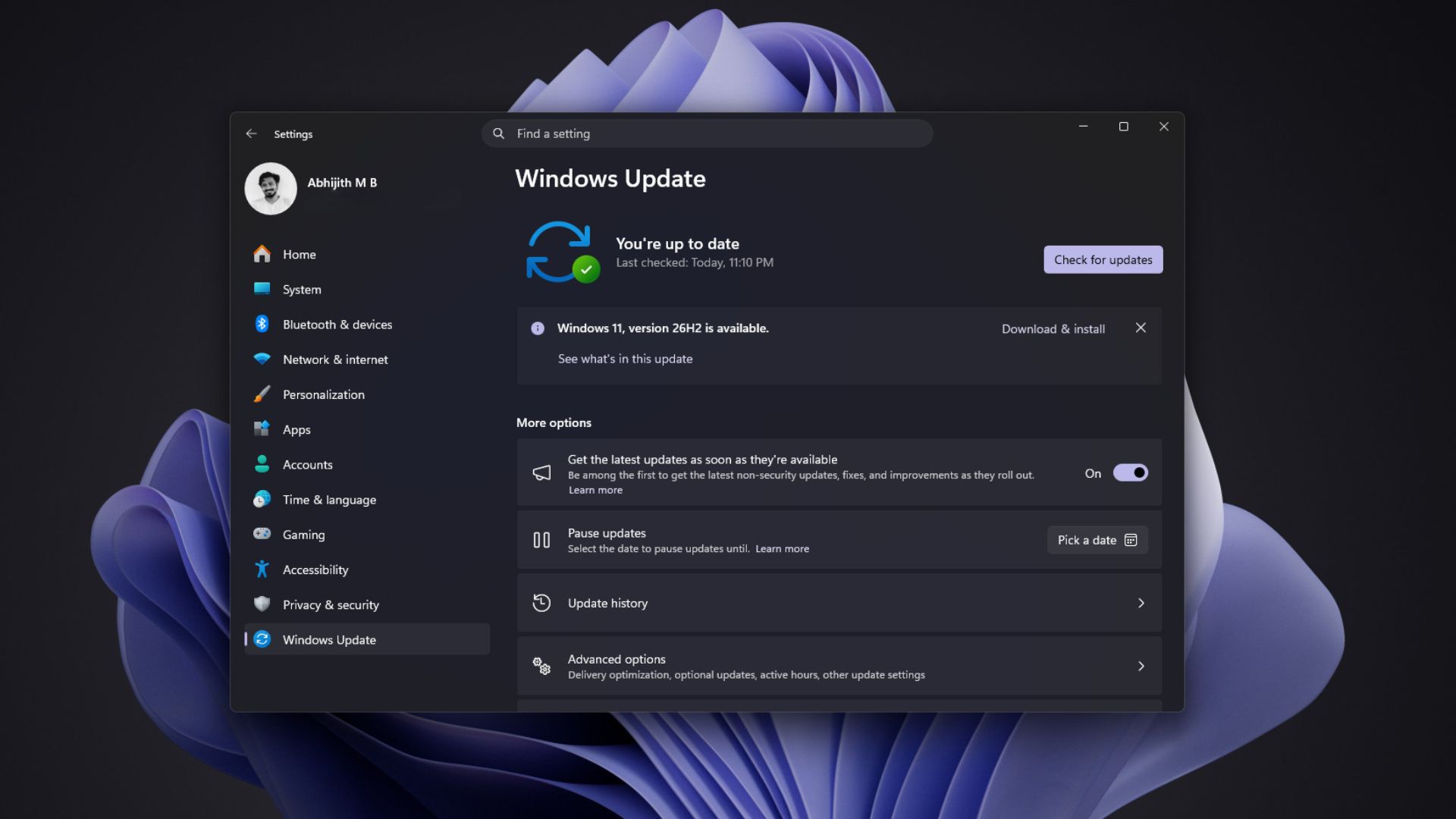
Windows 11 version 26H2 is available for download. Credit: Windows Latest - Restart when prompted and let Windows finish the installation.
The download is tiny because 24H2, 25H2, and 26H2 share a servicing branch. As we reported earlier, Windows 11 26H2 is just 174KB because the enablement package only switches on code your PC already has.
To confirm the update, press Win + R, type winver and hit Enter, or open Settings > System > About. You should see Windows 11, version 26H2.
On my PC, Windows 11 26H2 finished on Build 26300.9550. Microsoft will keep servicing 26H2 with cumulative updates, starting with the October 13, 2026 security update, so your build number may be higher if you’re updating later.
However, if you don’t see 26H2 yet, Windows Update isn’t broken. Microsoft rolls feature updates out in phases, and the Windows Update account says availability “will expand over time, so don’t worry if you don’t see it immediately.” Microsoft can also place safeguard holds on PCs with known compatibility problems, like an incompatible driver or app, until a fix is ready.
If you’d like to skip the queue, the next two methods are your alternatives.
Method 2 – Install Windows 11 26H2 using Installation Assistant
If Windows Update doesn’t show 26H2 for some reason, Microsoft’s Windows 11 Installation Assistant can upgrade your PC. Redmond calls it “the best option for installing Windows 11 on the device you’re currently using.”
Before you run it, check that your PC:
- Has a Windows 10 or Windows 11 license
- Runs Windows 10, version 2004 or later
- Has at least 9GB of free disk space
- Uses an x64 processor, as the Assistant doesn’t run on Arm-based PCs
- Meets the Windows 11 hardware requirements, which the tool checks for you
However, a better way is to install Microsoft’s PC Health Check app, which can verify Windows 11 eligibility. Download PC Health Check and run it. 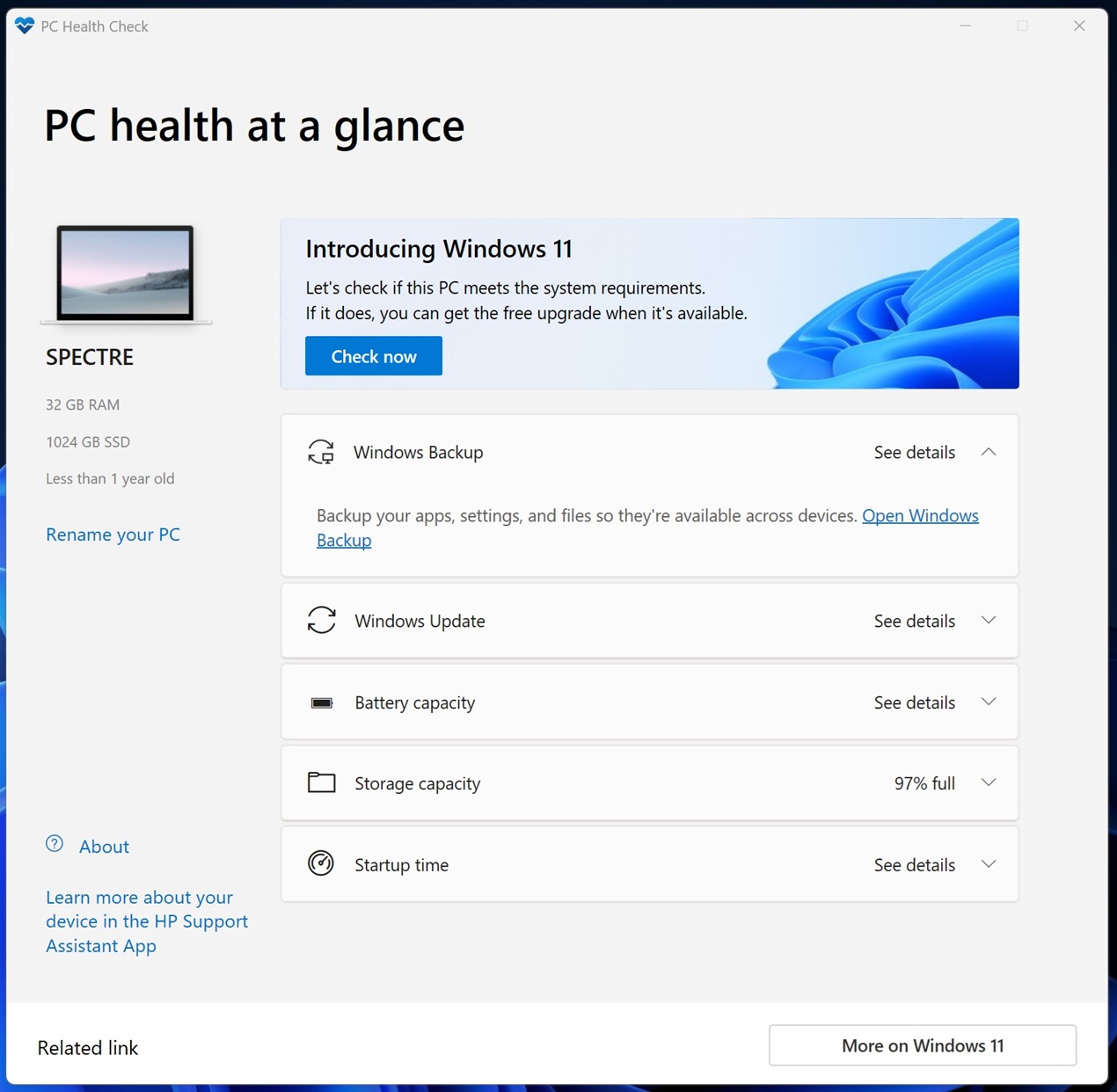
Click “Check now”, which performs a system requirements check in less than 20 seconds.
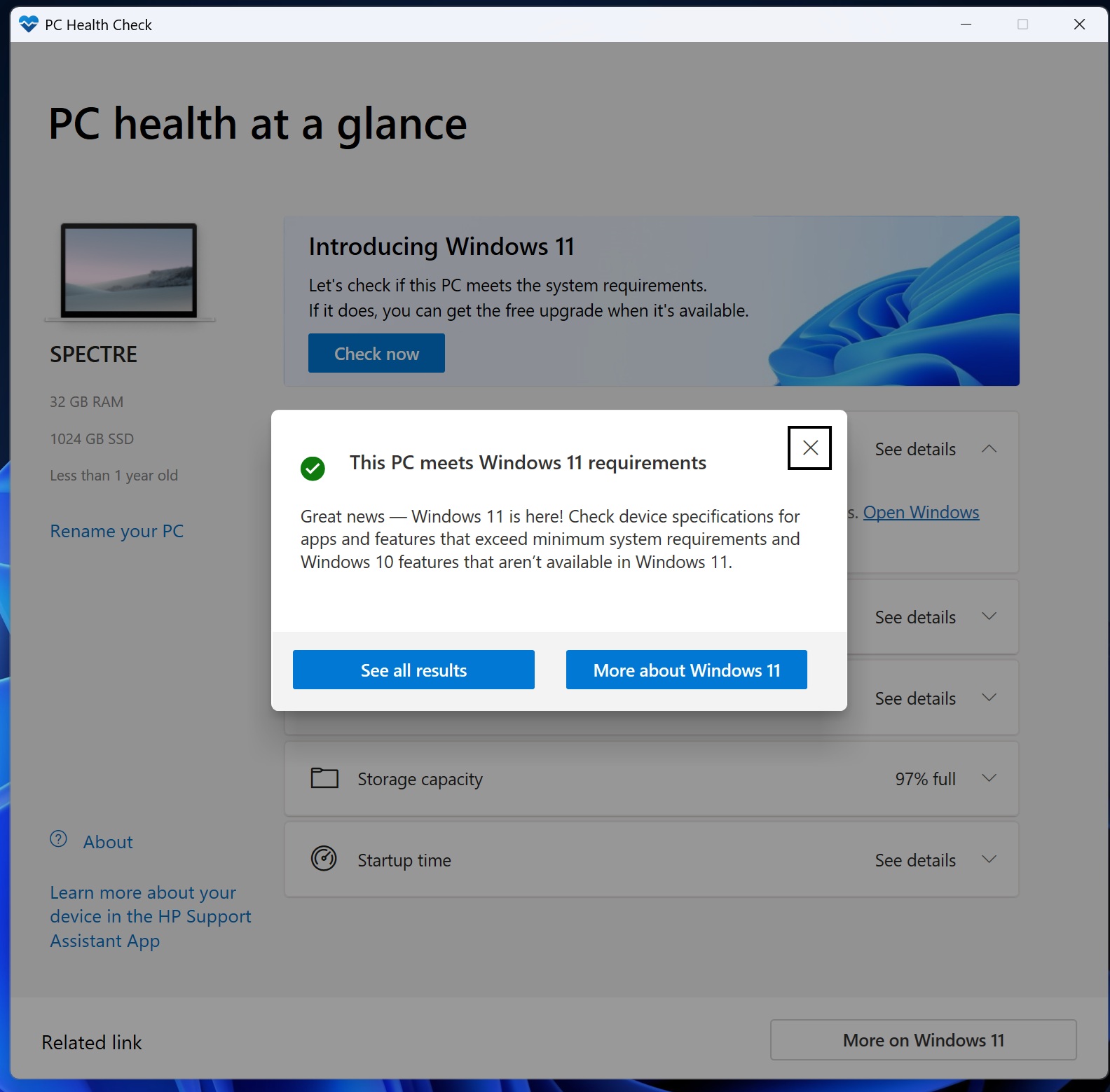
If you see “This PC meets Windows 11 requirements.”, you can proceed to download the Windows 11 Installation Assistant:
- Open Microsoft’s Windows 11 download page.
- Under Windows 11 Installation Assistant, click Download Now.
- Run Windows11InstallationAssistant.exe and select Yes when Windows asks for administrator access.
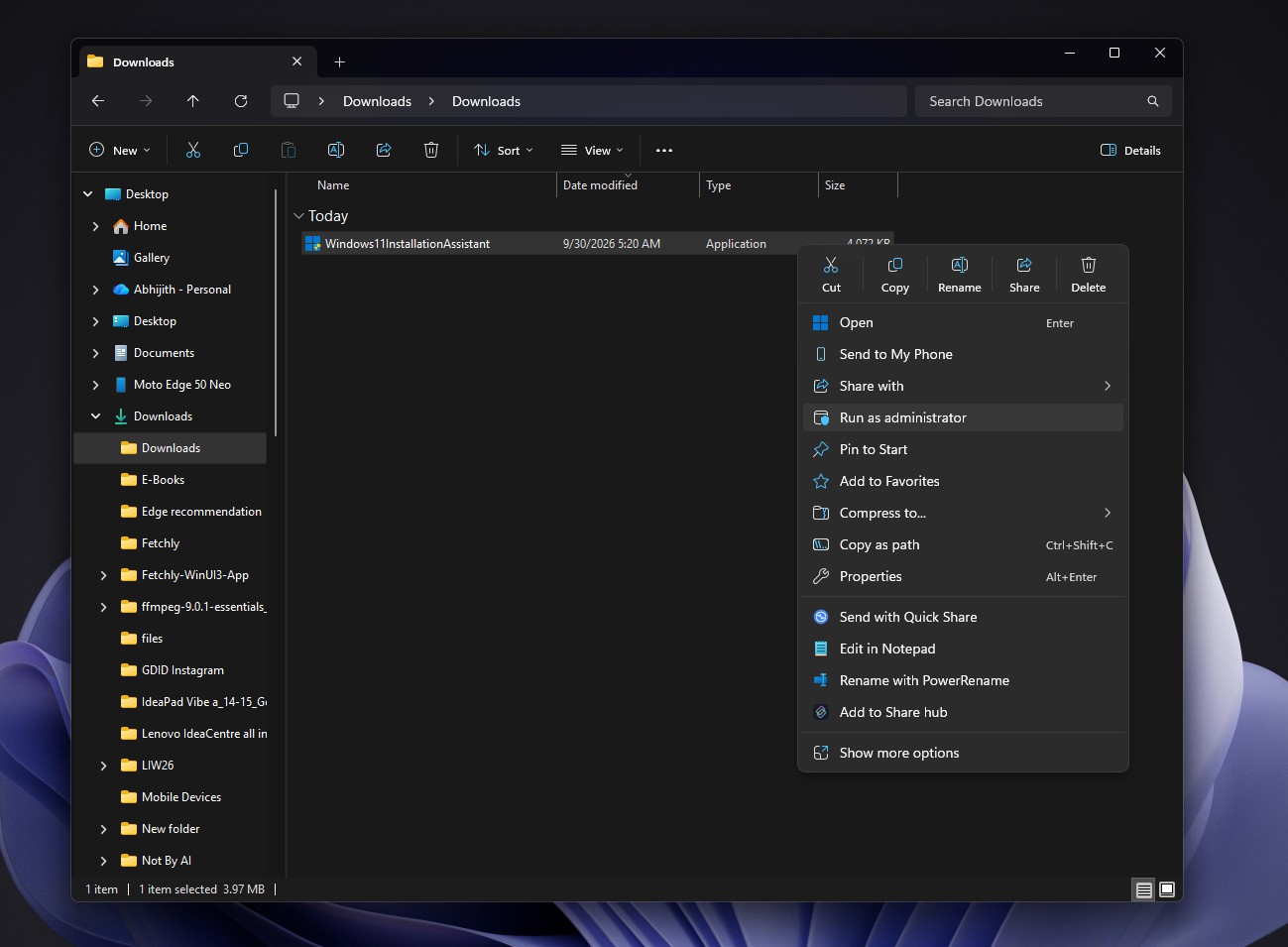
Run Windows Installation Assistant. Credit: Windows Latest - Let the tool check your hardware compatibility.
- Select Accept and install to accept the license terms. Rest assured, you won’t lose your data.
- Wait while the tool downloads and prepares Windows 11 26H2. You’ll see three steps: the first is Downloading, and the others are Installing.
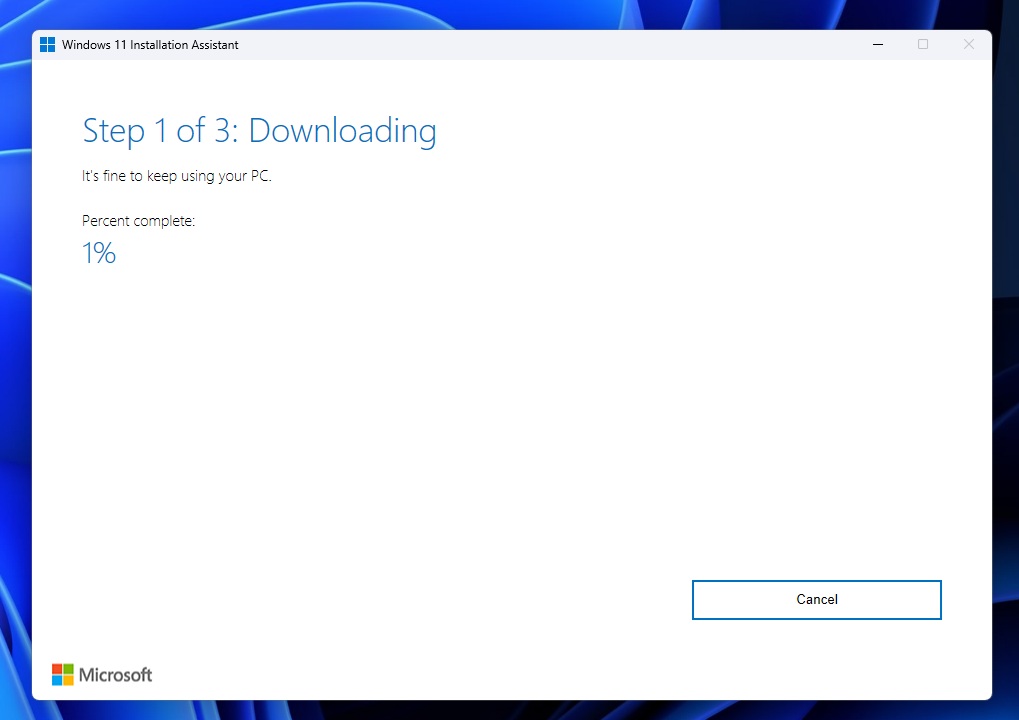
- You can still use your PC during Installation steps, but 30 minutes after it’s done, there will be a forced reboot, so save your work beforehand.
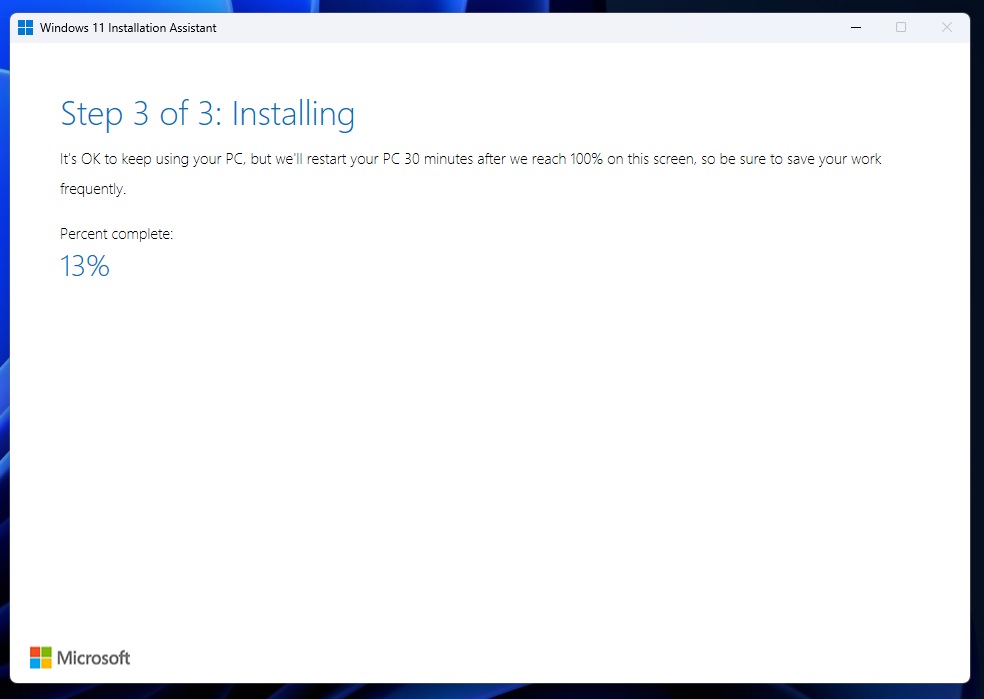
Your PC may restart a few times, and Microsoft warns you not to turn it off during installation. Unlike the Windows Update route, the Assistant downloads a full copy of Windows, so it takes longer and needs that 9GB.
Note that the Assistant doesn’t create any installation media.
Microsoft generally recommends waiting until Windows Update offers the 2026 upgrade, but the Installation Assistant will get you to 26H2. Just keep in mind that if Windows Update is holding back 26H2 on your PC, forcing it might bring along the problem Microsoft was trying to avoid by withholding regular Windows Update.
Method 3 – Install Windows 11 26H2 using the ISO
If you don’t like how Windows Update or the Installation Assistant doesn’t give you much control or customization, the ISO is the most flexible official option. You can use it to upgrade without losing data, or to clean install.
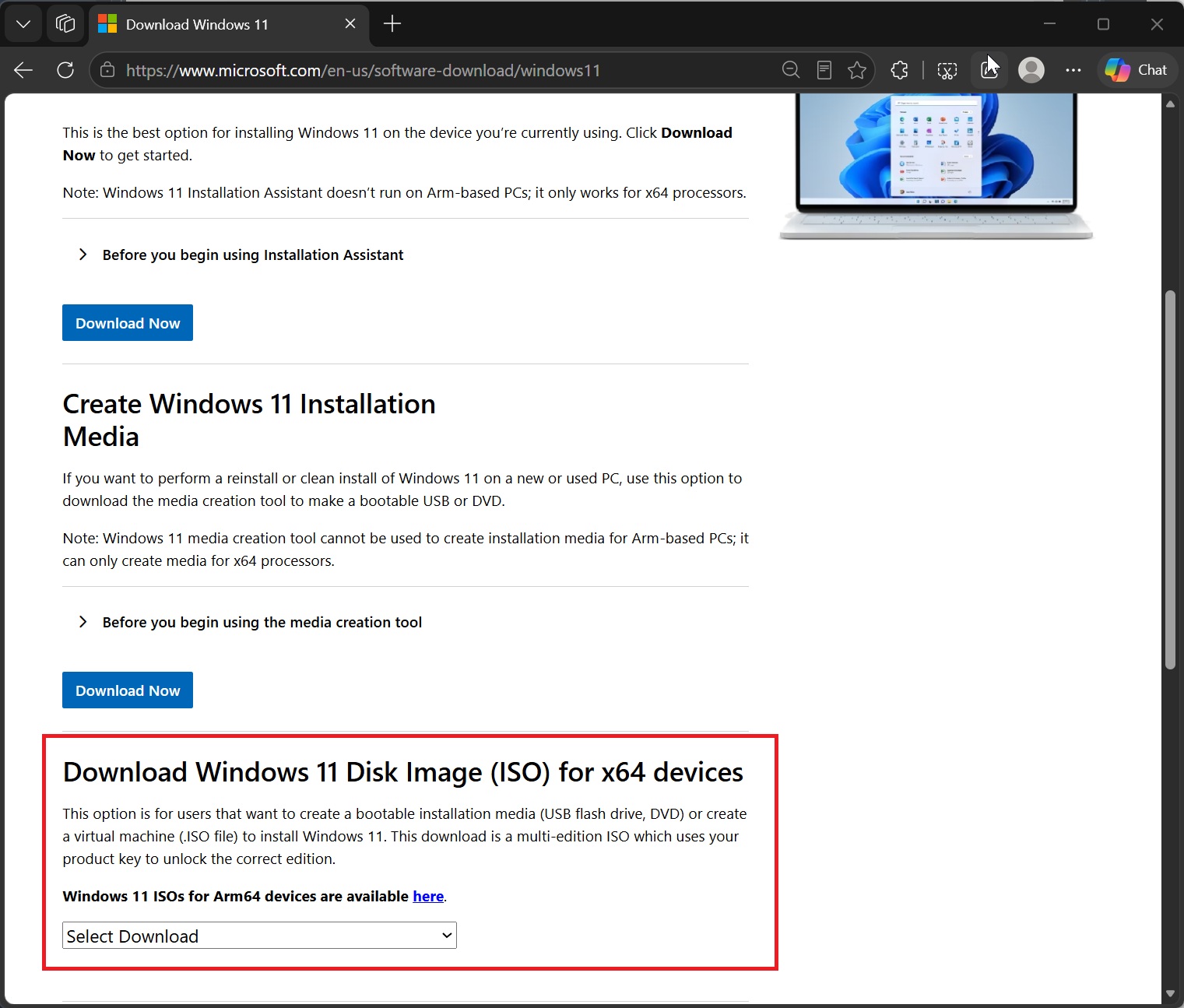
Microsoft has been preparing the 26H2 installation media since the release hit the Release Preview Channel. For direct links, all languages, and SHA-256 verification, see our guide to download Windows 11 26H2 ISO directly from Microsoft.
Upgrade to Windows 11 26H2 without deleting your files
- Download the official Windows 11 26H2 ISO.
- Right-click the ISO and select Mount.
- Open the new virtual DVD drive in File Explorer.
- Run setup.exe.
- Let Setup check for updates, or select “Change how Setup downloads updates” and choose Not right now.
- Accept the license terms.
- On the Ready to install screen, select “Change what to keep.”
- Make sure “Keep personal files and apps” is selected.
- Click Install.
Microsoft’s reinstall guide confirms that Setup offers three choices: keep personal files and apps, keep personal files only, or keep nothing. For a normal upgrade, choose with the first one.
The mounted ISO is also useful when Windows Update keeps failing, because Setup reinstalls the system files without deleting your apps and data. I use this to reinstall Windows whenever I feel my PC gets slow or starts to overheat.
Clean install Windows 11 26H2 using the ISO
If you want to simply wipe Windows and start fresh on the same PC, then mount the ISO and select “Keep nothing”. It will remove all personal data, settings, and apps.
But if you want to delete existing partitions, recreate partitions, format drives, or install Windows to a completely blank disk, you will need a bootable USB.
- Create a bootable USB with the Media Creation Tool or Rufus.
- Boot the PC from the USB.
- Select your language and keyboard, then choose to install Windows 11.
- Choose the correct edition, usually the one the PC shipped with.
- Select the drive to install Windows on.
- Delete old partitions only after you’ve backed up everything.
- Install Windows and complete the setup screens.
Microsoft describes a clean install as an advanced option that removes personal files, apps, manufacturer customizations, and changes made in Settings. Our ISO guide has the full clean-install process.
Method 4 – Install Windows 11 26H2 using Media Creation Tool
The Media Creation Tool is Microsoft’s official way to build a bootable Windows 11 USB, and it downloads Windows for you.
- Open Microsoft’s Windows 11 download page.
- Under Create Windows 11 Installation Media, click Download Now.
- Run MediaCreationTool.exe as administrator.
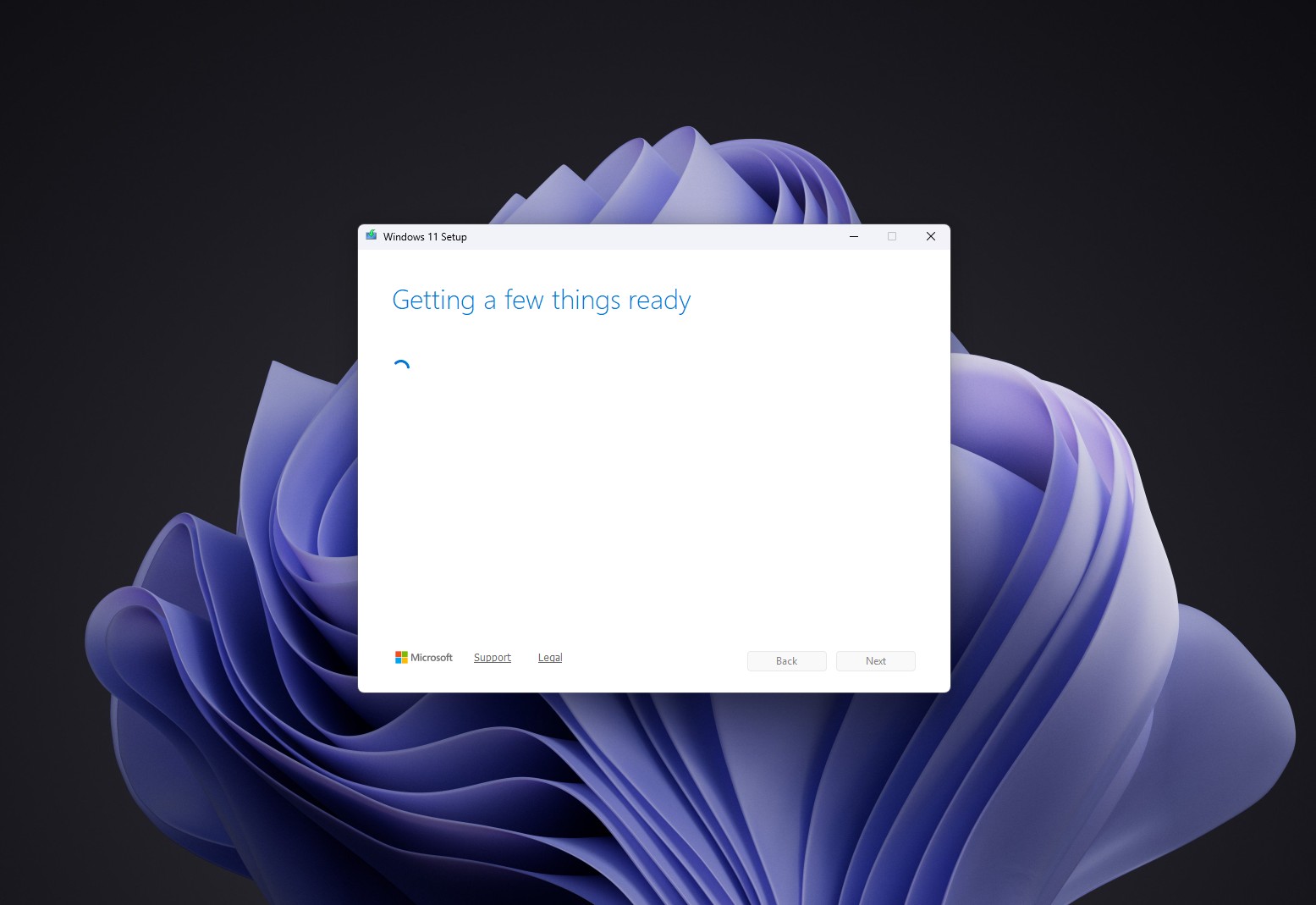
Windows Media Creation Tool running. Credit: Windows Latest - Accept the license terms.
- Choose the language and edition, or keep the recommended options for this PC.
- Select USB flash drive.
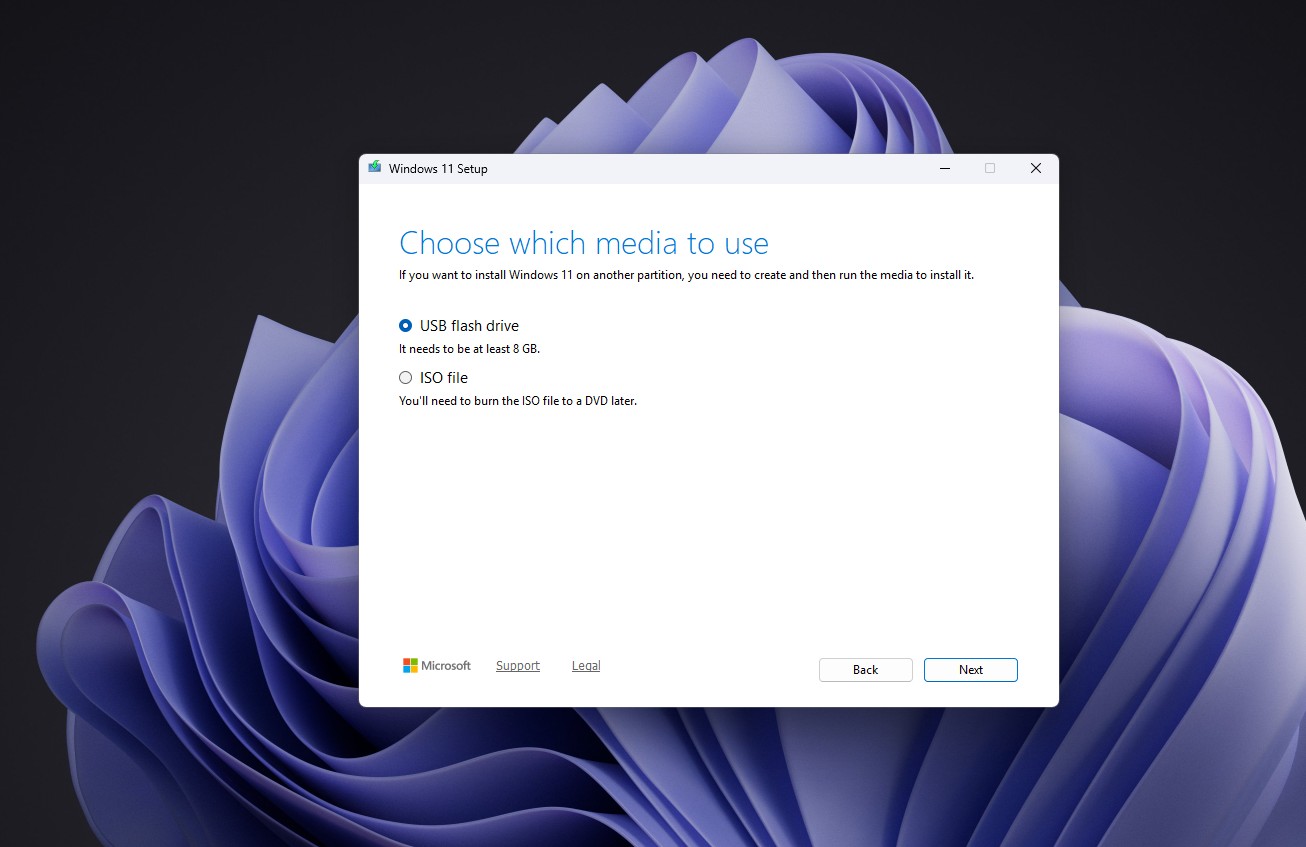
Choose USB flash drive or ISO file in Media Creation Tool. Credit: Windows Latest - Connect a blank USB drive and select it from the list.
- Let the tool download Windows 11 and create the bootable media.
- Restart the target PC and boot from the USB.
According to Microsoft’s installation media guide, you need a blank USB flash drive with at least 8GB of space, and remember that the drive will be completely formatted first. If you pick ISO file instead of USB flash drive, the tool saves an ISO that you can use for virtual machines or burn to a DVD.
There’s one important limitation. The Media Creation Tool creates installation media only for x64 processors, and Microsoft says it can’t create media for Arm-based PCs. Arm users need Microsoft’s separate Arm64 ISO.
Media Creation Tool is better than a plain ISO download if you’re making installation media for another PC, when the target PC won’t boot, or when you want an official bootable USB without using third-party tools like Rufus.
Method 5 – Install Windows 11 26H2 using Rufus
Rufus isn’t a Windows installer. It’s a free, open-source tool that takes a Windows ISO and turns it into bootable installation media, with options Microsoft’s tools don’t give you.
Create a bootable Windows 11 26H2 USB with Rufus
- Download the Windows 11 26H2 ISO.
- Download the latest version of Rufus.
- Connect a USB drive of 8GB or more.
- Open Rufus and select the USB drive under Device.
- Click Select and choose the Windows 11 26H2 ISO.
- Leave the partition scheme as GPT and the target system as UEFI for modern PCs.
- Click Start.
- In the Windows User Experience window, tick the options you want, or untick everything for standard installation media.
- Click OK and let Rufus create the USB.
- Boot the target PC from the USB.
Rufus warns that everything on the selected USB drive will be erased, so copy anything important off it first. If you don’t have the ISO, Rufus can also download it from Microsoft through its Download button.
Rufus can bypass Windows 11 hardware requirements
The Windows User Experience window is where Rufus earns its reputation. It offers options to remove the requirement for 4GB+ RAM, Secure Boot and TPM 2.0, remove the requirement for an online Microsoft account, create a local account with a username you choose, disable data collection, and turn off automatic BitLocker device encryption.
Windows Latest tested these options with Windows 11 25H2 on a Windows 10 PC with 2GB RAM and no TPM, and the TPM, Secure Boot and RAM bypasses worked. Since 26H2 shares its servicing branch with 25H2, those Rufus options should work in a similar way. However, Microsoft keeps changing Windows Setup and OOBE, so don’t assume every bypass will work forever or work identically with every 26H2 build.
Rufus can’t fix everything, though. Windows 11 24H2 and later need a processor that supports the POPCNT instruction, so very old CPUs may not boot the installer no matter which box you tick.
Rufus is useful even on a supported PC
Rufus isn’t only for sneaking Windows 11 onto old hardware. People with perfectly compatible PCs use it to create a bootable USB from an ISO they already have, perform a clean install, install Windows on another PC, skip setup irritations like the local-account and BitLocker prompts, and avoid downloading Windows again every time they need media.
Can you install Windows 11 26H2 on unsupported hardware?
Yes, on some PCs, but Microsoft doesn’t recommend it.
Microsoft’s download page warns that installing Windows 11 on a PC that doesn’t meet the minimum requirements “is not recommended and may result in compatibility issues.” Its support pages also say such PCs aren’t guaranteed to receive updates, including security updates. The company has been firm about TPM, too, calling TPM 2.0 non-negotiable for upgrades from Windows 10.
Our testing found that Rufus could bypass TPM 2.0, Secure Boot, and RAM checks for Windows 11 25H2, and we expect the same for 26H2.
If you go down this road, assume:
- Compatibility problems with some apps and devices
- Missing hardware security features like TPM-backed protections and Secure Boot
- Driver problems, especially on older laptops
- Possible update complications
- No guarantee that a future update won’t close the door
Before you give up on your PC, check whether it’s supported. Microsoft confirmed that Windows 11 24H2 still supports 8th, 9th and 10th Gen Intel CPUs after a support document confused a lot of people, and those chips still qualify for 26H2 on the shared servicing branch.
Can you install Windows 11 26H2 without a Microsoft account?
Actually, it depends on the build and the installation media, and it keeps changing.
Older builds will let you skip MSA. In October 2025, Microsoft started removing known mechanisms for creating a local account during Windows 11 setup, including oobebypassnro, saying they skip critical setup screens and leave devices “not fully configured for use.” Microsoft’s recent OOBE changes haven’t changed the requirement.
However, in September 2026, we found that on the latest Windows 11 Home installation media we tested, clicking the small “Learn more” link on the Microsoft account sign-in page took OOBE to the local-account screen.
A method that works on one ISO may disappear from the next. Rufus’s local-account options are the other route.
Windows 11 26H2 clean install versus upgrade, what’s the difference
An upgrade keeps your personal files, can keep your apps, and keeps most settings. You can run it from Windows Update, the Installation Assistant, or a mounted ISO.
A clean install starts Windows from scratch. It removes apps and personal files, makes sense when you’re replacing a messy old installation, and needs far more care with partitions and backups.
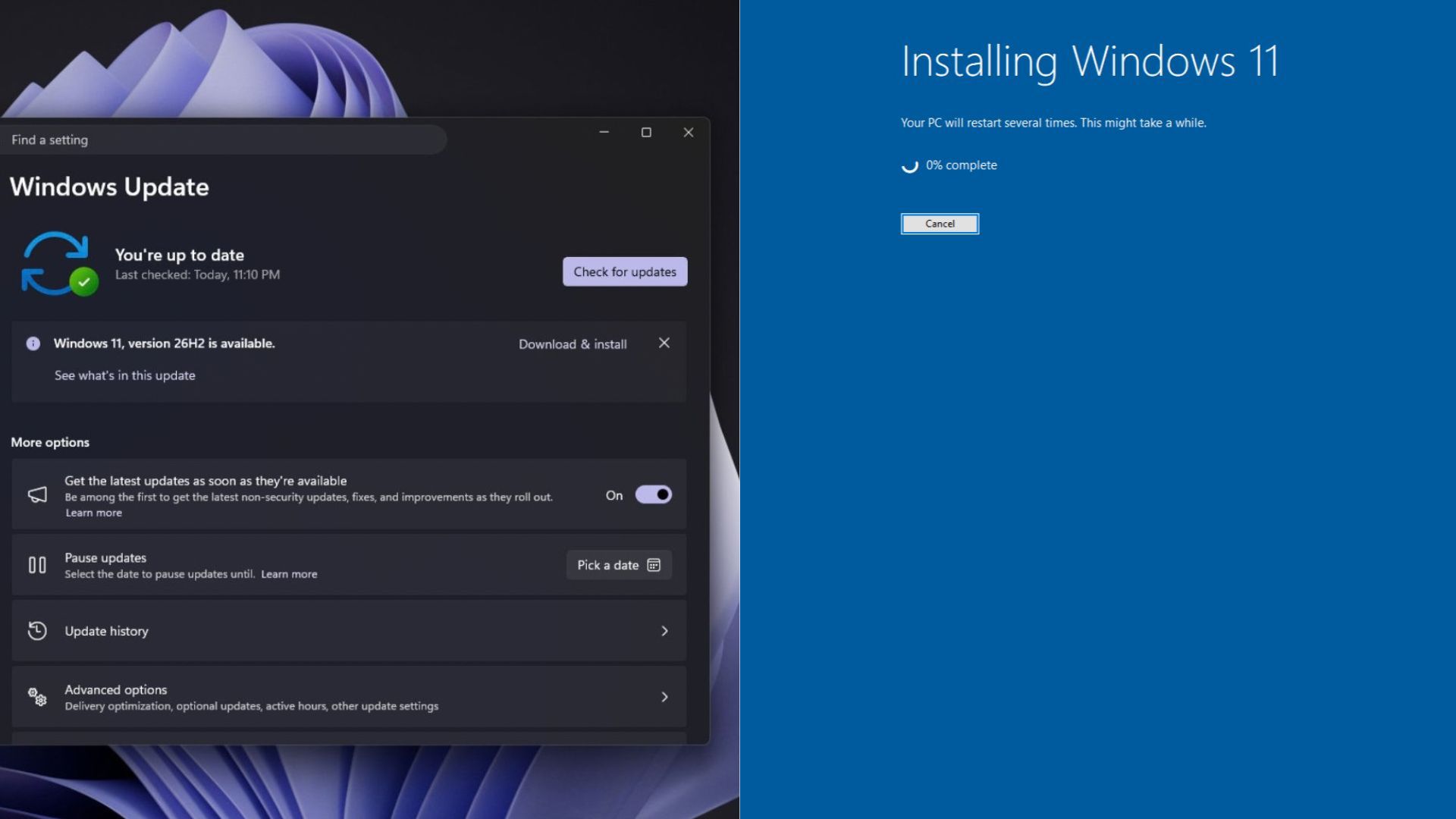
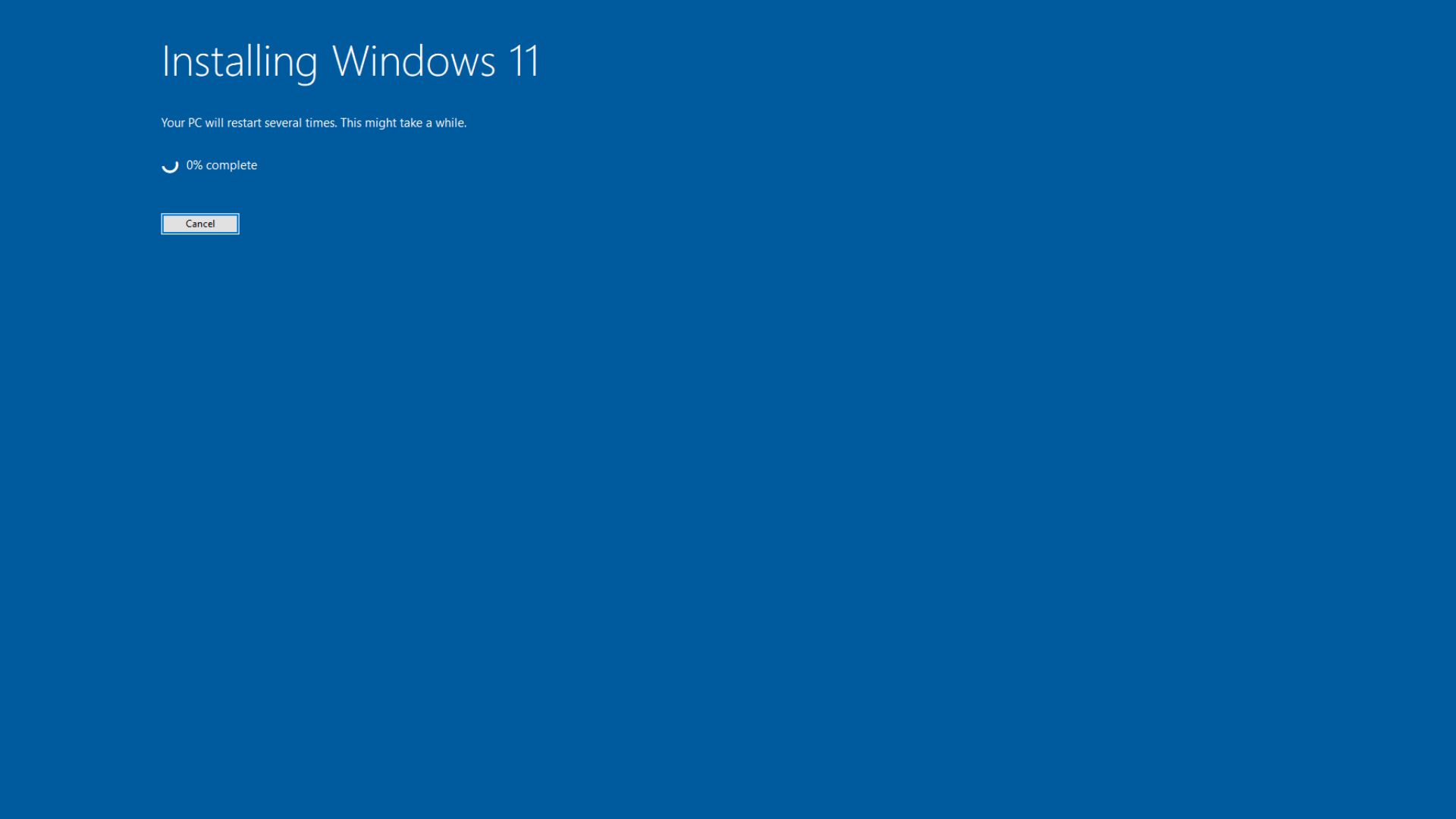
So, which one should you choose? If your PC works fine and you just want 26H2, an upgrade is the least disruptive option, and on 24H2 or 25H2 it takes only a couple of minutes. If you’re deliberately starting over, or troubleshooting a broken Windows install, a clean install is better.
After installing Windows 11 26H2, here’s what to expect
After a clean install, Windows 11 takes you through the out-of-box experience, where you choose your region and keyboard, connect to a network, sign in with a Microsoft account, pick privacy settings, and decide whether to restore from Windows Backup. An upgrade skips most of this.
Once you’re on the desktop, run Windows Update again to grab the latest cumulative update and drivers. Check Settings > System > Activation too, as a PC activated with a digital license usually reactivates on its own once it goes online.
To verify the version, press Windows + R, type winver, or go to Settings > System > About, and look for Windows 11, version 26H2, and the build number.
Windows 11 26H2 is mostly features you already have
Windows 11 2026 update is unusual because 24H2, 25H2, and 26H2 share a servicing branch. Microsoft’s what’s new page says many features “have already been delivered through monthly servicing updates,” and 26H2 “enables selected features and resets the support lifecycle.”
When we tested Windows 11 26H2, the version bump didn’t switch on the biggest features, because Microsoft still controls them through Controlled Feature Rollout. And none of the headline features are exclusive to 26H2. However, getting your PC to 26H2 does increase your chances of Microsoft enabling those new features in the Windows 11 September update and even the August update. Here are the biggest ones:
- Movable taskbar: Windows 11 finally restored the movable taskbar, and you can place it on the left, top, right or bottom.
- Resizable Start menu: Microsoft now lets you shrink the giant Start menu with Small, Large and Automatic sizes.
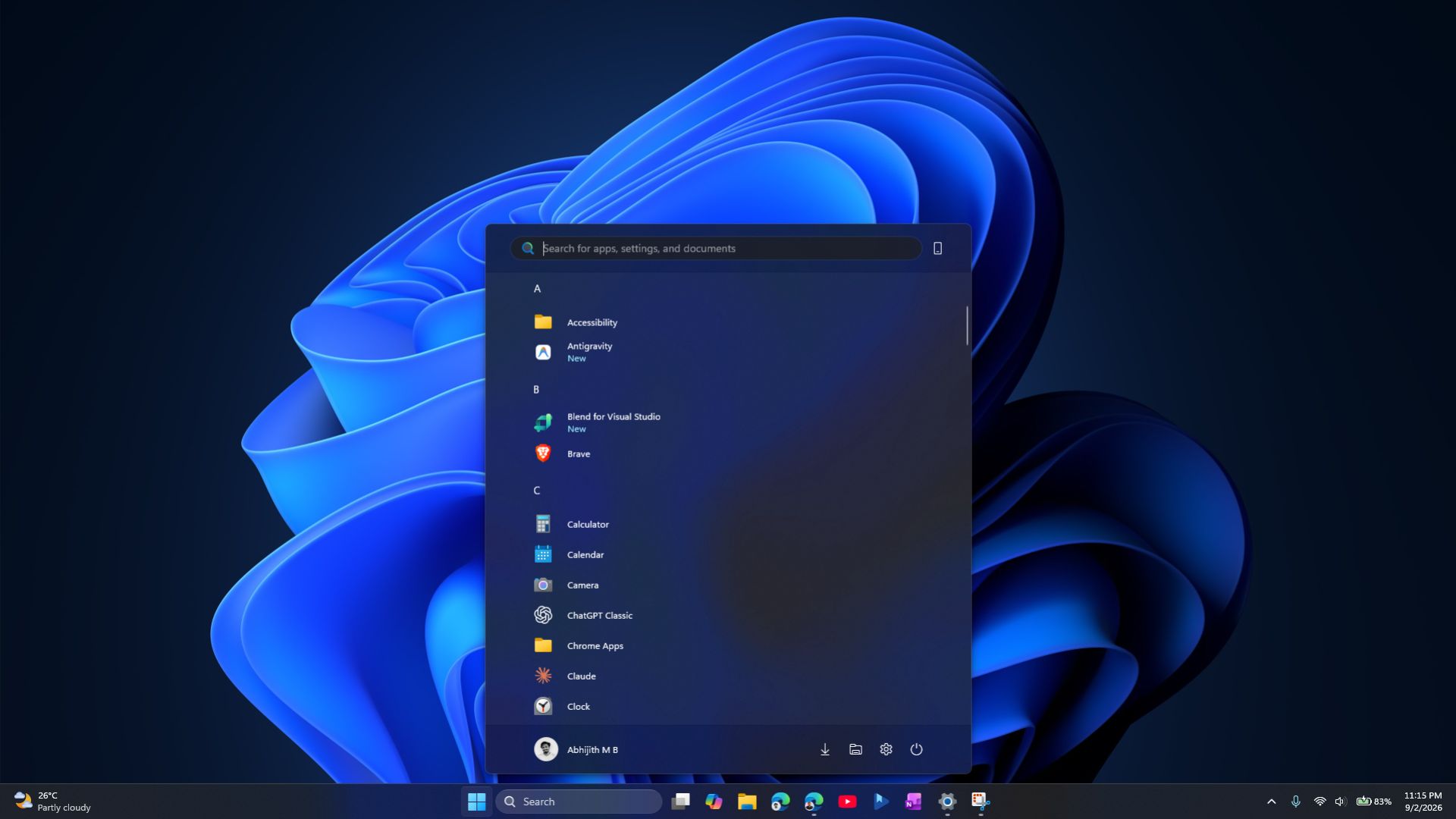
New smaller Start menu in Windows 11 after August optional update. Credit: Windows Latest - Bing-free Search: Windows 11’s faster, Bing-free Search lets you turn off web and Microsoft Store suggestions.
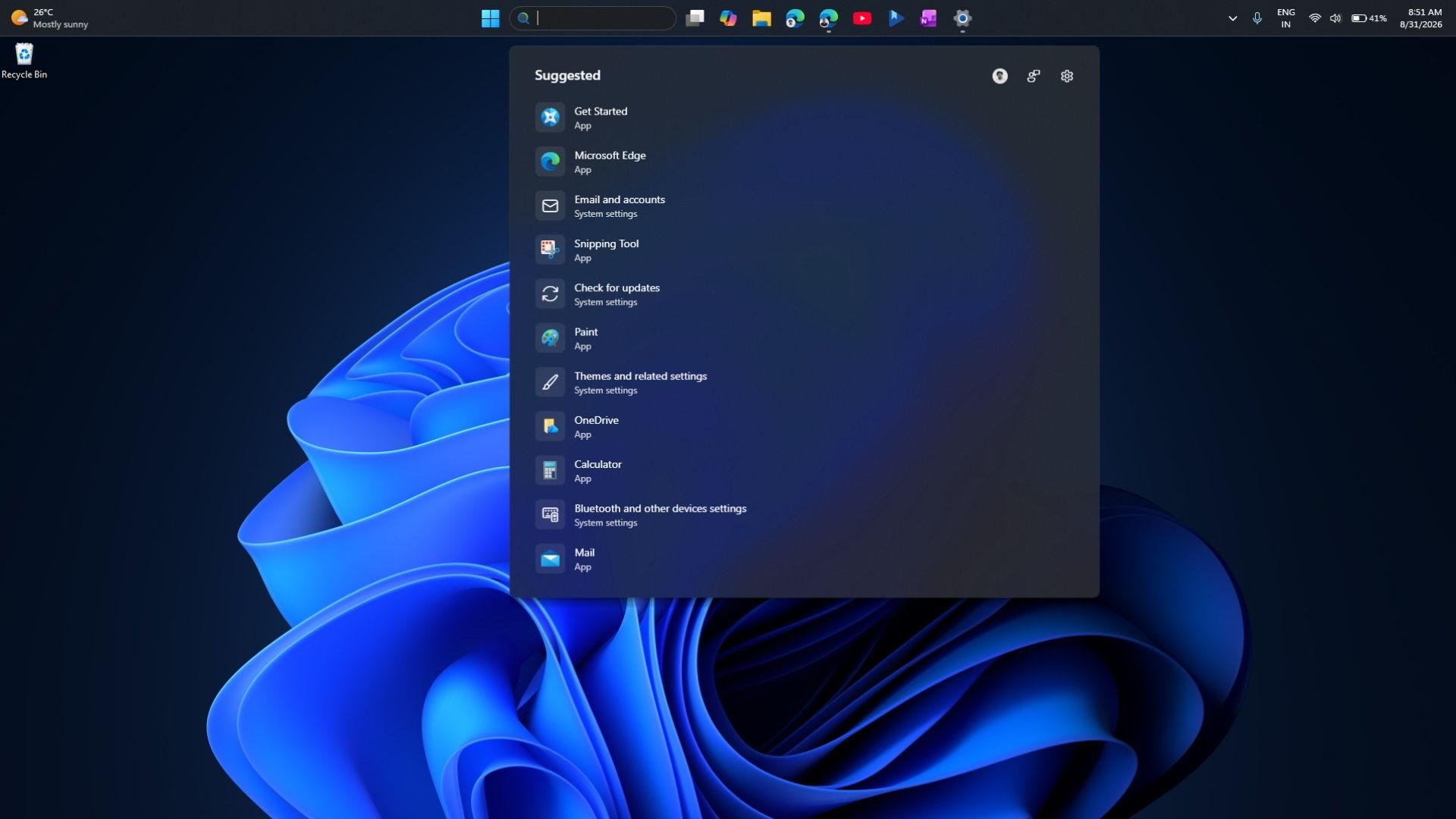
New Windows 11 Search UI after August optional update. Credit: Windows Latest - Enterprise changes: For commercial devices, 26H2 turns on Windows settings backup, app-specific taskbar actions and some File Explorer improvements by default, and point-in-time restore is on by default for certain managed PCs.
Of course, the major change is the lifecycle. Microsoft says 26H2 gets 36 months of servicing for Enterprise and Education editions, starting September 29, 2026, while Home and Pro get the usual 24 months.
Windows 11 26H2 installation FAQ
How do I install Windows 11 26H2?
Use Windows Update, the Installation Assistant, the ISO, the Media Creation Tool, or Rufus. Choose any option depending on whether you want an upgrade, a clean install, or bootable media.
Can I install Windows 11 26H2 without Windows Update?
Yes. The Installation Assistant, ISO, Media Creation Tool, and Rufus all work without Windows Update.
Can I upgrade from Windows 11 24H2 to 26H2?
Yes, on eligible PCs. Microsoft designed 26H2 as an enablement package for supported 24H2 and 25H2 systems.
Can I install Windows 11 26H2 from an ISO without losing files?
Yes. Mount the ISO, run setup.exe, and select “Keep personal files and apps” during Setup.
Can I clean install Windows 11 26H2?
Yes, by booting from installation media created with the Media Creation Tool or Rufus.
Can I install Windows 11 26H2 on an unsupported PC?
Tools like Rufus can modify Windows Setup to skip some requirements, but Microsoft doesn’t recommend installing on unsupported hardware.
Does Windows 11 26H2 require TPM 2.0?
Officially, yes. TPM 2.0 is still part of Microsoft’s Windows 11 requirements.
Can I install Windows 11 26H2 without a Microsoft account?
It depends on the build and installation media, as Microsoft keeps changing OOBE and has blocked older bypasses.
What is the latest Windows 11 26H2 build?
Our installation reported Build 26300.9550. Monthly cumulative updates will push the build number higher over time.
Does Windows 11 26H2 work on Arm PCs?
Yes, but Arm PCs need the Arm64 ISO or Windows Update, as the Installation Assistant and Media Creation Tool don’t support Arm-based PCs.
The post How to download and install Windows 11 26H2, now available for everyone appeared first on Windows Latest