
There’s a new hidden setting in Windows 11 Experimental build 26340.9212 called Open apps maximized. It does exactly what it says. If you turn it on, the next time you open an app, it launches maximized instead of remembering whatever window size it had before.
As of now, Microsoft hasn’t made any official mention of the feature, even though it’s already live and toggleable for some Insiders on the Experimental channel, which suggests that it might be in early testing stages.
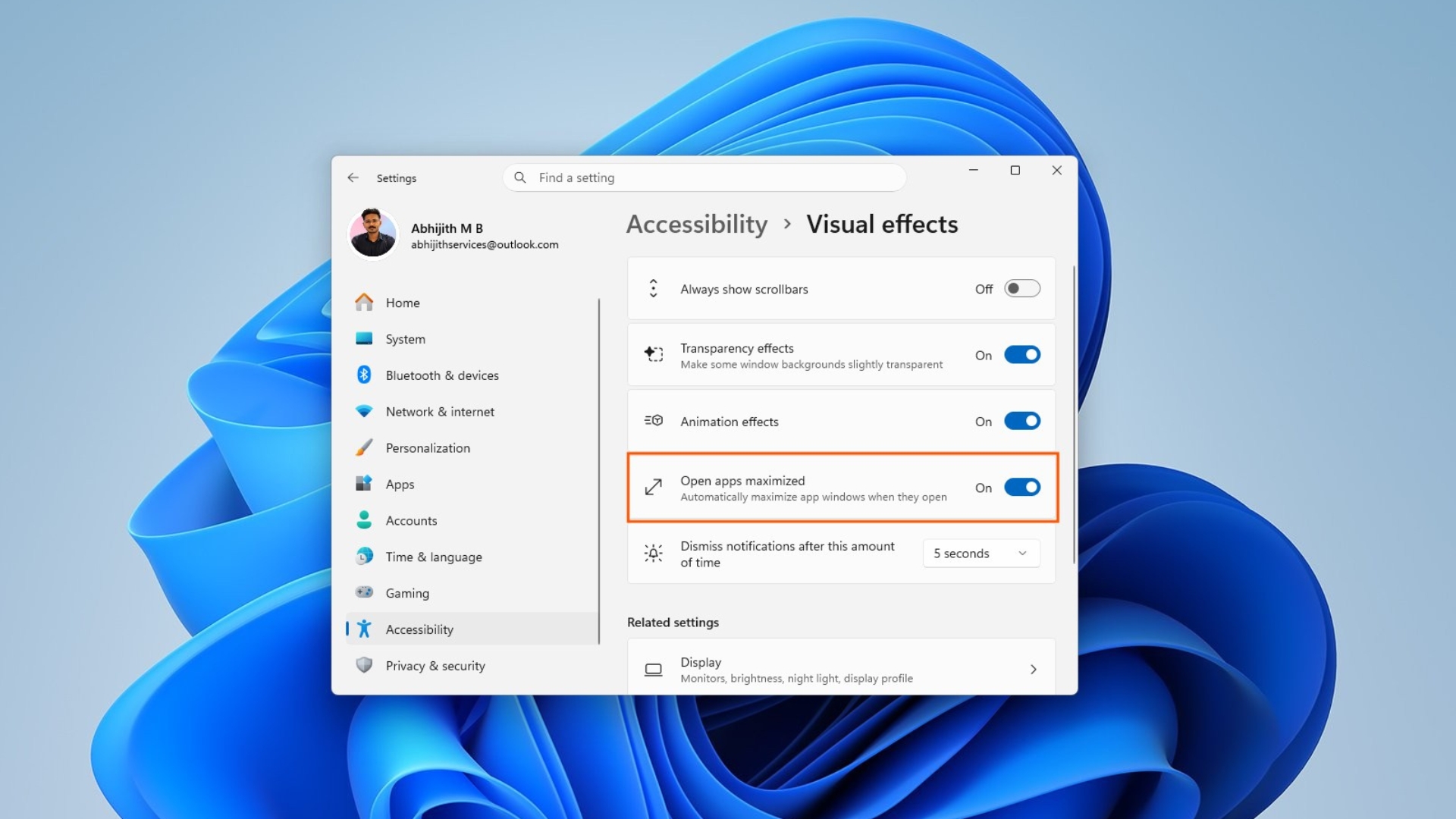
The feature is in Settings > Accessibility > Visual effects, sitting right next to Transparency effects and Animation effects. I tested it on my PC, and it works flawlessly for all apps. It’s a good feature for users who always click the maximize button, but I do have some thoughts.
Windows 11’s new maximized apps setting makes much more sense on a small screen
If you’re using a 27-inch monitor like I am, automatically maximizing every app isn’t something you’d want. I keep my browser, Word, and Excel maximized, sure, but most other apps are in windowed mode so I can put the extra screen space to use.
On my 14-inch laptop, I open an app and click maximize almost every single time anyway. It’s the whole case for this setting. It removes the need for a tiny repetitive click.
Smaller laptops in the 13 and 14-inch range are the obvious fit, and so is Microsoft’s Surface Pro 12-inch. Also, for those with Windows tablets, hitting a small maximize button with your finger is more annoying than clicking it with a mouse. That said, Windows tablets are a rare sight these days, with OEMs preferring 2-in1s only, like the upcoming NVIDIA RTX Spark-powered Lenovo Yoga 9n 2-in-1.
Windows gaming handhelds have got the new XBOX mode for full-screen gaming, but if you do drop into the regular Windows desktop, a setting that skips the windowed mode is convenient.
I tested the new Open apps maximized setting on my PC. I turned the setting on, opened File Explorer, and it launched maximized as it should. I then turned the setting off and opened File Explorer again, and it still opened maximized because Windows remembers the last window state an app used.
It makes sense as a feature on its own. What I’d want instead is for turning this setting off to restore whatever window size I had before I turned it on in the first place. Or even better, if I could customize which apps this setting applies to. Maybe that’s asking for too much from a toggle this small.
Also, since Windows clearly already knows how to apply this behavior globally, I’d like to see it become display-aware next: on automatically when I’m using my 14-inch laptop screen, off when I dock into my 27-inch monitor.
The feature was first spotted by Windows watcher phantomofearth. A reply under his original post suggested something else I suspect a lot of people would want too: a matching option to open apps centered on the screen instead of maximized.
How to enable Open apps maximized in Windows 11
The setting is experimental and won’t show up for everyone yet, even if you’re already on the right build.
First, make sure you’re running Windows 11 Insider Preview Experimental build 26340.9212 or newer. Second, if the toggle isn’t visible under Settings > Accessibility > Visual effects, download ViVeTool from its official GitHub repository, extract the folder, then open Command Prompt or Terminal as administrator and navigate to that folder.
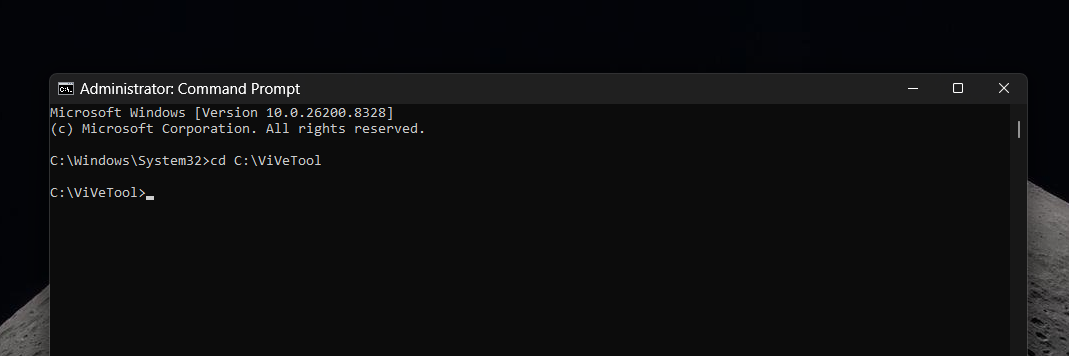
Run this command: vivetool /enable /id:62915050
Restart your PC, then head back to Settings > Accessibility > Visual effects and look for Open apps maximized.
If you want to turn it back off later, run vivetool /disable /id:62915050 and restart again.
Keep in mind that this ID is specific to the current Experimental build, so don’t expect it to work the same way once Microsoft moves this feature to other channels.
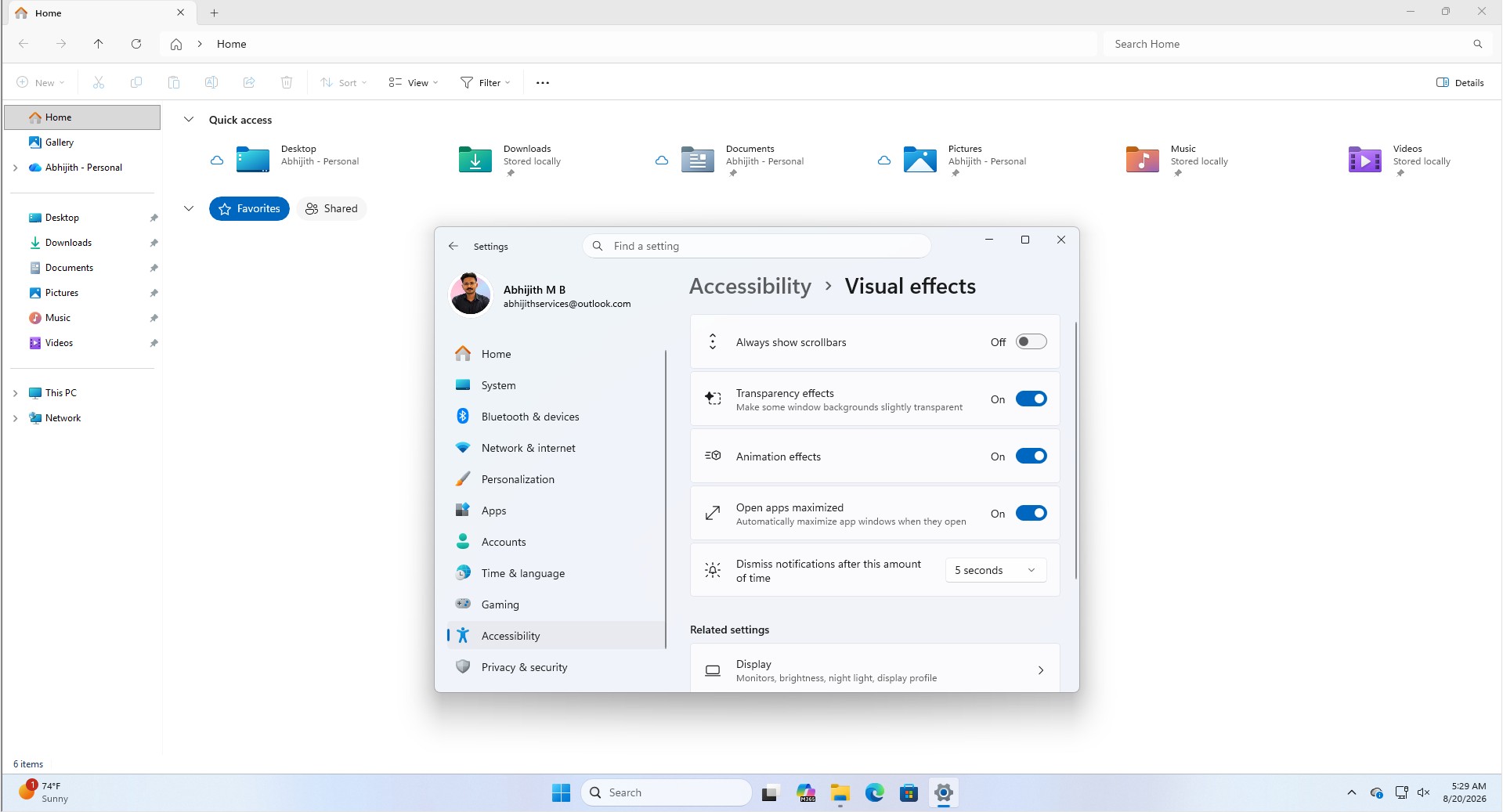
Right now, this is still a controlled test only on the Experimental channel, and Microsoft hasn’t said anything official about it yet. Whether it reaches Beta, Release Preview, or a stable build will depend on the feedback Insiders send back. It’s a small setting, but if Microsoft is reading this, it’s a good one, and it would be even better if they could add the display-aware and centered-window options too.
The post Windows 11’s new hidden setting opens every app maximized by default, rolling out to Insiders appeared first on Windows Latest