
Microsoft told Windows Latest that it accidentally shipped the AI-powered OneDrive Photos app on Windows 11 more broadly than it should have, which explains why enterprise PCs, where the app doesn’t even work, now have to deal with it.
I’m told that Microsoft is going to “fix it,” which possibly suggests that the app will be rolled back, but I think it’ll stay on most PCs. If you haven’t seen the app yet, here’s what it looks like out of the box (yes, it has access to all your folders by default):
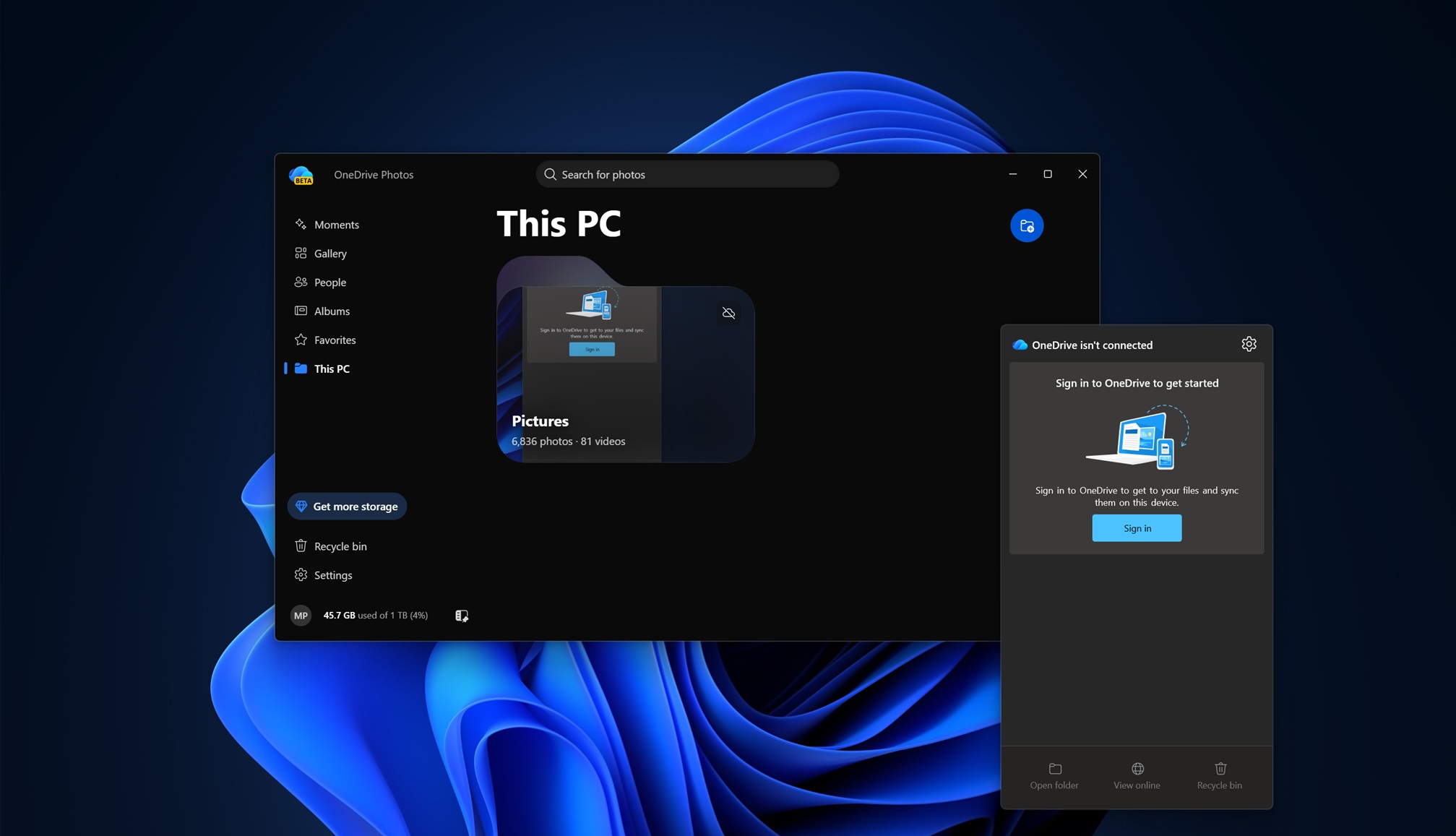
“OneDrive Photos” isn’t exactly new because it first showed up on Windows Insider machines earlier this year, and it’s still in beta.
Starting August 1, 2026, OneDrive Photos quietly showed up on some consumer PCs, and it eventually rolled out to almost everyone with the OneDrive sync client installed. It also appeared on enterprise PCs where it doesn’t even launch.
Microsoft has now confirmed that this broad rollout wasn’t intentional.
“We are incubating a new photos experience in OneDrive that went more broadly than it should have in Windows,” Microsoft told Windows Latest in a statement. “We’re fixing that. Windows Photos will always give you the option of local and cloud photos and the choice to use OneDrive or not.”
Microsoft also told Windows Latest that OneDrive Photos cannot currently be removed from PCs unless you delete OneDrive entirely, but there are plans to let you remove one without the other.
Of course, the company won’t explain why it made sense to force an app onto PCs when the “feature” to easily remove it wasn’t ready.
What is the OneDrive Photos app on Windows 11?
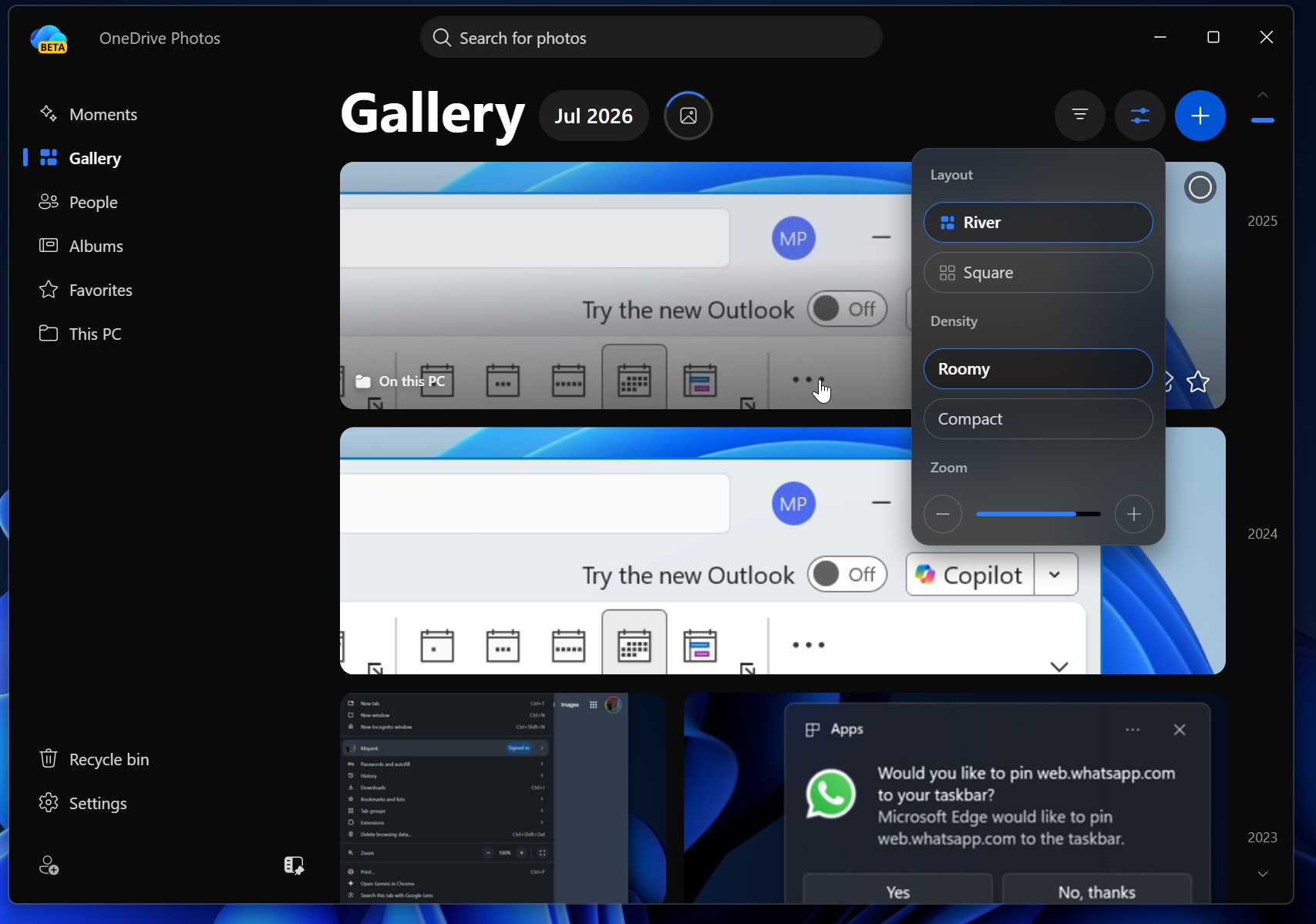
OneDrive Photos shows photos from your local storage, including your personal folders, as well as those in the cloud. By default, if you choose not to sign in and open the app, it’ll already have access to all photos on your PC, including those outside the usual locations, like Pictures.
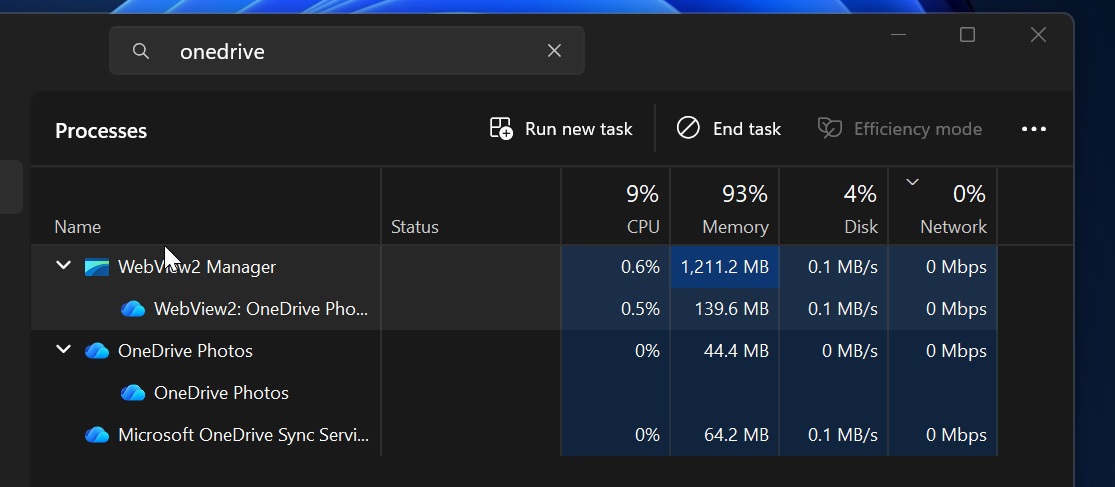
OneDrive Photos loads OneDrive.com’s Gallery and is powered by Microsoft Edge-based WebView2, so it’s a web app, but it’s quite well made. Most of the time, it uses less than 1GB of memory on a PC with 32GB of RAM, although it can reach 1-2GB when you’re browsing a lot of images and going back and forth.
How and why do you even have the OneDrive Photos app on your PC?
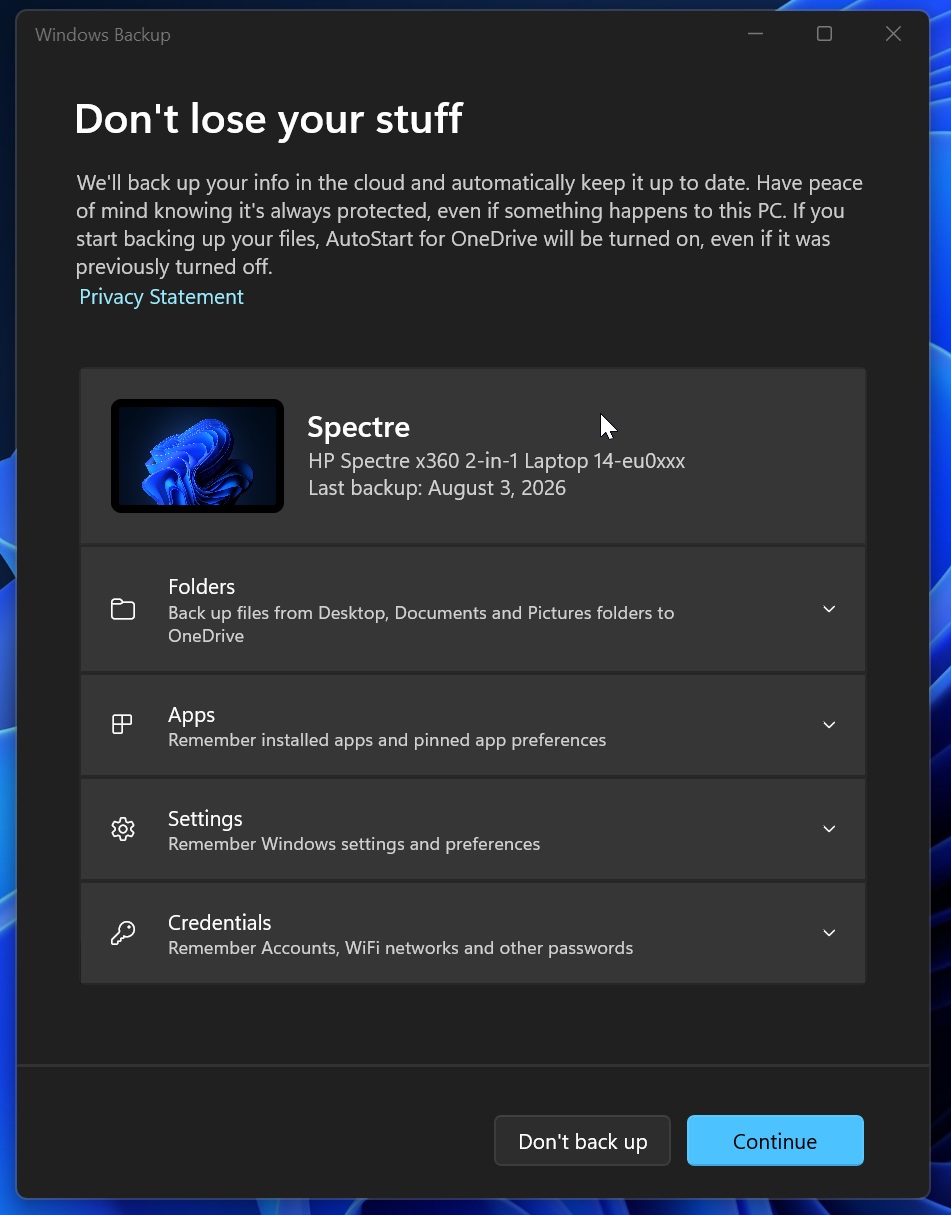
By default, Windows 11 comes pre-installed with multiple OneDrive-powered features, but there are mostly two apps involved. One is Windows Backup, which syncs your personal folders, settings, and account credentials like Wi-Fi credentials to OneDrive. If you aren’t aware of this app, you can find it in your Windows Search results:
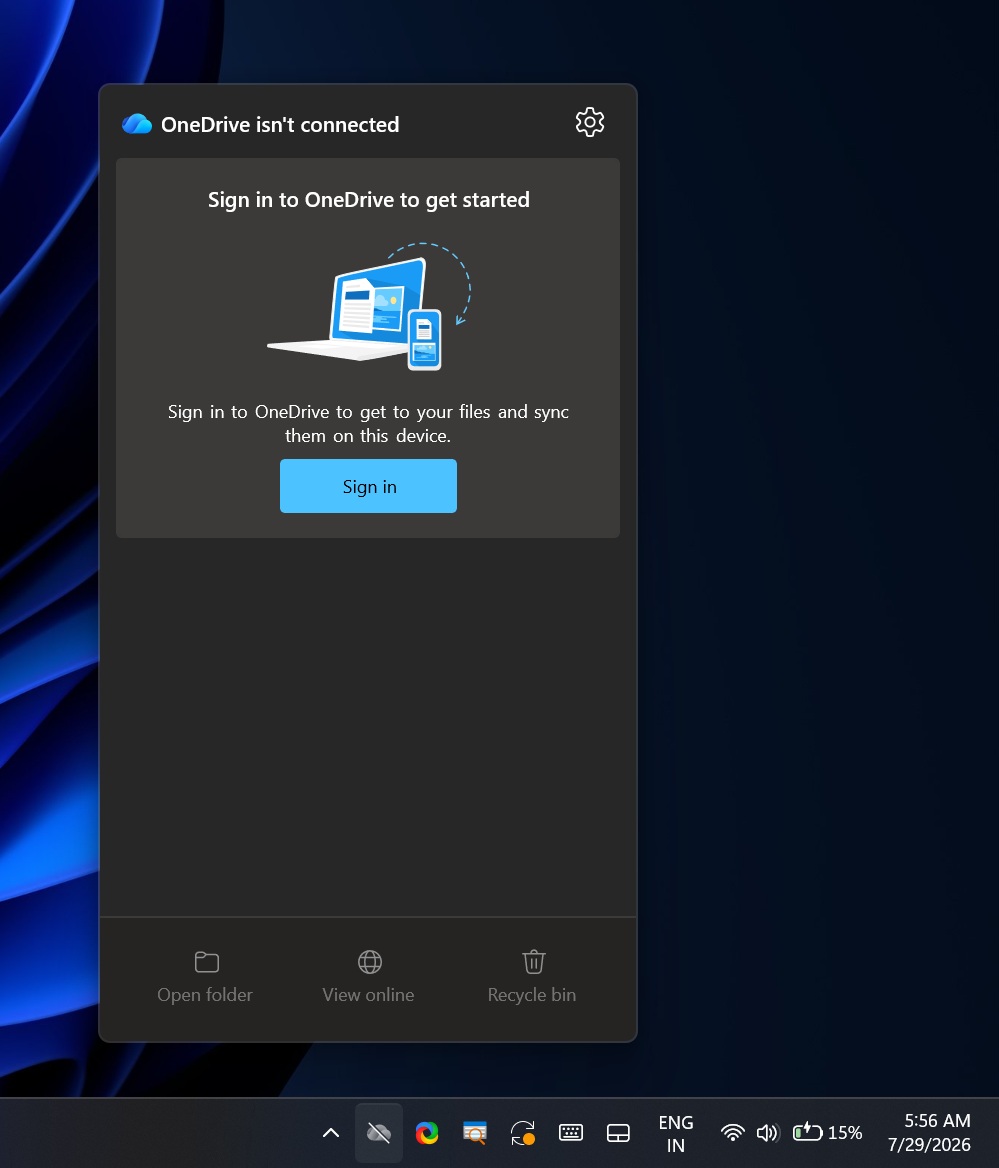
The second is “OneDrive Sync,” which can be running in the background on most PCs even if it’s not syncing anything. In our tests, Windows Latest observed that the sync client quietly installed the OneDrive Photos app on PCs where it was present.
When Windows Latest first noticed OneDrive Photos on a production PC, it was even outranking Microsoft Photos in Windows Search results.
I hadn’t signed up for the Windows Insider Program, and the most recent update I had installed was the July 2026 Patch Tuesday, released on July 14. I dug a bit more and realized that OneDrive Photos was tied to the OneDrive sync client, which was installed on my PC out of the box, even though I never bothered syncing my personal files to it.
This new photos client is installed at the following location:
C:Program FilesMicrosoft OneDriveOneDrive.App.exe
The original OneDrive sync client shares a similar, and is installed in the same location:
C:Program FilesMicrosoft OneDriveOneDrive.exe
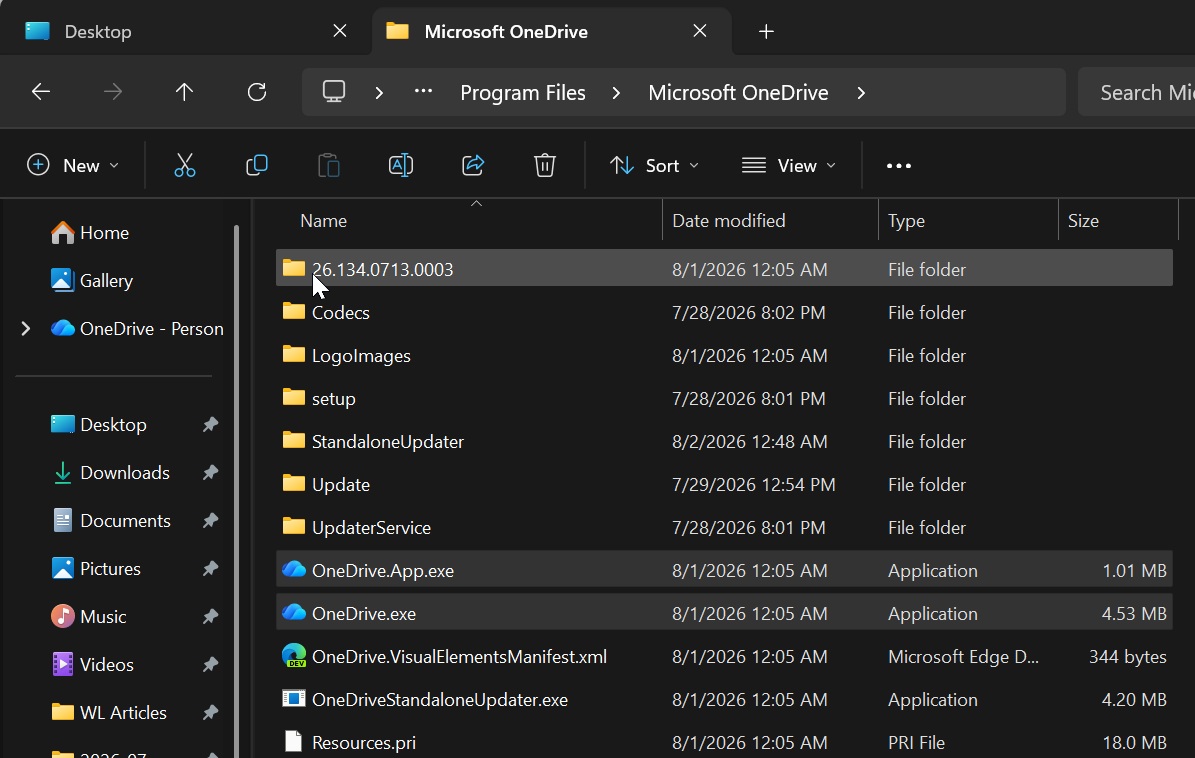
The pre-installed OneDrive sync client can download and install OneDrive Photos in the background, and it doesn’t matter whether you’ve signed in to a Microsoft account. If you don’t have it yet, you’ll most likely get it in the coming days.
IT admins were accidentally offered OneDrive Photos
OneDrive Photos is meant for personal Microsoft accounts, so you wouldn’t expect it on Windows 11 Enterprise installations or PCs where updates and services are managed via Microsoft Intune. Right? Unfortunately, this is where Microsoft messed up.
As Windows Latest first reported, OneDrive Photos showed up on thousands of PCs, including those using Windows Enterprise, and IT admins were clearly not happy. The biggest problem is that the app is tied to the OneDrive sync client and isn’t packaged as an MSI or a standalone installer, so you cannot “uninstall” it without removing OneDrive entirely.
Things reached a boiling point, with some IT admins convinced that Microsoft will never learn and that the rollout was intentional. Even as of writing, the company has not issued an explanation directly to IT admins.
“Microsoft never learns,” an angry IT admin told Windows Latest. “We manage hundreds of PCs using Intune, and all had this new ‘OneDrive Photos’ entry in the Start menu. How many mistakes will it take before they realize we do not want random apps across our organizations?”
Microsoft has already clarified it’s working on a fix that should remove the app from PCs where it’s not supported.
How can you remove OneDrive Photos from Windows 11?
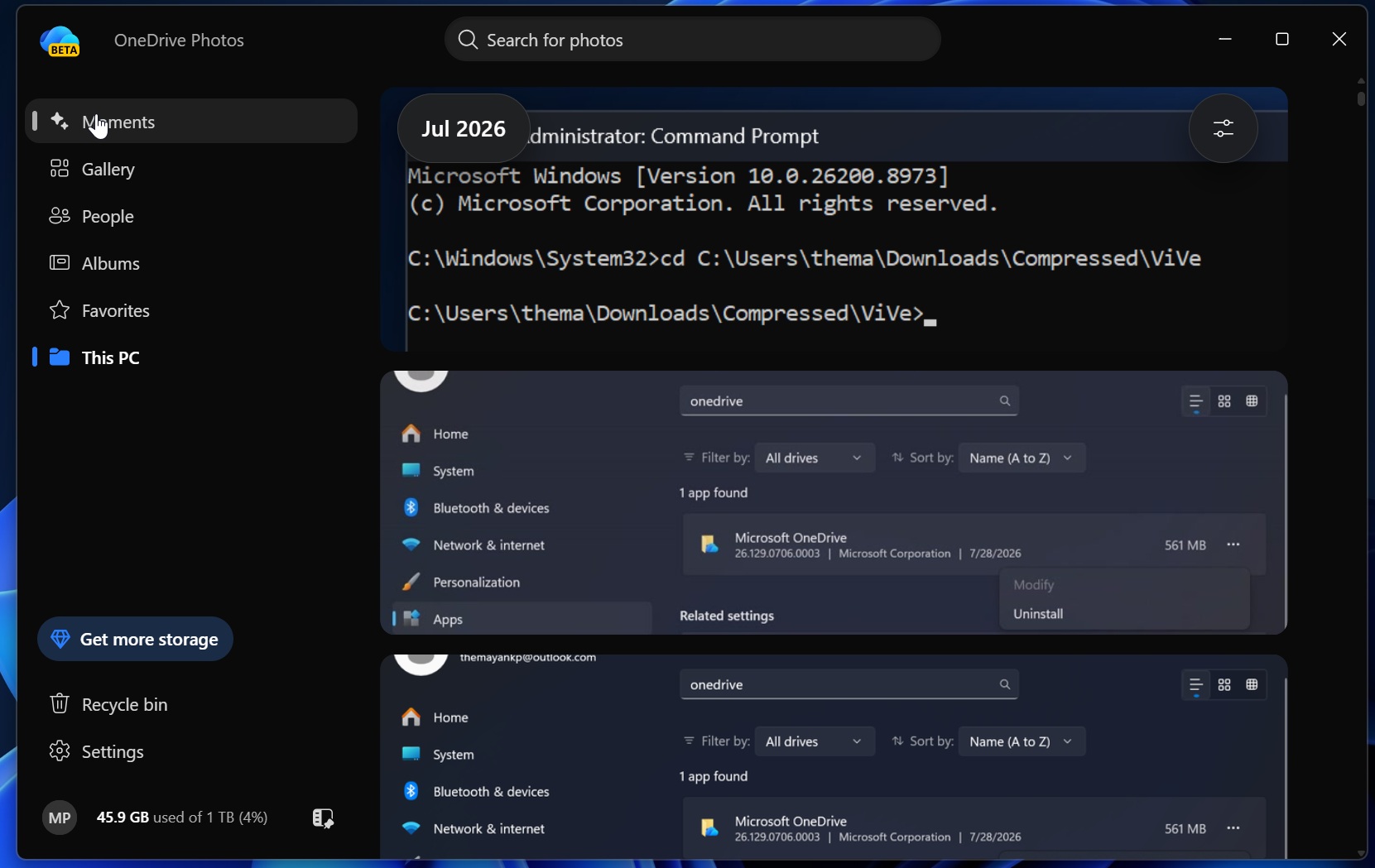
You cannot remove “OneDrive Photos” easily because it’s tied to the primary OneDrive sync client, and when you remove the OneDrive sync client, you also risk breaking File Explorer integration and shortcuts. Right now, your best option is to let OneDrive Photos stay in the background and wait for the next update that lets you remove it independently.
If you still want to remove OneDrive Photos, you need to delete OneDrive entirely, and you can follow these steps:
- Open Settings > Apps > Installed apps.
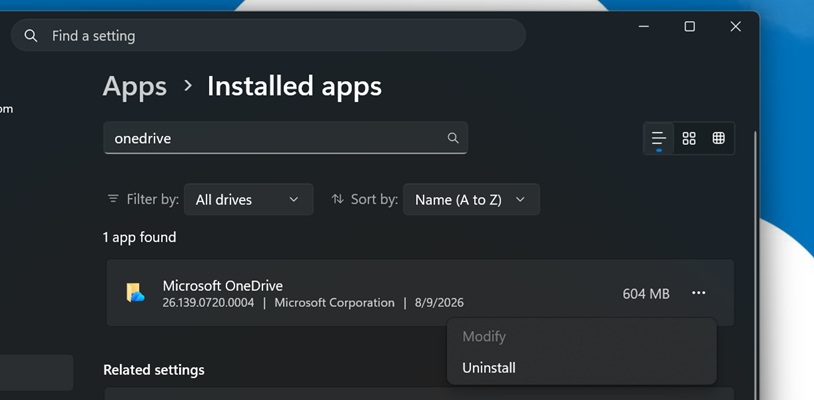
- Search OneDrive.
- Click Uninstall.
- Reboot Windows.
This will remove OneDrive Photos and the OneDrive sync client.
Microsoft has promised a future update will let you remove just the Photos app without affecting the primary sync client.
“We’re adding controls to remove the OneDrive Photos experience separately from the OneDrive app,” the company said in a statement.
The post Microsoft confirms it accidentally installed new OneDrive app on Windows 11 PCs, and there’s no easy way to remove it yet appeared first on Windows Latest