
Microsoft has confirmed what we reported a little while ago: you’ll be able to Bing web results in Windows 11 Start menu search. This means Windows Search will now surface only your local files and apps, not Bing results. It also means Microsoft is decoupling Microsoft Rewards from Windows Search to enable a truly fast offline experience.
In a post on X, Marcus, who is the design director at Microsoft, confirmed that Windows Search is getting faster and more reliable and will let you disable web results.
Microsoft told me Bing would remain turned on by default in Windows Search, but you can turn it off in fewer than three clicks. You don’t have to modify the Windows Registry, use Group Policy settings, switch to the EU, or install Windows LTSC if you dislike Bing in Windows Search results.
To disable Bing, you need to open Settings > Privacy & Security > Search and toggle off “web results.” When you turn off Bing, Windows Search will only surface local results. It’ll also drop the Microsoft Rewards icon that you usually see. And Bing removal also means you’ll no longer run into Copilot ads when finding your files.
This change also means Windows Search’s homepage will stop showing items from MSN, Bing, and other linked Microsoft services. You’ll have a clean interface with only your recent searches. The experience is going to be similar to or better than Windows 11 LTSC, where you can entirely turn off web search.
Right now, Windows Search’s ability to turn off web results is still being tested and will roll out soon.
Windows Search without Bing is going to be a game-changer
Windows Search isn’t exactly terrible, but there’s no denying that it’s frustrating and often struggles to find the right file. In other words, Windows Search is bad at searching your local files and apps, and it’s largely because of Bing/web integration.
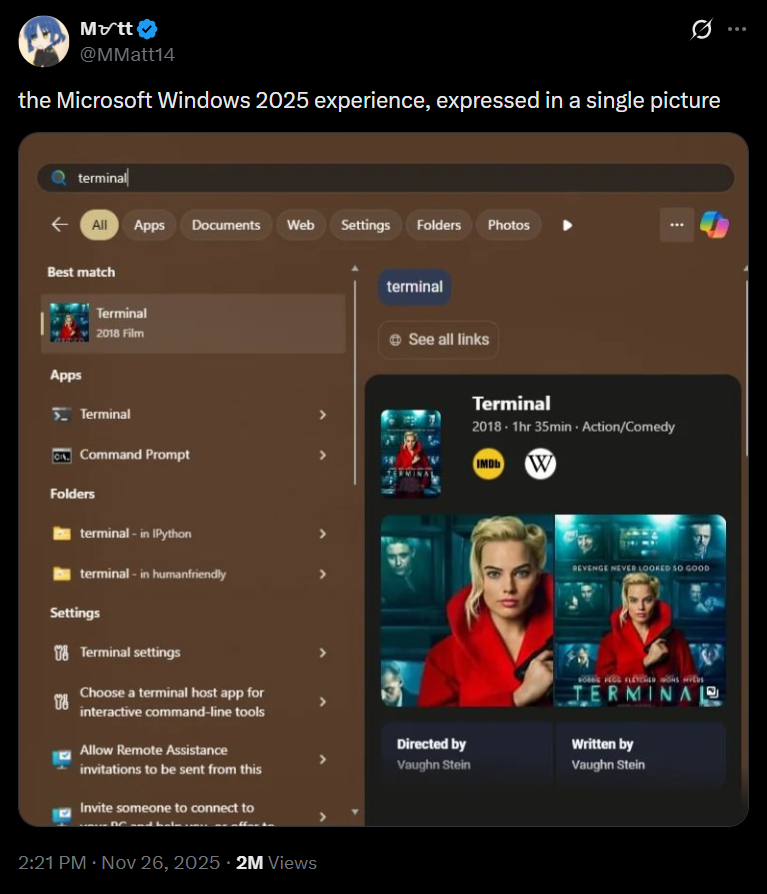
If you look at other apps, such as PowerToys, you can find files/apps faster and more accurately. Interestingly enough, all these search apps use Windows Search Indexer, which powers the native search panel. So the million-dollar question is why Windows Search itself is a mess when apps that use it do it better? It’s because of Bing.
When Bing/web search is turned on in Windows Search, it needs to filter your searches between local files, apps, and the web. That means it often struggles to understand your intent, so if you’re looking for Maps and you have a Maps app, it might assume you’d like to go to Bing and search Maps.
Windows Search isn’t powered by AI. It is an algorithm/index-driven approach, similar to a search engine, so it cannot intelligently understand intent and context. However, it’s capable enough to surface files/apps faster and more accurately when web searches are not populating the results.
The post Microsoft reveals you can kill Bing in Windows 11 Search and boost performance after years of lag appeared first on Windows Latest