
Windows 11 KB5065426 is now rolling out as part of August 2025 Patch Tuesday with a couple of new features, including new taskbar clock features, File Explorer UI fixes and more. Microsoft has also posted direct download links for KB5065426 offline installers (.msu). If Windows Update is not working, you can use Update Catalog.
KB5065426 is a mandatory update, and it started to download automatically when I checked for updates, but remember that it’ll install automatically in the background. Unless you pause updates, you’ll automatically get today’s update. But you shouldn’t pause Windows Update because the August 2025 Patch Tuesday contains critical security fixes.
This patch is called “2025-09 Cumulative Update for Windows 11 Version 24H2 for x64-based Systems (KB5065426),” and it advances PCs to Windows 11 Build 26100.6584. In our tests, Windows Latest found that the patch also shows up on PCs already running Windows 11 25H2 (enrolled into WIP), but the changes are identical.
Download Links for Windows 11 KB5065426
Windows 11 KB5065426 Direct Download Links: 64-bit and ARM-64 | Microsoft Update Catalog.
| Architecture | Size | Build |
|---|---|---|
| ARM64 | 3685.4 MB | 26100.6584 |
| x64 | 3811.1 MB | 26100.6584 |
| x64 (Server 24H2) | 3811.1 MB | 26100.6584 |
Do you see the size? It’s almost as big as the .ISO files of Windows 11. I’ve been complaining about it for six months now. I’m going to call out Microsoft again, and note that Windows 11 September 2025 Update is about 4GB in size because it contains the AI models.
These AI models are exclusive to Copilot+ PCs, but they’re still included in these offline installers for everyone, which leads to a large package size.
What’s new in Windows 11 Build 26100.6584?
Windows 11 August 2025 Update has a long list of new features and I’ve tested everything it’s shipping today, but remember. While I’ve access to the features, you may not see them immediately. Microsoft says Windows 11 KB5065426 (Build 26100.6584) rolls out features in stages, so it’ll take a few days or a week for all changes to show up.
Here’s everything new and improved in Windows 11 Build 26100.6584:
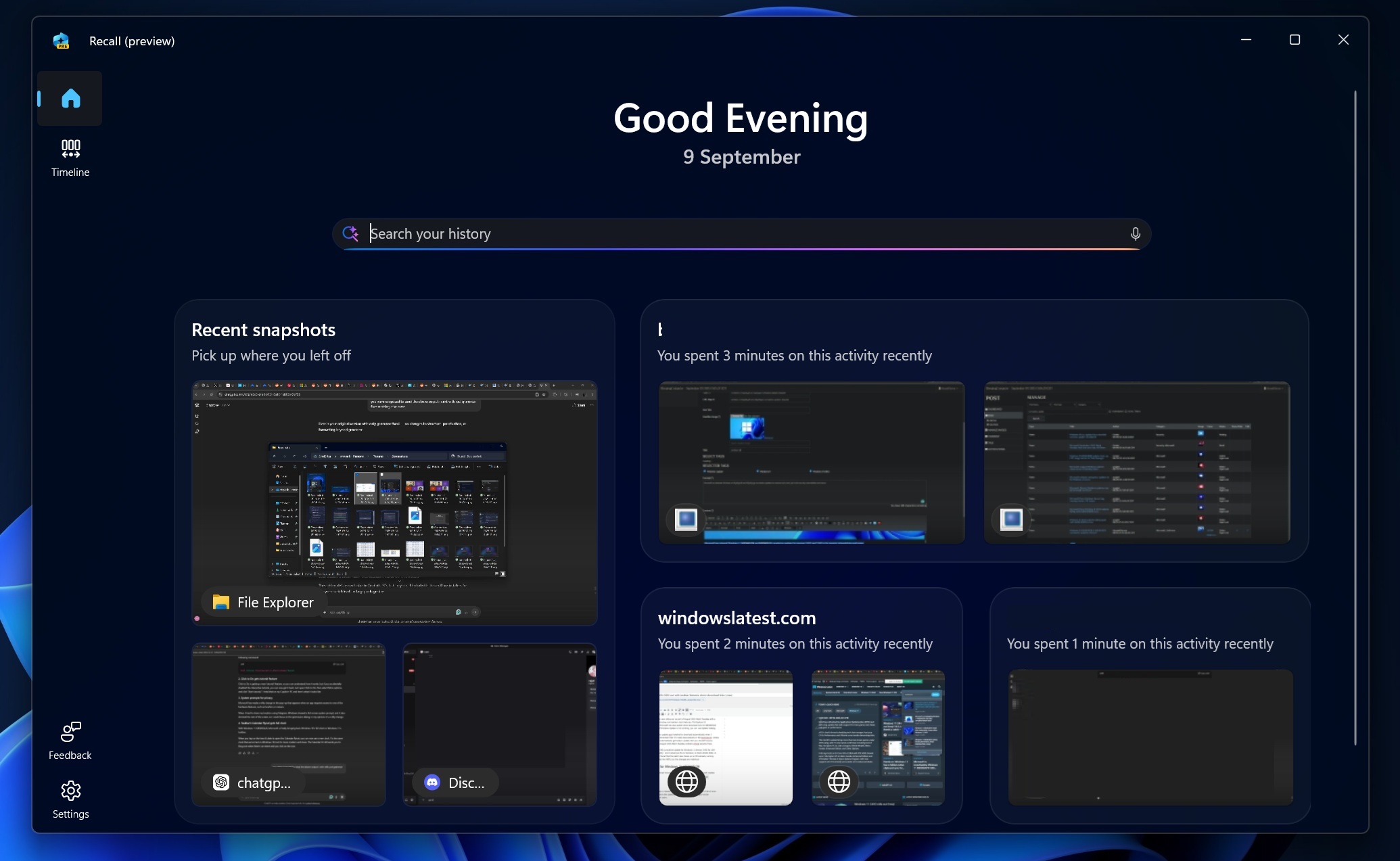
1. Recall gets a new homepage (Copilot+ PC)
Recall, which works on PCs with an NPU only, is now getting a new homepage.
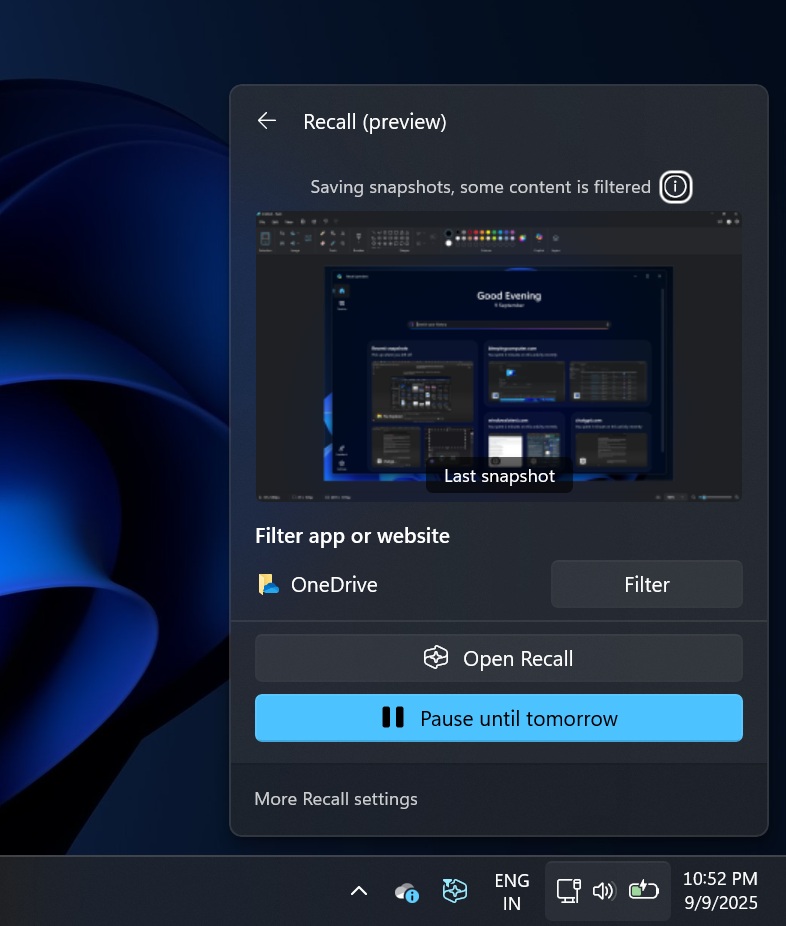
The homepage has all your recent activities, so even if you don’t know what you were working on an hour ago, you can now visit the ‘Home’ and find out. You’ll need to turn on Recall (of course) and the snapshot collections feature to use the homepage. Once turned on, you can easily find out the most used apps, your recently visited websites, and more.
Recall knows everything about you because it watches your screen, but it’s an optional feature and can be turned off any time. If you want to turn off Recall AI, just open Command Prompt (elevated), and run the following command:
DISM /Online /Disable-Feature /FeatureName:"Recall"
I tested the above command after I installed Windows 11 KB5065426, and it does remove Recall entirely from the operating system. That’s enough of the ‘workarounds’ to disable Recall. One more thing, Recall is also in the EU now, so changing region won’t save you from the feature if you really hate it.
We’ve written a tutorial that explains all possible steps to turn off Recall.
2. Click to Do gets a tutorial feature (Copilot+ PC)
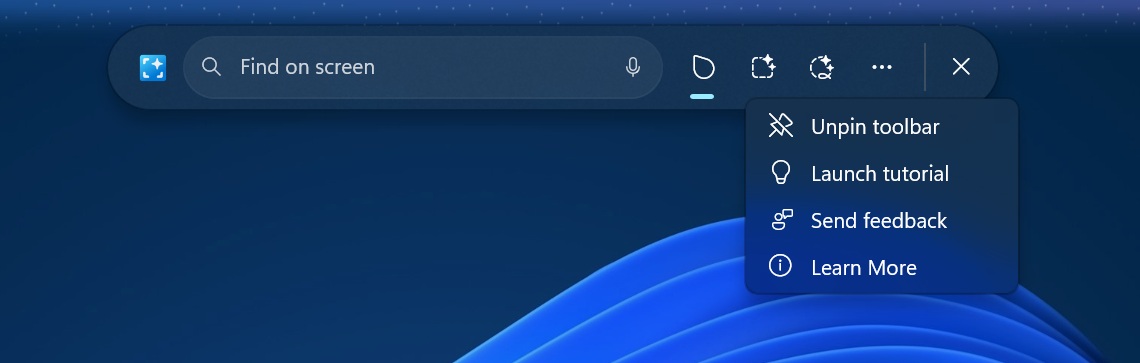
Click to Do is another Copilot+ PC exclusive feature. With Click to Do, you can scan your screen using a small language model hosted on your PC. Click to Do allows you to summarize content on the screen. If you’ve an image, it can find more details about it or perform a reverse search.
But it can be difficult to understand Click to Do, which is why it’s getting a new ‘tutorial’ feature in Windows 11 KB5065426.
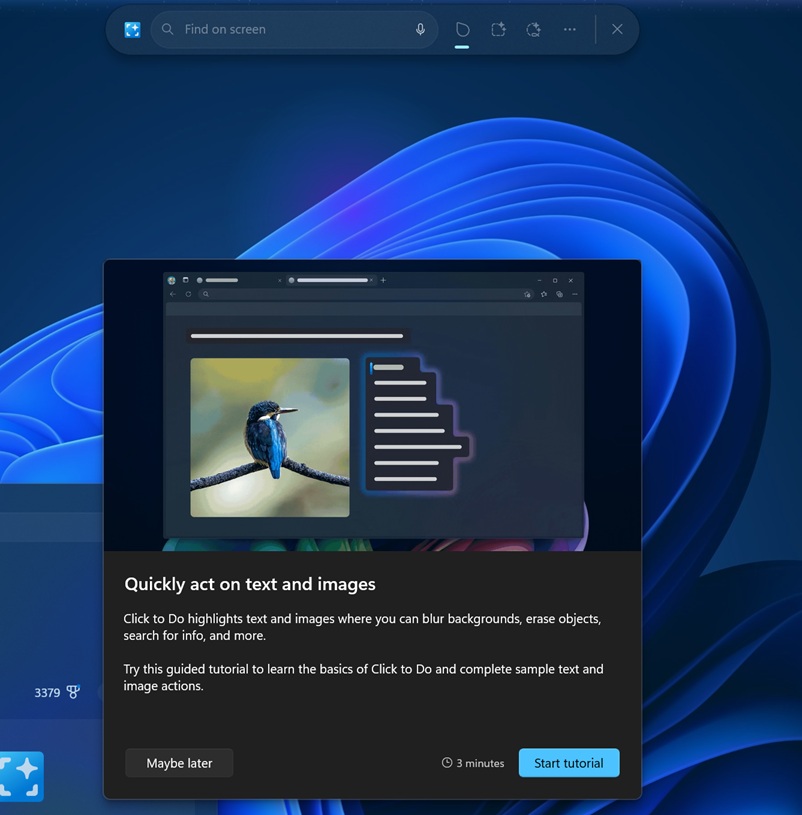
This helps you understand how it works, but if you accidentally disabled the interactive tutorial, you can now get it back. Just open Click to Do, then select More options, and click “Start tutorial.” I tried that on my Copilot+ PC and here’s what it looks like:
3. System prompts for privacy
Microsoft has made a nifty change to the pop-up that appears when an app requests access to one of the hardware features, such as location or camera.
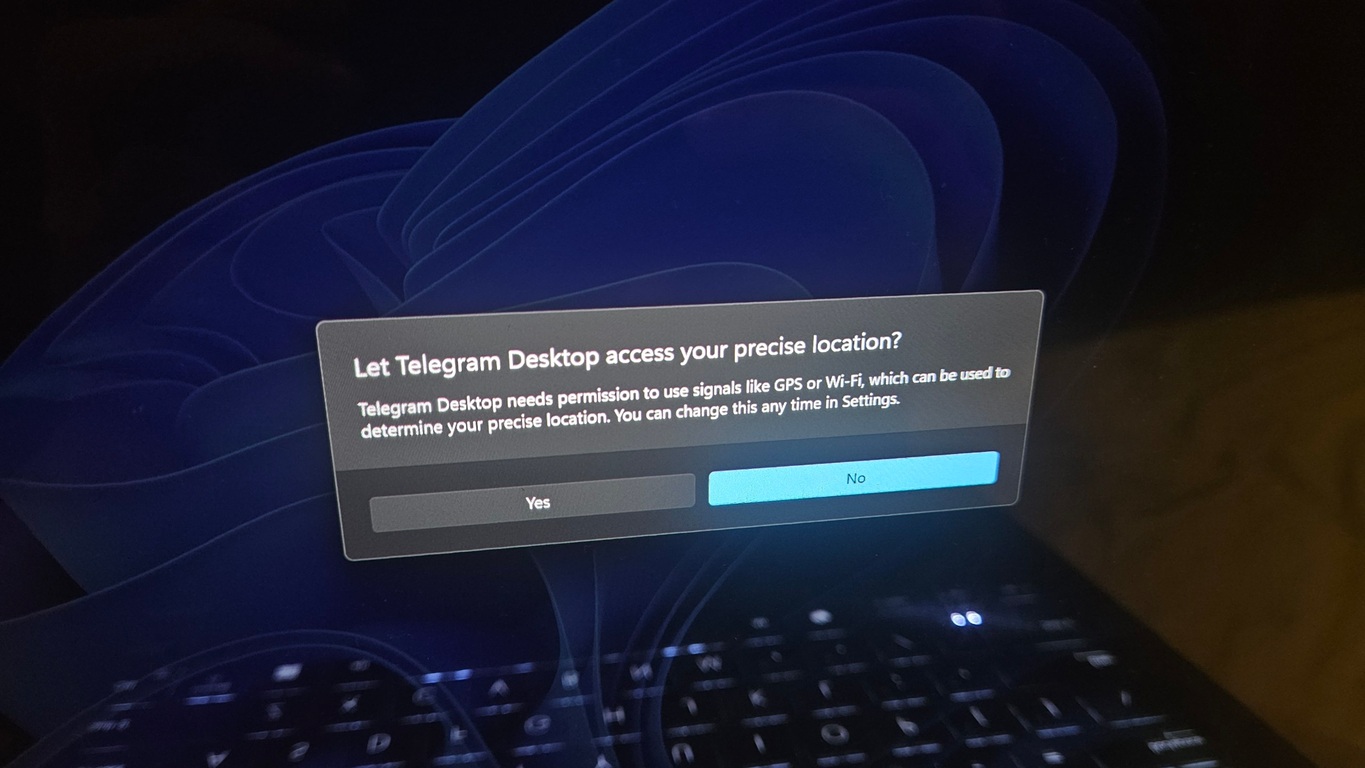
When I tried to share my location using Telegram, Windows showed a full-screen system prompt. This isn’t exactly new, but it also dimmed the rest of the screen, so I could focus on the permission dialog. In my opinion, it’s a nifty change that prioritizes privacy.
4. Taskbar’s Calendar flyout gets a full clock
With Windows 11 KB5065426, Microsoft is finally bringing back Windows 10’s full clock to Windows 11’s taskbar.
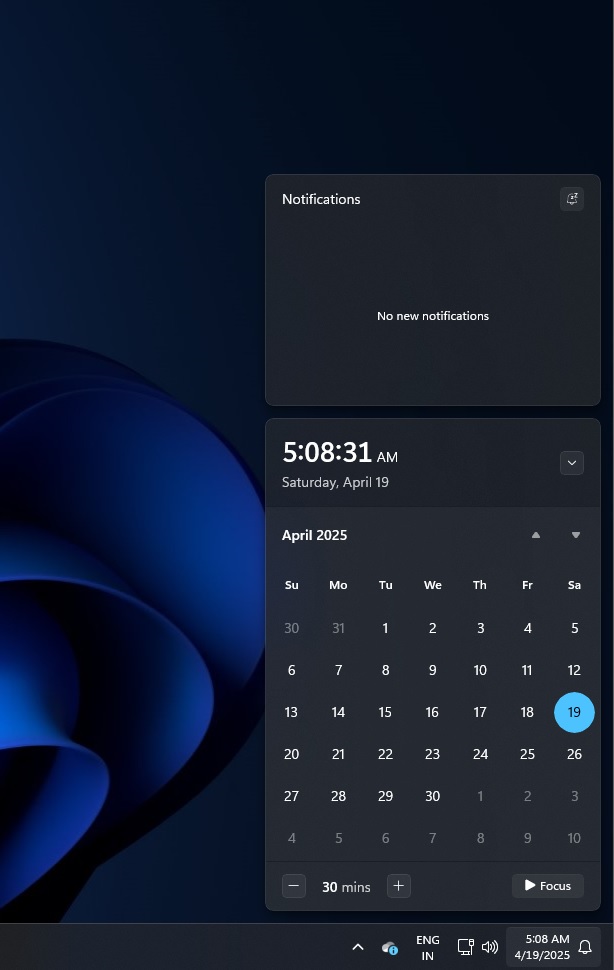
When you tap on the time & date to open the Calendar flyout, you can now see a new clock. It’s the same clock that we’ve on Windows 10, but it’s more modern and clean.
Calendar UI still sends you to Bing.com when there’s an event and you click on the icon.
Windows 11 KB5065426 does not turn on the clock with seconds in the taskbar Calendar flyout by default.
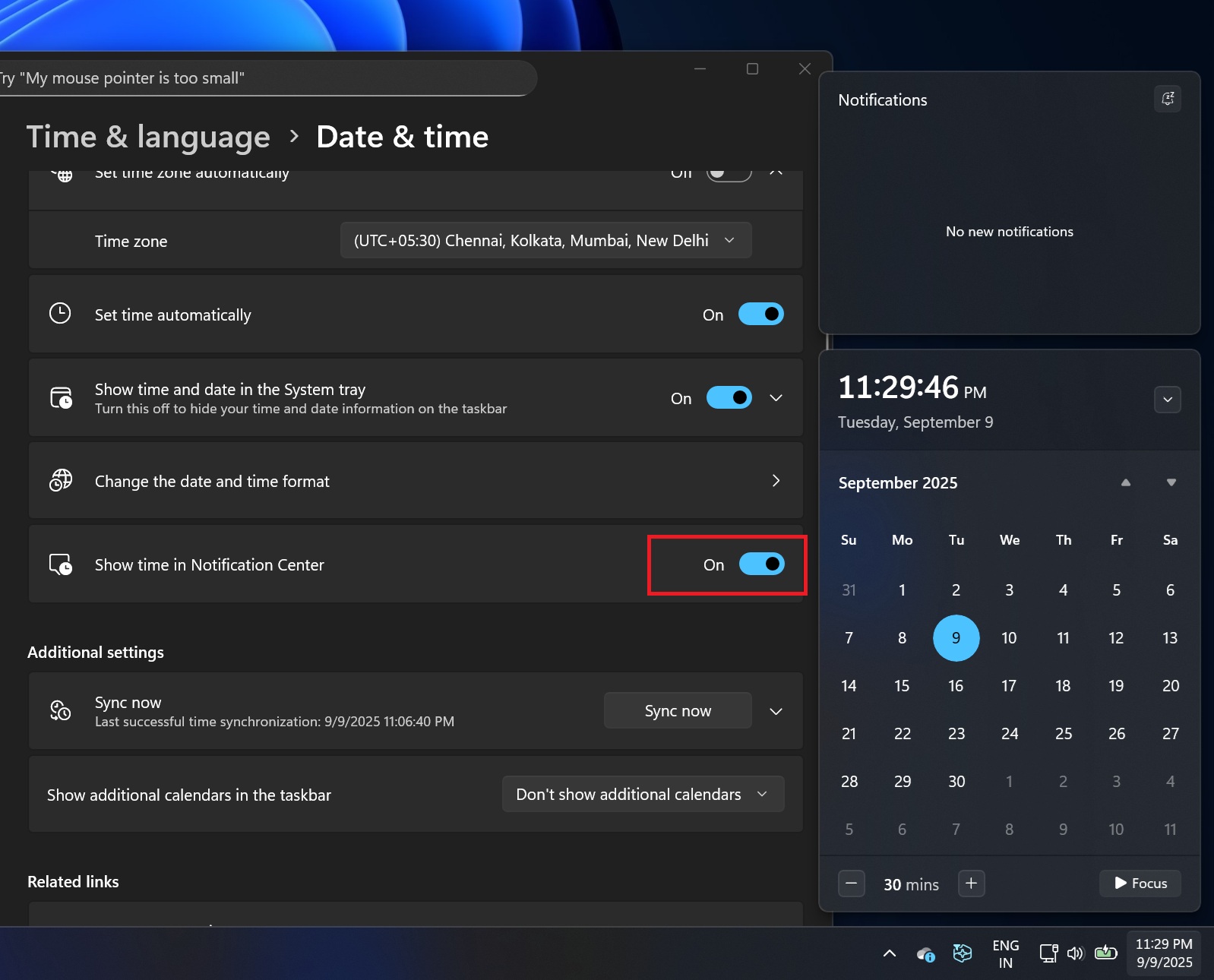
To turn on the feature, right-click on date & time on the taskbar, select Adjust date & time, and turn on Show time in the Notification Center. Above screenshot shows how you can do it in a minute.
5. File Explorer gets better in Windows 11 24H2’s Sept 2025 patch
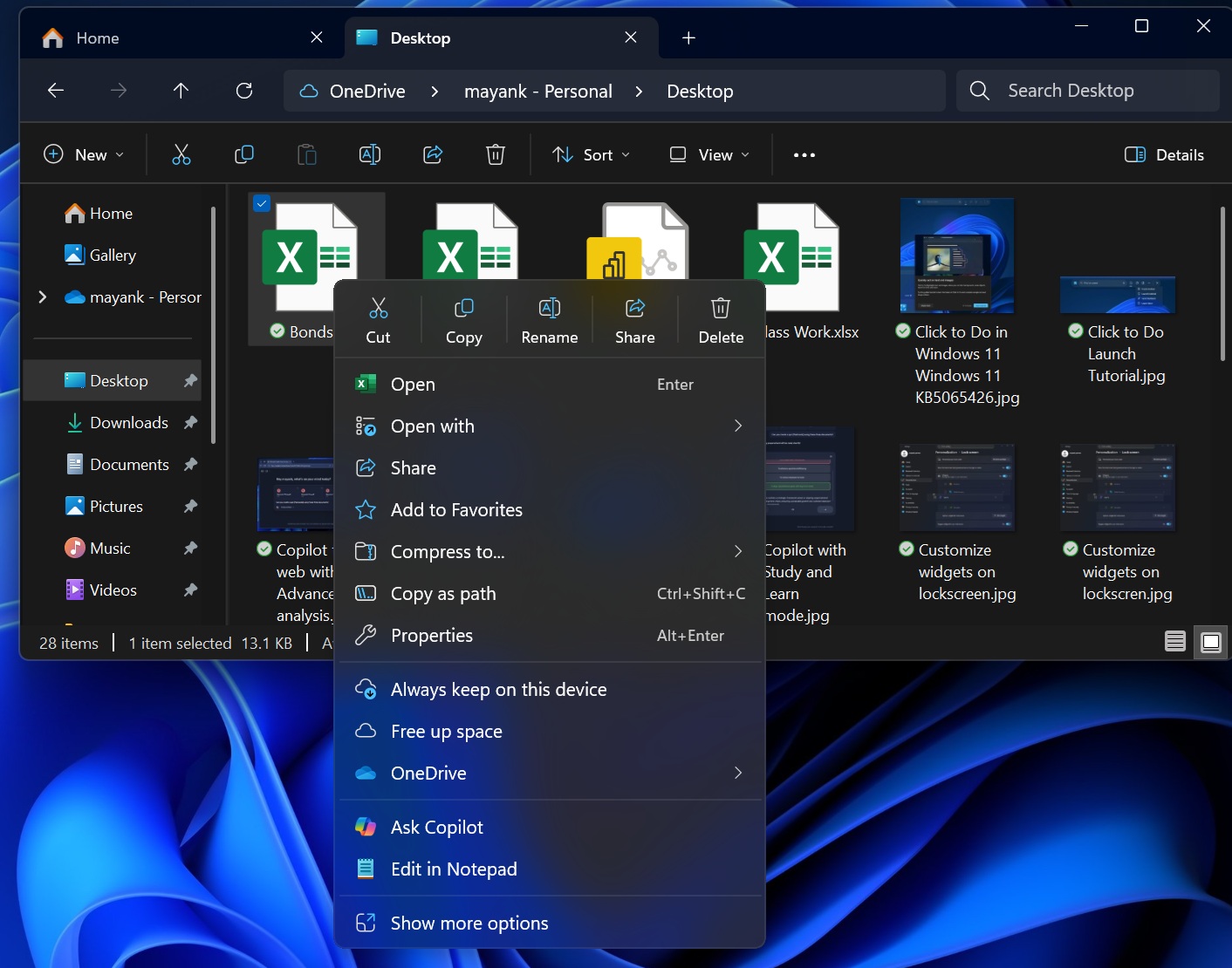
After I installed Windows 11 KB5065426 and opened File Explorer, I noticed that there’s a divider below the Quick actions in the context menu (right-click). Turns out it’s a new feature that tries to make the context menu easy to understand, but it doesn’t solve the biggest problem.
File Explorer’s context menu is a big mess and it almost covers more than half of the screen even when you’ve just default apps installed.
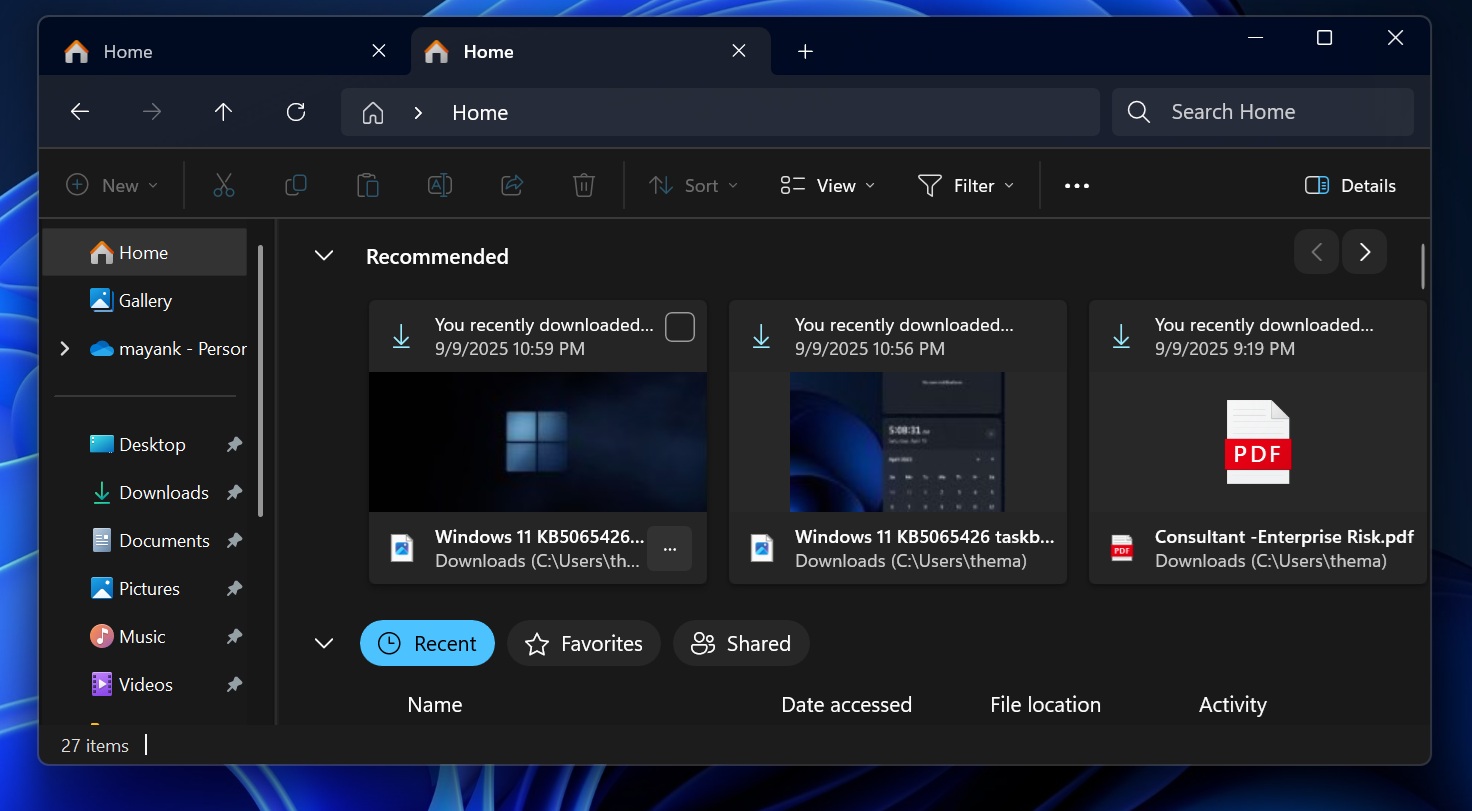
The recommended section in the File Explorer now shows the profile of your colleagues when you hover over the person’s icon, but this works only when you’re using a work or school account. Support for personal accounts will be added later.
6. Lock screen widgets are now more customizable
In 2024, Microsoft started rolling out MSN widgets to the Windows lock screen. The majority of us disliked the idea, and Microsoft later made it possible to turn off the feature.
But if you want to keep showing widgets on the lock screen, I’ve some good news for you. In our tests, Windows Latest spotted that Microsoft has added more options for the lock screen widget in Windows 11 KB5065426
Whether you’re in the EU or the United States, you can now open Settings > Personalisation > Lock screen and choose what appears on the lock screen.
I made a video that you can watch above. You can hold one of these widgets/items to change their order. The new widgets order will instantly reflect on the lock screen. Or you can add a different widget too.
Important note about SSD corruption in Windows 11
These are most of the significant changes, and Microsoft is currently not aware of major issues in Windows 11 September 2025 Update.
This patch does not corrupt or break your SSD, and we have reasons to believe that the SSD corruption was caused by PCs using an outdated firmware not intended for public use.
The post Windows 11 KB5065426 24H2 out with taskbar features, direct download links (.msu) appeared first on Windows Latest