
Windows 11 still has Aero Shake, the Windows 7 feature that lets you grab a window by its title bar and shake it to minimize every other open window. Microsoft now calls it “Title bar window shake,” and it’s off by default, but you can turn it on from Settings > System > Multitasking in a few seconds.
If you’re like me, your brain also jumps from one thing to another. So, apart from the 100+ browser tabs, you’ll also have Spotify, Photos, Teams, YouTube, Notepad, OneNote, Sticky Notes, Claude or ChatGPT, WhatsApp, Discord, and finally the Task Manager to see how much RAM these are all using!
Finally, when the time comes to focus, you’ll have to minimize all but the one app you do your work on. For me, that’s Edge with my professional profile. Instead of using Win+D to minimize everything, you can instead shake the title bar of the app you need, and the rest will minimize.
How to enable Aero Shake (Title bar window shake) in Windows 11
- Press Windows + I to open Settings.
- Go to System > Multitasking.
- Turn on the Title bar window shake
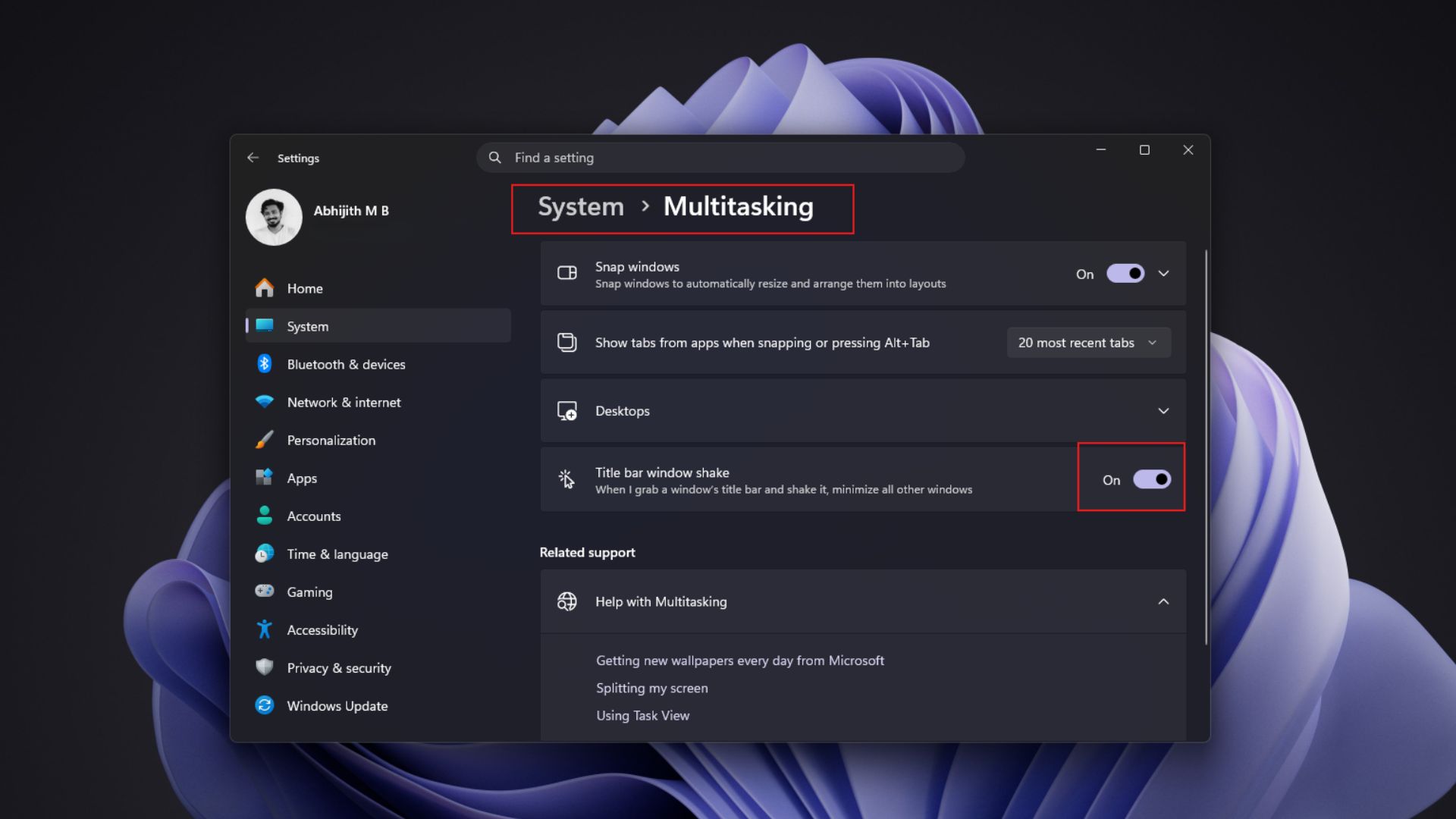
Microsoft includes this feature among a list of Windows settings to help you focus on tasks, and the idea is to help you “quickly minimize all open windows except the one you’re working on.”
How to use Aero Shake to minimize other windows in Windows 11
- Click and hold the title bar of the window you want to keep.
- Quickly move your mouse left and right a few times while holding the title bar.
- Every other open window minimizes.
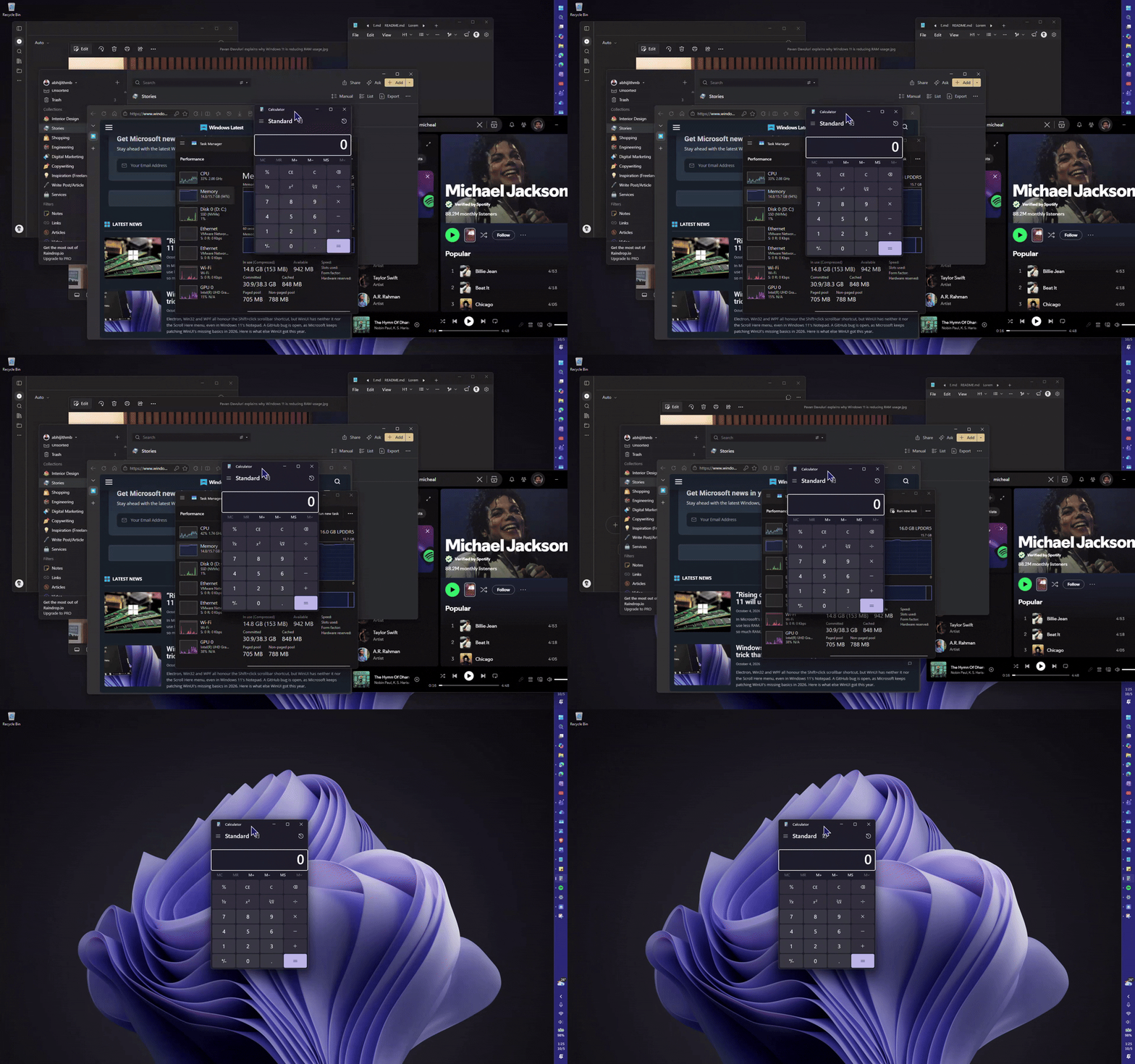
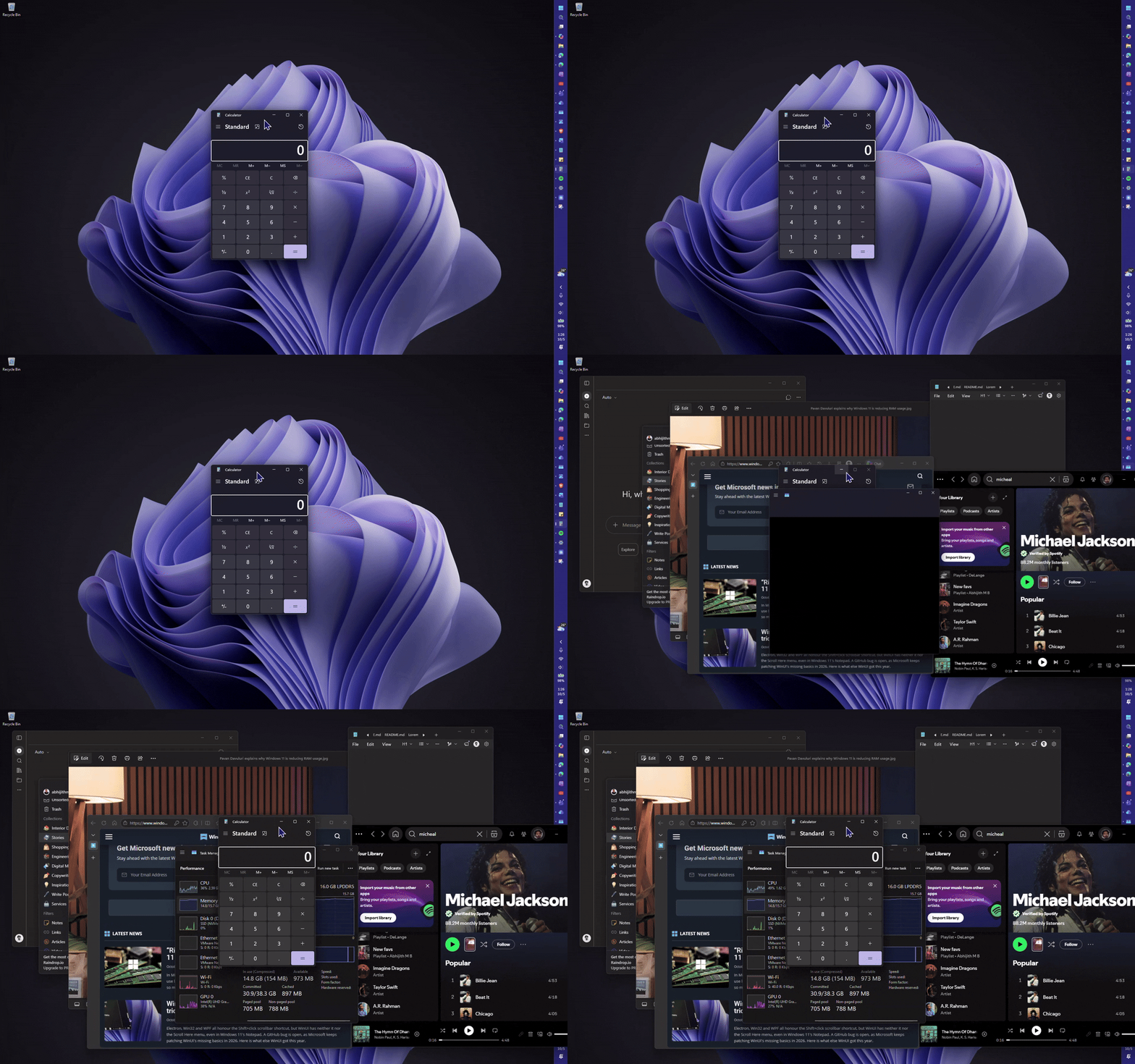
- Shake the window again to bring the minimized windows back.
I’m so glad Microsoft didn’t remove Aero Shake from Windows. It just renamed it and switched it off by default back in 2021 with Insider Build 21364, probably because people kept triggering it by accident while dragging windows around.
However, I do wish the animations when minimizing other apps were a little more apparent with vertical taskbar.
Aero Shake was one of Windows 7’s cleverest little ideas
When Microsoft launched Windows 7 in 2009, Shake was part of a trio of Aero features along with Aero Peek, which let you preview windows from the taskbar and peek at the desktop, and Aero Snap, which arranged windows when you dragged them to the edges of the screen.
- Snap fixed window arrangement
- Peek fixed finding windows
- Shake fixed the opposite problem of having too many
Usually, such power features involve some kind of Windows shortcut, but here, there was no menus or keyboard shortcuts, you just grab the window you care about and give it a little shake.
In case you’re wondering, yes, Snap window feature, and taskbar preview in Windows 11 both evolved from Aero Snap and Aero Peek.
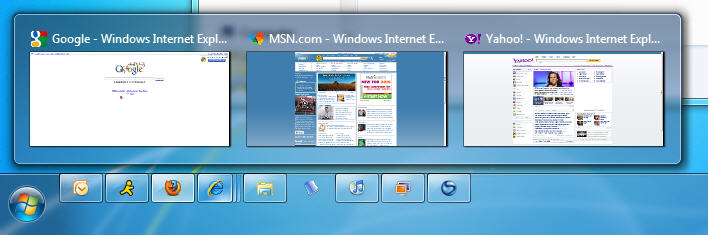
Windows 7 was full of small touches like that, along with the bundled games people still miss. In my opinion, it didn’t try to sell you a subscription or push a news feed. Windows 7 just made using a PC nicer, and people continued to be fans, which explains why Microsoft once teased an Aero-like design for Windows 11.
Of course, Windows 7 wasn’t perfect. It had weird bugs like how a solid color wallpaper could make it take 30 seconds to show the desktop.
Anyway, as Microsoft kept removing Windows 7-era tools like Steps Recorder from Windows 11 it’s fun features like Title bar Window shake that gives the OS a character.
Aero Shake still beats Win + D and Show desktop at one thing
Windows 11 has other ways to reach the desktop. Windows + D minimizes everything and brings it back when you press it again, and clicking the far right edge of the taskbar works too, as long as Show desktop is turned on, since Microsoft once turned it off by default to make room for Copilot. Microsoft’s Scott Hanselman even built a macOS-style click to reveal desktop tool.
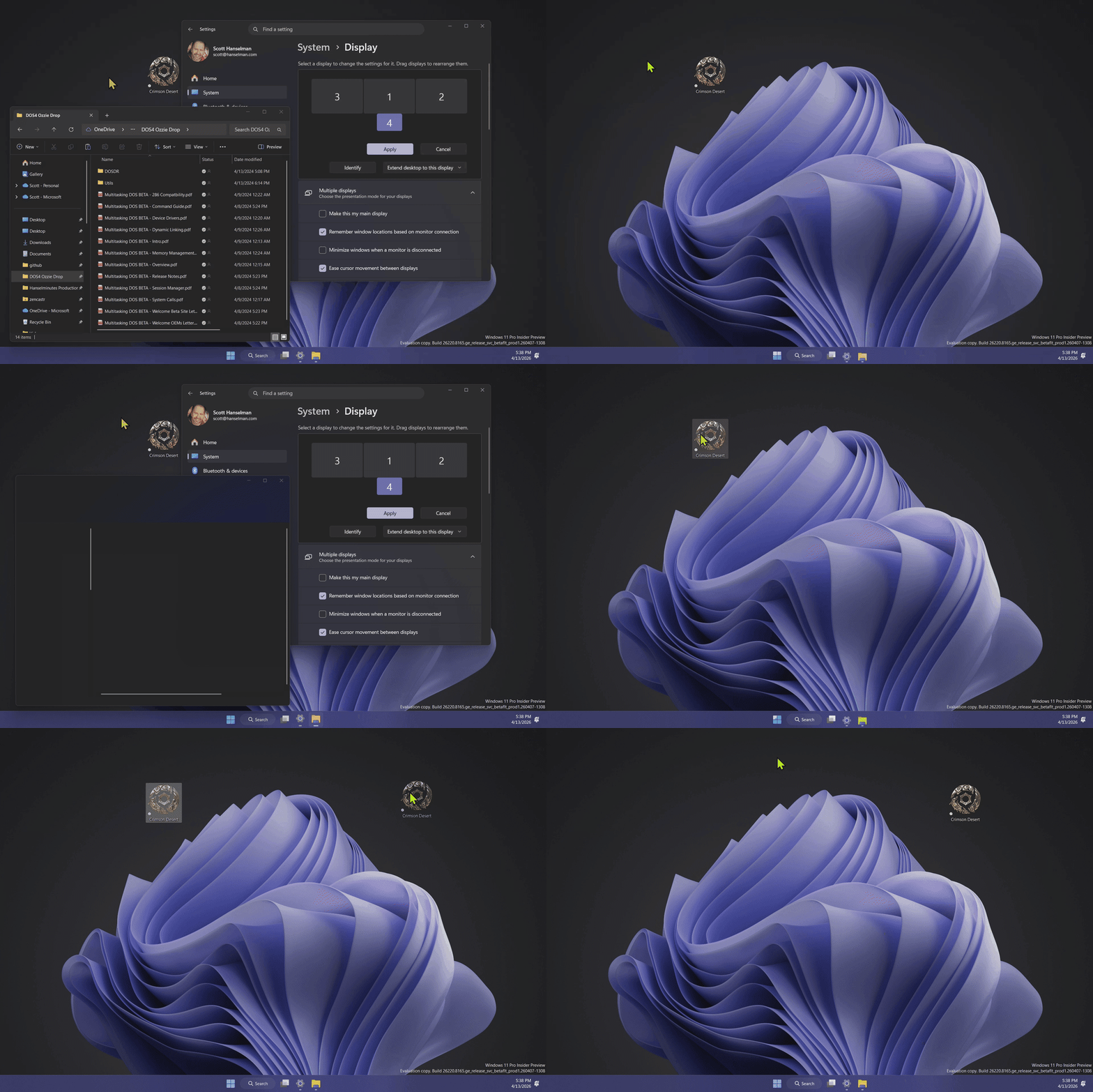
On my laptop, I use the four-finger swipe down on the touchpad, which shows the desktop on PCs with a precision touchpad.
All of these hide every window, including the one I’m working on. Aero Shake works on the window you’re holding, so if I’m writing in Word with ten other apps open, one shake clears the clutter and Word will take center stage.
Windows 11 is slowly replacing its legacy UI with WinUI 3, but some old ideas survived because they still work. Aero Shake didn’t need a redesign or AI. Sometimes, the fastest way to focus is grabbing a window and giving it a shake.
The post Windows 7’s Aero Shake never disappeared from Windows 11, how to enable it right now appeared first on Windows Latest