
Windows 11’s built-in photo viewer, ‘Microsoft Photos,’ is getting a big update with a cleaner look that drops Copilot-related features and even removes shortcuts to other apps from the toolbar. This new version 2026.11080.24002.0 is rolling out to everyone, and you don’t have to join the Windows Insider Program to try it.
Microsoft originally tested a new version of Photos in July 2026 with Windows Insiders, and at that point, it was not clear if the company would move ahead with the new ‘debloated’ look. But it turns out the update is already available for everyone outside the testing branch, so Microsoft did approve the changes based on feedback.
So what has changed? A lot, and let me show you everything. But first, what about Copilot and AI features?
Photos still comes with AI-powered background removal and similar tools, which I don’t think is a problem because they’re optional. But the company has fully removed the ‘Ask Copilot’ button from the Photos app.
A new toolbar in the Photos app that lets you focus on content, not other apps
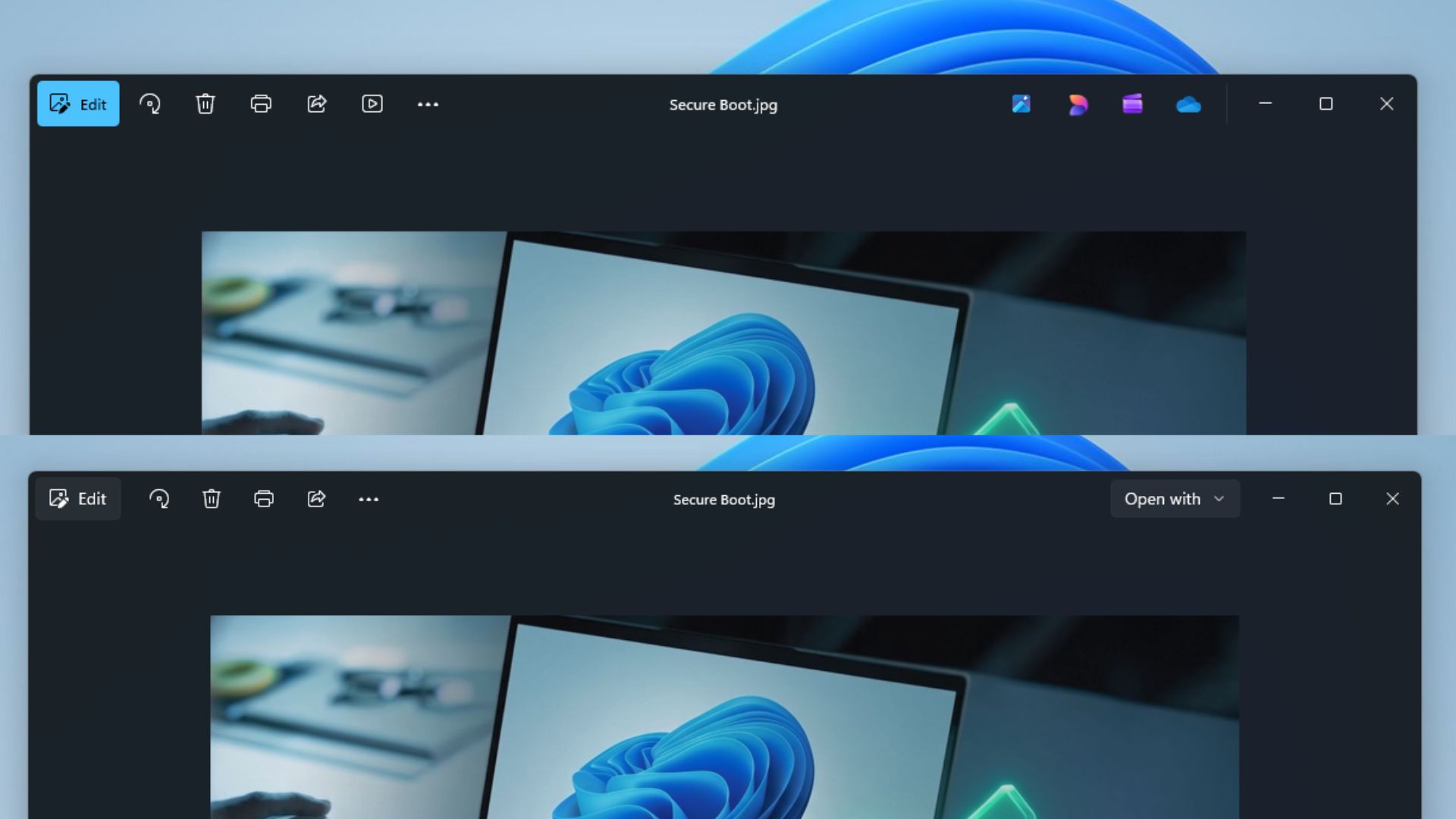
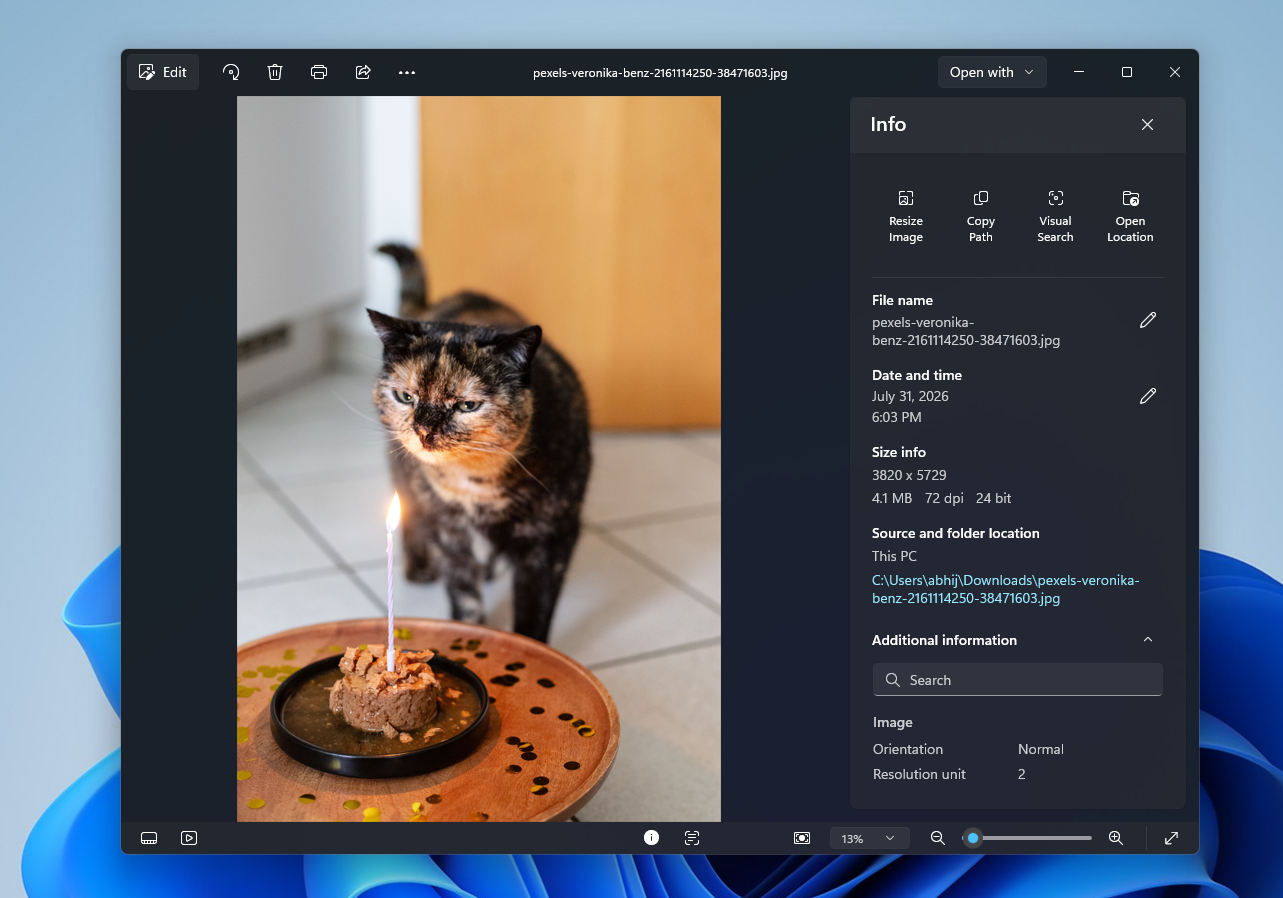
You’ll notice that there’s a new toolbar that drops options like Designer, OneDrive, and Clipchamp. They’re now moved elsewhere, including a new menu called “Open with,” as Microsoft sources describe the idea as making the toolbar feel less crowded.
Over the years, the Photos app for Windows 11 frequently added new features, which is why, before the update, you had as many as ten options in the toolbar, and I’m not even counting those clubbed inside the three-dots menu.
In our tests, Windows Latest found that Microsoft has removed ‘OneDrive’ from the toolbar and moved it entirely to the sidebar or Settings. If you want to view pictures stored in OneDrive, just use the shortcut from the left sidebar, as the button to open it has now been dropped from the toolbar.
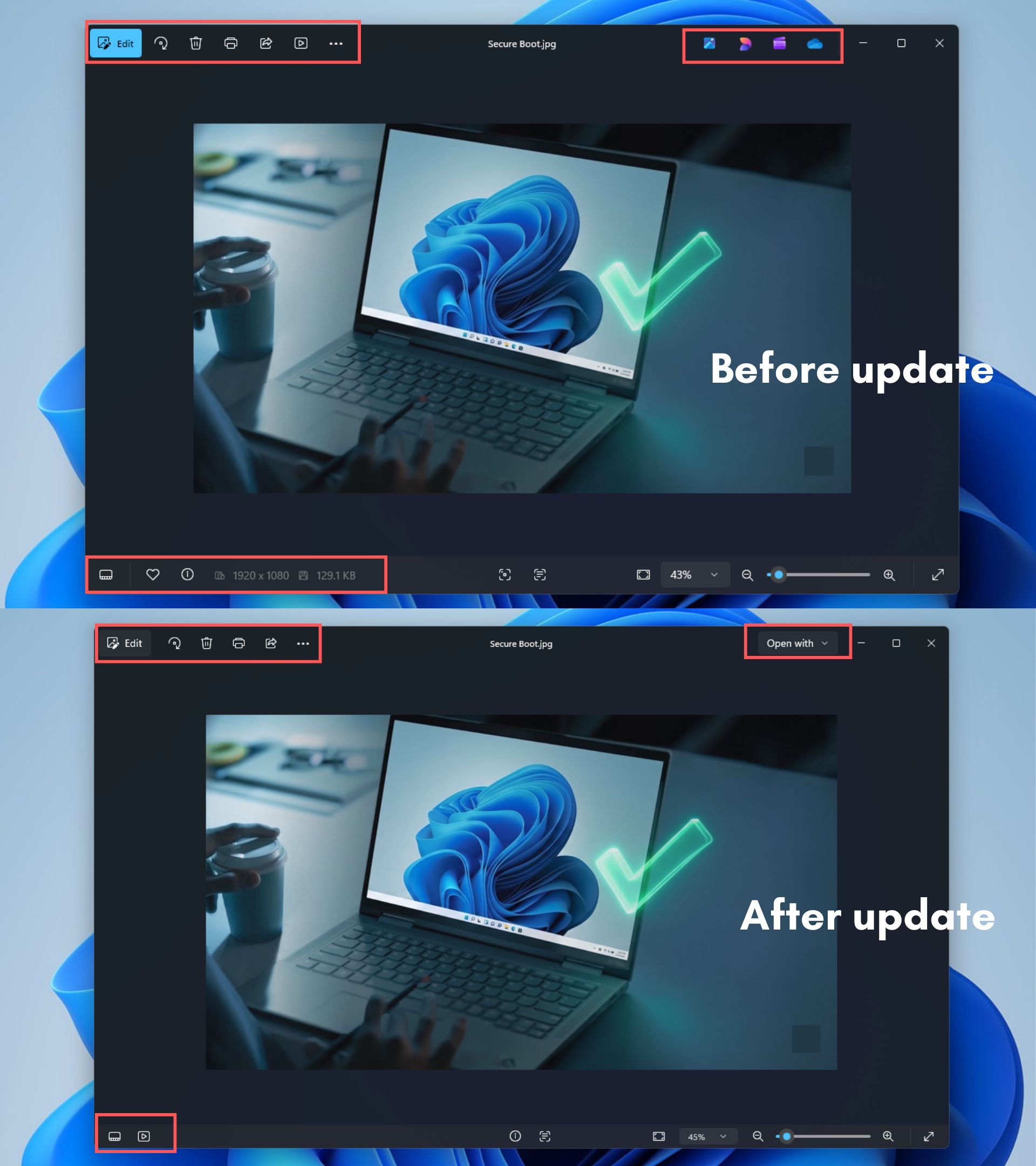
Microsoft has also removed the “Designer” option, which opens Microsoft Designer, an app that allows you to create graphics similar to Canva. Previously, if you selected Designer and the app was installed, your photo would be sent to it so you could continue editing.
Now, if you want to open an image in Microsoft Designer or Clipchamp, you need to use the new Open with menu, which has options like Gallery, File Explorer, and “Choose another app,” which lets you find the app you want to open the picture in.
Microsoft has also moved the slideshow button to the bottom of the app, so you now have just Edit, rotate, delete, print, share, three dots, and Open with in the main toolbar.
The company argues that it intentionally redesigned the Photo Viewer to let you focus on your content and top actions instead of getting confused by too many options such as Designer, Clipchamp, OneDrive, and more.
The context menu has been cleaned up as well, and it now takes less space. This is in line with the changes coming to File Explorer’s right-click menu, as similar options have been clubbed together in a nested menu, and there’s a new command bar similar to the system-wide right-click menu.
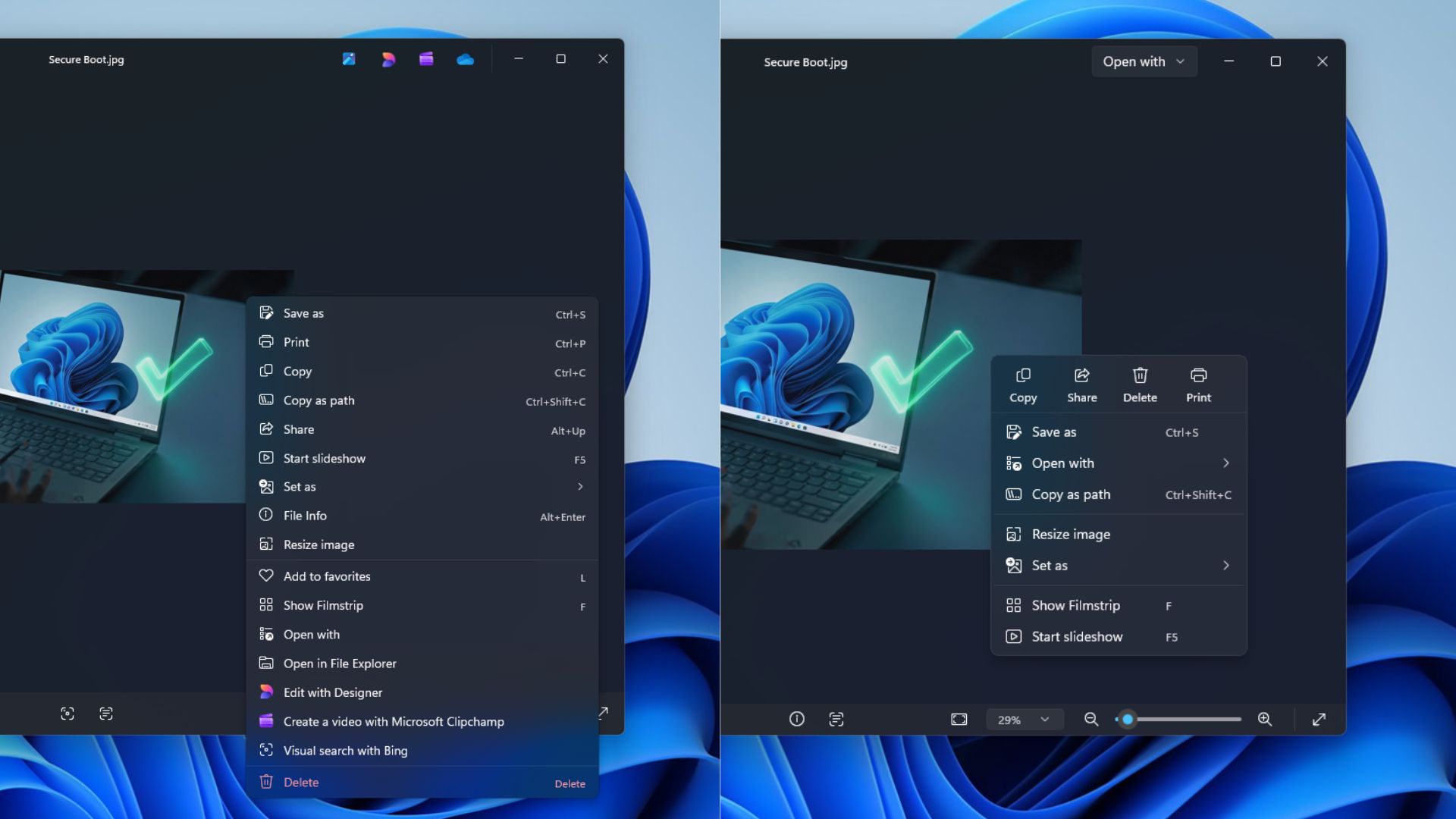
If you right-click, you’ll no longer find “Visual search with Bing,” “Edit with Designer,” or “Create a video with Microsoft Clipchamp.”
And if you want to find the file location, you need to click Open with in the right-click menu and choose File Explorer. Previously, the Photos app exposed “Open in File Explorer” directly when you right-clicked, so I’d call this a bummer, not exactly an improvement.
Also, the Photos app is now noticeably faster, and that applies to the right-click menu too:
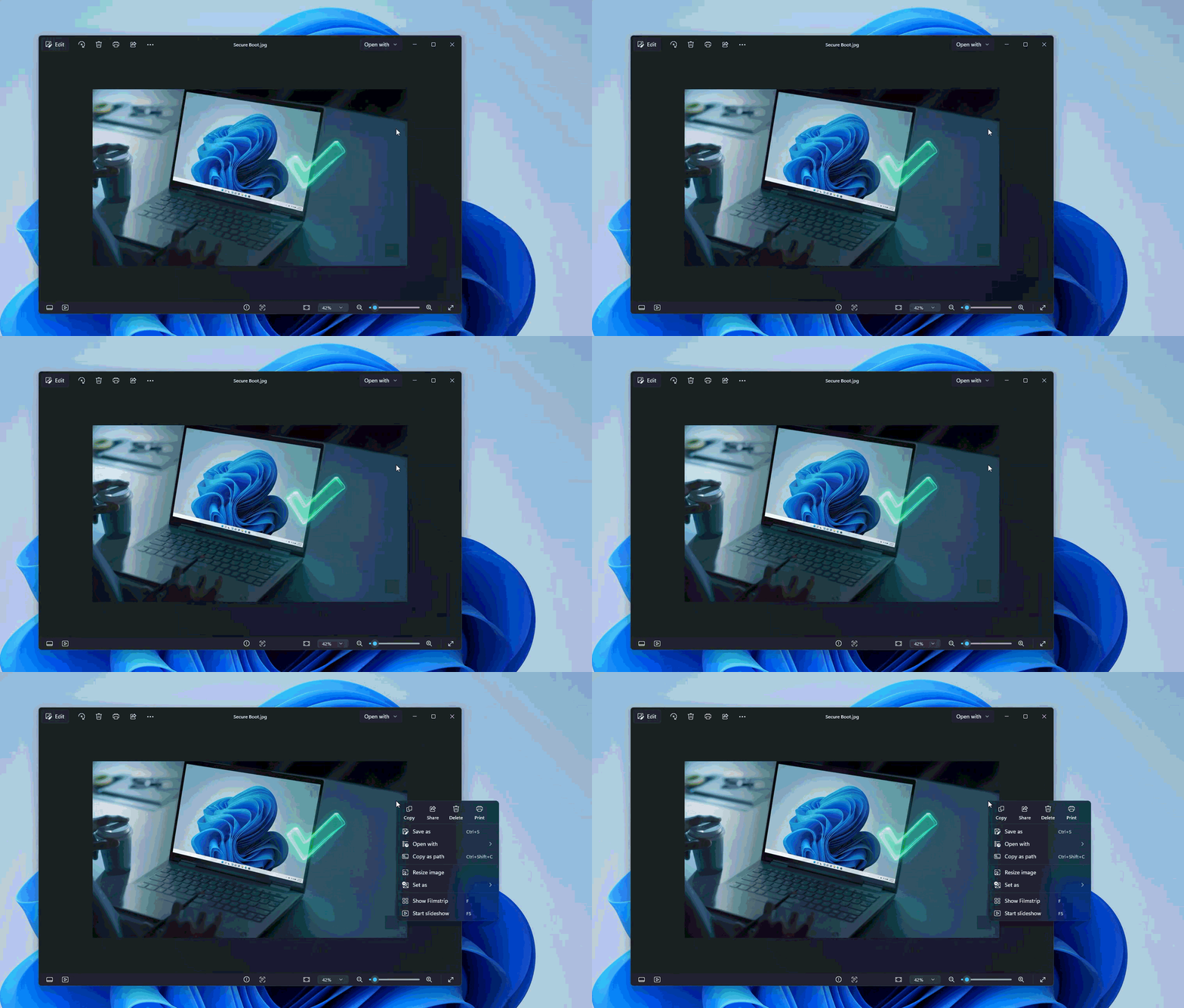
There are other performance-related improvements as well, including faster launches. If you zoom in or out, it’s noticeably smoother, and you won’t notice as much lag on low-end hardware. You’ll also notice that large photos now open almost immediately instead of after a brief pause.
This has been achieved using a new “multi-process architecture” for the photo viewer, which made loading photos almost twice as fast.
Other improvements rolling out to Microsoft Photos on Windows 11
Microsoft has rebuilt the new Info pane, and it now comes with options like Resize Image, Copy Path, Visual Search, and Open location. Some of these options were previously in the right-click menu, so it really looks like Microsoft has moved the options around rather than removing them entirely.
In addition, Microsoft Photos now includes better support for HEIC photos, so you can edit HEIC files without changing the file format, and you can now open SVG files without using a third-party app.
The post Microsoft just made Windows 11’s Photo Viewer less annoying, and it’s noticeably faster appeared first on Windows Latest