
Microsoft PowerToys is an indispensable toolkit for Windows 11 power users, with everything from advanced window management to system-wide color picking. However, keeping all of these utilities ready to launch at a moment’s notice comes at a major cost to your system memory. Developers are finally addressing this issue with a new memory-saving feature that kills idle background processes in PowerToys.
The feature is a community-developed low memory mode that can potentially fix this idle drain by automatically killing inactive processes.
Currently, several PowerToys utilities keep a helper or user interface (UI) process constantly running in the background so they can open instantly when you press a hotkey. While this makes the tools feel incredibly fast and responsive, it also means PowerToys is hoarding system memory for utilities you might only use occasionally.
The impact on system resources is not trivial. In a screenshot shared by developers tracking the issue, the PowerToys.ColorPickerUI process can be seen consuming over 200 MB of RAM while sitting completely idle in the background.

I use PowerToys daily, and I haven’t experienced a scenario where its RAM usage caused other tasks to flounder. However, we are now at a time when saving every megabyte of RAM is as important as ever.
How the new memory-saving feature in PowerToys works
To fix this idle memory drain, an independent contributor submitted a feature request and subsequent pull request (PR #47487) to the Microsoft PowerToys GitHub repository. The proposed solution introduces an optional low memory mode.
When a user enables this setting, the specific utility will completely close its helper process while it is not actively being used.
When you need the tool, pressing the standard activation hotkey will relaunch the process on demand. The only trade-off for this reduction in background RAM usage is that the very first launch of that specific utility might be slightly slower than usual.
According to the pull request documentation, this RAM-saving “exit-after-use” behavior will initially support four specific tools in PowerToys:
- Text Extractor
- Color Picker
- Advanced Paste
- Peek
This new development adds a shared low_memory_modules settings map and helper APIs, allowing supported utilities to opt into the idle-close behavior without requiring a complex new schema field for every individual module.
The PowerToys runner will refresh the cached settings and apply the policy by restarting only the affected modules. The system then uses a specific command (PTSettingsHelper::is_low_memory_mode_enabled) to determine whether a module should stay warm or shut down after use.
Low memory mode in PowerToys is a community development masterpiece
Originally, the developer named the feature “Low memory mode”. However, during the code review process, Microsoft collaborators suggested renaming the toggle to “Close apps when inactive” because it better describes the system action to everyday users.
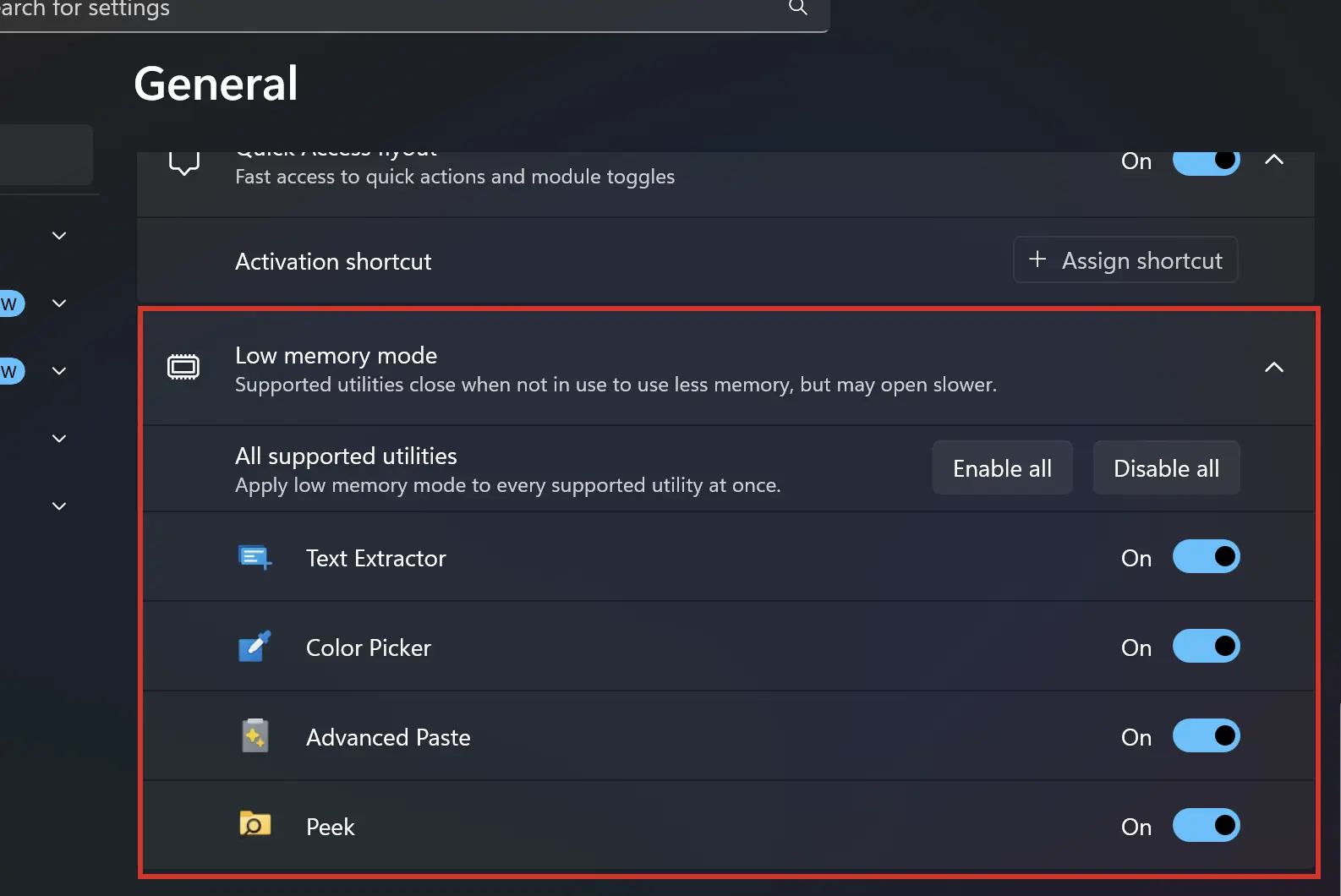
I like the fact that the user interface matches the native Windows 11 aesthetic. In the PowerToys General Settings tab, users will see a new expandable section adorned with a leaf icon. During development, reviewers specifically noted that this leaf glyph looks like the “Efficiency mode” icon found natively in the Windows 11 Task Manager.
From this new settings block, you can click “Enable all” to apply the memory-saving behavior globally (across supported tools), or individually toggle the feature for specific apps like Text Extractor or Peek.
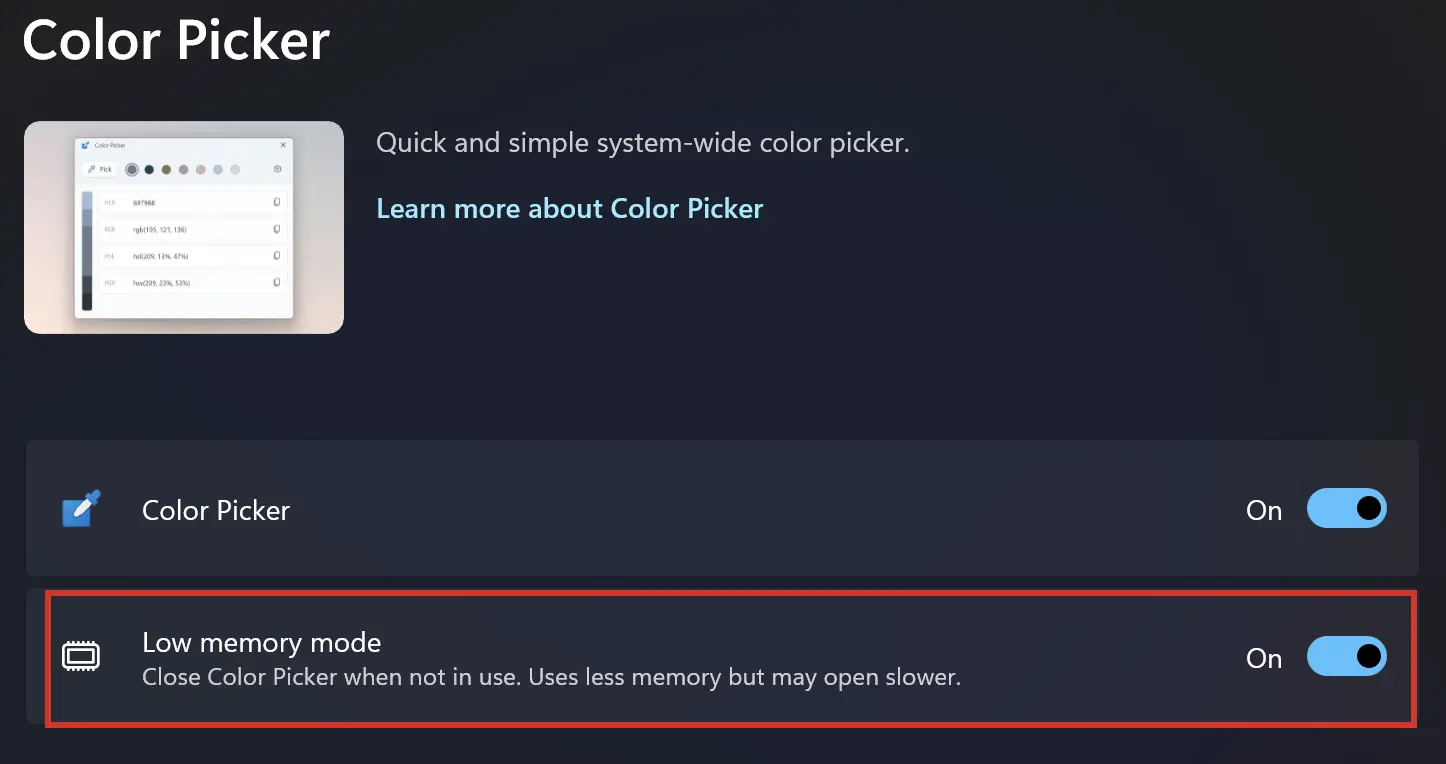
The toggle will also appear inside the dedicated settings page for each supported module, with the description and disclaimer saying “Closes the app when not in use to save memory. It may open slower.”
Why freeing up RAM is critical for Windows 11
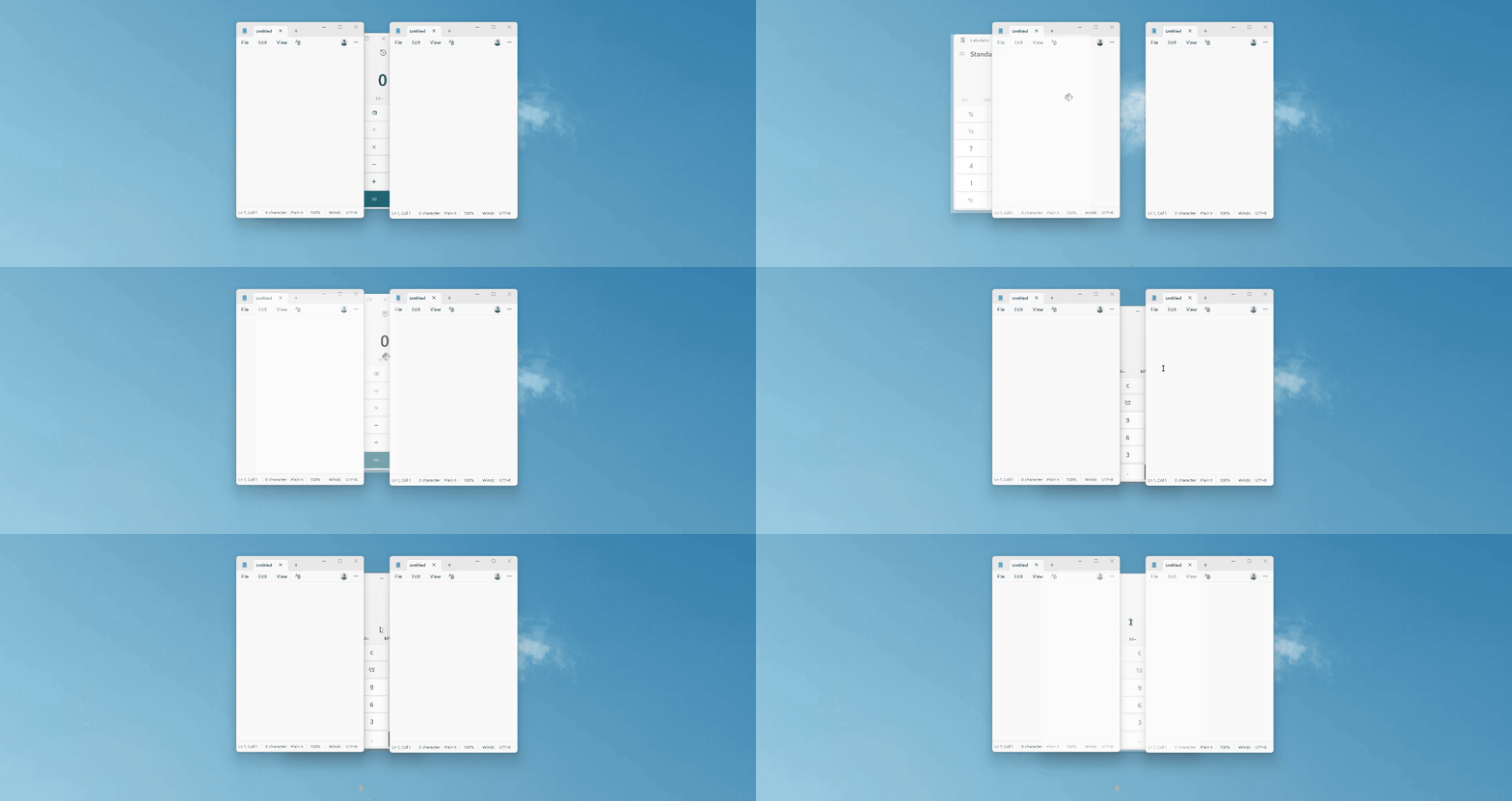
This optimization could not arrive at a better time. PowerToys is constantly expanding its footprint. We recently tested the PowerToys Command Palette with a new Dock and the advanced window resizing and layout management features. As the suite grows heavier with new capabilities, stopping background RAM usage becomes essential.
Similarly, this software optimization is useful for some of Microsoft’s recent controversial hardware decisions.
As we reported, Microsoft is launching a $1,300 Surface Laptop with just 8GB of RAM, fundamentally contradicting its own Copilot+ AI hardware requirements.
When hardware manufacturers continue to sell premium Windows 11 machines with highly constrained memory pools, power users cannot afford to let background utilities eat up 200 MB of RAM simply to keep a Color Picker “warm”.
It is important to note that the feature is not yet available in PowerToys. Also, the development team has confirmed that keeping the “warm” background process running will remain the default behavior across the application to preserve the instant-launch experience.
Users who want to reclaim their system memory will need to manually navigate to the settings and opt into the feature.
The code has already successfully passed its initial ARM64 validation checks and unit tests, and is currently awaiting final maintainer confirmation before it rolls out to the public.
The post Microsoft’s PowerToys is getting a low memory mode that kills idle utilities hogging Windows 11 RAM appeared first on Windows Latest