
Today, Microsoft released a brand new batch of Windows 11 Insider Preview builds across all of its active testing channels, with some Builds getting a huge touchpad upgrade. The May 8, 2026, release continues the company’s transition to the newly restructured Windows Insider Program (WIP), which means we are getting simultaneous updates across the Beta, Experimental, Experimental (26H1), and Experimental (Future Platforms) channels.
The following are the Builds:
- Beta: Build 26220.8370
- Experimental: Build 26300.8376
- Experimental (26H1): Build 28020.2075
- Experimental (Future Platforms): Build 29585.1000
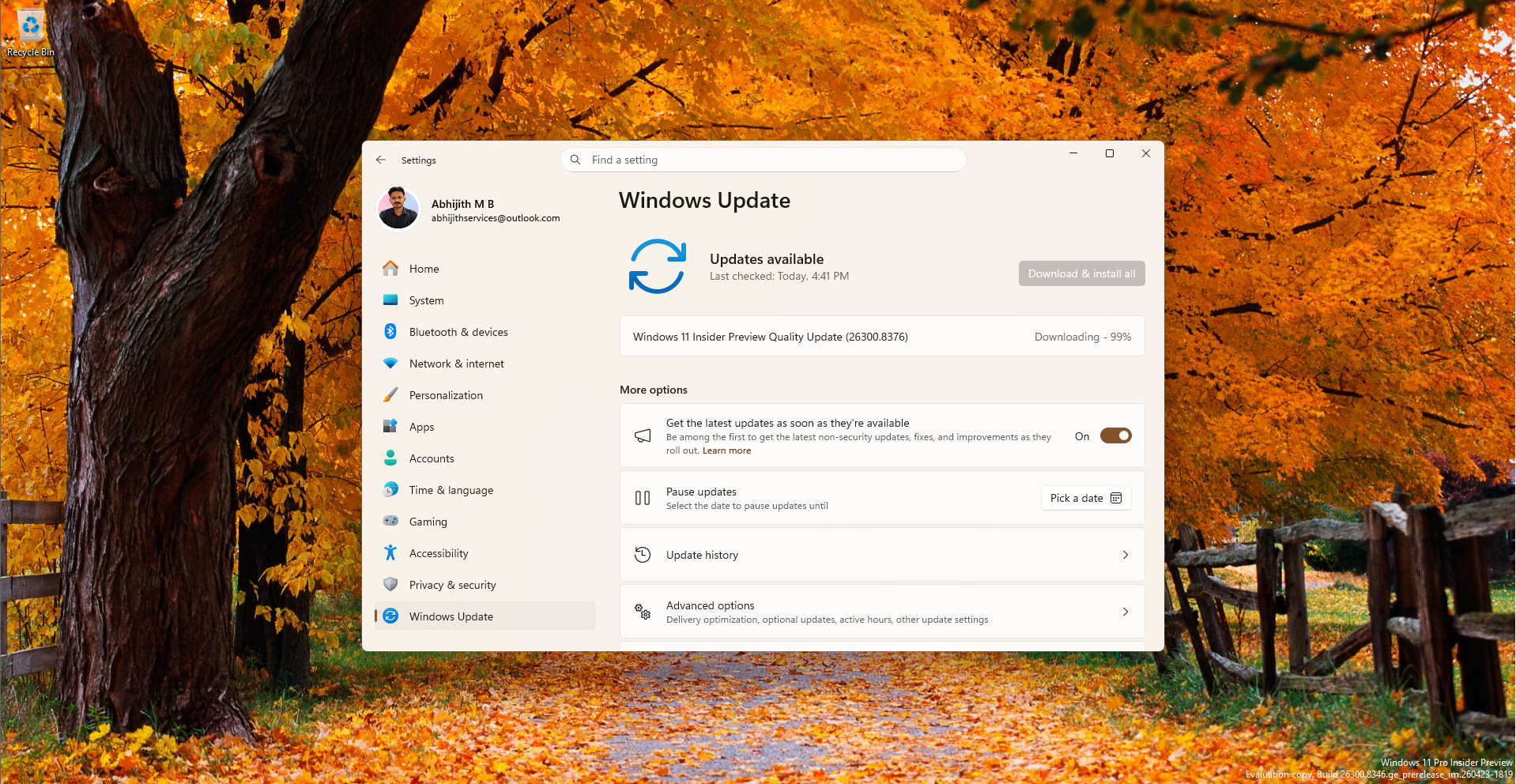
Instead of making you dig through four separate changelogs, we have compiled every single new feature, visual update, and fix rolling out to Windows 11 Insiders today.
Precision Touchpad gets supercharged with new gestures
Arriving in the Experimental channel (Build 26300.8376) is a massive upgrade for laptop users. Microsoft is adding powerful new gesturing functionality to precision touchpads directly within the Settings app.
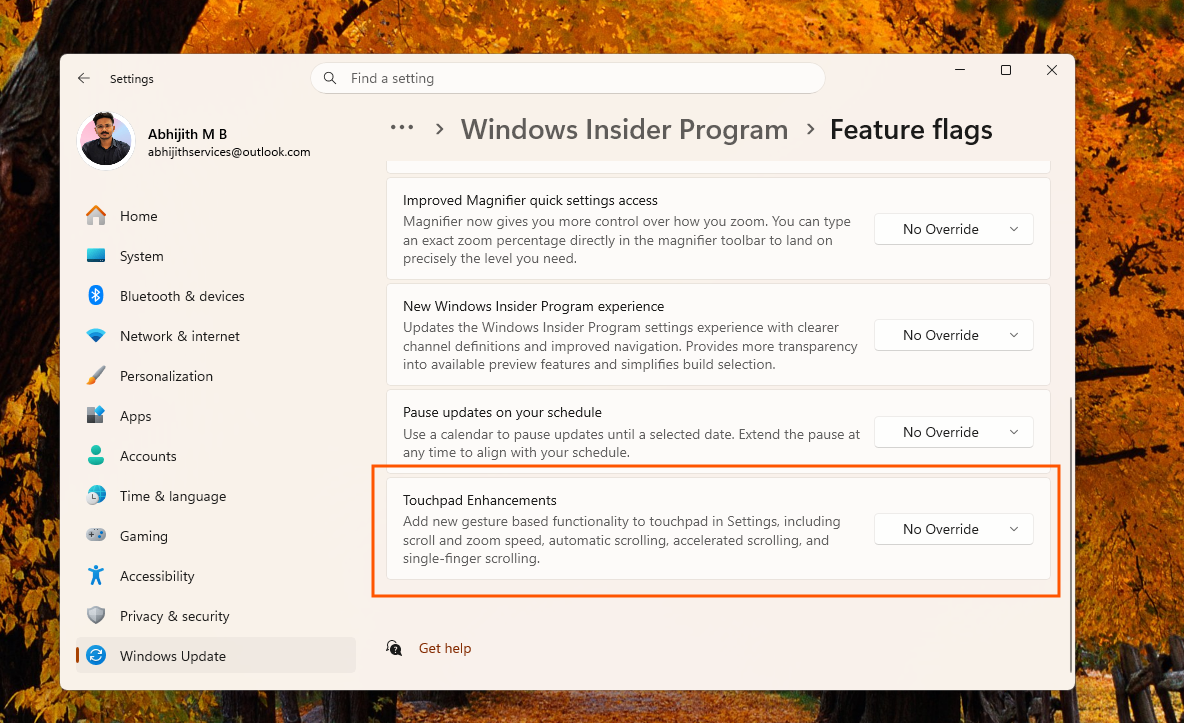
Windows touchpads are finally getting the massive glow-up they deserve. Just recently, we reported that Windows 11 is adding deep haptic feedback for snapping and resizing windows. Now, Microsoft is pairing that physical feedback with a suite of highly advanced software gestures.
But what makes me excited is that most of these new gesture controls don’t need a haptic touchpad, and it works with almost all precision touchpads.
After installing the build, if you navigate to Settings > Bluetooth & devices > Touchpad, under the “Scroll & zoom” menu, you will find a completely revamped list of configuration options.
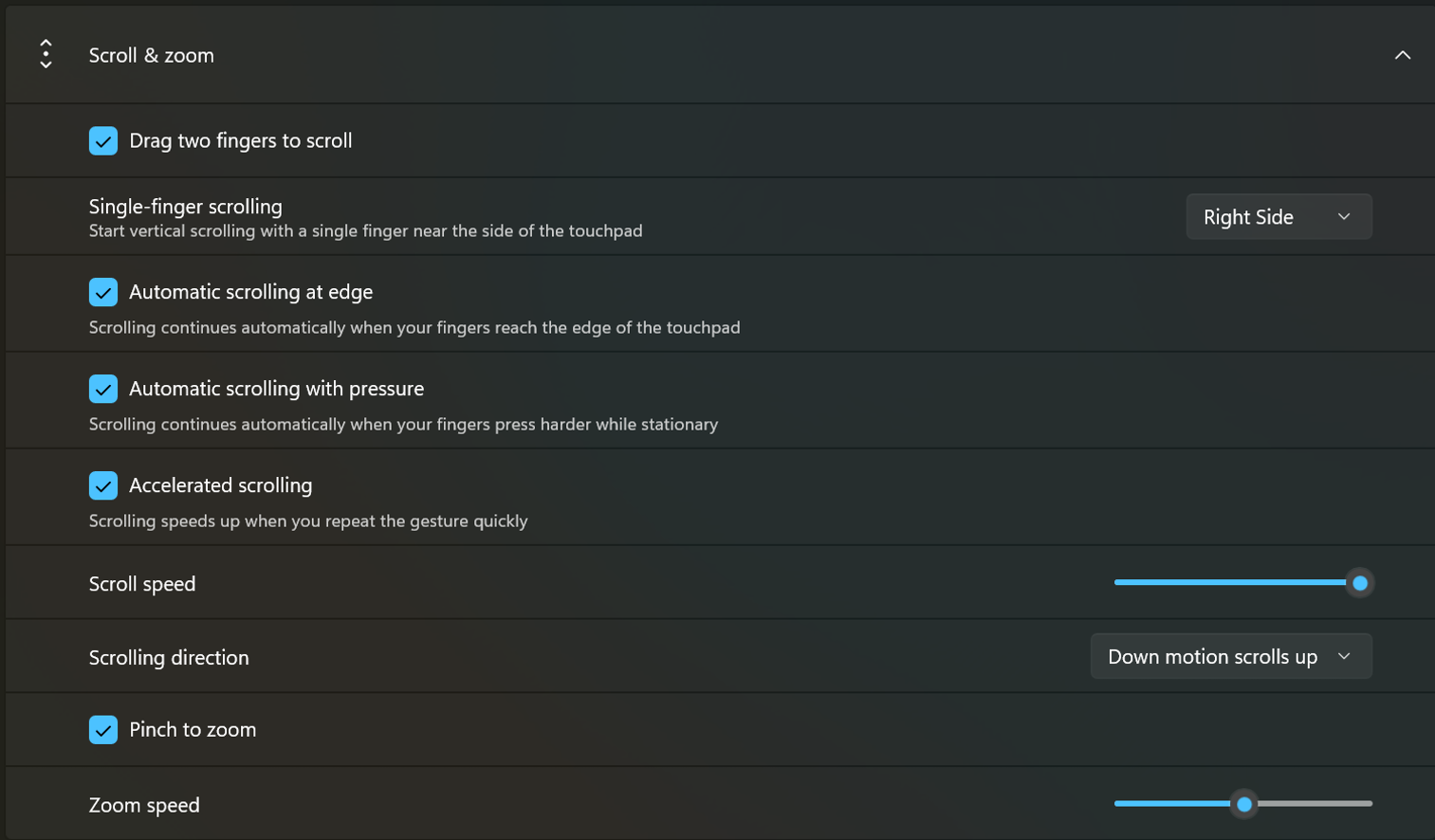
Based on the new settings page, you now have granular control over the baseline speed for your scroll and zoom gestures using dedicated sliders.
But I feel the most exciting addition is the new automatic scrolling capability, which allows scrolling to continue indefinitely without lifting your fingers. In the settings page, this feature is available as two distinct checkboxes.
- You can enable “Automatic scrolling at edge” to keep the page moving automatically when your fingers reach the touchpad boundary.
- Alternatively, you can toggle on “Automatic scrolling with pressure”, which continues scrolling automatically when your fingers press harder while stationary. Naturally, this pressure-based option requires compatible hardware support.
- Microsoft has also introduced an “Accelerated scrolling” checkbox. When enabled, your scrolling speeds up when you repeat the gesture quickly, which is perfect for quickly flying through long web pages or massive PDF documents.
- Finally, there is a new “Single-finger scrolling” dropdown menu, which lets you perform a vertical scroll using just one finger. Using the dropdown, you can set this gesture to trigger from either the right side or the left side of the touchpad.
To understand how massive an update this is, take a look at the old Touchpad settings page:
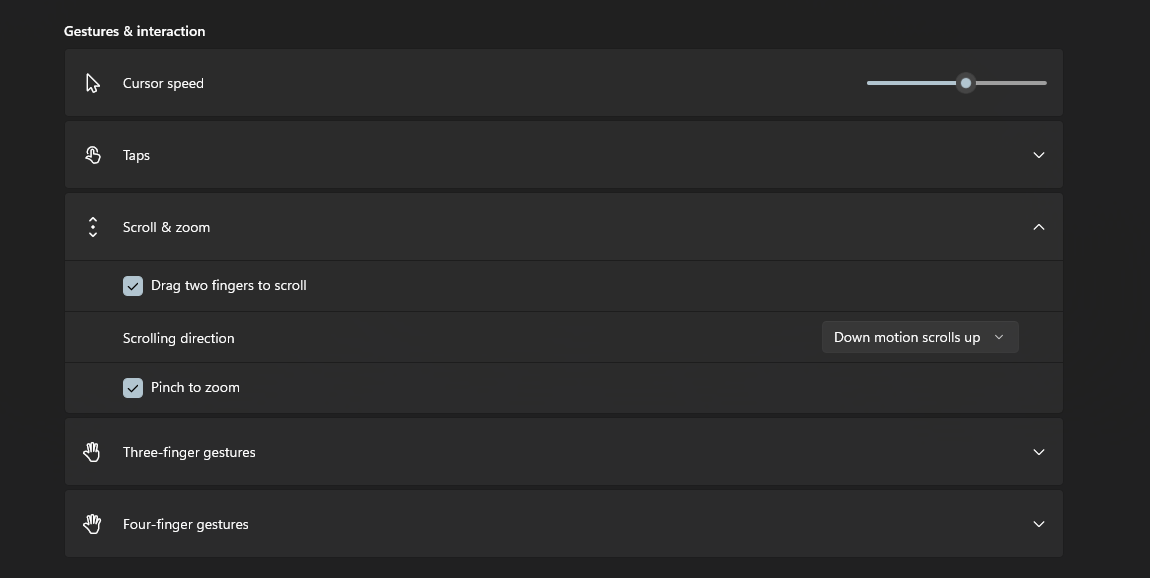
Scroll & zoom had just two gesture control options.
Microsoft notes that these new features should work widely across most applications. The only catch is that WinUI 3 based user interfaces will require developers to update to Windows App SDK versions 1.8 and 2.0 for complete functionality, which Microsoft is currently working on delivering.
Apart from the touchpad updates, new Insider builds also bring some important usability updates to the File Explorer, along with several system fixes and improvements:
File Explorer becomes easier to use
If you are on the Experimental channel (Build 26300.8376), you will notice some much-needed usability improvements in File Explorer. Microsoft is finally updating the Details view to display file sizes in appropriate, readable units like KB, MB, and GB.
I never could wrap my head around why the File Explorer aggressively forced everything into KB. It clearly made reading the sizes of massive video files or games incredibly confusing. I’m glad they fixed it now.
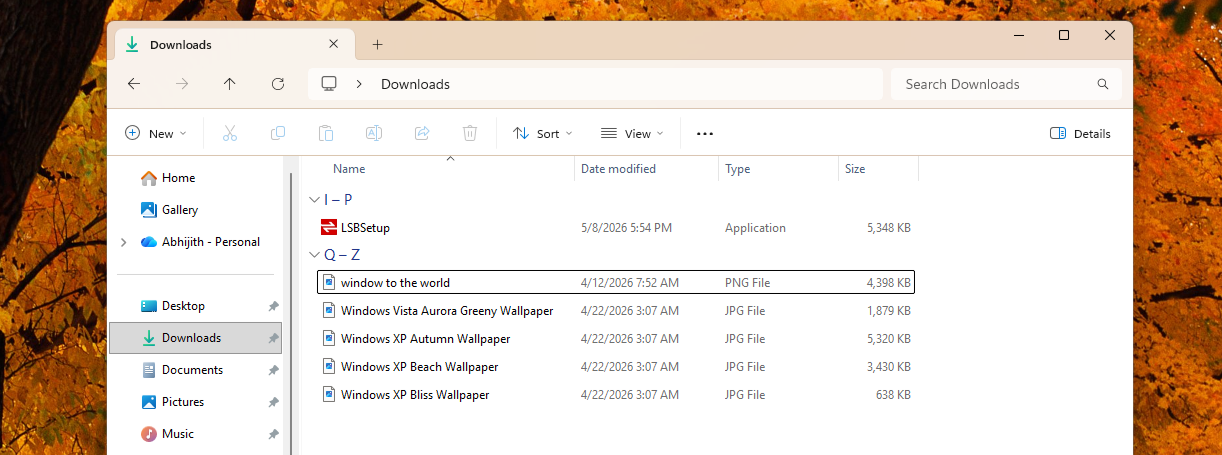
The Address Bar is also getting better capabilities. It now fully supports paths containing double backslashes and quotation marks, such as “C:Usersuser”, improving compatibility for power users who frequently copy and paste paths from the command line.
Microsoft also fixed an annoying bug where the Address Bar suggestion dropdown would refuse to close after you selected an item.
Rounding out the File Explorer fixes, Microsoft patched an issue where text would be repeatedly selected while renaming items in folder views. They also fixed a bug that prevented updated names from immediately reflecting in folder views across local and cloud storage when only the letter casing was changed. Keyboard navigation for the File Explorer context menu in flyouts has also been improved.
A cleaner Voice Typing experience
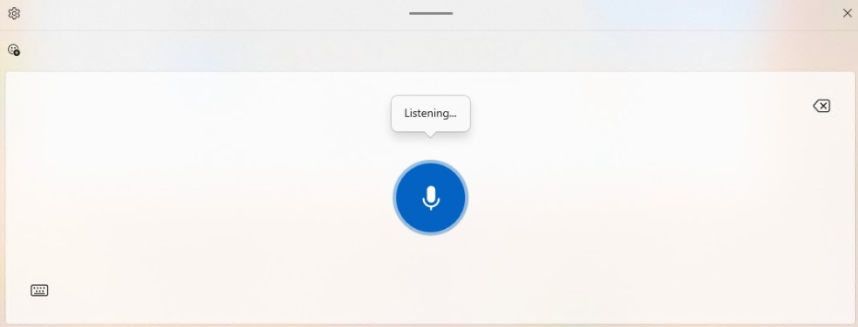
If you frequently use dictation, the touch keyboard experience is getting a major visual cleanup in the Experimental Future Platforms channel (Build 29585.1000). Microsoft has officially removed the intrusive full-screen overlay that used to pop up during voice typing.
Before the update:
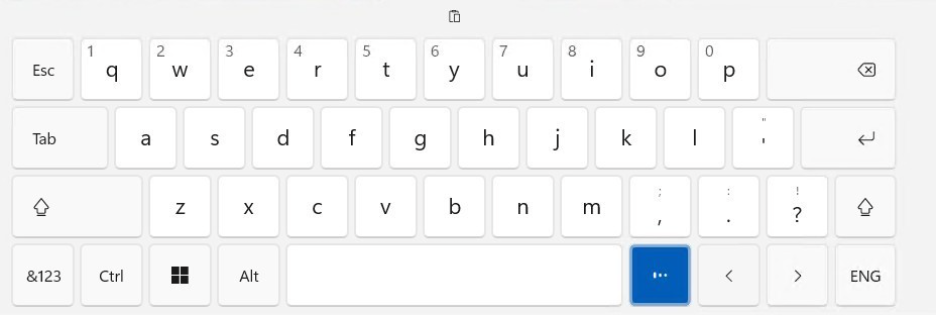
Now, when you activate dictation, the listening animations appear directly on the dictation key itself, helping you stay focused on the document without extra visual distractions blocking your screen.
After the update:
Free Pro Education upgrades and system fixes
Across both the Beta (Build 26220.8370) and Experimental (Build 26300.8376) channels, Microsoft has introduced a free, seamless upgrade path for K-12 education environments, which allows educational organizations to easily upgrade devices from Windows 11 Home directly to Pro Education without any additional cost.
IT administrators can initiate this one-way upgrade using the Clipupgrade.exe tool via an elevated Command Prompt.
As for bug fixes:
- Both the Beta and Experimental channels received a patch for a nasty WPN hang that was breaking system notifications and causing certain apps to freeze entirely on launch.
- Microsoft also improved the loading reliability of desktop app icon shortcuts.
- If you are running the Experimental (26H1) channel (Build 28020.2075), you may see a performance boost while opening your clipboard history.
- This build also brings typing reliability fixes for the ADLaM keyboard and updates the Leelawadee UI font family to improve glyph sequencing and rendering for Thai, Lao, Khmer, and Lontara scripts.
- Multiple builds across the Beta, Experimental, and Future Platforms channels received a fix improving the reliability of Japanese IME usage when Administrator Protection is enabled.
- The Future Platforms build also fixed a persistent issue that impacted the sign-in state for certain apps, and updated hardware IDs for the Internet Protocol Print driver in preparation for upcoming printer driver changes.
I have already installed the new Insider builds and will continue to track these features as they make their way through the Insider channels and eventually into the stable release of Windows 11.
Either way, I’m sure that the touchpad improvements here would easily make using Windows 11 laptops a much more premium experience.
The post Microsoft is upgrading Windows 11 touchpad with four new gestures appeared first on Windows Latest