
Windows 11 KB5086672 is now rolling out with several notable improvements. Microsoft told Windows Latest that it released this patch as an “out-of-band” update after pulling the original March 2026 optional update, KB5079391, which was causing installation failures with error 0x80073712.
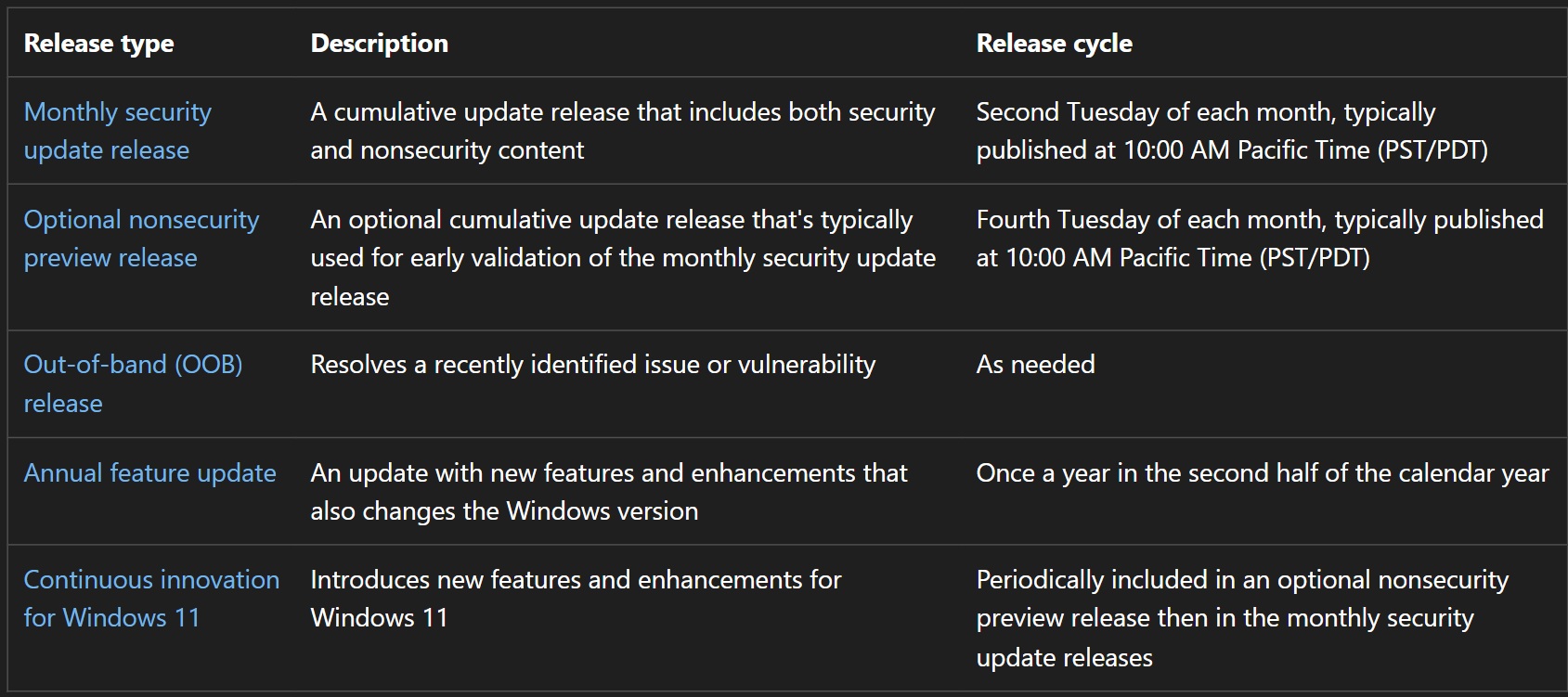
On March 26, Microsoft rolled out Windows 11 KB5079391, the March 2026 optional update. Unfortunately, it failed to install on several PCs and showed only vague error messages. We do not know how many devices were affected, but the issue appears to have been widespread enough for Microsoft to pull the patch, which is very rare.
In a statement to Windows Latest, Microsoft explained that KB5079391 had a bug that caused it to fail during installation and get stuck in a loop of downloading and installing, only to eventually crash with error 0x80073712. That error usually means some Windows Update files are missing.
“Rollout of this update is temporarily paused due to installation error 0x80073712,” Microsoft explained in a statement on March 28. “To prevent additional impact while the issue is investigated, Microsoft has temporarily limited the availability of this update. As a result, the update might temporarily not be offered through Windows Update.”
Fast forward to the last day of the month, and there is now another optional update. This one is labeled “2026-03 Update (KB5086672) (26200.8117)” and is officially an out-of-band release, meaning it shipped outside the usual update cadence. It also fixes the installation issues caused by the earlier March optional update.
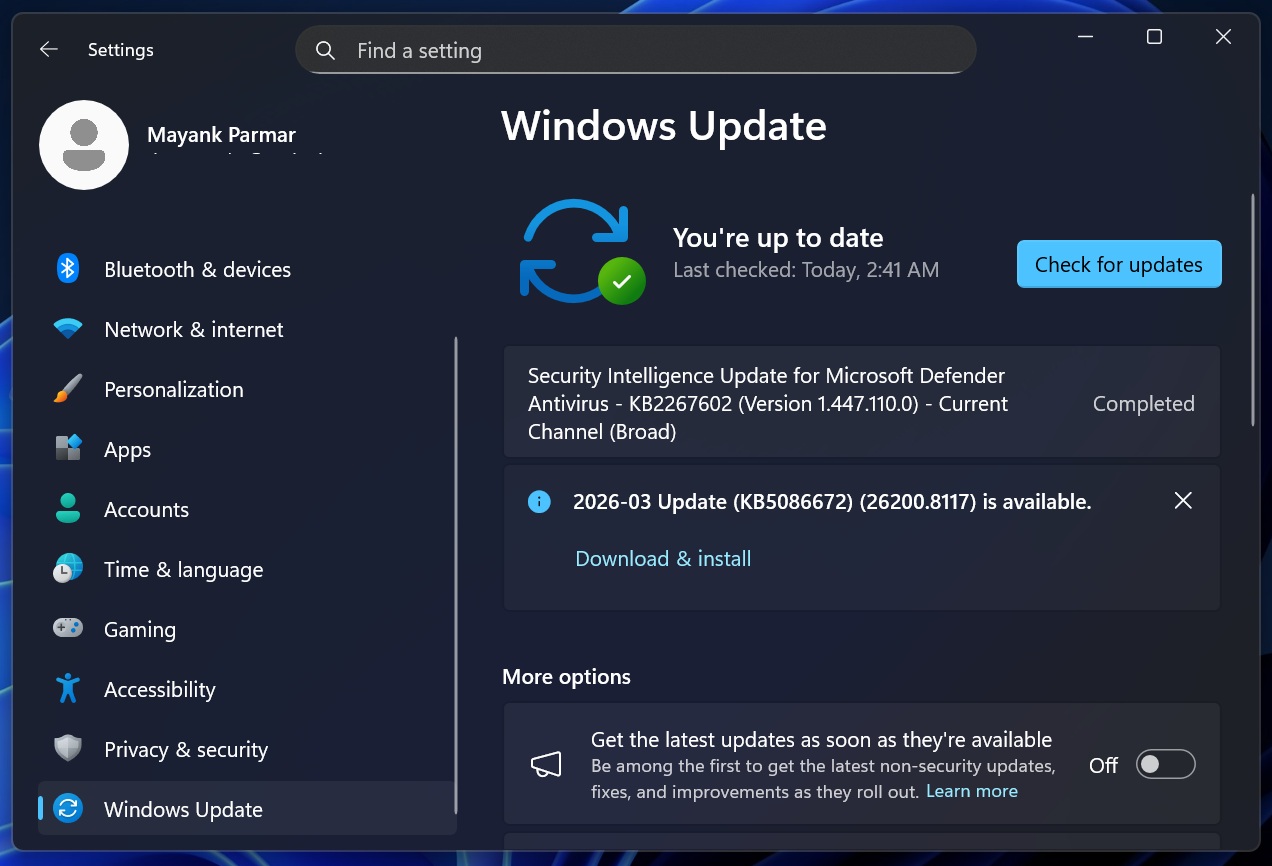
If you missed the March optional update, you no longer have to wait, as you can now download Windows 11 KB5086672 (Build 26200.8117). It includes all the new features from the original release.
The update will also show up even if you have already successfully installed the March optional update. However, if KB5079391 is installed correctly on your PC, you probably do not need to install KB5086672. That is because today’s release is only a revision of the March optional update, so it won’t make any noticeable difference to your PC.
It’s also worth noting that an optional preview update is officially designed for production use, and it’s not the same as Windows Insider Preview, which is meant for beta testing.
Download Links for Windows 11 KB5086672
Windows 11 KB5086672 Direct Download Links: 64-bit and ARM-64
| Build Number | Size | OS Version | Architecture |
|---|---|---|---|
| 26200.8117 | 5104.9 MB | Windows 11 25H2 | x64-based |
| 26200.8117 | 5104.9 MB | Windows 11 25H2 | arm64-based |
| 26100.8117 | 4592.8 MB | Windows 11 24H2 | x64-based |
| 26100.8117 | 4592.8 MB | Windows 11 24H2 | arm64-based |
What’s new in Windows 11 Build 26200.8117 (25H2) / Build 26100.8117 (24H2)?
Microsoft says all features or improvements in the update are rolling out gradually, so having Build 26200.8117+ is not enough to try the changes detailed below.
1. Microsoft says Smart App Control can now be toggled without resetting Windows
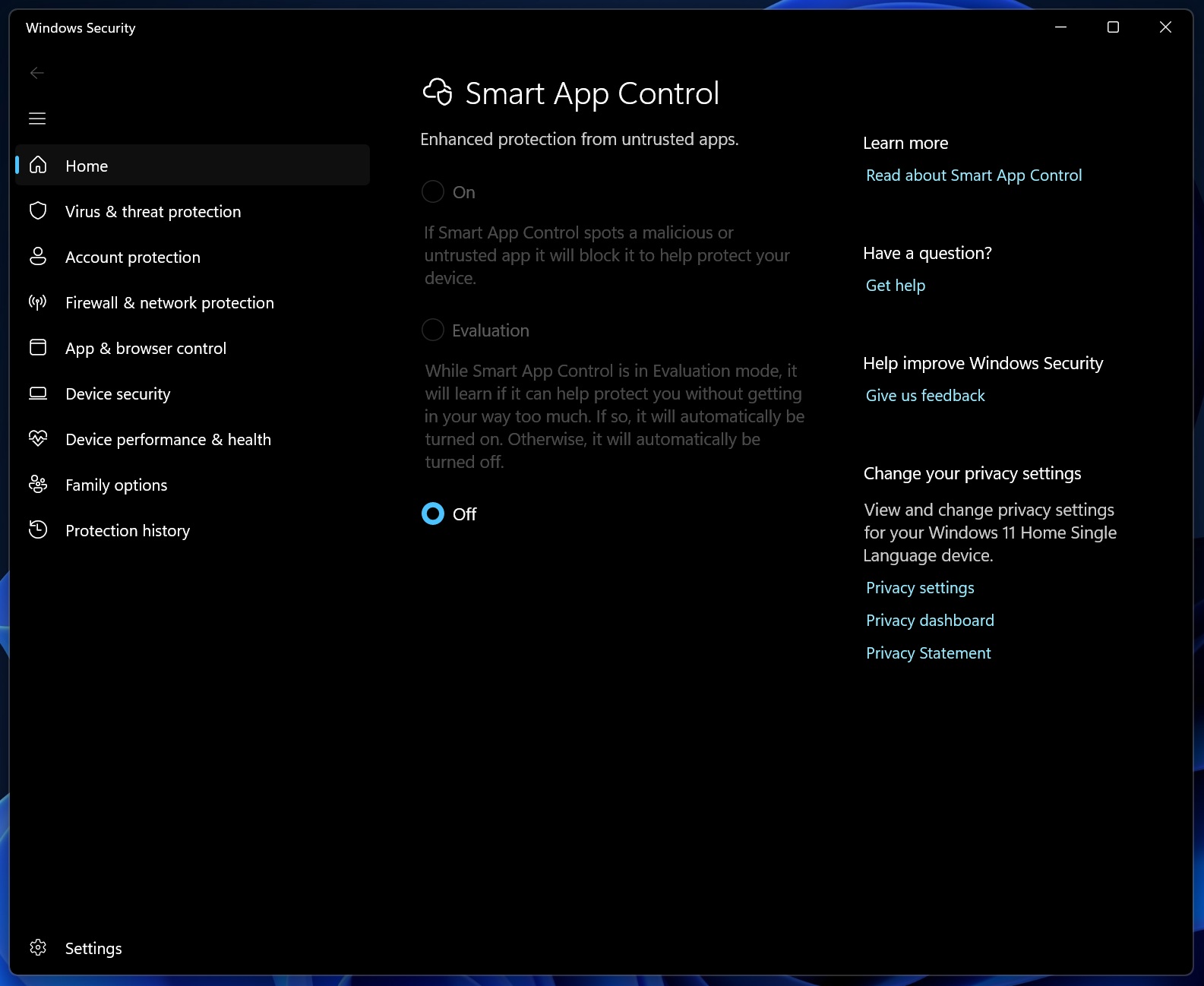
Windows 11 now finally lets you play with Smart App Control without installing a fresh copy of the OS. That means, if you download Windows 11 KB5086672 or have already installed the March 2026 optional update, you can turn off the security feature.
Today’s update also means you can turn on Smart App Control if you’d like to secure Windows and your personal files. Smart App Control has mixed reviews because of how it works. For those unaware, this security feature, which is usually turned off by default unless your OEM switched it on, blocks malicious apps from running on your PC.
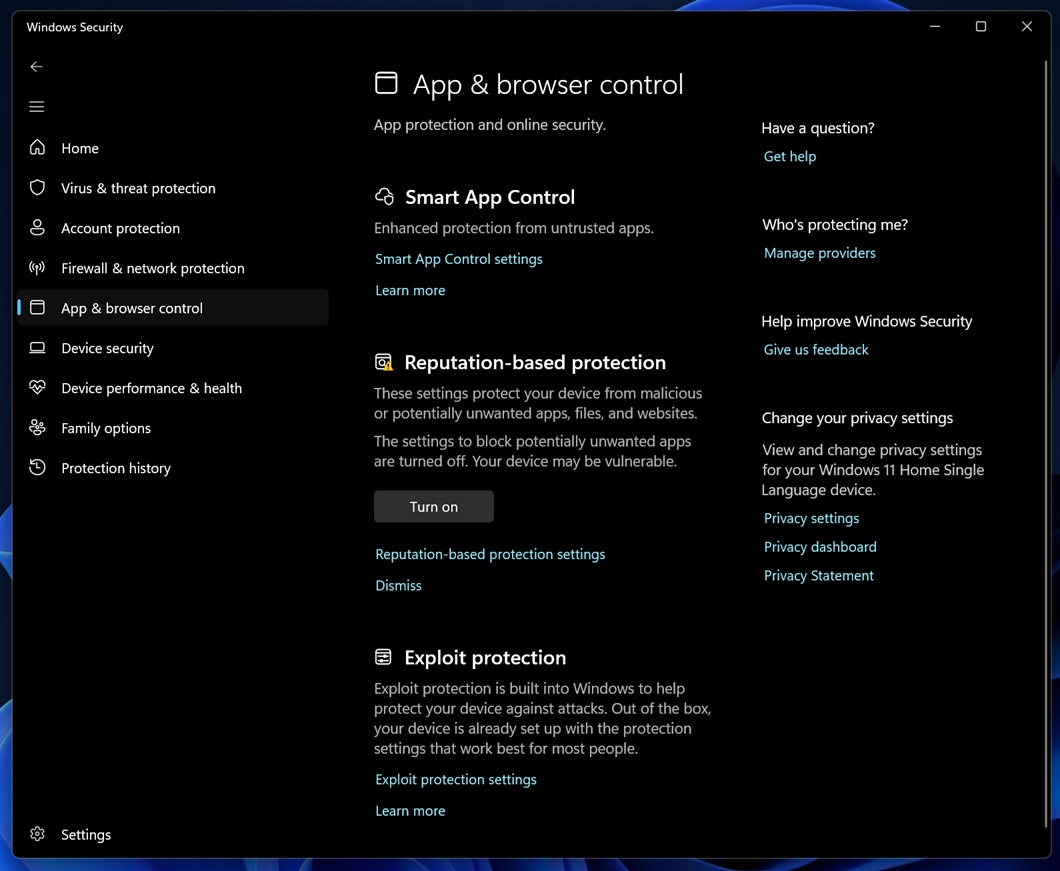
So if a feature blocks malicious apps or malware from executing on your PC, it’s a good feature, right? Well, yes, but at the same time, Smart App Control blocks potential unwanted apps. And that means it could end up blocking your potentially useful apps as well, such as an anti-cheat engine. Or even your game.
Up until now, if you turned on Smart App Control and it incorrectly flagged an app you’d like to use, you would need to reinstall Windows in order to disable the feature.
With KB5086672, you finally have control over your PC’s security feature, and you can play with it from Settings > Windows Security > App & Browser Control > Smart App Control settings.
2. 1000Hz refresh rate support
You probably don’t own a monitor with a 1000Hz refresh rate yet, but you might end up getting one soon at some point. And Microsoft wants Windows to be prepared, which is why the March optional update or out-of-band update includes support for 1000Hz refresh rate monitors.
3. File Explorer now handles Internet downloaded preview controls better
Windows 11’s 2025 shipped with a lot of useful stuff, but it also made the basics a bit difficult. After recent updates, if you try to preview an internet downloaded file, such as a PDF or even a docx, File Explorer’s Preview panel will throw up an error.
The error says Windows now blocks the preview of internet downloaded files due to security reasons.
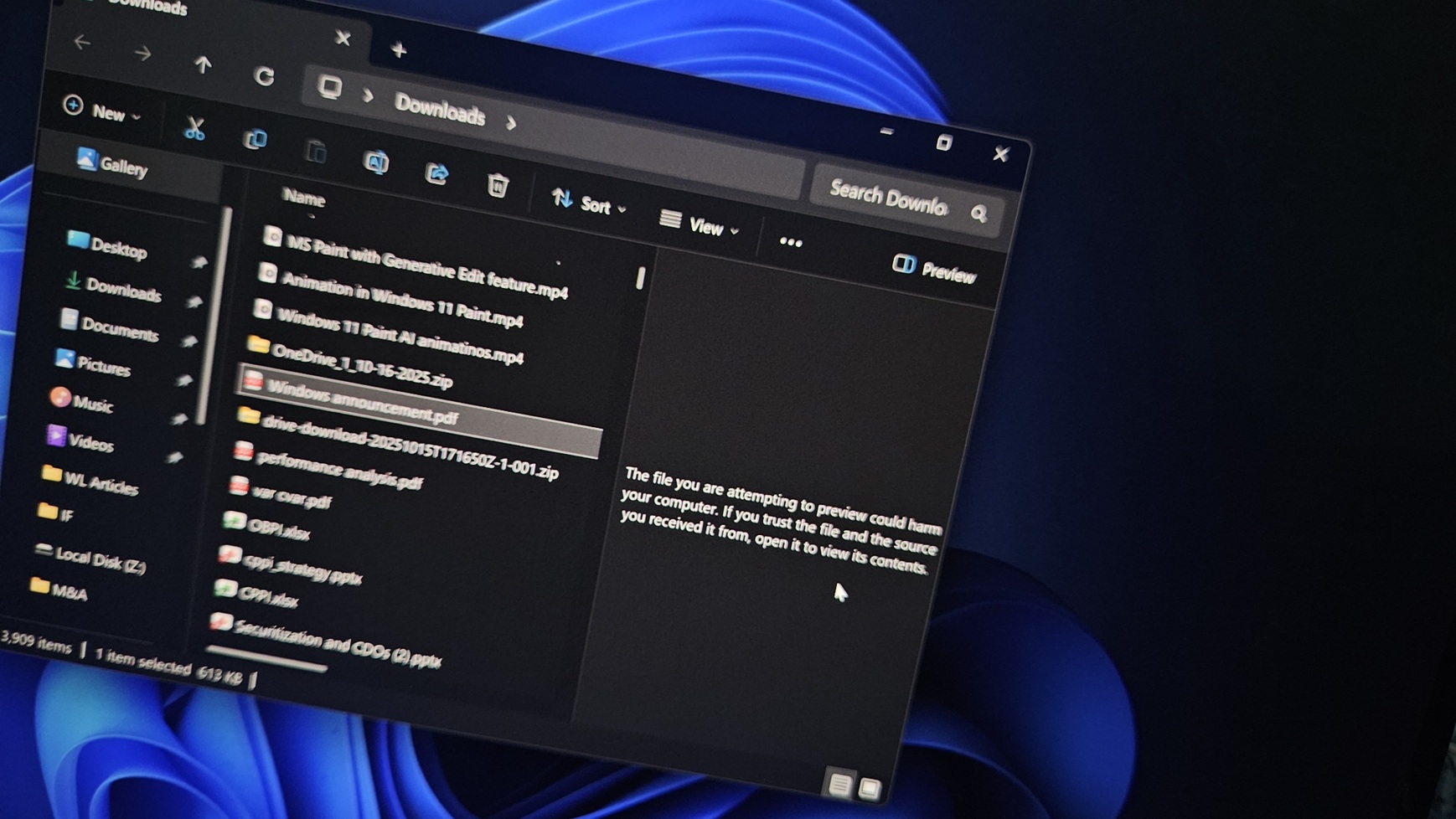
Microsoft turned off the preview for Internet downloaded files by default, but if you right-click a file, then go to the Security tab in the Properties window, you can approve the file for preview. So far, so good, but what if you want to unlock all your blocked files? In that case, you need to use PowerShell scripts or turn off the protection using Group Policy.
Unfortunately, Windows Latest observed that PowerShell scripts or even Group Policy do not work on some PCs.
Turns out, it was a known issue that prevented the preview of downloaded files even when they were manually unlocked. This has been fixed with Windows 11 KB5086672.
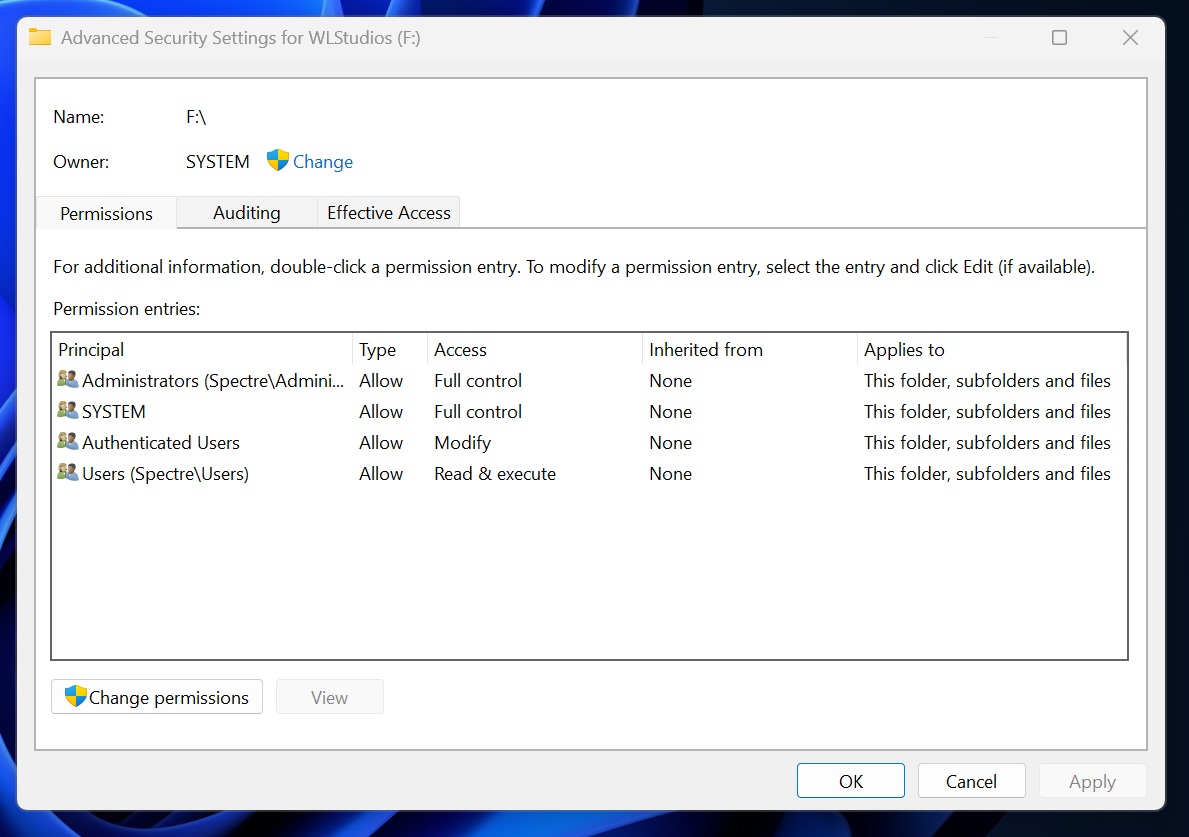
In addition, Microsoft says Windows Voice Typing now works better with File Explorer, as you can also rename files using your voice. Next, Microsoft confirmed it has made it easier to sort and filter the permissions entries using ‘Principal’ in the Advanced Security Settings window for a folder (see the screenshot below for your reference):
Last but not least, Windows 11 now treats USB4 monitor connections better, as the USB controller now switches to the lowest power level while the PC is sleeping.
Here’s the full list of features and improvements in Windows 11 KB5086672:
- Narrator now supports rich image descriptions on Copilot+ PCs.
- You can now upgrade or switch Microsoft 365 plans from Settings > Accounts.
- You will notice that dialog boxes in Settings > Accounts > Other users are now modern, like the rest of Windows UI.
- Home page of Windows Settings loads faster after the update.
- Sfc /scannow no longer reports false errors.
- Windows Hello issues patched on some PCs.
Are there any known issues in Windows 11 KB5086672?
Microsoft has confirmed it’s not aware of new issues in the out-of-band update, so there’s nothing to worry about.
Also, as I mentioned, if you’ve already installed the March optional update (KB5079391), you don’t really need today’s patch (KB5086672). Still, if you choose to install it, I don’t expect majority users to encounter new problems.
The post Windows 11 KB5086672 rolls out after Microsoft pulls failed March 2026 optional update appeared first on Windows Latest