
Microsoft really wants the new Outlook to succeed, and it’s desperate at this point. As part of its new push, Microsoft says the new Outlook for Windows (based on Outlook.com) has added over 15 productivity features, and it’s the right time to switch. However, most of the features were already present in the classic version.
In fact, Microsoft says the new Outlook lets you choose your shortcut style, which, according to the company, should make the transition from the classic version more consistent.
Microsoft lists new features of Outlook for productivity
Other new features include Pin, Snooze, Sweep, Schedule Send, calendar filters, theme customization, and more, but is that really enough? Probably for regular users, but those who prefer Outlook Classic would not switch because a) Outlook Classic is simply faster and b) it has more features than the new version would take months or even a year to catch up with.
Microsoft is hopeful that 15 new productivity features in Outlook will convince everyone to ditch Outlook Classic. Here’s a list of all 15 productivity features:
1. You can pin emails in the new Outlook
In new Outlook, if you hover over an email in the list, you will see a pin button. The same button shows up when you right-click on your emails, and it does as the name suggests: it pins your email, so it’s the first thing that appears when you open Outlook.
Pinned mails are clubbed inside a new “Pinned” section:
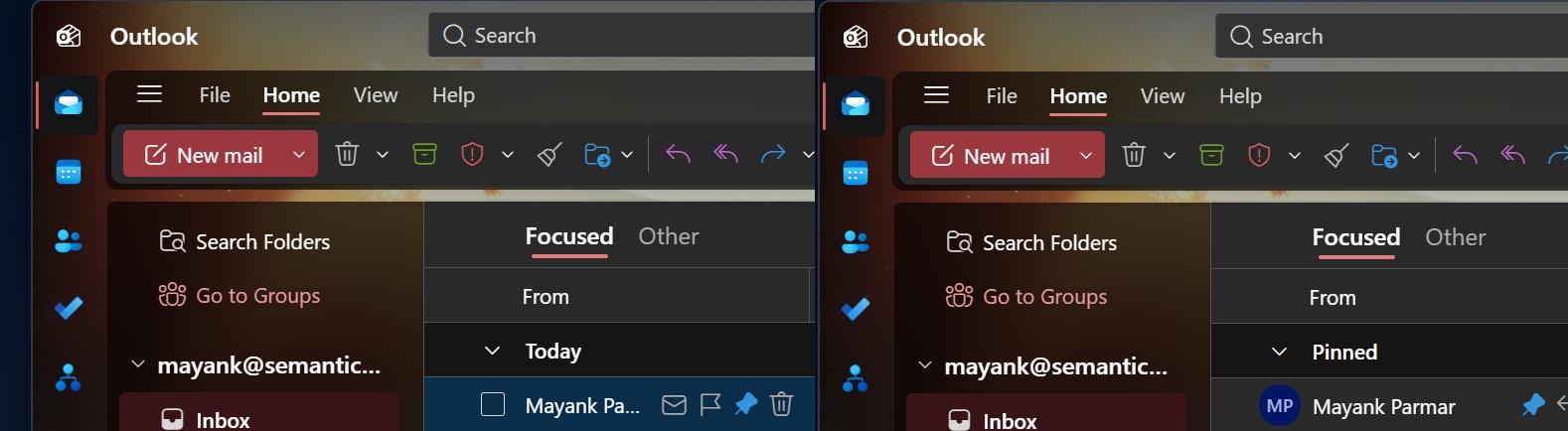
Outlook Classic doesn’t support pinning an email, which is a bummer for consumers, but a reason for Microsoft to recommend new Outlook.
2. Snooze an email
You can snooze an email in Outlook Classic via the “Follow-up” button, but new Outlook clearly does a far better job. New Outlook comes with a built-in Snooze feature, and it can be turned on by right-clicking on any email.
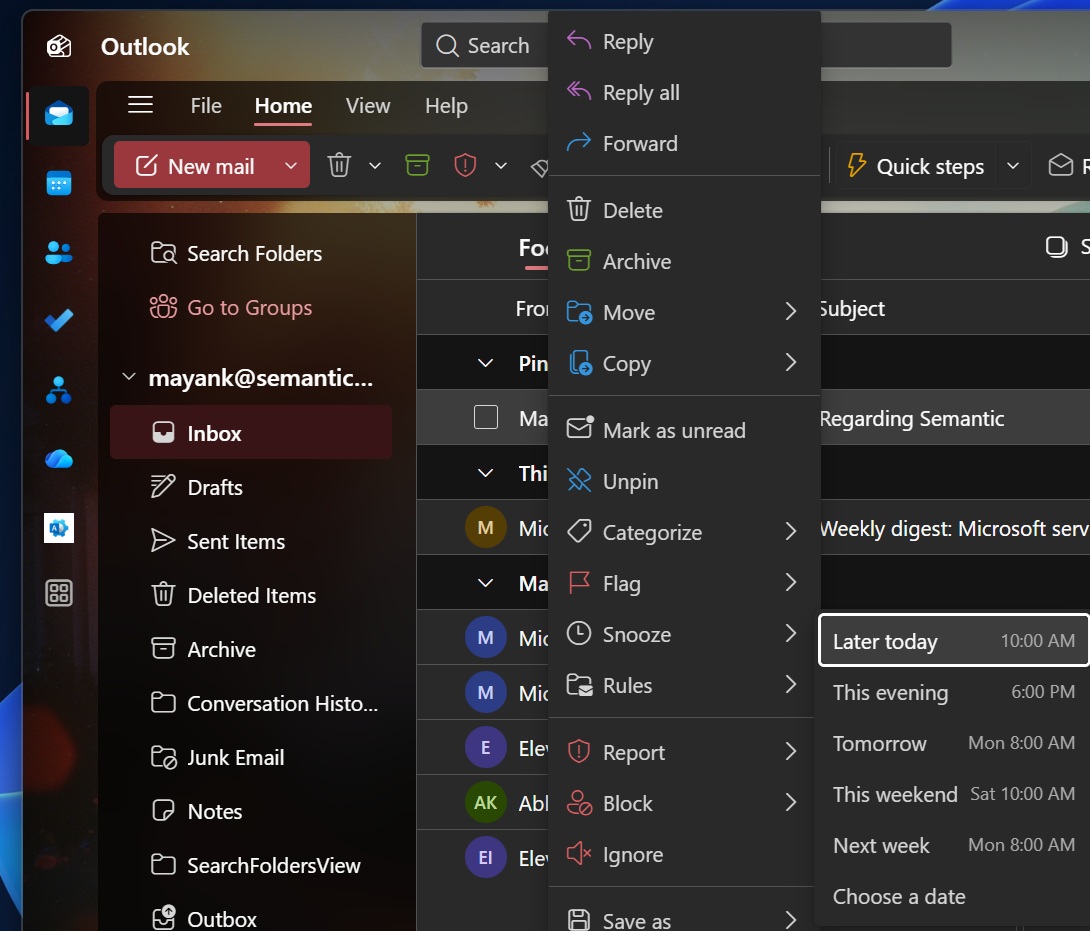
For example, I right-clicked on an email and selected “Later today” under Snooze. New Outlook will remind me about the email again by displaying it in the inbox. It’s a nifty feature tailored to specific needs, and it’s useful for those who want to stay focused now and receive the email again when they have time to respond.
3. Multiple categories in New Outlook
You can assign multiple categories in the new Outlook with a simple right-click. When you right-click an email, you’ll see an option to “Categorize,” and there you can choose your preferred category.
By default, Outlook has color-based categories like blue, green, red, among others.
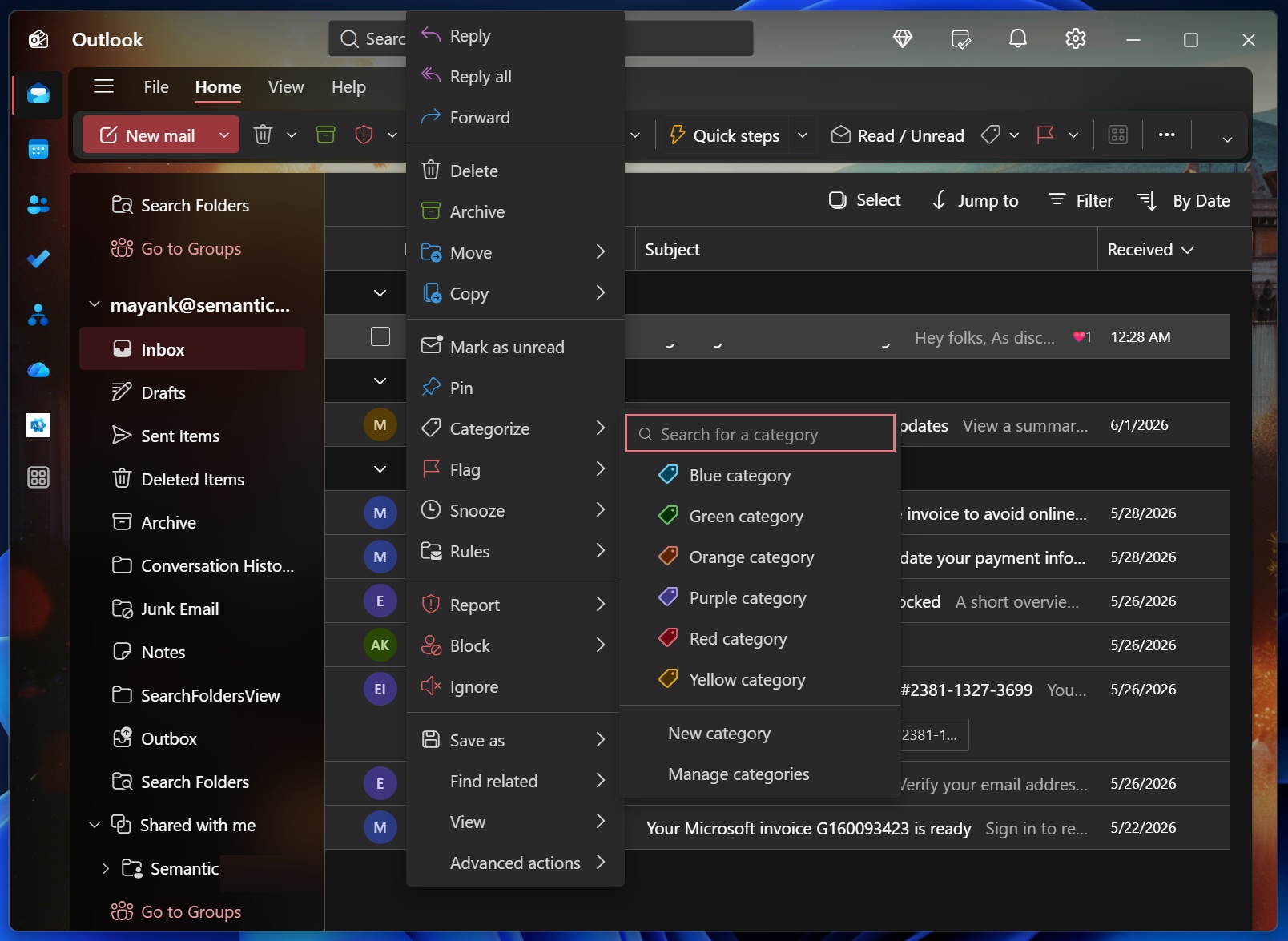
You can click on “Manage categories” or “Create category” to make your own category with details like its name, color, and even a dedicated shortcut.
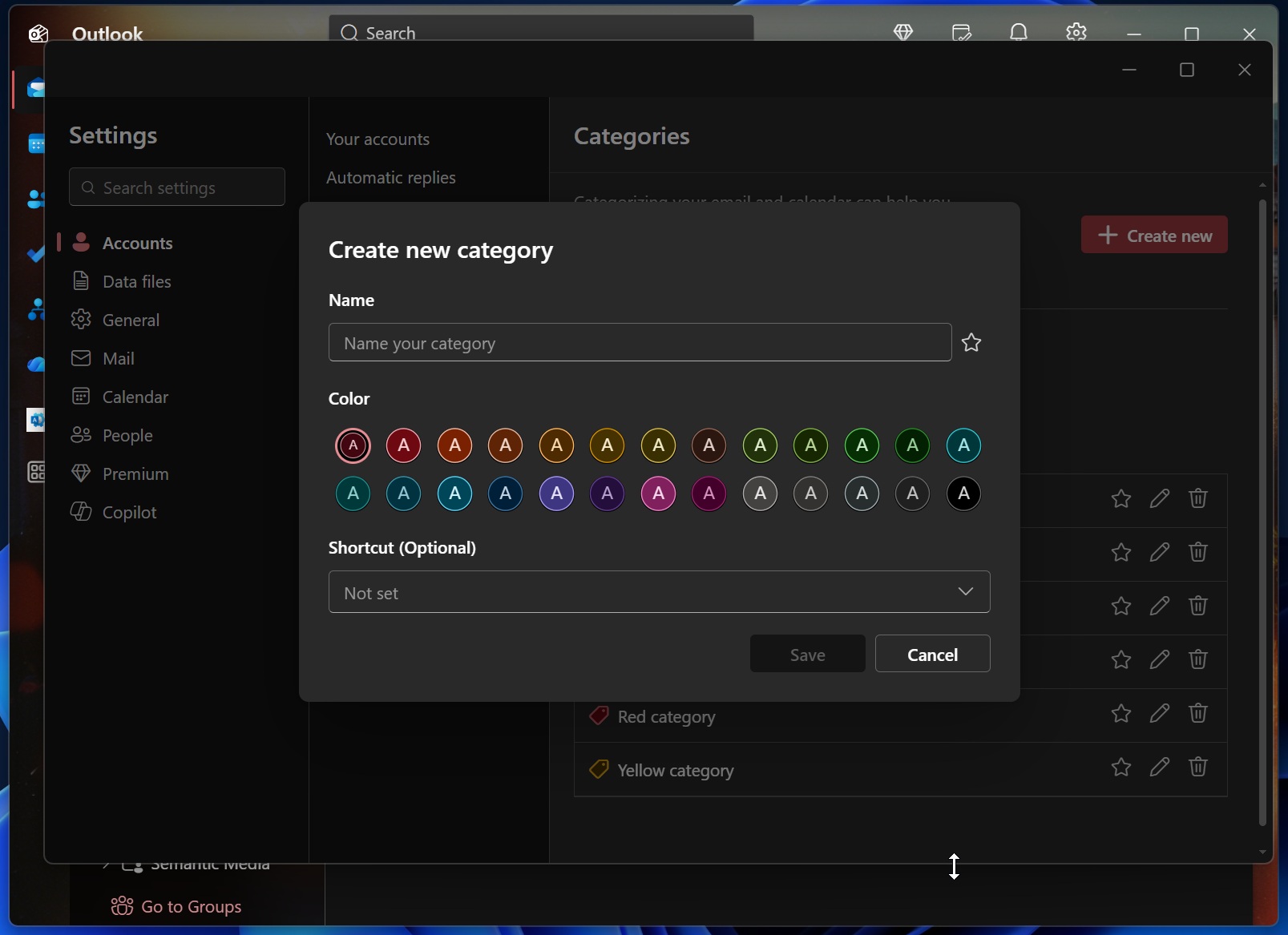
Categories are a great way to customize your email experience because you can assign emails to different types of categories, such as blue for meetings, green for vacation, and so on. I personally use it for follow-up status, so I don’t have to go through the entire email to find the one I need to respond to.
4. Sweep your emails to clean up your inbox in the new Outlook
New Outlook comes with a feature called “Sweep,” which lets you set rules for your contacts or emails and execute automation actions based on the rules.
For example, you can select one of the emails in your inbox and use “Sweep” to automatically move all messages in your inbox and other folders to the specified folder for past and future emails.
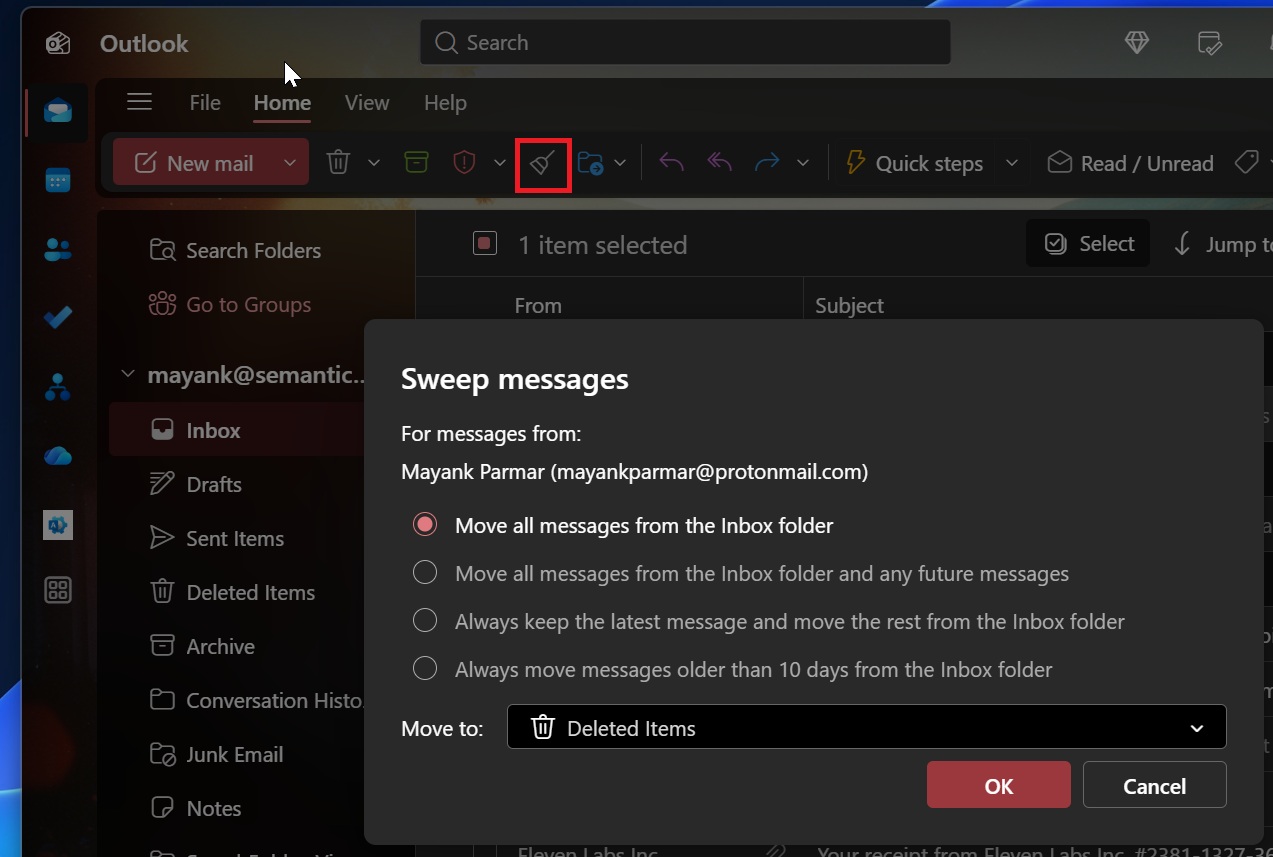
Or you can choose to keep the latest message and move the rest from the Inbox folder, or always move messages older than 10 days from the Inbox folder.
5. Schedule send in new Outlook
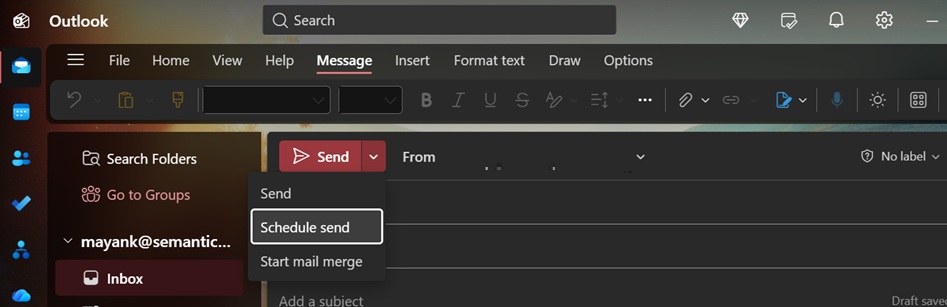
Scheduling an email isn’t a crazy feature that needs to be promoted as a productivity hack, as you could do that in any email client. Regardless, Microsoft says the new Outlook also lets you schedule sending when it’s convenient for you.
You can schedule emails from the compose box:
6. Microsoft says the new Outlook simplifies sharing a folder.
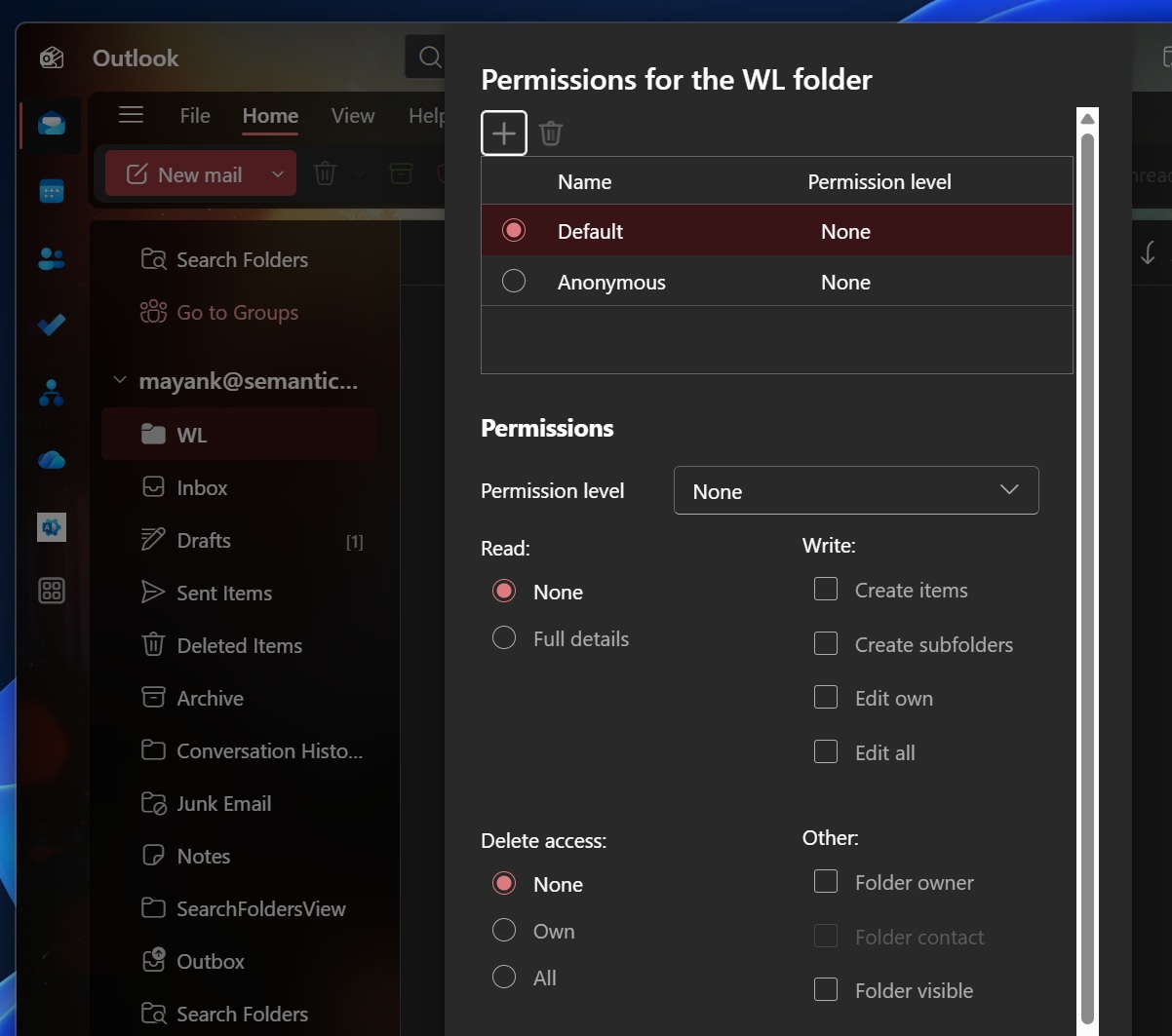
In new Outlook, sharing a folder is a lot easier because Microsoft takes care of the permissions, including visibility permissions needed for the parent folder. On the other hand, Outlook Classic required more steps. The new Outlook tries to make sharing a folder less annoying.
7. Calendar and meeting features
Like Outlook Classic, new Outlook also lets you plan meetings and manage everything via a dedicated calendar. It’s nothing new, but Microsoft wants you to realize that there’s pretty much nothing you can’t do in the new Outlook if you can do it in Outlook Classic.
8. RSVP now works in the new Outlook
Microsoft confirmed that the “Follow RSVP” option actually works in the new Outlook.
RSVP allows you to access a recap of meetings without attending a meeting, and it’s quite useful when you don’t have time to attend a particular meeting, but you’d like to stay informed.
Other improvements in the new Outlook
- You can save calendar views and always go back to your preferred/saved calendar setup.
- You can manage meetings easily in Outlook with new filters to sort the attendee list and search their names in the Tracking view.
- Calendar in Outlook lets you easily trigger a meeting recap. It contains your recording, transcript, and more.
- You can hide meetings, events, and other details in Calendar to clean it up visually.
- You can edit the current event in a recurring series, which makes it easier to edit the location or other details without editing past meetings.
Microsoft also said that the new Outlook offers greater personalization tools, including dark mode, themes, and advanced settings. This is a fair point, as Outlook Classic is fairly limited in terms of customization. On the other hand, New Outlook does a fairly better job with greater control over themes and even the ability to rename your email accounts.
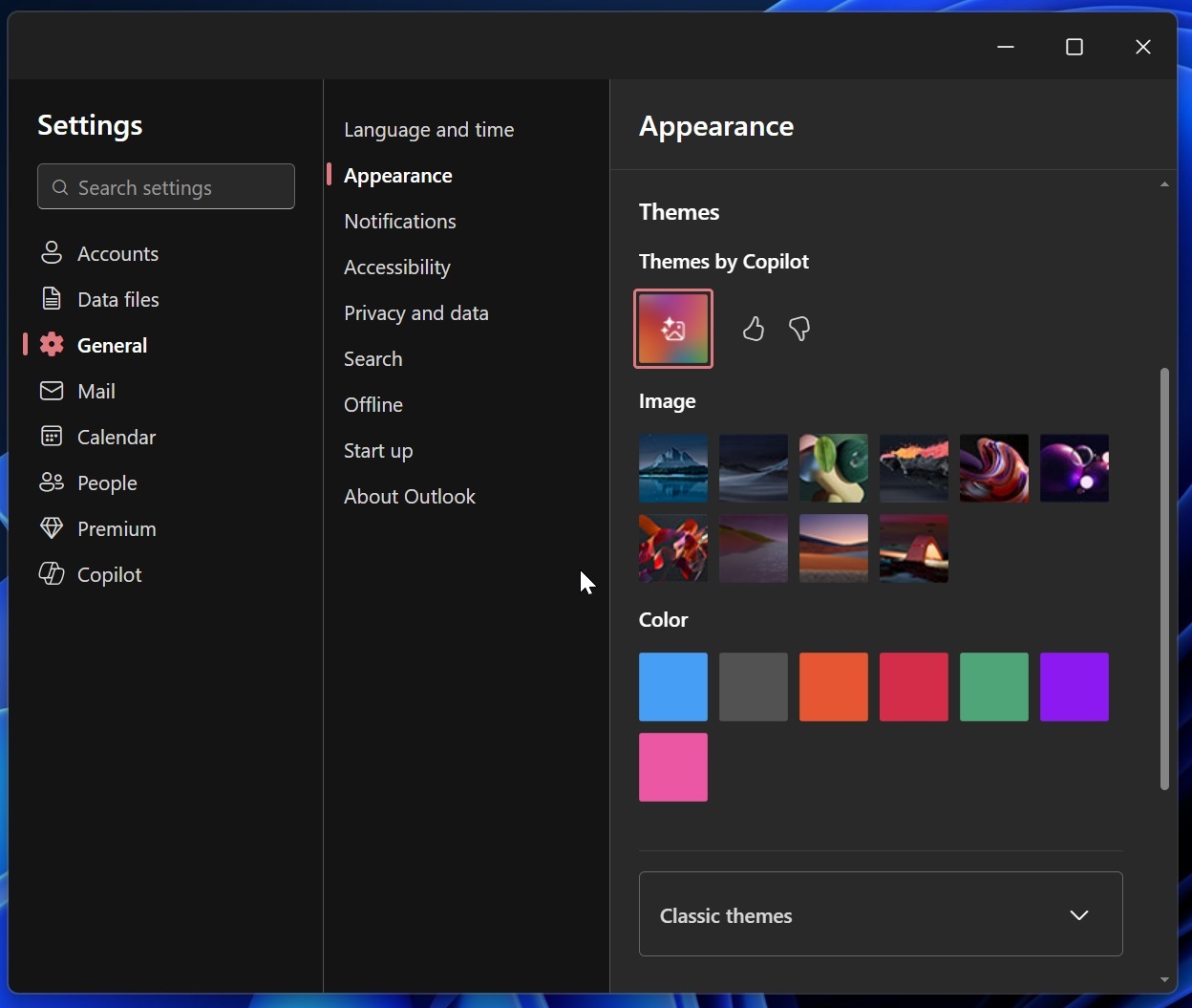
Finally, in Outlook, you can choose your shortcut style in Settings, so you don’t lose out on your habits when you migrate from one app to another.
“For people moving from classic Outlook or Outlook on the web, shortcut flexibility can make the transition more consistent,” Microsoft noted in a document.
New Outlook is a lot better now than it used to be, and the last few updates added much-needed changes. In March, Microsoft improved Outlook folder search and the shared mailboxes experience to catch up with the classic version. In May, Outlook began rolling out new features like Automapped calendars, non-consecutive date selection, and more.
More changes are coming in June and later this year. However, the new Outlook is still not the right mix for many users. It feels slower, buggy, and takes a few seconds to load when you click on an email in the notification center.
In fact, Microsoft also admitted that the new Outlook isn’t ready for primetime, and it even delayed the forced rollout to 2027 for enterprise customers.
The post Microsoft is begging Classic Outlook holdouts to switch with 15 productivity features in new Outlook for Windows appeared first on Windows Latest