
Windows 11 KB5121003 is now rolling out, and it may not look like a big release, but it can make your apps launch faster on low-end PCs, improve File Explorer’s unit detection, and make Windows Search better at handling typos. In addition to Windows Update, Microsoft has published direct download links for KB5121003 offline installers (.msu).
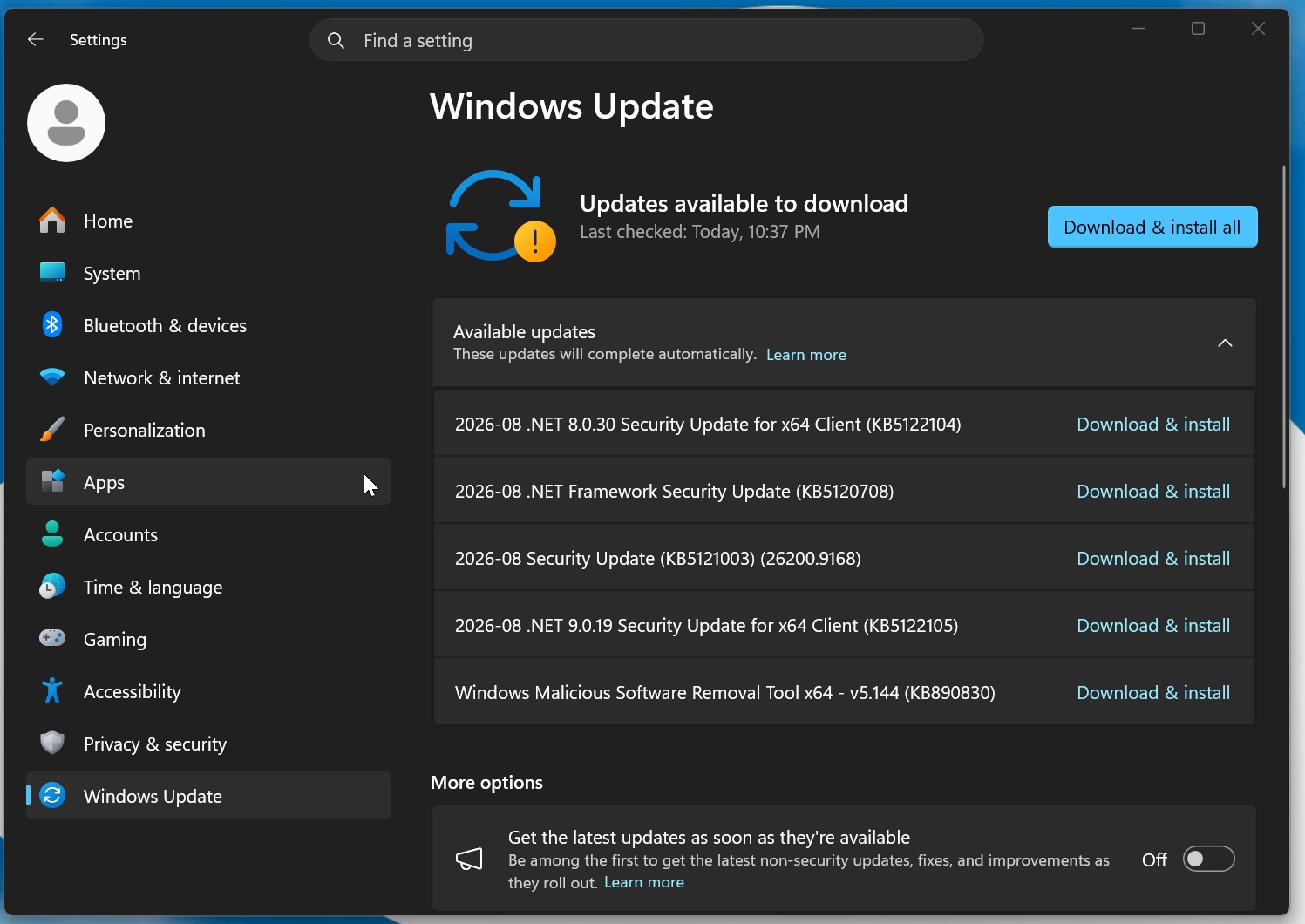
KB5121003 is a mandatory Patch Tuesday update, and it’ll download automatically because it’s rolling out as part of the Windows 11 August 2026 Update. In our tests, today’s update shows up simply as “2026-07 Security Update (KB5121003) (26200.9165)” and takes less than ten minutes to finish applying:
Windows 11 25H2 will advance to Build 26200.9165 after installing the August 2026 Patch Tuesday, but in the case of 24H2, you’ll move to 26100.9165. However, nothing is visibly different, as the two versions share the same underlying release platform. Also, Windows 11 24H2 support ends in October 2026, alongside 15 Microsoft products this year.
In addition to the August 2026 Patch Tuesday update, Microsoft has released the following updates for .NET:
- 2026-08 .NET 8.0.30 Security Update for x64 Client (KB5122104)
- 2026-08 .NET Framework Security Update (KB5120708)
- 2026-08 .NET 9.0.19 Security Update for x64 Client (KB5122105)
.NET Framework is used by Windows apps, including Microsoft apps, and you should install these updates alongside today’s Windows update. This means Windows could reboot twice to finish installing all the available updates. Microsoft has also released “Windows Malicious Software Removal Tool x64 – v5.144 (KB890830)” as part of the monthly cadence.
Download Links for Windows 11 KB5121003
Windows 11 KB5121003 Direct Download Links: 64-bit and ARM-64 | This will open the Microsoft Update Catalog, where you can find .msu offline installers and update your PC when Windows Update is not working.
You can also use it when you have to update multiple systems. But in most cases, I just recommend Windows Update from Settings. It’s the most efficient.
Moreover, Windows updates on the Update Catalog are offered in full size, so they’re now over 5GB compared to around 700MB for Windows 10. It’s because of AI models and how Windows updates are now delivered. Here are the sizes for the August 2026 Patch Tuesday update.
| Build Number | Size | OS Version | Architecture |
|---|---|---|---|
| 26200.9165 | 5383.7 MB | Windows 11 25H2 | x64-based |
| 26200.9165 | 5383.7 MB | Windows 11 25H2 | arm64-based |
| 26100.9165 | 4799.2 MB | Windows 11 24H2 | x64-based |
| 26100.9165 | 4799.2 MB | Windows 11 24H2 | arm64-based |
To download Windows 11 Build 26200.9165, open Settings > Windows Update and check for updates.
What’s new in Windows 11 Build 26200.9165 (25H2) / Build 26100.9165 (24H2)?
1. File Explorer is becoming more usable
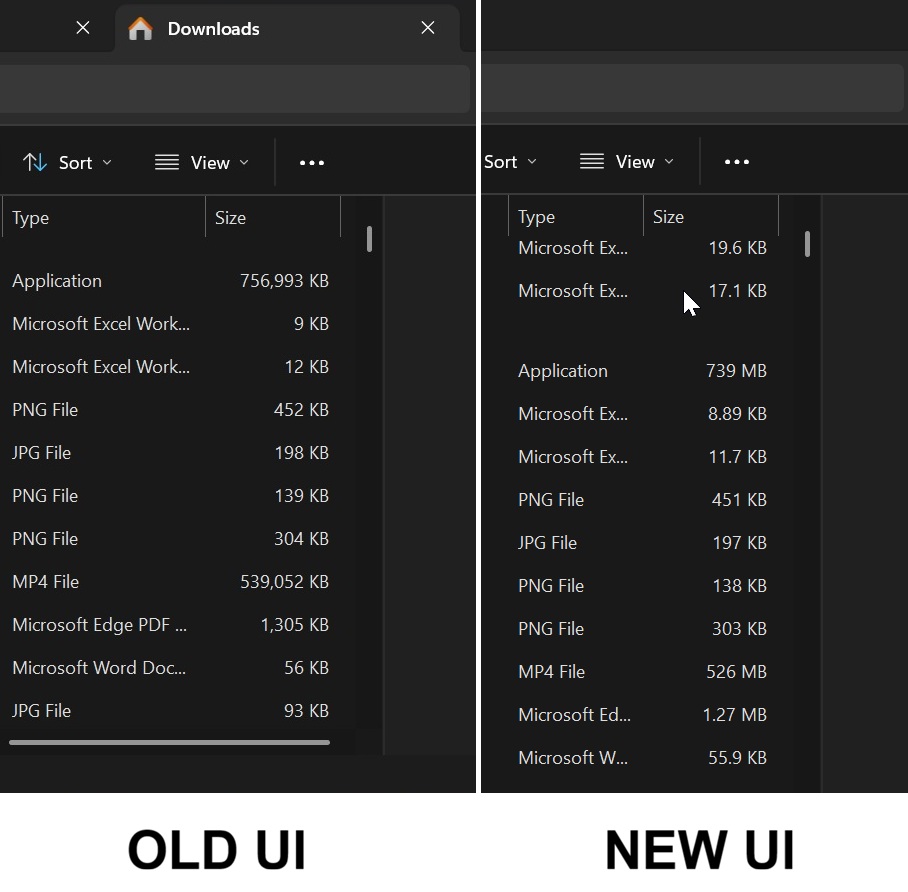
After I installed Windows 11 KB5121003 and opened File Explorer’s Downloads folder, I noticed that file sizes are now displayed using the appropriate units.
That means File Explorer no longer shows everything in KB, which should be a good thing for most users, although it also means you now have to pay a bit more attention if you’re used to directly comparing file sizes in File Explorer.
Until now, if you opened File Explorer and switched to Details view, you had a “Size” column where all file sizes were displayed in KB. That means even a 7.57GB ISO file would show up as 7,864,320KB. Again, that’s fine for those who can do the mental maths, but for most casual users, it can be confusing.
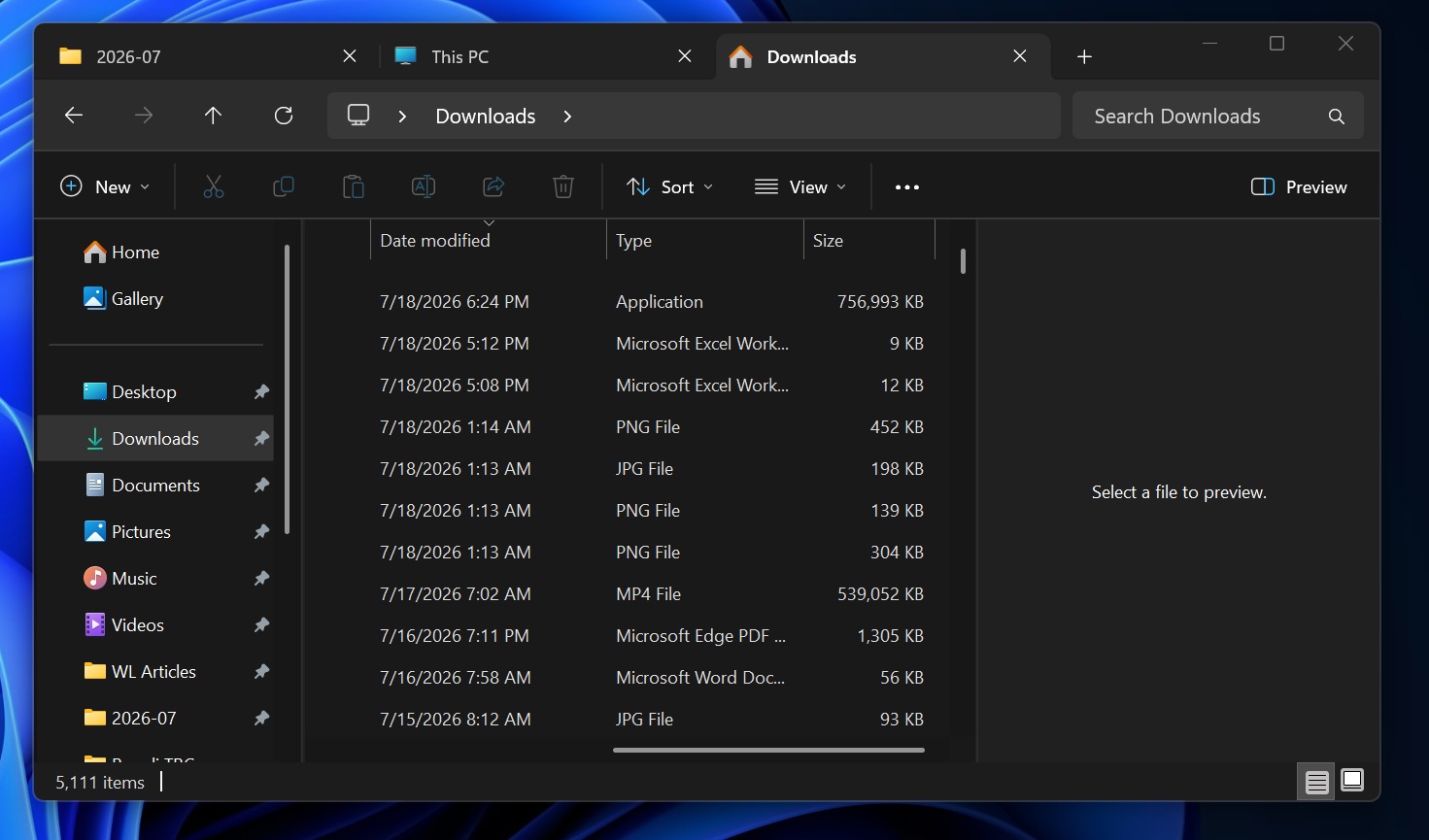
After today’s update, File Explorer won’t show sizes in KB when another unit makes more sense. For example, a 10KB file is best shown as 10KB, but displaying 10MB as 10,240KB, 100MB as 102,400KB, and 1GB as 1,048,576KB isn’t exactly the best experience.
Microsoft is changing that, and File Explorer can now display file sizes using more appropriate units:
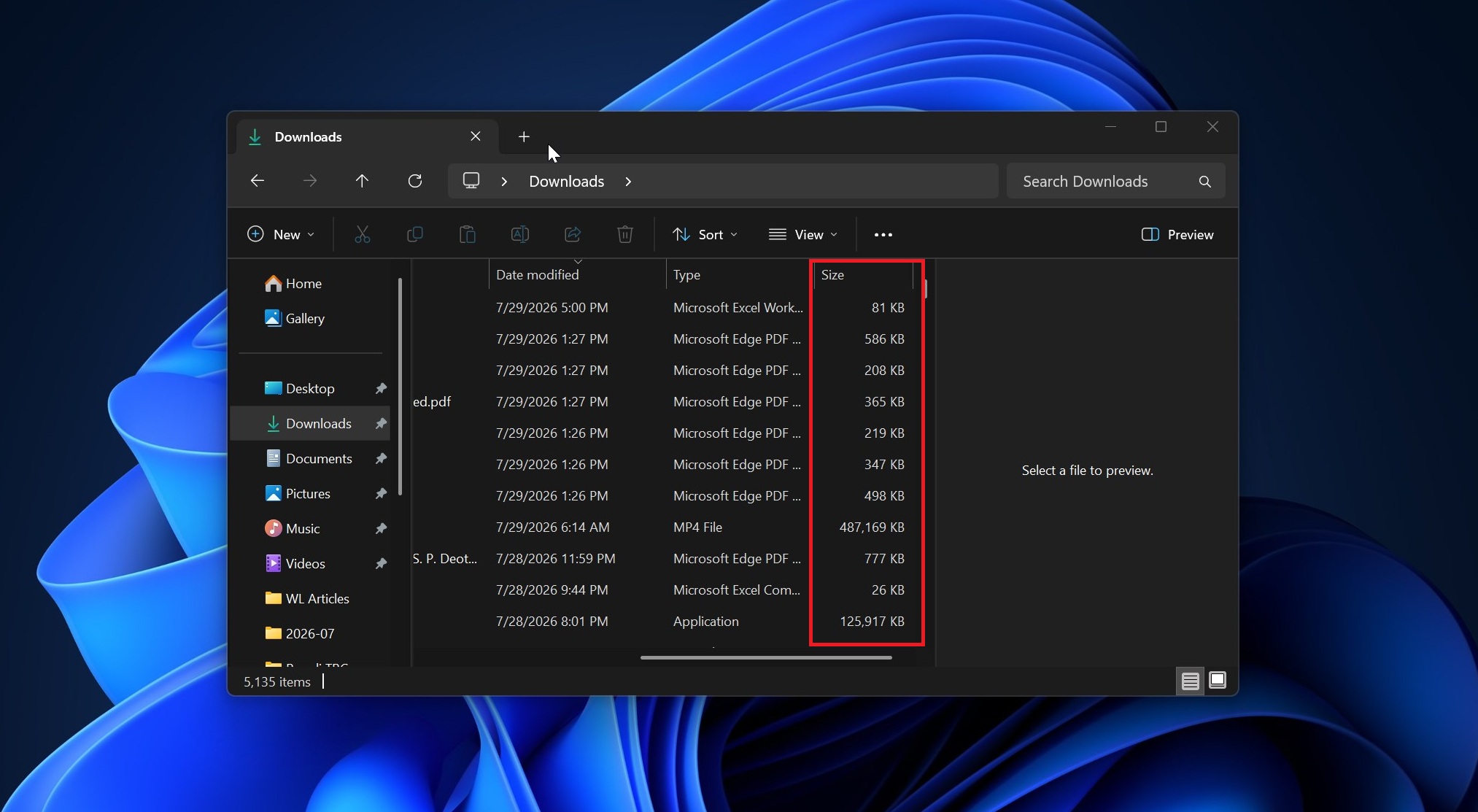
I made a before-and-after comparison so you can better understand the difference:
This feature is rolling out gradually, but if you can’t wait, you can force-enable it using the open-source app called ‘ViVeTool’ from GitHub. Extract its contents and run the following command:
vivetool /enable /id:61014711
This will turn on the new file size units in File Explorer, but you’ll need to restart explorer.exe from Task Manager.
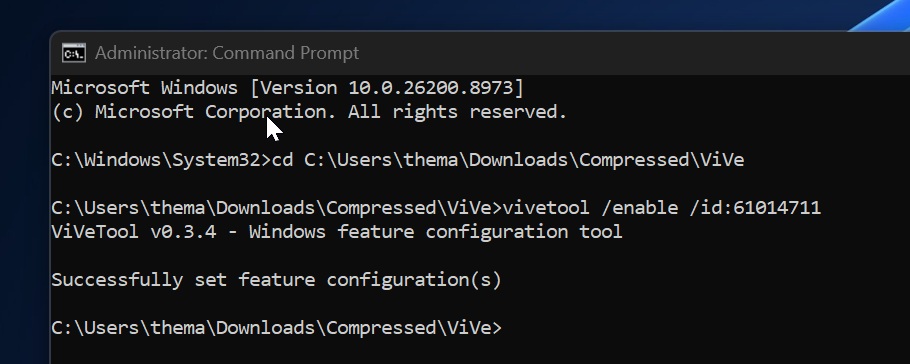
ViVeTool is a third-party app that allows you to safely enable hidden Windows 11 features when you use the correct feature ID.
Another notable File Explorer change rolling out with Windows 11 KB5121003 is a faster address bar. It no longer glitches when you move between previously entered addresses, so you can jump back and forth more smoothly.
I also noticed that you can now middle-click a folder to open it in a new tab. It’s similar to how web browsers work, and I’m glad it’s finally being rolled out.
Microsoft has also fixed a bug that caused a gray flash when File Explorer loaded, as well as an issue where file thumbnails appeared in poor quality in the Recommended section of the Home page.
2. Windows Search can now SEARCH. Really
Windows Search is one of the major pain points in Windows 11, as it can often struggle to show the results you actually want. In the worst-case scenario, Windows Search could show a result from Microsoft Store or Bing when you’re simply trying to find an app like Outlook, and I’ve run into that myself.
In fact, I still remember Windows Search surfacing a result for the movie Terminal on Bing instead of Windows Terminal when we searched for “Terminal.” It’s crazy how poorly Windows Search can behave in Windows 11, but based on our tests, it’s getting noticeably better with the August 2026 Update.
In our tests, Windows Latest observed that Windows 11 KB5121003 dramatically improves how Search handles typos. Until now, if you typed a partial or misspelled word, let’s say “otloook,” which obviously means Outlook, Search could struggle to show the app. After the update, Outlook, including Outlook Classic, shows up in the results even with those typos.
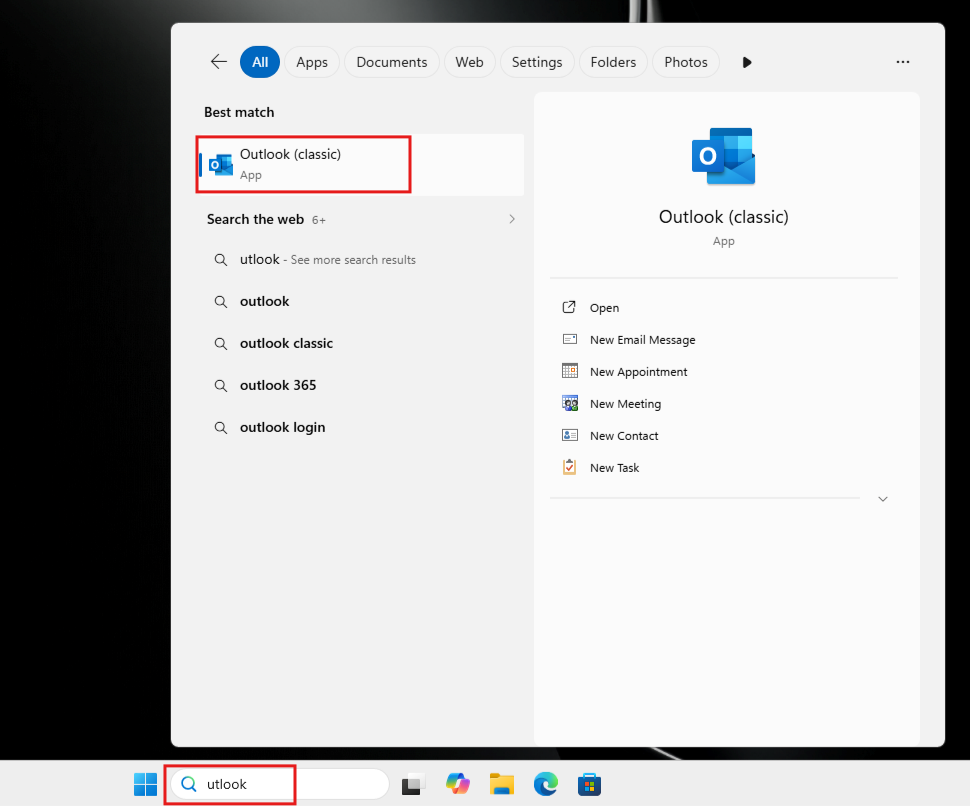
It’s also crazy that Windows Search has always handled typos better when you made them in the web tab, and that’s because Microsoft applied spell check to Bing results but not to local queries. That’s one of the reasons Windows Search has been so bad at finding local files or apps when you make a typo.
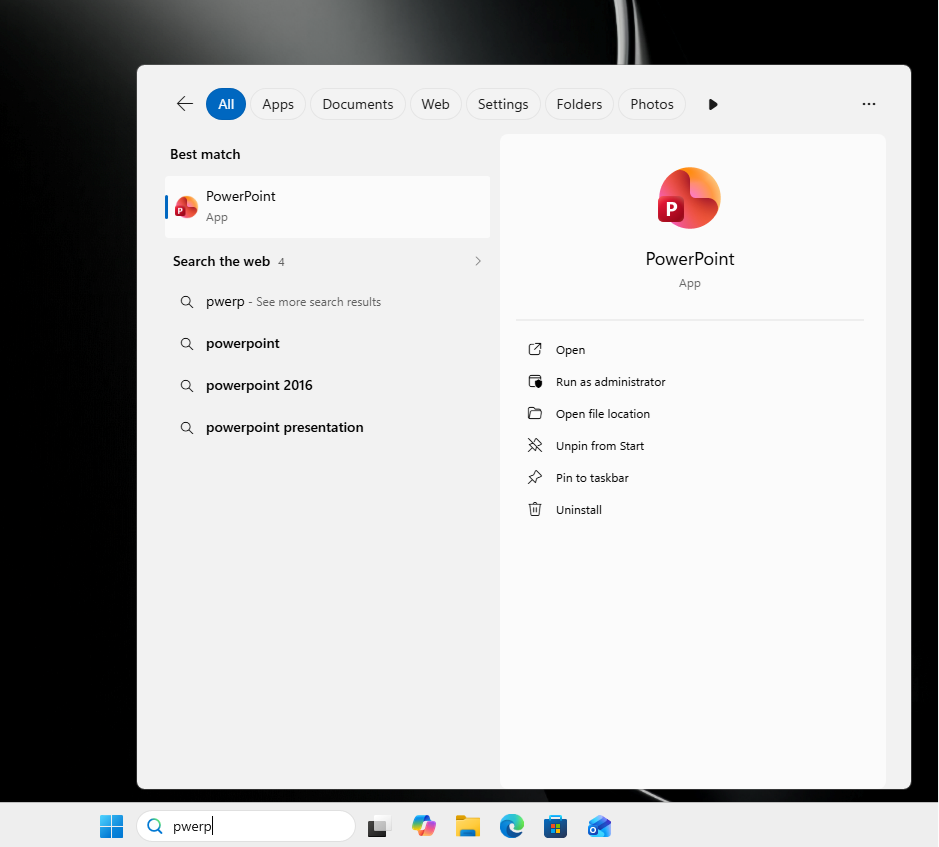
Microsoft is now bringing similar typo handling to local Search, which is why it can better understand that you’re looking for the PowerPoint app even when you type something like “pwerp”:
Likewise, if you misspell Task Manager as “tskm,” which can often happen when you’re typing in a rush, Windows Search will still show Task Manager:
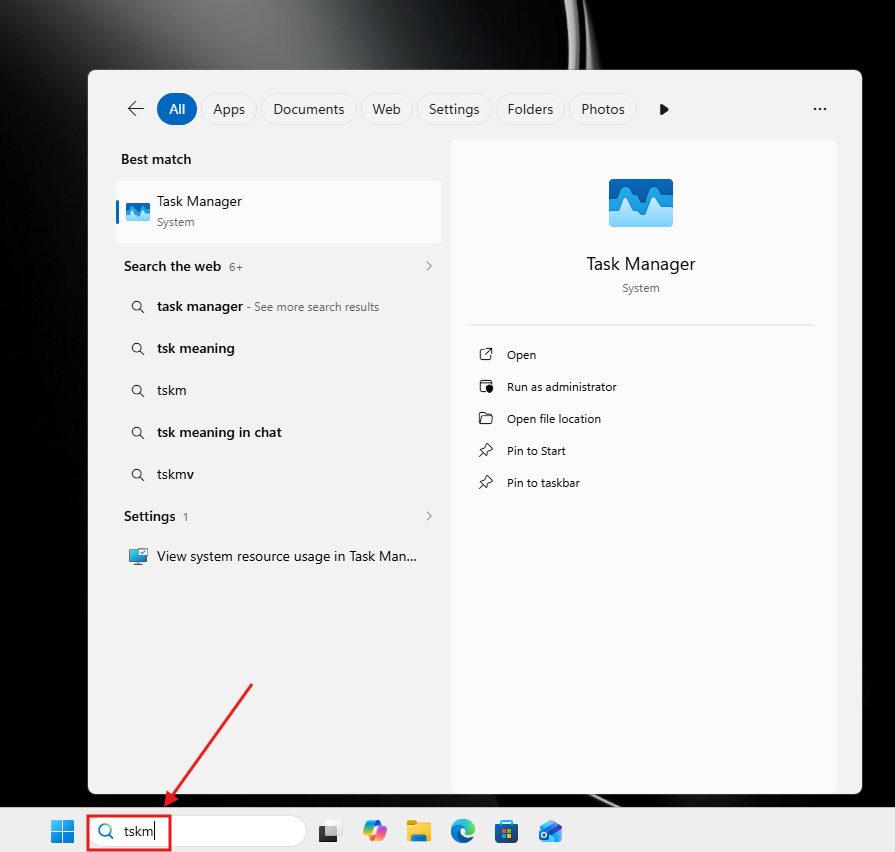
Windows Search can now clearly handle typos, extra characters, and missing characters better, and it’s just the beginning of the next big Search update, where you’ll also be able to turn off Bing entirely.
3. Low Latency Profile for apps
Windows 11 has a new feature called “Low Latency Profile,” and it rolled out to almost everyone in June 2026. As you may be aware, since we made a huge deal out of it, Low Latency Profile can make PCs feel faster, especially if you own hardware with a low-end CPU or just 8GB of RAM.
This feature works by telling the CPU to ramp up performance immediately instead of waiting for normal power-management rules to react to rising CPU usage. However, that does not mean Windows will use more CPU all the time, as the boost typically lasts only a few seconds when you open the Start menu or Notification Center, for example.
With Windows 11 KB5121003, Microsoft has started turning on Low Latency Profile for apps, which means apps will now launch visibly faster on low-end PCs. This is still rolling out, and it’ll become available on all PCs in the coming weeks.
4. Voice Access is rolling out Voice Isolation
Voice Access allows you to control Windows using your voice, and it’s now adding a Voice Isolation feature, which reduces background noise so Windows can better hear you when you speak.
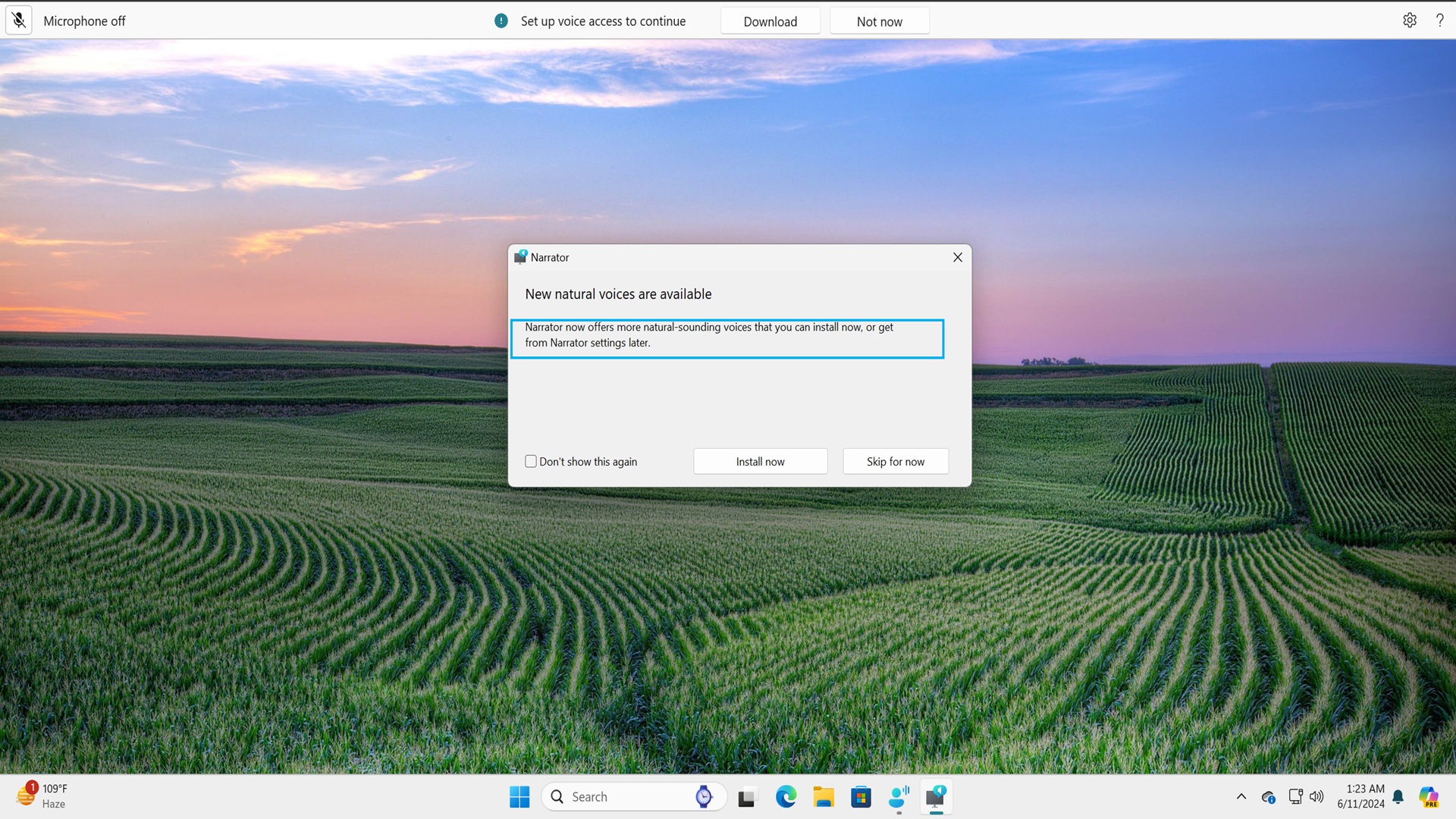
There are also three speech recognition modes after the Windows 11 KB5121003 update:
- Voice Isolation: This filters background noise, as I just explained, but it also removes other speakers in the background by recognizing just your voice.
- Remove background noise only: This filters background noise without isolating your voice from other speakers.
- No filter: This uses your microphone input without additional processing.
The post Windows 11 KB5121003 out with major changes, direct download links (.msu) appeared first on Windows Latest