
Secure Boot has been part of the PC ecosystem since 2011, but 2023–2025 finally pushed it into the spotlight, and not in a way Microsoft, OEMs, or firmware vendors might have liked. What was once a quiet, behind‑the‑scenes security feature suddenly became a front‑page story. Indeed, as the CA‑2023 certificate rolled out, it exposed long‑standing inconsistencies in firmware implementations, certificate handling, and update pipelines across the PC industry. To be both brief and brutal: it was neither pretty nor fun.
For Windows users, the result was a confusing mix of disturbing stuff. This included boot warnings, broken boot chains, and inconsistent or incoherent vendor guidance. The prevailing general sense was that Secure Boot, introduced to increase trust and reliability, had instead become a source of uncertainty and confusion.
This article unpacks the story of what Secure Boot is, how it works, why CA‑2023 matters, how vendors stumbled, and what users can do when Secure Boot updates fail. Along the way, I’ll explain every acronym, walk through the trust chain step‑by‑step, and offer practical guidance based on real‑world troubleshooting. I’ve just completed a grueling, if not epic, journey to get my small fleet of PCs (ranging in size from 10 to 15) fully secure boot-compliant and running from the CA 2023 boot certificates. It’s been quite a trip, and taught me more than I ever wanted to know.
What is Secure Boot and why is it important?
Secure Boot is a feature defined by the Unified Extensible Firmware Interface (UEFI), Intel’s modern replacement for legacy BIOS. Its purpose is to ensure that only trusted, signed bootloaders and operating system components can run during system startup.
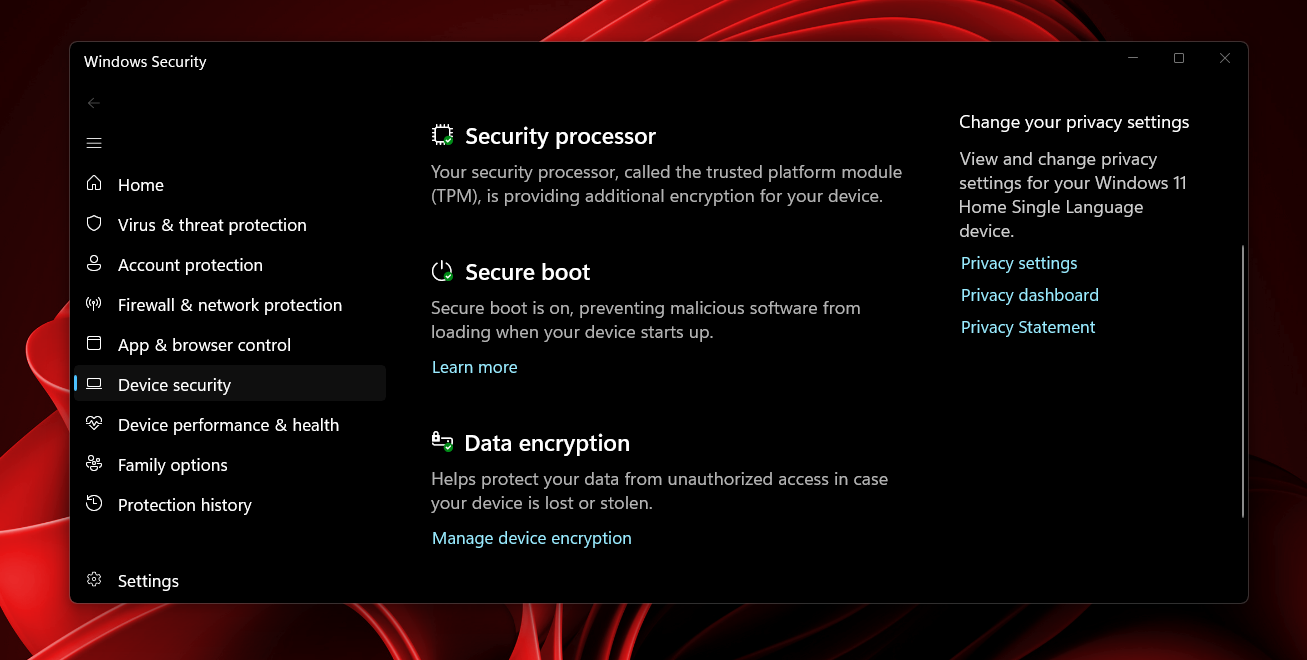
To accomplish this, Secure Boot relies on a set of cryptographic keys stored in firmware. These keys define what is trusted, what is allowed, and what is explicitly forbidden.
Here are the key components:
Platform Key (PK)
The Platform Key establishes the system owner. Whoever controls the PK controls the Secure Boot configuration. Typically, OEMs install their own PK at the factory.
Key Exchange Key (KEK)
The Key Exchange Key authorizes updates to the Secure Boot databases. Microsoft, OEMs, and sometimes enterprise administrators maintain KEKs. A valid KEK is a ticket that permits a third party to apply updates to certificates and databases maintained in UEFI.
Allowed Signature Database (DB)
This database contains hashes and certificates for trusted bootloaders and OS components. If something invokes a signature present in the DB, the firmware allows it to run.
Forbidden Signature Database (DBX)
This is the “revocation list.” Anything in the DBX is explicitly blocked — even if it was once trusted. DBX updates are how the industry revokes compromised bootloaders. The original CA-2011 got the whole Secure Boot thing started; MS plans to revoke this later in 2026. The CA-2023 will replace it, and is slowly but surely rolling out via Windows Update and OEM UEFI updates.
Why is Secure Boot important?
Secure Boot is designed to stop rootkits, bootkits, and other pre‑OS malware. If attackers can compromise the boot chain, they can hide from the OS, evade detection, and maintain persistence indefinitely. They will keep coming back because they operate outside and independently of the OS. Secure Boot puts a stop to such shenanigans.
In theory, Secure Boot is a clean, elegant solution. In practice, the Secure Boot ecosystem is messy, fragmented, and full of edge cases.
However, Secure Boot is both more important and more binary than ever. On the plus side, when it works, it works well. On the minus side, when problems present, they can be challenging, vexing, and time-consuming.
The Secure Boot compromise that triggered CA-2023
In early 2023, Microsoft announced a major security issue where older Windows Boot Manager binaries had been compromised in ways that could allow bypassing Secure Boot. To mitigate this, the company issued a new DBX update called the CA‑2023 revocation. This update added vulnerable bootloaders to the forbidden list and provided a new, signed boot loader with a matching certificate that was immune to such attacks and issues.
Why was this necessary?
Attackers had discovered ways to exploit older bootloaders to disable Secure Boot protections. Revoking those binaries proved essential to maintaining the integrity of the ecosystem.
Why did this break systems?
Many OEMs had:
- outdated firmware
- inconsistent DB/DBX handling
- broken update pipelines
- non‑standard Secure Boot implementations
- incomplete or incorrect key sets
- firmware that silently ignored DBX updates
- firmware that bricked systems when DBX updates were applied
In other words, the revocation exposed years of technical debt. In many cases, attempting updates was enough to impact PCs. In the best case, impacted PCs might not be able to restart (warm boot through the Power > Restart selections in the Start menu). Worst case, impacted PCs might be unable to boot, or even to access UEFI after powering on. Bad news!
Post CA-2023 Results
Millions of systems ended up in one of these states:
- Secure Boot enabled but not actually enforcing revocations
- Secure Boot disabled because updates failed
- Secure Boot stuck in “User Mode” with mismatched keys
- Systems unable to boot after DBX updates
- Firmware that refused to apply the CA‑2023 update at all
This was not a Microsoft‑only problem. It was an ecosystem‑wide failure. Obviously, this turned Secure Boot into a travail for users with systems that exhibited one or more of such issues. For my own part, one of my ASRock B550 Extreme4 based Ryzen 5 PCs exhibited most, if not all, of these failings. Eventually, I had to replace the motherboard to get past them.
How does the “Secure Boot Chain” work?
Alas, lots of steps pose ample opportunities for things to go sideways. That’s what makes this approach somewhat fragile and occasionally prone to hang-ups or outright failure. Things can break or fail if any one of the following cases presents:
- DB is missing a required signature
- KEKs are outdated
- PK is incorrect
- Firmware mishandles updates
- Bootloaders get mismatched (Windows maintains a separate copy in the C:Windows folder hierarchy, while another instance gets used from the EFI partition)
If any such item presents, Secure Boot may fail or fall back. It may also silently fail to enforce its security regime. Thus, for example, I found myself in a situation where every boot presented a message that (falsely) reported a “CPU change” and asked to confirm current or roll back to previous TPM security settings. Here’s what that looked like:
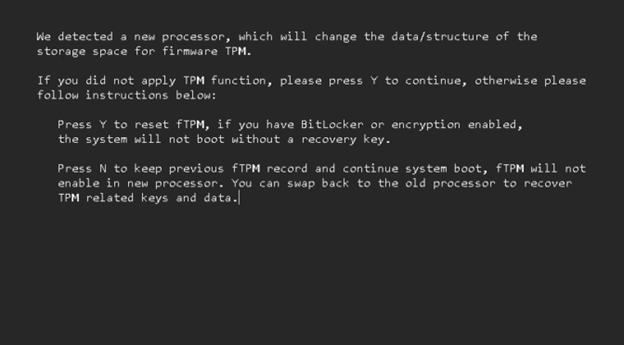
It’s a known quirk of the ASRock B550 Extreme4 UEFI that it reports a processor change even when Secure Boot changes or updates occur. For about two weeks, in fact, I had to enter “N” on this screen every time I rebooted my system to get to the Windows desktop. This made each reboot take at least 2-3 minutes, and bothered me no end.
Common Secure Boot issues across different Motherboard vendors
The CA‑2023 rollout revealed that different vendors had wildly different levels of firmware discipline. Some desktop and laptop PCs sailed through without problems; others experienced anything from minor setbacks to major issues up to an including unbootable systems. Let’s take a look at how various vendors fared in this situation.
ASUS
Some ASUS boards refused to apply DBX updates unless Secure Boot was temporarily disabled — a paradoxical requirement. Others applied updates but left systems in a “half‑revoked” state. The CA-2011 certificate might still be used (or not) even if the CA-2023 certificate was present.
MSI
- Some (but not all) MSI boards were notorious for:
- inconsistent DBX handling
- firmware that silently ignored updates
- Secure Boot modes that didn’t match UI labels
- systems that reverted to factory keys unexpectedly
ASRock
ASRock boards often required manual intervention for such things as:
- clearing keys
- reinstalling factory defaults
- re‑enrolling Microsoft keys
- manually applying DBX updates
Their documentation was sparse, and many users were left guessing. In my own case, I had two supposedly identical motherboards, both B550 Extreme4 models. One of them surrendered to manual, and Microsoft WU supplied updates. The other could never reconcile the pending updates from the OS (both WU and manually applied) to the contents of the various firmware databases. Indeed, that’s what provoked the ongoing series of “CPU change” warnings depicted in the previous section of this story.
Dell, HP, Lenovo (and other OEMs…)
Enterprise and consumer oriented PC and laptop vendors (including also Acer, ASUS, Dynabook, etc.) generally did better, but even they had:
- staggered rollouts
- inconsistent BIOS/UEFI update timing
- some systems that required multiple reboots to apply DBX changes
As I looked at read forum posts at answers.microsoft.com, TenForums.com, ElevenForum.com, and TechPowerUp.com, I saw hundreds upon hundreds of forum threads that sought help in dealing with Secure Boot issues. Many involved laptops, and many more involved desktops, particularly DIY home-brew builds or those from boutique builders who assemble best-of-breed commercial parts to build bespoke PCs for well-heeled buyers (see next section).
Custom‑built PCs
Motherboards from the same vendor might behave differently depending on:
- actual chipsets installed
- firmware branch
- release year
- OEM vs retail SKU
Overall, the lack of standardization has been obvious. The Secure Boot problems users encountered have been all over the place. Some have ultimately yielded to Windows Update or manual changes. Others have stubbornly resisted all attempts at repair or correction. I’ve personally been all over this problem space, with failures recently overtaken by successes (but failures, nonetheless).
What users can do if Secure Boot updates fail
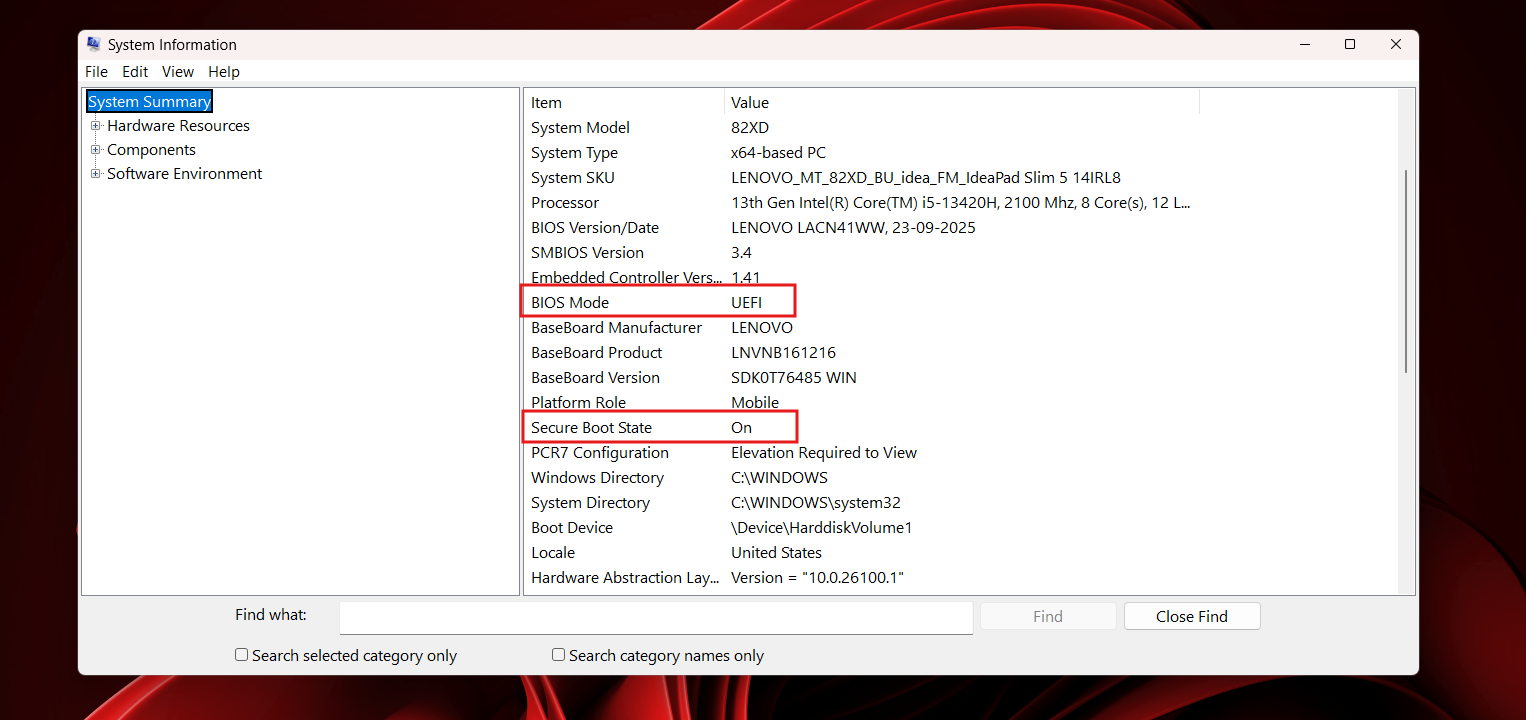
There are all kinds of ways in which Secure Boot can fail. Windows update may report success, but the DBX (revocations list) never changes. Firmware may report that Secure Boot is “enabled,” but it isn’t being enforced (the PowerShell confirm-SecureBootUEFI will report false in that case).
Systems may boot but fail compliance checks (see Garlin Scripts section later in this story for more details). Bootloaders may not match DB entries, or systems may boot only reluctantly or not at all after updates (as happened on my ASRock B550 Extreme4 system). There’s a lot going on here, so there are lots of things to try should one need to fix them. Let’s march through a list of possibly poignant causes and related fixes.
Mismatched Keys (PK/KEK/DB/DBX)
If the PK or KEK is outdated, firmware may reject database updates into the list of valid credentials and values (DB) or its list of revoked items (DBX). If that happens, it’s worth trying one or all of these fixes:
- Reset to factory or default keys (usually available as a selectable action in UEFI, when Secure Boot is in Custom mode)
- Re-enroll Microsoft keys (usually requires re-applying a Microsoft update, which entails an uninstall/reinstall maneuver, possibly via DISM—WU offers time-limited rollback)
Firmware Ignores DB or DBX Updates
On some PCs and laptops, UEFI won’t apply DB or DBX updates except under certain conditions. Secure Boot may need to be disabled. The Compatibility Support Module (CSM, which enables “dual boot” into either BIOS or UEFI modes; modern PCs are UEFI-only, but older models often go both ways) must be turned off. Sometimes, Secure Boot keys must be cleared (another UEFI option) must be cleared before updates will take. Experimentation may be needed to see what’s what; if you’re lucky, you’ll find info from other intrepid explorers who’ve already seen and solved your particular problem.
Outdated Bootloaders
Older Windows install media or repair/recovery disks may incorporate bootloaders that are too old to work with Secure Boot. Indeed, this mismatch will accelerate later in 2026 after Microsoft gets more deeply into revoking CA-2011 (which is what most older bootloaders incorporate). If a bootloader is too old, DBX may block it. Fixes are fairly straightforward because bootloaders don’t interact with firmware (UEFI). Try any of the following repairs in this case:
- Run Windows Update: it may replace an outdated bootloader with a current one
- Rebuild boot files using the bcdboot utility
- Make sure the EFI partition is healthy (and rebuild it if it isn’t)
Firmware Bugs or Oddities
Especially on older PCs, it’s a good idea to update (flash) the UEFI before getting into Secure Boot. For old enough PCs, though, updates into 2023 and newer may simply not exist. But for systems that require multiple reboots, specific firmware versions, or manual Secure Boot database (DB, DBX) imports, a few techniques will be helpful:
- Update the firmware to the latest stable version (consider beta versions only if all other options have failed: you don’t want to trade one cause of instability for another)
- Wherever available, use vendor-supplied capsules or updates to apply Secure Boot database changes (e.g., my MSI MAG Tomahawk didn’t work properly until I’d flashed its UEFI, which included Secure Boot and CA-2023 elements built right in)
- Let Windows Update do its thing only AFTER the firmware is current: new updates and old firmware make for a volatile and issue-prone environment, as I learned on the ASRock B550 Extreme4 build
All in all, if users attempt Secure Boot compliance work from firmware updates to Windows updates, and only get into manual UEFI operations if necessary, they’re far less likely to get stuck in some pothole along that road.
How the scripts help solve Secure Boot update issues
Some of the most interesting developments during the CA-2023 rollout has been the emergence of community-driven tooling and diagnostics. In particular, Eleven Forum VIP and Guru user Garlin has provided a 50-page+ thread with useful PowerShell scripts, and backed them up with incredibly useful support and discussion. His scripts do the following:
- enumerate Secure Boot keys
- validate DB/DBX entries
- detect mismatches
- identify outdated bootloaders
- verify enforcement status
- generate detailed reports
For many users, Garlin’s scripts were the first clear window into what their firmware was actually doing. As an illustration of what the Garlin scripts illuminate, Figure 1 shows the output of his script named Check_UEFI-CA2023.ps1, captured from my recently rebuilt MSI MAG Tomahawk B550 desktop:
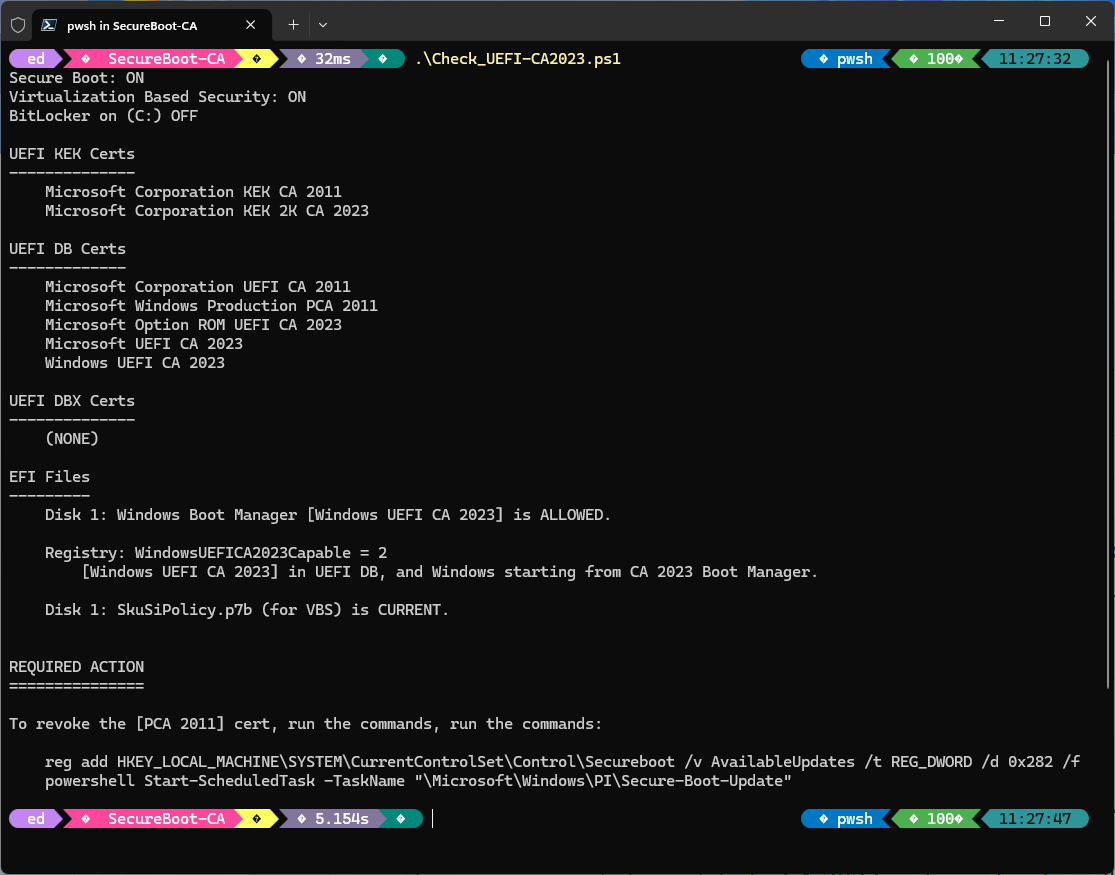
Careful examination of the screenshot above shows the PC has both CA 2011 and CA 2023 Key Exchange Keys (KEKs) installed, with DB certs for UEFI CA 2011, Windows PCA 2011, and three flavors of CA 2023. The DBX certs list is empty (if you look below, you’ll see that CA 2011 hasn’t yet been revoked; once that happens, those entries should move here).
EFI files show that the boot manager allows UEFI CA 2023, as does the registry, and the latest Secure Boot code integrity policy is in place. MS uses this policy to block vulnerable or rollback-susceptible boot-critical binaries, particularly for Virtualization Based Security (VBS, as mentioned in the second item in the script’s overall output).
Finally, the script output shows the older CA-2011 certification hasn’t yet been revoked. That’s deliberate: I’m waiting to see how and when Microsoft will handle this through Windows Update, as they’ve promised to do sometime in the second half of 2026. We’ll see how that turns out…
Why these Scripts matter
Vendors rarely expose a PC’s full Secure Boot state. Windows surface only part of this picture. Firmware UIs are inconsistent and often call the same things by different names. Garlin’s scripts show us what’s going on inside the Secure Boot sphere, and tell us what actions might need to be taken to complete the overall process of updating and catching up.
What to do when Secure Boot won’t apply updates
Here’s a practical, step-by-step recovery workflow.
Step 1: Verify Current State
Use PowerShell or Garlin’s scripts to check:
- PK
- KEK
- DB
- DBX
- Enforcement status
- Bootloader versions
Step 2: Update Firmware
Install the latest BIOS/UEFI update.
Step 3: Reset Keys to Factory Defaults
Disable Secure Boot, set Mode to Custom, then reset or install factory default keys (different UEFIs use varying terminology). Whatever they call it, this often clears mismatches.
Step 4: Re-enable Secure Boot
Ensure CSM is disabled (it often gets turned on when UEFI gets updated; it must be turned off for Secure Boot to be enabled).
Step 5: Apply DBX Update(s)
Use Windows Update or vendor capsule(s), as available. Check the system (or motherboard) vendor’s support pages to look for UEFI and related updates. That’s what did the trick for my MSI MAG Tomahawk B550 motherboard.
Step 6: Rebuild Boot Files (if needed)
You can use built-in commands to recreate your boot files by running the bcdboot C:Windows /f UEFI command. Sometimes, it may be necessary to boot to a repair or rescue disk and run this from the Windows Recovery (WinRE) environment. It is always safer to take this approach, and it will get you past boot problems or secure boot policy blocks if and when they should pop up.
Step 7: Re-verify State
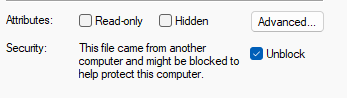
Confirm DBX contains CA 2023 entries. Indeed, this would be a good time to run Garlin’s Check_UEFI-CA2023.ps1 script. (Note: if you look inside the file’s Properties window and check the Unblock option, you can run this script in PowerShell without changing or bypassing local execution policy. This is depicted in the screenshot below)
IMO, the Secure Boot Ecosystem needs reform
The gradual rollout of CA 2023 and recent efforts to catch systems up to current Secure Boot compliance have been interesting. But it has also exposed a wide range of systemic issues and problems. For one thing, firmware vendors lack consistent implementations and terminology, so it falls on IT pros and other installers to make things work. To exacerbate things, documentation is often poor, and fails to address remediations when things break or don’t work properly.
Right now, update pipelines are fragile. One misstep (such as failing to set Secure Boot to Custom mode before seeking to reinstall default keys) can cause the update process to get stuck, and can interfere with normal boot behaviors. On one of my ASRock desktops, I couldn’t restart that PC normally, and could only use a deep, cold boot to get into UEFI or run through the boot cycle (this lasted two weeks before I switched motherboards to get things working normally again). This also drives my observation that OEMs and motherboard vendors vary widely in quality of Secure Boot implementation and handling. At the same time that the ASRock mobo was driving me bonkers, I had no problems with any of my Lenovo systems (some dating back to 2018), nor my Dell mini-PC or an ASUS Snapdragon laptop, either.
What I learned during this process is that Secure Boot is only as strong as its weakest link. Some systems, alas, have weak links. Many of those weak links turn what should be a routine update into a struggle. Some of them can require even more drastic measures, like a system replacement or motherboard swap.
What Microsoft, OEMs, and users must do
All the kids on this playground need to do certain things to improve the current Secure Boot morass. In my opinion, here’s how this shakes out across Microsoft, OEMs and the user community. To begin with, Microsoft should enforce stricter certification, with improved diagnostics and better tools (Garlin’s scripts are pretty straightforward in hindsight; there’s no reason why MS can’t offer more polished implementations to help things along).
Next, the OEMs could do a lot to standardize firmware behavior and adopt consistent terminology. They can test their DB update more and more thoroughly, and provide more insight and clarity into Secure Boot state and values in their UEFI interfaces. A robust, automated rollback tool would also help undo incorrect or bad choices.
And finally, users should take security more seriously. This means updating firmware as new updates emerge, and resolving to use (not disable) Secure Boot except when installs, configuration changes, or updates demand it be turned off (temporarily). Users should also verify their Secure Boot databases periodically to make sure they’re current and correct, and make sure their EFI partitions are healthy and up-to-date.
If everybody does their part, Secure Boot can do its job of protecting systems from boot and root-level compromise and attack. That’s pretty important, so I think it’s worth doing.
Secure Boot still matters, but it needs work
Secure Boot remains an important defense mechanism in the Windows security model. But the CA 2023 saga shows that this ecosystem is fragile, inconsistent, and overdue for modernization. The good news is that the industry is learning. Firmware vendors are improving. Microsoft is tightening requirements. Community tools are filling gaps. But the lesson is clear: trust is no set-it-and-forget-it thing. Trust must be maintained, verified, and occasionally repaired. Secure Boot is no exception.
My closing advice is to watch the time ticking as you work to solve Secure Boot problems, should they present themselves. If a problem takes half a day to fix, that’s tolerable. Any longer than that, and it’s time to start thinking about alternatives, workarounds, and replacements. While you’re thinking, you can turn Secure Boot off: Windows still works without it. But you may, as I did, decide to replace balky, stuck hardware components rather than keep fighting, with no certain resolution in sight. It’s up to you!
The post Windows 11’s Secure Boot 2023 updates are failing across some PCs, exposing a wider firmware problem appeared first on Windows Latest