
Microsoft is testing a new feature that lets you select a specific date and pause updates until then. This replaces the existing dropdown menu on the Windows Update page that allowed you to pause updates for up to five weeks, and it may also mean that Microsoft is finally doing away with forced Windows updates.
Windows as a Service’s advantage is also its biggest problem: frequent updates. Windows 11 is regularly updated, at least twice a month, and sometimes three or four times when there are multiple out-of-band updates to patch issues caused by previous updates.
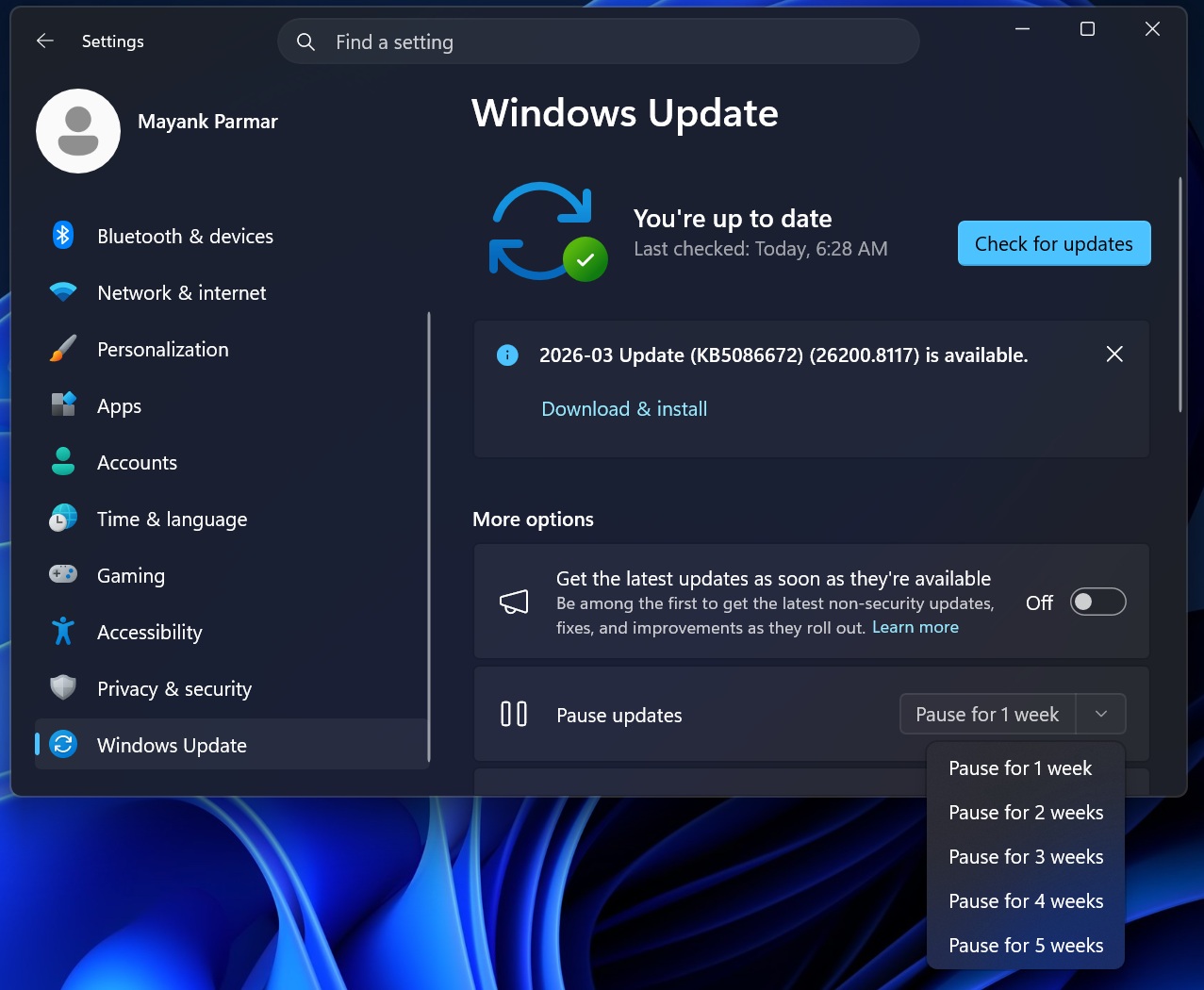
Right now, if you go to Settings > Windows Update, and tap the dropdown menu next to ‘Pause for 1 week‘ under More options, you’ll see options to pause updates for 1, 2, 3, 4, and 5 weeks. 5 weeks is the upper limit via Windows Update, unless you use Windows 11 Pro or Enterprise, where you can defer updates for months or even a year.
Microsoft previously told Windows Latest that it’s working to make Windows 11 calmer and less annoying by giving you greater control over Windows Updates. Microsoft also said it’ll let you pause updates for as long as you want.
Some users argued that it was just a PR move, as Windows 11 was under heavy criticism on social media, but as I mentioned earlier, it is not. Microsoft appears to be serious this time, and we’re now seeing early signs of the feature in preview builds ahead of its wider rollout.
As spotted by Phantom on X and verified by Windows Latest, Windows 11’s Update Settings page now has a calendar flyout for pausing updates.
This means you can now pick a specific date in the calendar year and pause updates until that day.
I tested Windows 11’s new tool that could eliminate forced Windows Updates
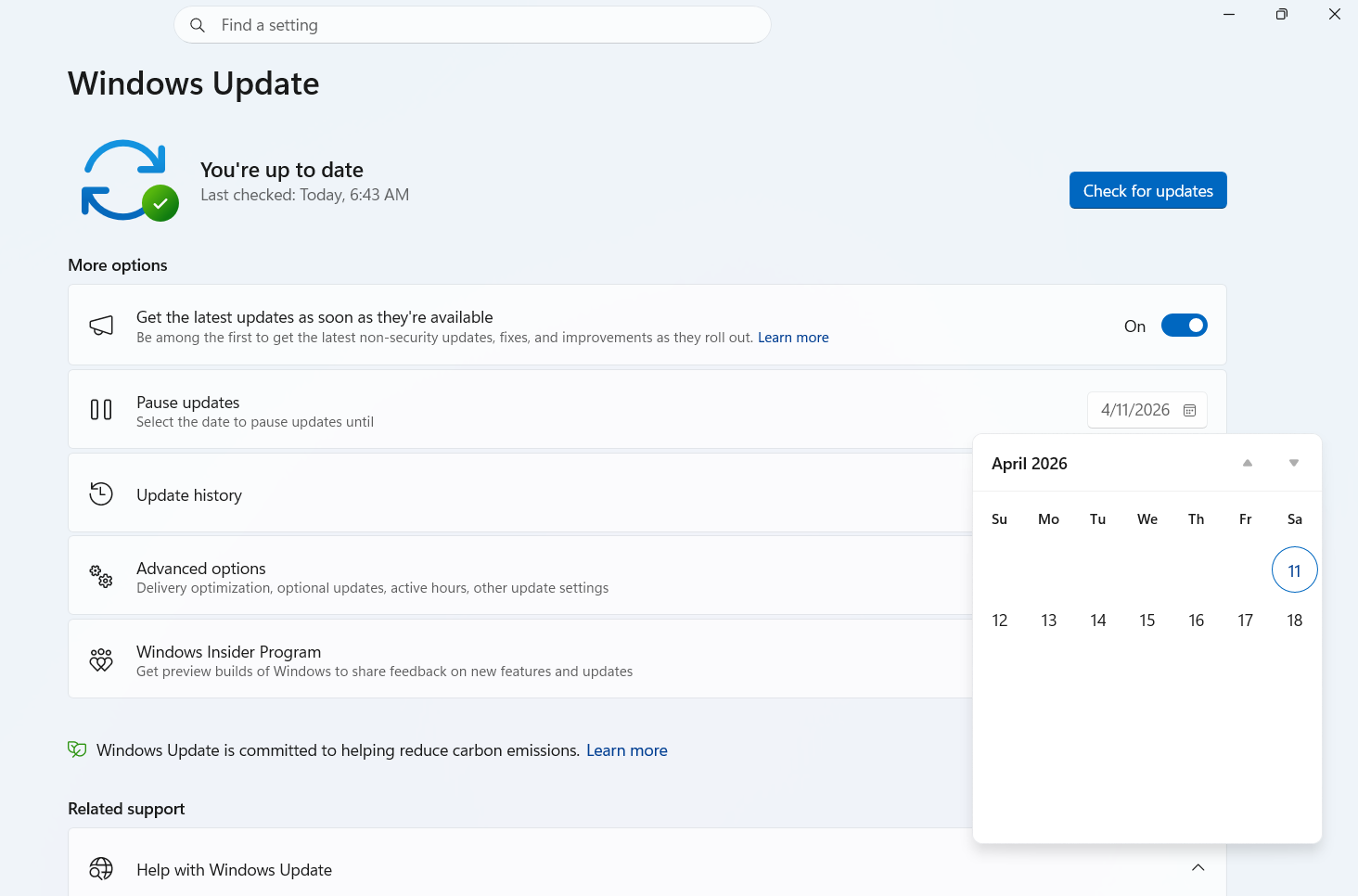
To get started, you just need to click the Calendar icon and select one of the dates in the calendar. I selected April 15, and updates are paused until the 15th. It’s really that simple, as it should be. I can still click on the calendar button, change the date to another month, and Windows Update will reflect the change without checking for updates.
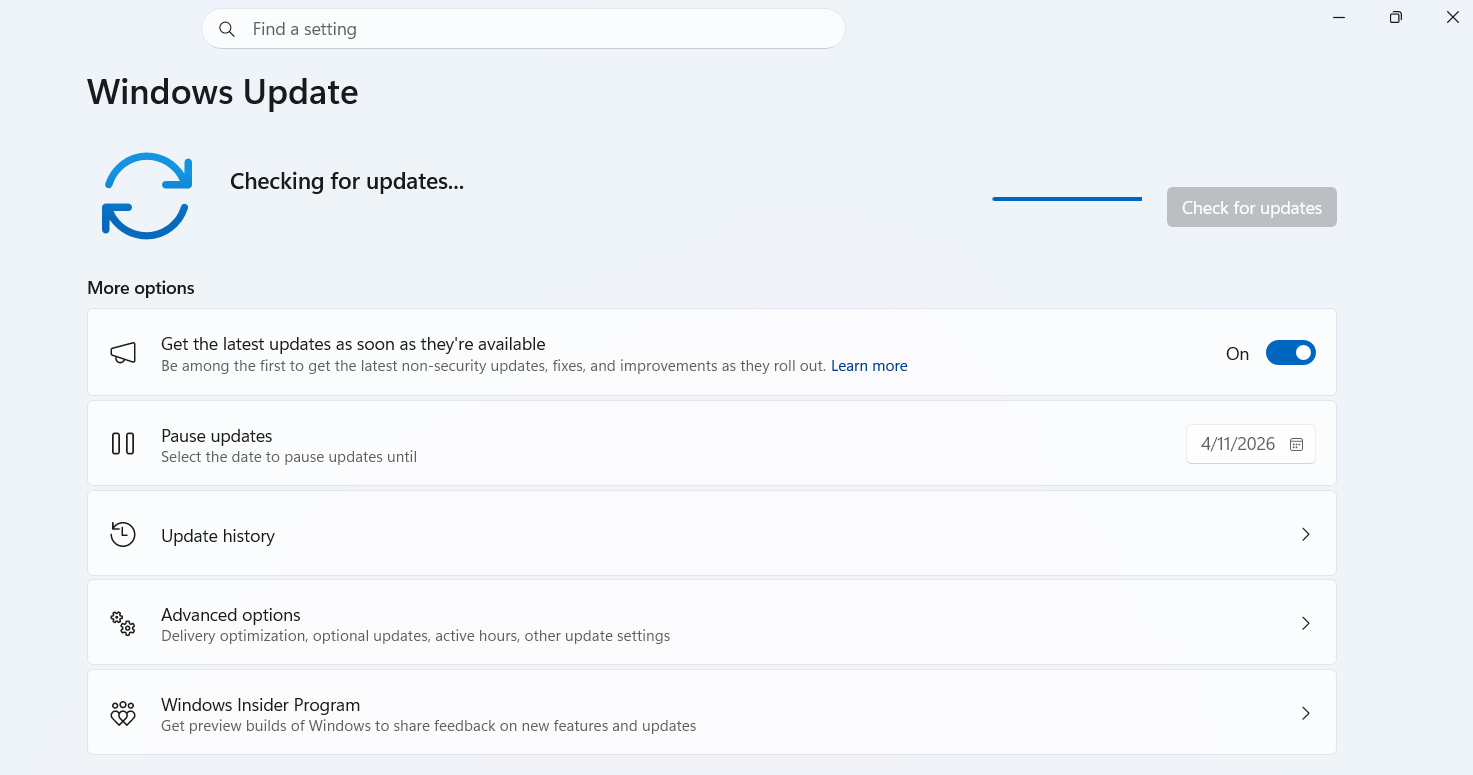
In our tests, Windows Latest observed that the new Windows Update pause controls are still under development, which is why the dates do not load.
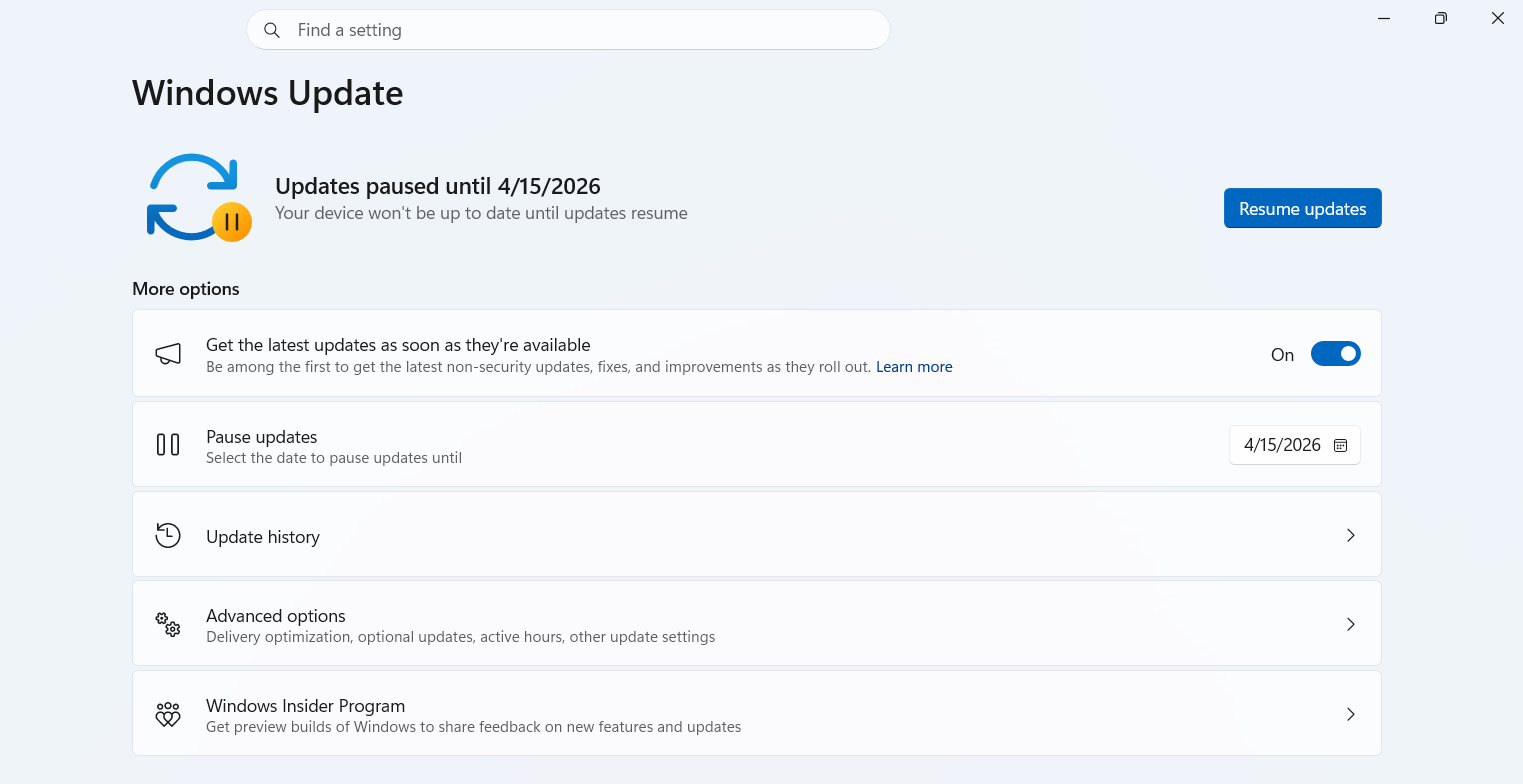
If you click on the ‘Resume updates’ button, it resets the deferral settings and begins checking for updates automatically. This is expected behavior, and that is how it works right now when you pause and resume updates.
At this point, we don’t know if there’s still an upper limit, but I wouldn’t be surprised if you can’t pause updates for more than a year, which is also the limit via Group Policy.
It might sound like a small “tweak,” but I’d call it a massive shift from Microsoft’s long-standing policies toward Windows updates.
I’m told that Microsoft is also looking into reducing the time it takes to install large Windows updates and giving you greater control over third-party drivers, so they don’t disrupt your experience.
Microsoft previously told us that there are plans to ensure that PCs do not reboot more than once automatically, even if you leave your settings to default.
The post Tested: Microsoft may finally end forced Windows 11 updates with a new pause feature that gives you full control appeared first on Windows Latest