
In 2026, Microsoft might be one of the most criticized companies out there, thanks to its aggressive push into AI and the current state of Windows 11. But at the same time, it’s also behind one of the best tools you can install on any OS. Of course, I’m talking about PowerToys.
With the latest PowerToys update (version 0.98), Microsoft has introduced a new Dock for the Command Palette, and it immediately caught my attention.
The Command Palette itself has already been one of the most useful utilities in PowerToys, but turning it into something that can be pinned on your screen can potentially change how you interact with Windows entirely, and in a good way.
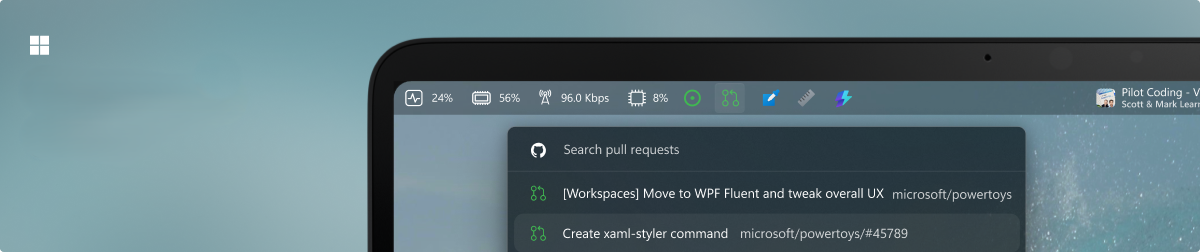
So I went hands-on with the new Command Palette Dock to see if it’s just another feature I try once and forget, or something that can actually replace parts of my daily workflow.
What is the new Command Palette Dock?
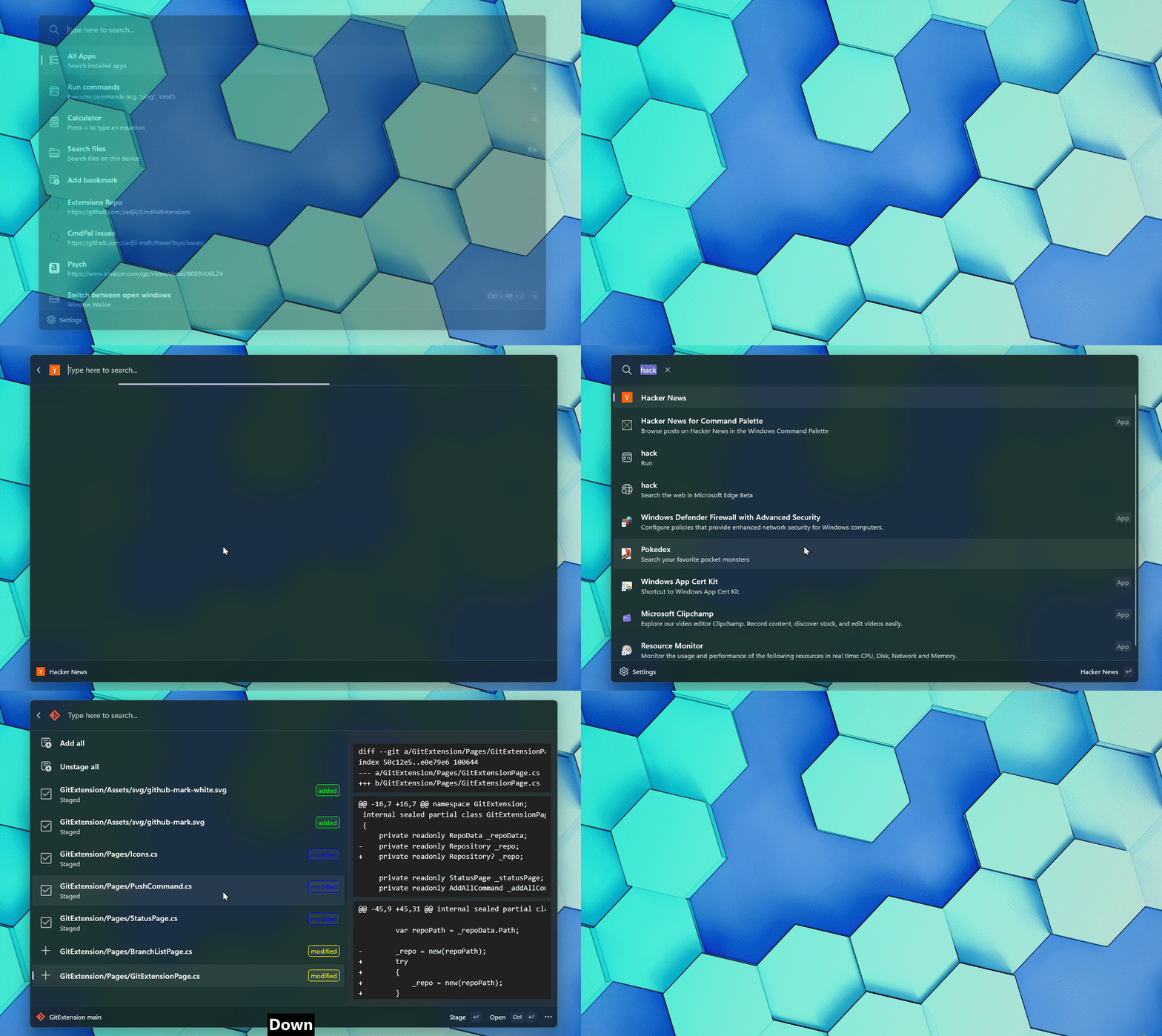
For context, the Command Palette is a quick‑access launcher inside Microsoft PowerToys that lets you run system commands, open apps, and trigger utilities from a single search box, similar to Spotlight on macOS.
And as you already know, PowerToys is an open-source project with a plethora of tools to “supercharge and customize” Windows. You can keep track of the latest features, updates, and what the developer team is working on, straight from the PowerToys GitHub repo.
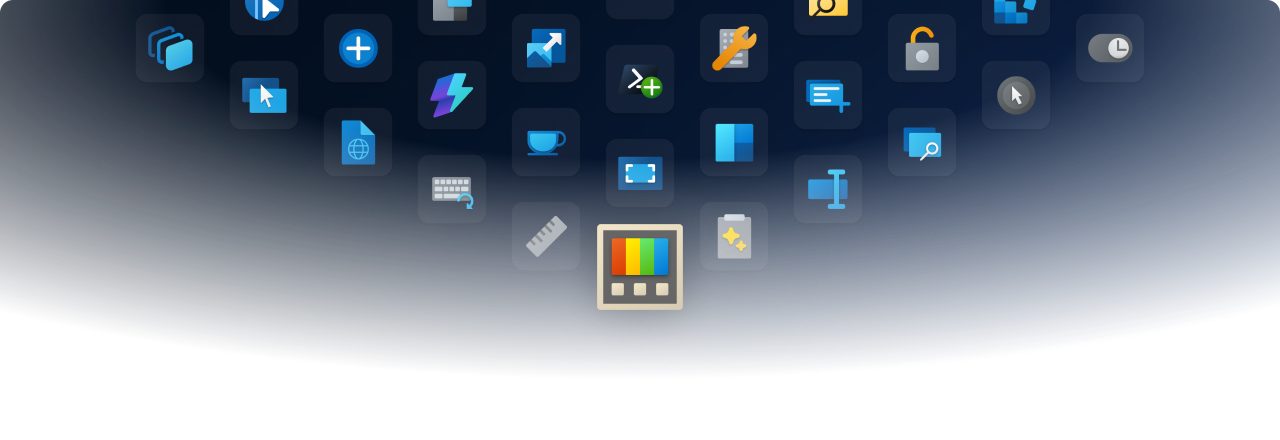
Speaking of updates, the March 2026 0.98 update for PowerToys brings with it a host of new features, including the Command Palette Dock, a brand new keyboard manager, improvements to CursorWrap, ZoomIt (which is a screen zoom, annotation, and recording tool), and a few other nifty tools as well.
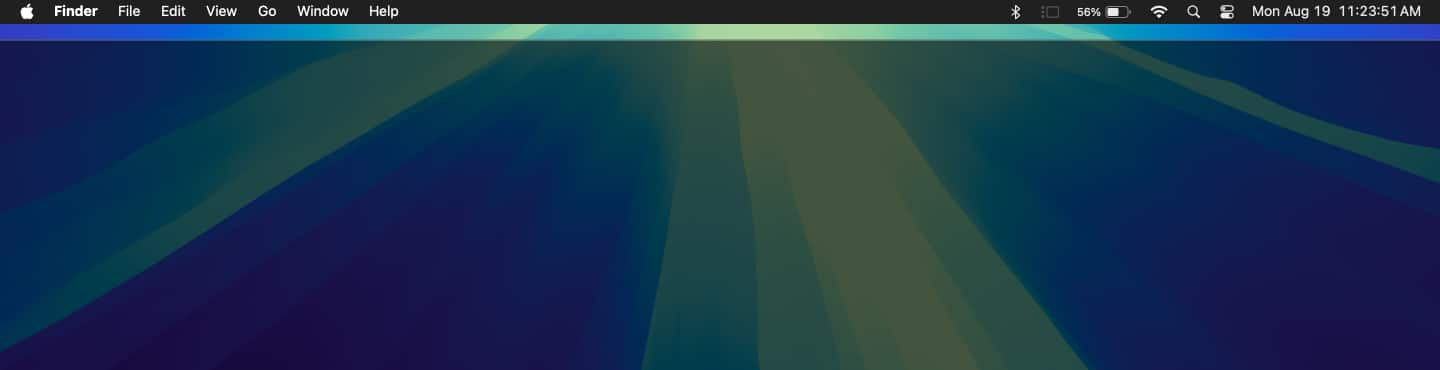
However, it’s the Command Palette Dock that seems to be getting all the love, mostly because it can be placed on any edge of the screen, unlike the Windows 11 Taskbar, and it looks a lot like the macOS menu bar.
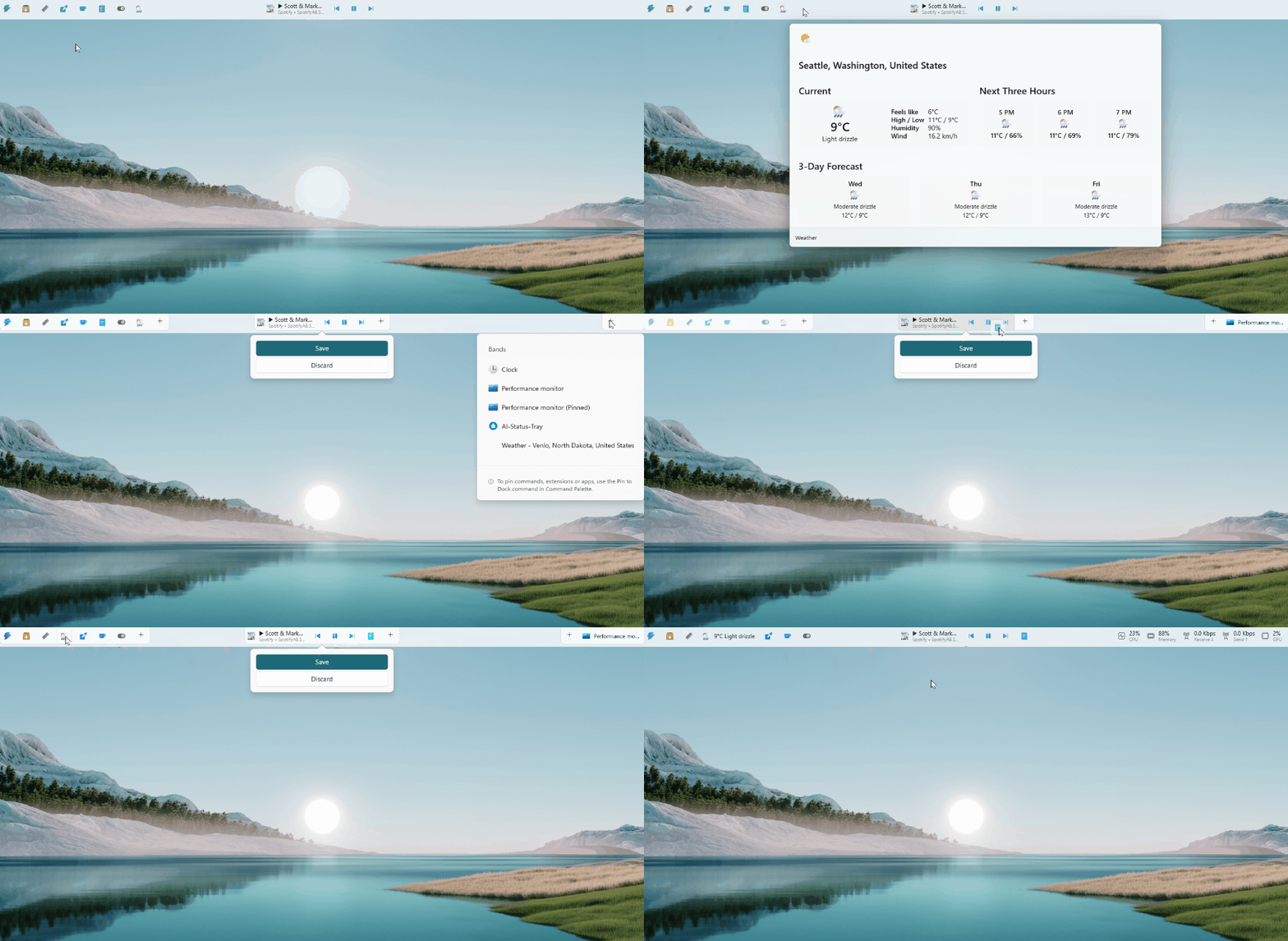
The Command Palette Dock is an optional tool that you can pin to the edge of your screen, and you can see information like CPU usage, memory usage, as well as pin any commands that you want quick access to.
How to enable Command Palette Dock in PowerToys
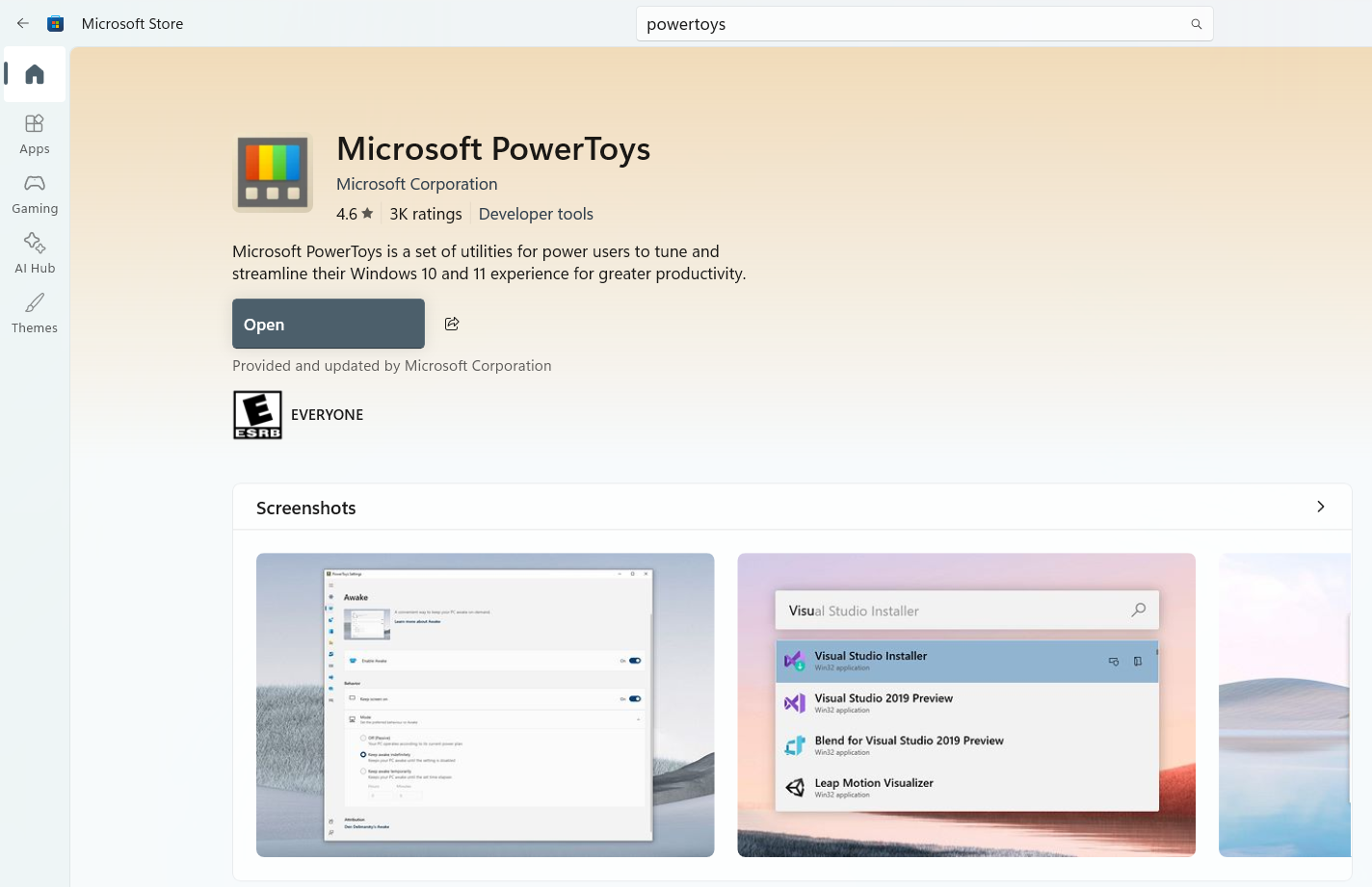
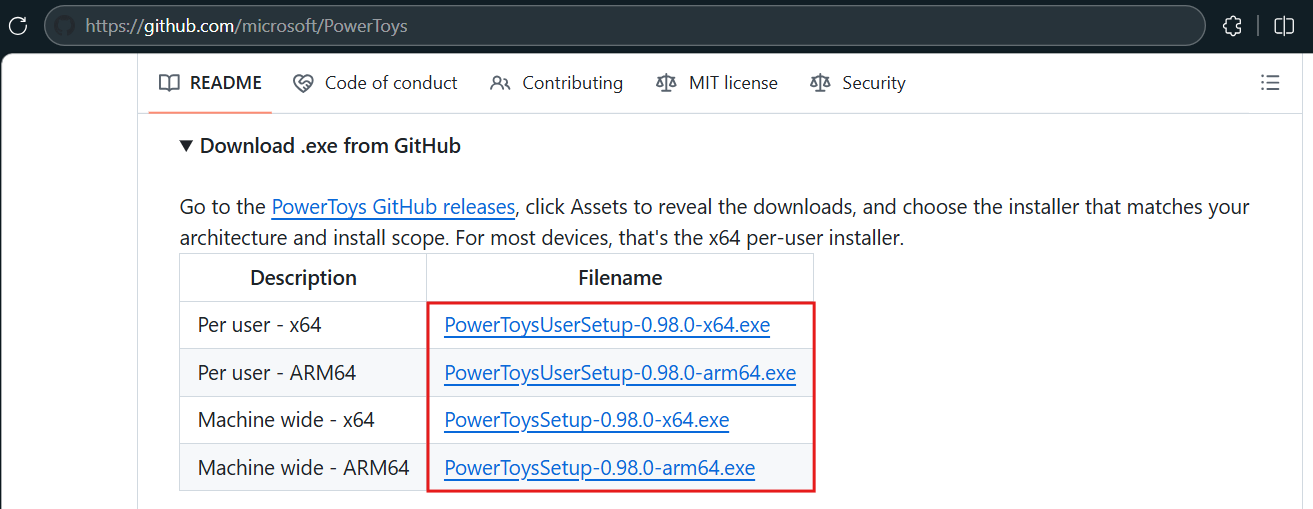
If you don’t already have PowerToys installed, you can grab it from the Microsoft Store, GitHub, or just use Winget. The installation package is around 377MB.
To install PowerToys with WinGet, open the command line or PowerShell and run the following command:
winget install Microsoft.PowerToys
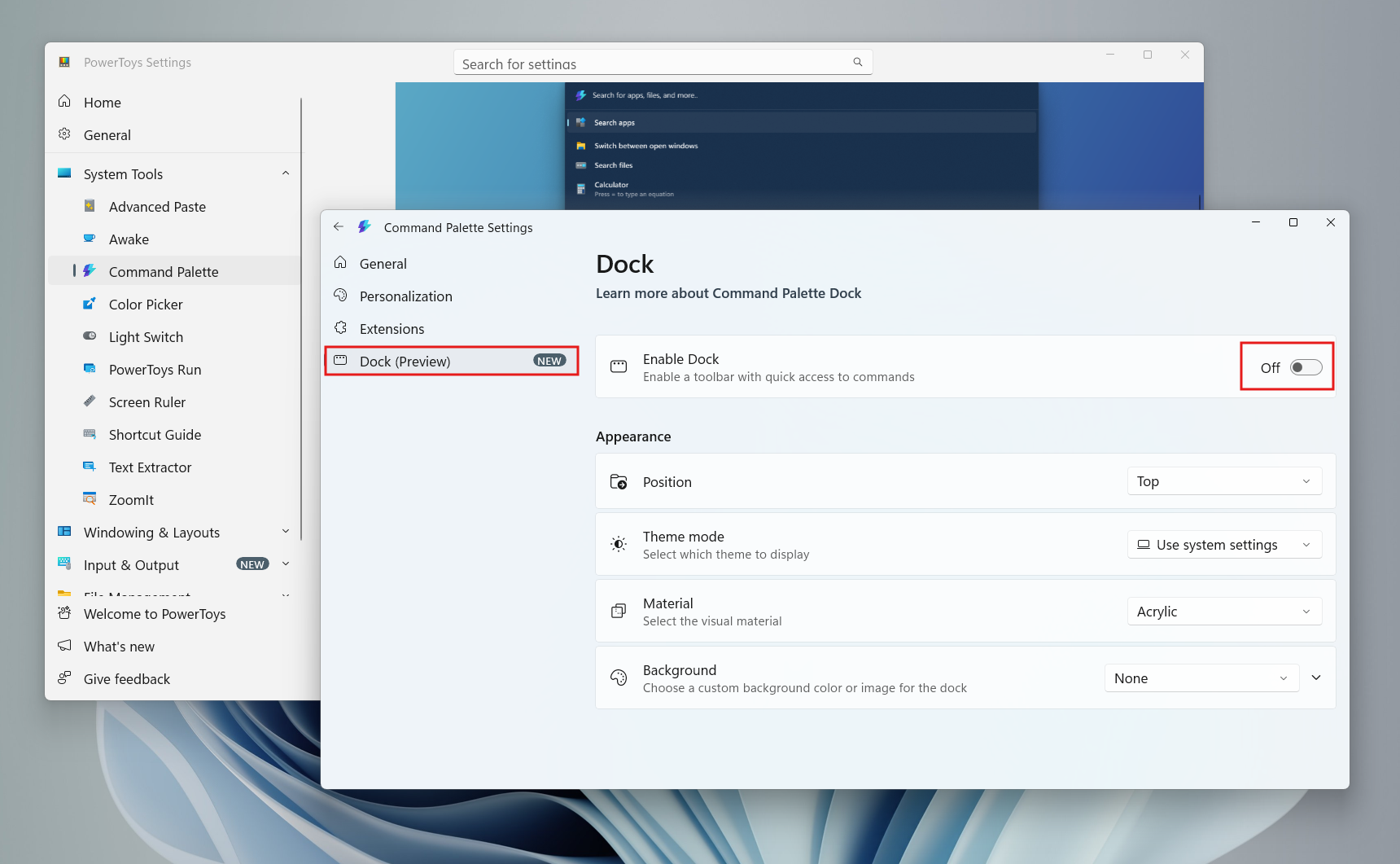
To enable Command Palette Dock, open PowerToys and click System Tools on the left, click Command Palette, and on the right side, click the Command Palette Settings.
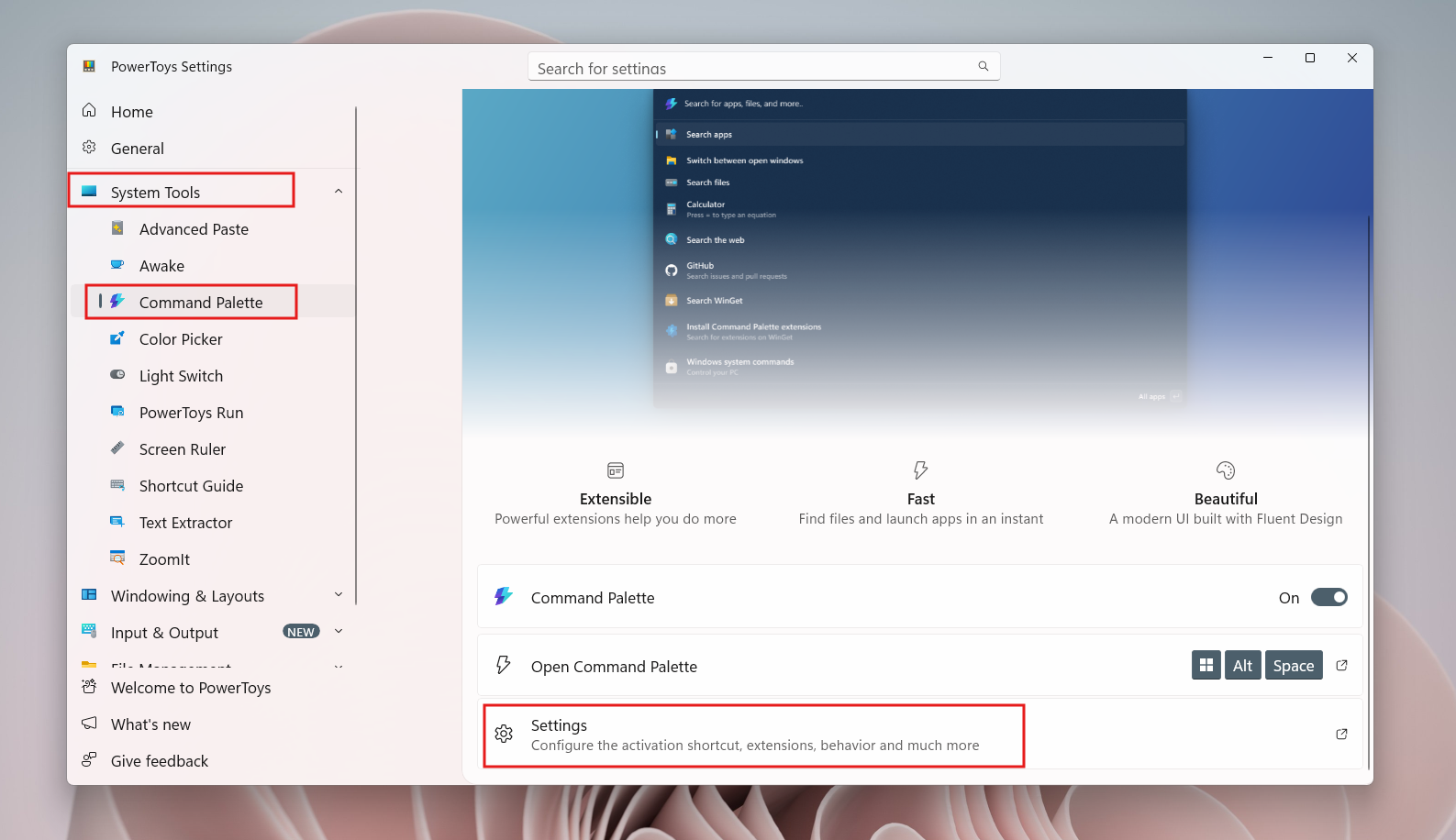
On the Command Palette Settings page, you’ll find the Dock (preview), select it, and turn on the Enable Dock toggle.
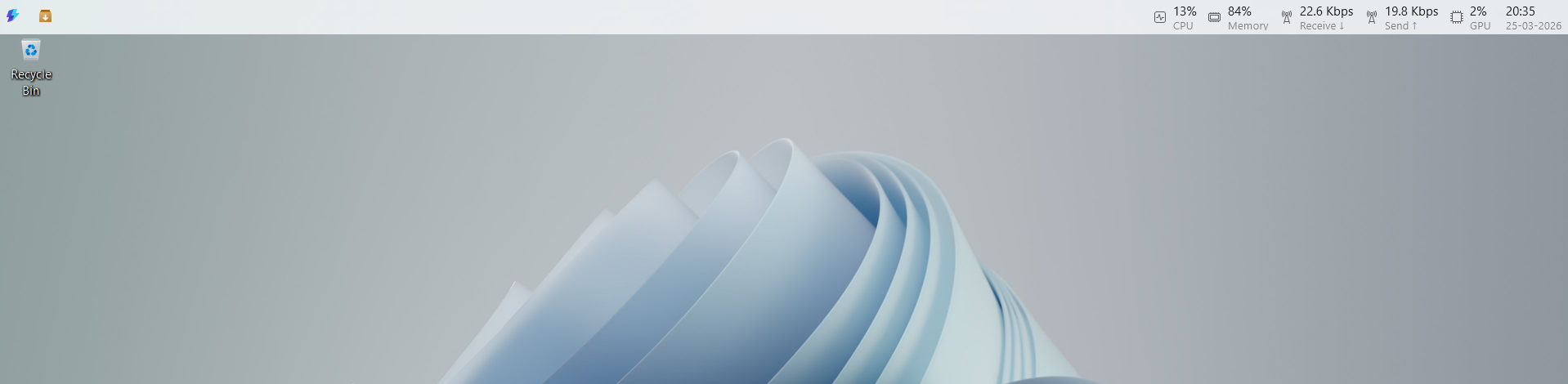
You’ll see the Dock instantly appear on top of your screen. That’s it. You don’t even have to restart.
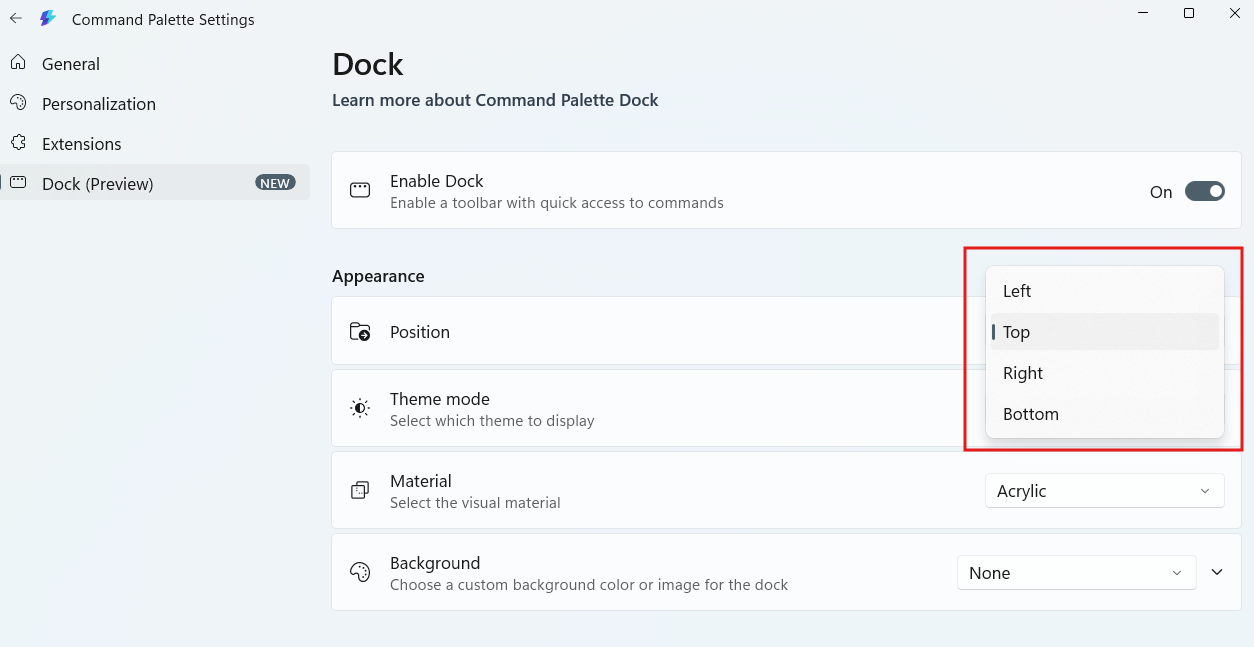
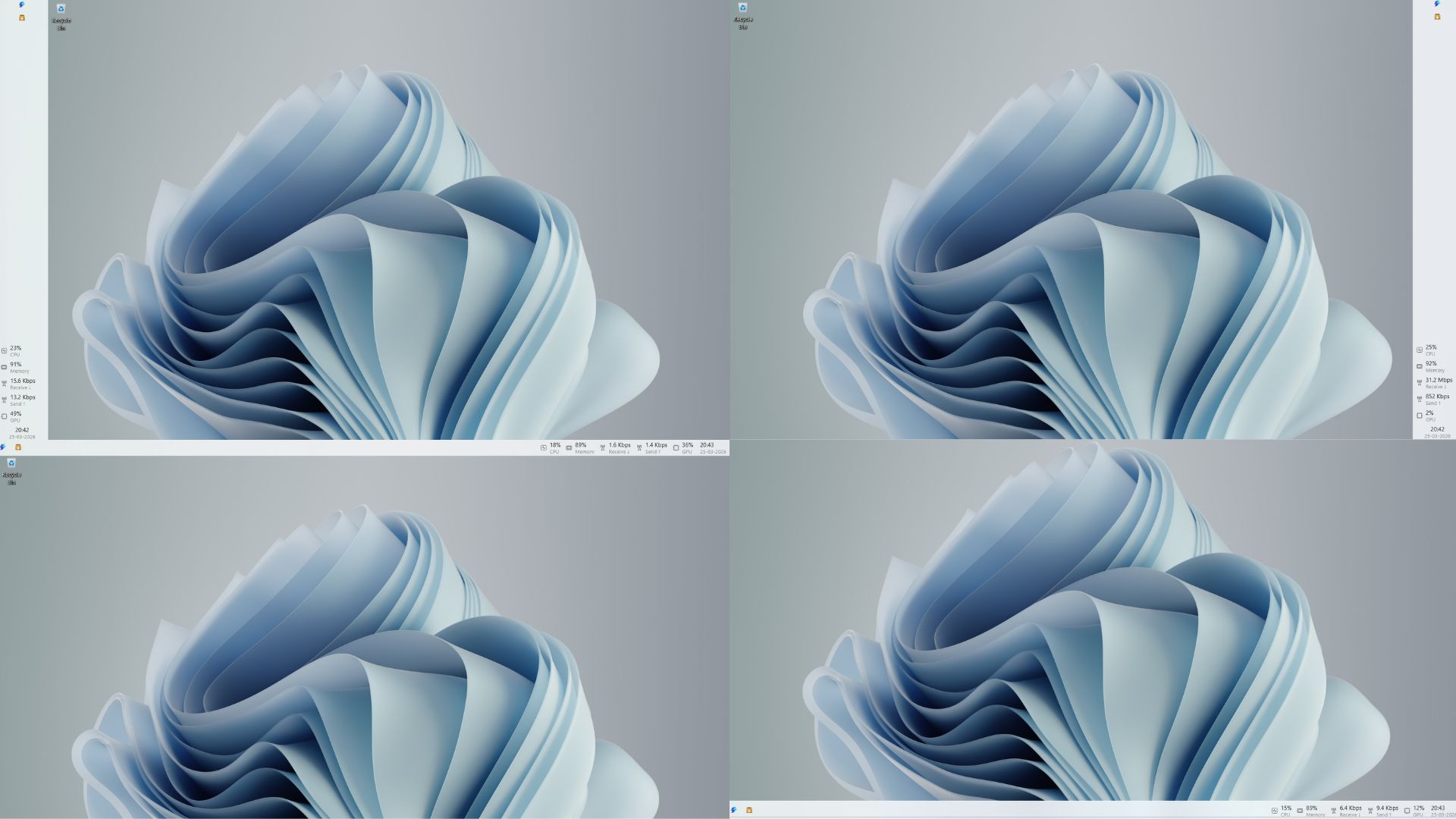
While we’re on the Dock page, let’s see the several customization options. You can change the default Dock position from Top to Left, Right, or Bottom, something which the Windows 11 taskbar can’t do as of now.
In my eyes, the Dock looks best at the Top edge of the screen. And as you might have heard, Windows 11 Taskbar is also getting the ability to change taskbar positions.
You can also switch between light and dark themes for the Dock and even change it from the default Acrylic look to a transparent one. To better suit your wallpaper, you can change the Background and color as well. Even an image can be added as a background for the Dock.
First impressions of the default Command Palette Dock
In the Dock, Microsoft has already pinned a few useful items to give you a sense of what it can do, and honestly, it’s a pretty smart default setup.
On the left side, you’ll first notice a shortcut that opens the Command Palette itself. Clicking on it brings up the familiar search interface where you can type commands, launch apps, or run quick actions.
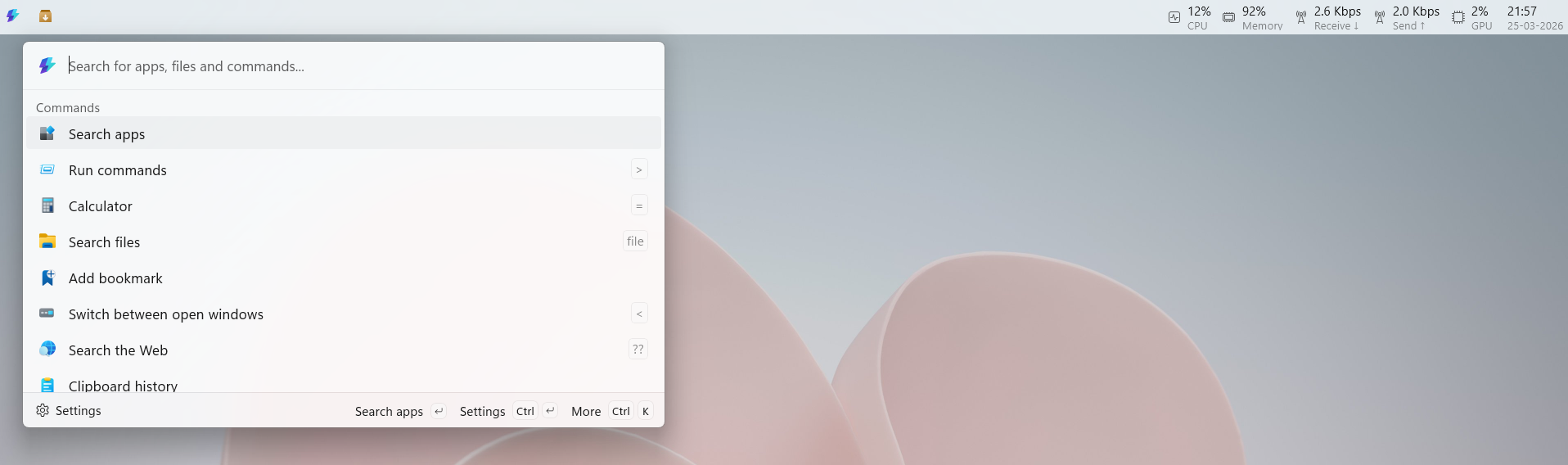
For example, you can type something like “Task Manager”, “PowerShell”, or even do quick calculations like “125*8”, and it just works instantly.
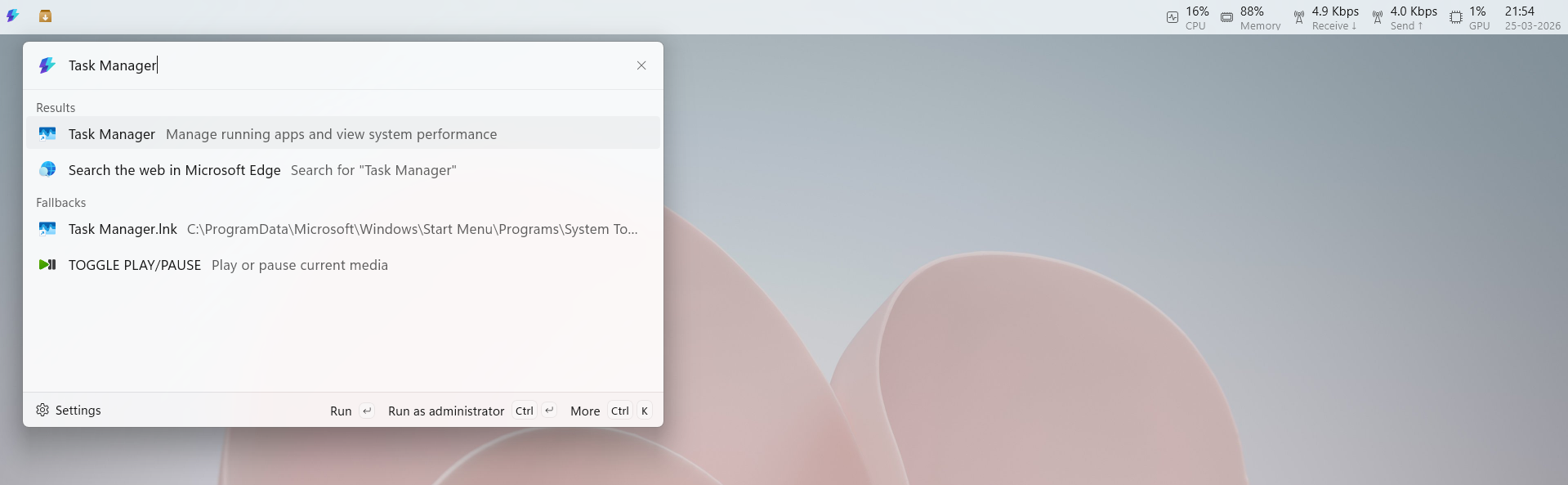
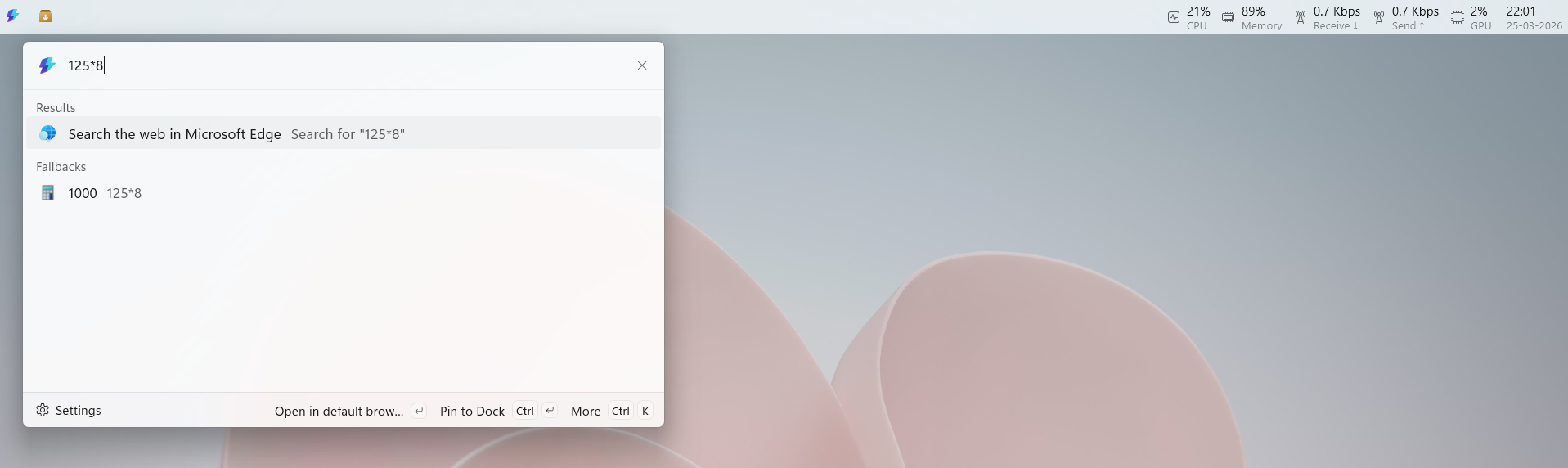
If you’re already familiar with the Command Palette that shows up when you click Win + Alt + Space, then you’ll feel right at home. And having it on the Dock itself makes this feel like a better version of Windows Search.
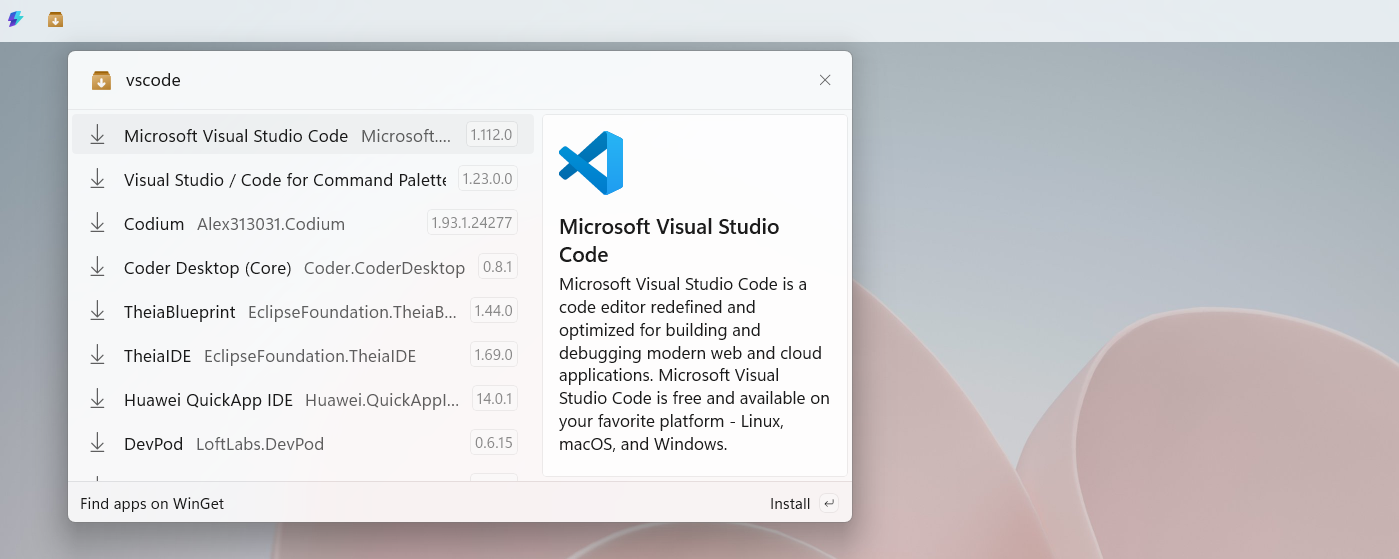
Right next to it is the WinGet integration, which is surprisingly useful if you’ve never used it before. Instead of typing commands in a terminal, you get a proper UI to search and install apps. For instance, you can type “vscode” or “powertoys”, and it will show you the package with descriptions, versions, and even links directly from the repository. It’s basically WinGet without the command line, which makes it far more accessible.
Now, coming to the right side of the Dock. You’ll see live system stats for CPU, GPU, memory, and network usage. At first, it looks like a simple glanceable widget, but it’s actually interactive.

Click on any of these, and it opens up a small animated graph showing real-time usage. From there, you can even jump straight into Task Manager if you want more detailed information. I often go to the Task Manager to see system resource usage, just out of curiosity, and seeing these stats right on the top of my screen is pretty handy.
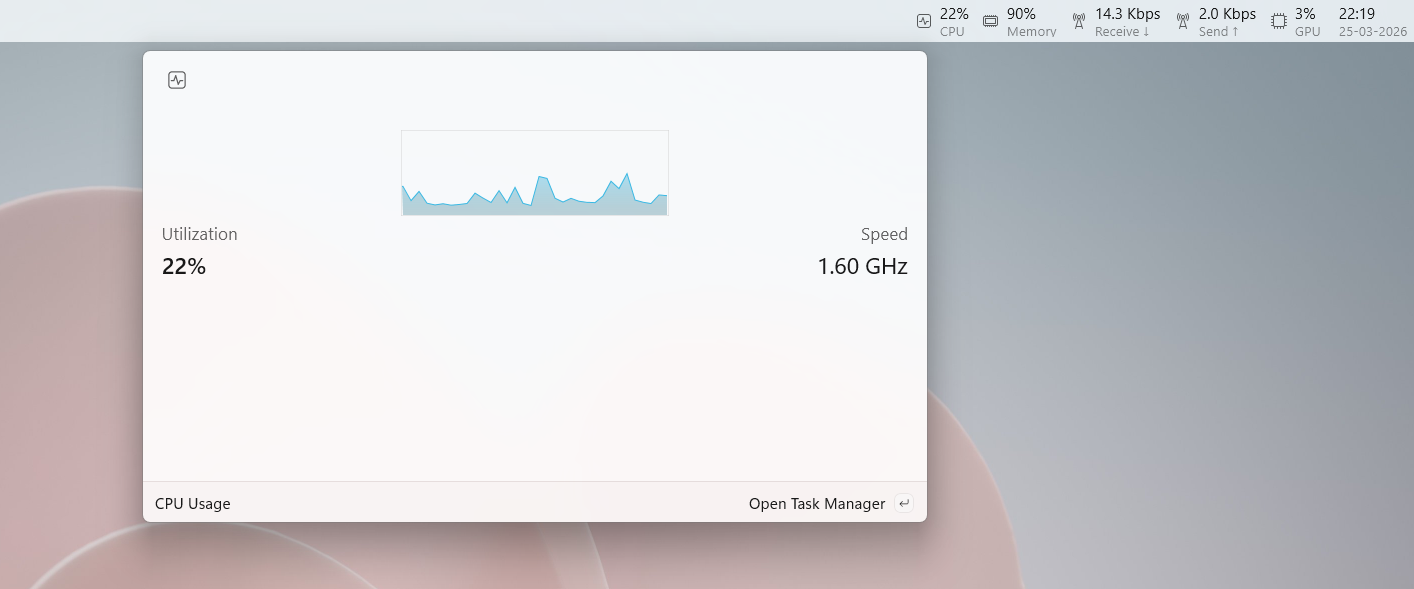
Finally, there’s the clock and the date on the far right, both of which you can copy to the clipboard.
It’s a simple default layout, but it’s just the tip of the iceberg, and the Dock’s real capabilities lie in how you customize it.
Adding built-in extensions to the Command Palette Dock
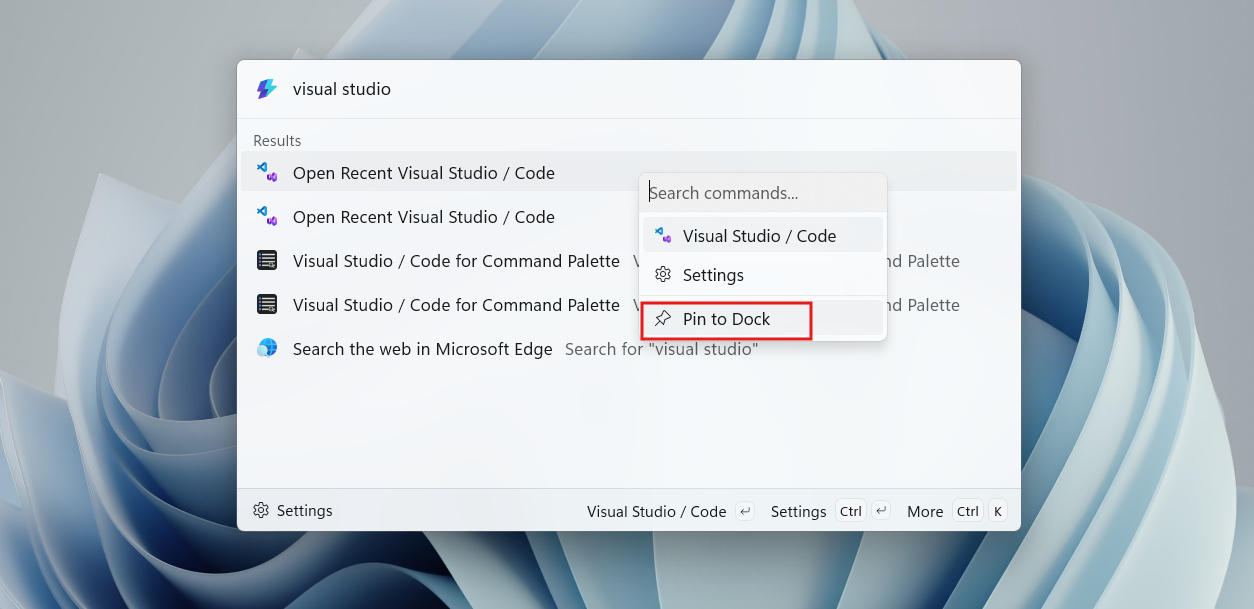
The Dock only starts making sense once you begin customizing it. The process is simple. Open the Command Palette using Win + Alt + Space, search for anything you want, and then either press Ctrl + K > Pin to Dock or use the “More” menu and pin it from there.
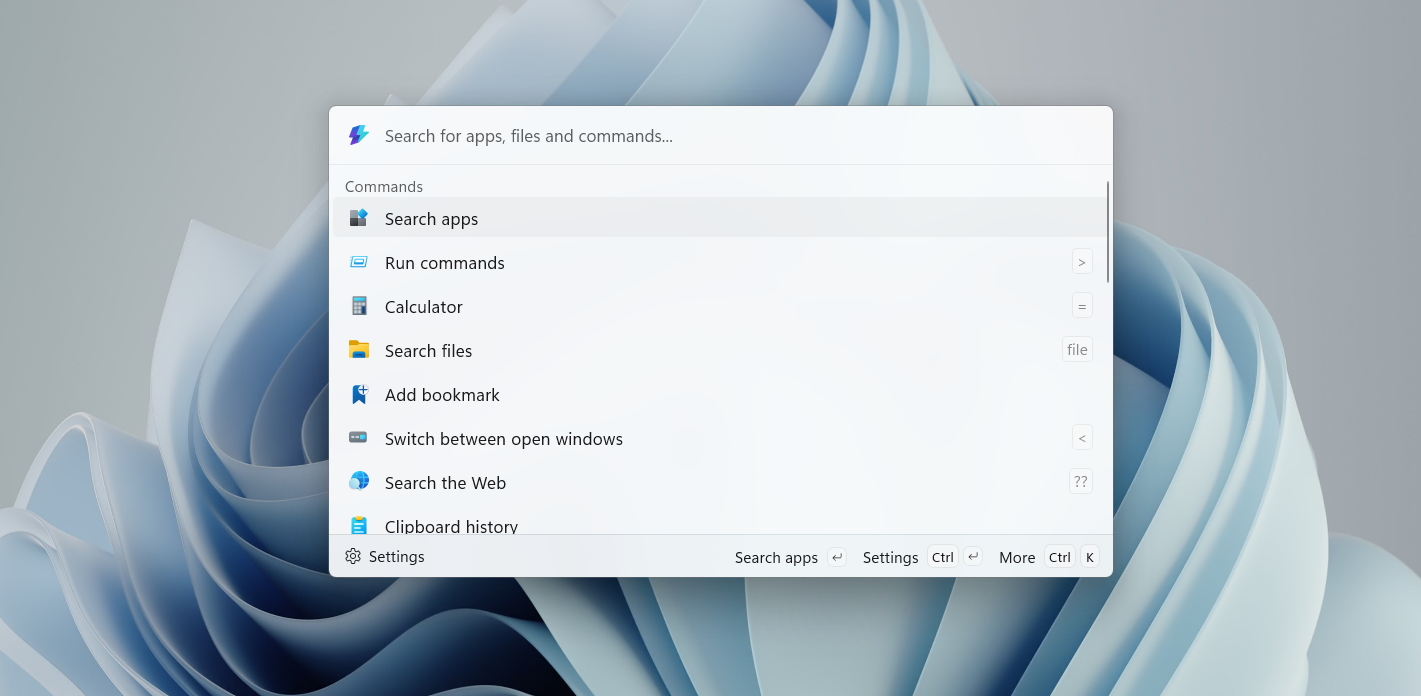
I started with a couple of things I use daily. Clipboard History was an obvious one. Then I added Search Files because I’ll always have a ton of files that I need to manage.
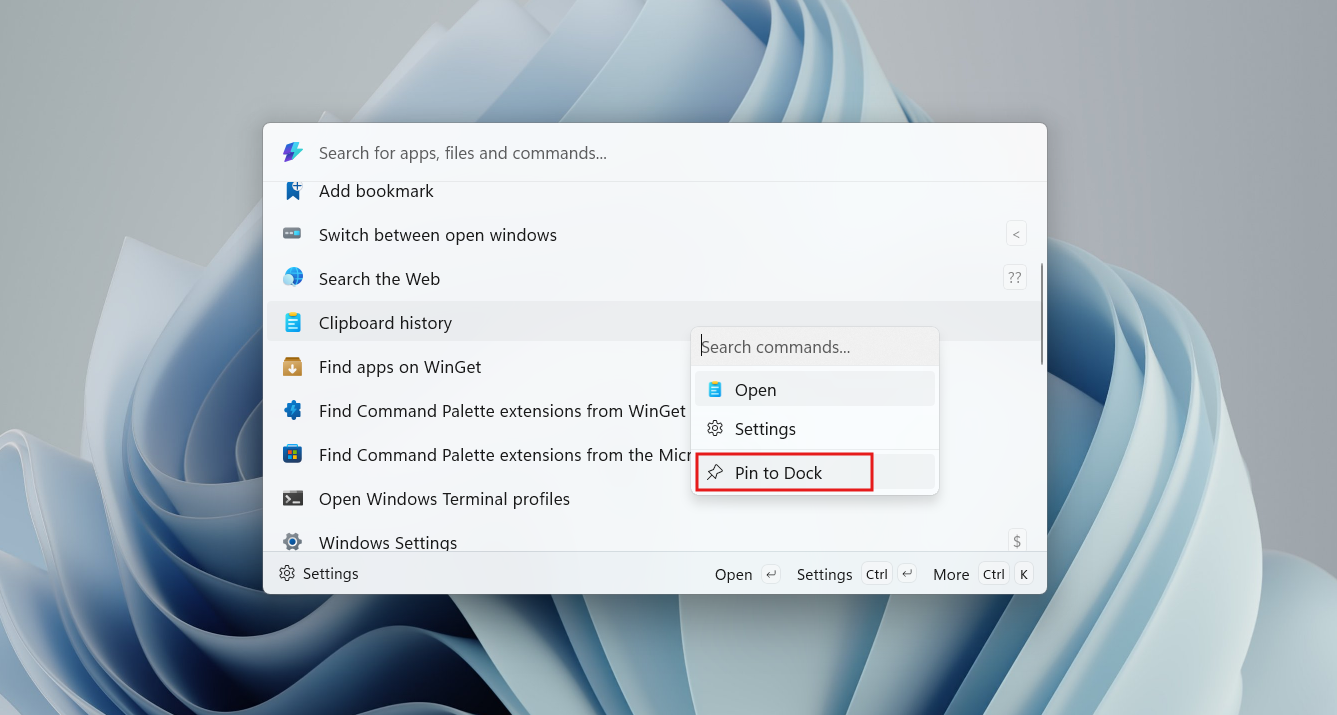
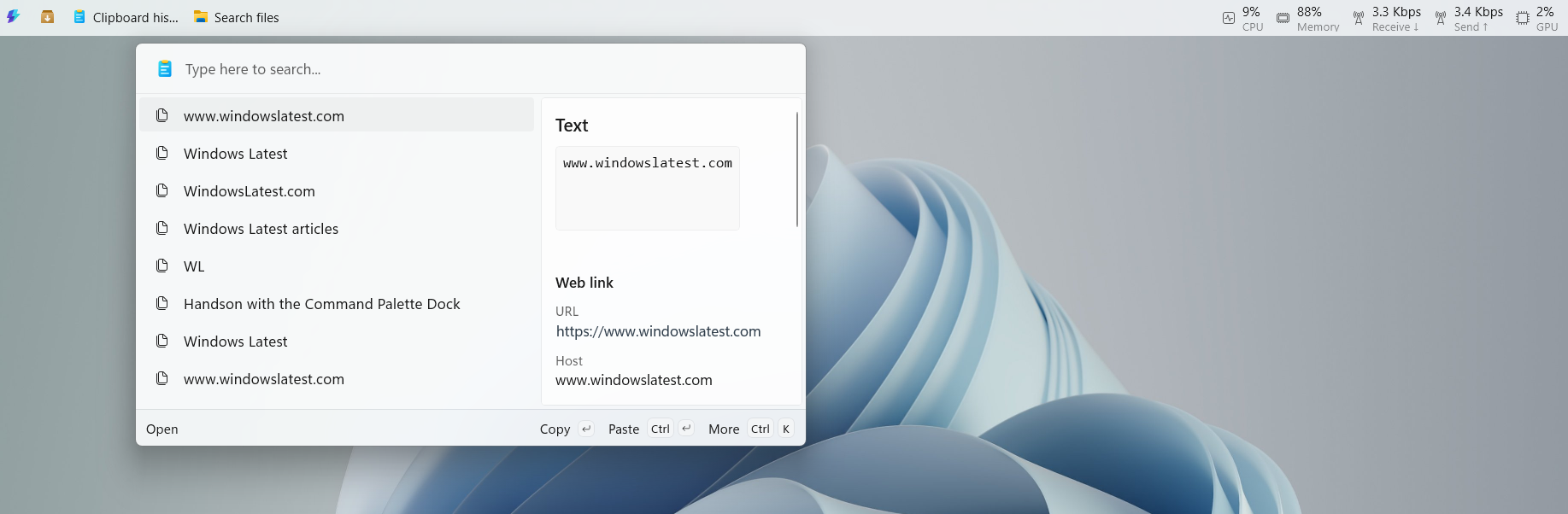
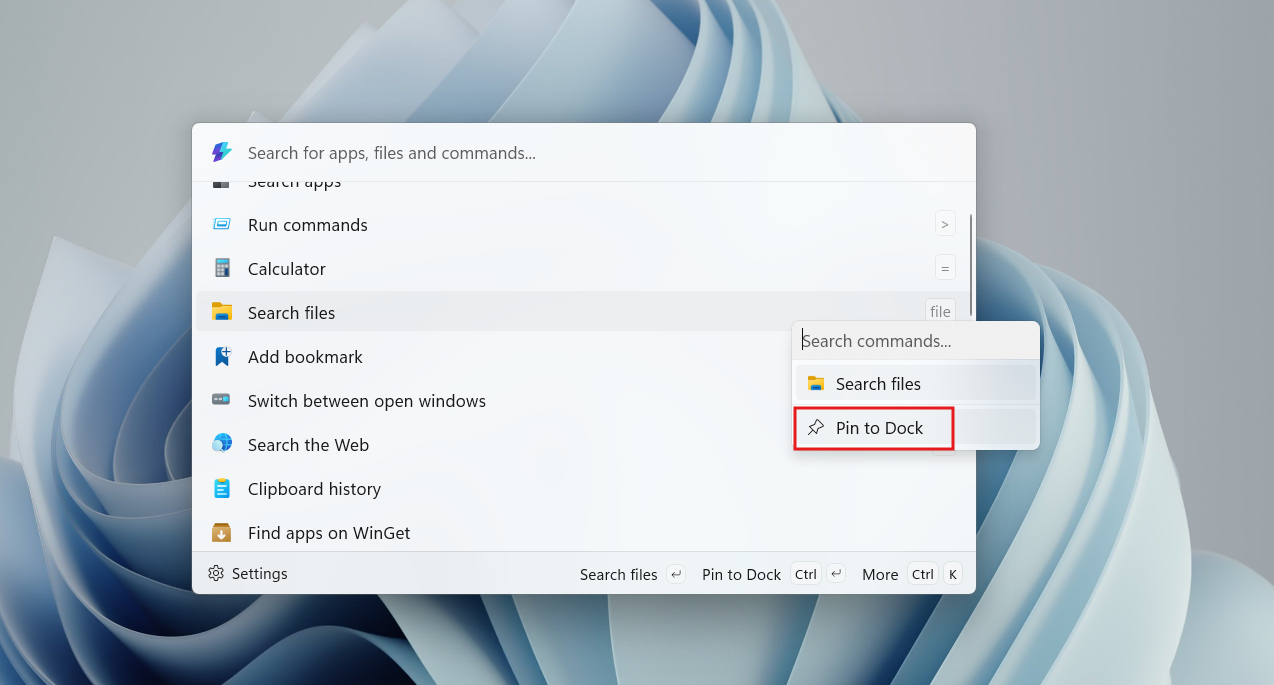
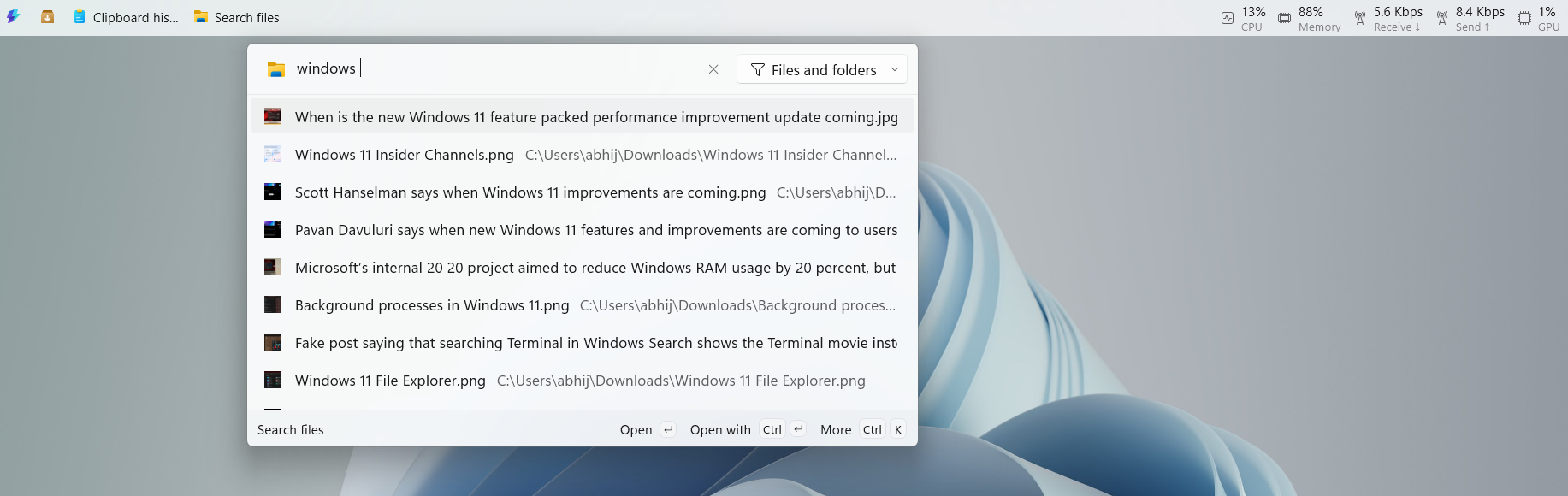
You can pin pretty much anything here. Apps, commands, extensions, and even specific actions inside those extensions. And once they’re pinned, you can rearrange them just by dragging and dropping. If something feels unnecessary, you can unpin it directly from the Dock.
Extensions turn Command Palette Dock into a real workflow tool
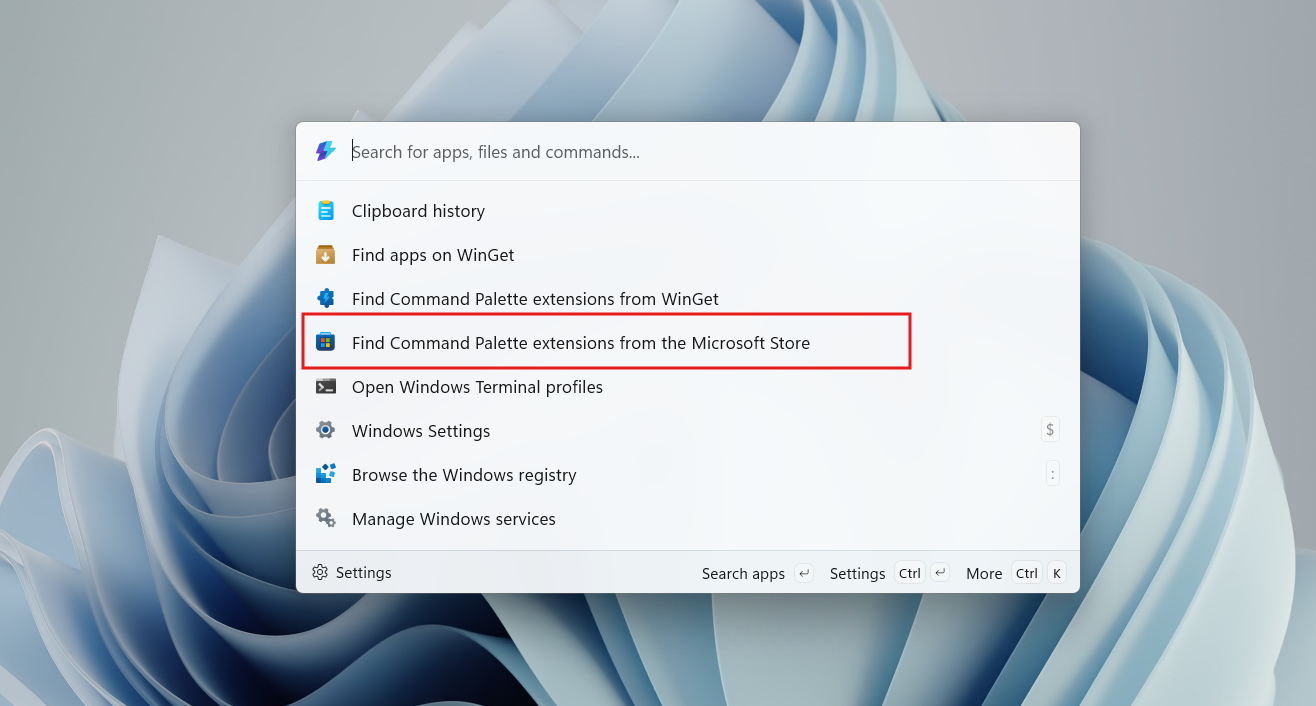
PowerToys already ships with a bunch of built-in extensions, but you can go further by installing community extensions from Winget or the Microsoft Store. You don’t even need to restart anything. Install, and it’s instantly available.
For example, I added an extension that lets me open recent VS Code or Visual Studio projects directly. You can install a GitHub extension where you can pin things like your pull requests and review queues.
All you need to do is open Win + Alt + Space and open “Find Command Palette extensions from WinGet”. Then search for the extension you want and install it. After installing it, you can pin it to the Dock.
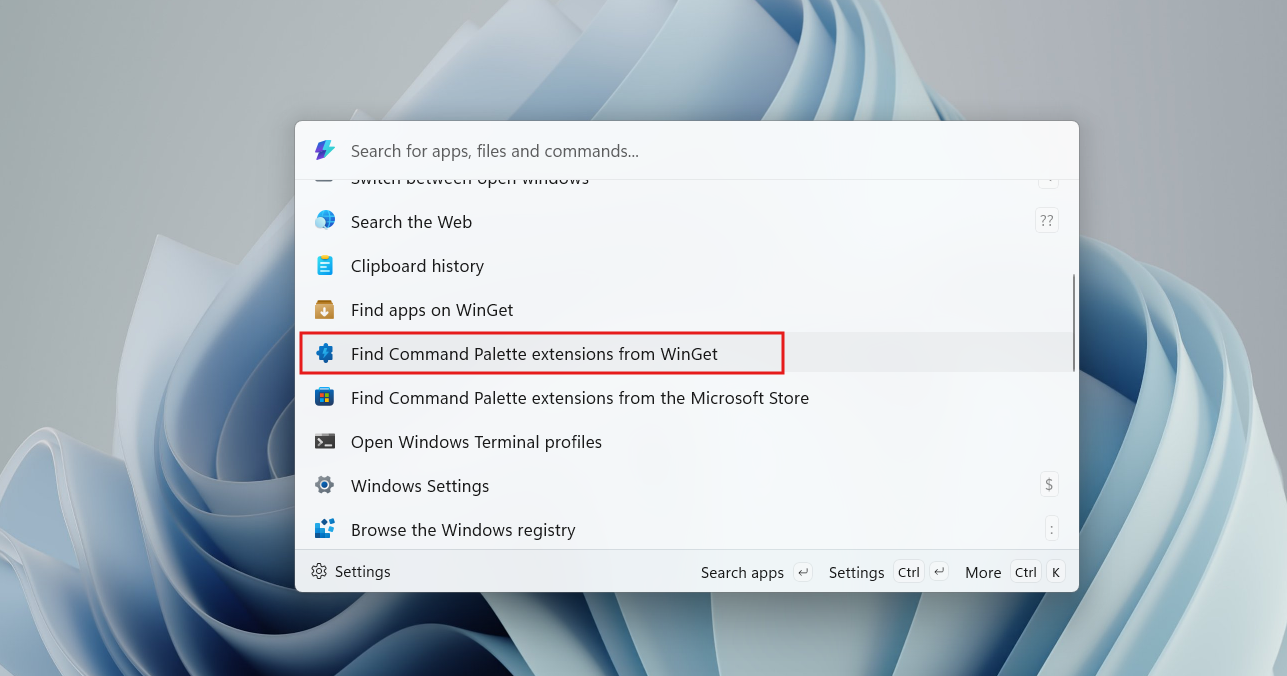
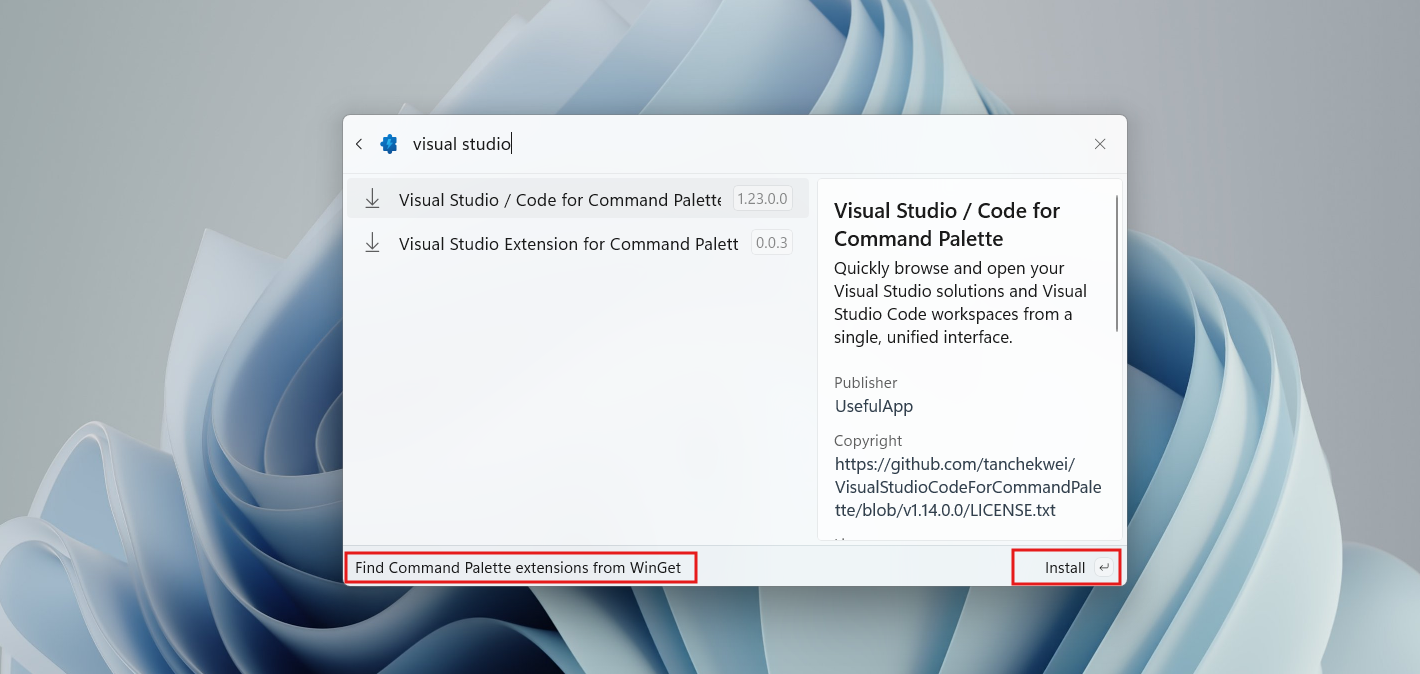
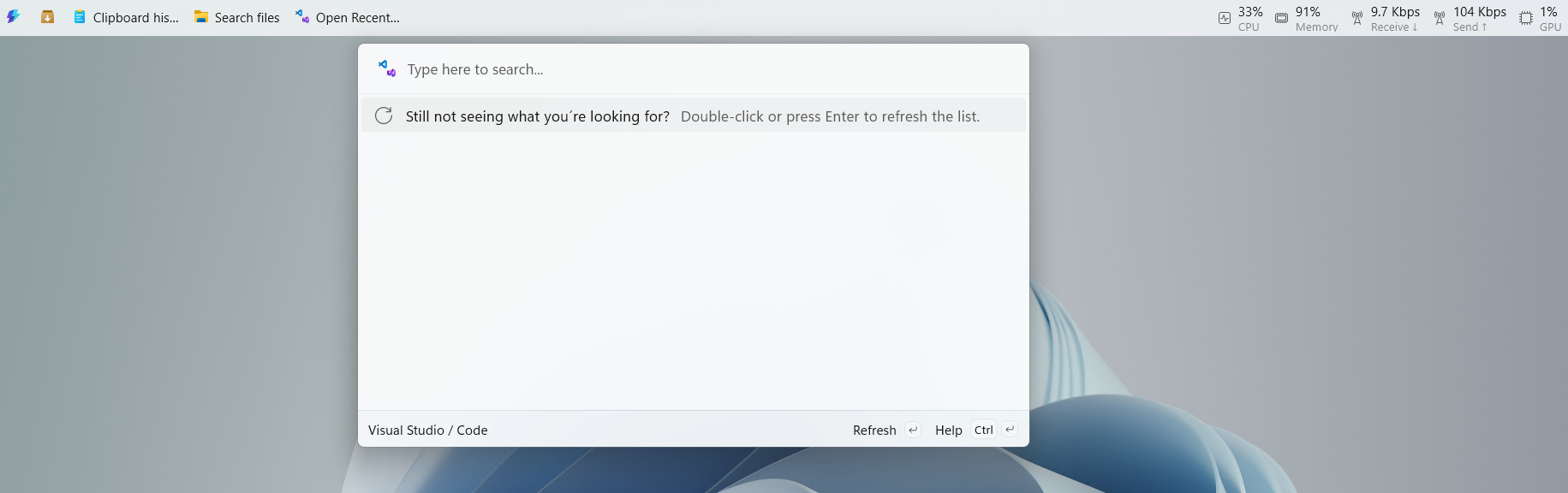
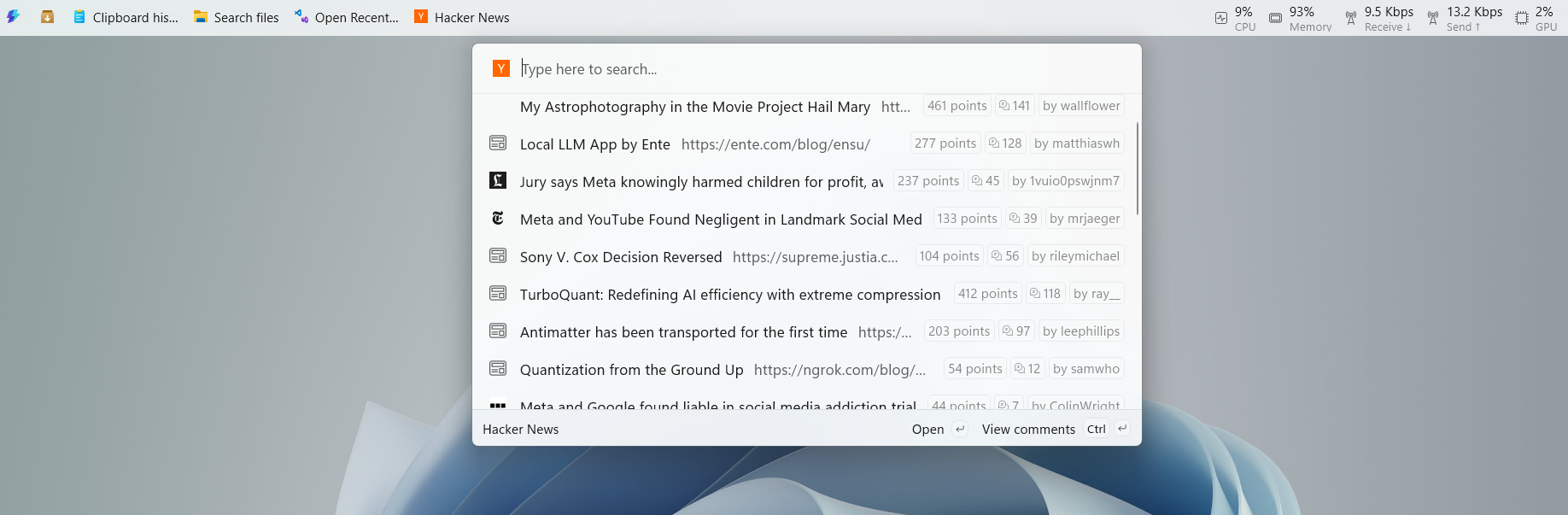
You can even add something like Hacker News if you want quick access to tech discussions without opening a browser. This has been pretty handy for me since I’m always looking out for the latest news.
There’s also a small but important option to satisfy my OCD. Right-click on the dock, click Edit Dock. Then right-click any extension, go to Labels, and disable “Show titles”. That gives you a clean, icon-only layout, which honestly looks much better once you have multiple items pinned.



This means that I have a lot more space to add more stuff here. I just have to remember the icons, which isn’t hard.
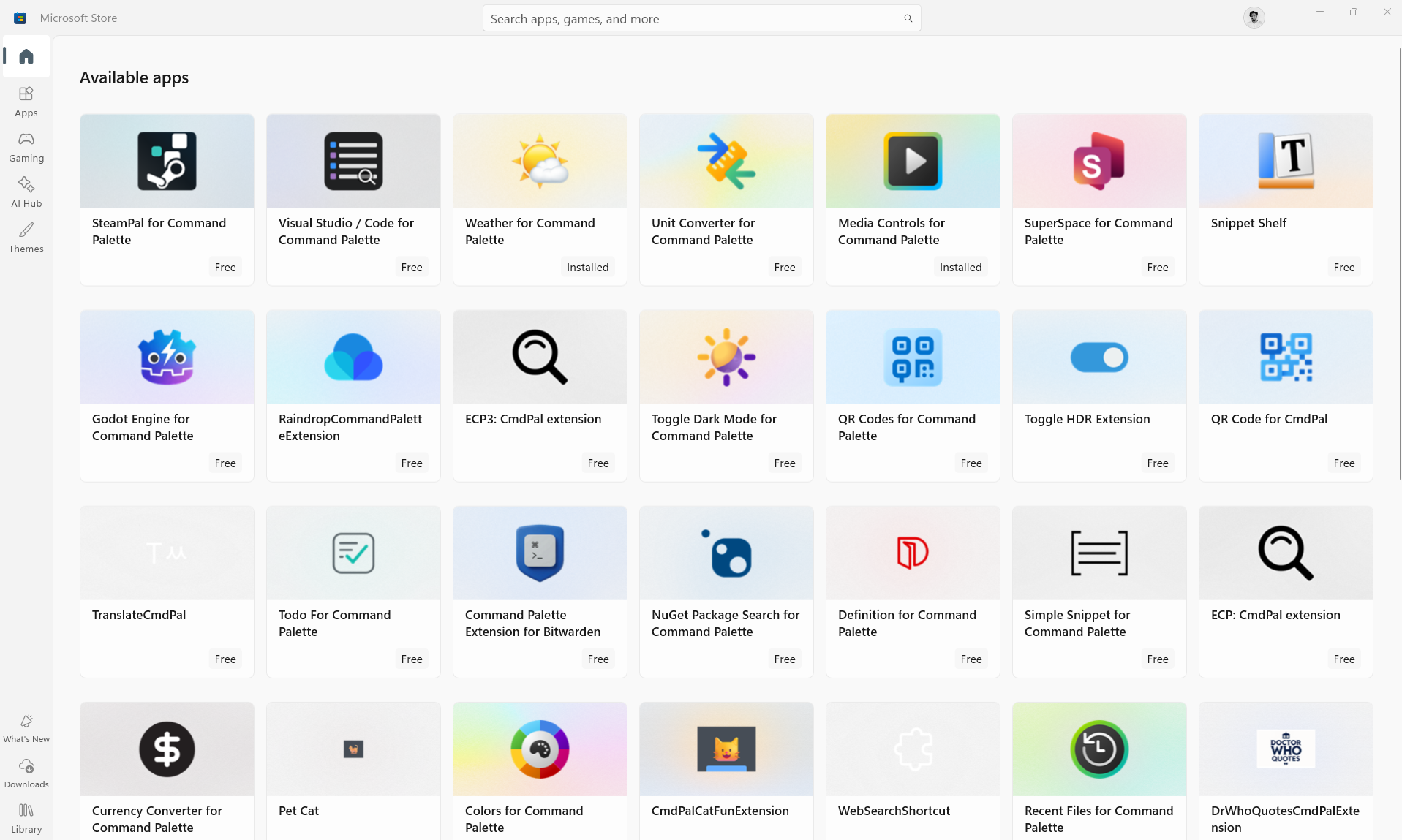
If you’re wondering where I got the media player and weather, well, there are a lot more in the Microsoft Store.
Can Command Palette Dock replace the Windows 11 taskbar?
Honestly, it’s not about Dock replacing, but complementing the taskbar,
The Windows taskbar still does a lot more than just launch apps. It handles system tray icons, notifications, quick settings, background apps, and it’s still the default place for pinning apps and using Windows Search. That’s something the Command Palette Dock doesn’t try to replace.
A better way to look at it is like macOS, which has both a Dock and a Menu Bar. And, that’s not a bad thing.
What the Dock does really well is reduce friction. Once you set it up properly, you stop relying on the Start menu for everything. You stop digging through apps or searching manually. It becomes a shortcut layer for the things you use frequently.
There are a couple of trade-offs, though.
First is screen space. It does take up real estate, especially if you keep it at the top or bottom. If you have a 16:10 display, it may not be a big deal.
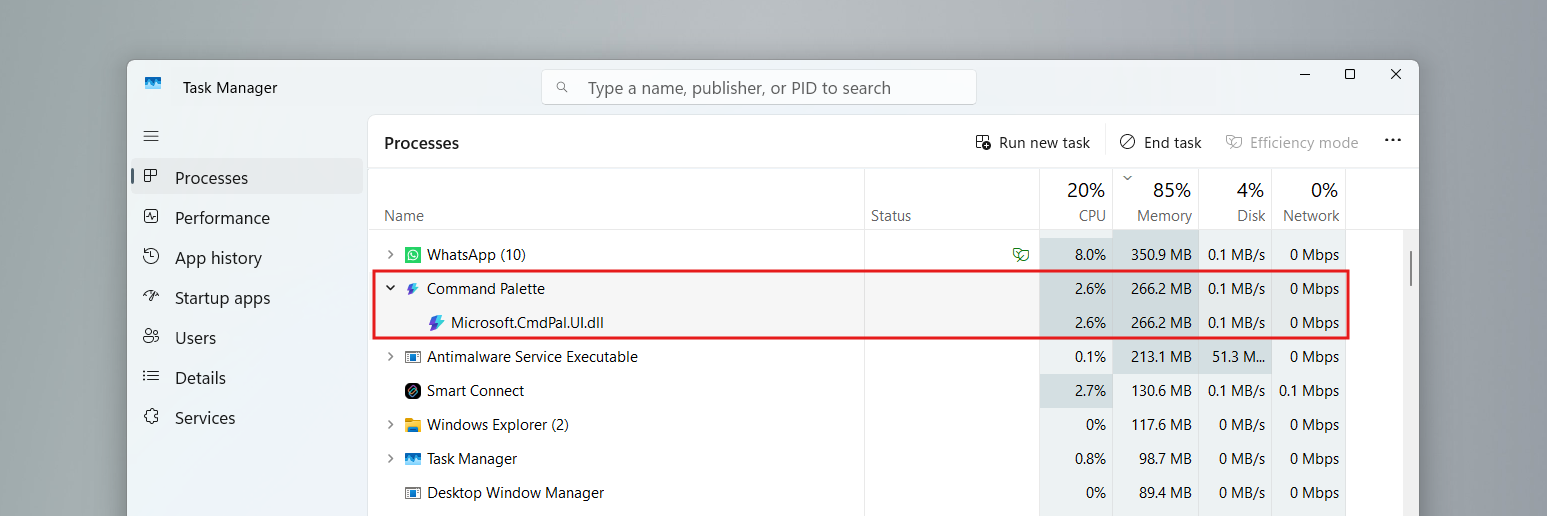
Then there’s resource usage. In my case, the Command Palette process was sitting at around 200–260 MB of RAM with some CPU usage in Task Manager, which is not negligible for something that’s always running.
So if you’re on battery or using a low-power device, you might want to think twice. But if you’re plugged in or using a desktop with plenty of RAM, this becomes a no-brainer. Especially on large monitors where that extra strip of UI doesn’t hurt your workspace.
For me, it doesn’t replace the taskbar. But it absolutely changes how I interact with Windows.
Other notable features in PowerToys 0.98
Just to make things even more compelling, the Dock isn’t the only thing in this update. Microsoft has shipped a bunch of meaningful improvements across PowerToys:
- New Keyboard Manager (Preview) with a redesigned WinUI3 interface and easier shortcut/key remapping
- Command Palette performance upgrades, including faster search, better UI responsiveness, and improved extension reliability
- CursorWrap improvements with better multi-monitor support and smarter behavior
- Always On Top enhancements, including right-click pinning from the title bar and adjustable transparency
- ZoomIt upgrades, including a new video trimming experience
- Advanced Paste improvements, with auto-copy shortcuts and better AI integration handling
- New+ tweaks, including the option to hide Windows’ default “New” context menu.
And that’s just scratching the surface.
The Command Palette Dock is still in preview, but it’s one of the most practical additions to Windows in a long time, and I hope Microsoft continues the same enthusiasm with their new efforts to fix Windows in 2026.
The post Tested: Windows 11 now has a second taskbar, and it works surprisingly well appeared first on Windows Latest