
Windows 11 KB5077241 is now rolling out with new features, such as Emoji 16, which means you’ll get a handful of new emojis, and a new built-in network speed test tool on the taskbar. In addition to Windows Update, Microsoft has posted direct download links for KB5077241 offline installers (.msu).
KB5077241 is an optional update, and it shows up as “2026-02 Preview Update (KB5077241) (26200.7922)” on PCs with Windows 11 25H2. If you’ve version 24H2, you’re going to get the same update, but the build number will bump to 26100.7922.
I checked for updates, and it showed up immediately along with “2026-01 .NET Framework Preview Update (KB5074828).”
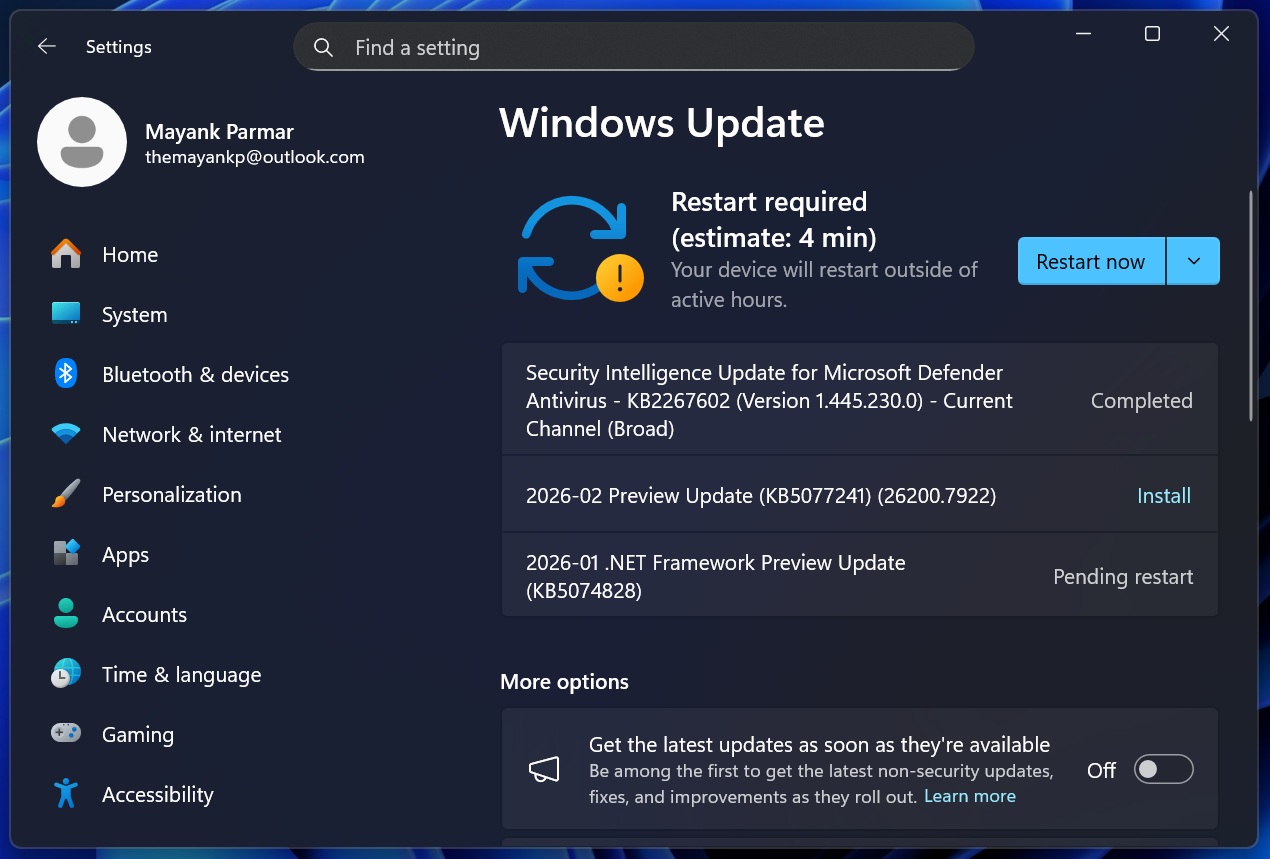
In our tests, Windows Latest observed that the optional preview update downloads automatically when the toggle “Get the latest updates as soon as they’re available” is turned on. If you do not want to try the optional updates by mistake, make sure the toggle is unchecked.
Although optional updates have a ‘preview’ tag, they’re more or less similar to the forthcoming Patch Tuesday update. If you choose to skip Build 26200.7922, you’re going to receive the same set of fixes or improvements on March 10, 2026 when Microsoft releases Patch Tuesday updates.
Download Links for Windows 11 KB5077241
Windows 11 KB5077241 Direct Download Links: 64-bit and ARM-64 | Microsoft has posted the direct download links on Update Catalog, which can be used when Windows Update is failing or when you want to deploy the preview update across dozens of PCs in your network.
On Update Catalog, you need to head to the above link and click on ‘Download’ next to the supported OS version. For example, when I go to Settings > System > About, my CPU is listed as 64-bit, which means I need to download the x86 update package (.msu), not the arm64 one.
I downloaded the February 2026 optional update, and the download size is approximately 4.5GB. That’s because Windows Updates now include the local AI models, which are downloaded even when your PC does not support the AI models. This particularly happens when you use the offline installers (.msu).
| Build Number | Size | OS Version | Architecture |
|---|---|---|---|
| 26200.7922 | 4434.4 MB | Windows 11 25H2 | x64-based |
| 26200.7922 | 4137.9 MB | Windows 11 25H2 | arm64-based |
| 26100.7922 | 4434.4 MB | Windows 11 24H2 | x64-based |
| 26100.7922 | 4137.9 MB | Windows 11 24H2 | arm64-based |
I downloaded Windows 11 Build 26100.7922 in 10 minutes at a 200 Mbps connection, but it could take longer. I’ve personally observed that Windows Update throttles downloads, even when your internet connection is fast, so the update can take minutes to download. In some cases, updates could get stuck.
Once you’ve downloaded Windows 11 KB5077241, it installs in less than 5 minutes and requires a single reboot to complete the changes.
What’s new in Windows 11 Build 26200.7922 (25H2) / Build 26100.7922 (24H2)?
New features are rolling out gradually, so they won’t show up even if you run Build 26200.7922 (25H2) / Build 26100.7922(24H2).
1. Emoji 16.0 now rolling out
Emoji 16 has been available for more than a year now, but Windows is late to the party and is still missing the new emojis in the Emoji panel. Last year, Windows Latest found that Emoji 16 support is included in Windows 11 24H2, but those new emojis do not appear when you open the Emoji or Clipboard panel.
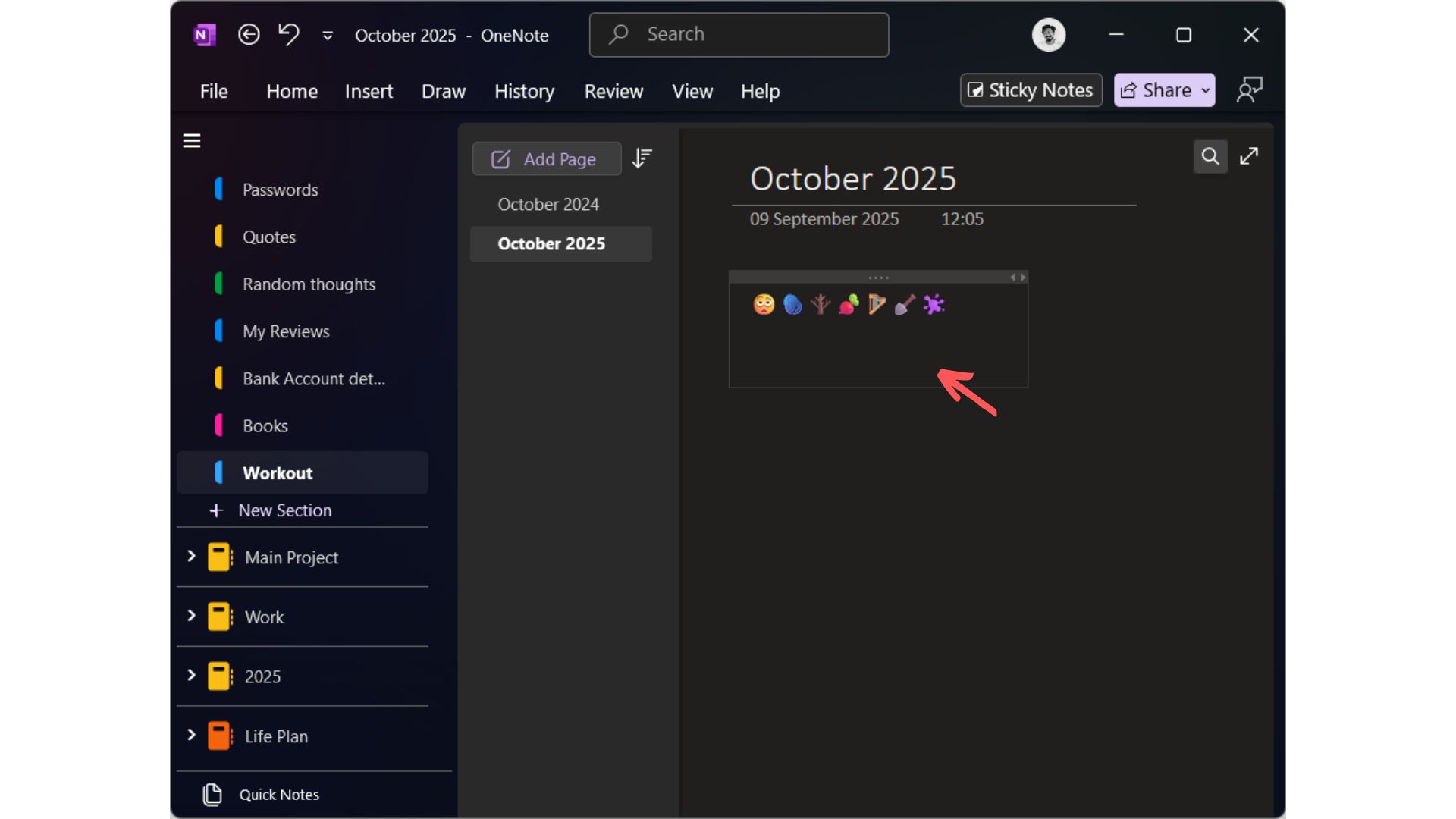
In our tests, Windows Latest previously observed that the emojis appeared only when you use apps like OneNote. Those emojis would be missing from the emoji panel. That changes with Windows 11 KB5077241, which finally allows you to search and use emojis from the Emoji panel.
2. Windows 11 taskbar now has a built-in network speed test tool
Today’s update adds the headline feature ‘network speed’ test tool to the taskbar.
You might have read stories on the internet that Windows 11 is getting a built-in internet speed test tool, but trust me, you’re not really going to like feature if you’re not a fan of using web apps.
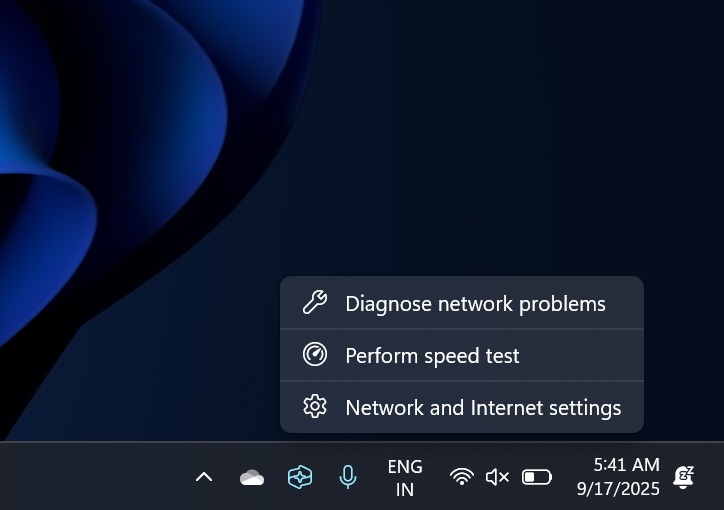
I’ve been using Windows 11’s network speed test tool for months now, thanks to the early access via the Windows Insider Program, and it’s a simple toggle to open Bing.com.
Yes, really. It just opens Bing.com.
In Windows 11 KB5077241, when you right-click on the network/Wi-Fi icon, you’ll notice a new ‘Perform speed test.’ This feature simply opens Bing.com with the query “speed test,” and you can perform an internet speed test on Bing.com.
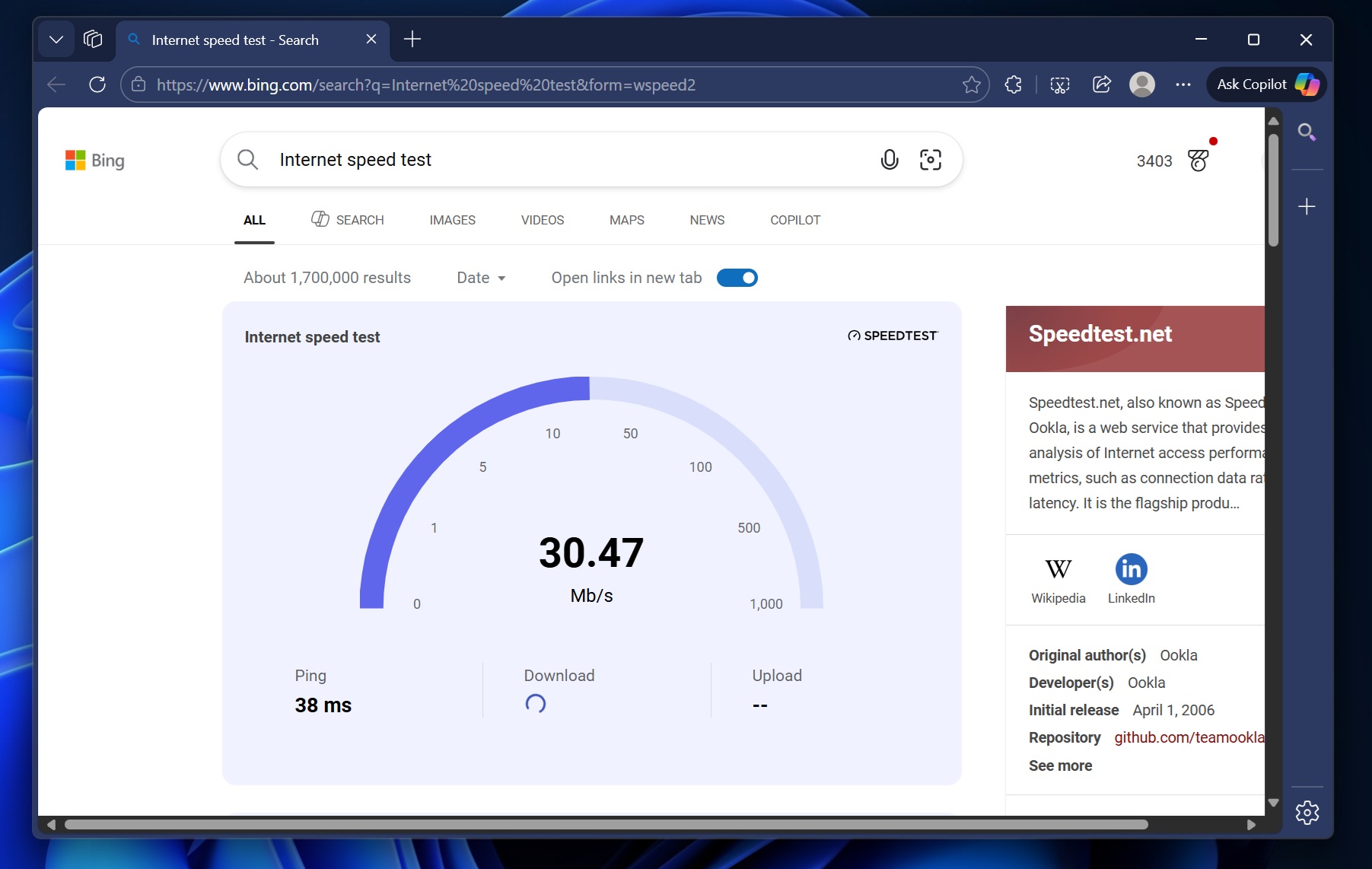
Bing’s internet speed test tool is powered by SpeedTest, so Microsoft does not have a fully native internet speed test tool, not even on Bing, where it redirects users.
3. Windows 11 now comes with the Sysmon tool
Windows 11 KB5077241 comes with System Monitor (Sysmon) functionality. With Sysmon, you can monitor your computer, including background activities, and capture system events, particularly when you’re dealing with a potential security issue.
You can enable Sysmon by following these steps:
- Settings > System > Optional features.
- More Windows features
- Select Sysmon.
Microsoft says it’s not aware of new known issues, but we’re testing the update across our computers, and I’ll share more if we run into new problems.
The post Windows 11 KB5077241 adds Internet speed test, direct download links for offline installers (.msu) appeared first on Windows Latest