
Microsoft tested the “Create a table” feature with Windows Insiders in November 2025, and now it’s available for everyone on Windows 11. If you own a Copilot+ PC, you will also notice that Notepad can now stream AI texts, similar to how ChatGPT shows its typing when it responds to your question. AI streaming is coming to all PCs (non-AI) soon.
Creating a table in Notepad is quite simple, but it gets the job done, and it’s also very user-friendly.
I don’t find it as complicated as the one we’ve in MS Word, which is far more powerful, but you don’t need an advanced tool every time. Notepad’s new tables feature is more than enough for basic use, and it’s lightweight because it uses Markdown-style formatting.
When you use a table in Notepad, it stores a table as plain text (Markdown), and you can also add a row or a column. When you add a column, Notepad adds another | … | cell segment to each row. And when you insert a new row → it adds another | … | line at the bottom.

In our tests, Windows Latest observed that when you hit the new Table button on the formatting toolbar, Notepad shows a grid picker where you can use your cursor to decide how many rows or columns it should have. You can also type the exact row or column count, which is neat.
After you add a table, you can click into cells and type normally, then apply formatting inside the cells (bold, italic, underline) and even add hyperlinks.
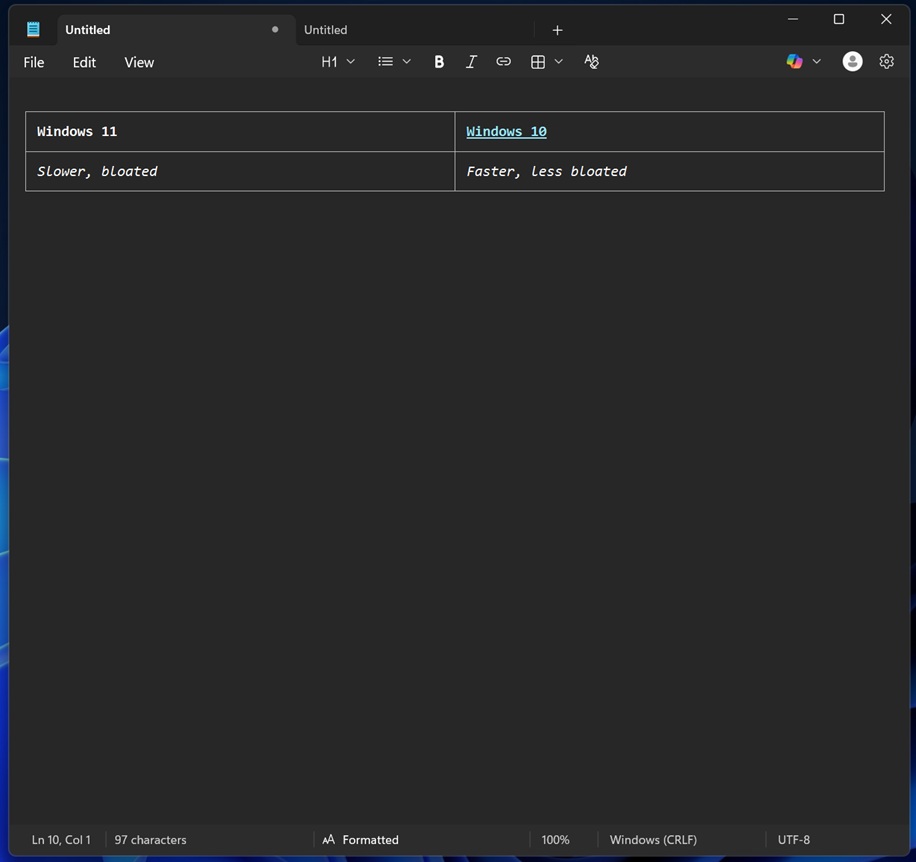
Under the hood, this is still a “Notepad-style” feature, so it doesn’t add additional CPU or RAM usage, and table content is represented in a simple .txt file.
You can also right-click inside the table to insert and delete rows, insert and delete columns, and remove the table entirely. You can also select row, column, or the entire table without manually dragging across cells. But if you end up creating a mess, I found that you can use “Fit columns to window width” to make use of the space.
All of these features also mean that you don’t have to align the table with the text body using a ruler.
Notepad’s Create a table feature is enabled by default, but you can disable it

You can turn off markdown formatting in Notepad to remove tables and other features, such as the ability to bold, italicize, and underline text.
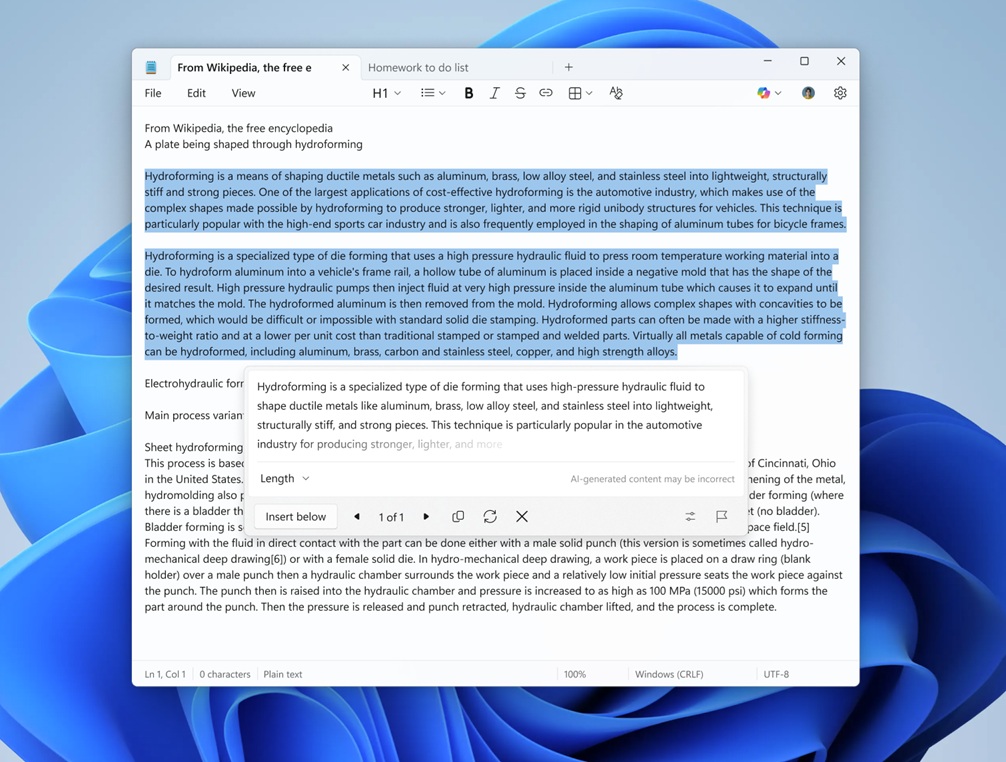
From Settings, you can also turn off Copilot features (tied to Microsoft 365 Copilot).
Speaking of AI, if you own a Copilot+ PC, you can use the new ‘AI text streaming’ feature.
This means, when you right-click anywhere in Notepad, then click ‘Write’ and generate a text, you will notice that Notepad now shows answers in real-time. Previously, if you used Notepad to generate AI text, it processed your requests, but it did not display the answer until it was fully written.
On the other hand, AI chatbots like ChatGPT display answers in real time, as if they’re typing. Notepad will now replicate the behaviour, but this feature will be limited to Copilot+ PC and will roll out to all non-AI PCs in the coming weeks or months.
The post Windows 11’s Notepad “Create a table” feature is now available, along with AI streaming results appeared first on Windows Latest